Membership Categories
Categories are the foundation of your membership structure. They help you organize your membership plans into logical groups that make sense for your business and are easy for customers to understand.
What Categories Are For
Think of categories as folders or sections on a menu. They don't contain pricing or rules themselves—their purpose is purely organizational:
- Help customers navigate — When someone visits your membership options, categories guide them to relevant plans
- Keep your dashboard organized — As you add more plans, categories prevent your membership list from becoming overwhelming
- Reflect your business structure — Categories can mirror how you think about your customer segments
Common Category Examples
| Business Type | Example Categories |
|---|---|
| Fitness Studio | "Individual Plans", "Family Plans", "Student Specials" |
| Golf Club | "Full Membership", "Weekday Only", "Junior Programs" |
| Coworking Space | "Hot Desk", "Dedicated Desk", "Private Office" |
| Swim School | "Learn to Swim", "Squad Training", "Adult Programs" |
Managing Categories
The Categories List
When you navigate to Memberships > Membership Categories, you'll see all your categories displayed in a clean table:
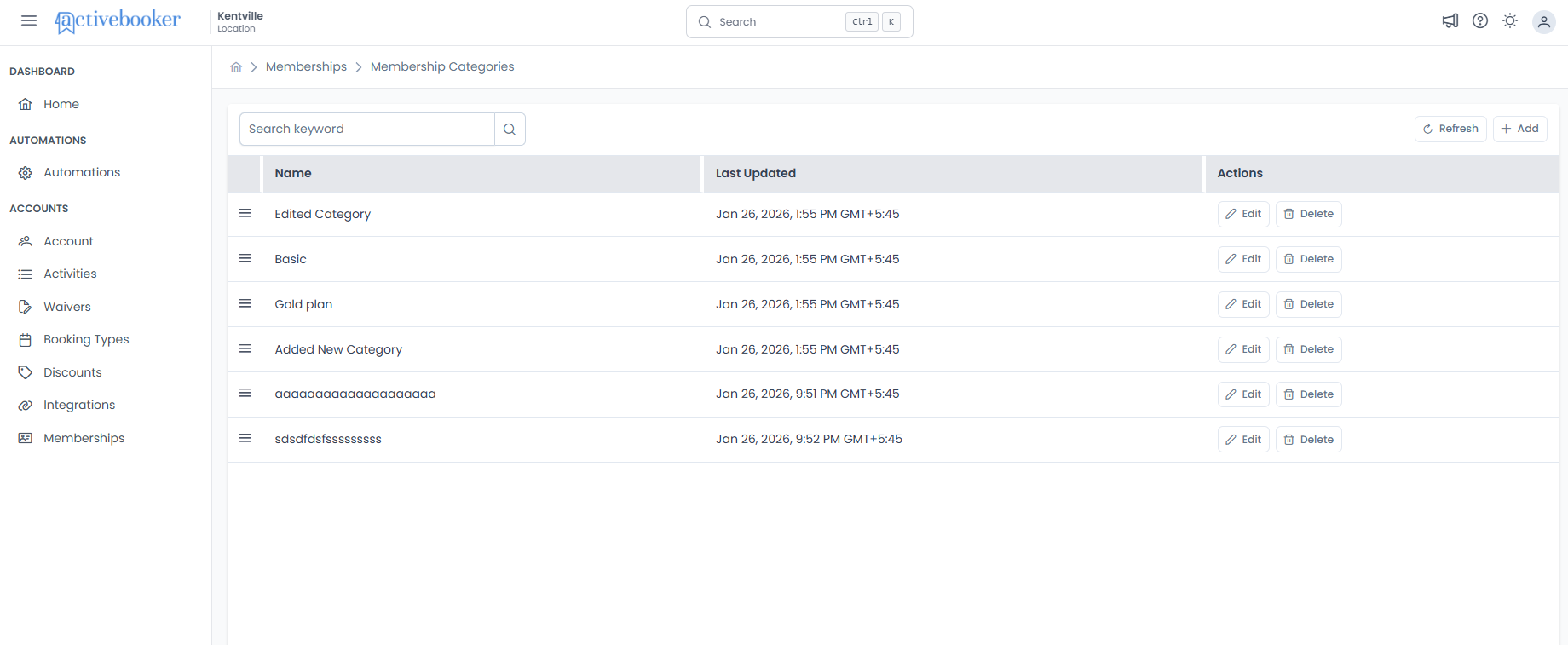
Table Columns:
| Column | What It Shows |
|---|---|
| Name | The category name. Filterable using the search box. |
| Last Updated | Date and time of the most recent modification, displayed in local browser time. |
| Actions | Edit and Delete buttons for each category. |
Key Features:
- Search/Filter — Use the search box to quickly find specific categories by name
- Drag-and-drop reordering — Click and hold the drag handle (≡) on the left of each row to reorder categories
- Refresh — Update the list to see the latest data
- Add — Create new categories with the "Add" button in the toolbar
- No pagination — All categories display on one page for easy viewing and reordering
Order Matters
The order of categories in this list determines how they appear:
- To customers viewing membership options
- In dropdown menus when creating plans
- In reports and other displays throughout the system
Reordering is immediate — simply drag a category to its new position and release. The new order saves automatically.
Creating a Category
To add a new membership category:
- Navigate to Membership > Categories in your dashboard
- Click Add Category
- Enter a name for your category
- Click Save
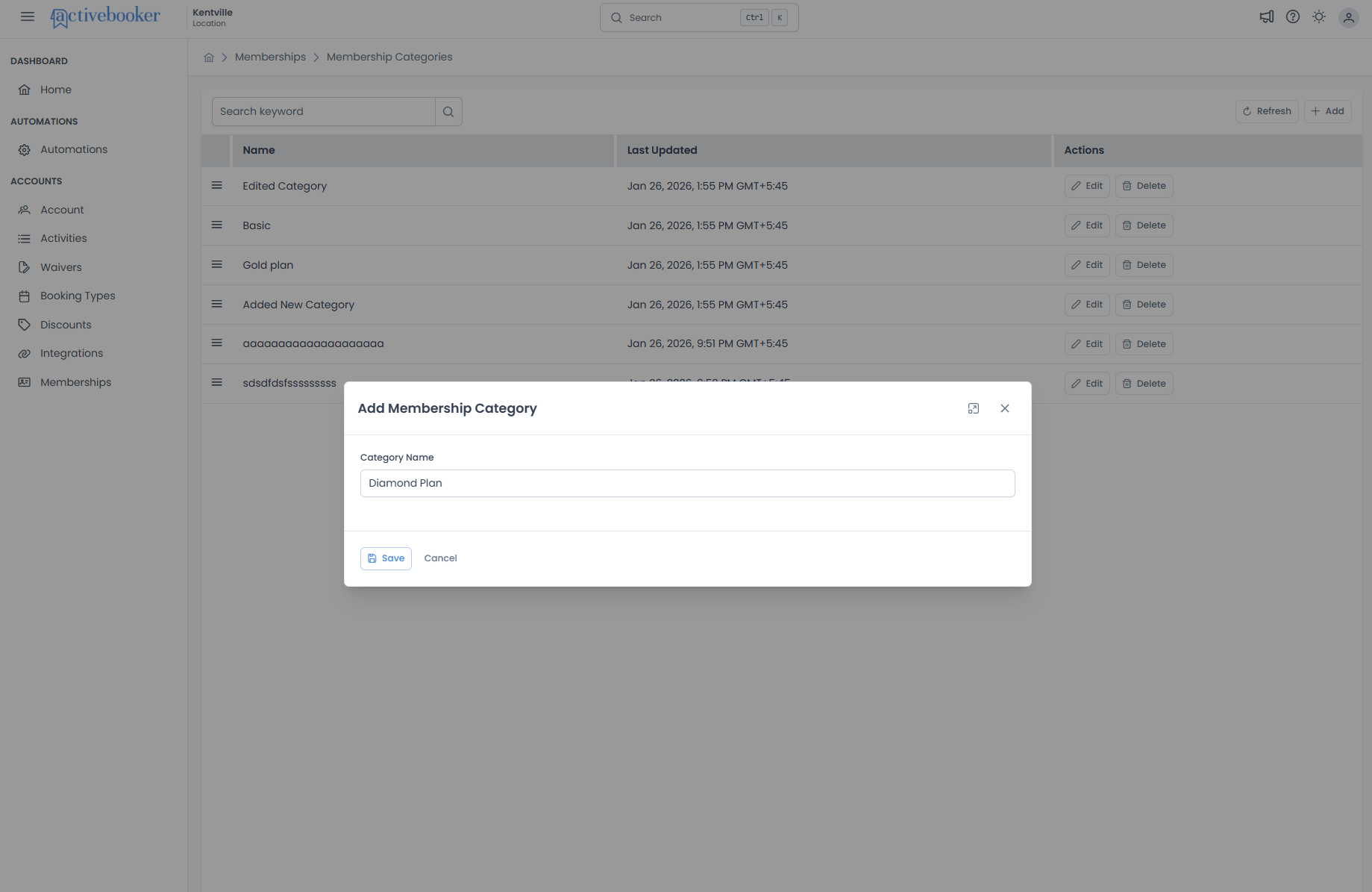
The category will be added to the end of your list. You can reorder it afterward.
What You Need to Know
Name requirements:
- Category names are required and cannot be left blank
- Maximum length is 250 characters
- Each category name must be unique—you cannot have two categories with the same name
Automatic ordering:
- New categories are automatically placed at the end of your list
- You can change the display order at any time (see Reordering below)
Editing a Category
To change a category's name:
- Go to Memberships > Membership Categories
- Find the category in the list
- Click the Edit button (pencil icon) in the Actions column
- A modal dialog opens with the "Edit Membership Category" title
- Update the Name field
- Click Save to apply changes, or Cancel to discard
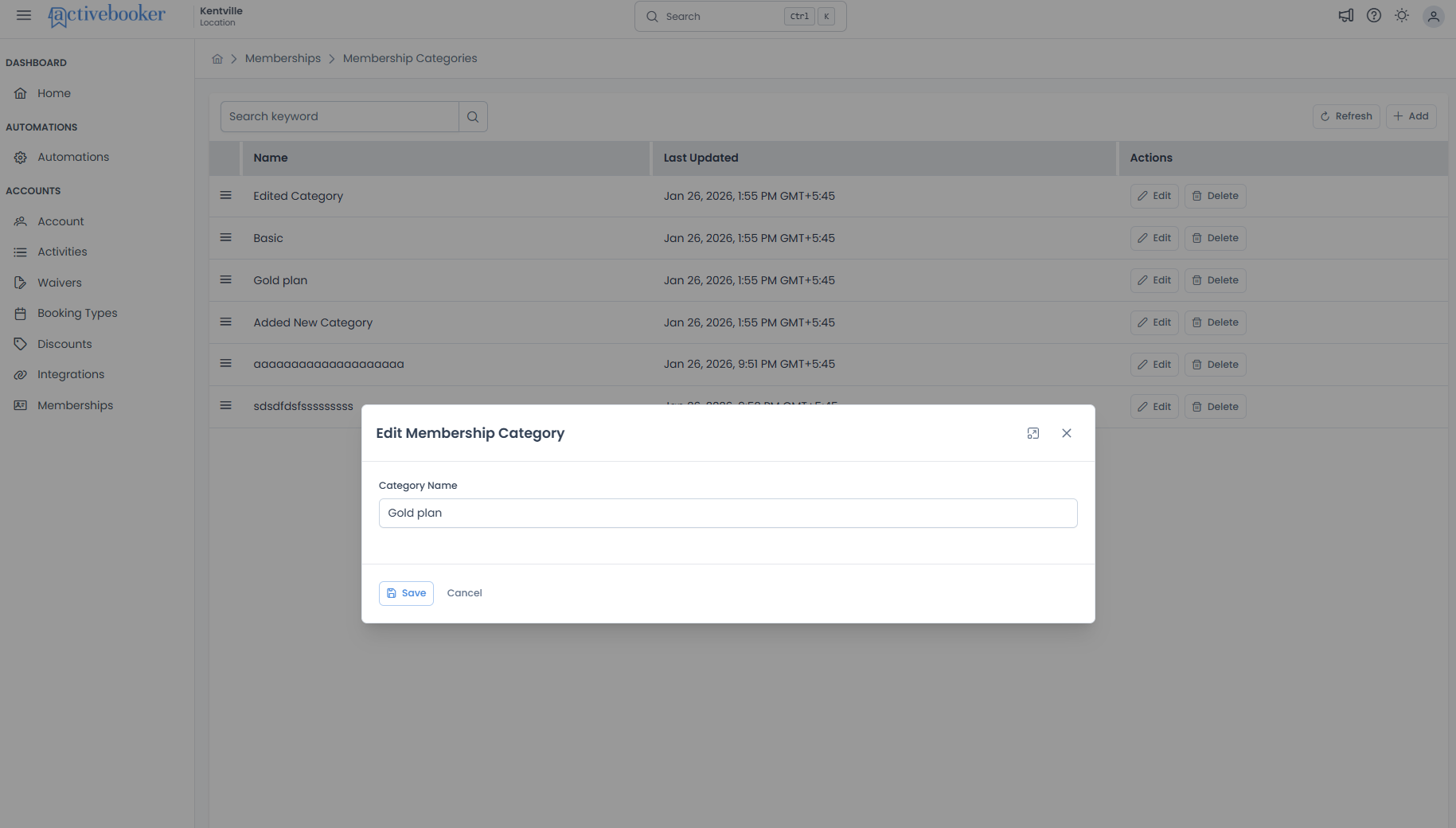
What you need to know:
- Category names must be unique across all your categories
- Names can be up to 250 characters
- Changing a category name doesn't affect plans assigned to it
- Plans will automatically display under the new category name
- The "Last Updated" timestamp updates when you save changes
Reordering Categories
The order of your categories determines how they appear to customers viewing your membership options.
To change the display order:
- Go to Memberships > Membership Categories
- Locate the drag handle (three horizontal lines ≡) on the left side of each category row
- Click and hold the drag handle
- Drag the category up or down to its new position
- Release to drop the category in place
- The system automatically saves the new order
What happens:
- A success message confirms "Membership Categories reordered successfully"
- The new order takes effect immediately across all areas of the system
- If an error occurs during save, the list reverts to the previous order
Best practice: Put your most popular or important category at the top so customers see it first when browsing membership options.
Deleting a Category
Deleting a category is permanent. Make sure you understand the impact on your plans and member experience before proceeding.
To delete a category:
- Go to Memberships > Membership Categories
- Find the category you want to remove
- Click the Delete button (trash icon) in the Actions column
- A confirmation dialog appears asking "Are you sure you want to delete this Membership Category?"
- Click OK to confirm deletion, or Cancel to abort
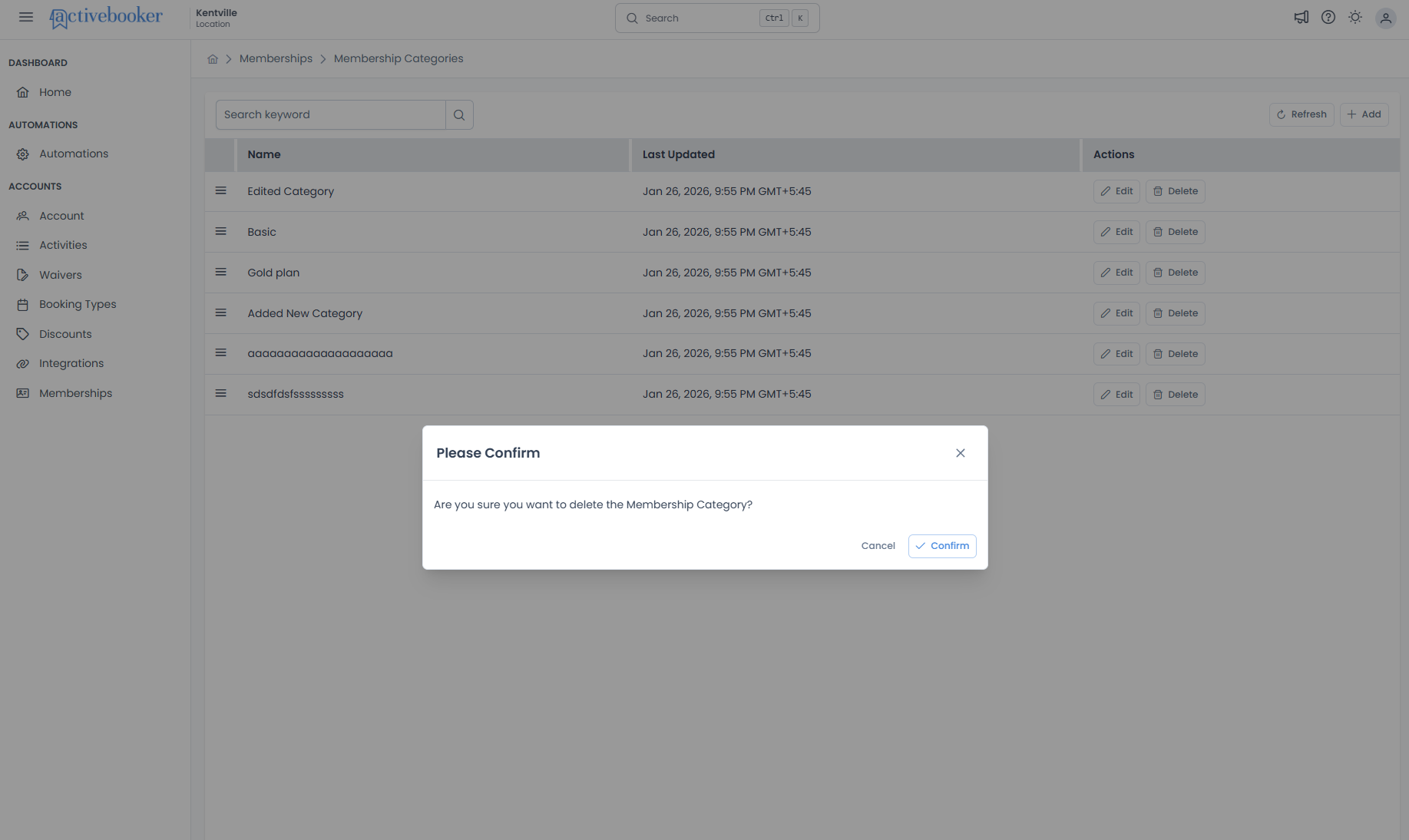
What happens on successful deletion:
- The category is permanently removed from the system
- A success message confirms "Membership Category deleted successfully"
- The category list refreshes automatically
What happens if deletion fails:
- An alert dialog appears explaining why the deletion failed
- Common reasons include:
- Plans are currently assigned to this category
- Database constraints prevent deletion
- The category remains in your list unchanged
Before You Delete
Plans in the category:
If plans are currently assigned to this category, you'll need to either delete those plans first or reassign them to a different category. The system will prevent category deletion if plans still reference it.
Customer visibility:
If customers are familiar with your category structure (e.g., "Family Plans"), removing it may cause confusion. Consider editing the name instead of deleting.
Alternative approach:
If you want to consolidate categories, first reassign all plans from the category you want to remove to a different category, then delete the empty one.
How Categories Connect to Plans
Every membership plan must belong to exactly one category. When you create a new plan, you'll select which category it belongs to.
Category: "Individual Plans"
    ├── Monthly Basic ($49/month)
    ├── Monthly Premium ($89/month)
    └── Annual All-Access ($799/year)

Category: "Family Plans"
    ├── Family of 2 ($79/month)
    ├── Family of 4 ($129/month)
    └── Family Unlimited ($179/month)
You can move a plan to a different category at any time by editing the plan and selecting a new category.
Best Practices
Keep It Simple
Most businesses do well with 2-5 categories. Too many categories can overwhelm customers and make your dashboard harder to manage.
Instead of:
- Beginner Individual Monthly
- Beginner Individual Annual
- Advanced Individual Monthly
- Advanced Individual Annual
- Beginner Family Monthly
- ...
Consider:
- Individual Plans (with monthly and annual options inside)
- Family Plans (with various tier options inside)
Use Clear, Customer-Friendly Names
Choose names that make sense to someone unfamiliar with your business:
| ❌ Internal Jargon | ✅ Customer-Friendly |
|---|---|
| Tier 1 / Tier 2 | Basic / Premium |
| Cat-IND / Cat-FAM | Individual / Family |
| Legacy Plans | (Consider removing or renaming) |
Plan for Growth
Even if you start with few plans, create a category structure that can accommodate future offerings without major reorganization.
Common Questions
Can I have a plan without a category? No. Every plan must belong to a category. If you only have one type of membership, you can create a single category (like "Memberships" or "Our Plans") to contain all your options.
What happens to customers if I rename a category? Nothing changes for them. Categories are for organization—customers subscribe to specific plans, not categories. The plan they're subscribed to remains the same.
Can I merge two categories? There's no automatic merge feature. To consolidate categories, edit each plan in the category you want to remove and assign it to the category you want to keep. Then delete the empty category.
Is there a limit to how many categories I can have? There's no hard limit, but we recommend keeping it under 10 for the best customer experience. If you need more, consider whether some plans could be consolidated.