Email Automation Configuration
Customize automated email templates sent to your customers at key points in their booking journey, from confirmations and reminders to refund notices and abandoned cart recovery.
Quick start
- Navigate to Automations from the main dashboard sidebar
- Under Email Automations, click on the card for the email type you want to customize
- Use the rich-text editor to update the email content, inserting merge fields where needed
- Click Save to apply your changes, or Cancel to discard them
What you can do
- Customize email templates — Write and format your own email content for each automation type using a full rich-text editor
- Personalize with merge fields — Insert dynamic placeholders (customer name, booking date, etc.) that populate automatically for each recipient
- Reset to defaults — Restore the original default email content if you want to start over
- Navigate with breadcrumbs — Easily return to the Automations overview from any email editor page
How it works
Overview
Each email automation type has its own dedicated edit page. When a customer triggers an automation event (e.g., completes a booking), the system sends the pre-configured email with merge fields replaced by the actual booking and customer details.
Email templates use a WYSIWYG (What You See Is What You Get) rich-text editor, so you can format content with headings, bold text, lists, images, and links, exactly as the customer will see it.
Key concepts
Merge fields
Placeholders you insert into the email content that the system replaces with real data when sending. For example, {{customer_name}} becomes "Jane Smith" in the actual email. Each email type has its own set of relevant merge fields.
Default content
Each email automation ships with a default template. If you have customized an email and want to revert to the original, use the Reset to Default option.
WYSIWYG editor
A rich-text editor that lets you format emails visually, bold, italics, lists, links, and more, without needing to write HTML.
Using this feature
Access an email automation
- Log in to your dashboard
- Click Automations in the main navigation
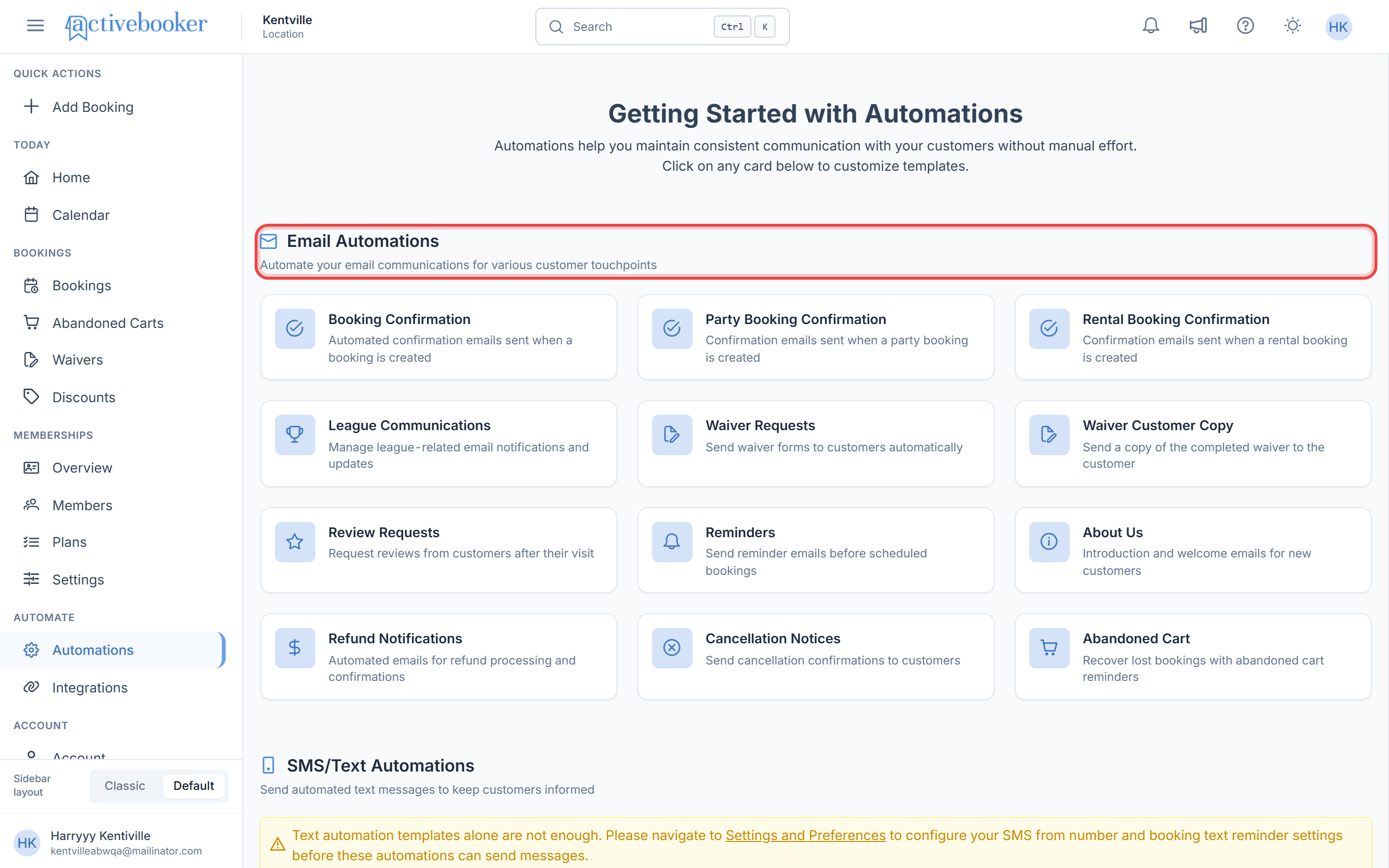
- On the Automations page, find the Email Automations section
- Click the card for the email type you want to edit (e.g., Booking Confirmation)
- You are taken to the email editor page for that automation type
Edit email content
On the email editor page:
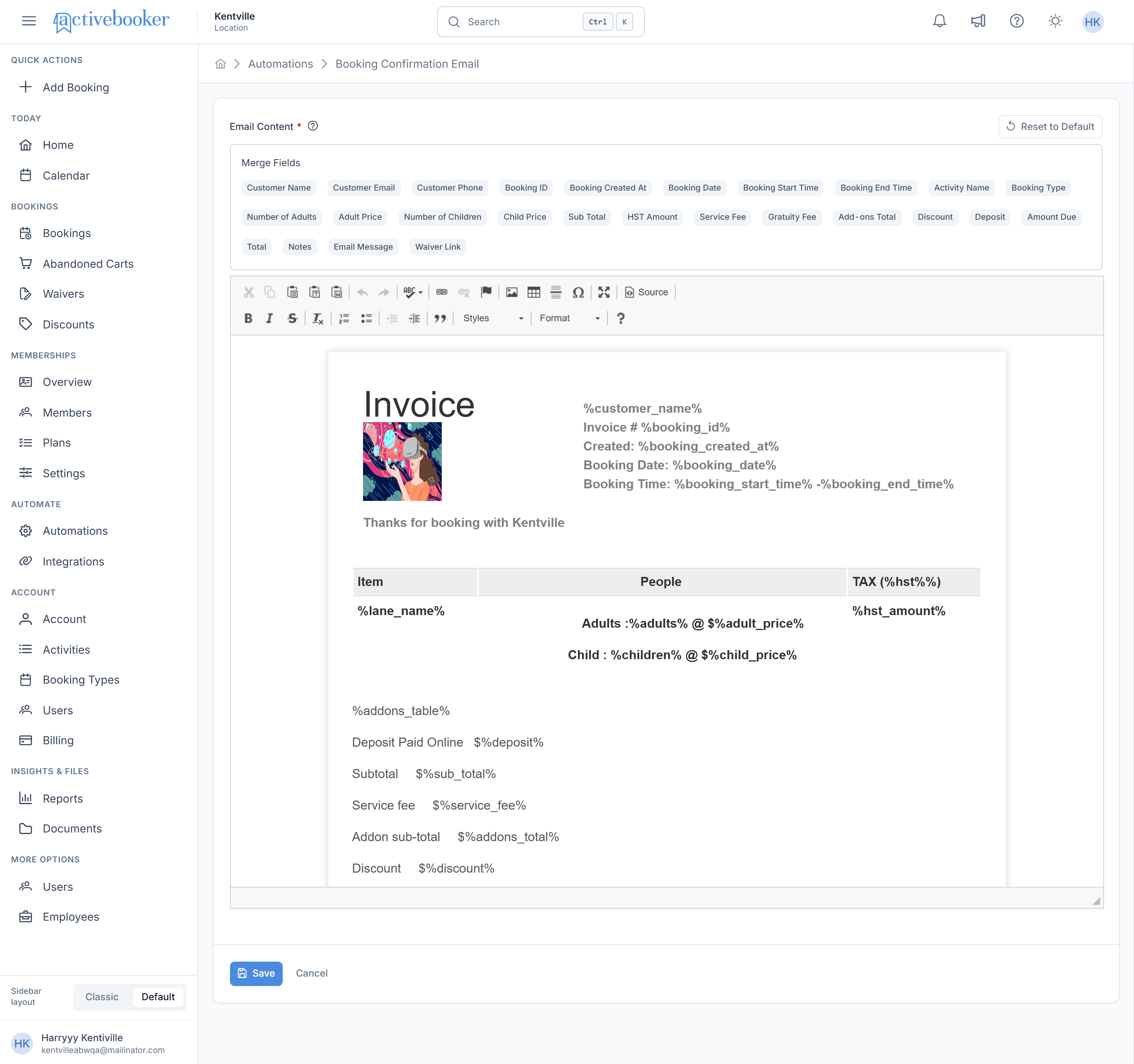
- The Email Content editor displays the current template
- Click inside the editor area and type your changes
- Use the toolbar to format text (bold, italic, headings, lists, links, images)
- Use the Merge Fields panel to insert dynamic placeholders (see Using merge fields below)
- Click Save to save your changes — a success notification confirms the update
- Click Cancel to discard changes and return to the Automations page
Reset to default content
If the automation has a default template set, a Reset to Default option is available in the editor:
- Click the Reset to Default button within the editor toolbar
- A confirmation dialog appears: "Are you sure you want to reset to the default email content?"
- Click Confirm — the editor content is replaced with the original default template
- Click Save to apply the reset, or Cancel if you change your mind
Resetting to default permanently replaces your current content in the editor. You can still click Cancel afterward to avoid saving the reset.
Using merge fields
Merge fields let you personalize every email automatically. The available merge fields differ per email type.
How to insert a merge field
- Click inside the editor where you want to place the field
- In the Merge Fields section of the editor, find the field you need
- Click the field label — it is inserted at your cursor position
- The placeholder appears in the editor (e.g.,
{{customer_name}})
Position your cursor precisely before clicking a merge field, the field inserts exactly where your cursor is.
Available email automation types
Booking Confirmation
Sent immediately when a standard booking is created.
Available merge fields:
| Field | Description |
|---|---|
Customer Name | Customer's full name |
Customer Email | Customer's email address |
Customer Phone | Customer's phone number |
Booking ID | Unique booking reference |
Booking Created At | Date/time the booking was created |
Booking Date | Date of the booking |
Booking Start Time | Booking start time |
Booking End Time | Booking end time |
Activity Name | Name of the booked activity |
Booking Type | Type of booking |
Number of Adults | Adult headcount |
Adult Price | Price per adult |
Number of Children | Children headcount |
Child Price | Price per child |
Sub Total | Subtotal before fees |
HST Amount | Tax amount |
Service Fee | Service/processing fee |
Gratuity Fee | Gratuity amount |
Add-ons Total | Total cost of add-ons |
Discount | Discount applied |
Deposit | Deposit paid |
Amount Due | Remaining amount due |
Total | Total amount charged |
Notes | Booking notes |
Email Message | Custom message included in booking |
Waiver Link | Link to the waiver form |
Party Booking Confirmation
Sent when a party booking is created. Uses the same merge fields as Booking Confirmation above.
Rental Booking Confirmation
Sent when a rental booking is created. Uses the same merge fields as Booking Confirmation above.
League Communications
Sent for league-related notifications and updates.
Available merge fields:
| Field | Description |
|---|---|
Customer First Name | Customer's first name |
Customer Last Name | Customer's last name |
Customer Phone | Customer's phone number |
League ID | Unique league identifier |
League Created At | Date the league was created |
Registration Fee | League registration fee |
League HST | Tax amount for the league |
Waiver Requests
Sent to customers requesting them to complete a waiver before their visit.
Available merge fields:
| Field | Description |
|---|---|
Location | Venue/location name |
Customer First Name | Customer's first name |
Customer Last Name | Customer's last name |
Customer Email | Customer's email address |
Customer Phone | Customer's phone number |
Emergency Contact Name | Emergency contact's full name |
Emergency Contact Phone | Emergency contact's phone number |
Home City | Customer's city |
Zip Code | Customer's postal/zip code |
Birthday | Customer's date of birth |
Waiver Customer Copy
Sent to the customer with a copy of their completed waiver. Uses the same merge fields as Waiver Requests above.
Review Requests
Sent after a visit to request customer feedback and reviews.
Available merge fields:
| Field | Description |
|---|---|
Customer Name | Customer's full name |
Customer Email | Customer's email address |
Booking Date | Date of their visit |
Booking Start Time | Start time of their visit |
Booking End Time | End time of their visit |
Activity Name | Name of the activity they did |
Notes | Booking notes |
Waiver Link | Link to the waiver form |
Review Feedback URL | Direct link to your review page |
Reminders
Sent before a scheduled booking to reduce no-shows.
Available merge fields:
| Field | Description |
|---|---|
Customer Name | Customer's full name |
Customer Email | Customer's email address |
Booking Date | Date of the upcoming booking |
Booking Created At | When the booking was originally made |
Booking Start Time | Start time of the booking |
Booking End Time | End time of the booking |
Activity Name | Name of the booked activity |
Notes | Booking notes |
Waiver Link | Link to the waiver form |
About Us
An introduction or welcome email for new customers. This email type has no merge fields — it is general-purpose content about your business.
Refund Notifications
Sent when a refund is processed for a booking.
Available merge fields:
| Field | Description |
|---|---|
Booking ID | Unique booking reference |
Customer Name | Customer's full name |
Total Amount | Original total paid |
Refund Amount | Amount being refunded |
Booking Date | Date of the original booking |
Booking Start Time | Start time of the original booking |
Cancellation Notices
Sent to customers when a booking is cancelled.
Available merge fields:
| Field | Description |
|---|---|
Booking ID | Unique booking reference |
Customer Name | Customer's full name |
Customer Payment Amount | Amount the customer paid |
Booking Date | Date of the cancelled booking |
Booking Start Time | Start time of the cancelled booking |
Abandoned Cart
Sent to customers who started a booking but did not complete it.
Available merge fields:
| Field | Description |
|---|---|
Customer Name | Customer's full name |
Booking Date | Date of the abandoned booking |
Booking Start Time | Start time of the abandoned booking |
Total Amount | Total value of the abandoned booking |
Booking URL | Direct link for the customer to complete their booking |
Understanding the interface
Automations overview page
The Email Automations section displays a grid of cards, one for each automation type. Each card shows:
- Icon — Visual indicator for the automation type
- Title — Name of the automation
- Description — Brief description of when this email is sent
Click any card to open the editor for that automation.
Email editor page
When you click an email automation card, you are taken to a dedicated editor page with:
Breadcrumb navigation
The breadcrumb at the top shows your current location, e.g., Automations > Booking Confirmation Email. Click Automations to return to the overview without saving.
Email Content editor
The main rich-text WYSIWYG editor where you compose and format your email. The toolbar provides formatting options: bold, italic, lists, headings, links, and image insertion.
Merge Fields panel
A panel within the editor displays all available merge fields for this email type. Click any field to insert it at the current cursor position.
Reset to Default button
Visible when a default template is available. Clicking this resets the editor content to the original default after a confirmation prompt.
Save / Cancel buttons
- Save — Saves your changes and returns to the Automations page
- Cancel — Discards changes and returns to the Automations page
Best practices
✓ Personalize every email — Always include Customer Name at minimum; personalized emails have higher open and engagement rates
✓ Keep subject-specific content — Use only the merge fields relevant to the email type; cramming every available field makes emails harder to read
✓ Review defaults before editing — Check the default template first — it provides a solid starting point that you can adjust to match your brand voice
✓ Test after changes — After saving, trigger a test booking or action to verify the email looks correct in a real inbox
✗ Don't remove essential booking details — Confirmation and reminder emails must include at minimum the date, time, and activity name so customers know what to expect
✗ Avoid outdated links — If your waiver system changes, update any Waiver Link usage in all relevant templates
✗ Don't leave abandoned cart templates generic — Personalized recovery emails with the booking date and a direct link convert significantly better than plain messages
Troubleshooting
The email editor page shows a loading spinner and then redirects me
Why this happens: The system could not load the email template for the selected automation type.
How to fix it:
- Check your internet connection
- Try refreshing the page and clicking the automation card again
- If the issue persists, contact support
Merge fields appear as raw placeholders in the sent email
Why this happens: The customer's booking or profile data for that field may be missing.
How to fix it:
- Verify the customer record has the relevant data filled in
- Consider making critical merge fields conditional, pair them with descriptive fallback text
The Reset to Default button is not visible
Why this happens: No default template has been configured for this automation type.
How to fix it:
This is expected behaviour for some automation types. You can still edit the email freely.
Changes appear saved but the email sends old content
Why this happens: Caching or a sync delay between the editor and the sending system.
How to fix it:
- Save your changes again
- Wait a few minutes and then trigger a test event
Frequently asked questions
Are the email and SMS automations separate?
Yes. Email automations use a dedicated editor page with a rich-text (WYSIWYG) editor and support HTML-formatted content. SMS automations use a simple text editor in a popup dialog because text messages are plain-text only.
Can I use HTML formatting in email templates?
Yes. The WYSIWYG editor converts your formatting into HTML automatically. You do not need to write HTML manually.
Can I have different templates for party bookings and standard bookings?
Yes. Booking Confirmation, Party Booking Confirmation, and Rental Booking Confirmation are separate automation types, each with their own template you can customize independently.
What happens if I save an empty email template?
The field is required, the editor will not let you save an empty template. You must provide some content.
Will my changes apply to emails already in the queue?
Changes apply to emails sent after the save. Emails that were already triggered and queued before saving may use the previous version.
Related resources
- Automations overview — Overview of all available automations
- SMS text automation — Configure automated text message templates