SMS/Text Automation Configuration
Customize Text Message Templates for Booking Confirmations and Reminders
Configure the content of automated text messages sent to customers for booking confirmations and reminders. Use merge fields to personalize messages with customer and booking information, ensuring each SMS is relevant and informative.
Overview
SMS/Text Automation Configuration allows you to edit the content of automated text messages sent to customers. Each text automation can be customized with your own messaging while using merge fields to automatically insert booking details, customer names, and other dynamic information.
The two available SMS automations are:
- Confirmation Booking Text: Sent when a booking is created
- Reminder Booking Text: Sent before a scheduled booking
Accessing Text Automation Settings
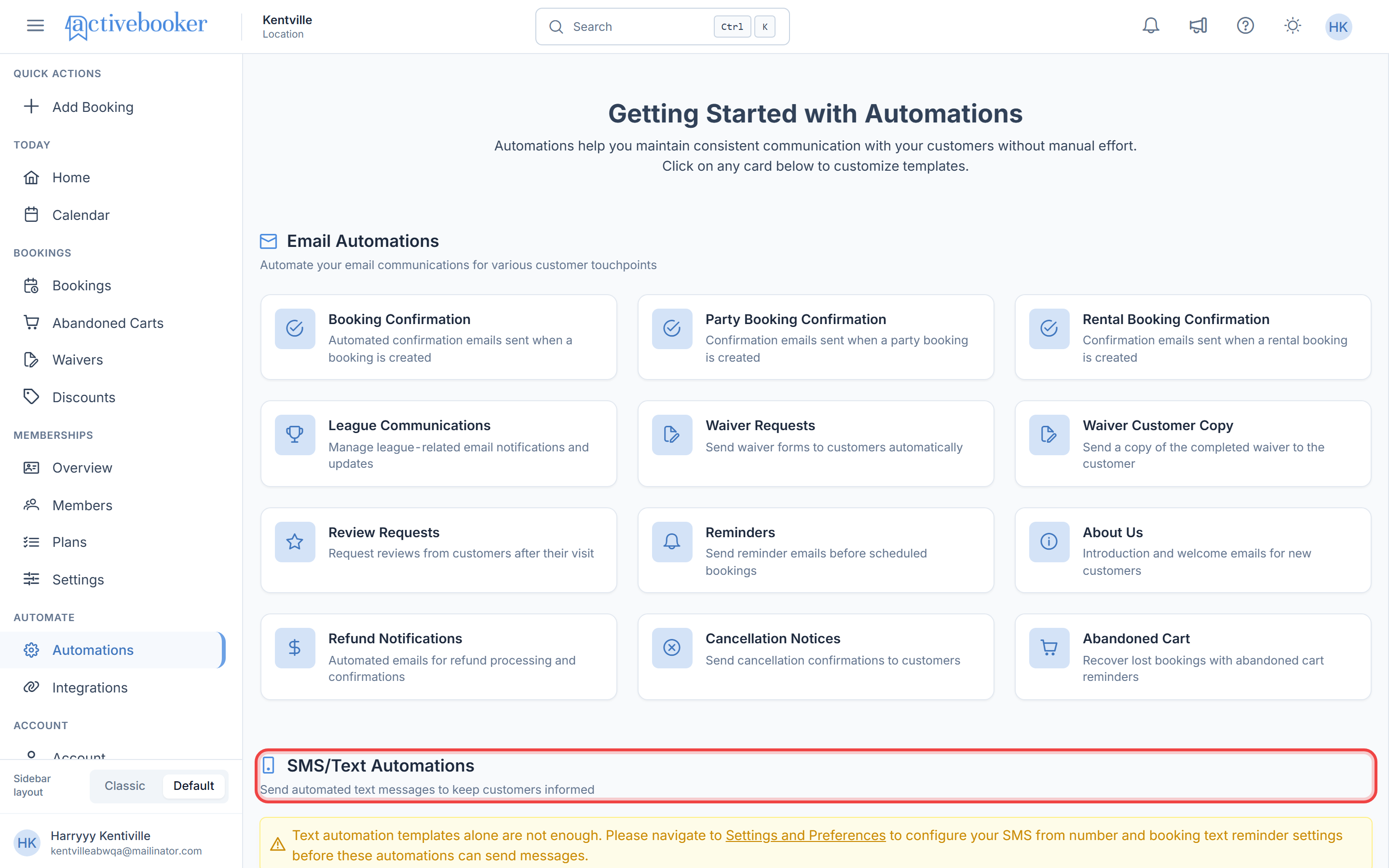
Opening the Configuration Modal
- Navigate to Automations from the main dashboard
- Scroll to the SMS/Text Automations section
- Click on either:
- Confirmation Booking Text card, or
- Reminder Booking Text card
- A popup modal will open with the text message editor
Confirmation Booking Text
The Confirmation Booking Text automation sends an immediate text message confirmation when a customer creates a booking.
Purpose
- Provide instant booking confirmation via SMS
- Send essential booking details to customer's mobile phone
- Ensure customers have immediate access to their booking information
When It Sends
Immediately after a booking is successfully created (typically within seconds).
Editing Confirmation Booking Text
- Click on the Confirmation Booking Text card
- The "Confirmation Booking Text" modal opens
- View the current message content in the text area
- Edit the message content as needed
- Use the Merge Fields section to insert dynamic information
- Click Save to apply changes or Cancel to discard
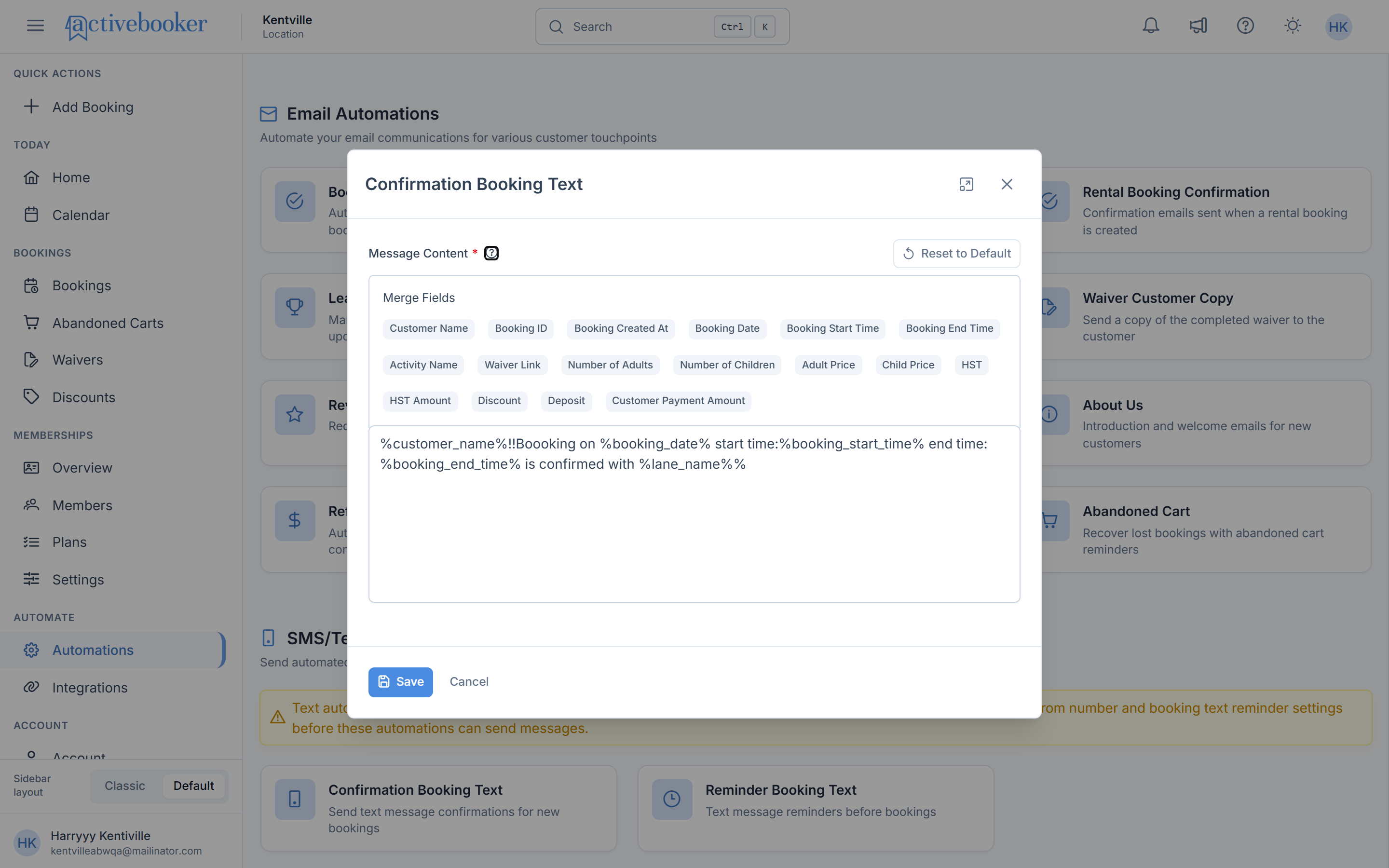
Default Message Example
%customer_name%!! Booking on %booking_date% start time:%booking_start_time% end time:%booking_end_time% is confirmed with %lane_name%
This message includes:
- Customer's name
- Booking date
- Start and end times
- Activity/lane name
Reminder Booking Text
The Reminder Booking Text automation sends a text message reminder before a scheduled booking to reduce no-shows.
Purpose
- Remind customers about upcoming bookings
- Reduce no-show rates with timely SMS reminders
- Provide quick access to booking details
When It Sends
At a configured time before the booking (e.g., 24 hours before, 1 hour before).
Editing Reminder Booking Text
- Click on the Reminder Booking Text card
- The "Reminder Booking Text" modal opens
- View the current message content in the text area
- Edit the message content as needed
- Use the Merge Fields section to insert dynamic information
- Click Save to apply changes or Cancel to discard
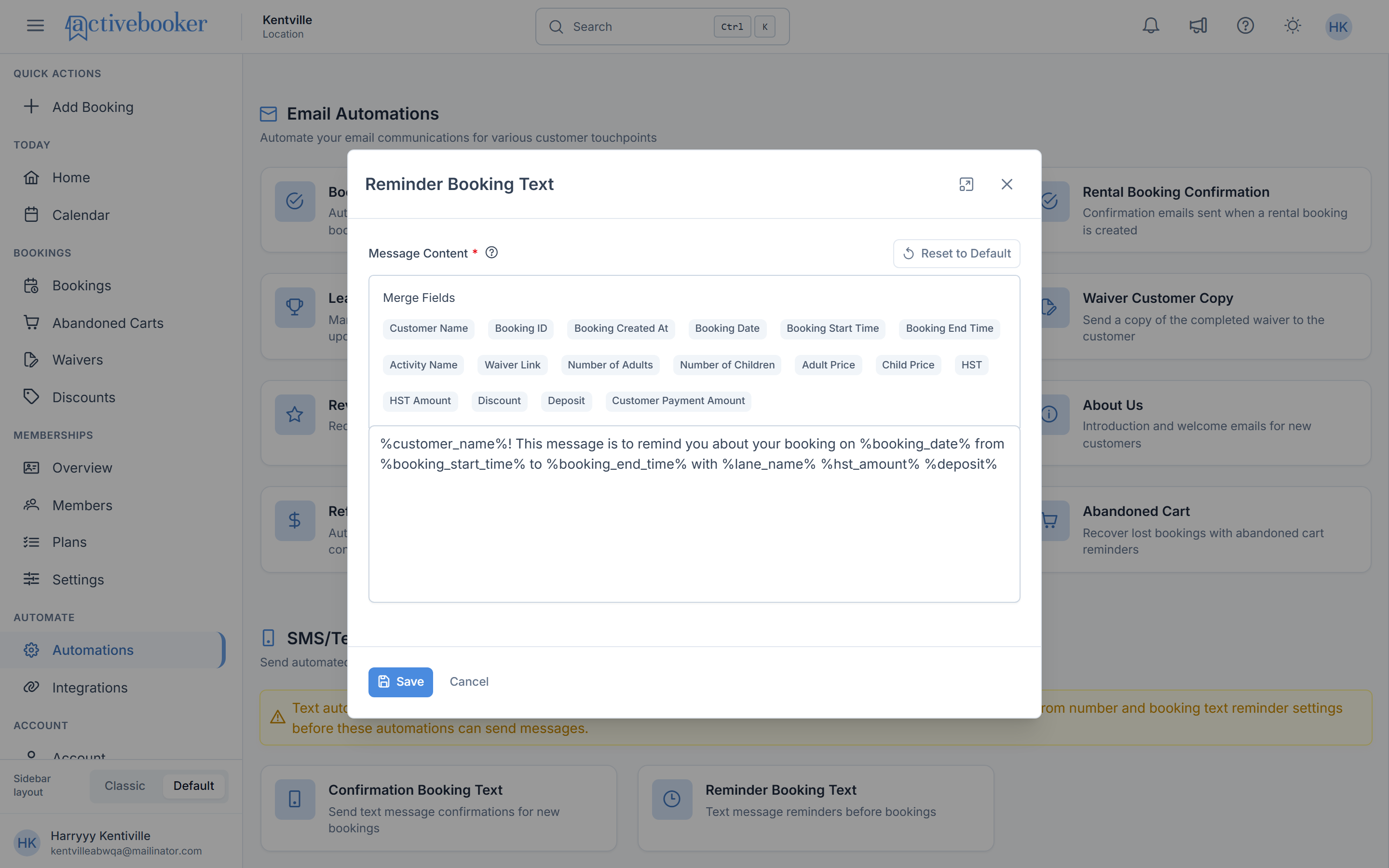
Default Message Example
%customer_name%! This message is to remind you about your booking on %booking_date% from %booking_start_time% to %booking_end_time% with %lane_name%
This message includes:
- Customer's name
- Reminder context
- Booking date
- Start and end times
- Activity/lane name
Using the Message Editor
Message Content Text Area
The Message Content field is where you compose your SMS/Text message.
Features:
- Multi-line text area: Compose messages with line breaks if needed
- Merge field insertion: Click merge fields to add them to your message
- Plain text formatting: SMS supports plain text only (no HTML or rich formatting)
How to Edit Message Content
- Click inside the message content text area
- Type your custom message
- Delete any unwanted text
- Position your cursor where you want to insert merge fields
- Click merge fields from the list to insert them
- Review the complete message
- Click Save when satisfied with the content
Working with Merge Fields
Merge fields (also called tokens or variables) are placeholders that automatically populate with real customer and booking data when the SMS is sent.
What Are Merge Fields?
Merge fields allow you to:
- Personalize messages with customer information
- Include specific booking details automatically
- Maintain consistent messaging while providing unique information to each customer
Available Merge Fields
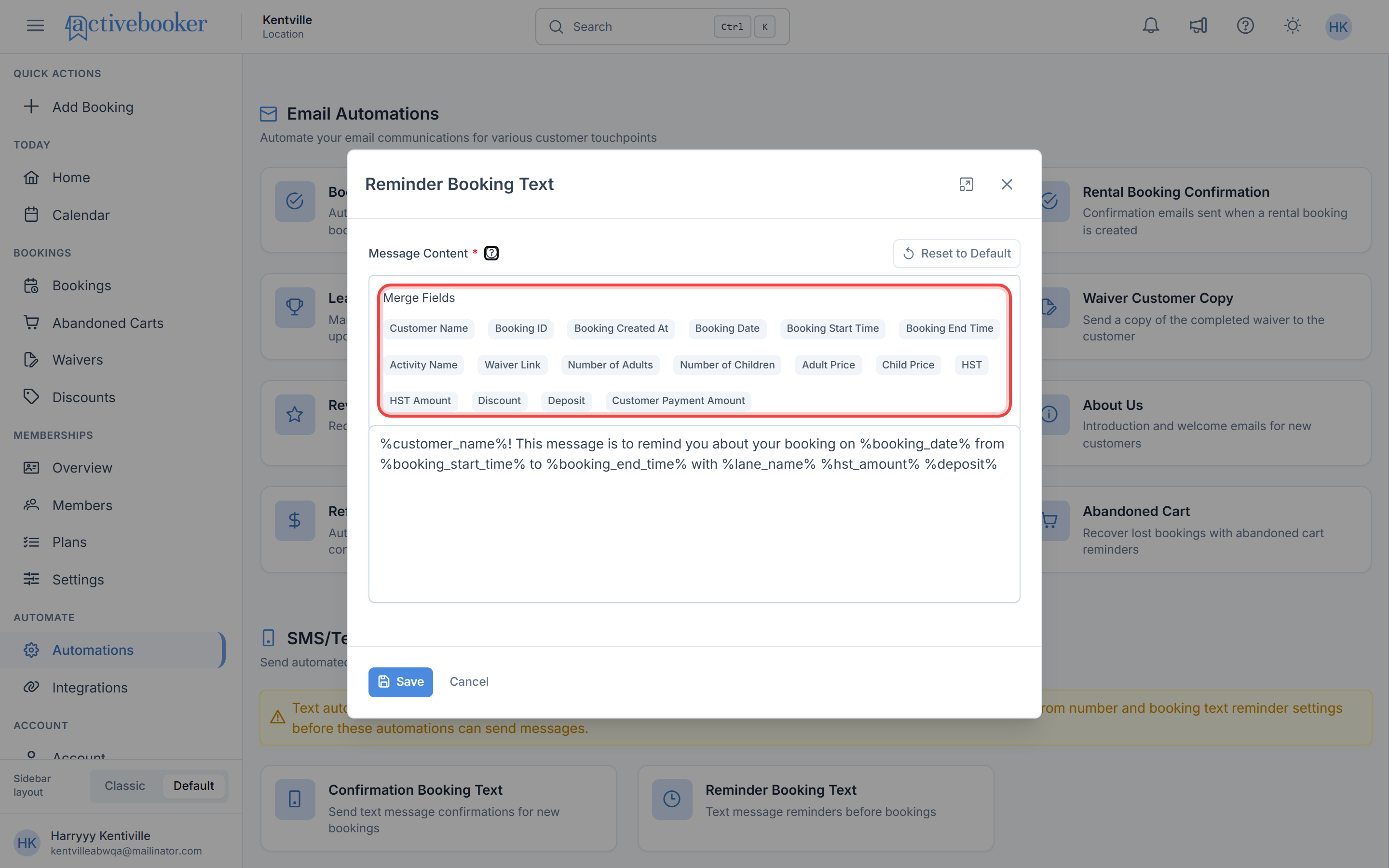
The Merge Fields section displays all available fields you can use in your message:
Customer Information:
Customer Name- Customer's full name
Booking Details:
Booking ID- Unique booking identifierBooking Created At- When the booking was createdBooking Date- Date of the bookingBooking Start Time- Start time of the bookingBooking End Time- End time of the booking
Activity/Service Information:
Activity Name- Name of the booked activity or laneWaiver Link- Link to waiver form (if applicable)Number of Adults- Adult count in bookingNumber of Children- Children count in bookingAdult Price- Price per adultChild Price- Price per childHST- Tax identifier
Financial Information:
HST Amount- Tax amountDiscount- Discount appliedDeposit- Deposit amountCustomer Payment Amount- Total payment amount
How to Insert Merge Fields
Method 1: Click to Insert
- Position your cursor in the message text area where you want the field
- Click on the desired merge field button in the Merge Fields section
- The merge field is automatically inserted at cursor position
Method 2: Copy to Clipboard
- Click on a merge field button
- The system may copy it to your clipboard
- Paste the merge field into your message using Ctrl+V (Cmd+V on Mac)
Merge fields typically appear in the format %field_name% in your template. When the actual SMS is sent, these are replaced with real data like "John Smith" or "2:00 PM".
Best Practices for Merge Fields
Essential Fields
- Always include customer name for personalization
- Include date and time for booking context
- Add activity/lane name for clarity
Avoid Overuse
- Don't include every available field
- Focus on what customers truly need to know
- Keep the message clear and scannable
Reset to Default Feature
The Reset to Default button allows you to restore the original default message template provided by the system.
When to Use Reset to Default
- You've made changes and want to start over
- Your custom message isn't working as expected
- You want to see the original default template
- You need to revert extensive edits quickly
How to Reset to Default
- Open the text automation editing modal
- Locate the Reset to Default button (typically in the top-right corner)
- Click Reset to Default
- The message content will immediately revert to the system default
- Click Save to keep the default, or edit further before saving
Resetting to default will immediately replace your current message content with the default template. This action cannot be undone, so make sure you want to lose your custom content before clicking.
Saving Your Changes
Save Process
- After editing your message and adding merge fields
- Review the complete message one final time
- Click the Save button at the bottom of the modal
- Your changes are applied immediately
- The modal closes automatically
- Future SMS messages will use your updated template
Cancel Changes
If you want to discard your edits:
- Click the Cancel button at the bottom of the modal
- All unsaved changes are discarded
- The modal closes
- The previous message template remains unchanged
While the editor doesn't show a live preview with actual data, mentally review how your message will look with merge fields populated to ensure it reads naturally.
Examples
Example 1: Concise Confirmation
Template:
Hi %customer_name%! Your booking for %activity_name% on %booking_date% at %booking_start_time% is confirmed. See you soon!
Populated Result:
Hi John Smith! Your booking for Bowling on Dec 15, 2025 at 2:00 PM is confirmed. See you soon!
Example 2: Detailed Confirmation
Template:
%customer_name%, booking confirmed! %activity_name% on %booking_date% from %booking_start_time% to %booking_end_time% at %lane_name%. Total: $%customer_payment_amount%
Populated Result:
John Smith, booking confirmed! Bowling on Dec 15, 2025 from 2:00 PM to 4:00 PM at Lane 5. Total: $45.99
Example 3: Simple Reminder
Template:
Reminder: %customer_name%, your %activity_name% booking is tomorrow at %booking_start_time%. See you then!
Populated Result:
Reminder: John Smith, your Bowling booking is tomorrow at 2:00 PM. See you then!
Example 4: Detailed Reminder
Template:
Hi %customer_name%! Friendly reminder about your booking on %booking_date% from %booking_start_time%--%booking_end_time% for %activity_name%. Questions? Contact us!
Populated Result:
Hi John Smith! Friendly reminder about your booking on Dec 15, 2025 from 2:00 PM to 4:00 PM for Bowling. Questions? Contact us!
Troubleshooting
Merge Fields Not Working
If merge fields aren't populating correctly:
In the Editor:
- Merge fields should appear as
%field_name%in the template - Click the merge field buttons to insert them properly
- Don't manually type merge field syntax (use the buttons)
In Actual SMS:
- Create a test booking to verify merge fields populate
- Check that booking has all required data (dates, times, etc.)
- Verify customer profile has complete information
- Contact support if specific fields consistently fail to populate
Save Button Not Working
If you can't save your changes:
- Check message content: Ensure you have at least some content in the text area
- Browser issues: Try refreshing the page and editing again
- Connection: Verify you have a stable internet connection
- Permissions: Confirm you have permission to edit automations
- Try another browser: Test in a different browser if issues persist
Messages Getting Cut Off
If SMS messages are truncated:
- Reduce message length: Remove unnecessary text
- Limit merge fields: Use fewer dynamic fields
- Shorter field names: Some merge fields are longer than others
- Test thoroughly: Always test with maximum-length data
Reset to Default Not Working
If Reset to Default doesn't restore the original template:
- Refresh the page: Close and reopen the modal
- Clear cache: Clear browser cache and try again
- Contact support: Report the issue with screenshots if it persists
FAQs
Q: Can I use emojis in SMS messages?
Emoji support depends on your SMS provider and customer devices. While many systems support emojis, they:
- Count as multiple characters (typically 2-4 characters each)
- May not display consistently across all devices
- Can quickly consume your character limit
- Should be used sparingly if at all
Q: Can I add line breaks in my SMS messages?
Yes, you can add line breaks in the text area. However:
- Each line break counts as 1-2 characters
- SMS display varies by device (line breaks may not appear as expected)
- Test on multiple devices to ensure formatting looks good
- Keep formatting simple for maximum compatibility
Q: How do I test my SMS template before customers receive it?
To test your SMS template:
- Save your template changes
- Create a test booking using your own phone number
- Verify the SMS you receive has correct formatting
- Check that all merge fields populated correctly
- Confirm the message reads naturally
- Test on different devices if possible
Q: Can I create different messages for different services or locations?
Template customization options vary by system. Currently, there is typically one template per automation type (one confirmation template, one reminder template) that applies to all bookings. Check with support if you need service-specific or location-specific templates.
Q: What if a merge field doesn't have data for a particular booking?
If a merge field references data that doesn't exist for a booking:
- The field may appear blank in the SMS
- The field may display a default value like "N/A"
- The field may be omitted entirely
Test thoroughly with various booking types to ensure your message reads well even with missing data.
Q: Can I include links in SMS messages?
Yes, you can include URLs in SMS messages:
- Links consume character count (URLs can be 20-50+ characters)
- Consider using URL shorteners to save space
- Some merge fields (like Waiver Link) provide links automatically
- Always test links to ensure they work on mobile devices
Q: How do I know what the merge field names mean?
The Merge Fields section shows the available fields with descriptive names. Common fields are self-explanatory (Customer Name, Booking Date, etc.). If you're unsure about a specific field:
- Hover over the field for a tooltip (if available)
- Click the help icon (ℹ️) next to Message Content for more info
- Test the field to see what data it produces
- Contact support for clarification on specific merge fields
See Also
Related documentation for managing SMS and customer communications:
- Automations Overview - Complete guide to all automation features