Discounts
Create and manage discount codes that customers can apply during checkout to receive percentage-based or fixed-amount reductions on their bookings.
Quick start
Set up your first discount in three steps:
- Navigate to Discounts in the sidebar under Accounts
- Click Add Discount to open the configuration modal
- Enter the discount details and click Save to activate
What you can do
The Discounts feature helps you:
- Attract new customers — Create promotional codes to encourage first-time bookings
- Reward loyalty — Offer special discounts to repeat customers with unique redemption codes
- Drive bookings during specific periods — Set time-based discounts for weekdays, specific dates, or date ranges
- Control usage — Limit how many times a discount code can be redeemed across all customers
Understanding the discounts page
Discount list table
When you access the Discounts page, you'll see all your configured discounts displayed in a table with the following information:
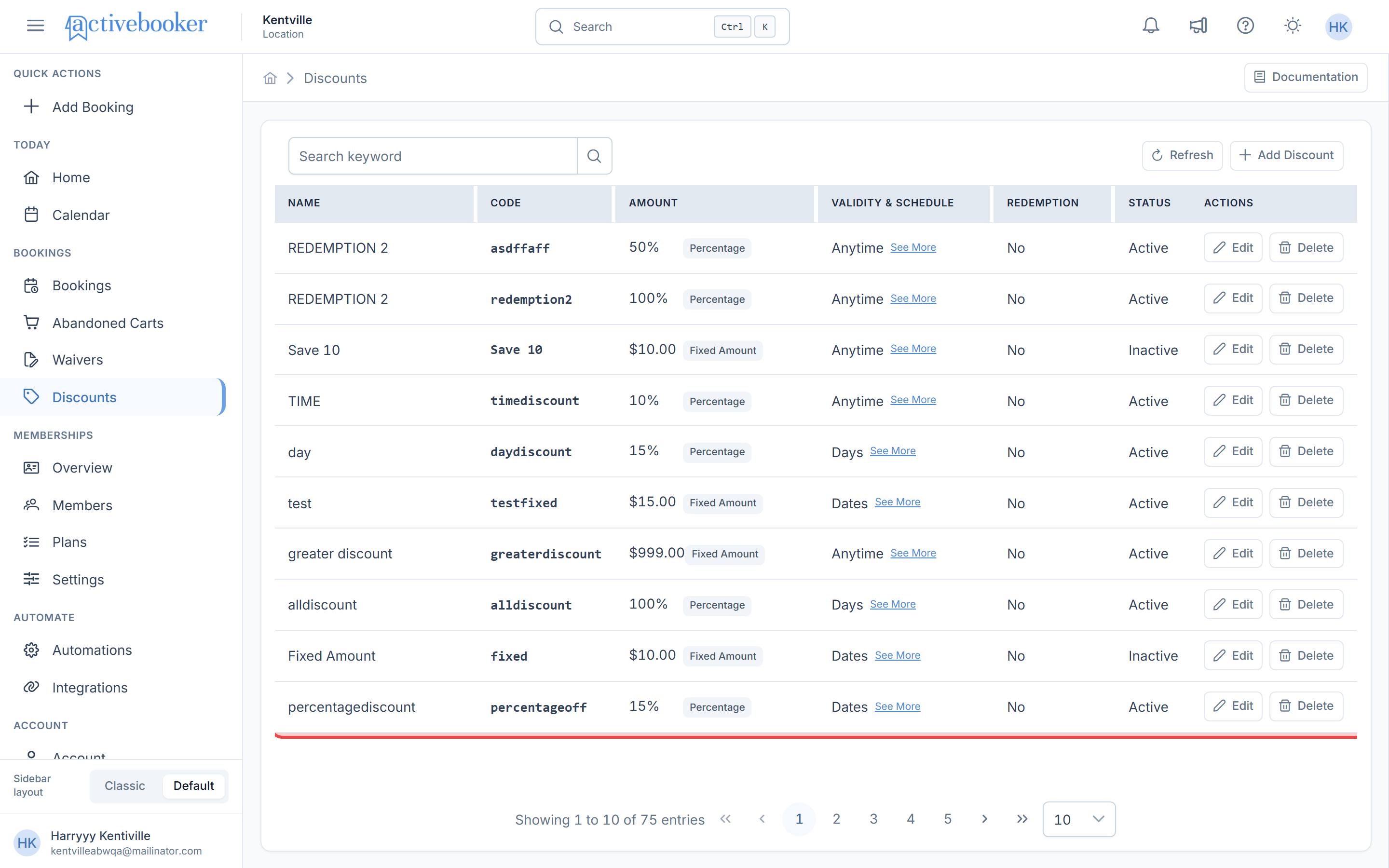
Name
The descriptive name you assigned to identify this discount
Code
The unique code customers enter at checkout to apply the discount
Amount
The discount value displayed with its type indicator chip (Percentage/Fixed Amount). Percentage discounts show the value with a "%" suffix (e.g., "20%"), while Fixed Amount discounts show the value with a "$" prefix (e.g., "$50.00")
Validity & Schedule
Displays the usage type (Anytime, Dates, or Days) with a See More link. Hover over or click "See More" to open a popover with comprehensive validity rules including:
- Usage type details
- Applicable dates, date ranges, or weekdays
- Time restrictions (if any)
- Descriptive information about how the discount applies
Redemption
Shows "No" if unlimited, or displays the maximum number of allowed redemptions (e.g., "500" for a limit of 500 uses)
Status
Indicates whether the discount is Active or Inactive
Created At
The date and time when the discount was created. This column is sortable and displays timestamps in your local browser time zone
Actions
Edit and Delete buttons for managing each discount
The Validity & Schedule popover dynamically displays information based on the discount configuration:
- Anytime: Shows the valid date range and confirms the discount applies to any day within that period
- Dates: Lists the total number of specific dates and displays all selected dates as tags
- Days: Shows selected weekdays with optional date range limits, indicating whether it's valid indefinitely or restricted to a specific period
- Time restrictions: Displays the time window when not all-day, or confirms "Valid all day"
Creating a discount
Add a new discount
- Click the Add Discount button at the top right of the page
- The "Add Discount" modal opens with configuration fields
- Fill in the required information (see field details below)
- Click Save to create the discount
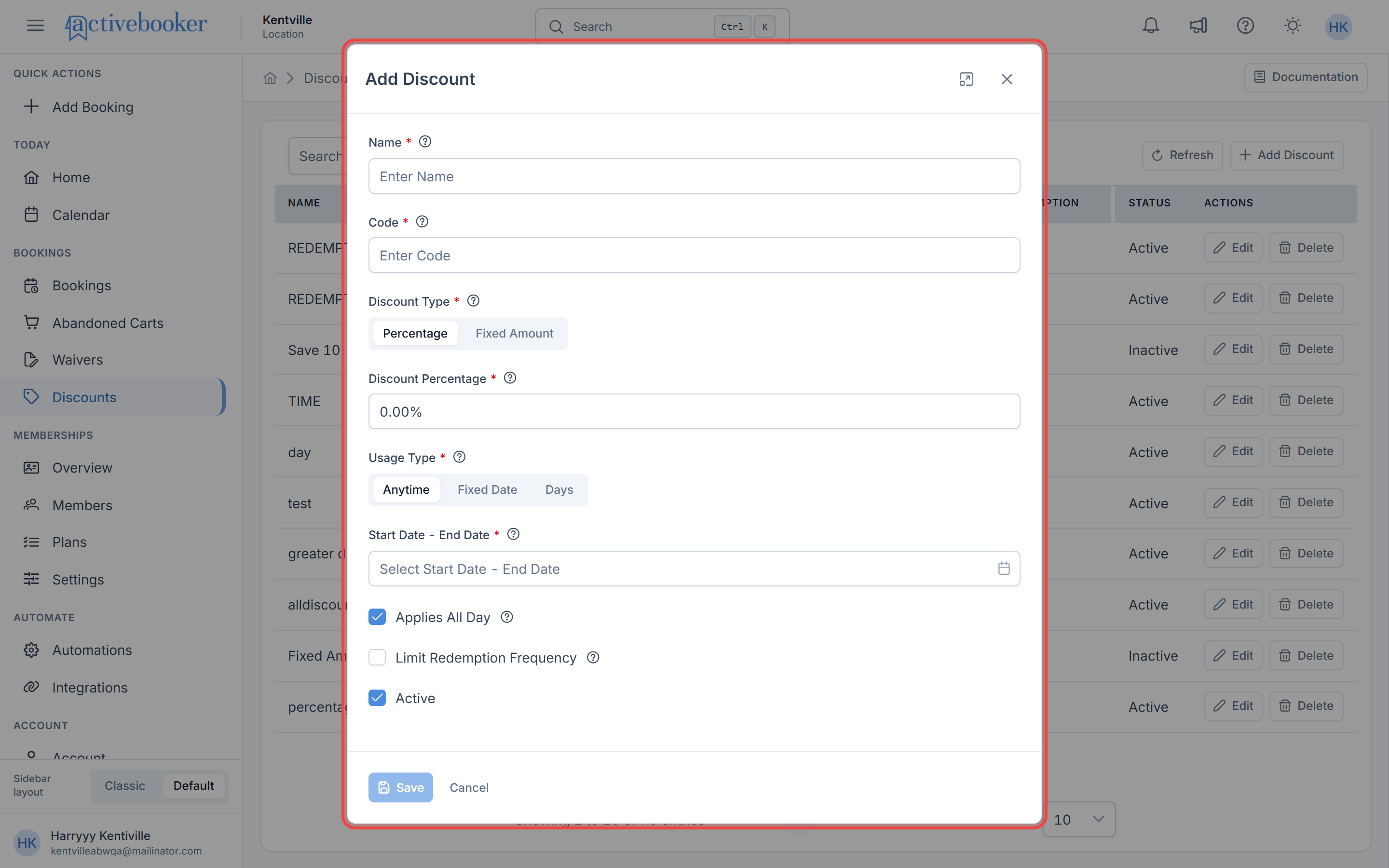
Discount configuration fields
Name A descriptive name to identify this discount in your list. Maximum 100 characters.
Code
The unique code customers enter at checkout. This code must be unique across all your discounts.
Discount Type
Choose between:
- Percentage — Deducts a percentage of the total booking amount
- Fixed Amount — Deducts a specific currency value from the total
Discount Percentage / Discount Amount
Enter the discount value:
- For Percentage: Enter a value between 0.01 and 100
- For Fixed Amount: Enter any positive dollar amount
When you switch between Percentage and Fixed Amount, the input field label, validation rules, and display format update immediately to reflect the appropriate type.
Setting usage conditions
Usage Type
Determine when the discount can be applied:
Anytime
Valid for any day within a specified date range.
- Start Date - End Date: Select the date range during which this discount is valid
Fixed Date
Valid only on specific dates you select.
- Dates: Select one or more specific dates when the discount applies
Days
Valid on selected weekdays, either indefinitely or within an optional date range.
- Applicable Weekdays: Select which days of the week the discount applies (multi-select dropdown, at least one required)
- Limit Rule to a Date Range: Check this to restrict the selected weekdays to a specific date range
- When checked, Date Range fields appear where you set the start and end dates
For "Anytime" usage, you must provide a date range. Empty date ranges will show a validation error.
Time restrictions
Applies All Day When enabled, the discount is valid at any time during the applicable dates.
When unchecked, you can set specific hours:
- Start Time: The time when the discount becomes valid each day (12-hour format with AM/PM)
- End Time: The time when the discount expires each day (12-hour format with AM/PM)
Redemption limits
Limit Redemption Frequency Check this to cap the total number of times the discount code can be used across all customers.
When checked:
- Maximum Allowed Redemptions: Enter a positive integer (minimum 1)
In the discount list, the Redemption column displays:
- "No" if unlimited redemptions are allowed
- The numeric limit (e.g., "500") if a redemption cap is configured
Enable redemption limits for time-sensitive promotions or limited-availability offers to create urgency and control your discount budget.
Activation status
Active Determines whether the discount is currently available for customers to use. Uncheck to create an inactive discount that you can activate later.
Editing a discount
Modify an existing discount
- Click the Edit button in the Actions column for the discount you want to change
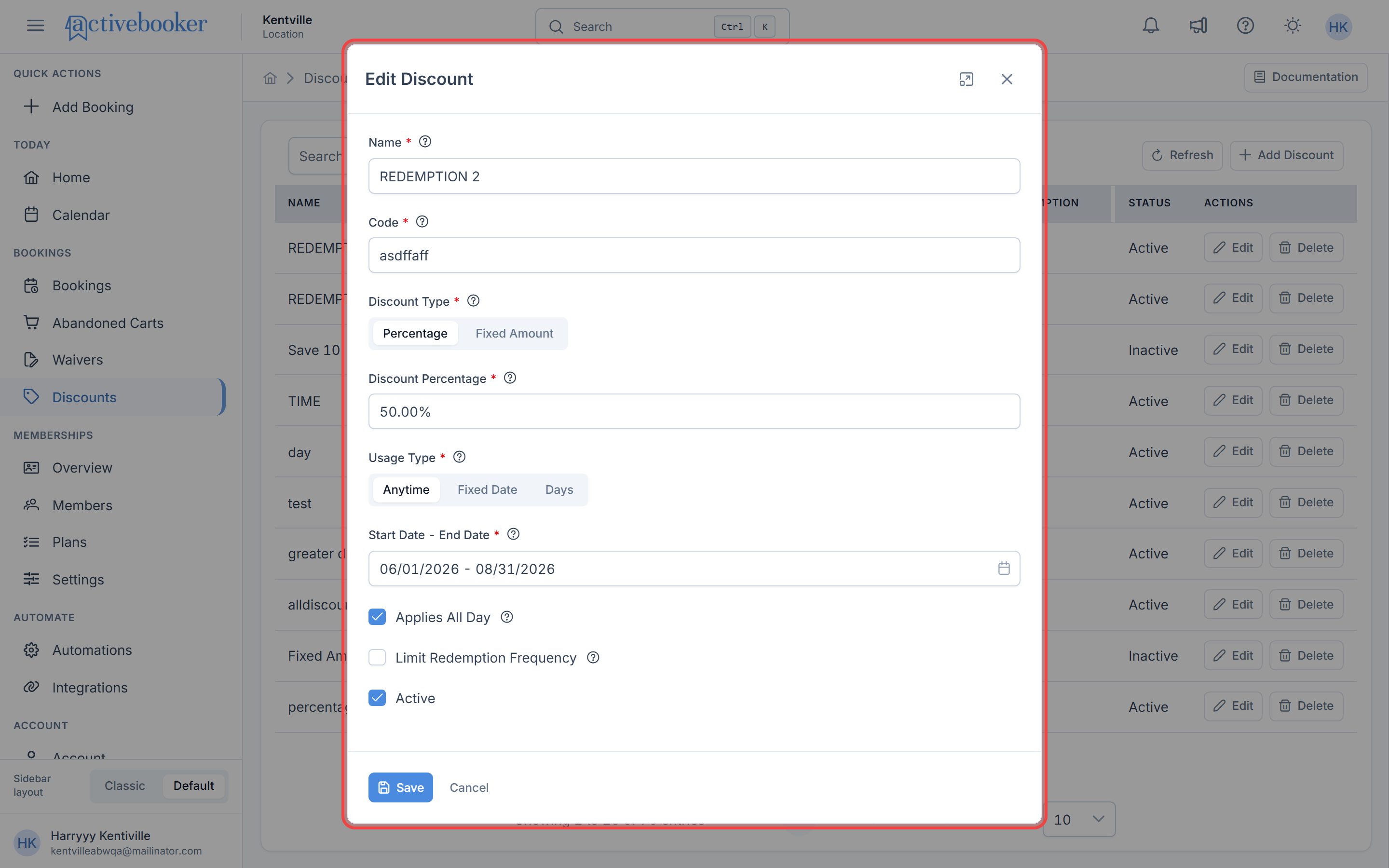
- The "Edit Discount" modal opens with pre-filled values
- Modify any fields you want to update
- Click Save to apply changes, or Cancel to discard
Deleting a discount
To remove a discount:
- Click the Delete button in the Actions column
- Confirm your intention in the deletion prompt
- The discount is permanently removed from your system
Deleting a discount is permanent. If customers have already used the code, their historical bookings remain unaffected, but the code becomes invalid for future use.
Common scenarios
Scenario 1: Creating a weekend promotion
Offer a discount that applies only on Saturdays and Sundays:
- Click Add Discount
- Enter a Name (e.g., "Weekend Special")
- Enter a Code (e.g., "WEEKEND20")
- Select Percentage and enter 20
- Choose Days as the Usage Type
- Select Saturday and Sunday from the Applicable Weekdays dropdown
- Leave Limit Rule to a Date Range unchecked for indefinite application
- Keep Applies All Day checked
- Click Save
Scenario 2: Limited-time flash sale
Create a discount valid for specific dates with a redemption cap:
- Click Add Discount
- Enter a Name (e.g., "Flash Sale")
- Enter a Code (e.g., "FLASH50")
- Select Fixed Amount and enter 50
- Choose Fixed Date as the Usage Type
- Select the specific dates for your sale (e.g., March 15, 2026 and March 16, 2026)
- Keep Applies All Day checked
- Check Limit Redemption Frequency
- Enter 100 for Maximum Allowed Redemptions
- Click Save
Scenario 3: Early bird discount
Offer a discount for bookings made during morning hours:
- Click Add Discount
- Enter a Name (e.g., "Early Bird Special")
- Enter a Code (e.g., "EARLYBIRD")
- Select Percentage and enter 15
- Choose Anytime and set your date range (e.g., February 1, 2026 - February 28, 2026)
- Uncheck Applies All Day
- Set Start Time to 6:00 AM
- Set End Time to 10:00 AM
- Click Save
Best practices
✅ Use clear, memorable codes — Create codes that are easy for customers to remember and type, like "SUMMER25" instead of random strings
✅ Set appropriate redemption limits — For popular promotions, cap redemptions to manage your discount budget and create urgency
✅ Test discount combinations — Verify that your percentage discounts work correctly with your pricing structure (e.g., a 100% discount is valid but should be intentional)
✅ Use descriptive names — Give discounts internal names that clearly indicate their purpose, even if the customer-facing code is different
❌ Avoid overlapping unlimited discounts — Multiple unlimited discounts for the same period can erode profit margins unexpectedly
❌ Don't set past dates — Always verify your discount dates are in the future when creating new promotions
Create inactive discounts in advance for upcoming seasons or holidays, then activate them when needed. This helps you prepare marketing campaigns ahead of time.