Documents
Track and download all your exported files in one place. Every time you export data from Bookings, Waivers, or Members, a record is created here so you can monitor its status and download the file when it's ready.
Quick start
- Navigate to Documents in the left sidebar
- Find the export you want to download in the table
- Wait for the Status to show Completed
- Click the Download button in the Actions column to save the file
What you can do
The Documents page helps you:
- Track export requests — See all exports you've submitted, along with their current processing status
- Download completed files — Save your finished export files to your device
- Review export details — Check the type, title, format, and number of records included in each export
- Stay organized — Use the name and note you provided during export to identify files at a glance
- Monitor export progress — See requests move from Pending to Processing to Completed without leaving the page
- Confirm file readiness — Know when a download is available and when you need to wait or refresh
Navigating to Documents
- Log in to your dashboard
- In the left sidebar, find and click Documents
The Documents page loads with a breadcrumb at the top showing Home > Documents.
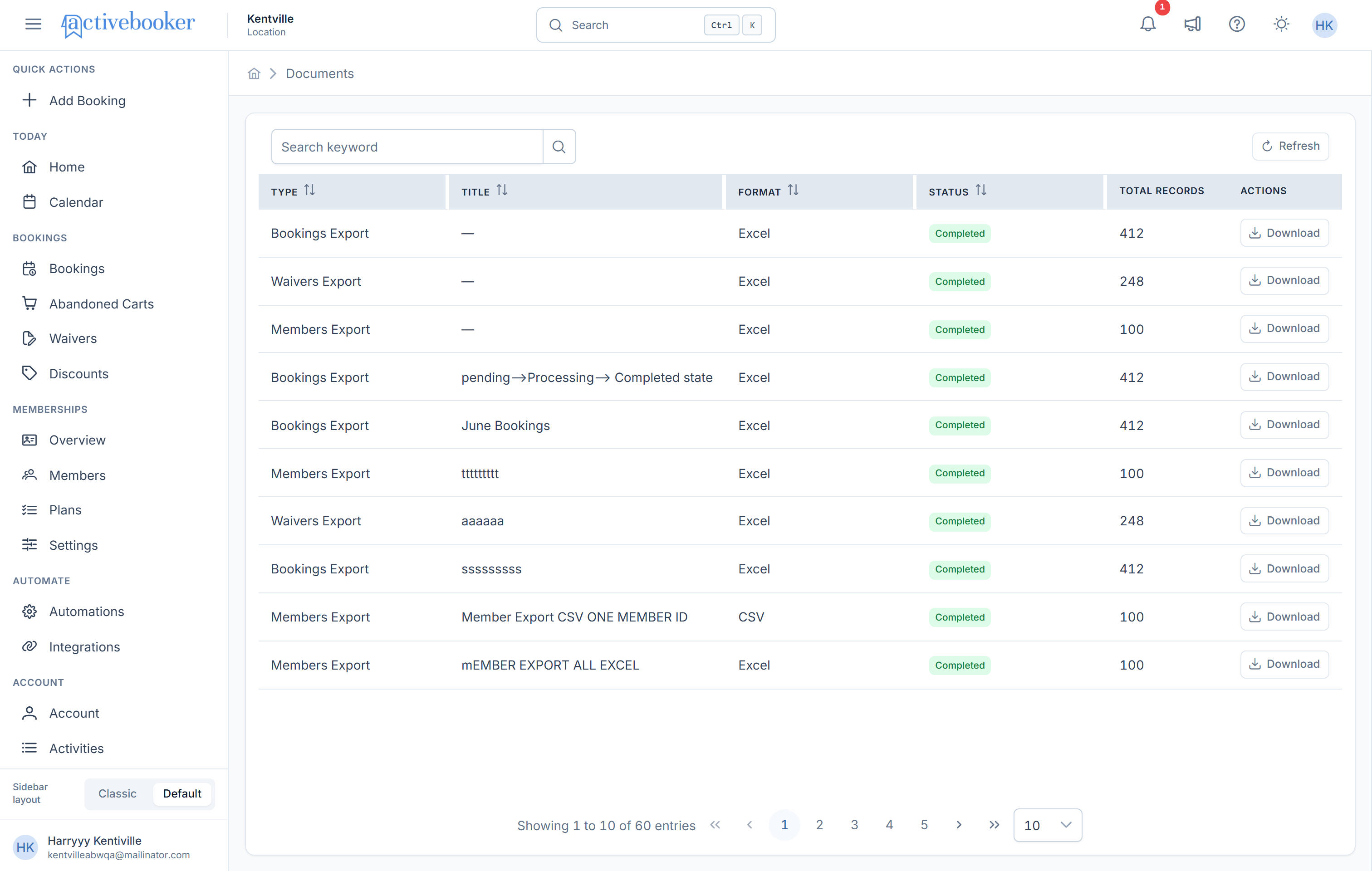
Understanding the Documents page
Page controls
Search keyword
A search bar on the left side of the page. Type to filter the documents list by title or type.
Refresh
Reloads the list with the latest export statuses. Click this if you've just submitted an export and want to check whether it has completed.
Table columns
Each export request appears as a row in the table with the following columns:
| Column | What it shows |
|---|---|
| Type | The source of the export — Bookings Export, Waivers Export, or Members Export |
| Title | The name you gave the export when you submitted it. Shows — if no name was provided |
| Format | The file format of the export — Excel or CSV |
| Status | The current processing state of the export request — see Export statuses below. New exports usually appear as Pending first, then move to Processing, and finally Completed |
| Total Records | The number of records included in the exported file. This may show — until the export reaches Completed |
| Requested At | The date and time the export was submitted, shown in your local time zone (e.g., "Jun 2, 2026, 9:12 PM GMT+5:45") |
| Actions | A Download button to save the completed file. Only available when the status is Completed |
How exports appear here
Documents is the central record for exports created from these pages:
- Bookings — Export button on the Active bookings tab
- Waivers — Export button on the Waiver List page
- Members — Export button on the Members page
After you submit an export from one of those pages, the request is queued in the background and then appears in Documents. If the file is not ready yet, use Refresh to check the latest status.
Export statuses
| Status | Meaning |
|---|---|
| Pending | The export has been received and is waiting to be processed |
| Processing | The export is currently being prepared |
| Completed | The export is ready and available to download |
| Failed | The export could not be completed. Try submitting the export again |
When an export is Completed, the Download action becomes active and the record shows its final Total Records count.
Downloading an export
- Find the export in the table
- Confirm the Status column shows Completed
- Click the Download button in the Actions column
- The file saves to your device in the format you selected (Excel or CSV)
The Download button is only active for exports with a Completed status. Exports that are still Pending or Processing cannot be downloaded yet.
How exports are ordered
The Documents page displays exports in descending order by request time — the most recently submitted export appears at the top of the list. This makes it easy to find your latest export without searching.
Download naming
Downloaded files follow the export source and selected format. Common naming patterns are:
- bookings-export-YYYY-MM-DD.xlsx for Bookings Excel exports
- waivers-export-YYYY-MM-DD.csv for Waivers CSV exports
- members-export-YYYY-MM-DD.xlsx for Members Excel exports
The date portion reflects the day the export was generated.
Pagination
At the bottom of the table you'll see:
- How many records are shown (e.g., "Showing 1 to 10 of 34 entries")
- Navigation arrows to move between pages
- An option to change how many entries are shown per page (defaults to 10)
Common scenarios
Scenario 1: Downloading an export you just submitted
You submitted an export from the Bookings page and want to download the file:
- Click Documents in the left sidebar
- Your export appears at the top of the list (most recent first)
- If the status shows Pending or Processing, click Refresh after a moment to check for updates
- Once Completed, click Download to save the file
Scenario 2: Finding an older export
You submitted an export a few days ago and need to download it again:
- Navigate to Documents
- Browse through the pages or use the Search keyword field to find the export by its title
- Click Download to save the file again
Frequently asked questions
How long does an export take to complete?
Most exports complete within a short time. The time depends on the number of records being exported. You can click Refresh to check for status updates.
What should I do if the export is still Pending or Processing?
Wait a short time and click Refresh on the Documents page. Exports are processed in the background, so the file may not be ready immediately after submission.
Can I download a file more than once?
Yes. Completed exports remain available in the Documents list and can be downloaded again at any time.
What types of exports appear here?
The Documents page shows all exports from:
- Bookings — Active booking records
- Waivers — Signed waiver submissions
- Members — Member account records
Why does my export show a dash (—) in the Title column?
This means no name was entered when the export was submitted. The name field is optional, so exports without a title show — as a placeholder.
Why is Total Records blank for some exports?
The total is only finalized once the export reaches Completed. Pending and Processing rows may show — until the export finishes.
What do I do if an export shows a Failed status?
Go back to the original page (Bookings, Waivers, or Members) and submit the export again. If the problem continues, contact your system administrator.