Global Search
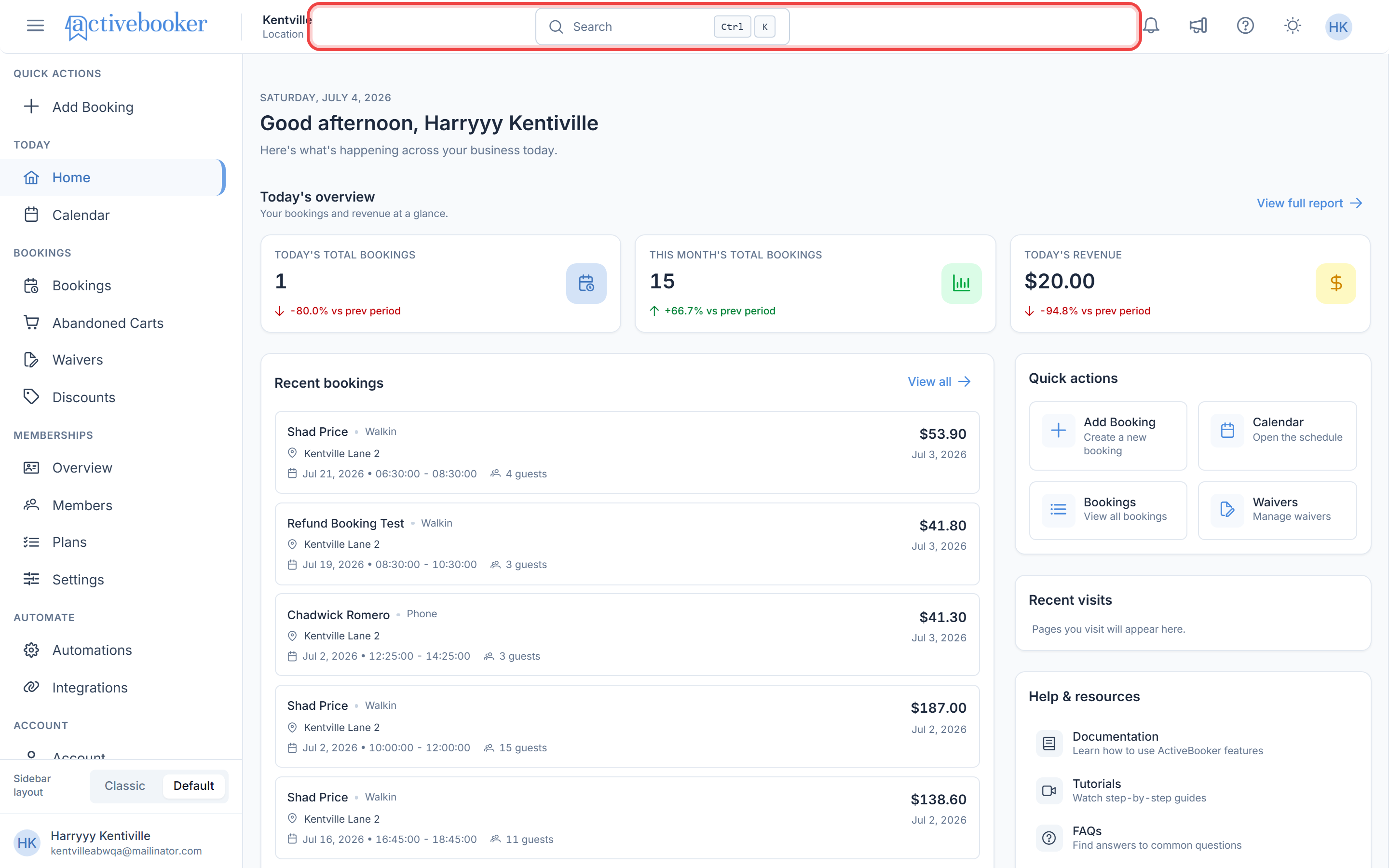
The search bar at the top of your dashboard lets you instantly find anything in your ActiveBooker account, activities, members, membership plans, or any page in the system, without having to click through menus. Just type what you're looking for and jump directly where you need to go.
Opening Search
You can open search in two ways:
- Click the search bar in the top navigation bar, it displays a Search label with
CtrlKshortcut hint - Press
Ctrl + Kon your keyboard from anywhere in the dashboard
The search dialog opens immediately and the text input is automatically focused so you can start typing right away.
The Search Dialog
When the search dialog opens, you will see three distinct sections:
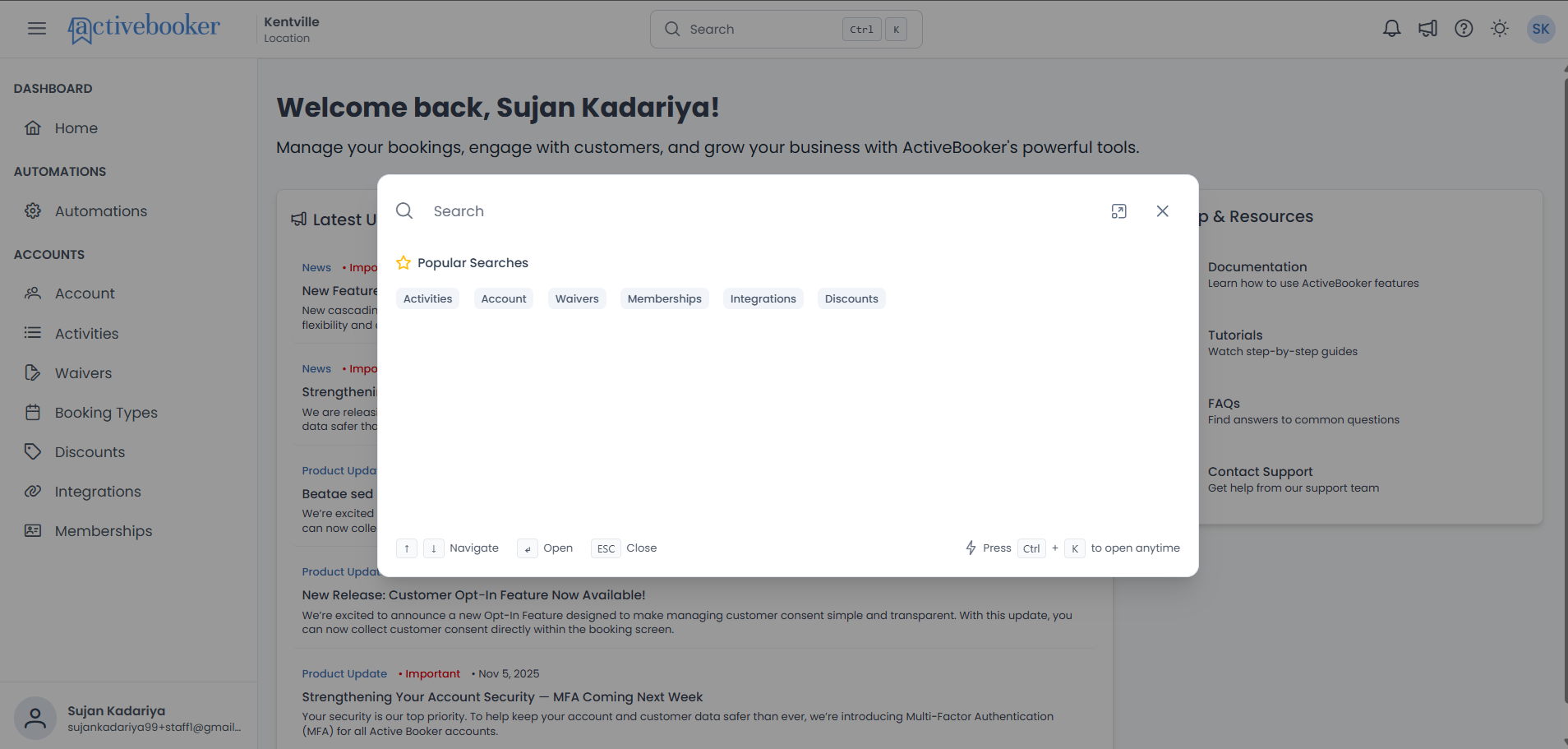
Search Field
At the top of the dialog is the search input. Type your keywords here to find activities, members, membership plans, or pages.
Once you start typing, two action icons appear in the search field area:
- A clear button (×) — click it to erase your search text and return to the default view without closing the dialog
- An expand button — located between the clear button and the close button, click it to expand the search modal for a larger, more comfortable view of your results
The dialog's close button (×) is always visible in the top-right corner, regardless of whether you have typed anything.
Popular Searches
Before you type anything, the dialog shows a set of Popular Searches, quick-access tags that take you directly to commonly used sections of the system:
- Activities — Goes to your Activities list
- Account — Goes to your Account overview
- Waivers — Goes to the Waivers page
- Memberships — Goes to the Memberships section
- Integrations — Goes to Integrations
- Discounts — Goes to Discounts
Click any tag to navigate immediately, no typing needed.
Footer
The footer at the bottom of the dialog shows keyboard shortcut reminders in a two-part layout:
- Left side:
↑↓Navigate ·↵Open ·ESCClose - Right side: ⚡ Press
Ctrl+Kto open anytime
These hints are always visible so you can reference them at a glance while navigating results.
Searching
Minimum Characters
Type at least 3 characters to trigger a search. If you type fewer than 3 characters, a prompt will appear reminding you that more characters are needed before results can be shown.
Search results are not shown until you have typed at least 3 characters. This ensures you get relevant, focused results rather than an overwhelming list of partial matches.
How Results Appear
After you type 3 or more characters, the search runs automatically. You will see loading skeletons (placeholder rows) in each section while results are being fetched, this lets you know the search is in progress.
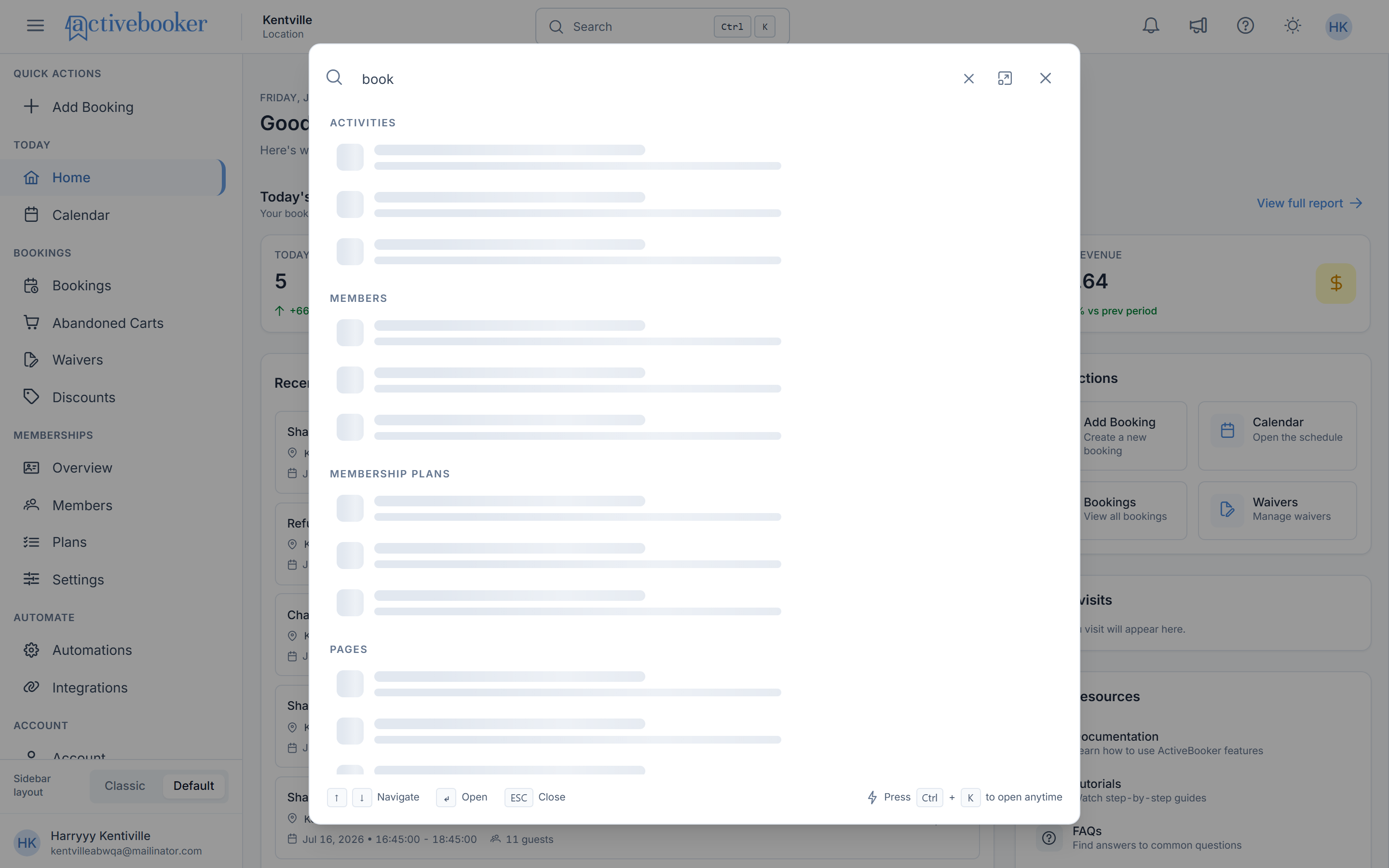
Results are grouped into four categories and appear in this fixed order:
- ACTIVITIES — Activities in your system matching the name you typed
- MEMBERS — Members whose name, member code, email, or phone number match your search
- MEMBERSHIP PLANS — Membership plans matching by plan name or category name
- PAGES — System pages matching your keyword
Only categories with matching results are shown. If there are no matching activities, the ACTIVITIES section simply won't appear, keeping your results clean and relevant.
If the Membership feature is not enabled for your account, the MEMBERS and MEMBERSHIP PLANS categories will not appear in search results. Under PAGES, membership sub-pages (such as Members, Membership Plans, Membership Categories, and related settings) are also hidden. Only the main Memberships entry remains visible, and clicking it opens the Unlock Membership Management page.
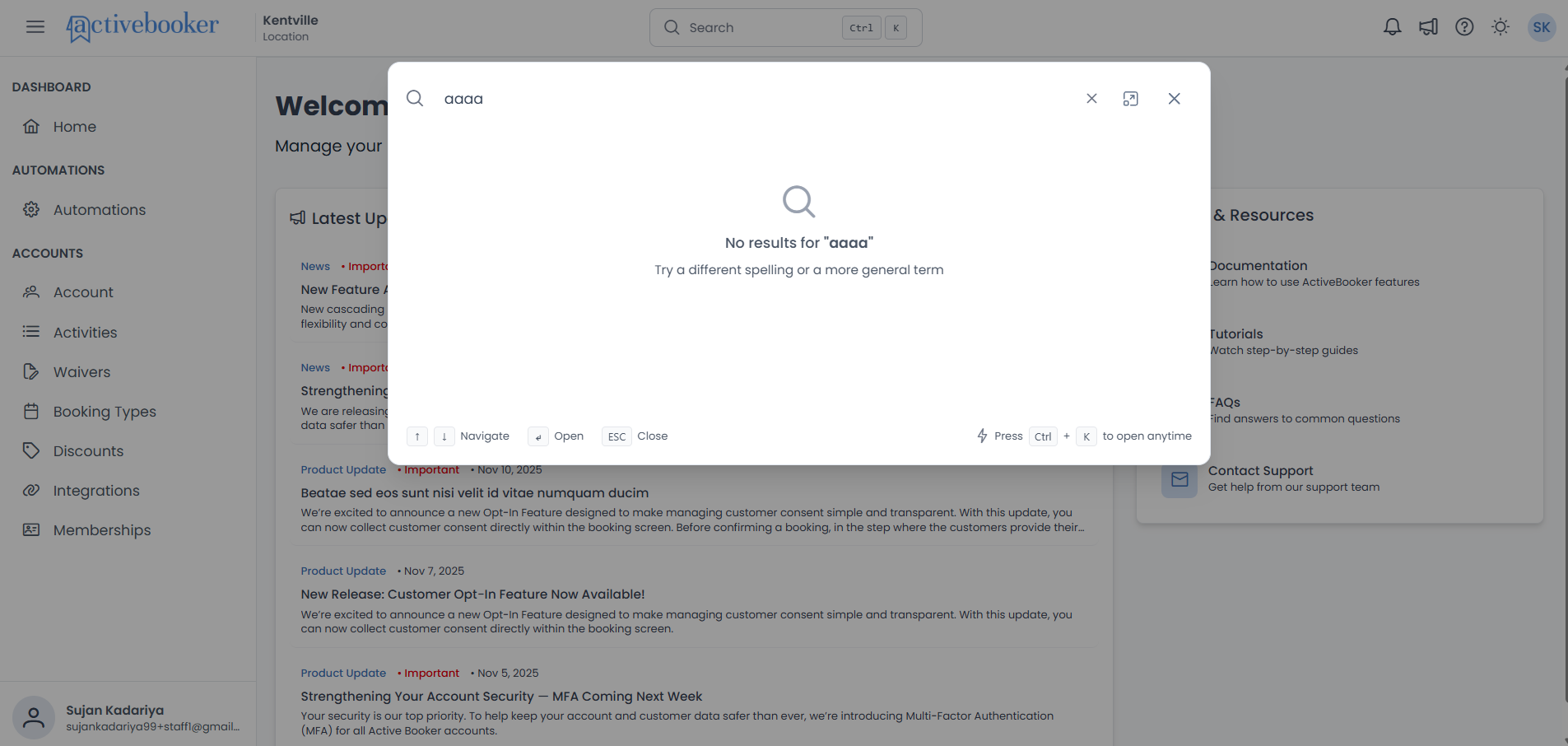
No Results
If your search term returns no results across any category, a dedicated empty state is displayed with:
- A magnifying glass icon
- The message "No results for "{your search term}"" — showing exactly what you searched for
- A suggestion: "Try a different spelling or a more general term"
Understanding Search Results
Each result card displays a right arrow (›) on its right side — this means it is clickable and will take you directly to the relevant page. Simply click anywhere on the card to open it.
Activities
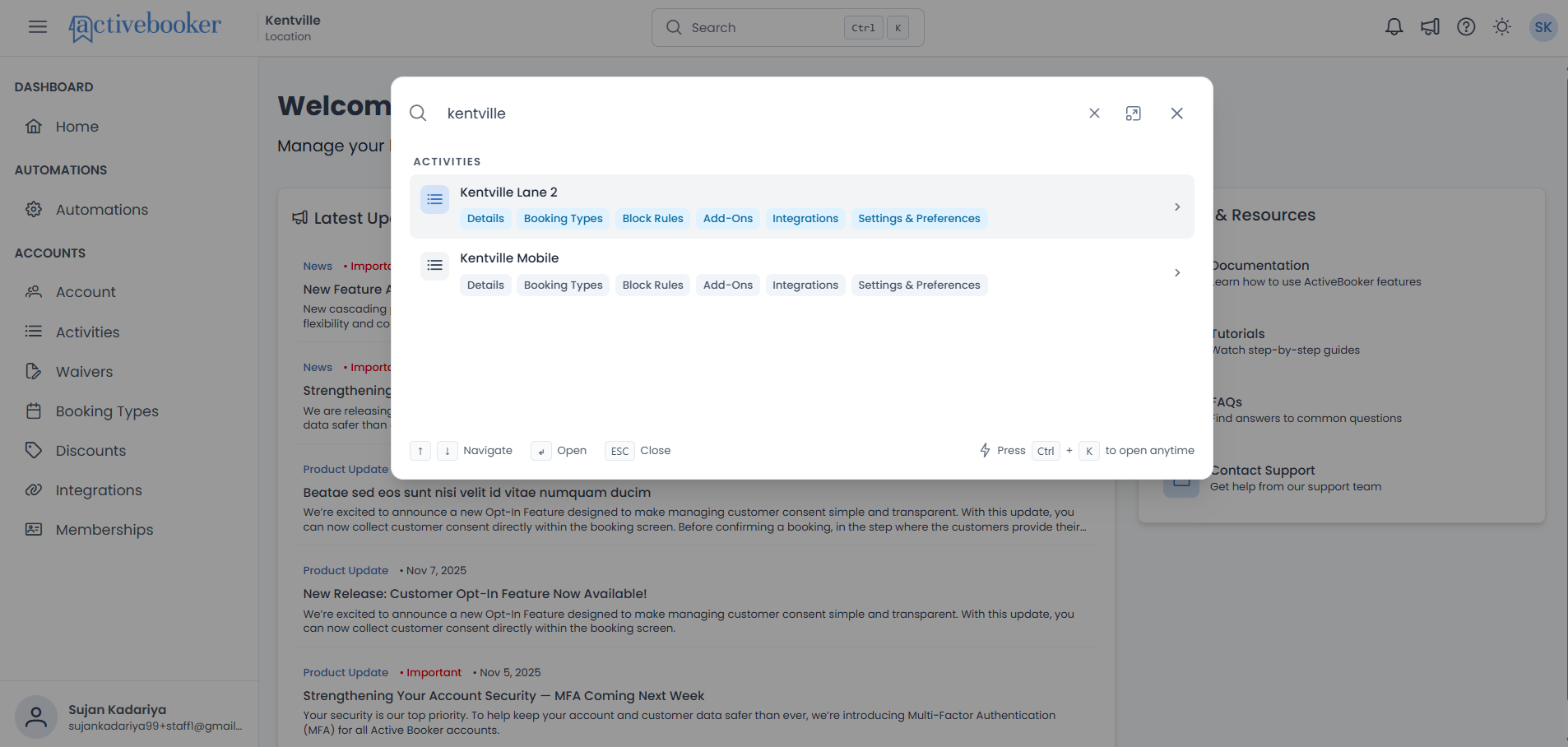
When you search for an activity, results are matched by the activity name. Each result card shows:
- An icon representing the activity type
- The activity name as the main clickable title
- A row of quick-access tags below the name: Details, Booking Types, Block Rules, Add-Ons, Integrations, Settings & Preferences
Clicking the activity name takes you to its Details page, where you can view and manage all of its general information. If you already know which section you need, click one of the tags to go there directly — for example, clicking Booking Types takes you straight to that activity's booking configuration without any extra steps.
Example: Searching for "Kentville" shows all activities with "Kentville" in the name. Clicking the Add-Ons tag on a result takes you straight to that activity's Add-Ons page.
Members
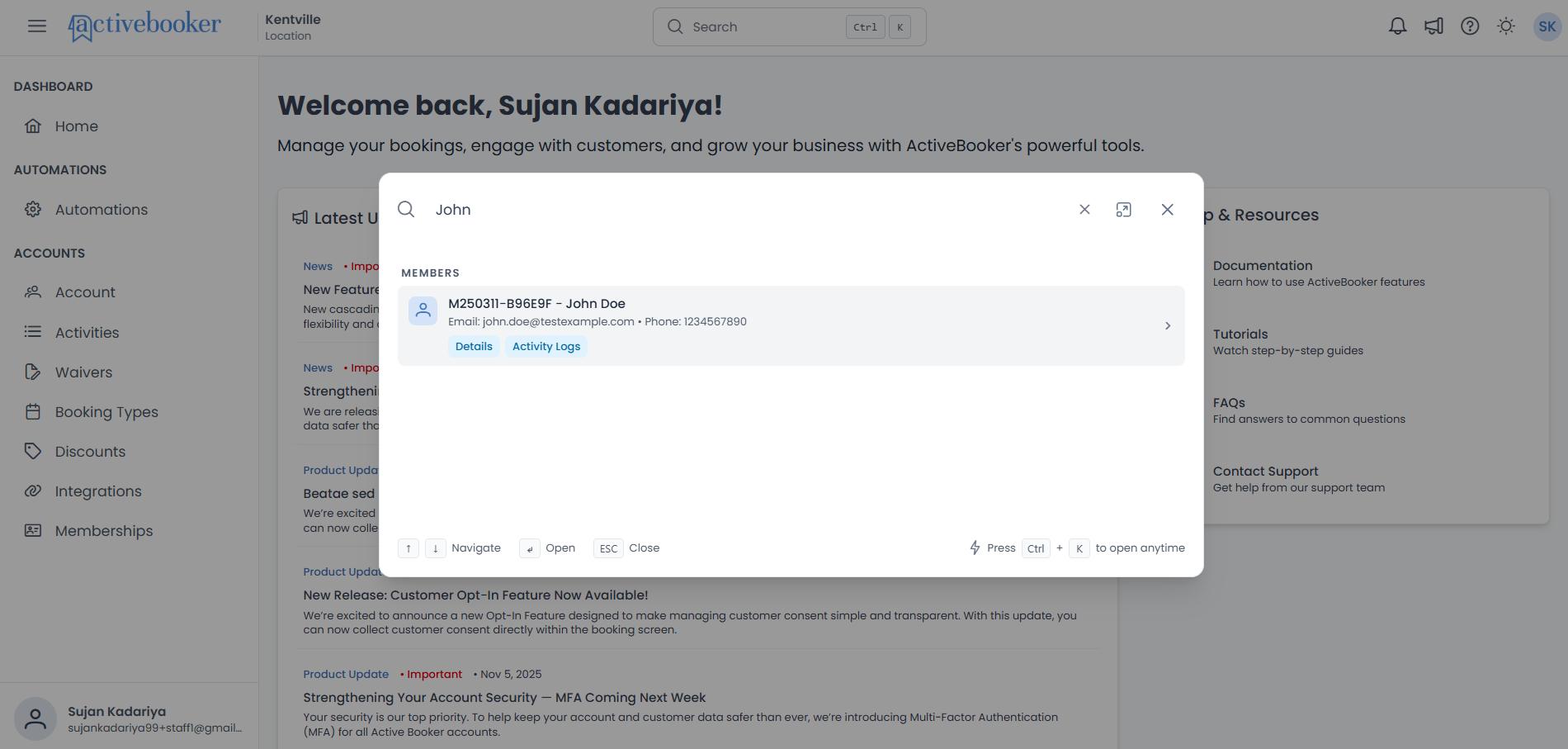
When searching for a member, the search looks across member code, first name, last name, email address, and phone number — so you can find someone even if you only remember part of their contact details. Each result card shows:
- An avatar icon representing the member
- The member's unique code and full name (e.g.,
M250311-B96E9F - John Doe) - Their email address and phone number for quick confirmation that you have the right person
- Quick-access tags: Details, Activity Logs
Clicking the member's name or the Details tag opens their full member profile. Clicking Activity Logs takes you directly to a record of that member's past bookings and activity within your system.
Example: Searching for "John" returns any member whose name, email, or phone number includes "John" — useful when you are not sure of the exact spelling or which John you are looking for.
Membership Plans
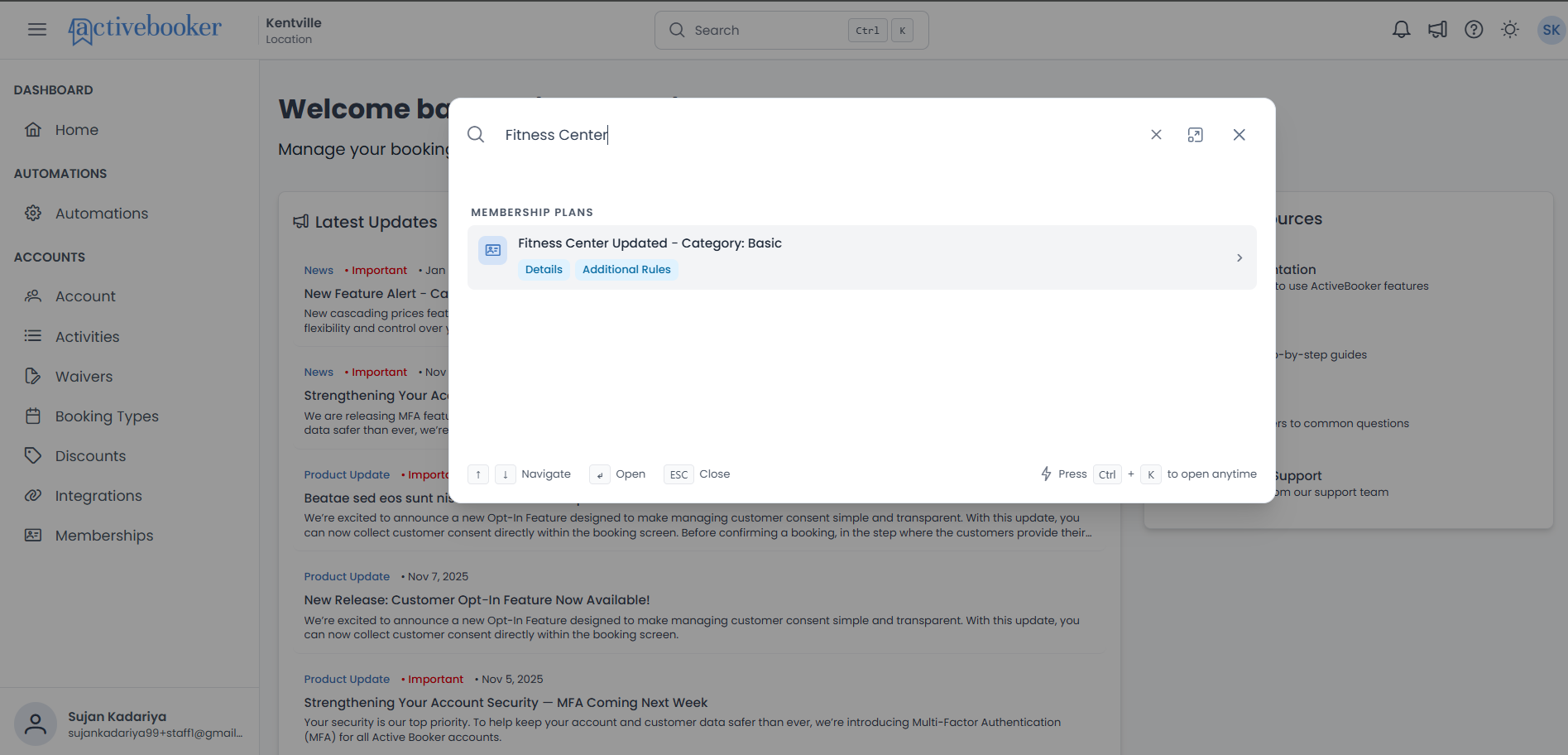
When searching for a membership plan, results are matched by plan name or the category it belongs to. Each result card shows:
- An icon representing the membership plan
- The plan name and its category (e.g.,
Fitness Center Updated - Category: Basic), so you can instantly tell which plan you are looking at and how it is grouped - Quick-access tags: Details, Additional Rules
Clicking the card or the Details tag opens the plan's full details. Clicking Additional Rules takes you directly to any extra conditions or restrictions set up for that plan.
Example: Searching for "Fitness Center" returns all plans whose name or category includes "Fitness Center", making it easy to find plans across different pricing tiers or categories at once.
Pages
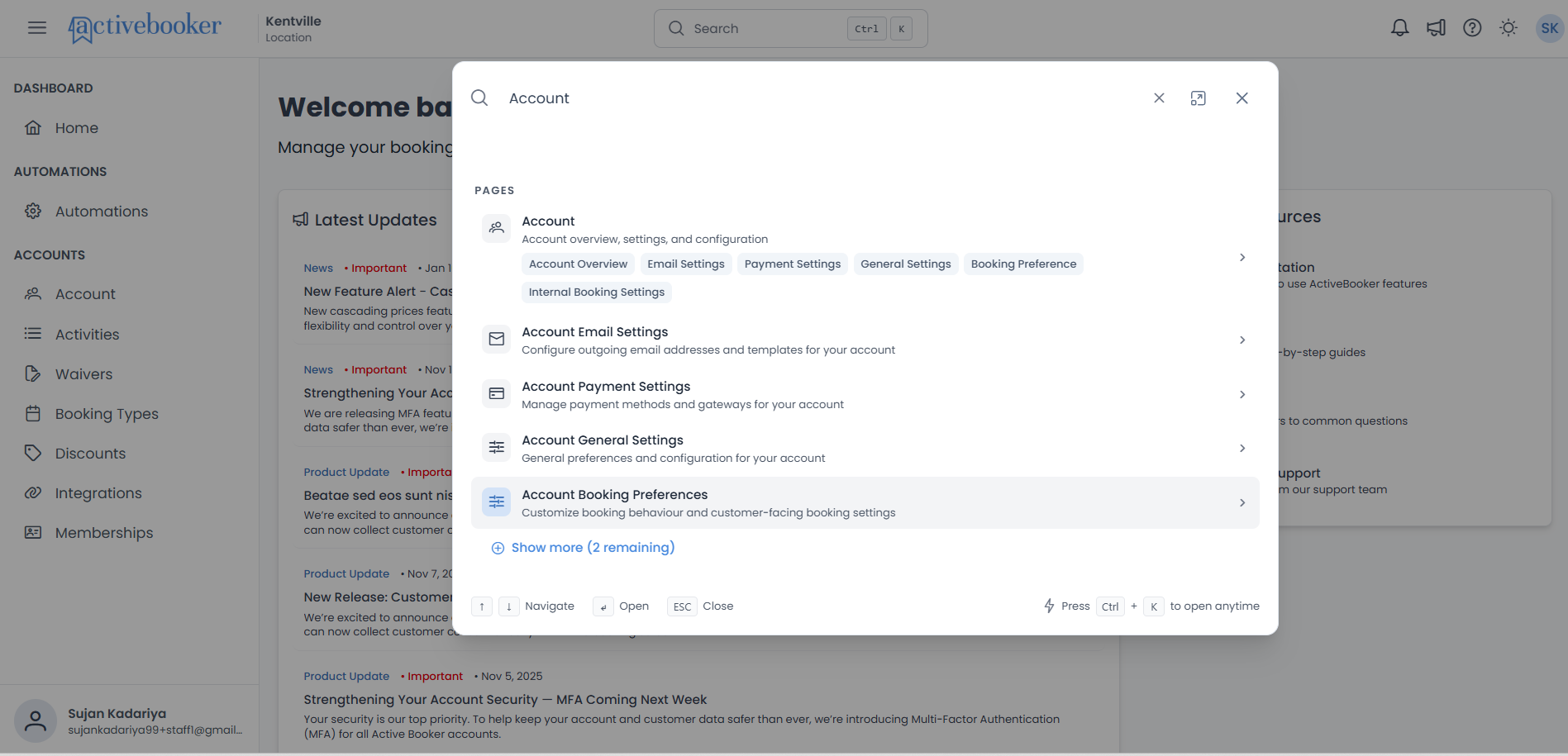
Pages represent the different sections and settings areas within your ActiveBooker dashboard. Each result card shows:
- An icon representing the section
- The page name as the main title
- A short description of what you will find on that page, so you can confirm it is the right place before clicking
- Sub-page tags for jumping to a specific area within the section
Clicking the page name always opens the main landing page for that section. If you need a specific sub-section, use the tags — they let you skip straight to what you need without having to navigate through menus once you arrive.
Example: Searching for "Account" surfaces the Account page with sub-page tags such as Account Overview, Email Settings, Payment Settings, General Settings, Booking Preference, and Internal Booking Settings, so you can jump directly to the exact setting you need in a single click.
Showing More Results
Each category shows a maximum of 5 results at a time. If more results exist, a Show more (X remaining) button appears below those results.
- For Activities, Membership Plans, and Pages, clicking Show more reveals the next 5 results from the already-loaded set.
- For Members, clicking Show more fetches the next page of results from the server, since member lists can be very large.
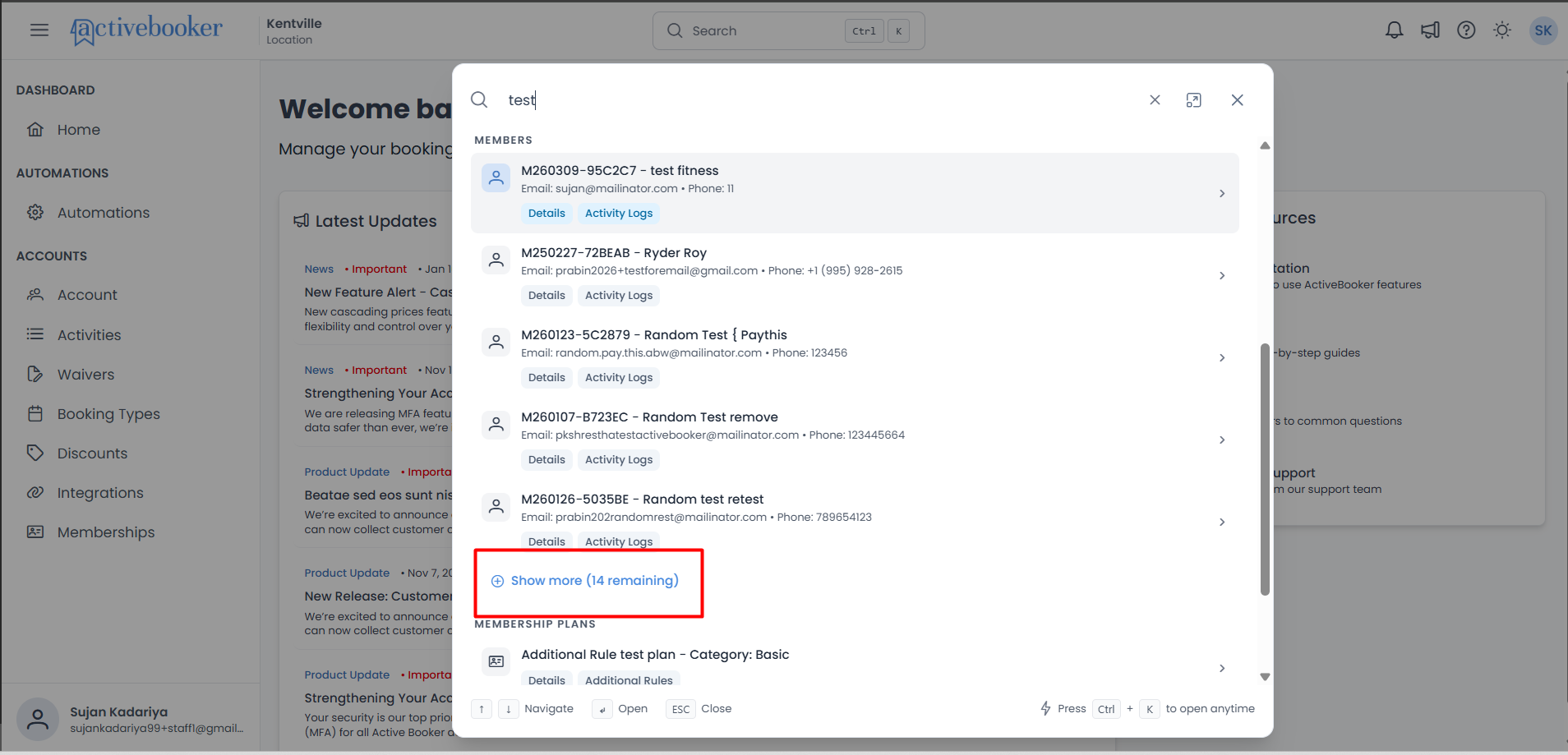
If you are not finding what you are looking for in the first 5 results, click Show more before refining your search term, your exact match may be just below.
Keyboard Navigation
You can navigate and use the entire search dialog without touching your mouse:
| Key | Action |
|---|---|
↑ / ↓ | Move up or down through the result list |
↵ (Enter) | Open the currently highlighted result |
Esc | Close the search dialog |
Ctrl + K | Open or close search from anywhere in the dashboard |
The currently highlighted result is visually indicated with a background highlight. Tags on that result also change color so you can clearly see what is selected.
You can only navigate through result items using the keyboard, keyboard navigation is not active while the Popular Searches tags are shown (i.e., before you have typed anything).
Closing Search
You can close the search dialog in three ways:
- Press
Esc - Click the × icon in the top-right corner of the dialog
- Click anywhere outside the dialog
Your Search is Preserved
When you navigate to a page from a search result, your search term is remembered. If you press Ctrl + K again after visiting a result, the dialog reopens with your previous search query and results still in place.
This is especially useful when you need to visit several related results in a row, for example, checking details and activity logs for multiple members from the same search.
Tips for Getting the Most Out of Search
- Use partial names — You don't need to type the full name. Typing
"bowl"will find "Bowling Lane 1", "Bowling Lane 2", etc. - Search by email for members — If you remember a member's email but not their name, type part of the email address to find them instantly.
- Use Popular Searches for quick navigation — If you just want to jump to a section without searching, click one of the Popular Searches tags.
- Combine with keyboard shortcuts — Press
Ctrl + K, type a few letters, use arrow keys to highlight, and press Enter to open — entirely hands-free.