Users
Manage the people who have access to your dashboard. Add staff members, assign roles, control who can log in, and remove users when needed — all from a single page.
Quick start
- Navigate to Users in the left sidebar under the ACCOUNTS section
- Click + Add User to invite a new team member
- Fill in the required fields (First Name, Last Name, Email Address, Role)
- Click Save to create the user
What you can do
The Users page helps you:
- View all users — See everyone who has access to your dashboard at a glance
- Add new staff members — Invite team members and assign them a role
- Edit user details — Update names, email addresses, roles, and active status
- Control access — Activate or deactivate users to manage who can log in
- Remove users — Delete users who no longer need access
Understanding the interface
Page layout
When you open the Users page, the breadcrumb at the top shows Home > Users. The page is organized into three areas:
Top bar
- A Search keyword field on the left for finding users quickly
- Refresh and + Add User buttons on the right
Users table
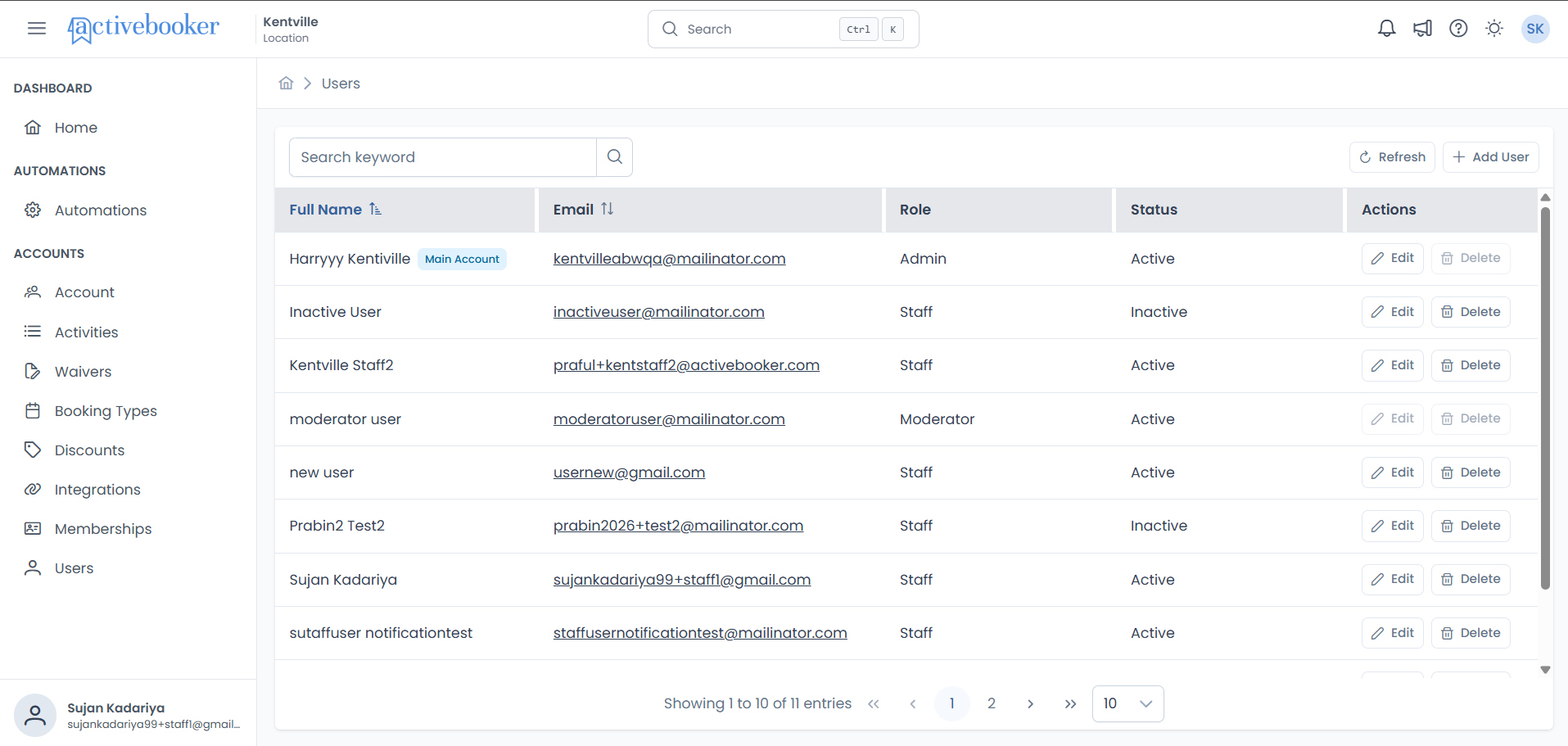
The table shows the following information for each user:
| Column | What it shows |
|---|---|
| Full Name | The user's first and last name. You can click the column header to sort. |
| The user's email address, shown as a clickable link. You can also sort by this column. | |
| Role | The role assigned to the user — Admin, Staff or Moderator. |
| Status | Whether the user is Active (can log in) or Inactive (cannot log in). |
| Actions | Buttons to Edit or Delete the user. |
Pagination
At the bottom of the table, you'll see:
- How many users are shown (e.g., "Showing 1 to 5 of 5 entries")
- Navigation arrows to move between pages
- An option to change how many users are displayed per page (defaults to 10)
Main Account badge
The primary account owner is highlighted with a blue "Main Account" badge next to their name. This user has special protections — see Main Account restrictions below.
Searching and sorting
Search
Type a name or email address into the Search keyword field to instantly filter the users table. Results update as you type — no need to press Enter or wait for the page to reload.
- Search by name — Type a first name, last name, or part of a name
- Search by email — Type a full or partial email address
- Clear search — Delete the keyword to see all users again
Search updates instantly with each keystroke, so you can find users quickly even in large lists.
Sort
- By default, users are sorted by Full Name in alphabetical order (A → Z)
- Click the Full Name or Email column header to change the sort direction
- Only one column can be sorted at a time
- Sorting works alongside search — your filtered results stay sorted
Refresh
Click the Refresh button to reload the users list with the most up-to-date information.
Adding a user
- Click the + Add User button
- A pop-up form appears
- Fill in the required fields (see Form fields below)
- Click Save to create the user, or Cancel to close without saving
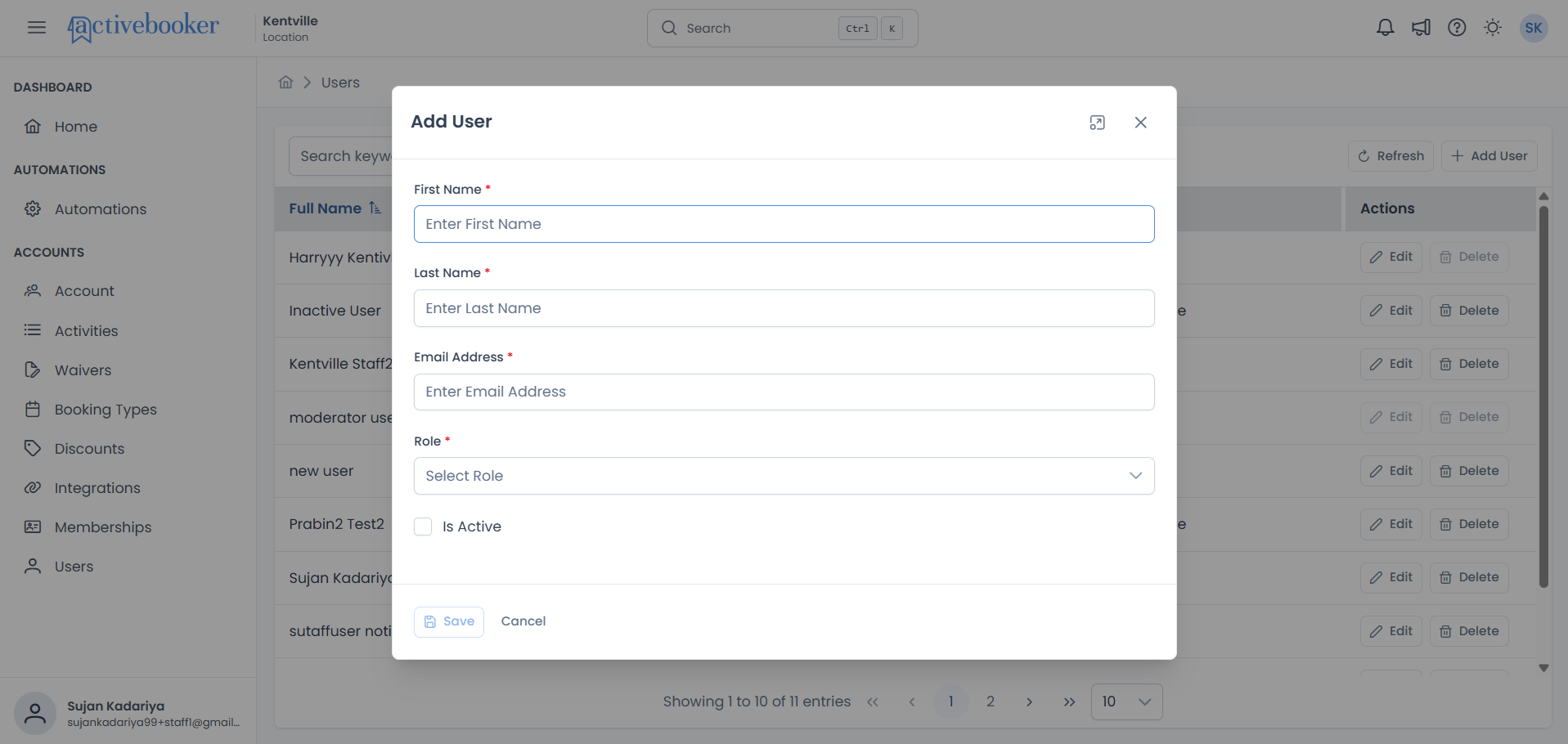
Form fields
When adding a new user, you'll see the following fields in the form.
First Name
The user's first name as it should appear in the dashboard. This is how they'll be identified in the users list.
Last Name
The user's last name. Together with the first name, this forms the Full Name displayed throughout the system.
Email Address
The email address the user will use to log in to the dashboard and receive any account-related notifications. Make sure this is a valid, working email they have access to.
Role
Determines what the user can do in the dashboard. Select a role from the dropdown to assign the appropriate level of access. Currently, Staff is the available option.
Is Active
Controls whether this user can sign in to the dashboard. When turned on, the user has access. When turned off, the user is blocked from logging in. New users start with this turned off by default.
Editing a user
- Click the Edit button next to the user you want to update
- The form opens with the user's current details already filled in
- Make your changes
- Click Save to apply, or Cancel to close without saving
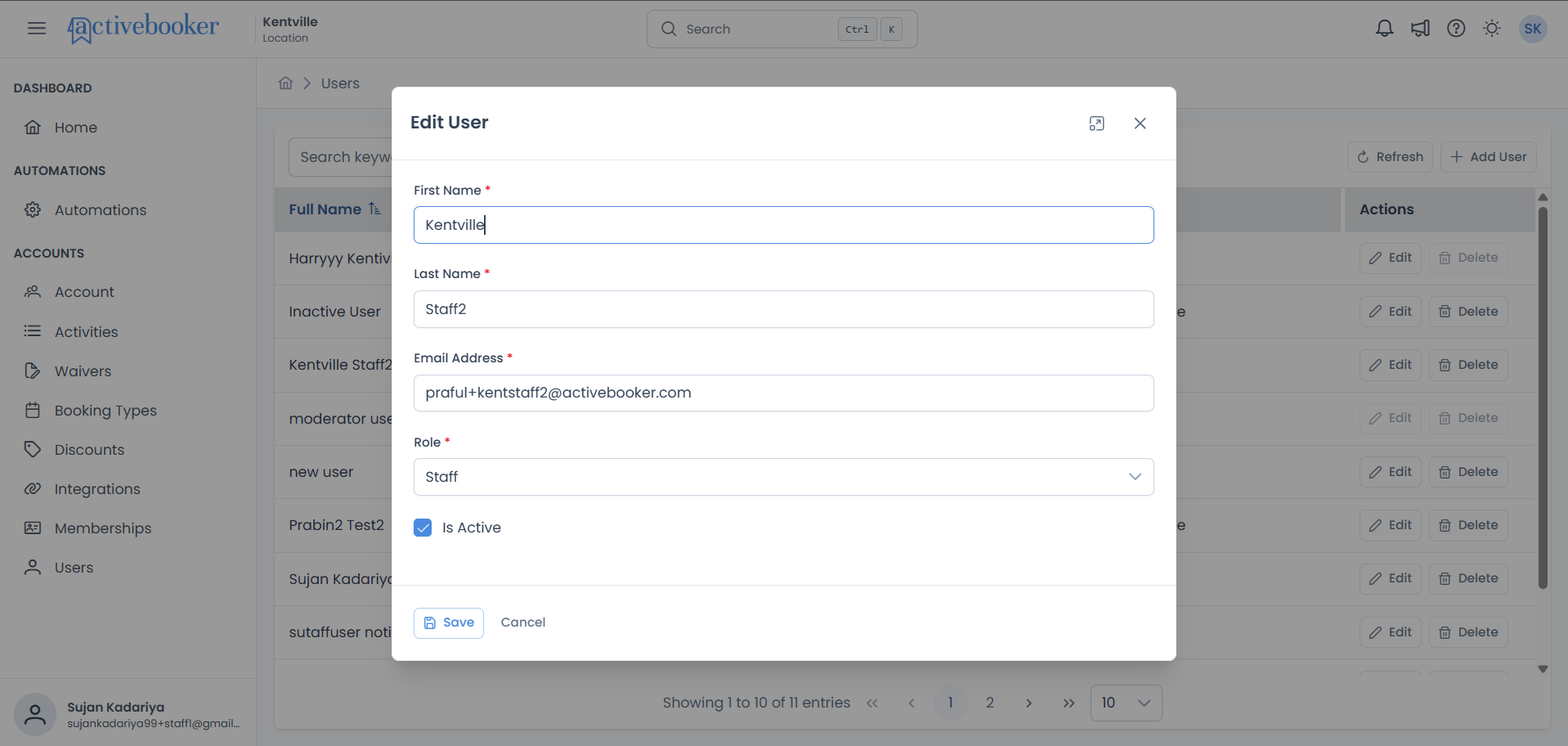
The same fields and requirements from the Add User form apply when editing.
The Moderator user cannot be edited. This restriction is in place to protect system integrity.
Deleting a user
- Click the Delete button next to the user you want to remove
- Confirm when prompted
- The user is removed and will no longer be able to log in
Deleting a user is permanent. Once removed, the user loses all access to the dashboard.
Users that cannot be deleted
- Main Account — The Delete button is greyed out for this user. The primary account owner cannot be removed.
- Moderator — This system user cannot be deleted.
Main Account restrictions
The Main Account is the primary owner of your location. To protect your account, this user has the following restrictions:
- Cannot be deleted — The Delete button is disabled
- Role cannot be changed — The role is permanently set and cannot be modified
- Active status cannot be changed — This user is always active
- Identified by a blue "Main Account" badge in the users list
User login and access
Here's how different situations affect whether a user can log in:
| Situation | Can the user log in? |
|---|---|
| User is active and has set their password | Yes |
| User resets their password | Yes — they can log in with the new password |
| User is set to Inactive | No — they are blocked from logging in |
| User has been deleted | No — they can no longer access the dashboard |
New users must reset their password before logging in for the first time. They will receive instructions to set up their password.
Troubleshooting
I can't delete a user
Why this happens: The user is either the Main Account or a Moderator. Both are protected from deletion. What to do: If you need to block someone's access, set their status to Inactive instead. This prevents them from logging in without deleting their account.
A new user can't log in
Why this happens: New users need to set up their password before they can sign in for the first time. What to do:
- Ask the user to follow the Reset Password steps they received by email
- Make sure their status is set to Active
- Confirm the user has not been deleted
I can't change a user's role or status
Why this happens: The Main Account's role and active status are permanently locked. The Moderator user also cannot be edited. What to do: These restrictions are in place to protect your account and cannot be changed.
Related resources
- Account Settings — Overview — Manage your location's basic information
- Reset Password — Login and password management