Basic Information
Manage Your Location's Basic Information and Branding
The Account Settings Overview page allows you to configure essential details about your location, including contact information, timezone settings, and company branding. This information appears on your booking site and in customer communications, ensuring consistent and professional representation of your business.
Overview Section
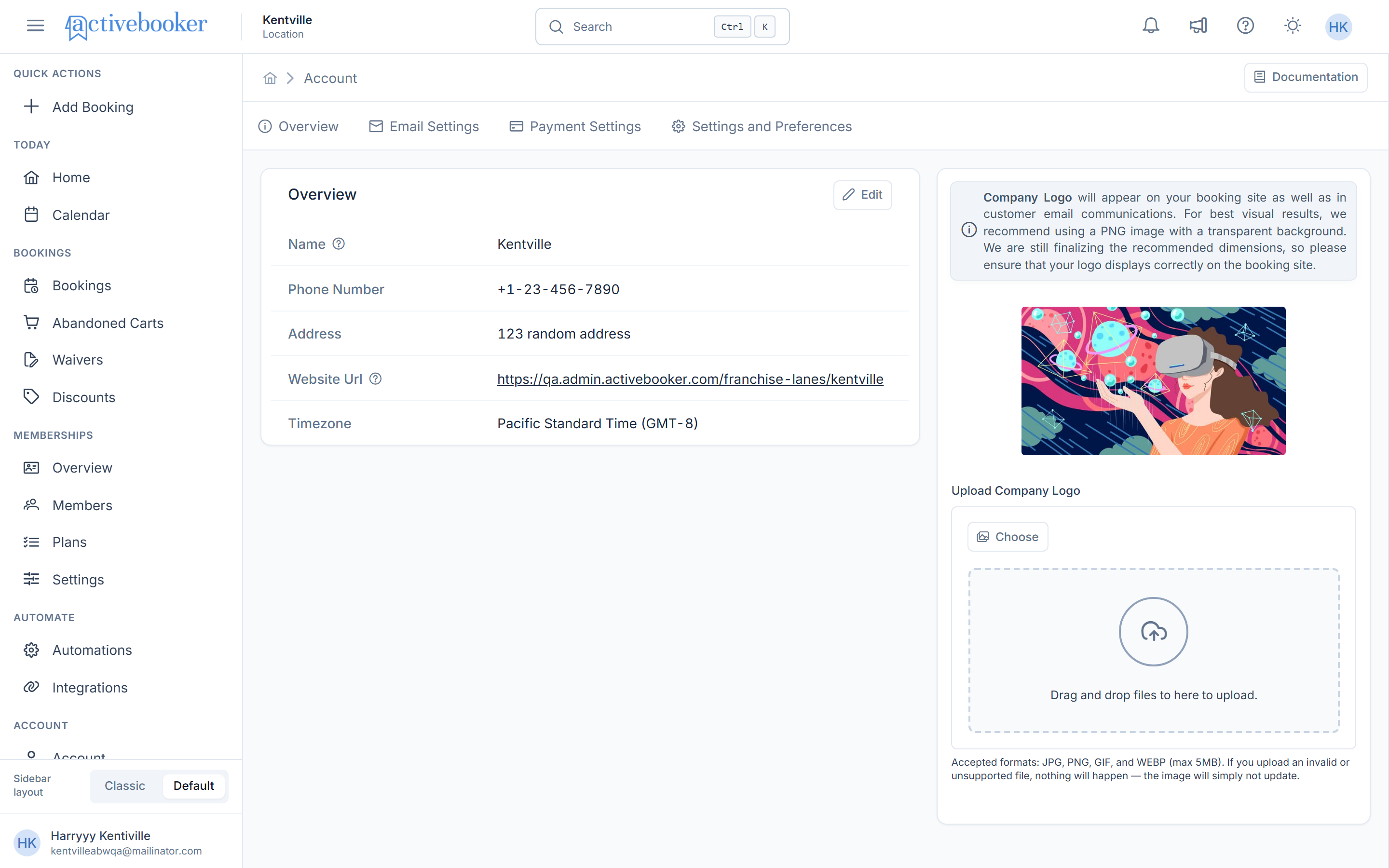
The Overview section displays and allows you to edit your location's core information that appears throughout the system.
Information Fields
Your account overview includes the following details:
- Name: Your company or location name (displayed on booking site and in emails)
- Phone Number: Primary contact number for your location
- Address: Physical address of your location
- Website URL: Link to your company website (displayed as a clickable link on booking site)
- Timezone: Local timezone for your location (used for scheduling and email delivery)
How to Edit Account Information
- Navigate to Account > Overview tab
- Click the Edit button in the top-right corner of the Overview section
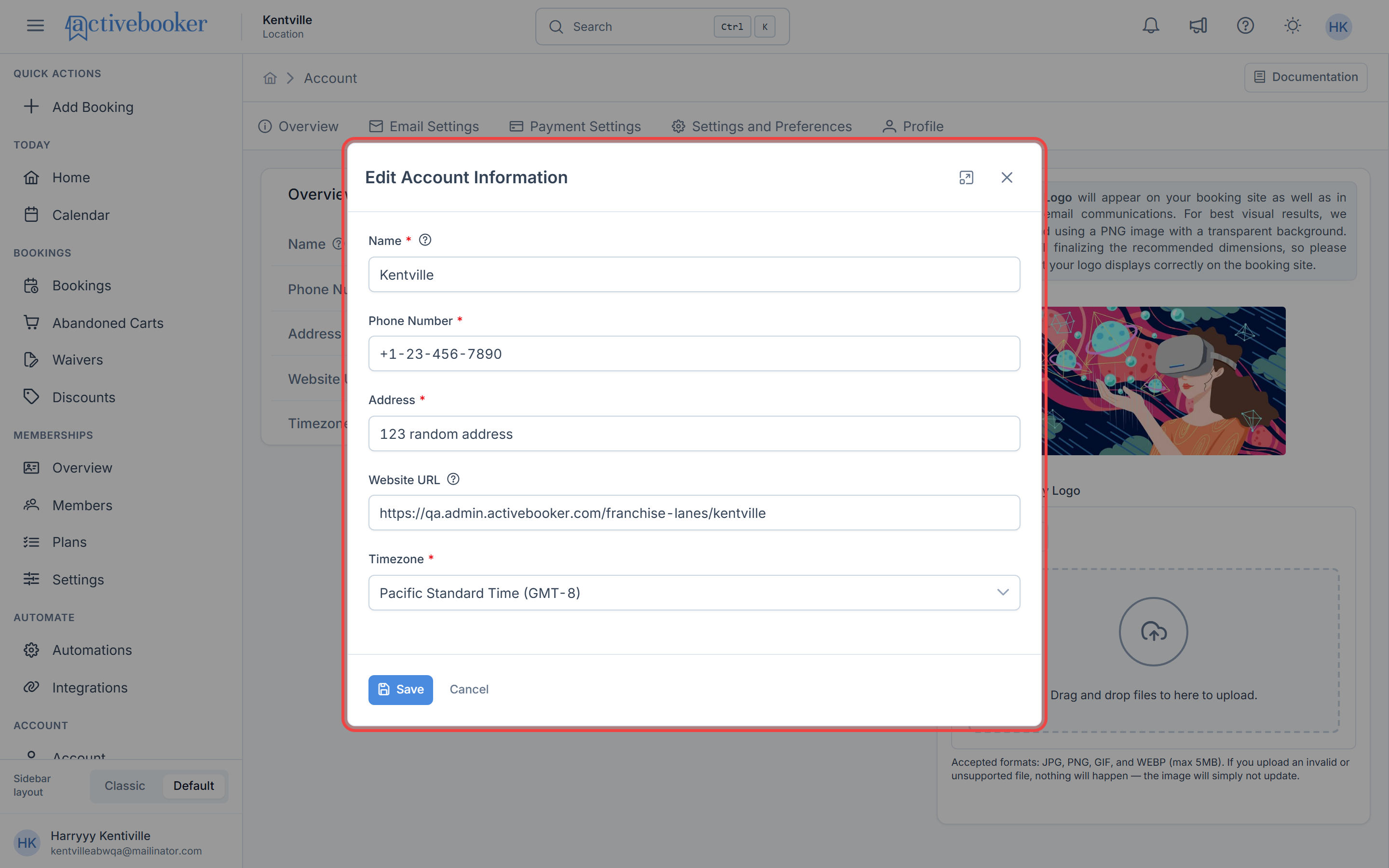
- The "Edit Account Information" modal will open with editable fields
- Update the required information:
- Name (Required, maximum 100 characters)
- Phone Number (Required, maximum 20 characters)
- Address (Required, maximum 250 characters)
- Website URL (Optional, maximum 125 characters)
- Timezone (Required, select from dropdown)
- Click Save to apply changes or Cancel to discard
Field Requirements and Validation
| Field | Required | Maximum Length | Notes |
|---|---|---|---|
| Name | Yes | 100 characters | Displayed on booking site and emails |
| Phone Number | Yes | 20 characters | Primary contact number |
| Address | Yes | 250 characters | Physical location address |
| Website URL | No | 125 characters | Must be valid URL format if provided |
| Timezone | Yes | N/A | Select from available timezone list |
All required fields (Name, Phone Number, Address, and Timezone) must be completed to save changes. The form will not submit if any required field is empty.
Website URL Behavior
When you provide a Website URL:
- It appears as a clickable link on your booking site
- Customers are redirected to your website when they click the link
- The URL must be properly formatted (include
https://orhttp://) - Leaving this field empty means no website link will display
Timezone Importance
The timezone setting is critical for system operations:
- Determines when automated emails are sent to customers
- Ensures booking times display correctly for your location
- Used to calculate reminder and confirmation email delivery times
Example: If you schedule a reminder email for "24 hours before appointment," the system uses your location's timezone to calculate the exact send time.
Changing your timezone after setting up bookings may affect future email delivery times. Review your automated email schedules after making timezone changes.
Company Logo
Your company logo is a visual representation of your brand that appears across your booking system and customer communications.
Where Your Logo Appears
- Customer-facing booking site
- Email communications (confirmations, reminders, receipts)
- Customer touchpoints throughout the booking journey
Logo Requirements
To ensure your logo displays properly across all platforms, please follow these guidelines:
File Format
- Accepted formats: JPG, JPEG, PNG, GIF, WEBP
- Recommended format: PNG with transparent background
File Size
- Maximum size: 5MB
- Files larger than 5MB will be rejected
Visual Quality
- Use high-resolution images for best results
- Transparent backgrounds ensure proper display on various colored backgrounds
- Ensure proper dimensions to avoid stretching or pixelation
How to Upload Your Logo
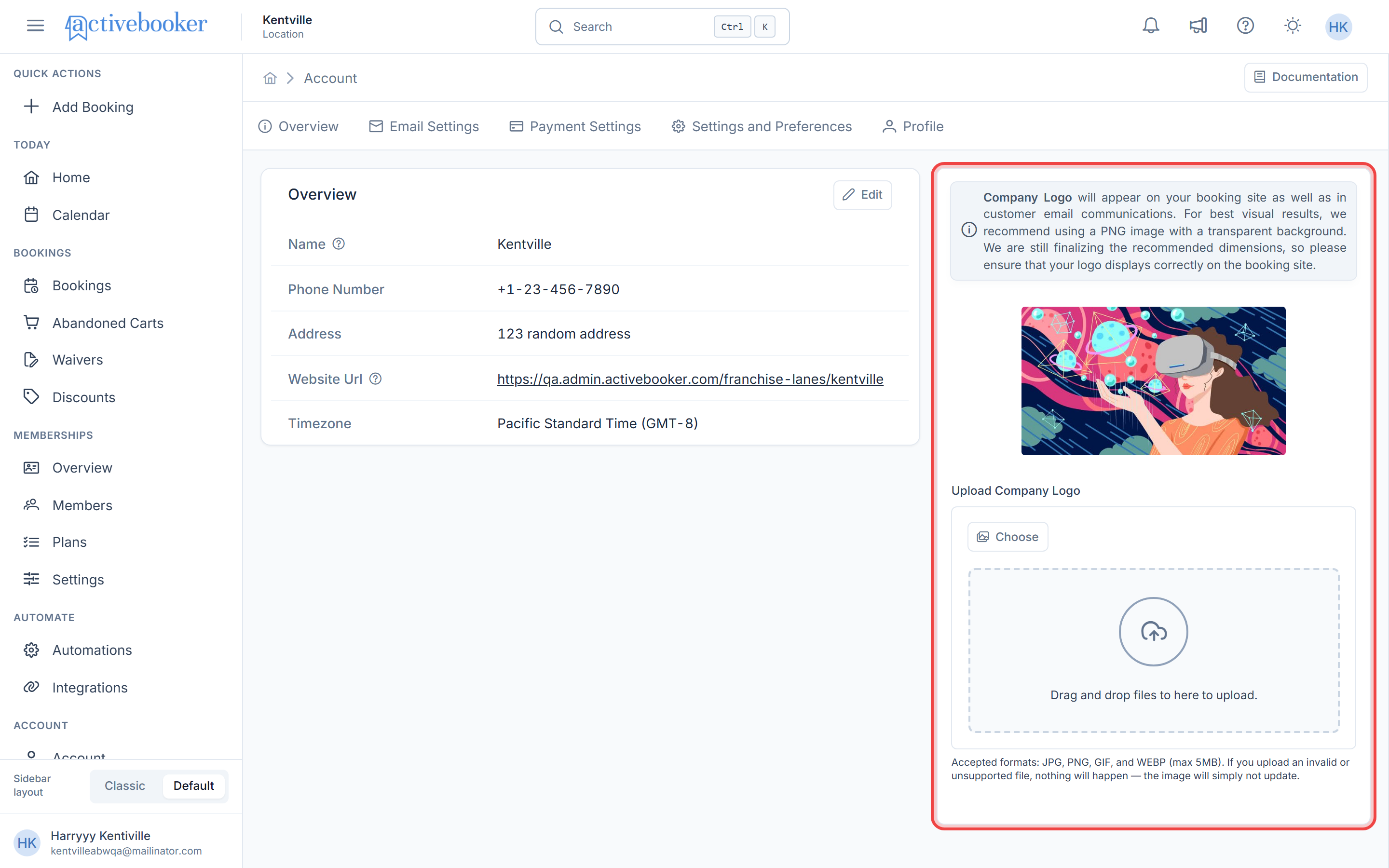
You can upload your company logo using two methods:
Method 1: Choose File
- Click the Choose button in the "Upload Company Logo" section
- Browse your computer and select your logo file
- Preview appears immediately after selection
- Click Upload to save the logo or Cancel to discard
Method 2: Drag and Drop
- Locate your logo file on your computer
- Drag the file to the drag-and-drop area
- Drop the file in the designated zone
- Preview appears immediately after dropping
- Click Upload to save the logo or Cancel to discard
Upload Actions
- Upload: Saves your logo to the server and makes it live across your booking system
- Cancel: Discards the selected image without saving any changes
- Preview: View your logo immediately after selection, before committing the upload
Always preview your logo before clicking Upload to ensure it displays correctly. Once uploaded, the logo will be visible to all customers.
Upload Validation
The system validates your upload against the following criteria:
| Validation Rule | Requirement |
|---|---|
| File format | Must be JPG, JPEG, PNG, GIF, or WEBP |
| File size | Must be 5MB or less |
| File type | Must be a valid image file |
If your file doesn't meet the requirements, the upload will fail silently—the image will not update and no error message will appear. Verify your file meets all requirements before attempting upload.
FAQs
Why is the timezone setting important?
The timezone setting determines when automated emails are sent to your customers relative to their bookings. For example:
- A reminder email scheduled for "24 hours before appointment" uses your location's timezone
- Ensures customers receive timely communications
- Prevents emails from arriving at inappropriate times
What happens if I don't provide a Website URL?
The Website URL field is optional. If you leave it blank:
- No website link will appear on your booking site
- Customers won't have a direct link to learn more about your business
- All other functionality remains unaffected
Providing a URL helps customers access additional information about your services, policies, and business.
My logo looks stretched or pixelated. What should I do?
If your logo doesn't display correctly:
- Ensure your logo file is high-resolution
- Check that the original dimensions are appropriate
- Use PNG format with transparent background for best results
- Verify the file is under 5MB while maintaining quality
- Avoid uploading very small images that need to be enlarged
Can I change my account information after initial setup?
Yes, you can edit your account information at any time:
- Navigate to Account > Overview
- Click the Edit button
- Make your changes
- Click Save
Changes take effect immediately across your booking system.
What happens to existing bookings if I change my timezone?
When you change your timezone:
- Existing bookings typically maintain their scheduled times
- Future automated emails will use the new timezone for calculation
- Booking availability windows may shift based on the new timezone
- Review your automated email schedules after making timezone changes
Exercise caution when changing timezones, especially if you have upcoming bookings. Consider informing customers of any schedule changes if necessary.
Why won't my logo upload?
If your logo fails to upload, check the following:
File Format
- Is the file JPG, JPEG, PNG, GIF, or WEBP?
- Some image formats like BMP, TIFF, or SVG are not supported
File Size
- Is the file 5MB or smaller?
- Compress large files using image editing software
File Validity
- Is the file a valid, non-corrupted image?
- Try opening the file in an image viewer to verify
Browser Issues
- Clear your browser cache and try again
- Try using a different browser
- Check your internet connection
How do I remove my company logo?
Currently, the system requires a company logo. To change your logo:
- Upload a different logo file
- The new logo will replace the existing one
If you need to remove the logo entirely, contact support for assistance.
Can I use a logo with text in it?
Yes, you can use a logo that includes text. However:
- Ensure the text is legible at smaller sizes
- High contrast between text and background improves readability
- Test how the logo appears on both light and dark backgrounds
- PNG format with transparent background works best for text-based logos
See Also
Learn more about related account settings and configurations:
- Email Settings - Configure email templates and notification preferences
- Payment Settings - Set up payment methods and processing