Reset password
Reset your ActiveBooker password from the sign-in page using your email address — no need to contact support.
Before you start
- You need access to the email address associated with your account
- Reset links expire after 15 minutes, but you can request a new one at any time
Reset your password
Step 1: Request a reset link
- Go to the sign-in page
- Enter the email address associated with your account in the Email Address field
- Click Forgot password? next to the Password field
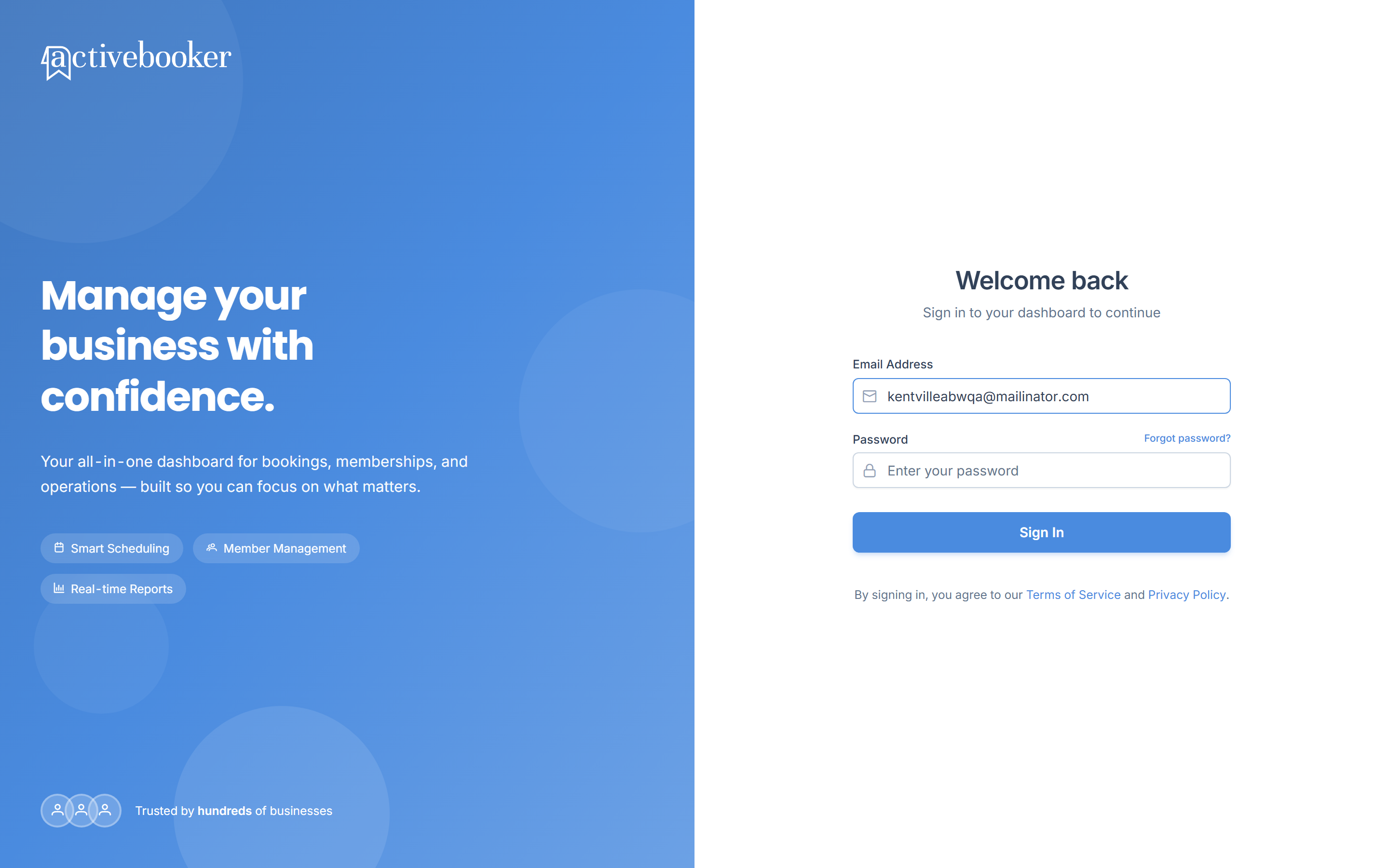
You'll only receive a reset link if the email is associated with an account. If you leave the Email Address field empty, ActiveBooker shows "Provide Email Address to reset password" and won't send anything.
Step 2: Check your email
Check your inbox for the reset email — it typically arrives within a few minutes.
- Check your spam or junk folder
- Verify you entered the correct email address
- Wait a few minutes and try again
- Make sure emails from our domain aren't blocked
Step 3: Click the reset link
Open the email and click the reset link. It takes you to a secure page to create a new password.
Never share your password reset link with anyone. ActiveBooker support will never ask you for it.
Step 4: Create a new password
Enter your new password, confirm it, and submit to complete the reset.
Password requirements
Your new password must meet the following criteria:
- Minimum length: 8 characters
- Maximum length: 128 characters
- Must include:
- At least one uppercase letter (A-Z)
- At least one lowercase letter (a-z)
- At least one number (0-9)
- At least one special character (!@#$%^&*)
- Use a unique password you don't use on other sites
- Avoid common words, phrases, or personal information
- Consider using a password manager
Troubleshooting
Reset link expired
Why this happens: Reset links expire after 15 minutes for security reasons. If a link has already been used, or a newer reset link was generated after it, the older link becomes invalid.
How to fix it:
- Return to the sign-in page
- Enter your email address and click Forgot password? again
Reset link not working
Why this happens: The link may have been copied incorrectly, or your browser is blocking part of the redirect.
How to fix it:
- Copy and paste the full URL into your browser instead of clicking it directly
- Try a different browser
- Request a new reset link
Frequently asked questions
How long does the reset link remain valid?
Reset links expire after 15 minutes. If your link has expired, request a new one.
How many times can I reset my password?
There's no limit to how many times you can reset your password.
Related
- Signing in — sign in, change your password, and sign out
- Create your account — set your password for the first time via the activation email