Booking Details
View the complete details of any booking on a single page, including customer information, booking specifics, billing and pricing, any add-ons included in the booking, and any signed waivers associated with the booking. The page also includes a timeline of booking events, a collection progress tracker, and a payment insight chart. You can also check in a customer directly from this page once they arrive for their activity.
Quick start
View a booking's full details in just a few steps:
- Navigate to Bookings in the left sidebar under the BOOKINGS section
- Find the booking you want to view in the list
- Click the View Detail button in the Actions column
- The Booking Detail page opens with all sections displayed
What you can do
The Booking Detail page helps you:
- Review customer information — See the customer's name, email, phone number, and how they booked
- Check booking specifics — View the activity, booking type, room or row, event date, time slot, number of people, and when the booking was made
- Understand billing and pricing — See the activity subtotal, add-ons subtotal, total amount, tax, service fee, gratuity fee, deposit, and amount due with currency values
- View add-ons — See all add-ons included in the booking, along with their name, quantity, rate, tax, and subtotal
- Add notes — Record a note on the booking for your team's reference
- Track booking history — Follow every key event on the booking, from creation to check-in, cancellation, or refund, in the Timeline widget
- Track payment collection — See how much of the total has been collected and how much is still due in the Collected widget
- See a price breakdown at a glance — View a chart that breaks down what makes up the booking's total in the Payment insight widget
- View signed waivers — See all waivers signed by participants, including their personal details and the date they signed
- Access waiver documents — Open the full signed waiver PDF directly from the booking detail page
- Check in a customer — Confirm a customer's arrival and mark their booking as active when they show up for their activity
- See the guest's door code — If you use RemoteLock, view, copy, or replace the booking's door code in the Door Access card. See Door codes for bookings
Navigating to a booking detail page
- Go to the Booking List page by clicking Bookings in the left sidebar
- Find the booking you want to view
- Click the View Detail button (eye icon) in the Actions column
- The Booking Detail page opens as a separate page
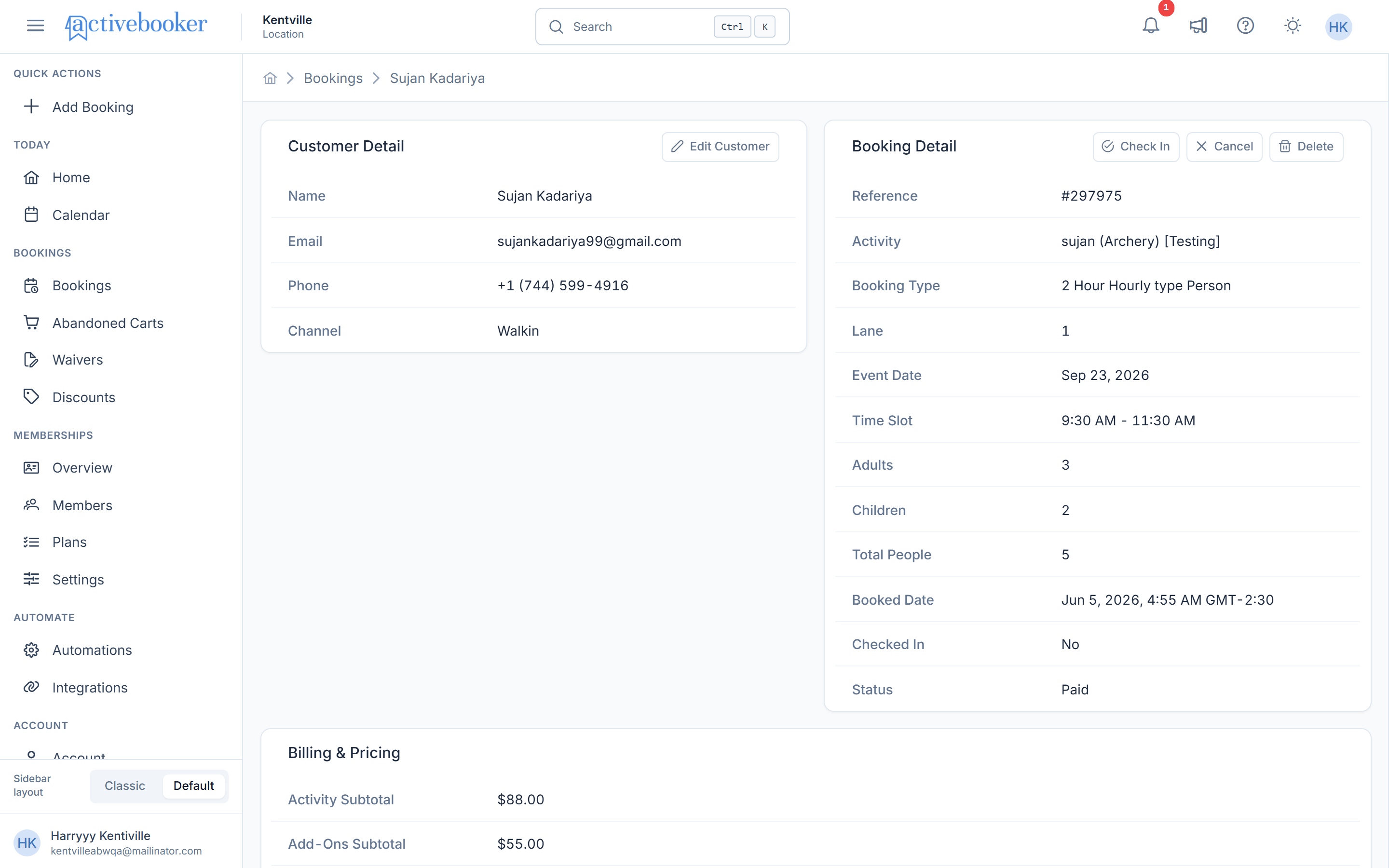
Most of the Booking Detail page displays static information that you cannot edit directly. The exceptions are the Notes widget, where you can add a note, and the action buttons (Check In, Cancel, Delete, Pay Amount Due, Refund) that update the booking's status. To change customer or booking fields themselves, use the Edit Customer or Edit Booking button.
Understanding the booking detail page
The Booking Detail page opens with a header showing the customer and booking at a glance, followed by a summary row, three main information cards, a Notes widget, and then the Add-Ons, Timeline, Collected, Payment insight, and Signed Waivers widgets.
Header
The header sits at the top of the page and shows who the booking is for and its current status.
Customer name and avatar
An avatar with the customer's initials appears next to their full name. If the customer is a member, a blue Member badge appears next to their name.
Booking reference
The unique reference number for the booking (e.g., "#BKG260826-F18D9A").
Email and phone
The customer's email address and phone number are shown as clickable links, so you can quickly email or call them.
Status badges
Below the customer's name, a row of badges shows:
- The payment status — Paid, Unpaid, Refunded, or Partially Refunded
- The check-in status — Not checked in (with a clock icon) or Checked In (with a check icon)
- The booking channel — Online, Walkin, or Phone
- The door code status — RemoteLock · Active, for example (only if you use RemoteLock)
Action buttons
The Check In, Cancel, and Delete buttons appear in the top-right corner of the header. Which buttons are visible depends on the booking's current status — see Checking In a Booking, Cancelling a Booking, and Deleting a Booking below.
Summary row
Directly below the header, a row of four columns summarizes the key facts about the booking:
Activity
The name of the booked activity, with the booking type shown underneath (e.g., "2 Hour Hourly type Person"). For bookings using a Custom Hours booking type, this sub-label reads "Custom Hours" instead.
Date
The event date, with the time slot shown underneath (e.g., "3:00 AM – 5:00 AM").
People
The total number of people on the booking, with the adults and children breakdown shown underneath (e.g., "11 adults, 1 children").
Room / Row
The room or row assigned to the booking. This column is labeled Room for most activities, or Row for lane-based activities (e.g., "Row 1").
Customer Detail
The Customer Detail card appears on the left side of the page and displays information about the person who made the booking.
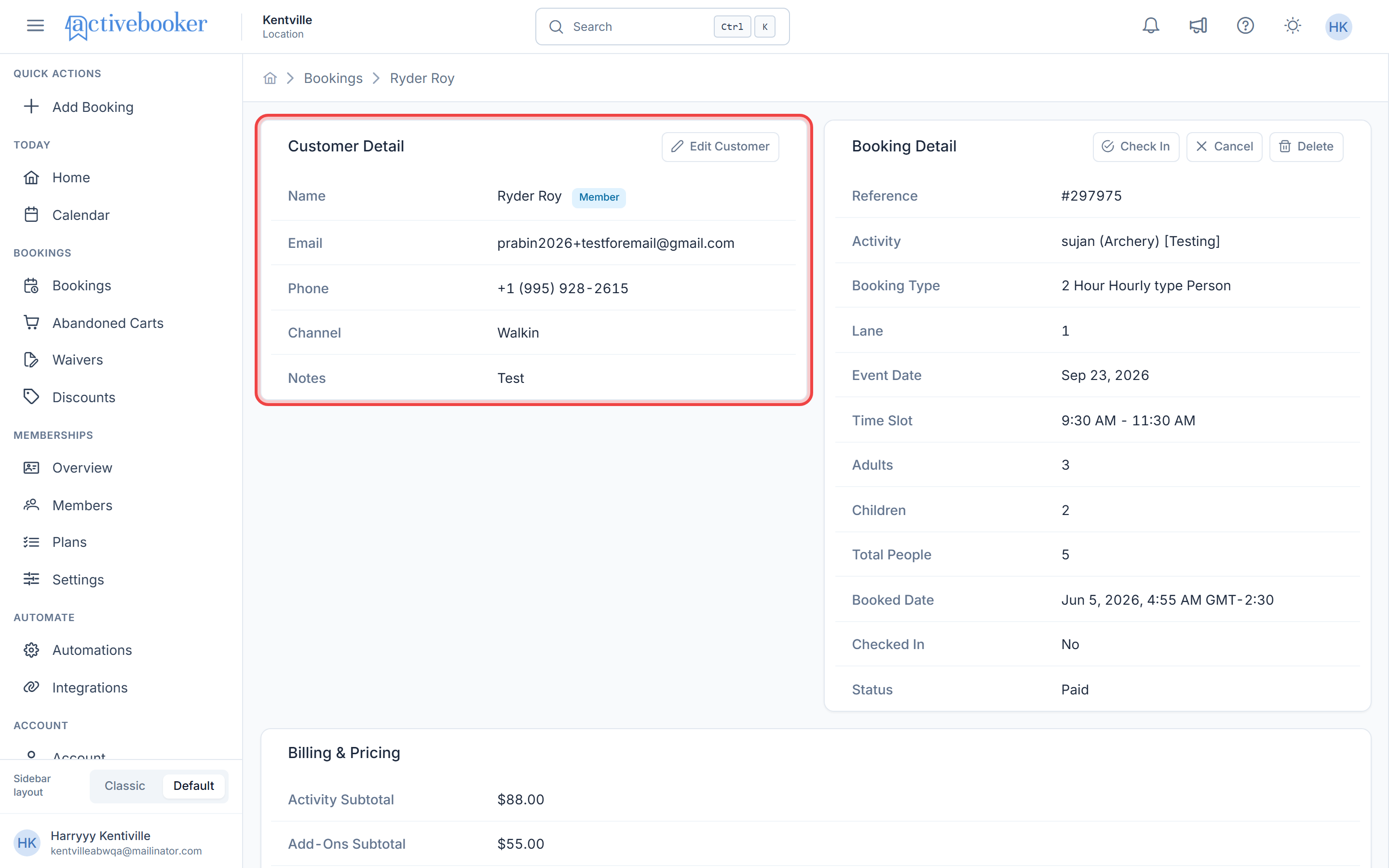
Name
The full name of the customer who made the booking. A blue Member badge appears next to the name if the customer is a member.
Email
The customer's email address.
Phone
The customer's phone number.
Channel
How the booking was made — Online (through your website), Walkin (in person at your location), or Phone.
Edit Customer
Click the Edit Customer button in the top-right corner of the card to open the customer edit flow pre-filled with the current customer's details.
Notes
The Notes card appears below Customer Detail, in the same column. It lets you record a note about the booking for your team's reference.
Empty state
If no note has been added yet, the card displays the message: "No notes on this booking."
Adding a note
Click into the notes field, marked with a note icon, and type your note (e.g., a special request or internal reminder). Click away from the field to save it. The note remains visible the next time the page is loaded.
Booking Detail
The Booking Detail card appears next to Customer Detail. It shows the specifics of what was booked and when.
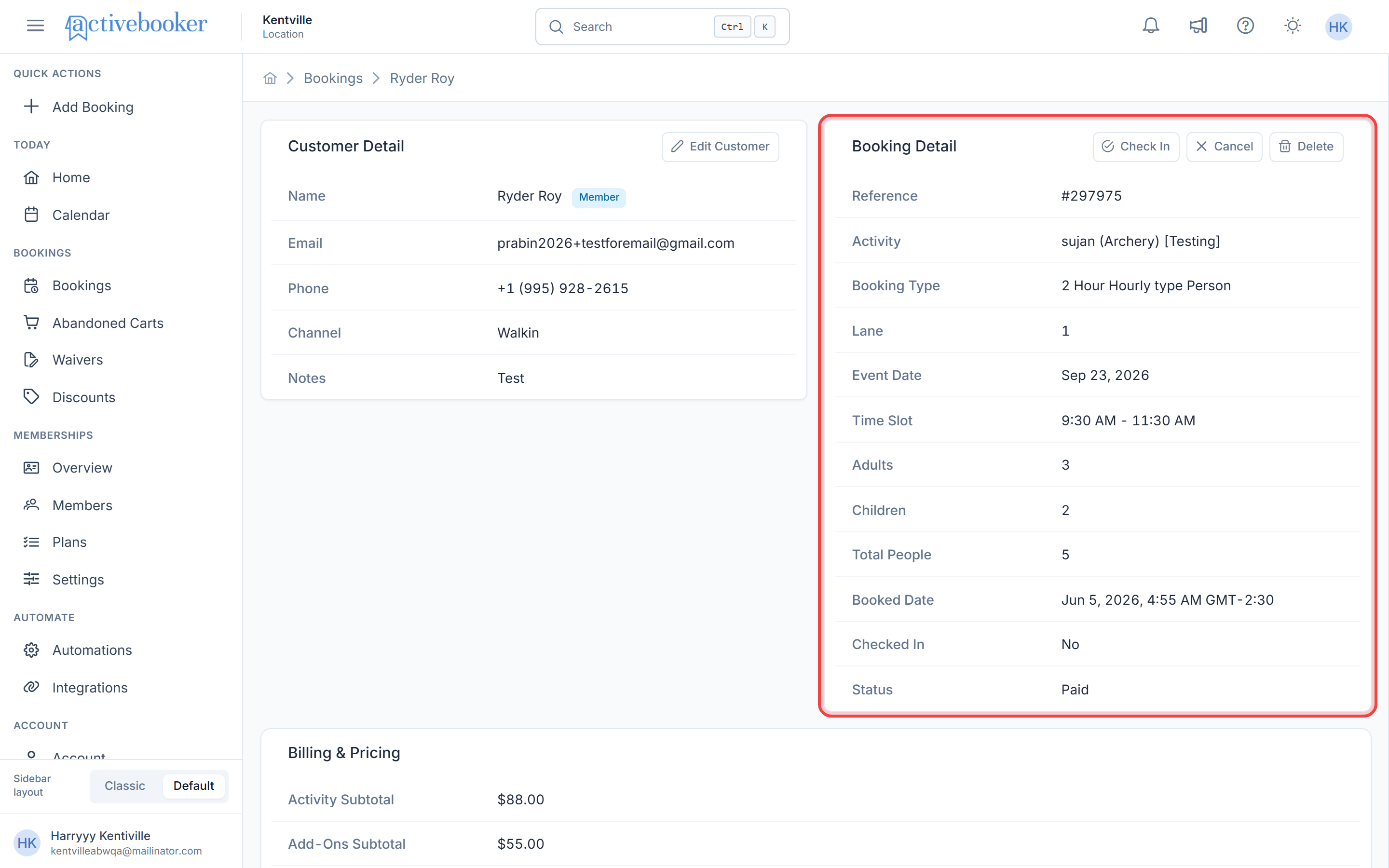
Reference
The unique reference number for the booking, matching the reference shown in the header.
Activity
The name of the booked activity (e.g., "Lane 2" or "Axe Arena").
Booking Type
The type of booking selected by the customer (e.g., "1 Hour Hourly Type"). This reflects the duration or structure of the booking.
Room / Row
The room or row assigned to the booking, matching the Room/Row column in the summary row.
Event Date
The date the activity is scheduled to take place, shown in MMM DD, YYYY format (e.g., "Mar 24, 2026").
Time Slot
The start and end time of the booking (e.g., "2:30 PM – 3:30 PM").
People
The total number of people on the booking, along with the adults and children breakdown (e.g., "12 people (11 adults, 1 child)").
Booked Date
The date and time when the booking was originally created, shown with the time zone (e.g., "Mar 23, 2026, 1:55 PM GMT+5:45").
Edit Booking
Click the Edit Booking button in the top-right corner of the card to open the booking edit flow pre-filled with the current booking's details.
The customer's check-in status is no longer shown as a field on this card. It's now shown as a status badge in the page header — see Header above.
Billing & Pricing
The Billing & Pricing card appears next to Booking Detail. It provides a complete breakdown of the booking's financial details.
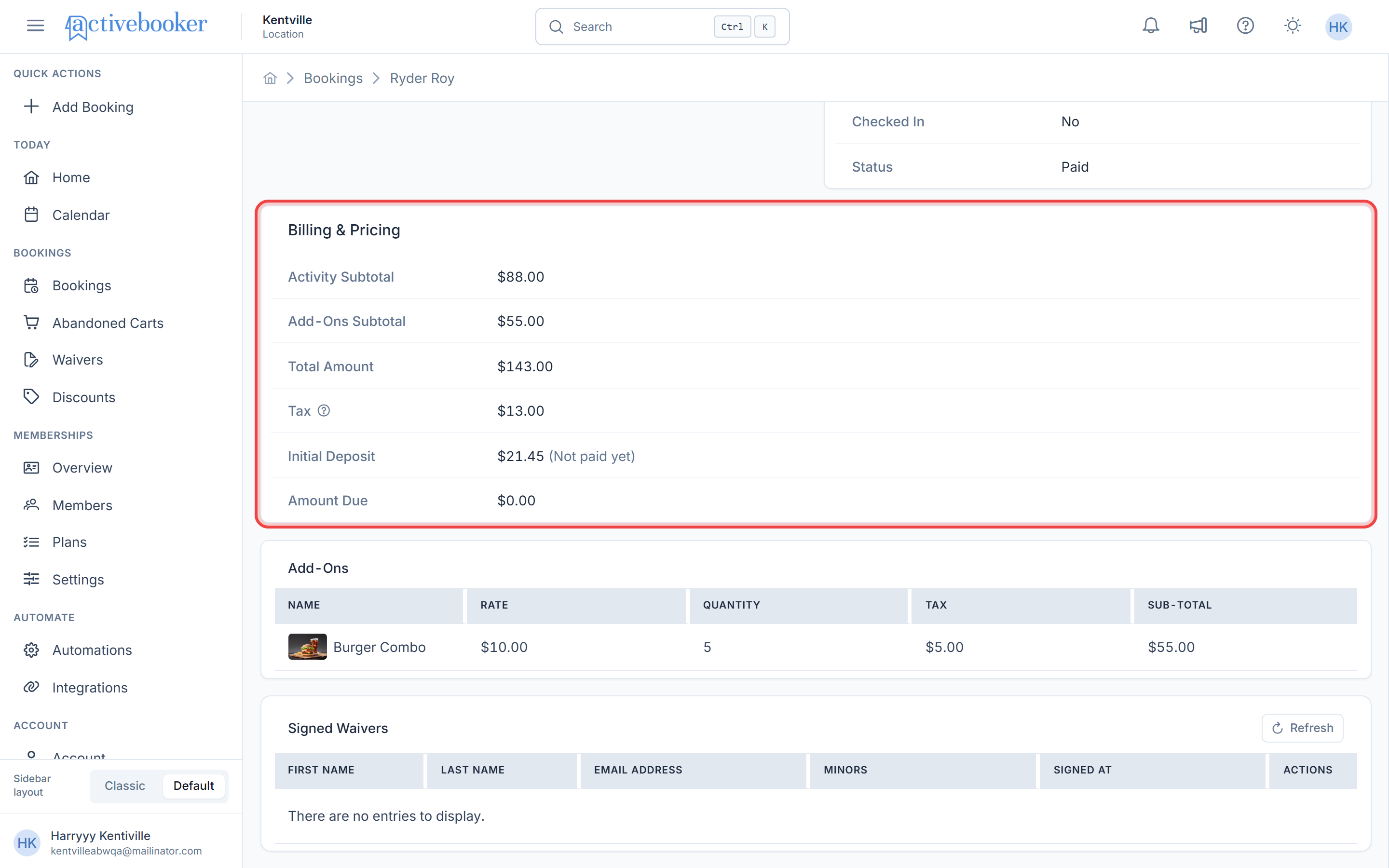
Activity Subtotal
The price of the booked activity before add-ons, tax, and fees (e.g., "CA$253.00").
Add-Ons Subtotal
The combined price of all add-ons included in the booking (e.g., "CA$145.20"). This row only appears when the booking includes add-ons.
Total Amount
The full price of the booking, displayed with the currency symbol (e.g., "CA$398.20"). This equals the Activity Subtotal plus the Add-Ons Subtotal plus Tax, and any service or gratuity fees.
Tax
The tax amount applied to the booking (e.g., "CA$36.20"). Hover over the info icon next to Tax to see a tooltip explaining how the tax is calculated.
Service Fee
Any service fee applied to the booking. This row only appears when a service fee applies to the booking. Hover over the info icon next to Service Fee to see a tooltip explaining the fee.
Gratuity Fee
Any gratuity or tip amount included in the booking. This row only appears when a gratuity fee applies to the booking. Hover over the info icon next to Gratuity Fee to see a tooltip explaining the fee.
Payment Method
The payment method used for the booking (e.g., "stripe"). This row only appears once a payment has been recorded.
Initial Deposit
The deposit amount collected at the time of booking (e.g., "CA$75.90"). This may be the full amount, a percentage, a flat amount, or a per-person amount depending on your deposit settings.
Amount Due
The remaining balance that still needs to be collected for the booking (e.g., "CA$322.30").
Refunded Amount
The amount that has been refunded to the customer. This row only appears after a refund has been processed on the booking.
All monetary values in the Billing & Pricing section are displayed with your location's configured currency symbol.
The Pay Amount Due and Refund buttons no longer appear on the Billing & Pricing card. They're now found in the Collected widget — see Collection Progress below.
Paying Amount Due
When a booking has an outstanding balance, you can collect the remaining payment directly from the Booking Detail page using the Pay Amount Due button in the Collected widget.
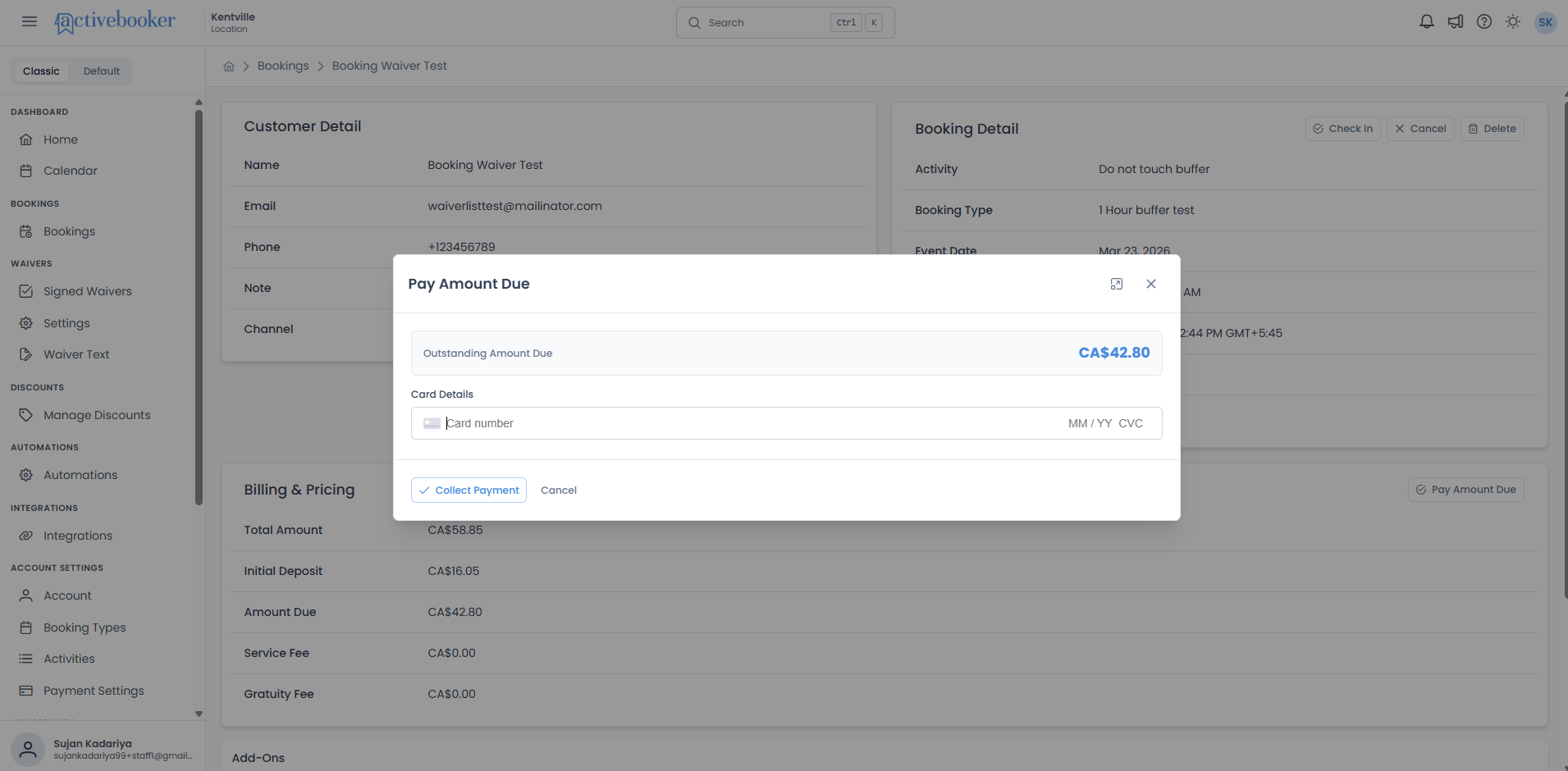
Opening the Pay Amount Due modal
- Open the booking detail page for a booking that still has an amount due
- Scroll to the Collected widget
- Click the Pay Amount Due button
- The Pay Amount Due modal opens and shows the outstanding balance and payment fields
What the modal shows
The Pay Amount Due modal lets you review the remaining balance before taking payment. It displays the outstanding amount due at the top of the dialog and includes the card details area required by the connected payment provider.
Completing payment
- Enter the required payment details in the modal
- Click Collect Payment
- Wait for the payment to process and for the booking detail page to refresh
- The booking's Amount Due value updates after the payment is successfully collected
When the booking has no balance due
If the booking's Amount Due is CA$0.00, the Pay Amount Due button is not shown in the Collected widget, and the progress bar shows 100%.
Refunding a Booking
If a paid booking needs to be refunded, you can return all or part of the deposit from the Booking Detail page.
When the Refund button appears
The Refund button appears in the Collected widget when the booking is Paid and has an Initial Deposit greater than $0.00.
The Refund button is not shown when the booking is Unpaid, Refunded, Partially Refunded, or Cancelled.
If the booking still has an Amount Due, the Pay Amount Due button can appear next to the Refund button.
Only the deposit can be refunded from this page.
Opening the refund window
- Open the booking detail page for the booking you want to refund.
- Click the Refund button in the Collected widget.
- The Refund Payment window opens.
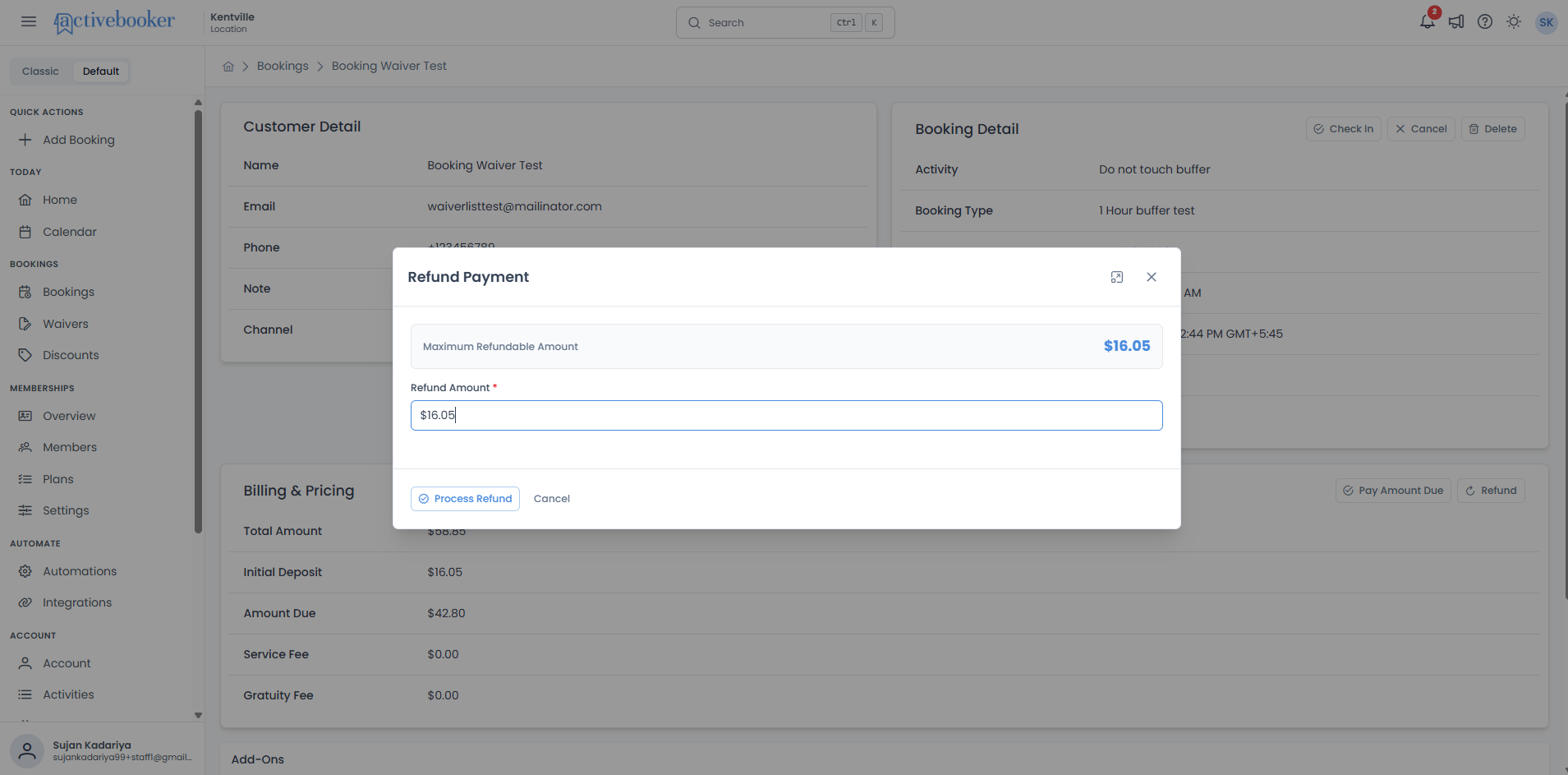
What the refund window shows
- The Refund Payment title
- The Maximum Refundable Amount
- The Refund Amount field, filled with the full deposit amount
- The Process Refund button
- The Cancel button
Completing a refund
- Change the refund amount if you want to refund less than the full deposit.
- Click Process Refund.
- Wait for the refund to finish.
- When it is done, a success message appears and the page refreshes.
After a successful refund, the booking status changes to Refunded or Partially Refunded, depending on the amount returned.
If the refund cannot be completed, the window stays open so you can try again.
Partial refunds
Partial refunds are supported on Stripe and Square when the refund amount is less than the maximum refundable deposit.
For Clover, only full refunds are supported. If you enter a smaller amount, the refund is rejected and the dialog stays open so you can try again.
After a successful refund
Once a refund completes, the booking detail page refreshes to show the updated payment status. The Billing & Pricing card now shows a Refunded Amount row, the Collected widget updates its percentage and amounts, and a new Refunded entry appears in the Timeline widget with the amount returned to the customer.
Customers receive a Refund Receipt email for the refunded booking, and admins linked to the location receive a Booking Refunded in-app notification. If the location has a BookingCancelled webhook subscription configured, the system also dispatches the webhook payload for the refunded booking.
Checking In a Booking
Check-in confirms that a customer has arrived and is ready to begin their booked activity. Once a booking is checked in, the session is considered active and the assigned lanes or resources are marked as in use for that booking's duration. This helps your staff keep track of who is on-site, manage ongoing sessions, and maintain an accurate record of attendance.
Once a booking has been checked in, it cannot be undone. Make sure the customer is present before confirming.
The Check In button
The Check In button appears in the top-right corner of the page header, but only when the booking has not yet been checked in. Once a booking is already checked in, the button is hidden and the status badge changes from "Not checked in" to "Checked In".
How to check in a booking
- Open the booking detail page for the customer's booking
- Confirm the status badge shows "Not checked in" and the Check In button is visible in the header
- Click the Check In button
- A confirmation dialog appears with the message: "Are you sure you want to check in this booking? This action cannot be undone."
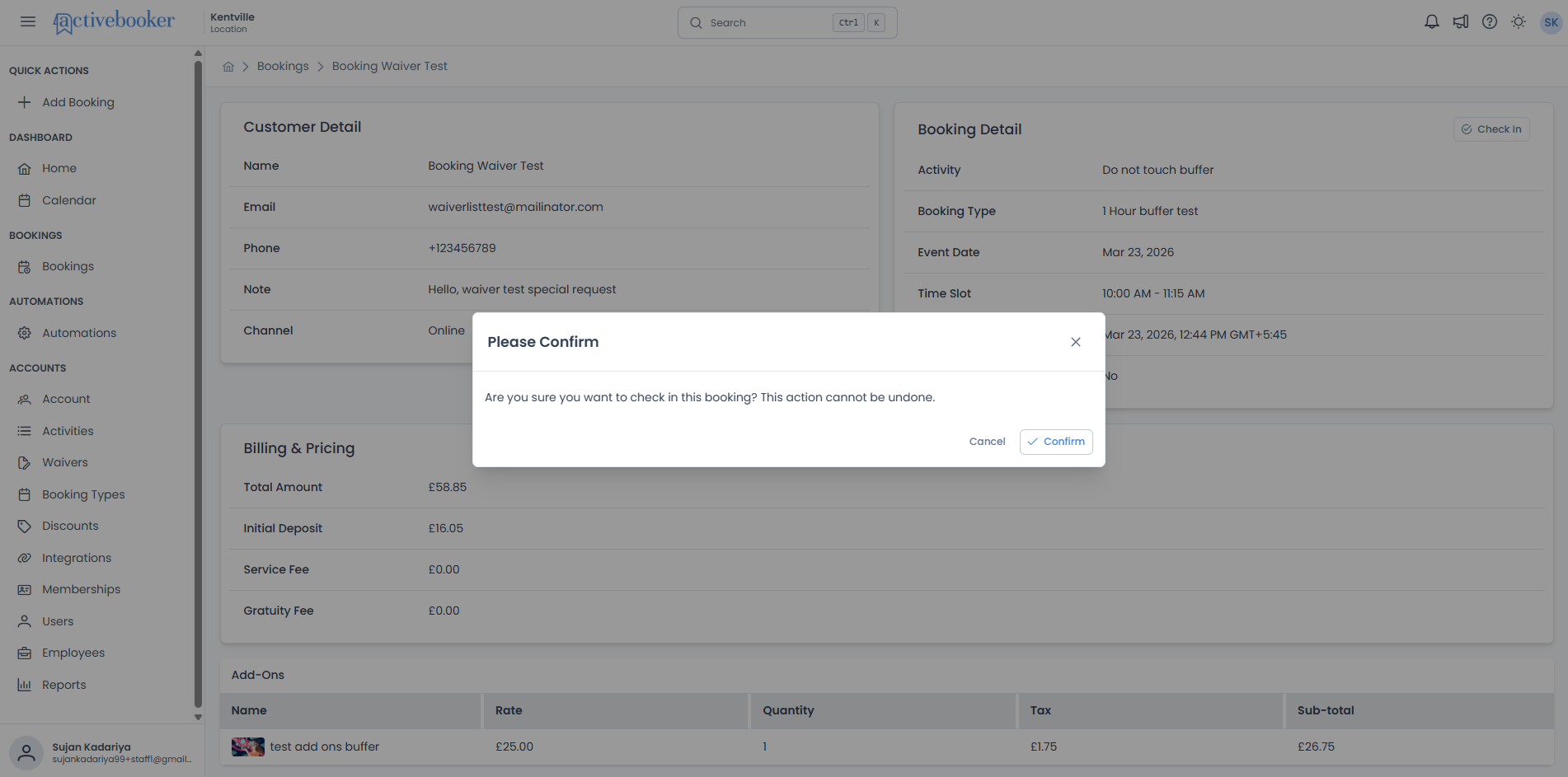
- Click Confirm to proceed, or Cancel to go back without making any changes
- Once complete, a success message confirms the booking has been checked in
- The page refreshes automatically — the status badge now shows "Checked In", the Check In button is no longer visible, and a new Check-in entry appears in the Timeline widget
Group bookings
When you check in a parent booking that has associated child bookings, all linked child bookings are also marked as checked in at the same time.
Cancelling a Booking
Cancelling a booking changes its status to Cancelled and removes it from the active Bookings list. The booking is not deleted, you can still find it by selecting the Cancelled filter on the Bookings list. When a booking is cancelled, the customer automatically receives a cancellation email with their booking details.
Once a booking has been cancelled, its status cannot be changed back. Make sure you want to cancel the booking before confirming.
The Cancel button
The Cancel button appears in the top-right corner of the page header and is only available when the booking's payment status is Paid. It is not visible for bookings that are already Cancelled, Refunded, or Partially Refunded.
The Cancel button is temporarily disabled while the page is loading or while another action is already in progress.
How to cancel a booking
- Open the booking detail page for the booking you want to cancel
- Click the Cancel button in the header
- A confirmation dialog appears with the message: "Are you sure you want to cancel this booking? This action cannot be undone."
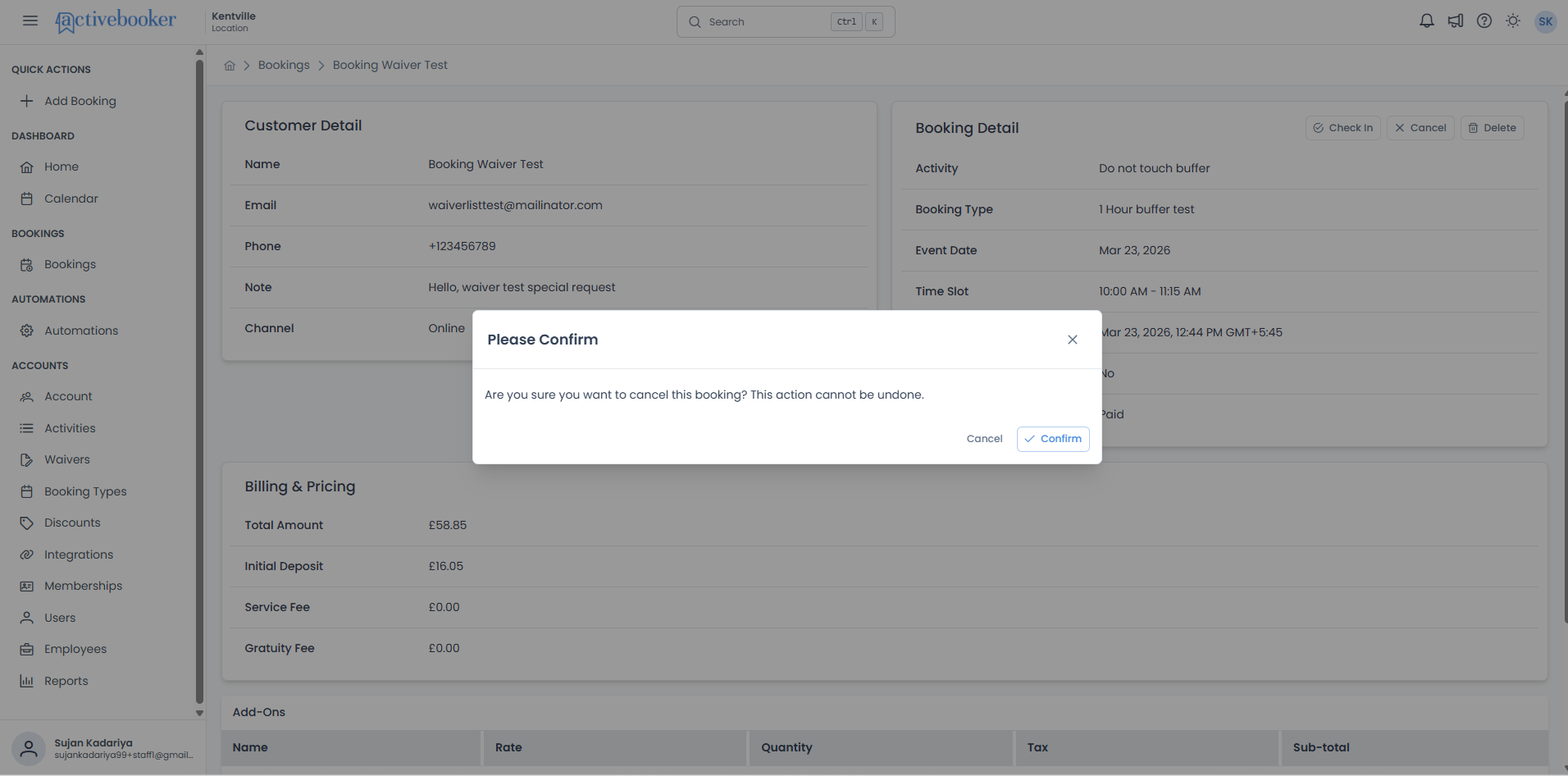
- Click Confirm to proceed, or Cancel to go back without making any changes
- A "Cancelling booking..." message appears on screen while the request is being processed
- Once complete, a success message confirms the booking has been cancelled and the page refreshes automatically
What happens after cancellation
- The status badge updates to Cancelled
- The Cancel and Check In buttons are no longer visible in the header and only the Delete button remains
- The booking no longer appears in the Active tab of the Bookings list
- The booking appears in the Cancelled tab of the Bookings list
- The customer automatically receives a Cancellation Receipt email containing their booking details
- A new Cancelled entry appears in the Timeline widget with the message "No further action can be taken"
- If the booking had a RemoteLock door code, the code is removed and stops opening the door
Deleting a Booking
Deleting a booking permanently removes it from your active bookings. Once deleted, the booking will no longer appear in the default Bookings list, it can only be found by selecting the Deleted filter. Deleting a booking does not issue a refund; any refunds must be handled separately before or after deletion.
Once a booking has been deleted, it cannot be restored. Make sure you want to remove the booking before confirming.
The Delete button
The Delete button appears in the top-right corner of the page header alongside other actions such as Check In and Cancel. It is available for bookings in any payment status — Paid, Pending, Cancelled, Refunded, or Partially Refunded and regardless of whether the booking has been checked in.
The Delete button is temporarily disabled while the page is loading or while another action (such as Check In or Cancel) is already in progress.
How to delete a booking
- Open the booking detail page for the booking you want to remove
- Click the Delete button in the header
- A confirmation dialog appears with the message: "Are you sure you want to delete this booking? This action cannot be undone."
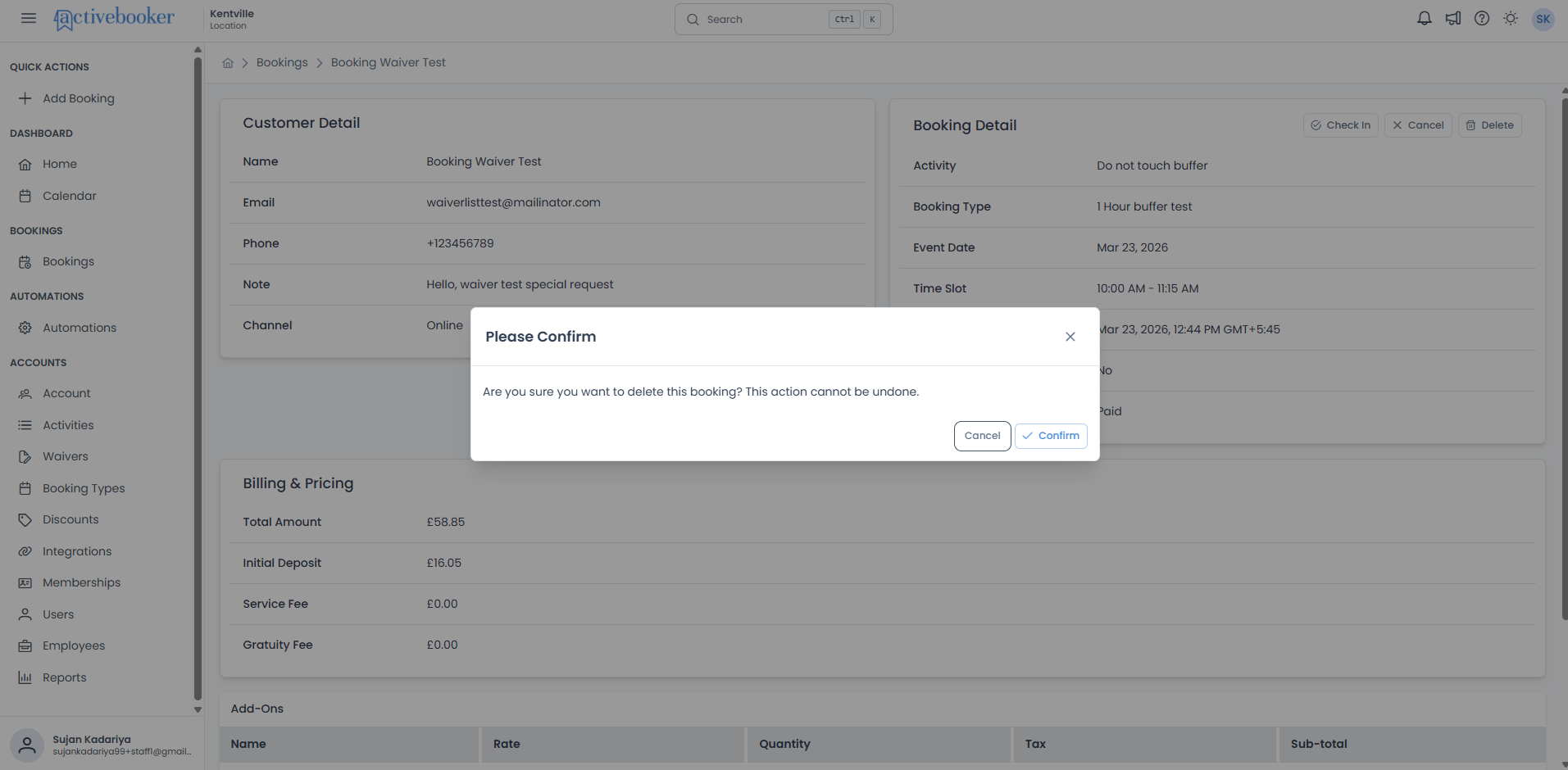
- Click Confirm to proceed, or Cancel to go back without making any changes
- A "Deleting booking..." message appears on screen while the request is being processed, all buttons on the page are disabled during this time
- Once complete, a success message confirms the booking has been deleted and you are automatically taken back to the Bookings list
What happens after deletion
- The booking no longer appears in the default Bookings list
- You can still find the deleted booking by selecting the Deleted filter on the Bookings list
- Navigating directly to the booking's page will show a not-found message, the booking is no longer accessible via its original link
- If the booking had a RemoteLock door code, the code is removed and stops opening the door
Group bookings
When you delete a parent booking that has associated child bookings, all linked child bookings are also deleted at the same time.
Door Access
If you use RemoteLock, a Door Access card appears above Add-Ons for bookings whose lane or room has a lock. It shows the guest's door code (hidden until you click the eye icon), the times it works, and the locks it opens. Use Regenerate Code at the top of the card to replace the code or create one if the booking doesn't have one yet.
See Door codes for bookings for what each status means.
Add-Ons
The Add-Ons card appears below the Notes card. It lists any extra items or services that were added to the booking at the time it was created.
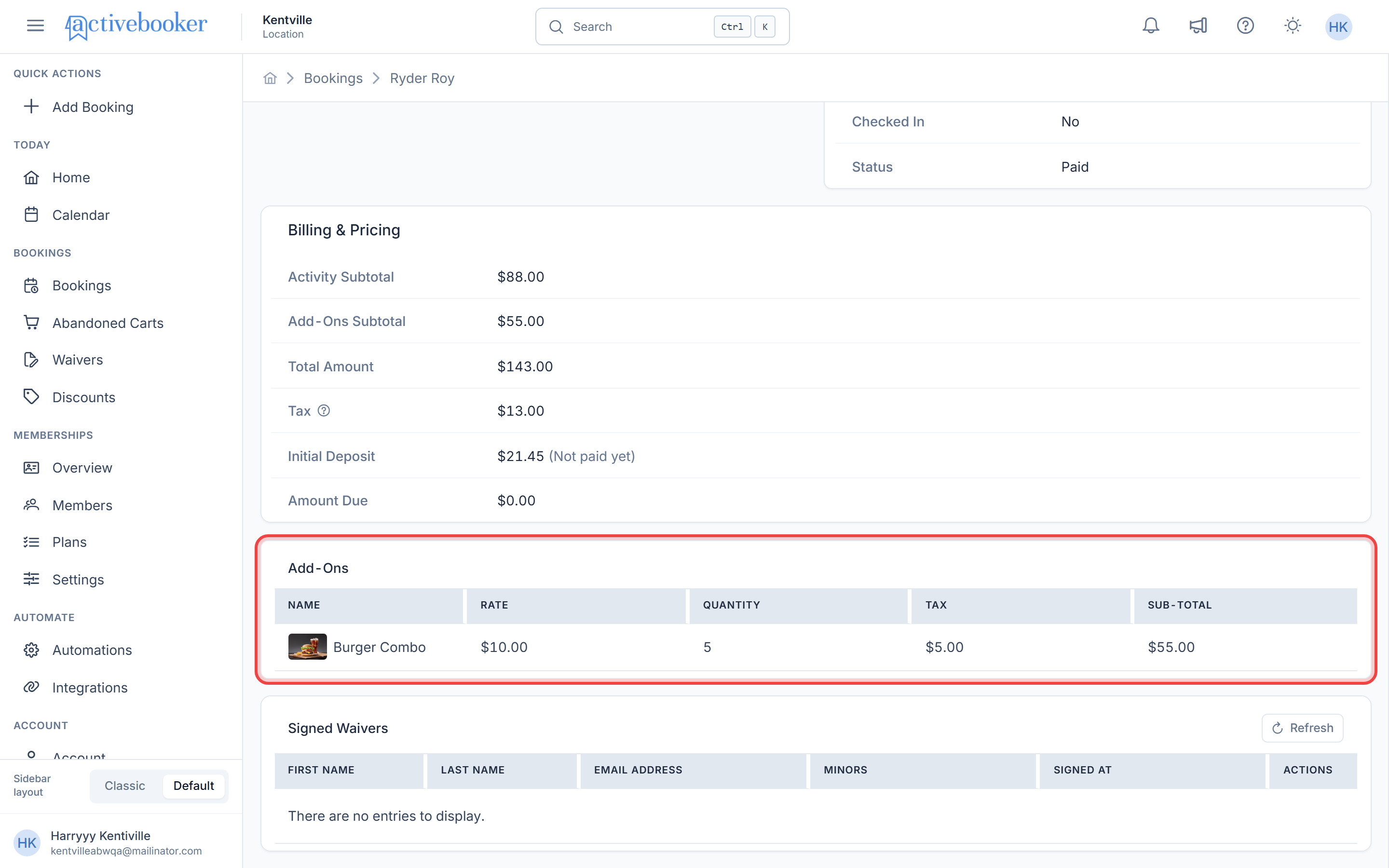
Add-Ons header
The card header shows a count badge with the number of add-ons on the booking (e.g., "1") next to the Add-Ons title, and the combined total price of all add-ons on the right (e.g., "CA$145.20").
Add-Ons line items
Each add-on is listed as a single line showing:
Thumbnail and name
The add-on's thumbnail image and name. If no image has been set up for the add-on, a default placeholder icon is displayed instead.
Quantity, rate, and tax
The quantity selected, unit rate, and tax amount, shown together (e.g., "12 × CA$11.00 · Tax CA$13.20").
Sub-total
The total cost for that add-on, calculated as (Rate × Quantity) + Tax, shown right-aligned on the line (e.g., ($11.00 × 12) + CA$13.20 = CA$145.20).
When no add-ons are included
If the booking was created without any add-ons, the count badge shows "0", the total shows "CA$0.00", and the card displays the message: "No add-ons on this booking."
Timeline
The Timeline card sits next to the Add-Ons card. It shows every key event on the booking, listed in ascending chronological order (earliest first), so you can see the full history of the booking at a glance.
Each entry shows an icon, a title, a short description, and the date and time (with time zone) the event occurred.
Timeline events
Created
The booking's creation event, with a description of how it was booked (e.g., "Booked through Walkin", "Booked through Online", or "Booked through Phone").
Payment
Shown once a deposit or payment has been recorded, with the description "Payment recorded".
Event date
Shows the activity name, time slot, and event date for the upcoming booking (e.g., "SUJAN (NEW ACTIVITY TEST) · 03:00-05:00" on "Aug 27, 2026").
Waivers
Shows the waiver status for the booking. Displays "None signed yet" until a participant signs, then updates to "Waiver signed" along with the signer's name once a waiver has been signed.
Check-in
Shows "Awaiting arrival" until the customer is checked in, then updates to "Guest checked in" once the Check In button has been used.
Cancelled
Only appears if the booking has been cancelled, with the description "No further action can be taken".
Refunded
Only appears if the booking has been refunded, showing the amount returned to the customer (e.g., "CA$75.90 returned to the customer").
Deleted
Only appears if the booking has been deleted.
The Timeline widget only reflects events that have already happened on the booking. You cannot add, edit, or remove Timeline entries manually.
Collection Progress
The Collected card sits next to the Timeline card. It gives you an at-a-glance view of how much of the booking's total has been collected and lets you take payment or issue a refund without leaving the page.
Progress bar and percentage
A progress bar and percentage in the top-right corner of the card show how much of the Total Amount has been collected so far (e.g., "19%").
Collected
The amount collected so far, shown in green (e.g., "CA$75.90"). This matches the Initial Deposit value in the Billing & Pricing card, plus any additional payments collected.
Amount due
The remaining balance still owed, shown in orange (e.g., "CA$322.30 due"), along with a larger Amount due figure below it. This matches the Amount Due value in the Billing & Pricing card.
Pay Amount Due button
Appears when there is a balance remaining. See Paying Amount Due above for the full payment flow.
Refund button
Appears when the booking has a refundable amount. See Refunding a Booking above for the full refund flow.
When a booking is fully paid, the progress bar shows 100%, the Amount due shows CA$0.00, and the Pay Amount Due button is not shown.
Payment Insight
The Payment insight card sits below the Collected card. It shows a donut chart breaking down what makes up the booking's total.
Subtitle
Below the "Payment insight" title, a subtitle reads "What makes up the CA$X.XX total, tax and fees included", using the booking's Total Amount.
Donut chart and legend
The chart renders a segment for each price component that has a non-zero value — Activity, Add-ons, Tax, Service fee, and Gratuity. A legend below the chart lists each component's label and exact amount (e.g., "Activity CA$253.00", "Add-ons CA$145.20", "Tax CA$36.20").
Components with a zero amount (e.g., Service fee or Gratuity when none apply) are omitted from both the chart and the legend. Adding up all the legend amounts always equals the booking's Total Amount.
Signed Waivers
The Signed Waivers card appears at the bottom of the Booking Detail page. It lists all waivers that participants have signed for this booking, alongside a count badge showing how many waivers have been signed (e.g., "1").
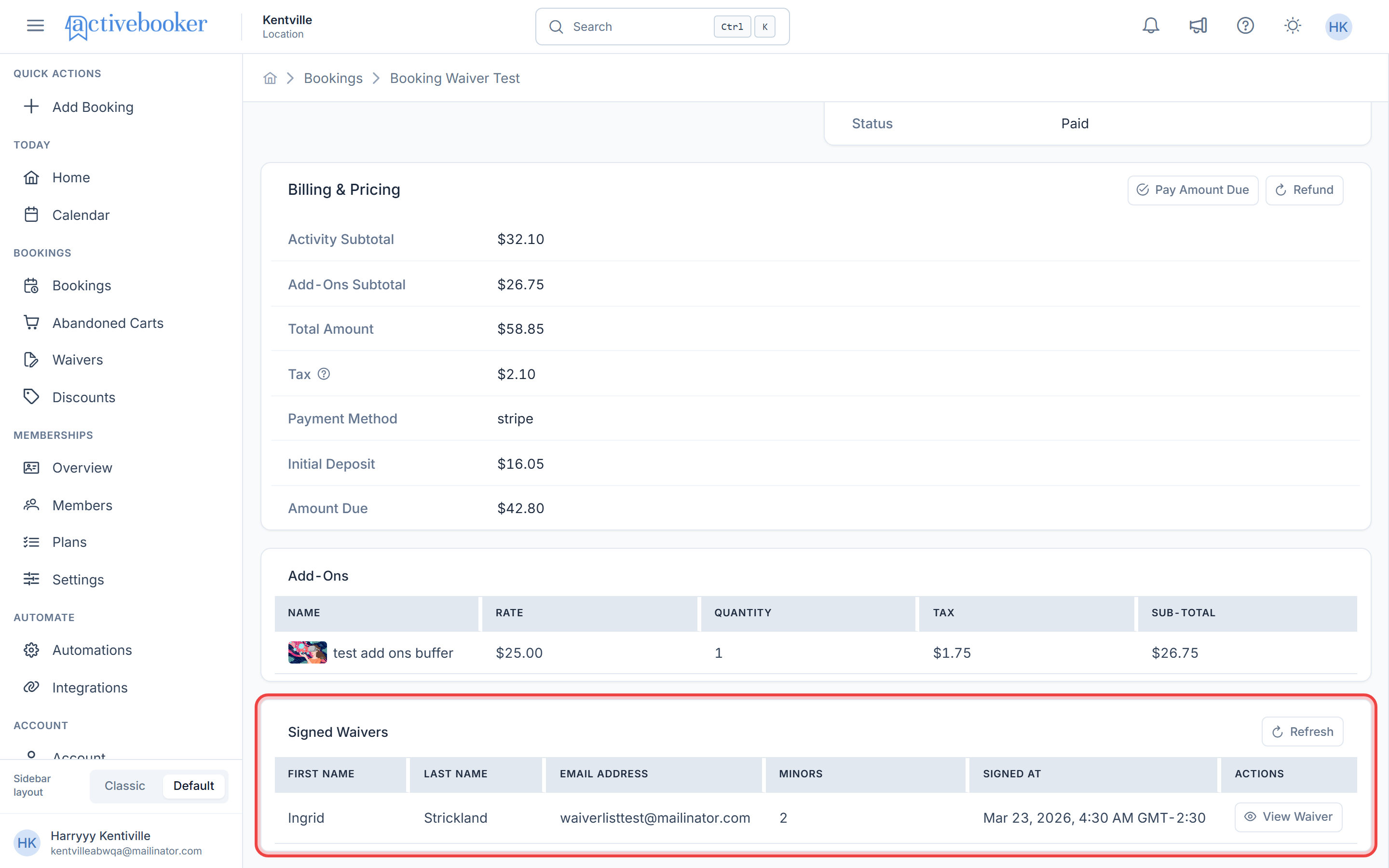
What are signed waivers?
Waivers are liability documents that customers sign before participating in an activity. The Signed Waivers section on the booking detail page shows you exactly who has signed a waiver for this particular booking, making it easy to verify that all participants are covered.
Signed Waivers table
The table displays the following columns for each signed waiver:
First Name
The first name of the person who signed the waiver.
Last Name
The last name of the person who signed the waiver.
Email Address
The email address of the signer (e.g., "jordan.smith@example.com").
Minors
The number of minors (children) included under this waiver. Displays "0" if no minors are covered.
Signed At
The date and time the waiver was signed, shown with the time zone (e.g., "Mar 25, 2026, 5:32 AM GMT+5:45").
Actions
Contains a View Waiver button. Click it to open the signed waiver document as a PDF in a new browser tab.
When no waivers are signed
If no one has signed a waiver for this booking, the count badge shows "0" and the table displays the message: "There are no entries to display."
Refreshing the waivers list
Click the Refresh button in the top-right corner of the Signed Waivers section to reload the waiver data. This is useful if a customer has just signed their waiver and you want to confirm it appears in the list without refreshing the entire page.
Sign Waiver Embedded
Click the Sign Waiver Embedded button next to Refresh to open the embedded waiver signing flow (or, depending on your configuration, a dropdown of waiver-related options) directly from the booking detail page.
Viewing a signed waiver PDF
To view the full waiver document that a participant signed:
- Scroll down to the Signed Waivers section on the booking detail page
- Find the participant's row in the table
- Click the View Waiver button in the Actions column
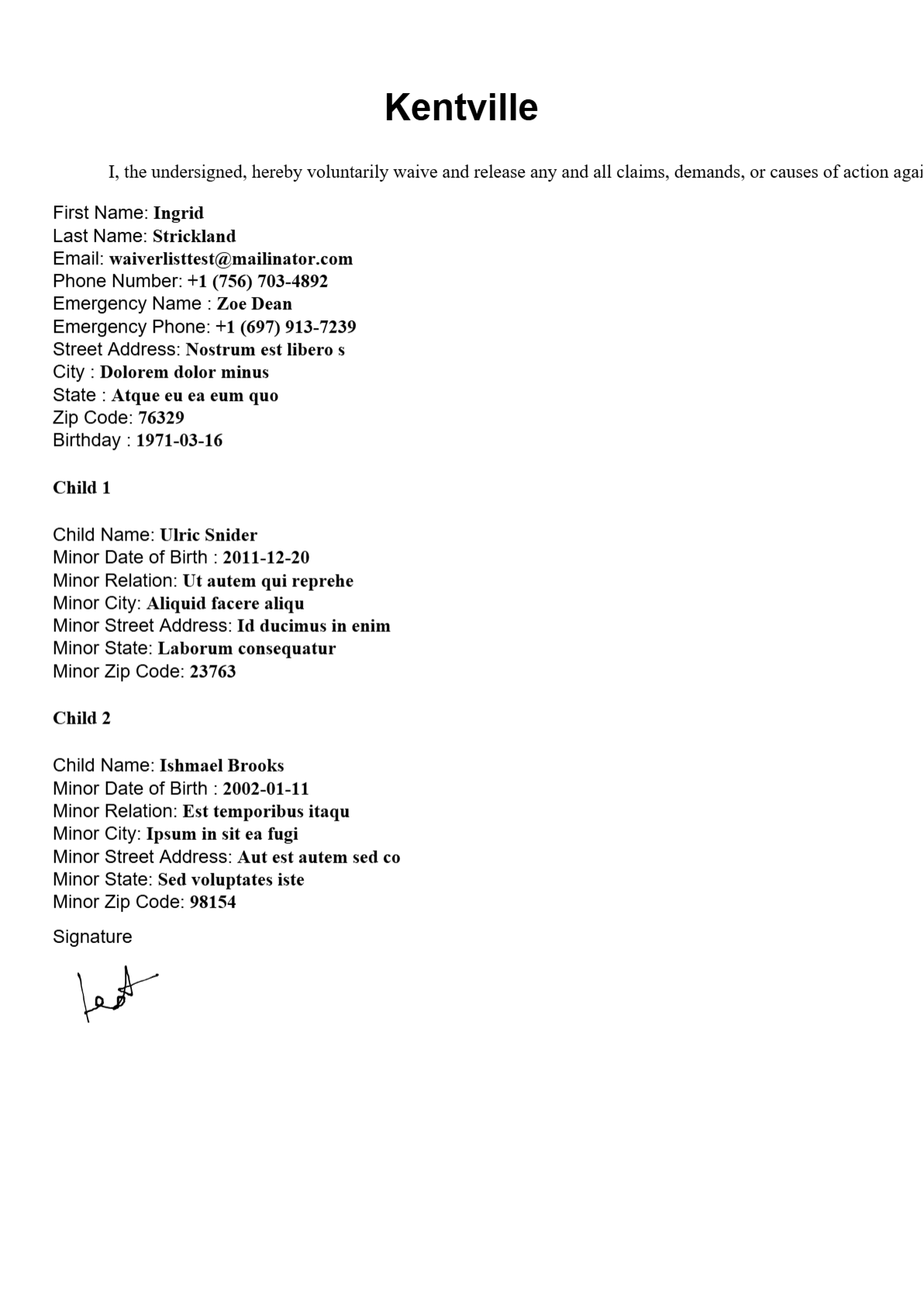
- A new browser tab opens with the signed waiver as a PDF document
The PDF includes all the information the signer provided on the waiver form, such as their name, email, phone number, emergency contact details, address, and their signature.
Common scenarios
Scenario 1: Verifying a customer's booking before their visit
A customer arrives for their activity and you want to confirm their booking:
- Navigate to Bookings and search for the customer's name
- Click View Detail on their booking
- Confirm the Activity, Date, and People in the summary row, or the Event Date and Time Slot in the Booking Detail card
- Check the Billing & Pricing card and the Collected widget to verify payment details
Scenario 2: Checking in a customer when they arrive
A customer has arrived for their activity and you want to mark them as checked in:
- Navigate to Bookings and find the customer's booking
- Click View Detail to open the booking detail page
- Confirm the status badge shows "Not checked in" and the Check In button is visible in the header
- Click Check In
- Read the confirmation message and click Confirm
- Wait for the page to refresh — the status badge will update to "Checked In" and a new entry will appear in the Timeline widget
Scenario 3: Checking if all participants have signed waivers
Before an activity begins, you want to make sure everyone has signed their waiver:
- Open the booking detail page for the relevant booking
- Scroll down to the Signed Waivers card
- Review the list of signers and compare it against the number of participants shown in the People column of the summary row
- If a waiver is missing, ask the participant to sign before the activity starts
- Click Refresh after they sign to confirm it appears in the list
Scenario 4: Reviewing a signed waiver document
A customer has a question about what they agreed to in their waiver:
- Open the booking detail page
- Scroll to the Signed Waivers card
- Find the customer's entry in the table
- Click View Waiver to open the full PDF
- Review the document together with the customer
Scenario 5: Checking how much of a booking has been collected
You want to quickly see how much of a booking's total has been paid:
- Open the booking detail page for the relevant booking
- Look at the Collected widget
- Check the progress bar and percentage, along with the Collected and Amount due figures
- If a balance remains, click Pay Amount Due to collect it
Best practices
✅ Check waivers before activities begin — Always verify that all participants have signed their waivers before starting an activity to ensure your business is protected
✅ Use the Refresh button — If a waiver was just signed, click Refresh in the Signed Waivers section instead of reloading the entire page
✅ Check in only when the customer is present — Check-in cannot be undone, so always confirm the customer is on-site before clicking Confirm
✅ Check in before the session starts — Marking a booking as checked in early helps your team see which lanes and resources are currently occupied, making it easier to manage the rest of your schedule
✅ Use the Timeline to review booking history — Before making changes to a booking, check the Timeline widget to see what has already happened (payments, check-in, waivers, refunds, etc.)
✅ Use the Collected widget for a quick balance check — Instead of adding up the Billing & Pricing rows yourself, check the Collected widget's percentage and amounts for an at-a-glance view of what's outstanding
❌ Don't assume all participants have signed — Even if the booking shows signed waivers, verify the count matches the actual number of participants attending
Frequently asked questions
Can I edit the booking details?
Most of the page is read-only. To change the customer's details, use the Edit Customer button; to change the booking's details, use the Edit Booking button. You can also add a note in the Notes widget, or use the action buttons (Check In, Cancel, Delete, Pay Amount Due, Refund) to update the booking's status.
Where did the Checked In field go?
It's now shown as a status badge in the page header, next to the customer's name, instead of as a field inside the Booking Detail card.
Where did the Pay Amount Due and Refund buttons go?
They've moved from the Billing & Pricing card to the Collected widget, alongside the collection progress bar.
What does the Timeline widget show?
The Timeline widget lists every key event on the booking in chronological order — including when it was created, when payment was recorded, the event date, waiver status, check-in, cancellation, and refunds. It's read-only and updates automatically as events happen.
Why does the Signed Waivers section show "There are no entries to display"?
This means no one has signed a waiver for this booking yet. Once a participant signs their waiver, it will appear in this section. Click Refresh to check for newly signed waivers.
What does the Minors column mean in the Signed Waivers table?
The Minors column shows how many children are covered under that particular signed waiver. For example, if a parent signs a waiver and includes two children, the Minors column will show "2". If no minors are included, it shows "0".
Can I download the signed waiver PDF?
Yes. When you click View Waiver, the PDF opens in a new browser tab. From there, you can use your browser's download or print options to save a copy.
How do I get back to the booking list?
Click Bookings in the breadcrumb at the top of the page, or click Bookings in the left sidebar to return to the full booking list.
Why does the Add-Ons card show "No add-ons on this booking"?
This means the booking was created without any add-ons. The Add-Ons card always appears on the page, but only lists items when add-ons were included at the time the booking was made.
How is the Sub-total calculated for an add-on?
The Sub-total is calculated as (Rate × Quantity) + Tax. For example, if an add-on costs $10.00, was selected 3 times, and has a tax of $3.00, the Sub-total will be $33.00.
Why do I see "Room" on one booking but "Row" on another?
The label depends on the activity type. Lane-based activities (like bowling lanes) show Row, while other activities show Room.
Why does the Payment Insight chart only show some of the price components?
The chart and its legend only include components with a non-zero amount. If a booking has no add-ons, service fee, or gratuity, only the components that apply (e.g., Activity and Tax) are shown.