Booking List
View all your bookings at a glance in a single, organized list. Quickly find any booking by searching, sorting, or browsing through pages, and jump into any booking's details with one click.
Quick start
Access your bookings in just a few steps:
- Click Bookings in the left sidebar under the BOOKINGS section
- Browse your bookings in the table that appears
- Use the Search bar to find a specific booking
- Click View Detail on any row to see the full booking information
What you can do
The Booking List helps you:
- See all bookings in one place — Every booking across your location is displayed in a single, easy-to-read table
- Find bookings quickly — Search by customer name, email, phone number, or activity name to locate any booking in seconds
- Sort by what matters — Reorder your list by event date, time, customer name, activity, or creation date
- Review key details at a glance — See the event date, time, customer info, activity, channel, number of people, total amount, and deposit without opening each booking
- Navigate to full details — Click into any booking to view the complete breakdown including billing, pricing, and signed waivers
Navigating to the booking list
- Log in to your dashboard
- In the left sidebar, find the BOOKINGS section
- Click Bookings
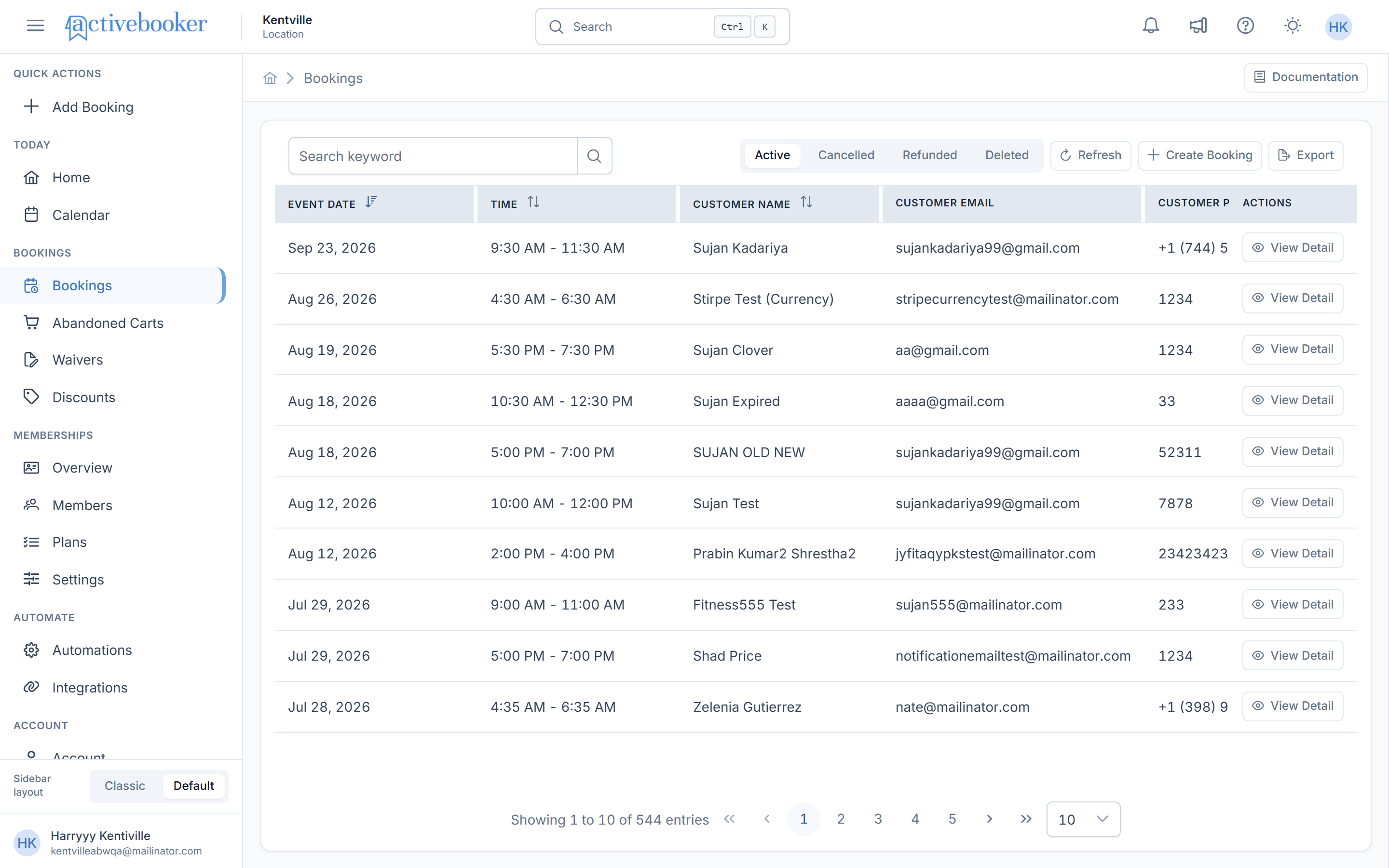
The Bookings list page loads with a breadcrumb at the top showing Home > Bookings.
Understanding the booking list
Page controls
At the top of the list, you'll find two controls to help you manage and locate bookings:
Quick time range
A dropdown on the left side of the page that helps you filter bookings by common date ranges. Choose a time range to quickly narrow the list.
Available options:
- All — Show every booking
- Today — Show bookings for today
- Tomorrow — Show bookings for tomorrow
- This Week — Show bookings in the current week
- This Month — Show bookings in the current month
- Next 7 Days — Show bookings in the next 7 days
- Next 30 Days — Show bookings in the next 30 days
- All Upcoming — Show all future bookings
- Yesterday — Show bookings from yesterday
- Last Week — Show bookings from the previous week
- Last 7 Days — Show bookings from the last 7 days
- Last Month — Show bookings from the previous month
- Last 30 Days — Show bookings from the last 30 days
- All Past — Show all bookings up to today
When you select a time range, the booking list updates right away.
Booking status
Tabs on the right side of the page that let you switch between booking groups:
- Active — Current bookings
- Cancelled — Bookings that were cancelled
- Refunded — Bookings that were refunded
- Deleted — Bookings that were deleted
When you switch tabs, the list updates right away.
Search keyword
A search bar on the left side of the page. Type a customer name, email address, phone number, or activity name to filter the list and find specific bookings.
You can use search together with a time range and a booking status tab.
Refresh
A button on the right side that reloads the booking list with the latest data. Use this if you expect new bookings to have come in recently.
Create Booking
A button next to Refresh that lets you create a new booking directly from this page.
Export
A button that opens the Export Data dialog, where you can download your active bookings as an Excel (.xlsx) or CSV (.csv) file. This button is only available on the Active tab — it is disabled on the Cancelled and Deleted tabs.
Table columns
Each booking is displayed as a row in the table with the following columns:
Event Date
The date the booked activity is scheduled to take place, shown in MMM DD, YYYY format (e.g., "Mar 25, 2026"). This column is sortable.
Time
The start and end time of the booking, shown as a range (e.g., "6:10 AM – 7:10 AM"). This column is sortable.
Customer Name
The full name of the person who made the booking. This column is sortable.
Customer Email
The email address provided by the customer at the time of booking.
Customer Phone
The phone number provided by the customer, which may include a country code (e.g., "+15551234567").
Activity
The name of the booked activity (e.g., "Lane 2" or "Axe Arena"). This column is sortable.
Channel
How the booking was made. Displayed as a label; either Online (booked through your website) or Walkin (booked in person at your location).
People
The number of people included in the booking.
Total
The total amount charged for the booking, shown with the currency symbol (e.g., "$150.01").
Deposit
The deposit amount collected for the booking, shown with the currency symbol. Displays "$0.00" when no deposit was required.
Created At
The date and time when the booking was created, shown in your local time zone (e.g., "Mar 31, 2026, 11:52 PM GMT+5:45"). This column is sortable.
Actions
Contains a View Detail button. Click it to open the full booking detail page for that booking.
Searching for bookings
To find a specific booking:
- Click the Search keyword input field at the top of the page
- Type your search term — you can search by:
- Customer name (e.g., "Jordan Smith")
- Customer email (e.g., "jordan.smith@example.com")
- Customer phone (e.g., "15551234567")
- Activity name (e.g., "Lane 2")
- Press Enter or click the search icon
- The table refreshes to show only bookings matching your search
To clear the search, remove the text from the search field and press Enter again.
Using filters together
You can combine the booking filters to narrow the list more quickly:
- Choose a Quick time range to set the date range you want to view
- Select a Booking status tab to show only Active, Cancelled, Refunded, or Deleted bookings
- Enter a Search keyword to find a specific booking inside the selected date range and status
When you switch between status tabs, the selected time range and search term stay in place.
Common combinations include:
- Quick time range + Booking status — For example, view only Today bookings in Cancelled
- Search + Booking status — For example, search for a customer name in Active bookings only
- Search + Quick time range + Booking status — For example, search for a customer name in This Month bookings on the Refunded tab
Sorting the list
You can sort the booking list by clicking on any column header that has a sort icon (↑↓):
- Event Date — Sorted by newest first (descending) by default
- Time — Sort by booking start time
- Customer Name — Sort alphabetically by customer name
- Activity — Sort alphabetically by activity name
- Created At — Sort by when the booking was created
Click a column header once to sort in one direction. Click it again to reverse the sort order. The active sort column is highlighted to show which column the list is currently sorted by.
Viewing booking details
To see the full details of any booking:
- Find the booking in the list
- Click the View Detail button (eye icon) in the Actions column
- You'll be taken to the Booking Details page for that booking
Common scenarios
Scenario 1: Finding a customer's booking
A customer calls and asks about their upcoming booking:
- Click Bookings in the sidebar
- Type the customer's name or email in the Search keyword field
- Locate their booking in the filtered results
- Click View Detail to see the complete booking information
Scenario 2: Checking today's bookings
You want to see which bookings are coming up soonest:
- Navigate to the Bookings list page
- Click the Event Date column header to sort by date ascending (oldest/closest dates first)
- Browse the upcoming bookings at the top of the list
Scenario 3: Reviewing recent bookings
You want to see the latest bookings that were created:
- Navigate to the Bookings list page
- Click the Created At column header to sort by creation date descending
- The most recently created bookings appear at the top
Scenario 4: Checking bookings for a specific day
You want to see only bookings for today or tomorrow:
- Open the Bookings list page
- Choose Today or Tomorrow from the quick time range dropdown
- Select the booking status you want to review, such as Active or Cancelled
- Review the filtered bookings in the table
Scenario 5: Finding a booking that matches a customer and date range
You want to narrow the list to one customer and one time period:
- Choose a time range such as This Month or Last 7 Days
- Select the booking status you want to check
- Type the customer name, email, phone number, or activity name in Search keyword
- Use View Detail to open the booking you need
Scenario 6: Looking for a booking in another status
You want to check whether the same customer has a booking in another tab:
- Search for the customer name in the Active tab
- Switch to Cancelled, Refunded, or Deleted
- Keep the same search term to see bookings in that status
- Open the booking details if you need to review more information
Best practices
✅ Use search to save time — Instead of scrolling through pages, type a customer name, email, or activity name to jump directly to the booking you need
✅ Refresh regularly — Click the Refresh button to make sure you're seeing the most up-to-date booking list, especially during busy periods
✅ Sort by event date — When preparing for upcoming activities, sort by Event Date to see what's coming next
❌ Don't rely on memory for totals — Always click View Detail to confirm the exact billing and pricing breakdown rather than relying on the summary amount in the list
Exporting bookings
You can download your active booking records as a file for reporting, record-keeping, or sharing with your team.
The Export feature is only available on the Active tab. The Export button is disabled when viewing Cancelled or Deleted bookings.
How to export
- Make sure you are on the Active tab
- Click the Export button in the top-right toolbar
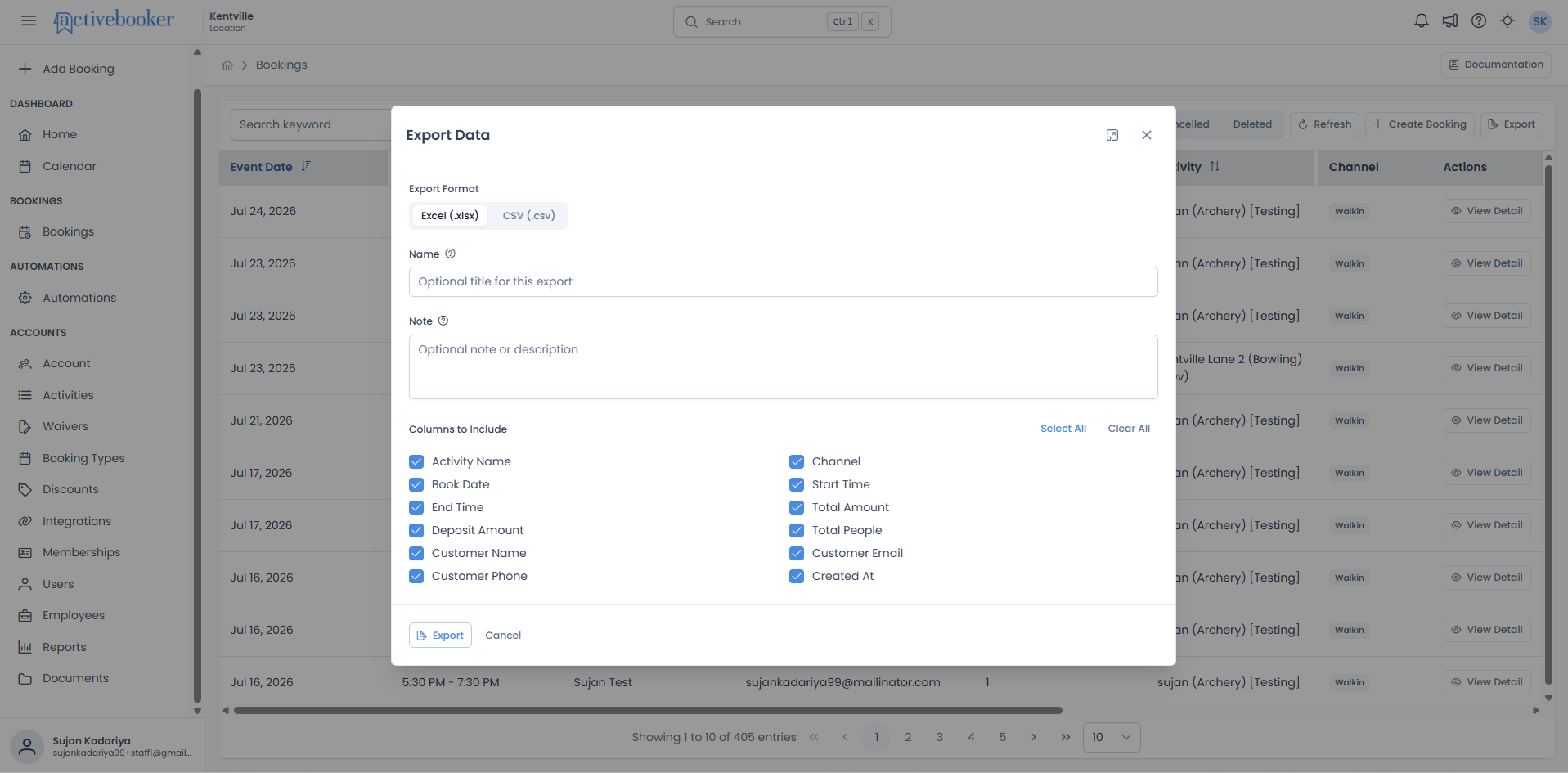
- The Export Data dialog opens
- Choose your preferred file format — Excel (.xlsx) or CSV (.csv)
- Optionally enter a Name (title for this export, up to 100 characters)
- Optionally enter a Note (description for your own reference, up to 500 characters)
- Select which Columns to Include in the file — use Select All or Clear All to quickly manage your selection
- Click Export to submit the request, or Cancel to close without exporting
Available columns
When exporting, you can choose any combination of the following columns:
| Column | What it contains |
|---|---|
| Activity Name | Name of the booked activity |
| Channel | How the booking was made (Online or Walkin) |
| Book Date | The date of the booked event |
| Start Time | The start time of the booking |
| End Time | The end time of the booking |
| Total Amount | Total amount charged for the booking |
| Deposit Amount | Deposit collected for the booking |
| Total People | Number of people in the booking |
| Customer Name | Full name of the customer |
| Customer Email | Email address of the customer |
| Customer Phone | Phone number of the customer |
| Created At | Date and time the booking was created |
What happens after you export
Your export request is queued and processed in the background. Once complete, the file is available to download from the Documents page. You can check the status and download your file from there.
You must select at least one column before the export can be submitted. If no columns are selected, the Export button will not proceed.
Frequently asked questions
Can I edit a booking from the list page?
No. The Booking List is a read-only view. To see full details about any booking, click View Detail to open the booking detail page.
Why don't I see a booking I'm looking for?
Make sure you're searching with the correct customer name, email, phone, or activity name. Also check that your search term doesn't have extra spaces. If you still don't see it, click Refresh to reload the latest data.
What does the Channel column mean?
The Channel tells you how the booking was made. Online means the customer booked through your website, and Walkin means the booking was created in person at your location.
What are the booking status tabs for?
The booking status tabs help you separate bookings by their current state. Use Active for current bookings, Cancelled for cancelled bookings, Refunded for refunded bookings, and Deleted for deleted bookings.
Can I use search and the quick time range together?
Yes. You can use Search keyword together with a quick time range and a booking status tab to narrow the list further.
Why do I see no bookings after filtering?
If no bookings match the selected time range, booking status, and search term, the table shows There are no entries to display. Try changing one of the filters or clearing the search field.
Do my filters stay in place when I switch tabs?
Yes. The selected quick time range and search term stay the same when you switch between booking status tabs.
How do I find bookings for one customer in a specific status?
Choose the booking status tab you want, then type the customer name, email, phone number, or activity name in Search keyword. You can also add a quick time range if you want to narrow the results further.