Abandoned carts
Recover bookings you almost got. When a customer starts booking on your booking page but doesn't complete checkout, the attempt is captured here with their contact details — so you can follow up and win the booking back.
Quick start
- Click Abandoned Carts in the left sidebar under the Bookings group
- Browse the list — newest abandoned attempts appear first
- Use the customer's email or phone from the row to follow up
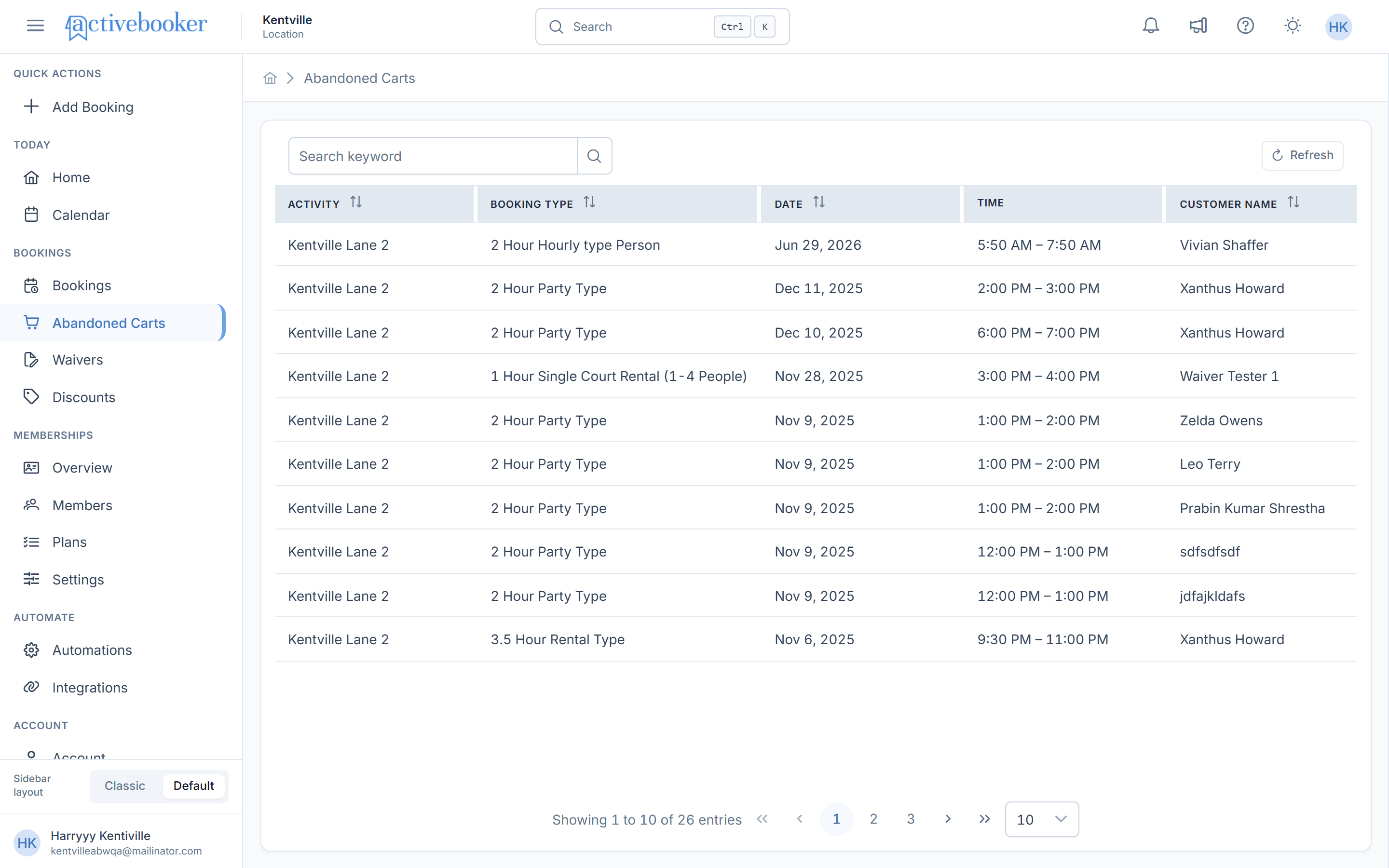
What's in the list
Each row is one abandoned booking attempt:
| Column | What it shows |
|---|---|
| Activity | The activity the customer was booking |
| Booking Type | The booking type they selected |
| Date / Time | The event date and time slot they had chosen |
| Customer Name, Email, Phone | The contact details they entered before abandoning |
| People | Number of adults and children in the attempted booking |
| Total / Deposit | The amount they were about to pay |
| Status | What happened since — see below |
| Abandoned On | When the attempt was captured |
Columns support sorting and filtering, and the toolbar has a search field and Refresh.
Status values
- Pending — captured, no follow-up has gone out yet
- Sent — a recovery message has been sent to the customer
- Booked — the customer came back and completed the booking
- Cancelled — the attempt was closed without converting
Tips for recovering carts
- Act fast — sort by Abandoned On and contact the most recent attempts first; intent fades quickly
- Lead with the slot they picked — "Your Friday 7 PM lane is still available" converts better than a generic reminder
- Sweeten the deal — pair your follow-up with a discount code for hesitant customers
Frequently asked questions
Why is a cart shown as abandoned when the customer says they paid?
Check the Status column — if it shows Booked, the customer completed the booking after the attempt was captured, and the booking is in your Bookings list.
Do abandoned carts block my time slots?
No. Only completed bookings reserve a slot.
Related
- Booking list — completed bookings
- Discounts — create a recovery offer
- Email automations — the messages customers receive