Navigating the dashboard
Learn where everything lives so you can move around the ActiveBooker Dashboard quickly. The dashboard has three parts: the side navigation on the left, the top bar, and the main work area.
When you sign in
Signing in at dashboard.activebooker.com lands you on the Dashboard Home — a snapshot of today's bookings, revenue, recent activity, and announcements. Everything else is one click away in the side navigation.
The side navigation
The sidebar groups every page in the dashboard by what you're doing:
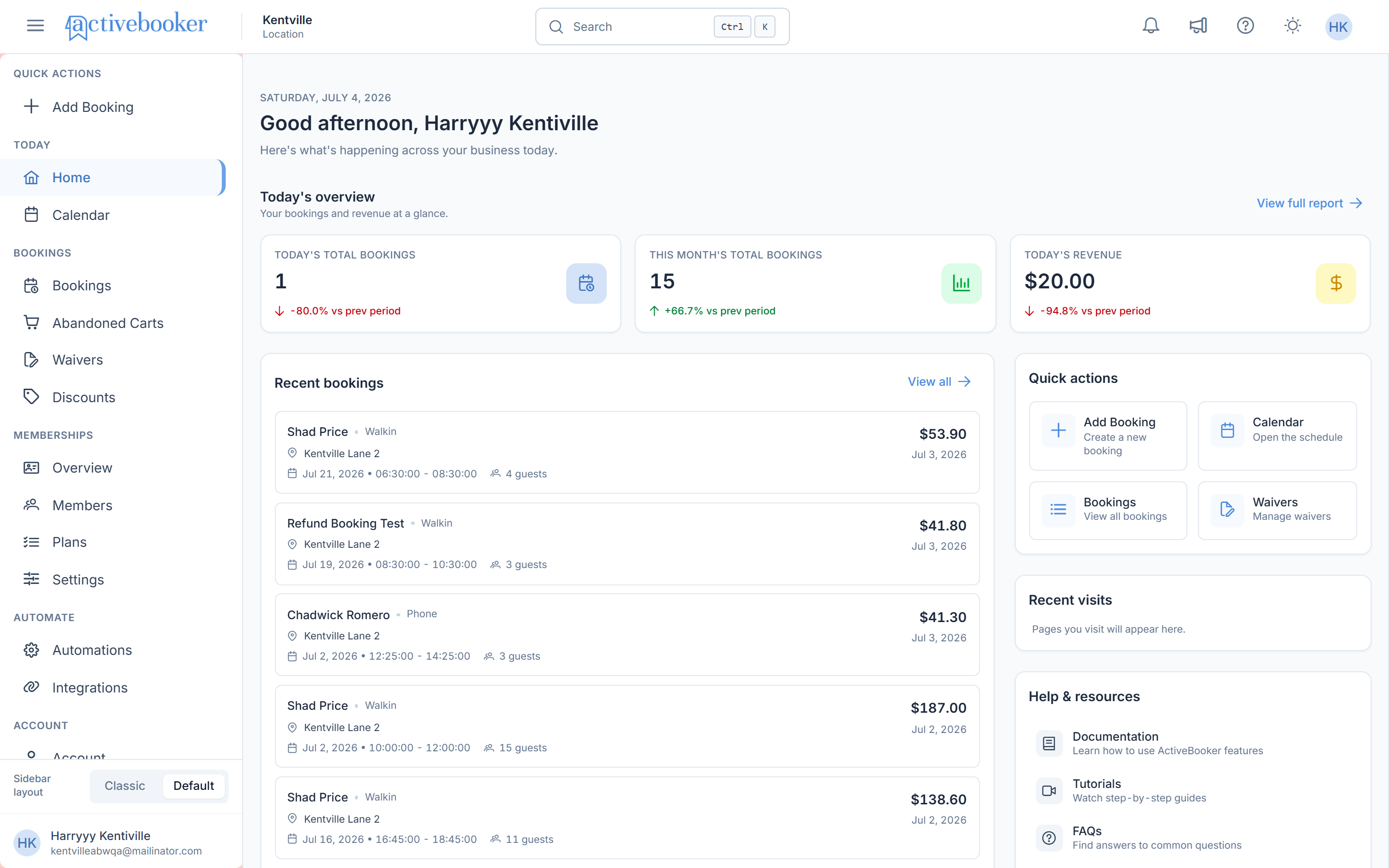
| Group | Pages | Use it to |
|---|---|---|
| Quick Actions | Add Booking | Create a booking from anywhere in one click |
| Today | Home, Calendar | Check today's snapshot and your schedule |
| Bookings | Bookings, Abandoned Carts, Waivers, Discounts | Run day-to-day operations |
| Memberships | Overview, Members, Plans, Settings | Manage your membership program |
| Automate | Automations, Integrations | Set up emails, SMS, and connected tools |
| Account | Account, Activities, Booking Types, Users, Billing | Configure your business and offerings |
| Insights & Files | Reports, Documents | Analyze performance and download exports |
| More Options | Users, Employees | Manage who works in your account |
Prefer the older layout? The sidebar has a mode switch that toggles between the Default grouping above and a Classic layout that organizes pages by feature (Dashboard, Bookings, Waivers, Discounts, Automations, Integrations, Account Settings, Memberships, More options). Both modes contain the same pages — only the grouping changes.
The top bar
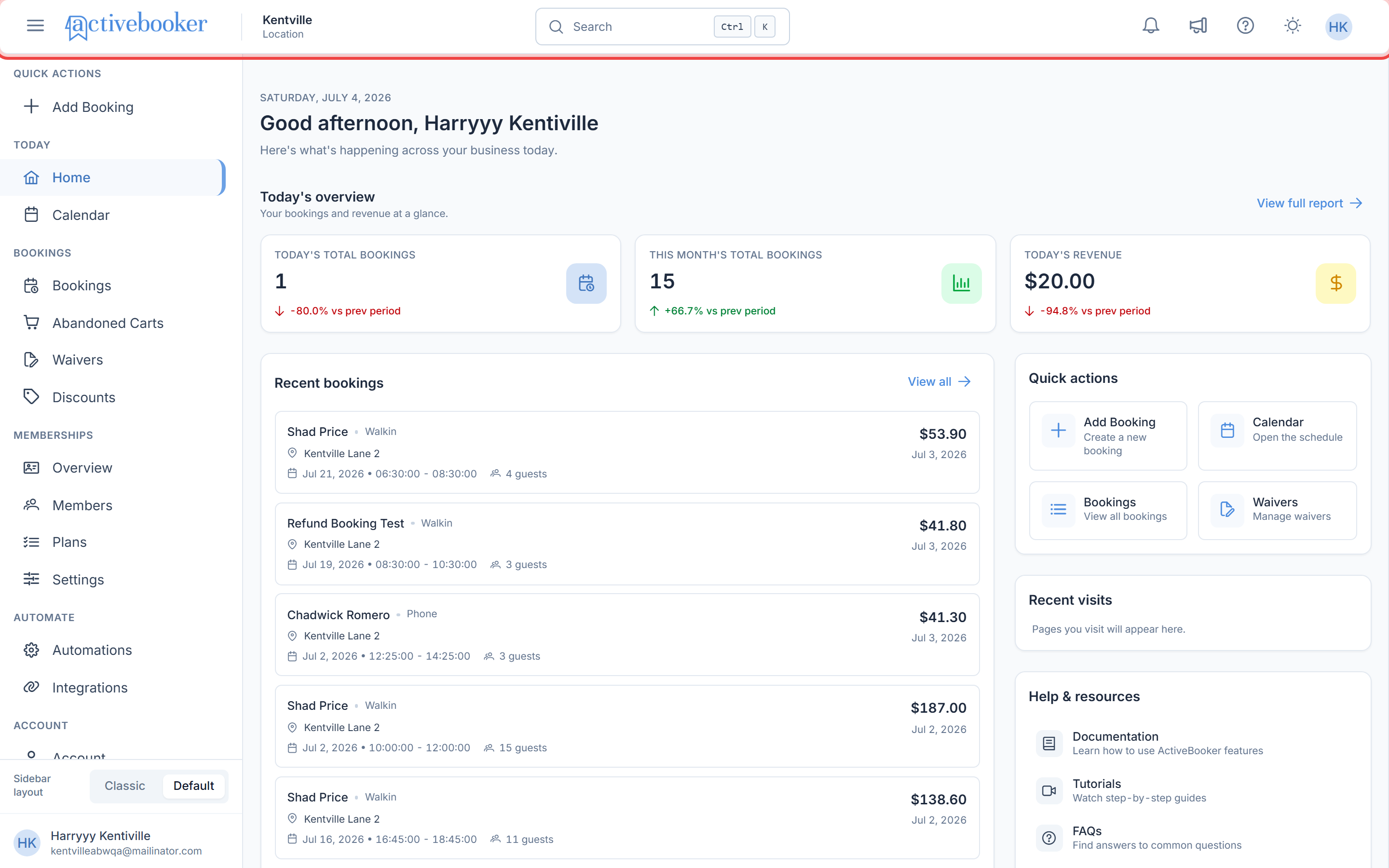
From left to right:
- Search — click the search field or press Ctrl K to open Global Search. It finds activities, members, membership plans, and any dashboard page by name — the fastest way to jump anywhere.
- Notifications (bell icon) — real-time notifications, for example when a new booking comes in.
- Announcements — product news and feature releases from ActiveBooker.
- Help & Support — how-to links and resources, including this documentation and the support site.
- Theme toggle (sun/moon icon) — switch the dashboard between light and dark mode.
- User menu (your avatar) — Change Password and Logout.
Finding things fast
- Going to a page you use rarely? Press Ctrl K and type the page name instead of hunting through the sidebar.
- Looking for a booking? Use the search inside the Bookings page — it searches customer name, email, phone, and activity.
- Looking for a member? Global Search (Ctrl K) finds members directly by name.
- Just came from a page? Dashboard Home's Recent Visits panel lists the pages you viewed last.
Related
- Core concepts — what activities, booking types, and time slots mean
- Dashboard Home — every widget on the home page explained
- Global Search — search syntax and tips