Create your account
Sign up for ActiveBooker in a short guided wizard — you'll pick your industry, enter your business details, and start your free trial. At the end, ActiveBooker creates your account, your first activity, and your public booking page automatically.
Before you start
Have these ready:
- Your business name, address, and website (website is optional)
- Your opening hours for each day of the week
- The number of bookable units you operate (lanes, simulators, rooms, or seats — depending on your industry)
- A standard price and tax rate for a booking
- A credit card — required to start the trial. Your card is not charged until the end of the free trial period, and you can cancel any time before the 30 days are up.
The sign-up wizard
Start the sign-up from activebooker.com. The wizard walks you through five steps — you can go back at any point with Previous.
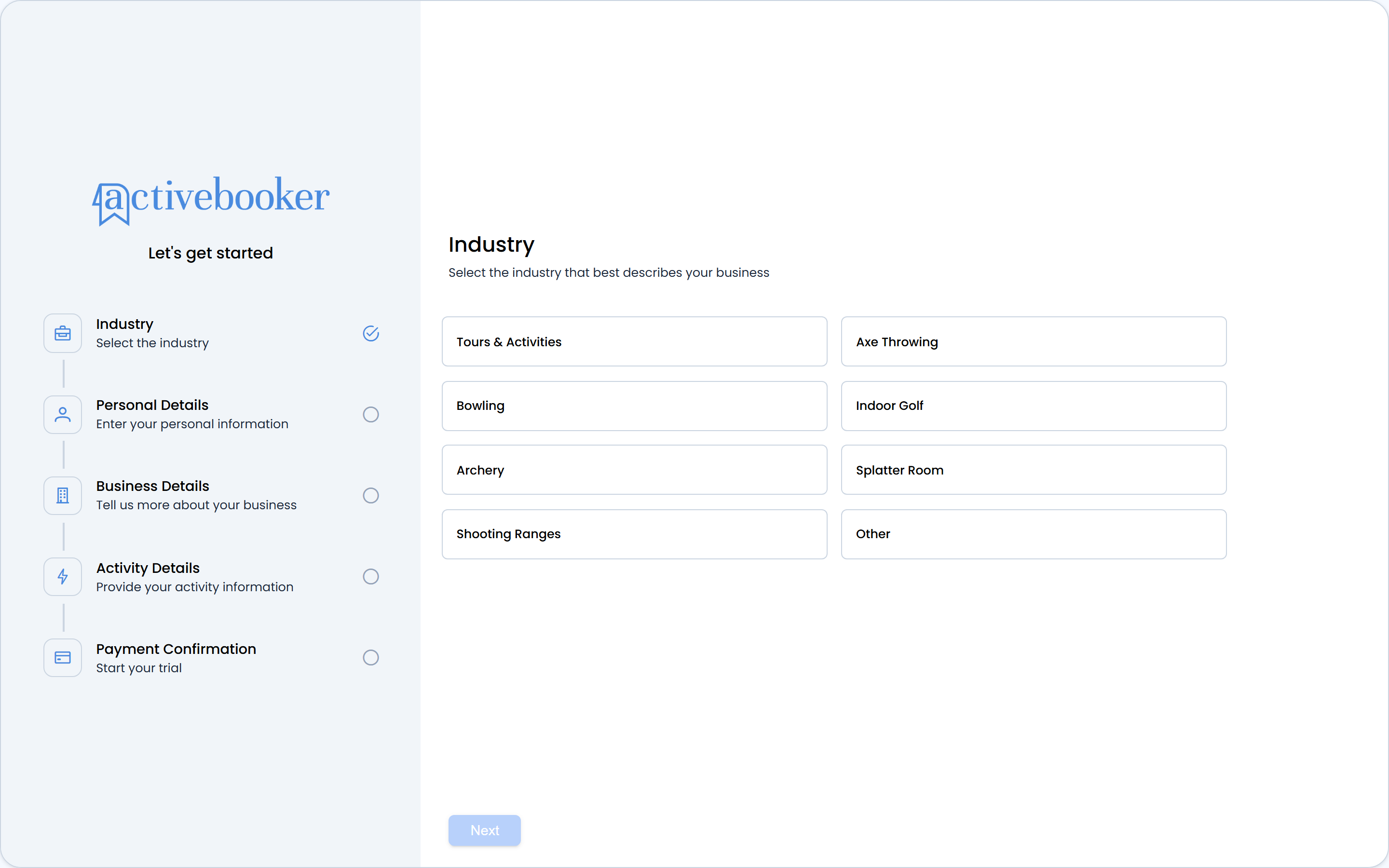
1. Select your industry
Choose the industry that best matches your business: Axe Throwing, Bowling, Indoor Golf, Archery, Splatter Room, Tours & Activities, Shooting Ranges, or Other.
Your choice tailors the terminology in the rest of the setup — for example, bowling businesses configure Lanes, indoor golf configures Simulators, and tours configure Seats.
2. Personal details
Enter your first name, last name, email address, and phone number. All four are required.
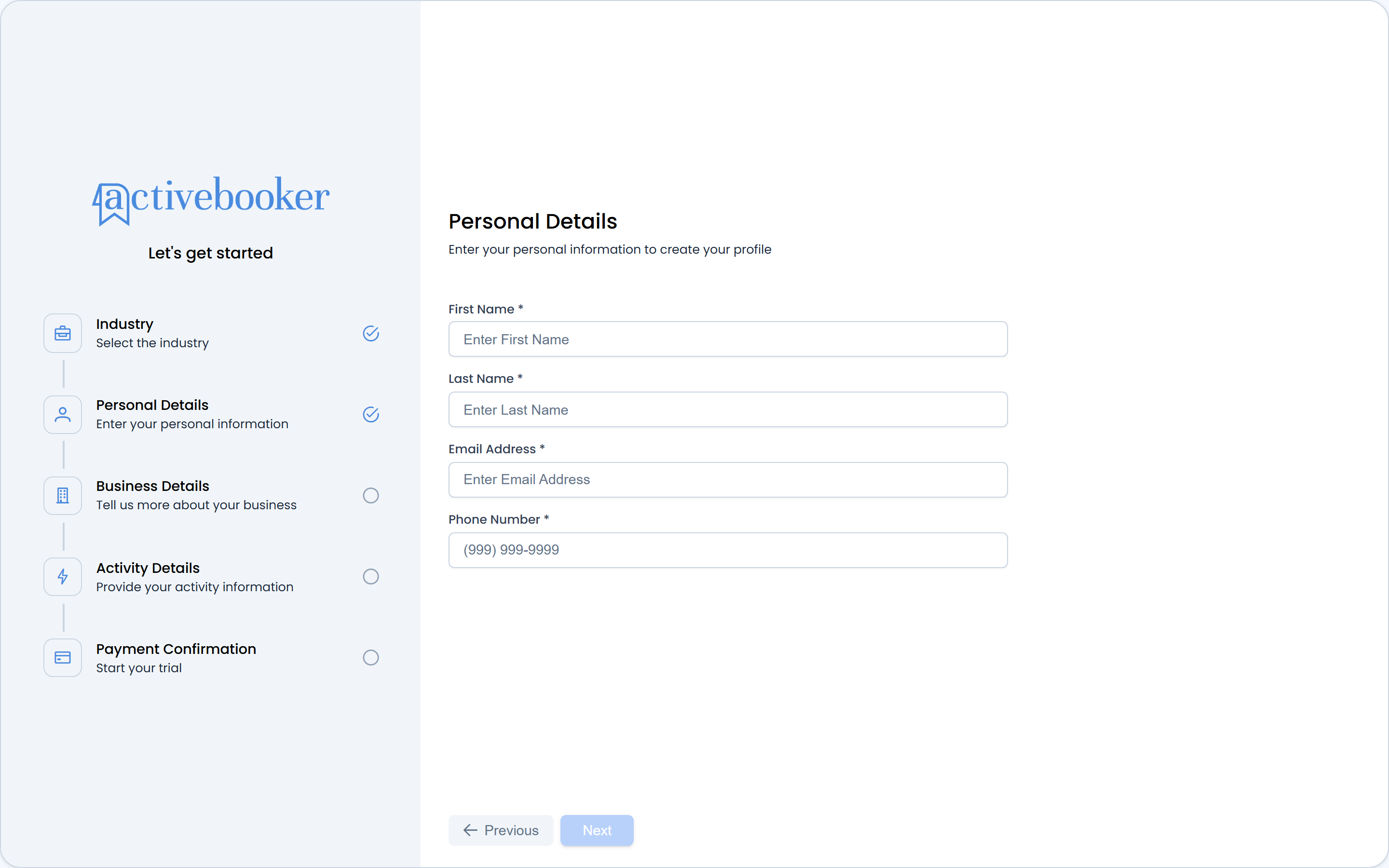
Your email address becomes your dashboard login, and it's where your account activation link is sent — make sure it's correct.
3. Business details
Enter your company name (required), plus your address, time zone, website, and company logo if you have them handy. Everything except the company name can be updated later in Account Settings.
4. Activity details
Describe what customers will book:
- Number of lanes (or simulators / rooms / seats) — between 1 and 200
- Price for a standard booking
- Tax percentage — 0 to 100
- Booking type — the default kind of booking you offer
- Opening hours — set the open/closed state and the opening and closing time for each day of the week; at least one day must be open
ActiveBooker uses this to generate your first activity and its bookable time slots, so your booking page works immediately after sign-up. You can refine all of it later under Activities.
5. Payment confirmation
Review the Standard Plan summary — the monthly price and what's included — and enter your card details.
- Enter your payment card in the secure payment form
- Tick I agree to the Terms of Service and Privacy Policy
- Click Sign Up
Your card will not be charged until the end of the free trial period. Cancel any time before the 30 days are up and you will not be charged. You can manage your subscription later from Plan & Billing.
After you sign up
On the confirmation screen you'll see "Welcome to ActiveBooker — your account is now set up." Three things to do next:
- Check your email. We send you a link to activate your account and set your password. If you don't see it within a few minutes, check your spam folder.
- View your booking page. The confirmation screen links to the customer-facing page your clients will use to book with you — open it to see what your customers see.
- Sign in to the dashboard. Once your password is set, sign in at dashboard.activebooker.com.
Want a personalized walkthrough? Book a demo and our team will show you around your new account.
Troubleshooting
I never received the activation email Check your spam or junk folder first. Still nothing? Contact us via the Support Site with the email address you signed up with.
The wizard won't let me continue Each step validates its required fields — look for an empty required field (name, email, phone, or company name), a lane count outside 1–200, or opening hours with no open day.
My card was declined at sign-up The card is only verified, not charged. Ask your bank to allow the verification, or try another card.
Related
- Navigating the dashboard — your first look around after signing in
- Setup checklist — everything to configure before going live
- Reset password — if you've lost access to your login