Payment Settings
Enable Payments and Configure Your Billing Currency
The Payment Settings page allows you to control whether online payments are collected for your account and choose the currency your customers are charged in. Once configured, the selected currency symbol is reflected consistently across all pricing fields throughout the platform, including booking types, add-ons, discounts, and membership plans.
Payment Settings Overview
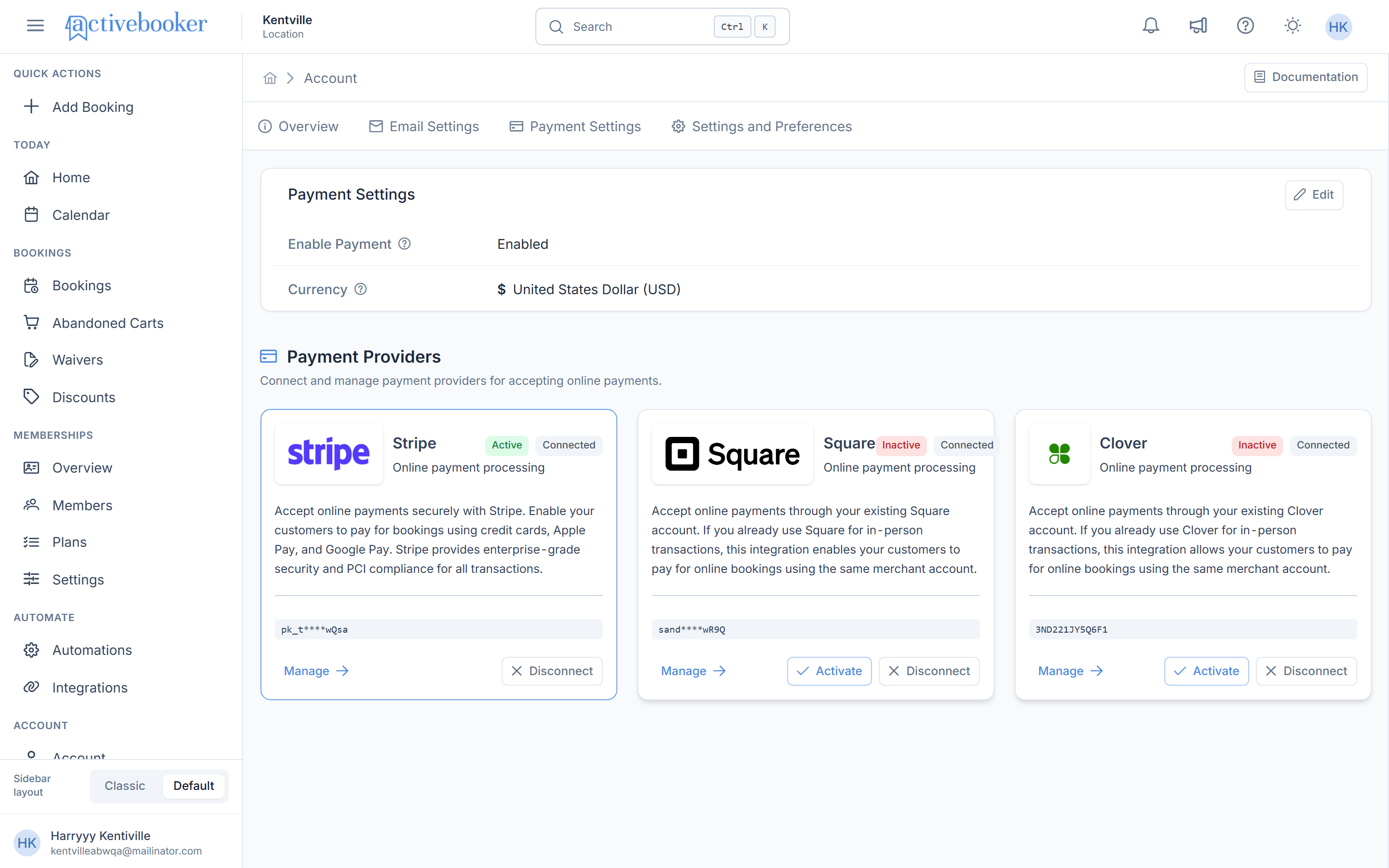
The Payment Settings page contains a configuration card with two fields, plus a Payment Providers section below it:
- Enable Payment: Controls whether payment collection is active for your account
- Currency: Sets the billing currency applied across all pricing in the system
The Currency selector is only visible when Enable Payment is checked. If you open the Edit modal and see only the checkbox, enable payment first and the currency options will appear.
Enable Payment
The Enable Payment toggle controls whether your account actively collects payments from customers.
When Payment is Enabled
- The Currency field becomes visible
- All pricing fields across the platform display the selected currency symbol
- Customers can be charged at checkout
When Payment is Disabled
- The Currency field is hidden in the Edit modal
- The view page shows Disabled next to Enable Payment
- Payment collection is inactive for your account
Currency
The Currency setting determines which currency symbol is displayed across all pricing fields in the platform and which currency Stripe uses to process charges.
Available Currencies
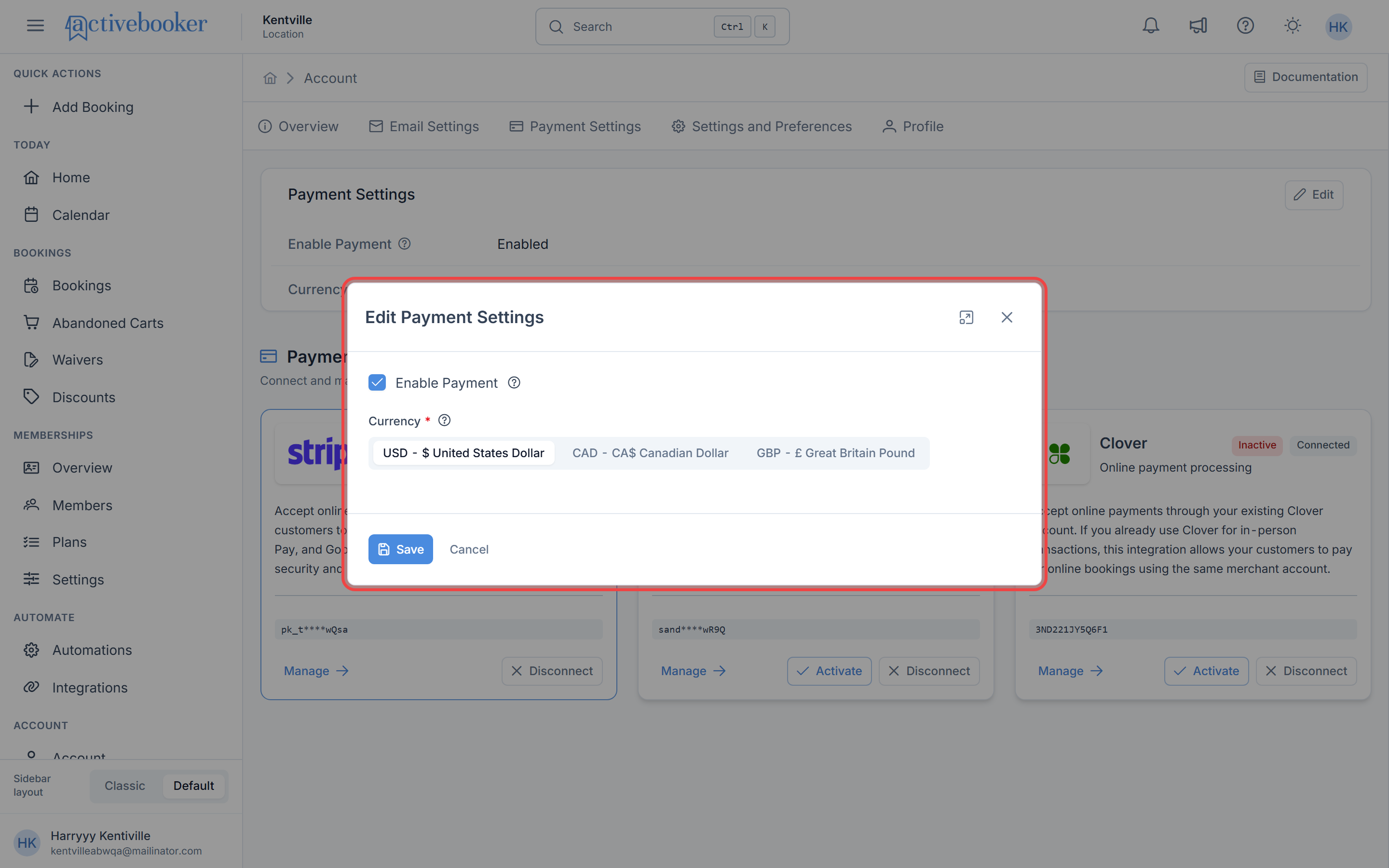
Three currencies are supported, selectable as toggle buttons in the Edit modal:
| Currency | Symbol | Code | Display Example |
|---|---|---|---|
| United States Dollar | $ | USD | $ United States Dollar (USD) |
| Canadian Dollar | CA$ | CAD | CA$ Canadian Dollar (CAD) |
| Great Britain Pound | £ | GBP | £ Great Britain Pound (GBP) |
CA$, not $To avoid confusion with the US Dollar, the Canadian Dollar is displayed as CA$ (e.g., CA$25.00) everywhere in the platform.
Currency Behavior
- Default: USD is selected by default when payment is first enabled
- Single selection: Only one currency can be active at a time; selecting one deselects the others
- Platform-wide: The selected currency symbol propagates immediately after saving to all pricing, invoices, and payment displays across the platform, including the dashboard, bookings, memberships, discounts, and Stripe charges
Payment Providers
Below the Payment Settings card, the Payment Providers section lists the payment gateways available for accepting online payments: Stripe, Square, and Clover.
Each provider card shows:
- Status badges: Active or Inactive, and Connected or not connected
- A short description of what the provider does
- A masked account/key identifier (e.g.,
pk_t****wQsafor Stripe) - Manage — opens the provider's connection details
- Activate — switches an inactive, connected provider to active (only one provider can be the active processor at a time)
- Disconnect — removes the provider connection from your account
Disconnecting or switching the active payment provider affects how future customer payments are processed. Only change these settings if you understand the impact on your live payment flow.
How to Edit Payment Settings
Opening the Edit Modal
- Navigate to Account > Payment Settings tab
- Click the Edit button in the top-right corner of the Payment Settings card
- The Edit Payment Settings modal opens
Enabling Payment and Selecting a Currency
- Check the Enable Payment checkbox, the Currency selector appears
- Click your preferred currency toggle button: USD, CAD, or GBP
- The selected button becomes visually highlighted; the others are deselected
Disabling Payment
- Open the Edit Payment Settings modal
- Uncheck the Enable Payment checkbox, the Currency selector disappears
- Click Save
Common Scenarios
Switch from USD to GBP
- Go to Account > Payment Settings
- Click Edit
- Click the GBP – £ Great Britain Pound toggle button
- Click Save
The view page updates to show £ Great Britain Pound (GBP) and the £ symbol appears across all pricing fields in the platform.
Switch from USD to CAD
- Go to Account > Payment Settings
- Click Edit
- Click the CAD – CA$ Canadian Dollar toggle button
- Click Save
The view page updates to show CA$ Canadian Dollar (CAD) and the CA$ symbol appears across all pricing fields in the platform. Stripe will process future charges in Canadian Dollars.
Temporarily Disable Payments
- Go to Account > Payment Settings
- Click Edit
- Uncheck Enable Payment
- Click Save
The view page shows Disabled. No payments will be collected until payment is re-enabled.
Re-enable Payments After Disabling
- Click Edit
- Check Enable Payment
- Select your preferred currency (defaults to USD if none was previously selected)
- Click Save
FAQs
Q: Which currencies are supported?
Three currencies are currently supported: USD (US Dollar), CAD (Canadian Dollar), and GBP (British Pound).
Q: What is the default currency?
USD – United States Dollar is selected by default when payment is first enabled on an account.
Q: Can I have different currencies for different activities or booking types?
No. Currency is configured at the account level and applies uniformly to all activities, booking types, add-ons, discounts, and membership plans across the platform.
Q: What happens to existing invoices if I change the currency?
Historical invoices retain the currency in which they were originally billed. Only future invoices will use the newly selected currency. Stripe charges already processed are unaffected.
Q: Will membership invoices and Stripe charges use the same currency?
Yes. When a membership charge occurs, the invoice in ActiveBooker and the corresponding Stripe charge both use the currency selected in Payment Settings. For example, if your currency is set to CAD, the member invoice and the Stripe invoice will both show amounts in CA$.
Q: Why is the Currency field not showing in the Edit modal?
The Currency selector is only visible when the Enable Payment checkbox is checked. Check the checkbox and the currency options will appear immediately.
Q: Can I select more than one currency at a time?
No. Only one currency can be active at a time. Clicking a currency toggle button automatically deselects the previously selected one.
Troubleshooting
Currency Field Is Not Visible in the Edit Modal
Why this happens: The Enable Payment checkbox is unchecked — the Currency selector is intentionally hidden when payment is disabled.
How to fix it: Check the Enable Payment checkbox. The Currency label and toggle buttons will appear immediately.
Changes Are Not Saving
Why this happens: The session may have expired, or a required field is incomplete.
How to fix it:
- Ensure Enable Payment is checked and a currency toggle button is selected
- Refresh the page and try the edit again
- Contact support if the issue persists
Currency Symbol Is Showing Incorrectly on Other Pages
Why this happens: A different currency than expected is saved in Payment Settings, or the page was loaded before the currency change was saved.
How to fix it: Go to Account > Payment Settings, verify the active currency shown on the view page, and update it via the Edit modal if needed. Changes reflect immediately across all pricing fields after saving. If you still see the old symbol, refresh the page.
Settings Reverted After Saving
Why this happens: You may have clicked Cancel or ✕ instead of Save, or navigated away before the save completed.
How to fix it:
- Reopen the Edit Payment Settings modal
- Reapply your changes
- Click Save and wait for the success toast before closing the modal
See Also
- Account Overview — Manage basic account information and settings
- Email Settings — Configure contact, booking, and waiver email addresses
- Settings and Preferences — Manage general, booking, and internal booking settings
- Subscription & Billing — Your ActiveBooker subscription (not the payments your customers make)