Signing in
Sign in to the ActiveBooker Dashboard, change your password, and sign out securely.
Sign in to the dashboard
- Go to dashboard.activebooker.com
- Enter your email address — the one your account or user invitation was created with
- Enter your password
- Click Sign In
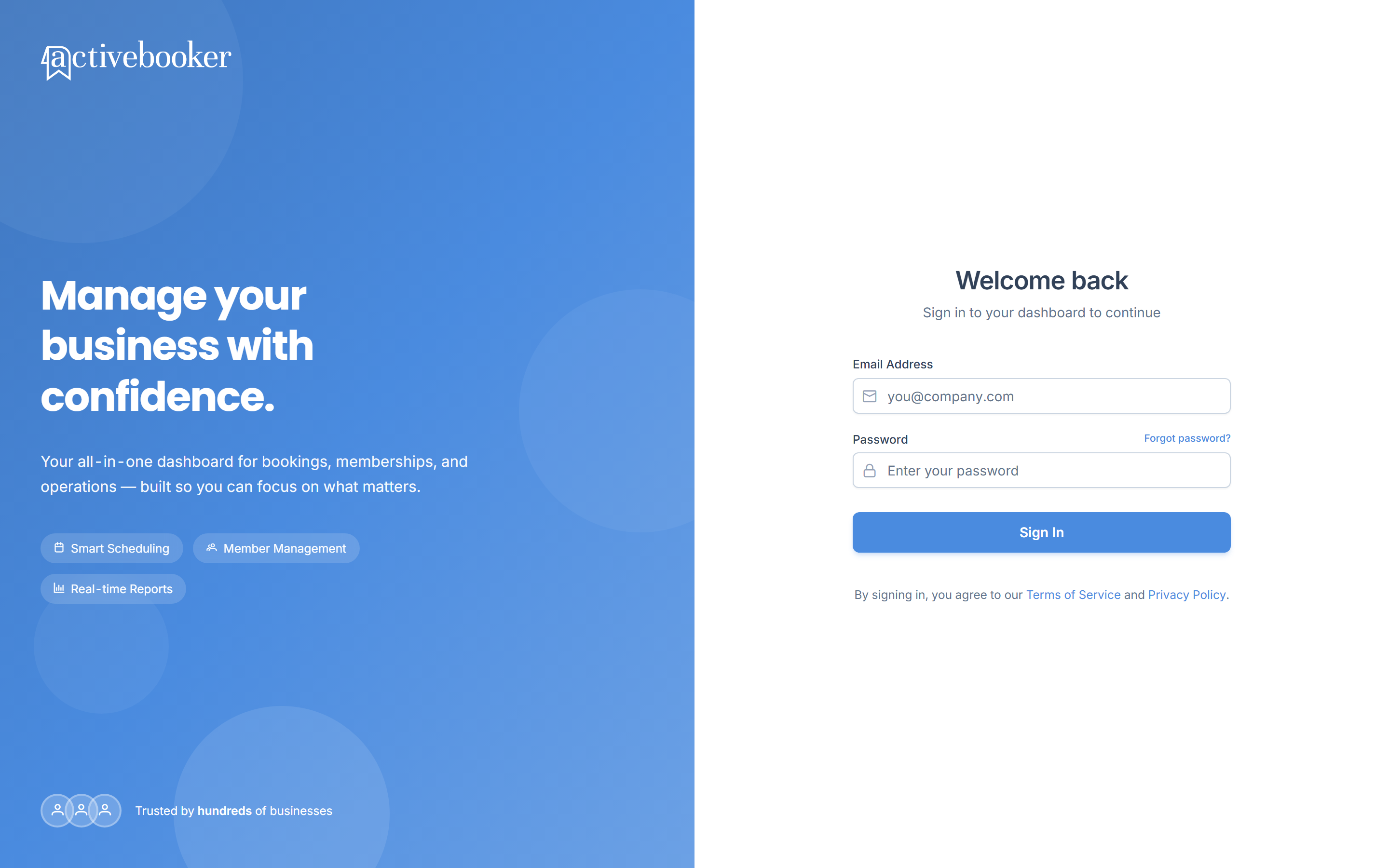
New accounts set their password through the activation email sent after sign-up. If you were added as a user by your admin, use the invitation email instead. Can't find either? See Reset password.
Forgot your password?
On the sign-in page, enter your email address and click Forgot password? next to the Password field. A reset link is emailed to you — the full walkthrough is in Reset password.
Change your password
While signed in:
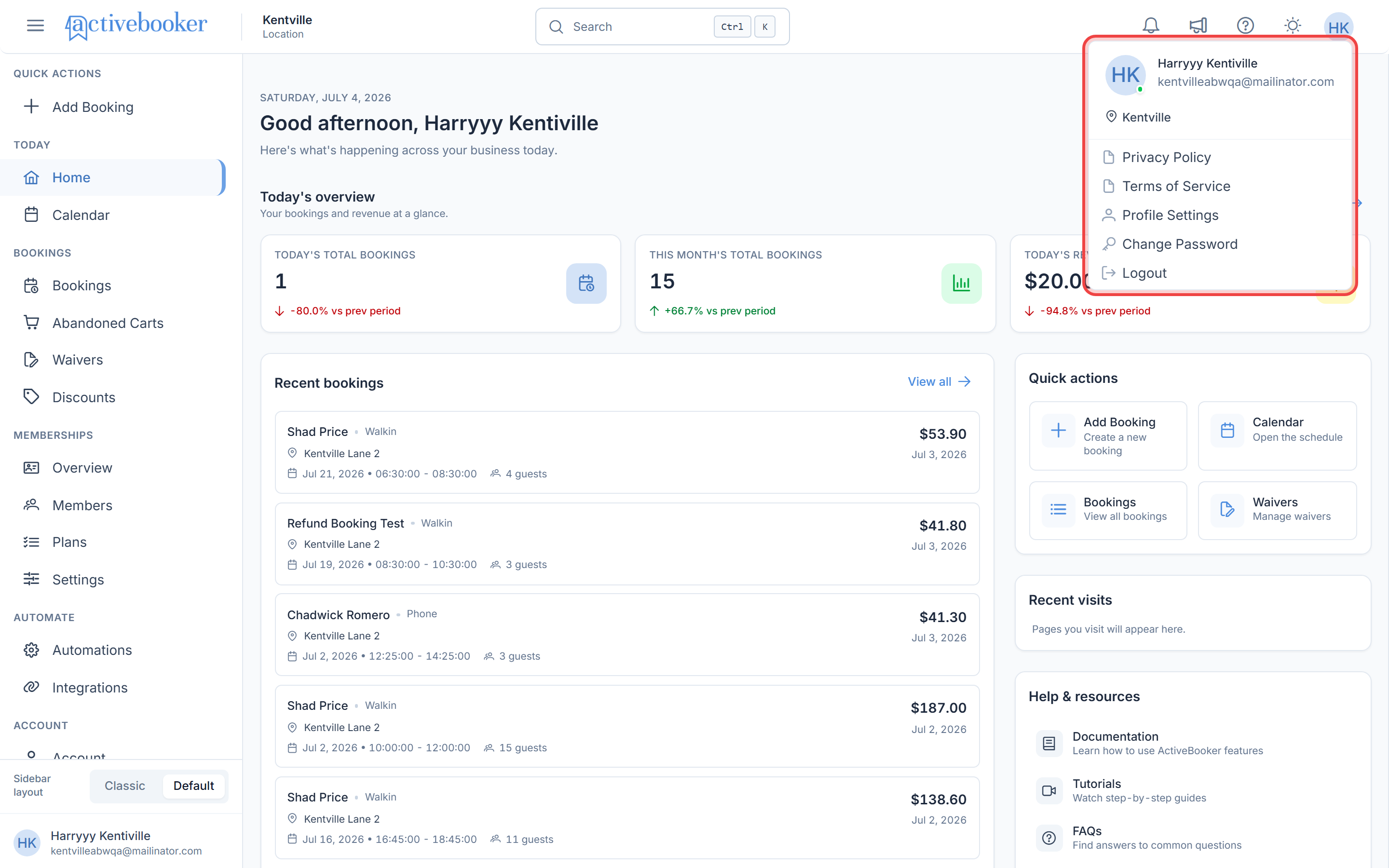
- Click your avatar in the top-right corner of the dashboard
- Choose Change Password
- Enter your new Password and the same value in Confirm Password
- Save — you'll use the new password from your next sign-in
Sign out
Click your avatar in the top-right corner and choose Logout. Sign out whenever you leave a shared front-desk computer.
Troubleshooting
"Invalid credentials" on sign-in Double-check the email address and password. If you're unsure of the password, use Forgot password? to reset it.
My colleague can't sign in Confirm they've been added as a user in Users and that they've completed their invitation email.
Related
- Reset password
- Users — add or remove people who can sign in