Subscription & billing
See exactly what you're paying for ActiveBooker — your current plan, trial dates, payment methods, and invoice history — all on one page.
This page is about your ActiveBooker subscription (what you pay us). For the payments your customers make on bookings, see Payment Settings.
Quick start
- Click Billing in the left sidebar under the Account group
- Review the Current Subscription & Plan Details table
- Manage cards under Payment Methods and download history under Invoices
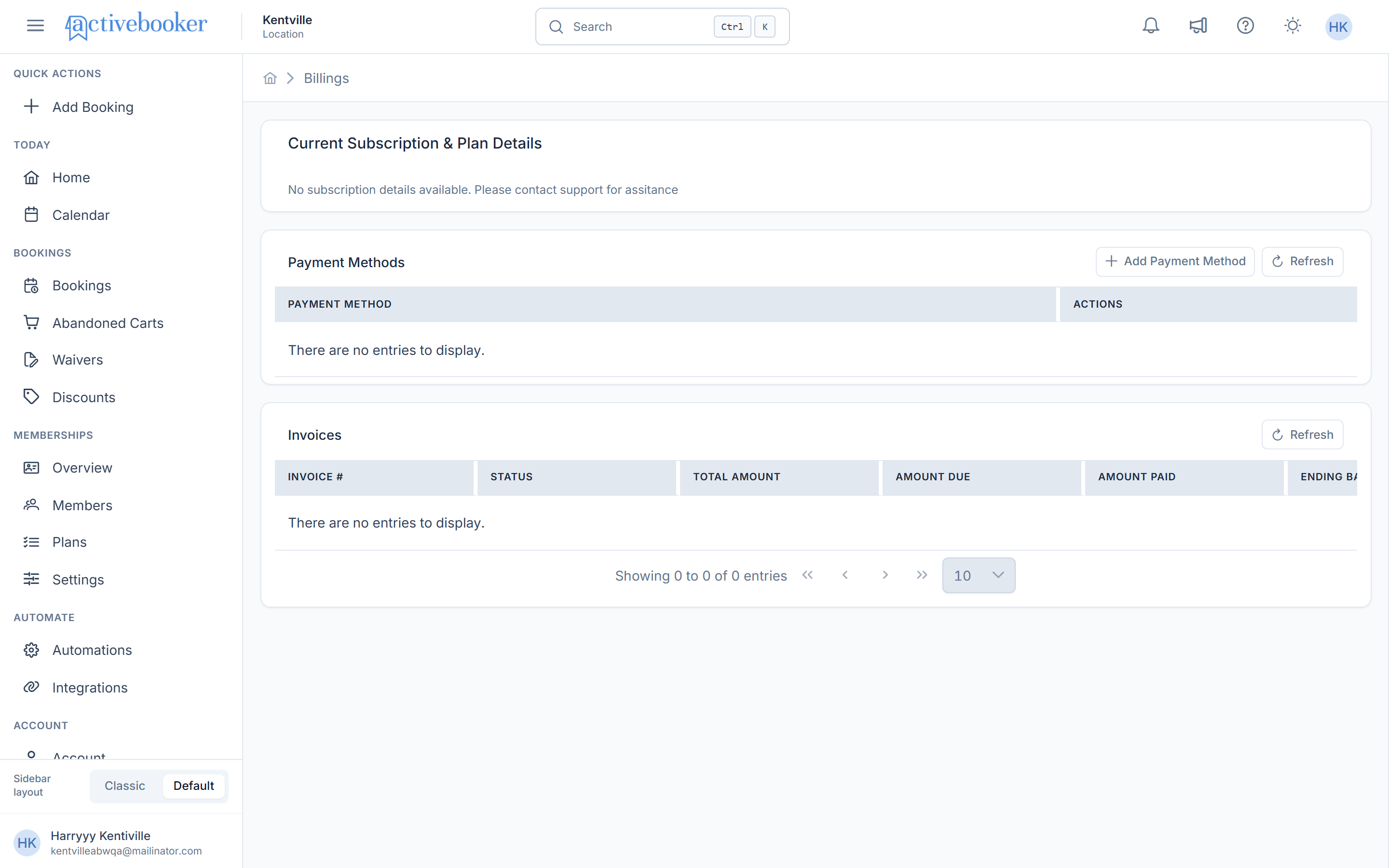
Current subscription & plan details
The top card shows:
- Current Plan — your plan name with a status badge (for example, active or trialing)
- Monthly Price — what you pay per month
- Trial Period — the start and end date of your free trial (your card is first charged when the trial ends)
- Started At — when your subscription began
If your subscription is ending, you may also see Ended At, Canceled At, and Grace Period Until — the date access remains available after cancellation.
If your location hasn't been assigned a subscription plan yet, this card shows "No subscription details available. Please contact support for assistance" instead of the fields above.
Payment methods
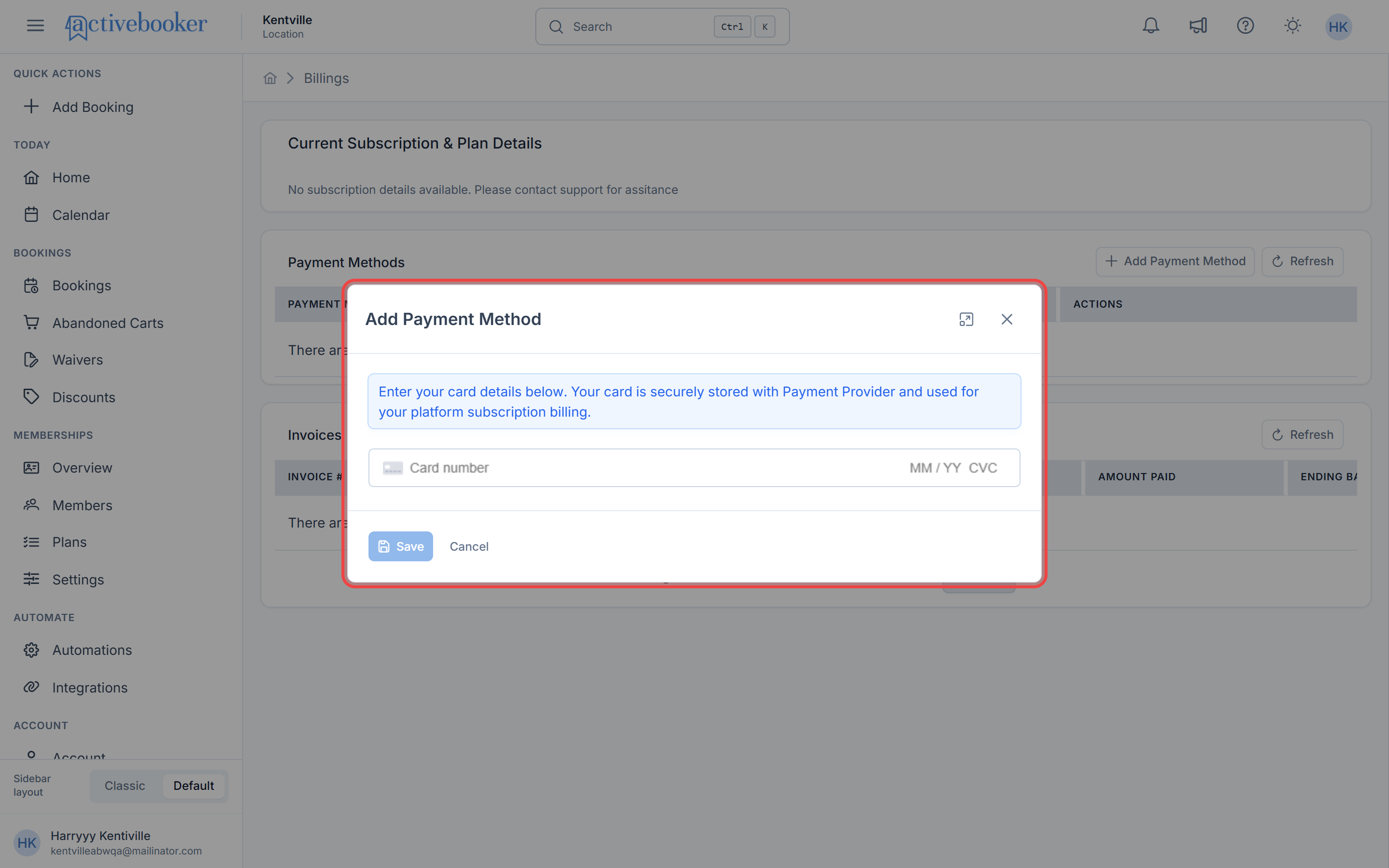
The Payment Methods section lists the cards on file for your subscription. The card marked Default is the one charged each billing cycle. If no cards have been added yet, the table shows "There are no entries to display."
- Add Payment Method — add a new card
- Set as Default — switch which card is charged
Invoices
The Invoices section lists your billing history with the invoice number, status, total amount, amount due, amount paid, ending balance, and creation date — everything you need for your accounting. If you have no invoices yet, the table shows "There are no entries to display."
Frequently asked questions
When will my card first be charged?
At the end of your free trial. The Trial Period row shows the exact end date. Cancel before that date and you won't be charged.
How do I cancel my subscription?
Contact our team through the Support Site. After cancellation, the Grace Period Until date shows how long you keep access.
My payment failed — what happens?
Update or add a card under Payment Methods and set it as default. If the issue persists, contact support so your account isn't interrupted.
Related
- Create your account — how the trial starts
- Payment Settings — collecting payments from your customers