Mailchimp Integration
Automatically add customers to your Mailchimp email marketing lists when they make a booking. Build targeted campaigns and keep your mailing lists up-to-date without manual data entry.
Quick start
Connect Mailchimp to your booking system in three steps:
- Navigate to Integrations from the sidebar and click on the Mailchimp card
- Click Edit in the Mailchimp Integration Settings section
- Enable the integration, add your API credentials, and click Save
You'll need your Mailchimp API Key and Audience List ID from your Mailchimp account to complete the setup.
What you can do
The Mailchimp integration helps you:
- Build your email list automatically — Customers who opt-in during booking are added to your Mailchimp audience without manual work
- Run targeted marketing campaigns — Use booking data in Mailchimp to segment customers and send personalized offers
- Keep your audience current — Maintain up-to-date mailing lists as new customers book activities
How it works
Overview
When you enable the Mailchimp integration, an opt-in checkbox appears during your booking process. Customers who check this box are automatically added to your specified Mailchimp audience list. This seamless connection keeps your email marketing lists synchronized with your booking activity.
Key concepts
Mailchimp API Key
A unique authentication credential from your Mailchimp account that allows ActiveBooker to communicate with Mailchimp's services. You generate this key in your Mailchimp account settings.
Audience List ID
The unique identifier for a specific mailing list in your Mailchimp account. This tells the integration which list to add new subscribers to.
Subscription Text
The custom message displayed next to the opt-in checkbox during booking. Use this to explain what customers are subscribing to (for example, "Send me special offers and updates").
Setting up the integration
Access Mailchimp integration
- From your dashboard, navigate to Integrations in the sidebar
- Locate the Mailchimp card under Available Integrations
- Click Manage Integration to open the Mailchimp integration page
You'll see two main sections: an overview card explaining Mailchimp's capabilities and the integration settings card below.
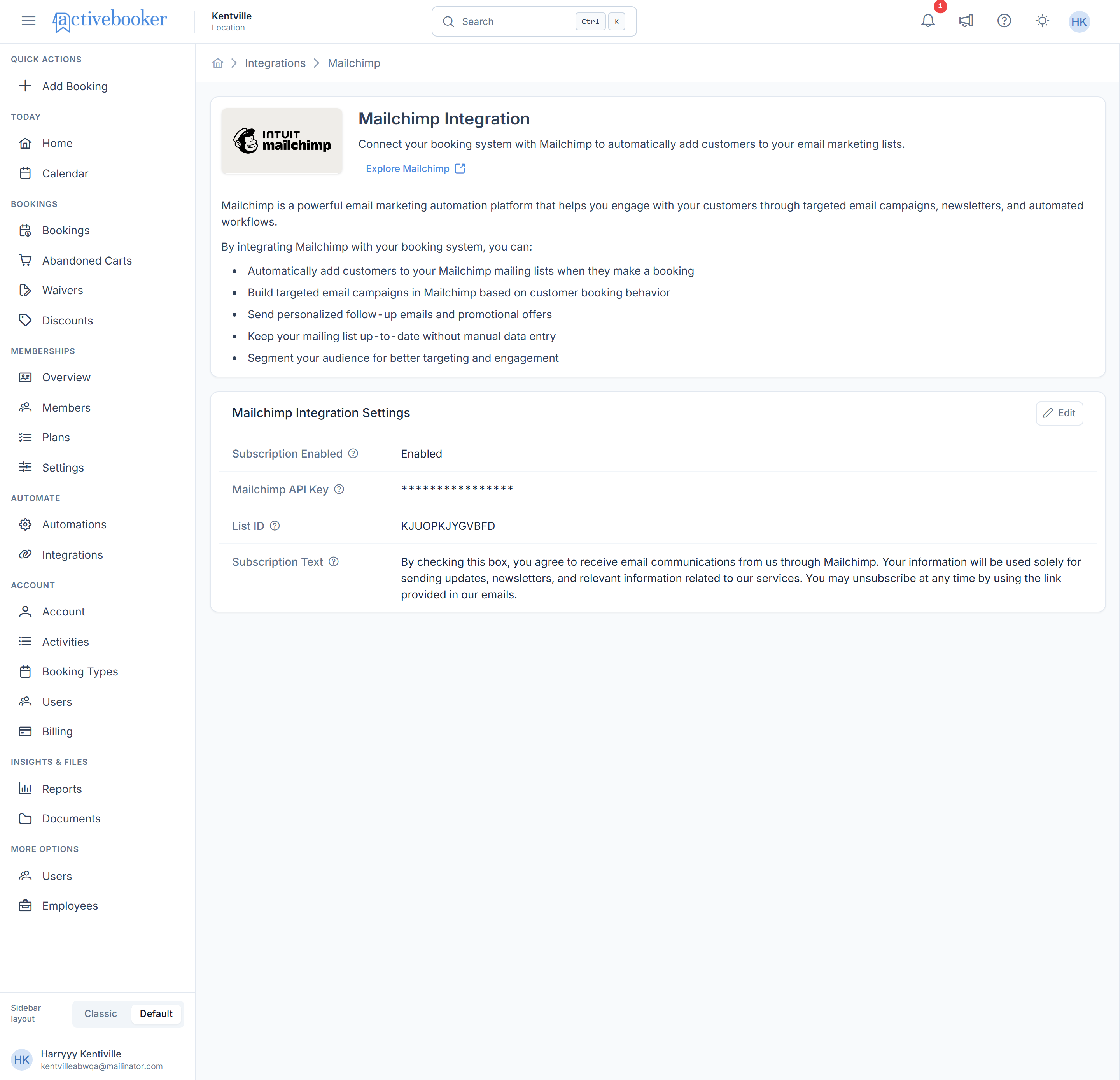
Get your Mailchimp credentials
Before configuring the integration, gather these details from your Mailchimp account:
To find your API Key:
- Log in to your Mailchimp account
- Navigate to Account > Extras > API Keys
- Generate a new key or copy an existing one
To find your List ID:
- In Mailchimp, go to Audience > All Contacts
- Click Settings > Audience name and defaults
- Look for the Audience ID field
Keep your API key secure. If you need to visit Mailchimp to get these details, click Explore Mailchimp in the overview section to open Mailchimp in a new tab.
Configure integration settings
- Click Edit in the Mailchimp Integration Settings card
- The Edit Mailchimp Integration Settings modal will open
- Check Enable Mailchimp Subscription to activate the integration
- Fill in the required fields
- Click Save to apply your configuration
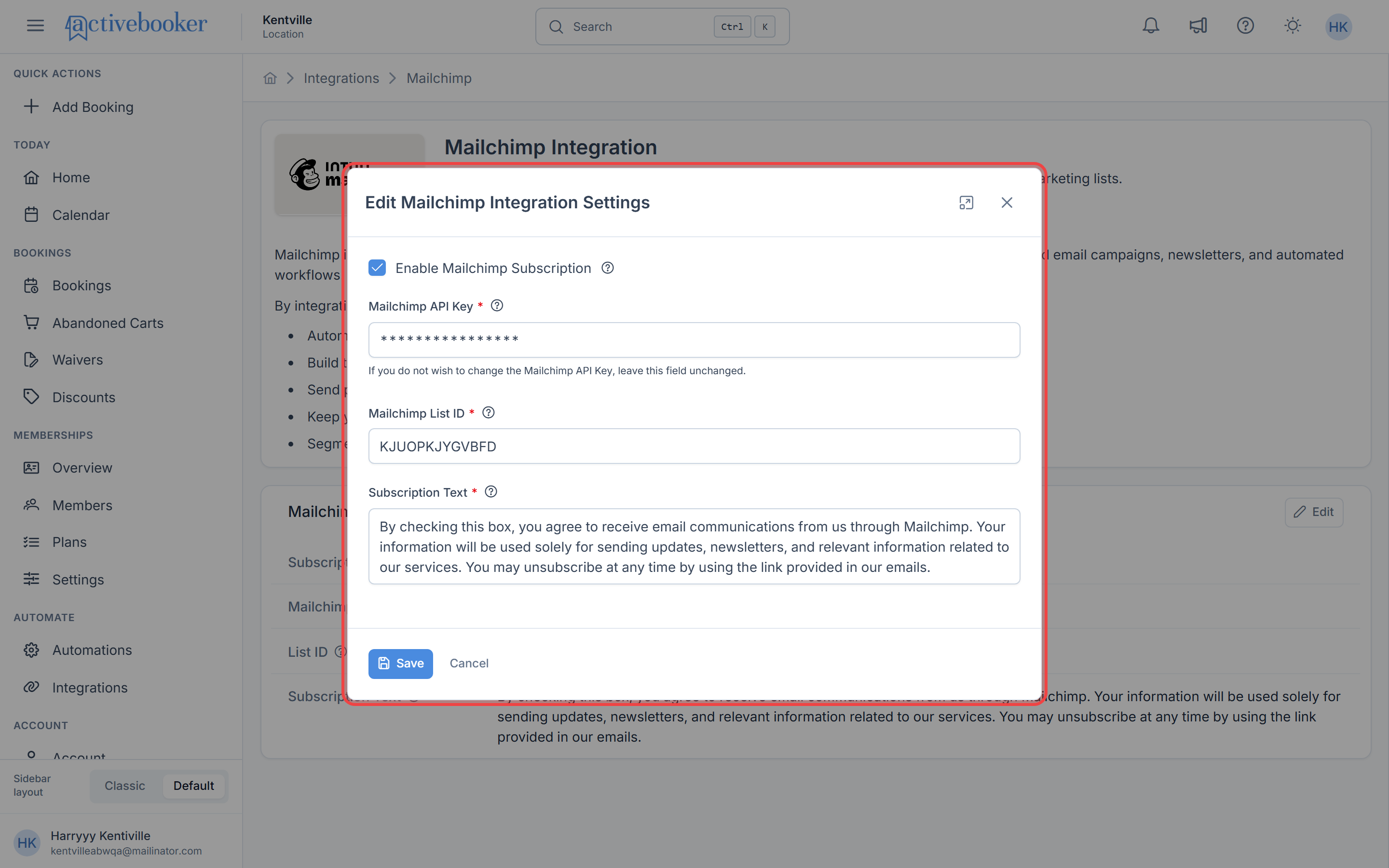
Configuration fields
Enable Mailchimp Subscription
Toggle this checkbox on to activate the integration. When unchecked, all other fields are disabled and the integration remains inactive.
Mailchimp API Key (Required when enabled)
Enter your Mailchimp API key for authentication.
Your API key is masked with asterisks after saving and cannot be viewed again in the interface. If you need to update it, enter a new key in this field. If you leave the field showing asterisks when editing, your existing key remains unchanged.
Mailchimp List ID (Required when enabled)
Enter the Audience ID where new contacts will be added.
Subscription Text (Required when enabled)
Customize the message customers see next to the opt-in checkbox during booking. For example: "Subscribe to our newsletter for exclusive offers and activity updates."
Hover over the info icon next to any field label to see helpful guidance about what that field does and how to use it.
What customers see
When your Mailchimp integration is active, customers completing a booking will see a checkbox with your custom subscription text during the booking process. If they check this box:
- Their booking proceeds normally
- After booking confirmation, their contact information is automatically sent to Mailchimp
- They're added to your specified audience list and receive any welcome emails you've configured in Mailchimp
Customers who don't check the box complete their booking without being added to your mailing list.
Using Mailchimp with your bookings
Automatically grow your mailing list
Once configured, the integration works automatically. Every customer who opts in during booking is added to your Mailchimp audience, allowing you to:
- Build targeted email campaigns based on booking behavior
- Send personalized follow-up emails and promotional offers
- Keep your mailing list up-to-date without manual imports
- Segment your audience for better targeting and engagement
Build campaigns in Mailchimp
With booking customers in your Mailchimp audience, you can:
- Create email campaigns directly in Mailchimp
- Use Mailchimp's segmentation tools to target specific customer groups
- Send automated follow-up sequences after bookings
- Track email performance and engagement metrics
All campaign creation and management happens in your Mailchimp account. ActiveBooker simply ensures your booking customers are added to your list when they opt in.
Best practices
✅ Write clear subscription text — Be specific about what customers will receive (newsletters, offers, updates)
✅ Keep your API credentials secure — Never share your API key publicly or with unauthorized users
✅ Test the integration — Make a test booking to verify contacts are added correctly to Mailchimp
✅ Respect customer preferences — Only send relevant content to customers who opted in
❌ Avoid vague opt-in language — Don't use generic text like "Subscribe" without explaining what they're subscribing to
❌ Don't disable mid-campaign — If you disable the integration, new bookings won't be added to ongoing campaigns
Ensure your subscription text and email practices comply with relevant regulations like GDPR, CAN-SPAM, or other applicable laws in your region. Mailchimp provides tools to help manage compliance.
Related resources
Learn more about integrations and email marketing:
- Integrations Overview — Explore all available integrations for your booking system