Zapier Webhook Events
When a booking is created in ActiveBooker, the system can automatically send the booking details to any Zapier workflows or connected tools you have set up. This lets you trigger automations in other apps the moment a booking is confirmed — no manual steps needed.
How it works
This happens automatically as part of the booking confirmation process — no manual action is required. After a booking is saved:
- ActiveBooker checks whether the Zapier Integration feature is enabled for your location
- If enabled, it looks up all active connections you have set up for that location
- The booking details are sent to each connected tool in the background
- This runs alongside the standard booking notifications (email, SMS, in-app) — neither affects the other, and neither delays the booking confirmation shown to the customer
Note: The booking confirmation is shown to the customer immediately. Sending data to Zapier happens in the background and does not delay or affect the booking in any way.
Requirements
| Requirement | Detail |
|---|---|
| Zapier Integration feature | Must be enabled for your location |
| Active connection | At least one active Zapier connection must be set up for your location |
If either condition is not met, no data is sent to Zapier. The booking still saves successfully and no error is shown.
Data sent to Zapier
Each time a booking is confirmed, the following information is included in the data sent to your connected Zapier workflow:
| Field | Type | Description |
|---|---|---|
bookingId | integer | The integer ID of the booking |
customerName | string | The customer's full name, or the guest name for walk-in bookings |
customerEmail | string | null | The customer's email address; null if no email is on the booking |
customerPhone | string | null | The customer's phone number; null if no phone is on the booking |
bookedDate | string | The booking date in YYYY-MM-DD format (e.g., "2026-05-26") |
startTime | string | The booking start time in HH:mm:ss format (e.g., "10:00:00") |
endTime | string | The booking end time in HH:mm:ss format (e.g., "11:00:00") |
timeZoneId | string | null | The timezone of the location (e.g., "America/Halifax"); null if not configured |
laneName | string | null | The name of the activity or lane booked; null if the activity is not linked |
totalAmount | string | The booking total as a string with exactly 2 decimal places (e.g., "105.00") |
Example
{
  "bookingId": 297628,
  "customerName": "John Doe",
  "customerEmail": "john@example.com",
  "customerPhone": "5551234567",
  "bookedDate": "2026-05-26",
  "startTime": "10:00:00",
  "endTime": "11:00:00",
  "timeZoneId": "America/Halifax",
  "laneName": "Lane 1",
  "totalAmount": "105.00"
}
Connection states
Only active connections set up for your location will receive booking data. The table below shows when data is and is not sent:
| Scenario | Data sent to Zapier? |
|---|---|
| Active connection set up for the location | Yes |
| Connection is inactive or disabled | No |
| Connection belongs to a different location | No |
| No connections set up for the location | No |
Multiple connections
If your location has more than one active Zapier connection set up, the booking details are sent to all of them. Each connection receives the data exactly once per booking.
Delivery behaviour
- If a connected tool returns an error, the booking is not affected — it remains saved and no error is shown to the customer
- If a delivery attempt fails, the system automatically retries it in the background
- A failed delivery to Zapier does not affect booking notifications (email, SMS, in-app), and vice versa
Feature setting behaviour
| Setting state | Effect |
|---|---|
| Enabled | Booking data is sent to all active Zapier connections for your location |
| Disabled | No data is sent to Zapier, even if connections are set up; bookings save normally |
| Turned off between two bookings | Bookings created before it was turned off are not affected; only new bookings after the change are affected |
Managing connections
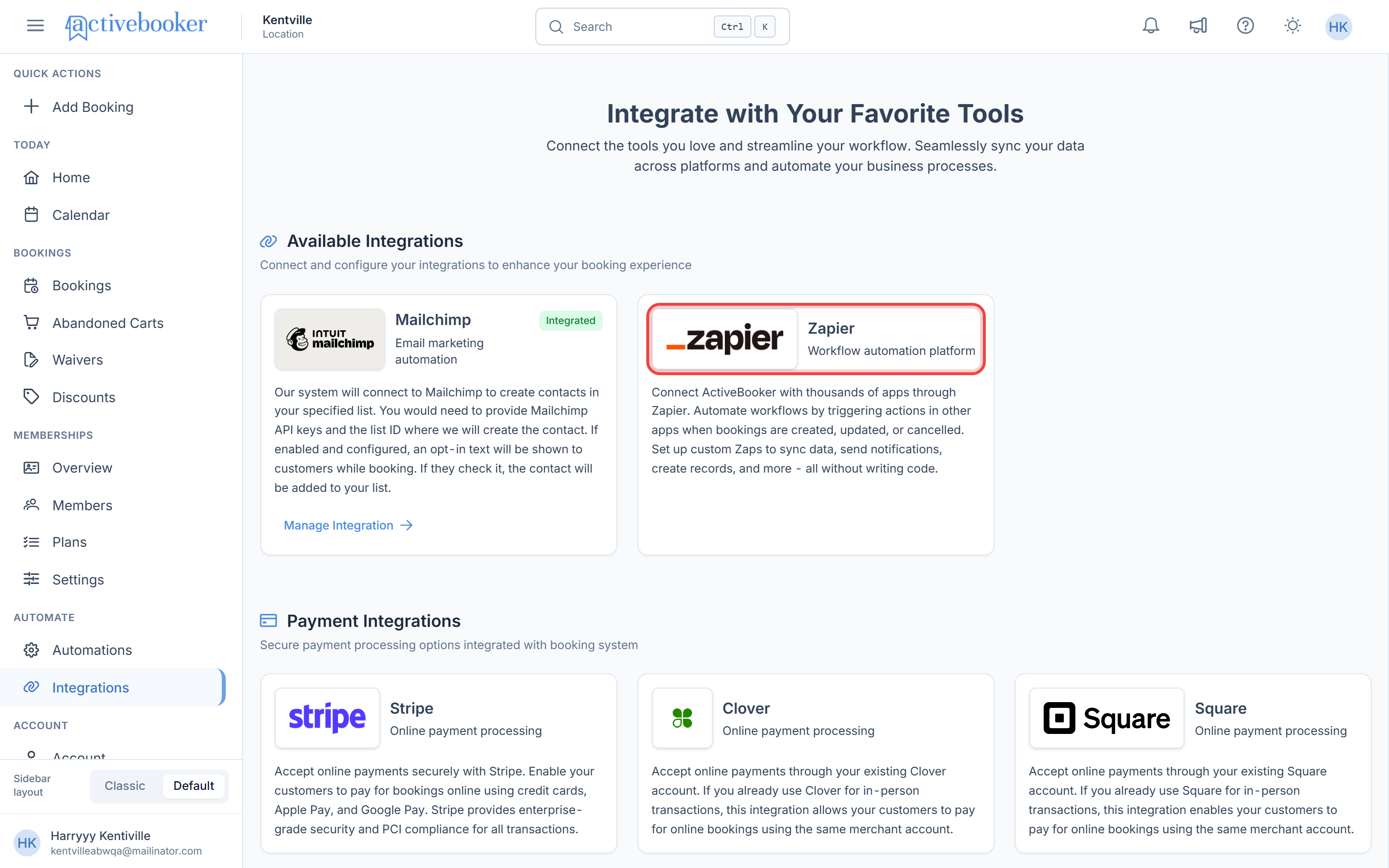
To view or manage your Zapier connections, go to Integrations in your location settings. From there you can see which connections are active and add new ones.
Related
- Booking Notifications — email, SMS, and in-app notifications sent after a booking is confirmed
- Review & Pay — the final booking step where confirmation is triggered
- Integrations Overview — all available integrations in ActiveBooker