Booking Discounts
Booking Discounts let you set special discount percentages for one or more booking types on a membership plan. Use this page to add discounts, update them later, or remove them when they are no longer needed.
Quick start
- Open Memberships > Membership Plans.
- Find the plan you want and open its details.
- Select the Booking Discounts tab.
- Click Add Booking Discount.
- Choose one or more booking types, enter a discount percentage, and click Save.
What you can do
The Booking Discounts page helps you:
- Add discounts for booking types — Apply a percentage discount to one or more booking types at the same time
- Update saved discounts — Change the discount percentage whenever your offer changes
- Remove discounts — Delete one discount or several at once
- Review current discounts — See all booking discounts already assigned to the plan
Understanding the interface
When you open the Booking Discounts tab, you see a list of saved discounts for the selected membership plan.
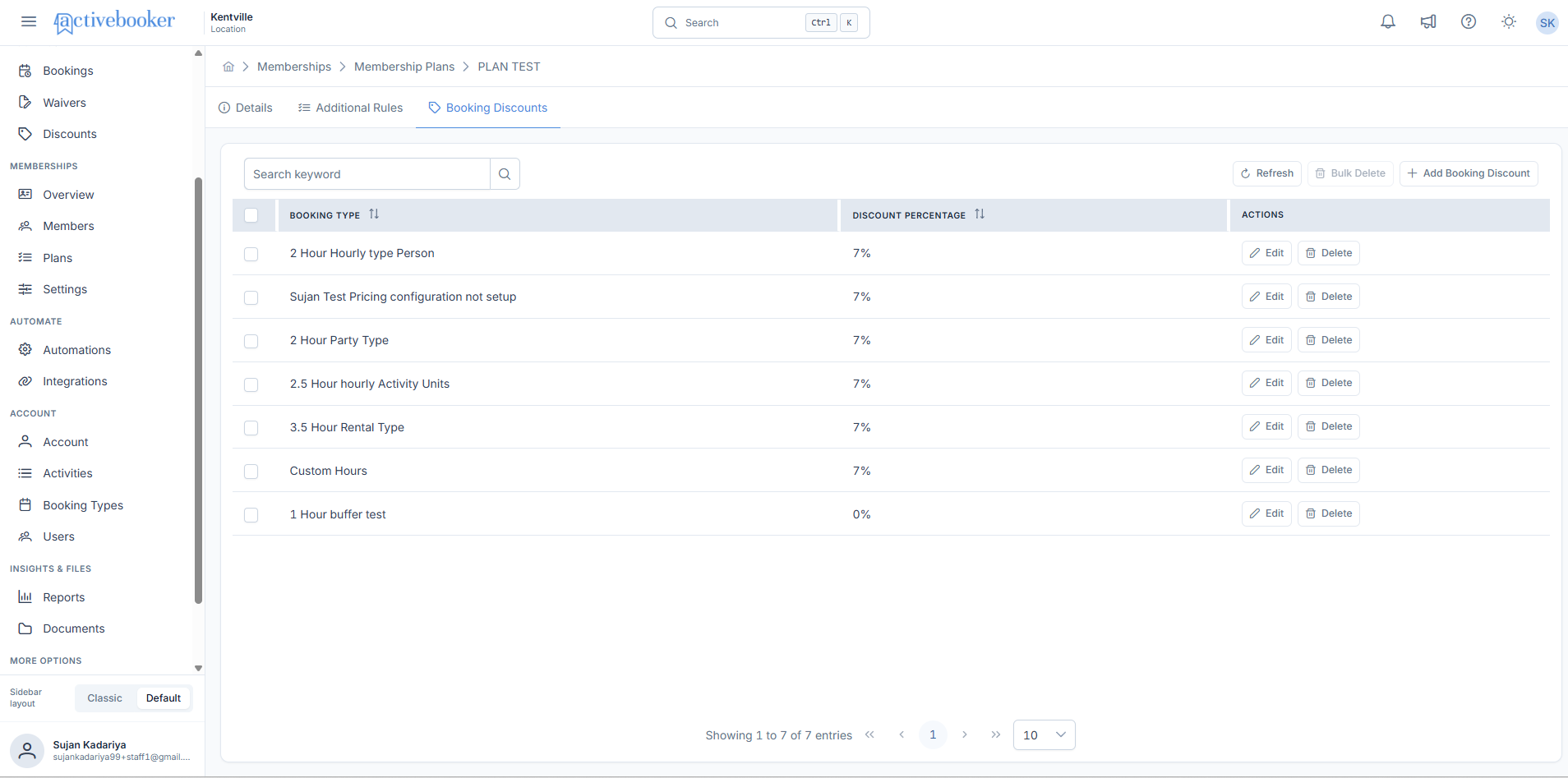
| Area | What it does |
|---|---|
| Search bar | Helps you quickly find a booking type in the list |
| Refresh | Loads the latest information on the page |
| Bulk Delete | Removes multiple selected discounts at once |
| Add Booking Discount | Opens the form to create a new discount |
| Booking Type | Shows the booking type that has a discount |
| Discount Percentage | Shows the saved discount value |
| Actions | Lets you edit or delete a single row |
If no discounts have been added yet, the page shows an empty state instead of rows.
Adding booking discounts
Use this form to add one or more booking types with the same discount percentage.
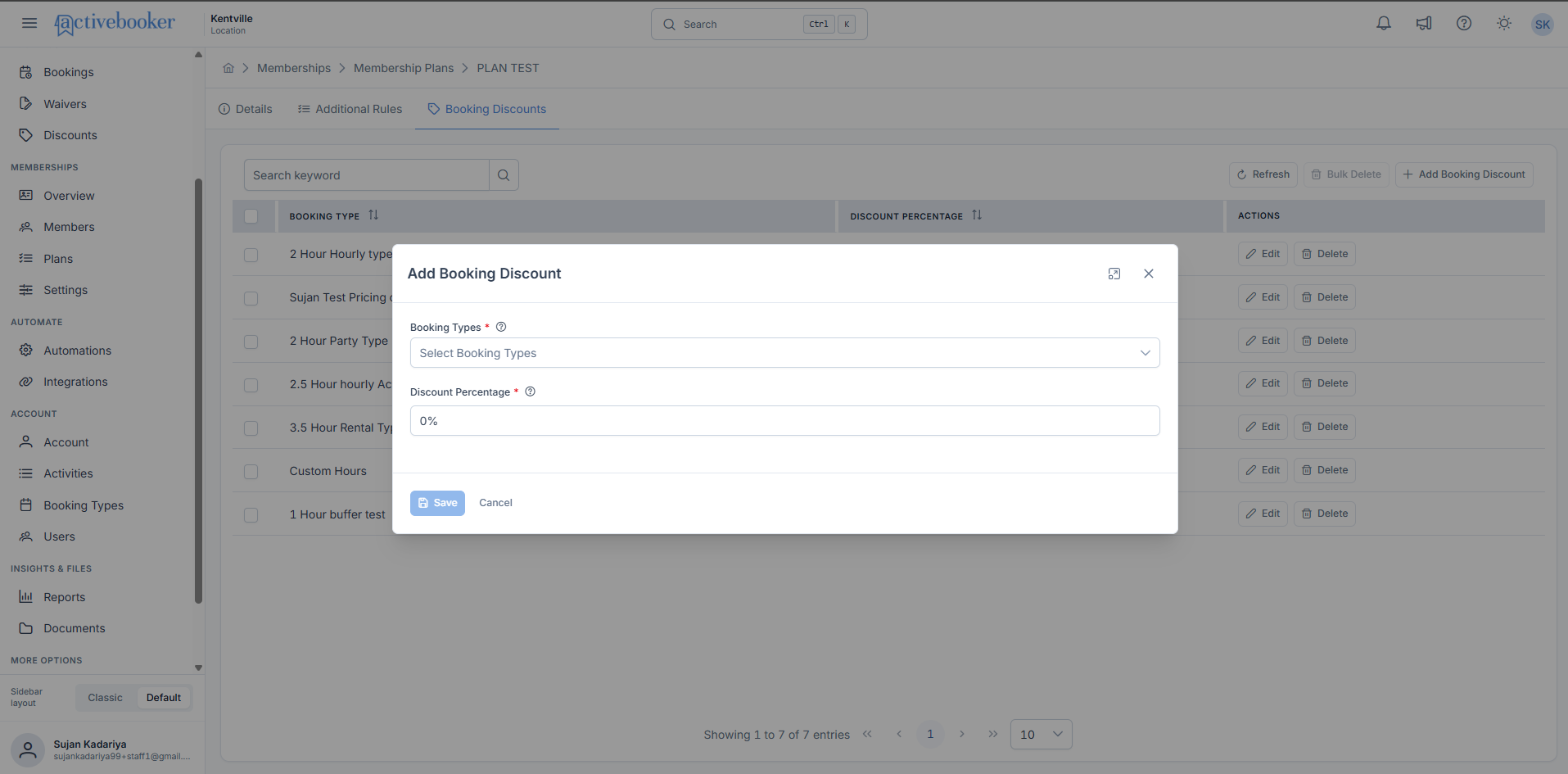
How to add a discount
- Click Add Booking Discount.
- Select one or more booking types.
- Enter the discount percentage.
- Click Save.
Field details
Booking Types
Choose the booking type or types that should receive the discount. You can select more than one booking type before saving.
Discount Percentage
Enter the discount amount as a percentage.
- The value can be from 0 to 100
- A value of 0 means no discount
- A value of 100 means the booking type is free
Important behavior
- If you select more than one booking type, the system creates a separate discount entry for each one.
- You cannot add the same booking type twice for the same membership plan.
Editing booking discounts
You can update the discount percentage for a saved booking discount whenever needed.
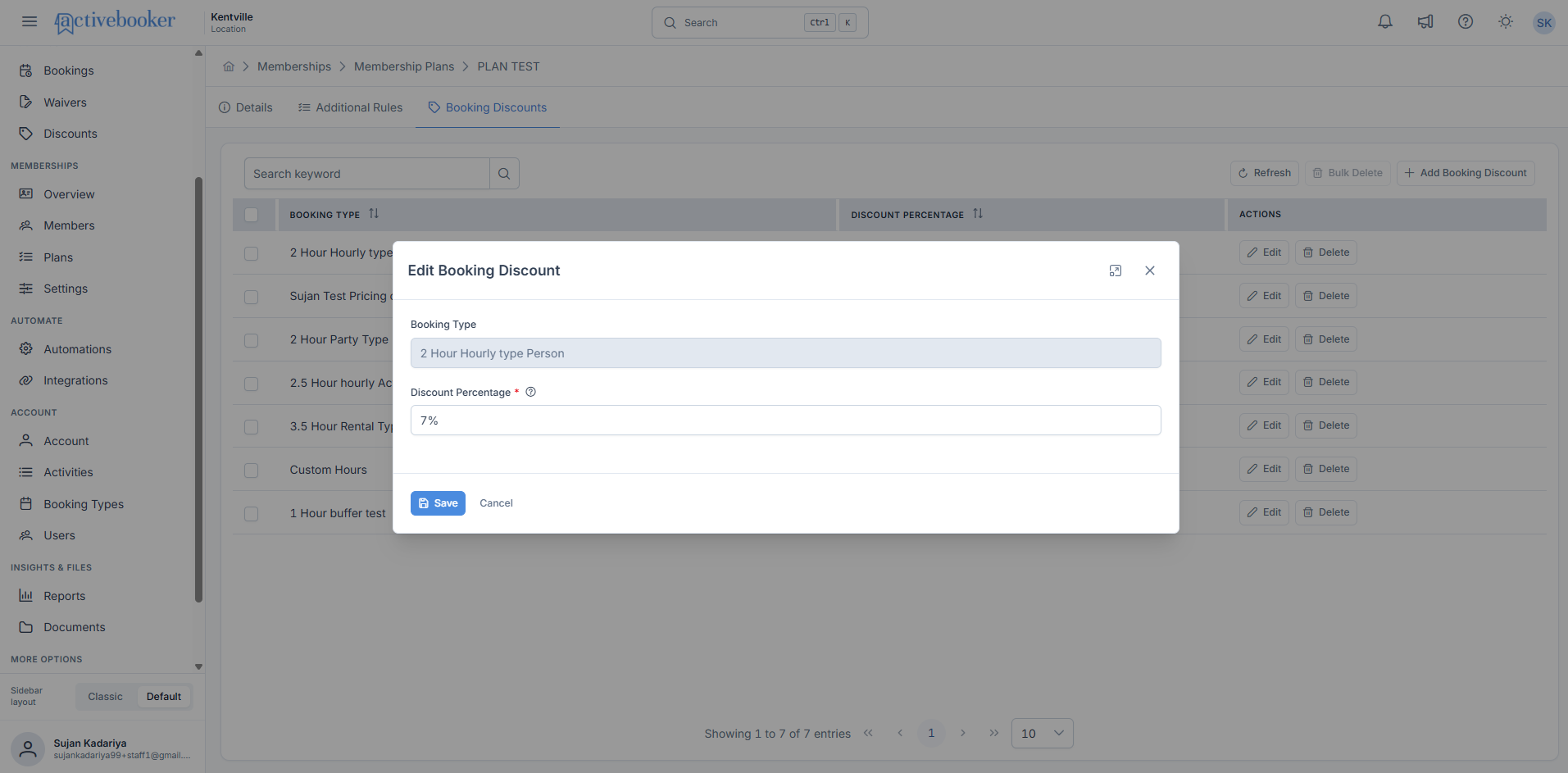
How to edit a discount
- Find the booking discount you want to change.
- Click Edit in the row actions.
- Update the discount percentage.
- Click Save.
The booking type stays the same, and only the discount value changes.
Removing booking discounts
You can remove a single booking discount or several at the same time.
Delete one booking discount
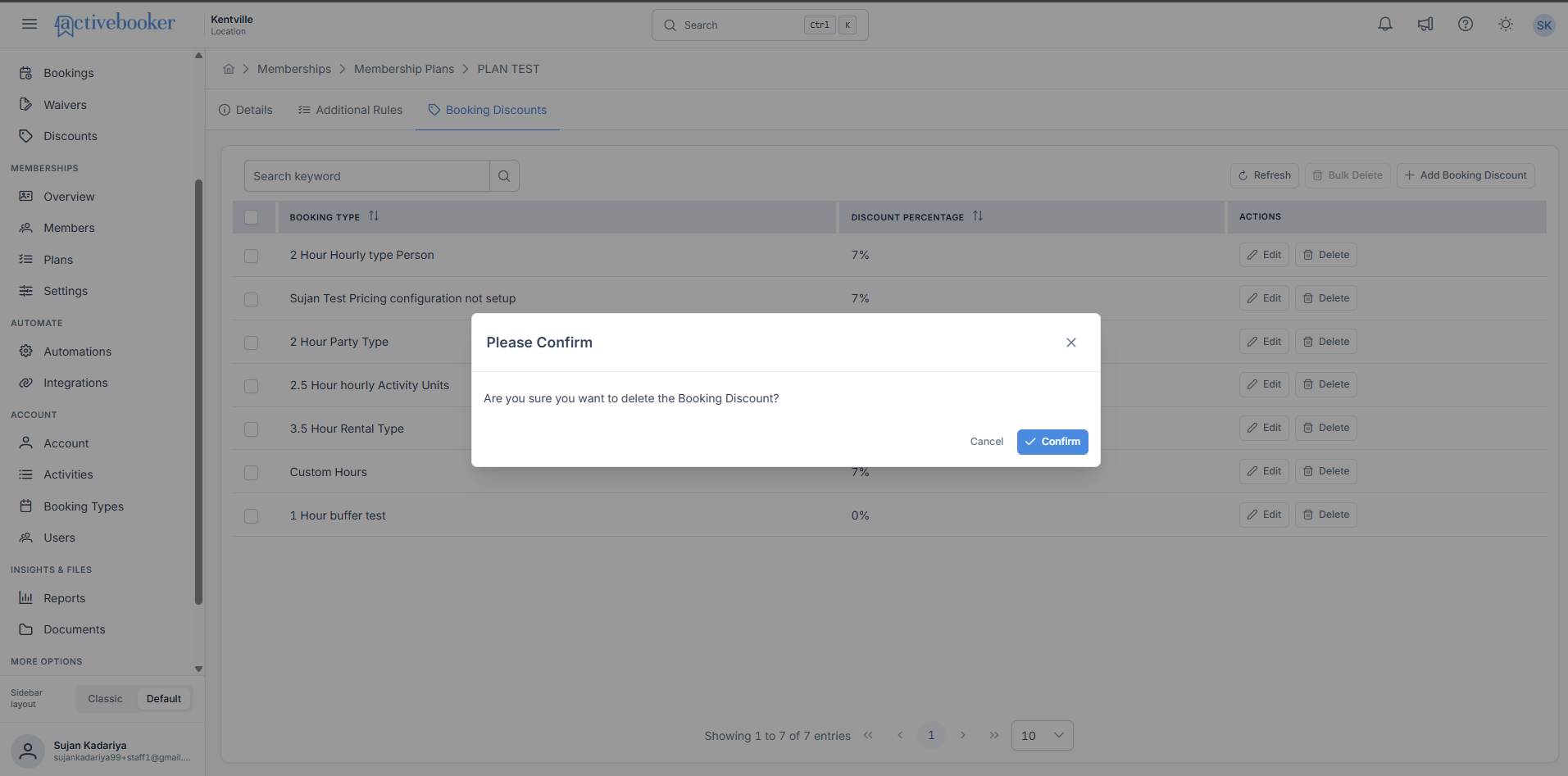
- Find the booking discount you want to remove.
- Click Delete in the row actions.
- Confirm the removal.
Delete multiple booking discounts
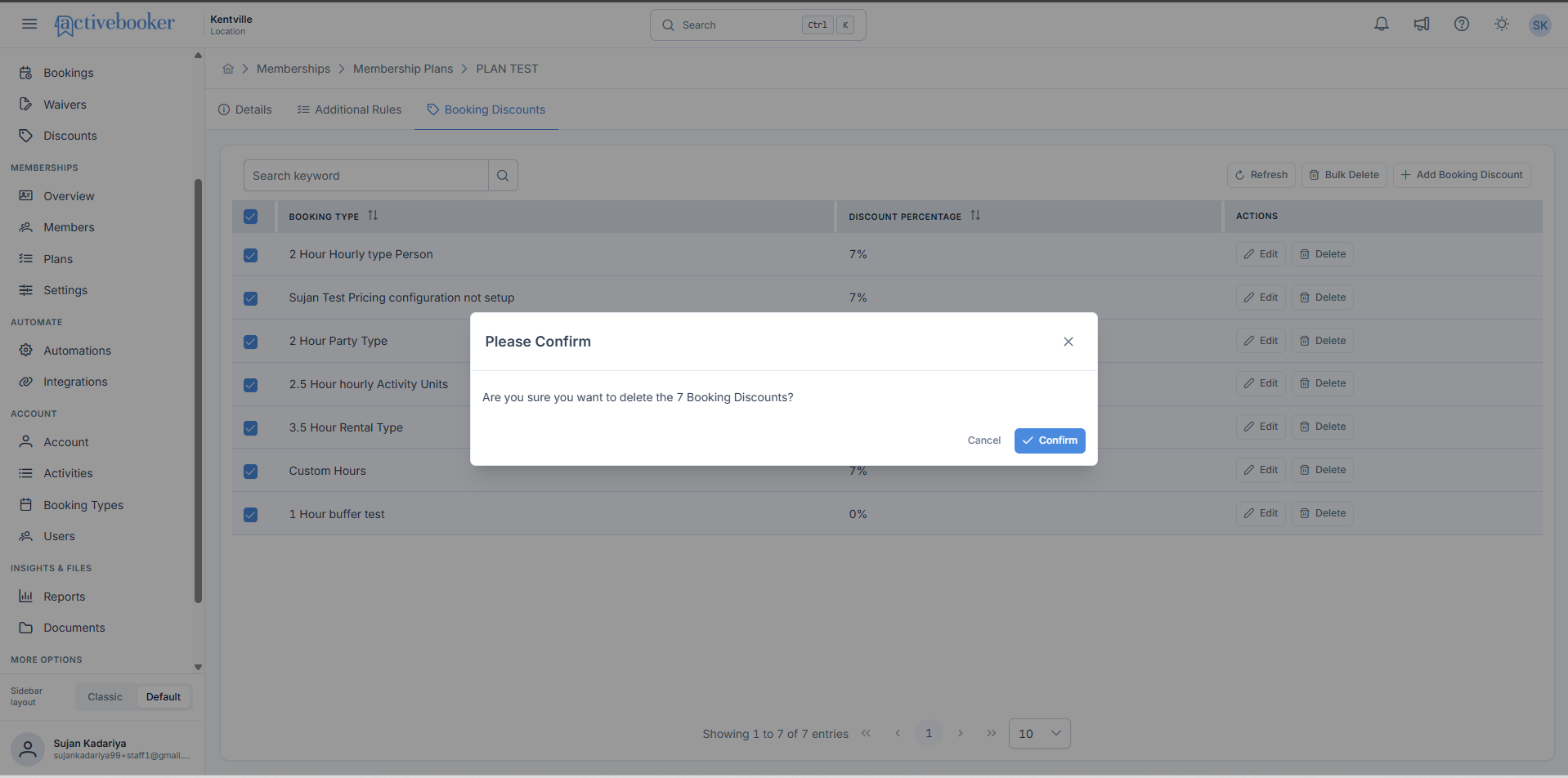
- Select the booking discounts you want to remove.
- Click Bulk Delete.
- Confirm the removal.
Bulk Delete becomes available only after you select one or more rows.
Best practices
✓ Use clear discount values that are easy to understand for your team ✓ Check for existing discounts before adding a new booking type ✓ Review the list after saving to make sure the right booking types were added ✓ Use bulk delete when you need to remove several discounts at once
✗ Do not enter a discount below 0 or above 100 ✗ Do not add the same booking type more than once for the same plan ✗ Do not close the form if you still want to save your changes
Troubleshooting
I cannot save the discount
Check that you have selected at least one booking type and entered a discount value between 0 and 100.
I do not see the booking type I want
The booking type may not be available for this plan or may not be set up yet.
I tried to add the same booking type again
The system will not allow the same booking type to be added twice for the same membership plan. Change the existing discount instead.
I selected rows, but Bulk Delete is not available
Bulk Delete only becomes active after you select one or more booking discounts.