Membership Plans
Membership plans are the heart of your membership system. This is where you define what your members receive, what they pay, and what rules govern their access to your services.
What a Membership Plan Includes
Each plan is made up of several components that work together:
| Component | What It Controls |
|---|---|
| Basic Information | Name, description, features list, and visibility settings |
| Pricing & Duration | How much members pay and for how long |
| Booking Rules | Limits on how, when, and how often members can book |
Let's explore each of these in detail.
The Membership Plans List
When you navigate to Memberships > Membership Plans, you'll see all your plans displayed in a table:
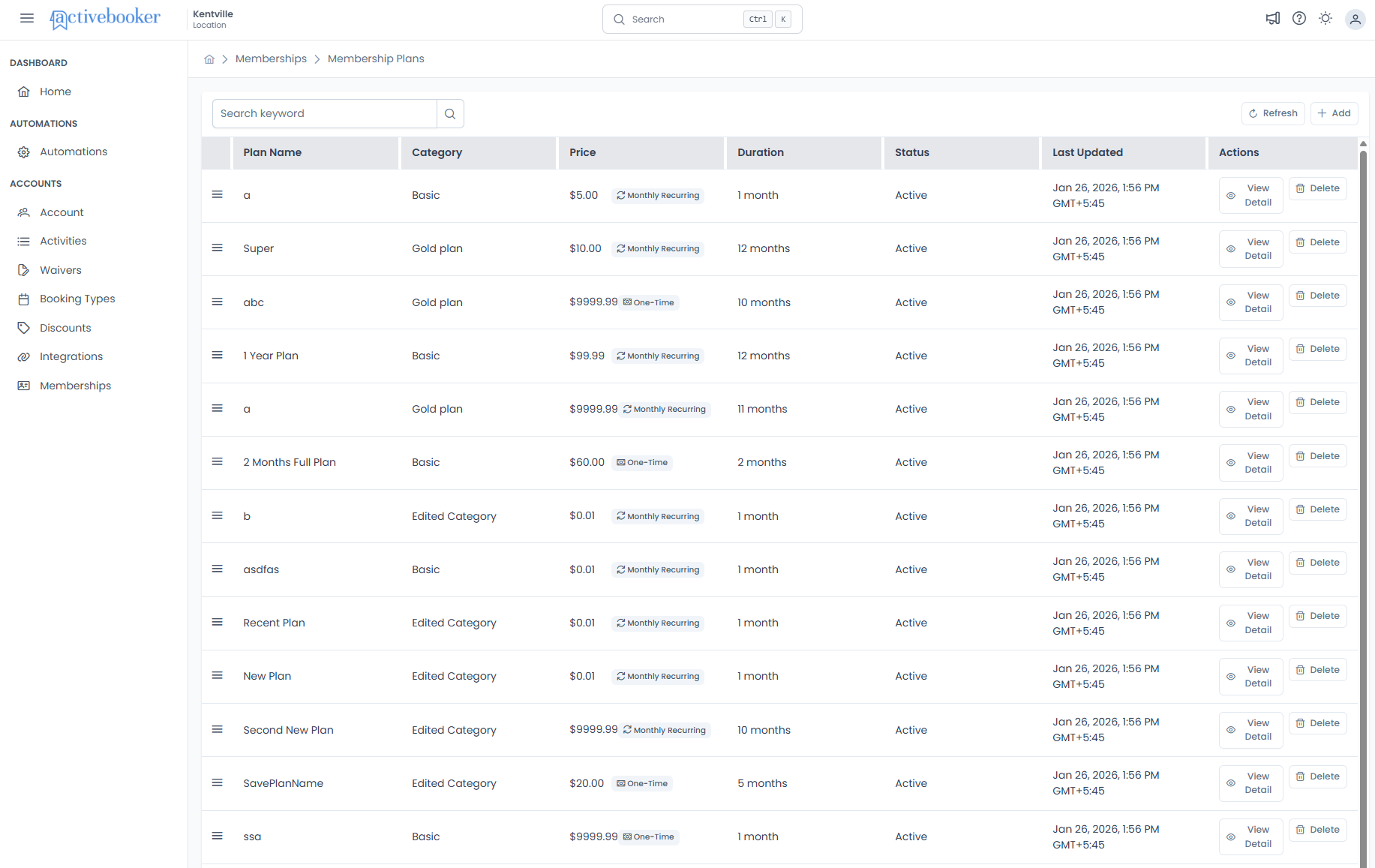
Table Columns:
| Column | What It Shows |
|---|---|
| Plan Name | The membership plan name. Filterable using search. |
| Category | Which category this plan belongs to. Filterable. |
| Price | Plan cost with payment type indicator - displays the price amount followed by a tag showing either "One-Time" (with money bill icon) or "Monthly Recurring" (with sync icon). Hover over tags for tooltip explanations. |
| Duration | How long the subscription lasts (e.g., "1 month", "12 months"). |
| Status | Shows "Active" or "Inactive" indicating plan availability. Filterable. |
| Last Updated | Date and time of most recent modification, in local browser time. |
| Actions | View Detail and Delete buttons. |
Key Features:
- Search/Filter — Find specific plans by name, category, or status
- Drag-and-drop reordering — Click and hold the drag handle (≡) to reorder how plans display
- Refresh — Reload the list with latest data
- Add — Create new plans with the "Add" button
- No pagination — All plans display on one page
- Visual indicators — Icons and colored tags show payment types and status at a glance
Payment Type Indicators:
- One-Time tag with money bill icon (💵) — Single payment for the full duration
- Monthly Recurring tag with sync icon (🔄) — Automatic monthly billing
Plan Display Order
The order of plans in the list affects:
- How customers see plans on public membership pages
- The sequence in dropdown menus
- Display priority in various reports
Reorder plans by dragging them to new positions. The system saves the order automatically and shows a success message.
Viewing Plan Details
To see complete information about a specific plan and manage its configuration:
- Navigate to Memberships > Membership Plans
- Find the plan in the list
- Click the View Detail button in the Actions column
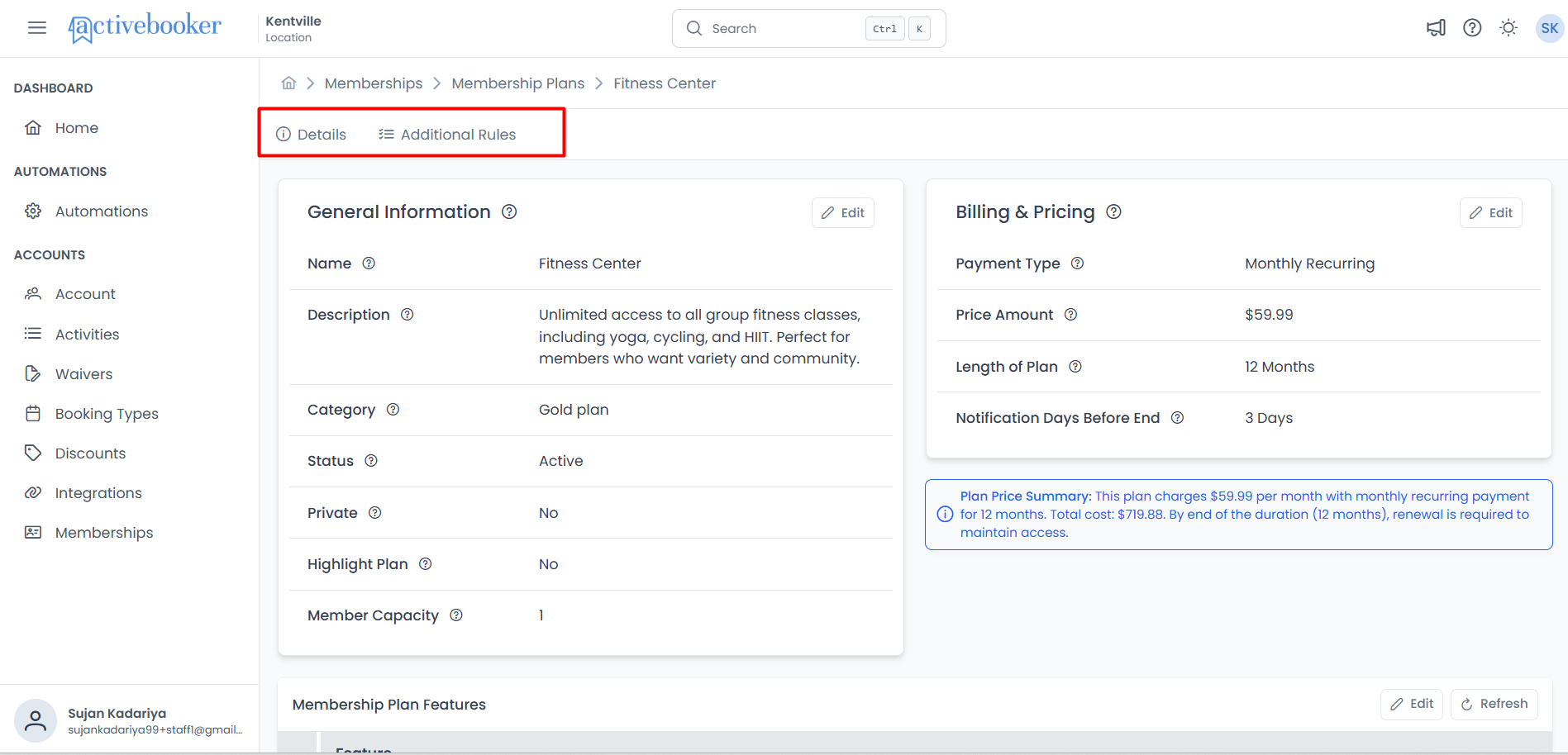
This opens the plan detail page with comprehensive configuration options including:
- General Information — Name, description, category, status, visibility settings, and member capacity
- Additional Rules — Booking rules, limits, and member access controls (Coming Soon)
For detailed information about viewing and editing plan details, see Plan Details.
Plan Configuration Overview
Basic Information
Every plan needs clear identification:
- Name — A short, recognizable title (up to 50 characters)
- Examples: "Monthly Basic", "Annual Premium", "Family of 4"
- Description — A brief explanation of what the plan offers (up to 250 characters)
- This helps customers understand the plan at a glance
- Category — The organizational group this plan belongs to
Visibility and Status Settings
Control how and where your plan appears:
| Setting | What It Does |
|---|---|
| Active | When enabled, the plan is available for new sign-ups. Disable to stop accepting new members on this plan (existing members are not affected). |
| Highlight Plan | Marks this as your featured or recommended plan. Featured plans appear more prominently to customers. |
| Private | When enabled, the plan won't appear in your public membership listings. Use this for special arrangements, corporate deals, or exclusive memberships. |
Member Capacity
Optionally limit how many active members can subscribe to this plan:
- Leave unchecked for unlimited capacity
- Check "Limit number of members" and set a capacity (1-100)
- Once the limit is reached, new customers cannot sign up until a spot opens
Use case: "We only have 20 premium lockers, so our Premium plan is limited to 20 members."
For complete instructions on configuring these settings, including field requirements, validation rules, and best practices, see Plan Details - General Information.
Feature List
You can add a list of features or benefits that display to customers. Use this to highlight what makes each plan valuable:
- "Unlimited group classes"
- "Access to all locations"
- "Priority booking"
- "Guest passes included"
Pricing and Duration
Setting the Price
Enter the membership price as a dollar amount:
- Prices must be greater than $0
- Maximum price is $9,999.99
- Prices are stored precisely, so $49.99 stays exactly $49.99
Tax handling: If your business charges tax, the system calculates tax amounts separately based on your configured tax rate.
Subscription Duration
Choose how long each subscription period lasts:
- Duration is set in months
- Minimum: 1 month
- Maximum: 12 months
Examples:
- Monthly membership → Duration: 1 month
- Quarterly membership → Duration: 3 months
- Annual membership → Duration: 12 months
One-Time vs. Recurring
You can configure plans as either:
- Recurring — The subscription automatically continues, and members are billed each period
- One-time payment — Members pay once for the full duration, and the subscription ends when the period is complete
Booking Rules
This is where membership plans become powerful. You can define exactly how members on each plan interact with your booking system.
Member Limit
Optionally cap how many members can subscribe to this plan at once:
- Leave empty for unlimited
- Set a number to create scarcity or manage capacity
- Once the limit is reached, new customers cannot sign up for this plan until a spot opens
Use case: "We only have 20 premium lockers, so our Premium plan is limited to 20 members."
Allow Members to Cancel
Control whether members can self-cancel their subscription:
- Enabled — Members can cancel their own subscription through their account
- Disabled — Only administrators can cancel subscriptions
Guest Name Required
For businesses where members might book on behalf of others:
- Enabled — Members must provide a guest name when booking
- Disabled — Bookings are assumed to be for the member themselves
Creating a New Plan
To add a new membership plan:
- Navigate to Memberships > Membership Plans
- Click the Add button in the toolbar
- The "Add Membership Plan" modal dialog opens
- Fill in all required information (see sections above for field details)
- Click Save to create the plan
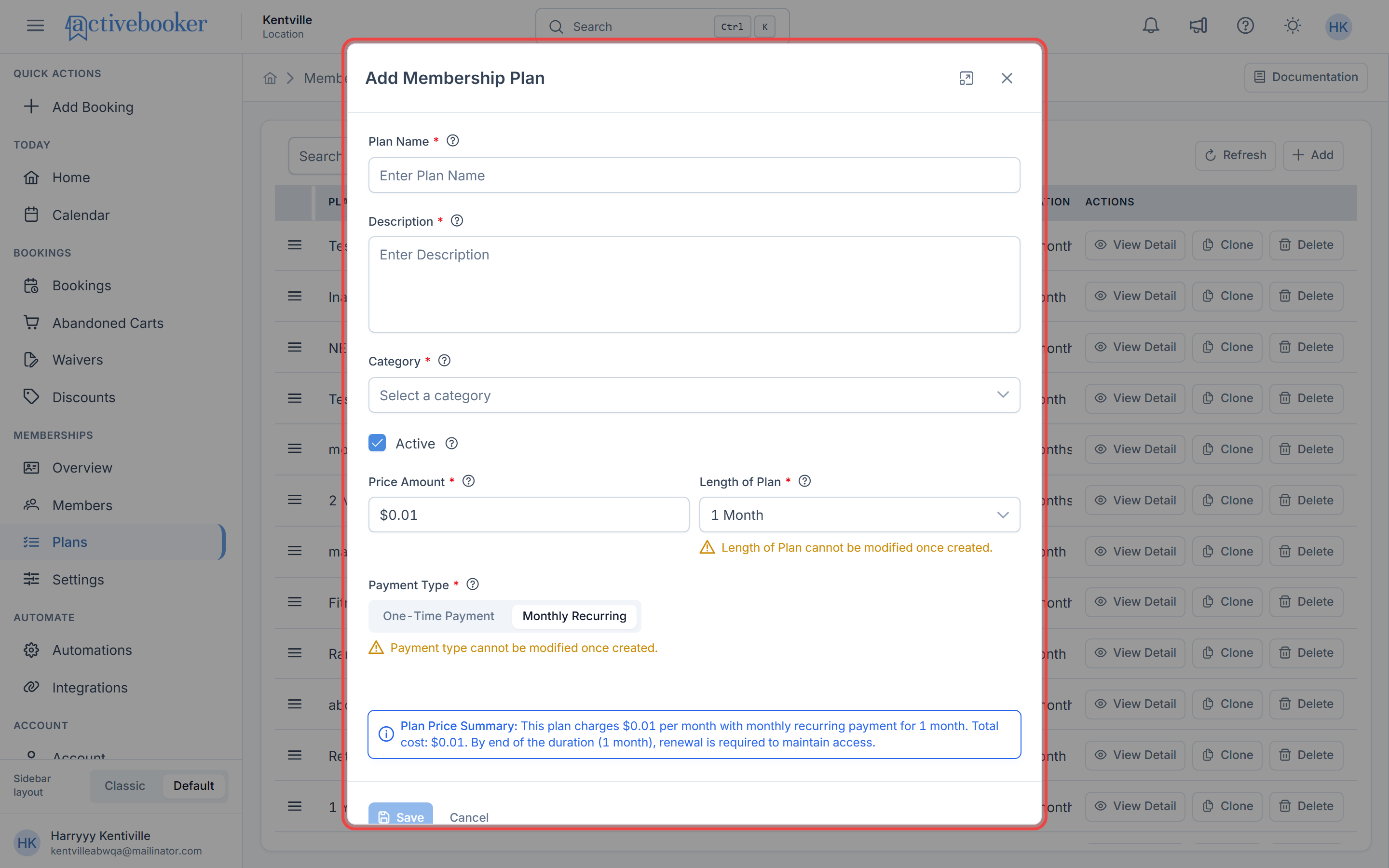
What happens:
- The plan is added to your system
- It appears at the bottom of the plans list
- You can reorder it by dragging to your preferred position
- If marked as Active and not Private, it becomes available for member sign-ups
- A success message confirms "Membership Plan created successfully"
At minimum, you need: Category selection, Plan Name, Price, Duration in months, and Active status. Everything else has sensible defaults or can be configured later.
Viewing Plan Details
To see complete information about a plan:
- Navigate to Memberships > Membership Plans
- Find the plan in the list
- Click the View Detail button in the Actions column
This opens the plan detail page showing:
- All plan configuration
- Additional rules and settings
- Related information
- Edit options
Deleting a Plan
Deleting a plan is irreversible. Ensure you understand the implications before proceeding.
To delete a membership plan:
- Navigate to Memberships > Membership Plans
- Find the plan you want to remove
- Click the Delete button (trash icon) in the Actions column
- A confirmation dialog asks "Are you sure you want to delete this Membership Plan?"
- Click OK to confirm, or Cancel to abort
What happens on successful deletion:
- The plan is permanently removed
- Success message: "Membership Plan deleted successfully"
- The list refreshes automatically
What happens if deletion fails:
- An alert dialog explains why deletion failed
- Common reasons:
- Active members are subscribed to this plan
- Database constraints prevent deletion
- The plan remains unchanged
Before you delete:
- Check if members are currently subscribed to this plan
- Consider deactivating instead of deleting to preserve historical data
- Move members to alternative plans if needed
- Confirm you won't need this plan configuration in the future
Alternative: Deactivate instead
If you want to stop new sign-ups but preserve the plan for existing members, edit the plan and set Status to Inactive. This is safer than deletion.
Reordering Plans
Control the display sequence of your membership plans:
- Navigate to Memberships > Membership Plans
- Locate the drag handle (three horizontal lines ≡) on the left of each row
- Click and hold the drag handle
- Drag the plan up or down to its new position
- Release to drop it in place
- The system automatically saves the new order
What happens:
- Success message: "Membership Plans reordered successfully"
- New order takes effect immediately
- If an error occurs, the list reverts to the previous order
Display impact:
- Plans appear in this order on public membership pages
- Dropdown menus and forms use this sequence
- Reports and displays follow this arrangement
Best practice: Position your most popular or recommended plans at the top of each category for maximum visibility.
Plan Examples
Basic Gym Membership Structure
Category: Individual Plans
| Plan | Price | Duration | Booking Limit |
|---|---|---|---|
| Monthly Basic | $49/mo | 1 month | 8 classes/month |
| Monthly Premium | $89/mo | 1 month | Unlimited |
| Annual All-Access | $799/yr | 12 months | Unlimited |
Category: Family Plans
| Plan | Price | Duration | Notes |
|---|---|---|---|
| Family of 2 | $79/mo | 1 month | Covers 2 members |
| Family of 4 | $129/mo | 1 month | Covers 4 members |
Coworking Space Structure
Category: Hot Desk
| Plan | Price | Duration | Advance Booking |
|---|---|---|---|
| Day Pass (10-pack) | $200 | 3 months | 1 week |
| Monthly Flex | $199/mo | 1 month | 2 weeks |
Category: Dedicated Desk
| Plan | Price | Duration | Concurrent Bookings |
|---|---|---|---|
| Monthly Dedicated | $399/mo | 1 month | 1 (their desk) |
| Annual Dedicated | $3,999/yr | 12 months | 1 (their desk) |
Common Questions
Can I have multiple plans with the same name? Yes, but it's not recommended as it can confuse customers and staff. Each plan should have a distinct, recognizable name.
What happens to members if I deactivate a plan? Existing members on that plan continue their subscription normally. The plan simply won't be available for new sign-ups.
Can I delete a plan that has members? You should consider the implications carefully. Typically, you'd want to move existing members to a different plan first, or mark the plan as inactive rather than deleting it.
How do I create a "free trial" plan? Set a low or minimal price, a short duration (e.g., 1 month), and mark it as one-time payment. You can also make it private and manually assign it to trial members.
What if I need a plan that doesn't fit these options? The booking rules are flexible enough for most scenarios. If you have a unique requirement, contact support to discuss your specific needs.