Booking Settings
Configure booking rules and restrictions for your membership plans. These settings control how members book, how often they can book, for how long, and on which days membership benefits apply.
Quick start
- Navigate to Memberships > Membership Plans in your dashboard sidebar
- Locate the plan you want to configure
- Click its View Detail button in the Actions column
- Switch to the Additional Rules tab
- Find the Booking Settings section and click Edit to modify settings
What you can do
The Booking Settings section helps you:
- Control guest name requirements — Decide whether members must provide names for all guests in their bookings
- Limit booking frequency — Set a maximum number of bookings per day, week, month, or year
- Restrict booking duration — Define the maximum total hours members can book within a time period
- Manage booking windows — Control how far in advance members can make bookings
- Prevent booking conflicts — Limit the number of active bookings a member can have at one time
- Schedule membership benefits — Specify which days of the week membership benefits apply
- Restrict bookings to specific times — Define allowed time ranges so members can only see and book slots within those windows
Understanding the interface
The Booking Settings section appears on the Additional Rules tab of each membership plan’s detail page, alongside the Details tab.
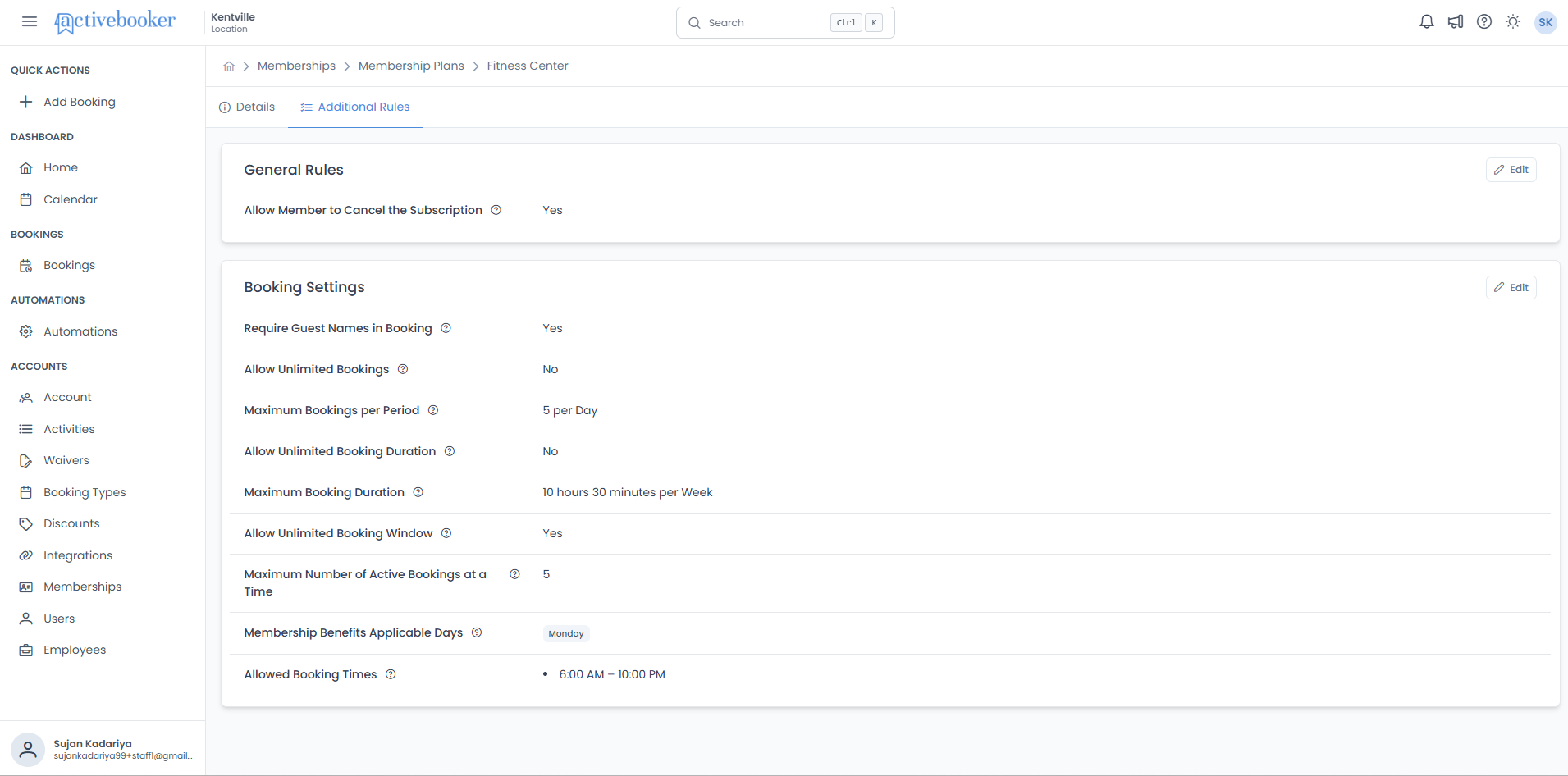
The section displays your current rules in a table format:
| Element | Description |
|---|---|
| Section Title | "Booking Settings" with an info icon (ⓘ) for tooltip explanations |
| Rule Labels | Left column shows the name of each booking rule |
| Current Values | Right column displays the current setting for each rule |
| Edit Button | Located in the top-right corner to open the editing dialog |
| Weekday Tags | Selected weekdays display as individual tags for easy viewing |
Viewing booking settings
- Navigate to Memberships > Membership Plans
- Find the plan you want to view and click View Detail
- Click the Additional Rules tab
- The Booking Settings section displays all current rules
What each setting shows
| Setting | What it displays |
|---|---|
| Require Guest Names in Booking | Yes or No |
| Allow Unlimited Bookings | Yes or No |
| Maximum Bookings per Period | Booking limit with time period (e.g., "5 per Week"). Only visible when unlimited bookings is No. |
| Allow Unlimited Booking Duration | Yes or No |
| Maximum Booking Duration | Hours and minutes with time period (e.g., "10:30 per Week"). Only visible when unlimited duration is No. |
| Allow Unlimited Booking Window | Yes or No |
| Booking Window | Advance booking limit (e.g., "30 Days"). Only visible when unlimited booking window is No. |
| Maximum Number of Active Bookings at a Time | A number (e.g., "3"), or blank if unlimited |
| Membership Benefits Applicable Weekdays | Selected days as individual tags (e.g., "Monday", "Friday") or blank if not selected |
| Allowed Booking Times | Time ranges as bullet points (e.g., "6:00 AM – 10:00 PM"). Displays "No restrictions — all times allowed" when the Restrict Bookings to Specific Times option is disabled. |
Editing booking settings
- Navigate to the plan’s Additional Rules tab
- Click the Edit button in the top-right corner of the Booking Settings section
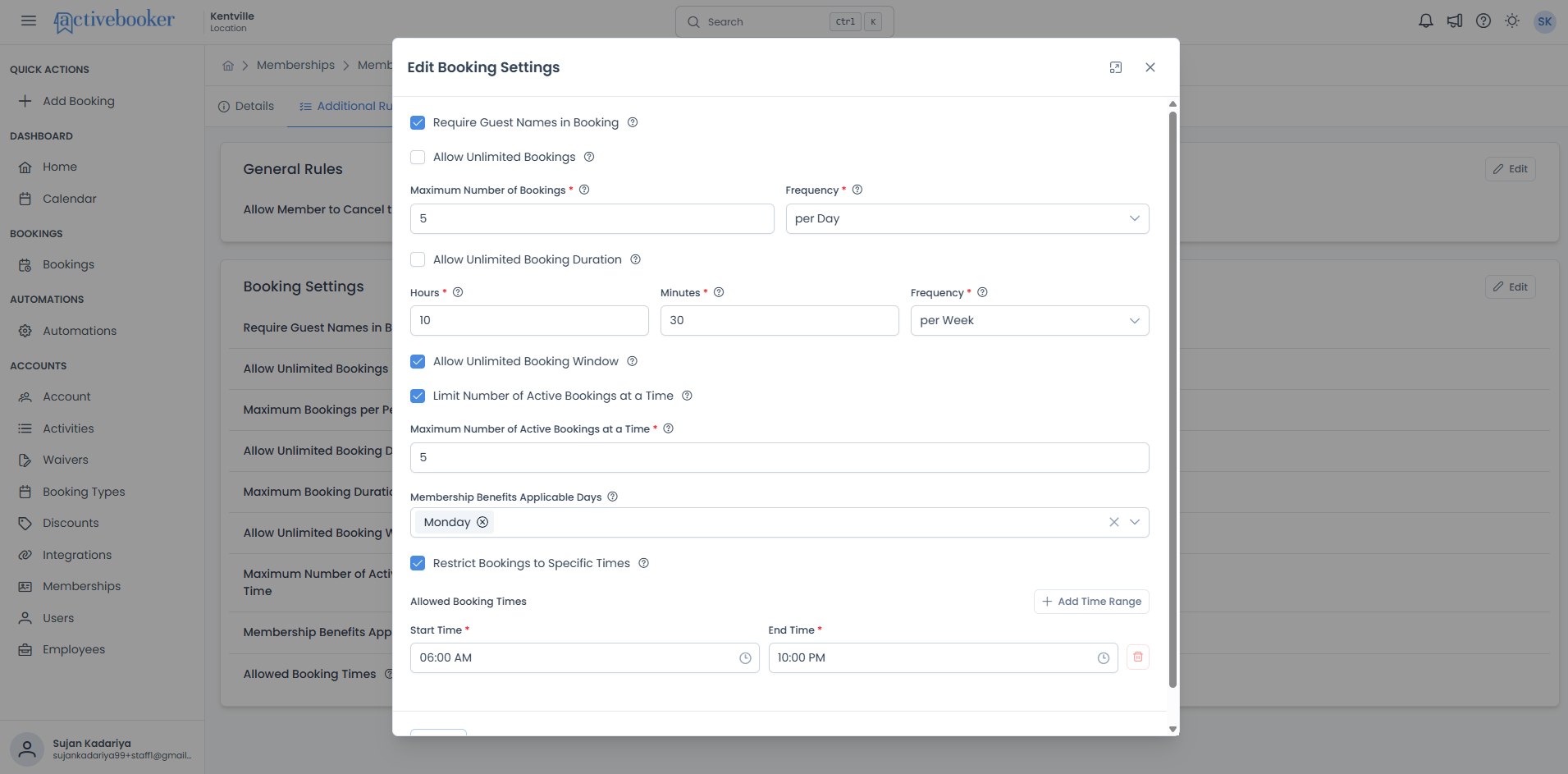
- The Edit Booking Settings dialog opens
- Update the settings as needed (see field details below)
- Click Save to apply your changes, or Cancel to discard them
Modifying booking settings impacts all members subscribed to this plan. Existing bookings are not affected, but all new bookings will follow the updated rules.
Form fields
The Edit Booking Settings dialog contains the following fields. Some fields only appear when a related checkbox is unchecked or checked.
Require Guest Names in Booking
This checkbox controls whether members must provide names for every guest included in their booking. By default, this setting is unchecked.
- Checked — Members must enter a name for each guest when making a booking
- Unchecked — Only the primary booker’s name is required
Enable this setting when you need guest names for check-in procedures, liability waivers, or personalized services.
Allow Unlimited Bookings
This checkbox controls whether members can make an unlimited number of bookings. When enabled, members can book as many times as they wish with no restrictions. When disabled, you can set a maximum number of bookings per time period. By default, this setting is checked (unlimited).
- Checked — Members can book as many times as they wish
- Unchecked — Two additional fields appear so you can set a booking limit (see below)
Maximum Number of Bookings
This number field sets the maximum number of bookings allowed within the selected time period. For example, setting this to 5 with a frequency of Months limits members to 5 bookings per month. This field only appears when Allow Unlimited Bookings is unchecked.
Enter the maximum number of bookings a member can make within the selected frequency period.
Frequency
This dropdown sets the time period for the booking limit. For example, selecting Weeks means the maximum booking count resets every week. Choose from: per Day, per Week, per Month, or per Year. This field only appears when Allow Unlimited Bookings is unchecked.
When the selected period ends, the member’s booking count resets automatically.
This setting limits the number of bookings (how many separate reservations), not the total duration. A member could make 5 one-hour bookings or 5 three-hour bookings — both count as 5 bookings. To limit total time, use the Allow Unlimited Booking Duration setting below.
Example: Setting Maximum Number of Bookings to 7 and Frequency to per Week means each member can make up to 7 bookings per week. The view displays: "7 per Week".
Allow Unlimited Booking Duration
This checkbox controls whether there are any restrictions on how long members can book for. When enabled, there are no limits on total booking time. When disabled, you can set a maximum duration per time period. By default, this setting is checked (unlimited).
- Checked — No restrictions on total booking time
- Unchecked — Three additional fields appear so you can set a duration limit (see below)
Hours
Enter the number of hours for the maximum booking duration. This field only appears when Allow Unlimited Booking Duration is unchecked.
Minutes
Enter the number of minutes for the maximum booking duration. This field only appears when Allow Unlimited Booking Duration is unchecked.
Hours and Minutes cannot both be zero. You must allow at least some booking time.
Frequency
This dropdown sets the time period over which the duration limit applies. For example, selecting Months means the maximum duration resets every month. Choose from: per Day, per Week, per Month, or per Year. This field only appears when Allow Unlimited Booking Duration is unchecked.
When the selected period ends, the member’s used duration resets to zero.
Example: Setting Hours to 10, Minutes to 30, and Frequency to per Week limits each member to 10 hours and 30 minutes of total booking time per week. The view displays: “10:30 per Week”.
These two settings serve different purposes:
- Booking count limit — Limits how many separate reservations a member can make
- Duration limit — Limits how much total time a member can book
You can use both together for more control. For example, allow up to 5 bookings per week but no more than 8 hours total.
Allow Unlimited Booking Window
This checkbox controls how far into the future a member can make bookings. When enabled, members can book any time in the future without restrictions. When disabled, you can limit how far in advance members can book. By default, this setting is checked (unlimited).
- Checked — Members can book any date in the future
- Unchecked — Two additional fields appear so you can set a booking window (see below)
Booking Window Length
This number field defines how far in advance members can make bookings. For example, setting this to 30 with a period of Days allows members to book up to 30 days ahead. This field only appears when Allow Unlimited Booking Window is unchecked.
Enter the number of days, weeks, or months into the future that members are allowed to book.
Period
This dropdown sets the time unit for the booking window length. Choose from: Days, Weeks, or Months. This field only appears when Allow Unlimited Booking Window is unchecked.
Example: Setting Booking Window Length to 14 and Period to Days means members can only book up to 14 days ahead from today. The view displays: “14 Days”.
The window moves forward automatically each day. If you set it to 14 days:
- On March 1, members can book through March 15
- On March 2, members can book through March 16
This is different from the booking count limit, which resets at the start of each period.
Limit Number of Active Bookings at a Time
This checkbox controls how many confirmed, upcoming, or in-progress bookings a member can have at the same time. When checked, you can set a maximum number of active bookings. When unchecked, members can have unlimited active bookings at any time. By default, this setting is unchecked.
- Checked — An additional field appears so you can set a limit (see below)
- Unchecked — Members can have unlimited active bookings at the same time
- Upcoming bookings — Scheduled for the future
- In-progress bookings — Currently happening
Completed and cancelled bookings are not counted.
Maximum Number of Active Bookings at a Time
This number field sets the maximum number of confirmed bookings a member can have simultaneously. It only appears when Limit Number of Active Bookings at a Time is checked.
Enter the maximum number of active bookings allowed at any given moment.
Example: If set to 2, a member with 2 upcoming bookings cannot make a third booking until one of the existing bookings is completed or cancelled. The view displays: "2".
- Active bookings limit — Controls how many bookings can exist at any given moment
- Booking count limit — Controls the total bookings allowed within a time period (day/week/month/year)
These are independent settings. You can use both together.
Membership Benefits Applicable Weekdays
This multi-select dropdown lets you choose which days of the week membership benefits apply. Members can only make bookings on the selected days. You can select any combination of: Monday, Tuesday, Wednesday, Thursday, Friday, Saturday, and Sunday.
View display: Selected days appear as individual tags (e.g., "Monday", "Tuesday", "Friday").
- Weekdays only (Mon–Fri): Popular for corporate or off-peak memberships
- Weekends only (Sat–Sun): Good for casual or recreational plans
- All days: Standard for most general memberships
- Specific days: Useful for specialized schedules (e.g., Mon/Wed/Fri for alternate-day access)
Restrict Bookings to Specific Times
This checkbox controls whether members are limited to booking only within certain time windows. When enabled, you can define one or more allowed time ranges. Members will only see available time slots that fall within those ranges, time slots outside the configured windows will not be shown. When disabled, there are no time-of-day restrictions on bookings. By default, this setting is unchecked.
- Checked — The Allowed Booking Times section appears so you can configure one or more time ranges
- Unchecked — No time-of-day restrictions apply; members can book at any available time
Allowed Booking Times
This section appears when Restrict Bookings to Specific Times is checked. It lets you define one or more time ranges during which members are permitted to book.
Each row in the Allowed Booking Times section contains:
| Element | Description |
|---|---|
| Start Time | The beginning of the allowed time window. |
| End Time | The end of the allowed time window. |
| Delete icon | Red trash icon to remove the row. The last remaining row cannot be deleted. |
| + Add Time Range | Button to add a new empty row for an additional time range. |
To add a time range:
- Select a Start Time from the time picker
- Select an End Time from the time picker
- Click + Add Time Range to add more rows as needed
To remove a time range:
- Click the red delete icon on the row you want to remove
- At least one row must always remain in the section
Example: Adding Start Time 06:00 AM and End Time 10:00 PM means members can only book time slots between 6:00 AM and 10:00 PM. The detail view displays: "6:00 AM – 10:00 PM".
View display: Each saved time range appears as a bullet point (e.g., "6:00 AM – 10:00 PM"). When the checkbox is unchecked, the detail view shows "No restrictions — all times allowed".
Real-world scenarios
Scenario 1: Fitness Studio with High Demand Classes
Challenge: Members book multiple classes in advance but often don’t show up, preventing others from attending.
Solution:
| Setting | Value |
|---|---|
| Allow Unlimited Bookings | Unchecked |
| Maximum Number of Bookings | 3 per Week |
| Allow Unlimited Booking Window | Unchecked |
| Booking Window | 7 Days |
| Limit Number of Active Bookings at a Time | Checked, max 2 |
| Membership Benefits Applicable Weekdays | All days |
Result: Members can book up to 3 classes per week, only 7 days in advance, and no more than 2 at once.
Scenario 2: Co-Working Space Meeting Rooms
Challenge: Members book rooms for the entire day "just in case," leaving others without access.
Solution:
| Setting | Value |
|---|---|
| Allow Unlimited Booking Duration | Unchecked |
| Maximum Booking Duration | 10:00 per Month |
| Limit Number of Active Bookings at a Time | Checked, max 3 |
| Membership Benefits Applicable Weekdays | Monday–Friday |
Result: Each member can book up to 10 hours of meeting room time per month, max 3 active bookings at once, weekdays only.
Scenario 3: Tennis Court Reservations
Challenge: Members book favorite court times weeks in advance, but many reservations go unused.
Solution:
| Setting | Value |
|---|---|
| Allow Unlimited Bookings | Unchecked |
| Maximum Number of Bookings | 5 per Week |
| Allow Unlimited Booking Window | Unchecked |
| Booking Window | 14 Days |
| Require Guest Names in Booking | Checked |
Result: Members can book up to 5 courts per week, no more than 2 weeks ahead, with guest names required for doubles.
Scenario 4: Off-Peak Membership Plan
Challenge: A gym wants to offer an affordable plan for members who visit during off-peak hours.
Solution:
| Setting | Value |
|---|---|
| Allow Unlimited Bookings | Checked |
| Allow Unlimited Booking Duration | Checked |
| Allow Unlimited Booking Window | Checked |
| Membership Benefits Applicable Weekdays | Monday–Thursday |
Result: Members get unlimited booking freedom, but only on weekdays when the gym is less busy.
Tips for configuring booking settings
Begin with moderate restrictions and adjust based on real usage data over 2–4 weeks. It is easier to loosen rules later than to tighten them after members are used to more freedom.
Balance flexibility and fairness
- Allow regular members to book when they need
- Prevent a few members from monopolizing resources
- Accommodate both spontaneous and planned bookings
Match restrictions to resource scarcity
| Resource Level | Recommended Settings |
|---|---|
| High scarcity (few resources, many members) | Short booking windows (7–14 days), lower limits (3–5/week), strict active booking limits (1–2) |
| Low scarcity (ample resources) | Longer windows (30+ days), higher or unlimited limits, minimal active booking restrictions |
Use weekday restrictions for tiered plans
Create meaningful membership tiers by varying weekday access:
- Premium: All 7 days
- Standard: Weekdays only
- Budget: Weekends only or specific days
Combine settings for maximum control
Use multiple settings together for comprehensive management:
- Booking count limit — Prevents too many reservations
- Duration limit — Prevents excessively long bookings
- Active booking limit — Prevents future hoarding
- Booking window — Ensures fair access to popular times
Troubleshooting
Changes to booking settings are not saving
- Check for red validation error messages beneath fields
- Ensure all required fields are filled when conditional settings are enabled
- Verify that Hours and Minutes are not both zero for booking duration
- Refresh the page and try again
- If the issue persists, log out and log back in
Members are unable to book
- Check if the member has reached a booking count, duration, or active booking limit
- Verify the day they are trying to book is included in Membership Benefits Applicable Weekdays
- Confirm the booking date falls within the allowed booking window
- Check whether Restrict Bookings to Specific Times is enabled — the time slot they are trying to book may fall outside the configured allowed time ranges
- Review whether the plan's rules need adjustment based on member feedback
The booking window does not seem to work as expected
The booking window is calculated from today’s date, not from the member’s last booking:
- A 30-day window means members can book from today through 30 days from now
- The window moves forward each day automatically
Frequently asked questions
Can I have different booking settings for different plans?
Yes. Each membership plan has its own independent booking settings, allowing you to create tiered offerings.
Do changes apply to existing bookings?
No. Only new bookings made after saving are affected. Existing confirmed bookings remain valid.
What happens when a member reaches their booking limit?
The member will see an error message explaining which limit they have reached and when they can book again.
Do booking duration limits apply per booking or across all bookings?
Duration limits apply to the total cumulative time across all bookings within the time period. For example, "10 hours per week" means all bookings combined cannot exceed 10 hours that week.
Can I override booking rules for a specific member?
Booking settings apply to all members on a plan. To give specific members different rules, move them to a plan with more flexible settings.
Can weekday restrictions be overridden for special events?
No. Weekday restrictions are enforced at the plan level. For special events on restricted days, create a separate booking type or event that is not tied to membership plan rules.
Can I configure different allowed time ranges for different days of the week?
No. The Restrict Bookings to Specific Times setting applies the same time ranges across all applicable days. If you need different time windows for different days, consider creating separate membership plans.
What happens if I add multiple overlapping time ranges?
Overlapping time ranges are allowed as long as they are not exact duplicates. Members will see all time slots that fall within any of the configured ranges.
If I uncheck "Restrict Bookings to Specific Times" after saving time ranges, are the ranges lost?
The time ranges are cleared when the checkbox is unchecked and saved. If you re-enable the checkbox later, you will need to re-enter the time ranges.