Member Fields
Configure which information fields appear during member registration and which fields are required. Member Fields help you collect the right information from new members while keeping the sign-up process streamlined and relevant to your business needs.
Quick start
Configure your member fields in just a few steps:
- Navigate to Memberships > Settings and Preferences in the sidebar
- Click the Member Fields tab
- Review the list of available fields
- Toggle the Shown switch to display or hide fields on registration forms
- Toggle the Required switch to make fields mandatory or optional
- Changes save automatically
Member field settings save automatically when you toggle switches. You don't need to click a Save button – changes take effect immediately.
What you can do
Member Fields configuration helps you:
- Control registration forms — Choose which information fields appear when new members sign up
- Set required fields — Make certain fields mandatory while keeping others optional
- Collect relevant information — Gather the data you need for your business operations
- Streamline sign-ups — Avoid overwhelming new members with unnecessary fields
- Maintain compliance — Ensure you collect required information for emergency contacts or legal purposes
Accessing Member Fields
Navigate to Member Fields
- Click Memberships in the sidebar
- Select Settings and Preferences
- Click the Member Fields tab
The Member Fields page displays a table listing all available fields with their current configuration.
Understanding the Interface
The Member Fields page displays a table with four columns providing complete control over field configuration.
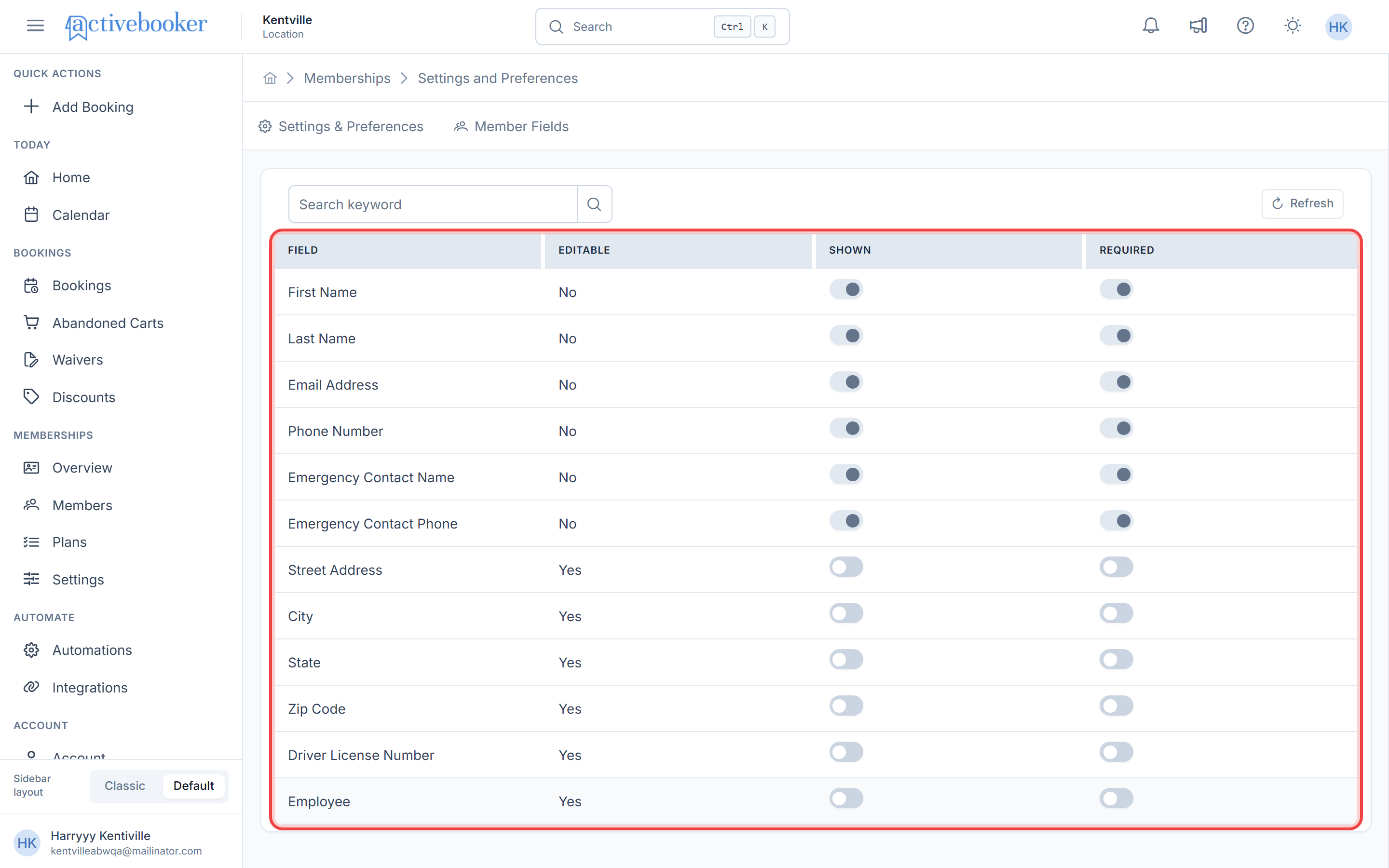
Table Columns
| Column | What It Shows | How It Works |
|---|---|---|
| Field | The name of the information field | Searchable using the search box |
| Editable | Whether you can change settings for this field | Shows "Yes" or "No" |
| Shown | Whether the field appears on registration forms | Toggle switch (enabled for editable fields) |
| Required | Whether the field is mandatory to complete | Toggle switch (enabled for editable fields) |
Field Column
Lists all available member information fields:
- First Name
- Last Name
- Email Address
- Phone Number
- Emergency Contact Name
- Emergency Contact Phone
- Street Address
- City
- State
- Zip Code
- Driver License Number
Search functionality: Use the search box to quickly find specific fields by name.
Editable Column
Indicates whether you can modify a field's settings.
Shows "No" for:
- First Name
- Last Name
- Email Address
- Phone Number
- Emergency Contact Name
- Emergency Contact Phone
These core fields are always shown and required. These fields cannot be disabled because they're essential for member identification, account management, and safety.
Shows "Yes" for:
- Street Address
- City
- State
- Zip Code
- Driver License Number
These fields have configurable settings you can adjust. These fields can be shown or hidden, and marked as required or optional based on your needs.
Core identity and emergency contact fields are locked to ensure you always collect essential information for member accounts and safety compliance.
Shown Column
Displays a toggle switch that controls whether the field appears on member registration forms.
Toggle switch states:
- On (blue) — Field is visible on registration forms
- Off (gray) — Field is hidden from registration forms
Interactive behavior:
- Click the switch to toggle between shown and hidden
- Changes save automatically when you click
- Disabled (grayed out) for non-editable fields
Only show fields you actually need. Shorter registration forms improve the member sign-up experience and increase completion rates.
Required Column
Displays a toggle switch that controls whether members must complete the field during registration.
Toggle switch states:
- On (blue) — Field is mandatory; members must provide this information
- Off (gray) — Field is optional; members can skip it
Interactive behavior:
- Click the switch to toggle between required and optional
- Changes save automatically when you click
- Disabled (grayed out) for non-editable fields
Important relationship:
- If a field is not shown, the Required toggle doesn't affect registration (hidden fields aren't filled out)
- If a field is shown and required, members cannot submit the form without completing it
- If a field is shown but not required, members can leave it blank
You can mark a hidden field as "required" in your settings, but this has no effect until you also enable "Shown". Members can only complete fields that are visible.
Toolbar Actions
The table toolbar provides quick actions for managing your field list.
Search
Use the search box to filter fields by name:
- Click in the search box at the top of the table
- Type part of the field name (e.g., "Emergency" or "Address")
- The table filters to show only matching fields
- Clear the search to show all fields again
Refresh
Click the Refresh button to reload the field list with the latest settings:
- Useful if you want to verify your changes
- Updates the display if multiple users are managing settings
- Located in the toolbar next to the search box
Configuring Member Fields
Customize which fields appear on registration forms and which are mandatory.
Default Configuration
| Status | Fields |
|---|---|
| Always shown and required (locked) | First Name, Last Name, Email Address, Phone Number, Emergency Contact Name, Emergency Contact Phone |
| Initially shown but optional | Street Address |
| Initially hidden | City, State, Zip Code, Driver License Number |
Default settings are automatically created the first time you access Member Fields. These defaults provide a balanced starting point that collects essential information without overwhelming new members.
Making a Field Visible
To show a field on member registration forms:
- Locate the field in the table
- Check that the Editable column shows "Yes"
- Click the toggle switch in the Shown column
- The switch turns blue, indicating the field is now visible
- A success message confirms: "[Field Name] field updated successfully"
Result: The field now appears on all member registration forms.
Hiding a Field
To remove a field from member registration forms:
- Locate the field in the table
- Check that the Editable column shows "Yes"
- Click the toggle switch in the Shown column (if it's currently on)
- The switch turns gray, indicating the field is now hidden
- A success message confirms: "[Field Name] field updated successfully"
Result: The field no longer appears on member registration forms.
Making a Field Required
To make a visible field mandatory:
- Ensure the field's Shown toggle is on (blue)
- Click the toggle switch in the Required column
- The switch turns blue, indicating the field is now mandatory
- A success message confirms: "[Field Name] field updated successfully"
Result: Members cannot complete registration without filling in this field.
Making a Field Optional
To allow members to skip a field:
- Locate the field in the table
- Click the toggle switch in the Required column (if it's currently on)
- The switch turns gray, indicating the field is now optional
- A success message confirms: "[Field Name] field updated successfully"
Result: Members can leave this field blank during registration.
Make a field required only if you truly need that information. Optional fields provide flexibility and improve the sign-up experience.
Common Configuration Scenarios
Scenario 1: Collecting Complete Addresses
Goal: Gather full address information from all new members.
Configuration:
- Turn on the Shown toggle for:
- Street Address
- City
- State
- Zip Code
- Turn on the Required toggle for all four fields
- All address fields now appear and are mandatory
Result: Members must provide their complete address to sign up.
Scenario 2: Minimal Sign-Up Form
Goal: Collect only essential information to speed up registration.
Configuration:
- Keep default core fields as they are (cannot be changed)
- Turn off the Shown toggle for:
- Street Address
- City
- State
- Zip Code
- Driver License Number
- Only required core fields appear
Result: Members see the shortest possible registration form with just essential identity and contact fields.
Scenario 3: Legal Compliance Fields
Goal: Collect driver license numbers for businesses that require identity verification.
Configuration:
- Turn on the Shown toggle for Driver License Number
- Turn on the Required toggle for Driver License Number
- Field now appears and is mandatory
Result: All new members must provide their driver license number to complete registration.
Best Practices
Field Selection
✅ Only show fields you need — Every additional field increases registration friction
✅ Consider your business type — Fitness centers may need emergency contacts; online services may not need addresses
✅ Think mobile-first — Shorter forms are easier to complete on smartphones
❌ Don't collect unnecessary data — More fields = lower completion rates
❌ Avoid redundant fields — If you don't need city without state, don't show only one
Required vs Optional
✅ Make fields required only when essential — Required fields must have a clear reason
✅ Use optional fields for nice-to-have data — You can always collect more information later
✅ Consider payment/legal requirements — Some fields may be legally required for your industry
❌ Don't over-require fields — Too many required fields deter sign-ups
❌ Don't make fields required "just in case" — Only require what you truly need now
Data Privacy
✅ Only collect data you'll use — Minimize collection per privacy best practices
✅ Inform members how you'll use their data — Include privacy policy links
✅ Secure sensitive information — The system encrypts all member data
✅ Review data retention policies — Know how long you'll keep member information
❌ Don't collect data "just because you can" — Privacy-conscious practices build trust
❌ Don't share member information — Respect privacy and comply with regulations
How Settings Affect Member Registration
Understanding how your configuration impacts the member sign-up experience.
What Members See
When potential members visit your member portal sign-up page:
- They select a membership plan
- They're directed to a registration form
- The form displays only fields where Shown is enabled
- Fields with Required enabled show an asterisk (*) or "required" indicator
- Members must complete all required fields to submit the form
After configuring your fields, visit your member portal sign-up page to see exactly what new members will experience. This helps you verify your configuration is appropriate.
Troubleshooting
Cannot Toggle Switches
Symptoms: Toggle switches appear grayed out and don't respond to clicks
Solutions:
- Check the Editable column – if it shows "No", the field's settings cannot be changed
- Core fields (First Name, Last Name, Email, Phone, Emergency contacts) are intentionally locked
- Only fields showing "Yes" in the Editable column can be modified
- This is by design to ensure essential information is always collected
Changes Not Saving
Symptoms: Toggle switches revert to previous state or error message appears
Solutions:
- Verify you have a stable internet connection
- Check that you have proper permissions to modify settings
- Try refreshing the page and making the change again
- Clear your browser cache and try again
- Log out and log back in to ActiveBooker
- Contact support if the issue continues
Field Not Appearing on Registration Form
Symptoms: You enabled a field but it doesn't show on the member portal
Solutions:
- Verify the Shown toggle is on (blue) for that field
- Refresh your member portal page (may be cached)
- Open the registration form in a private/incognito browser window
- Check that you're viewing the correct member portal URL
- Wait a few moments – changes may take seconds to propagate
Required Field Not Being Enforced
Symptoms: Members can submit forms without completing a "required" field
Solutions:
- Verify both Shown and Required toggles are on (blue)
- Hidden fields cannot be required – ensure Shown is enabled first
- Refresh the member portal to get the latest form configuration
- Test in a private browser window to rule out caching
- Verify you're testing on the correct member portal
Frequently Asked Questions
Can I add custom fields beyond the default ones?
Currently, only the pre-defined fields listed in the table are available. Custom field creation may be added in future updates based on customer demand.
What happens to existing members if I change field requirements?
Changes only affect new member registrations. Existing members' data remains unchanged. If you make a field required, existing members aren't forced to provide that information retroactively.
Can I collect additional information after member sign-up?
Yes. Even if fields are hidden during initial registration, you can view and edit all member information from the Members page after they've signed up.
Why can't I disable First Name, Last Name, or Email?
These fields are essential for member account creation, identification, and login. The system requires them for core functionality and they cannot be disabled.
Do hidden fields still store data if provided?
Hidden fields don't appear on registration forms, so members cannot provide that information during sign-up. However, you can manually add this information to member profiles later.
What if I need address fields for some members but not others?
All members see the same registration form fields. If address is optional (shown but not required), members who need to provide it can, while others can skip it.
Related Topics
- 📚 Settings and Preferences Overview — Configure all membership system settings
- 👥 Members — View and manage member accounts and their information
- 💳 Payment Integration — Set up payment processing for memberships
- 💰 Membership Plans — Create and manage membership offerings