Members
Members are the people who have joined your membership community. This section covers everything about managing member accounts, from the moment someone signs up through their ongoing relationship with your business.
Understanding Member Accounts
When someone becomes a member, the system creates a comprehensive profile that includes:
- Personal information — Name, contact details, emergency contact
- Account credentials — Email (used for login) and password
- Payment setup — Secure payment information through Stripe
- Subscription details — Which plan they're on and their subscription status
- Activity history — Record of sign-ins, changes, and key events
The Member Code
Every member receives a unique member code automatically when they register. This code:
- Looks like:
M260119-A3B2C1 - Is generated automatically (you don't choose it)
- Never changes once assigned
- Can be used to quickly identify members
Adding Members
Add Member Button
The Add Member button is prominently displayed in the toolbar at the top of the member list. Click this button to open the Register New Member form and begin the member registration process.
For full details on the registration workflow, form fields, validation rules, and post-registration behavior, see the Register Member documentation.
Optional Information
Members can also provide:
- City, State, and Zip code
- Driver's license number
What Happens During Registration
- Validation — The system checks that all required fields are complete and the email isn't already in use
- Payment setup — A secure customer profile is created in Stripe for billing
- Account creation — Login credentials are established
- Subscription start — The member's subscription begins on their chosen start date
- Welcome notification — The member receives an email confirming their registration
Important Registration Rules
Email must be unique: Each email address can only be used once. If someone tries to register with an email already in the system, they'll see an error. This is because the email serves as the login credential.
Franchise member limits: Your account may have a maximum number of total members. If you've reached this limit, new registrations won't be possible until the limit is increased.
Plan member limits: Individual plans can also have member caps. If a plan is full, customers will need to choose a different plan or wait for availability.
The Member List
The members list displays all your members in a searchable, sortable table with server-side pagination for efficient browsing of large member databases.
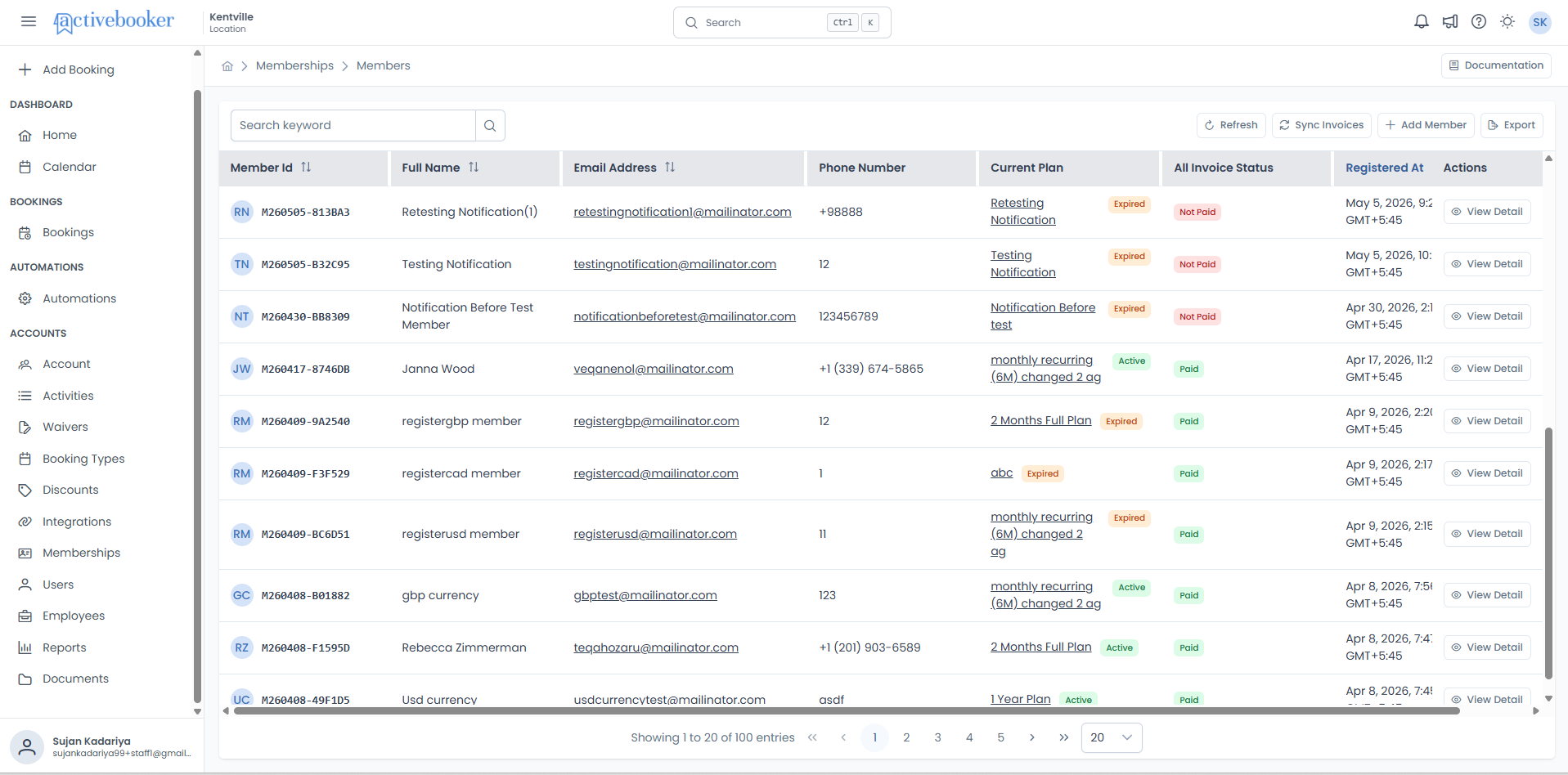
Table Columns:
| Column | What It Shows |
|---|---|
| Member Id | Circular avatar (profile photo or initials) displayed inline to the left of the unique member code (e.g., M260123-3F2879). If the member has uploaded a profile photo via the Member Portal, the photo is shown; otherwise, the member's initials are displayed (e.g., "IA" for Isaac Anderson). Sortable and filterable. Displays with a red "Deactivated" tag if the member is deactivated. |
| Full Name | Member's complete name (first + last). Sortable and filterable. |
| Email Address | Contact email shown as a clickable mailto: link. Sortable and filterable. |
| Phone Number | Member's primary contact phone number. |
| Current Plan | Active plan name shown as a clickable link to plan details, with status tag (Active/Cancelled/other) |
| All Invoice Status | Paid or Not Paid, showing whether every invoice generated for the member has been paid |
| Registered At | Date and time when member joined, displayed in local browser time. Sortable (default sort: newest first). |
| Actions | View Detail button to access complete member profile. |
The table scrolls horizontally — the All Invoice Status, Registered At, and Actions columns appear after Current Plan.
Working with the Member List
Search functionality:
- Use the search box to find members by name, email, or member code
- Search operates server-side for quick results even with thousands of members
- Results update automatically as you type
Sorting:
- Click column headers with sort icons to change sort order
- Default sort: Registered At (descending) - newest members first
- Available sort fields: Member Id, Full Name, Email Address, Registered At
Filtering:
- Use column filters to narrow down results
- Filters work alongside search for precise member selection
Pagination:
- Navigate through members using page controls at the bottom
- Default: 10 members per page
- Shows total count (e.g., "Showing 1 to 10 of 28 entries")
- Jump to specific pages or use next/previous controls
Visual indicators:
- Deactivated members show a red "Deactivated" tag next to their Member Id
- Plan status displays as colored tags: Green for Active, Red for Cancelled, Yellow for others
- Email addresses appear as underlined links for easy contact
- Plan names are clickable links for quick navigation to plan details
Exporting members
You can download your member records as a file for reporting, billing follow-up, or sharing with your team.
How to export
- Click the Export button in the top-right toolbar
- The Export Data dialog opens
- Choose your preferred file format — Excel (.xlsx) or CSV (.csv)
- Optionally enter a Name (title for this export, up to 100 characters)
- Optionally enter a Note (description for your own reference, up to 500 characters)
- Select which Columns to Include in the file — use Select All or Clear All to quickly manage your selection
- Click Export to submit the request, or Cancel to close without exporting
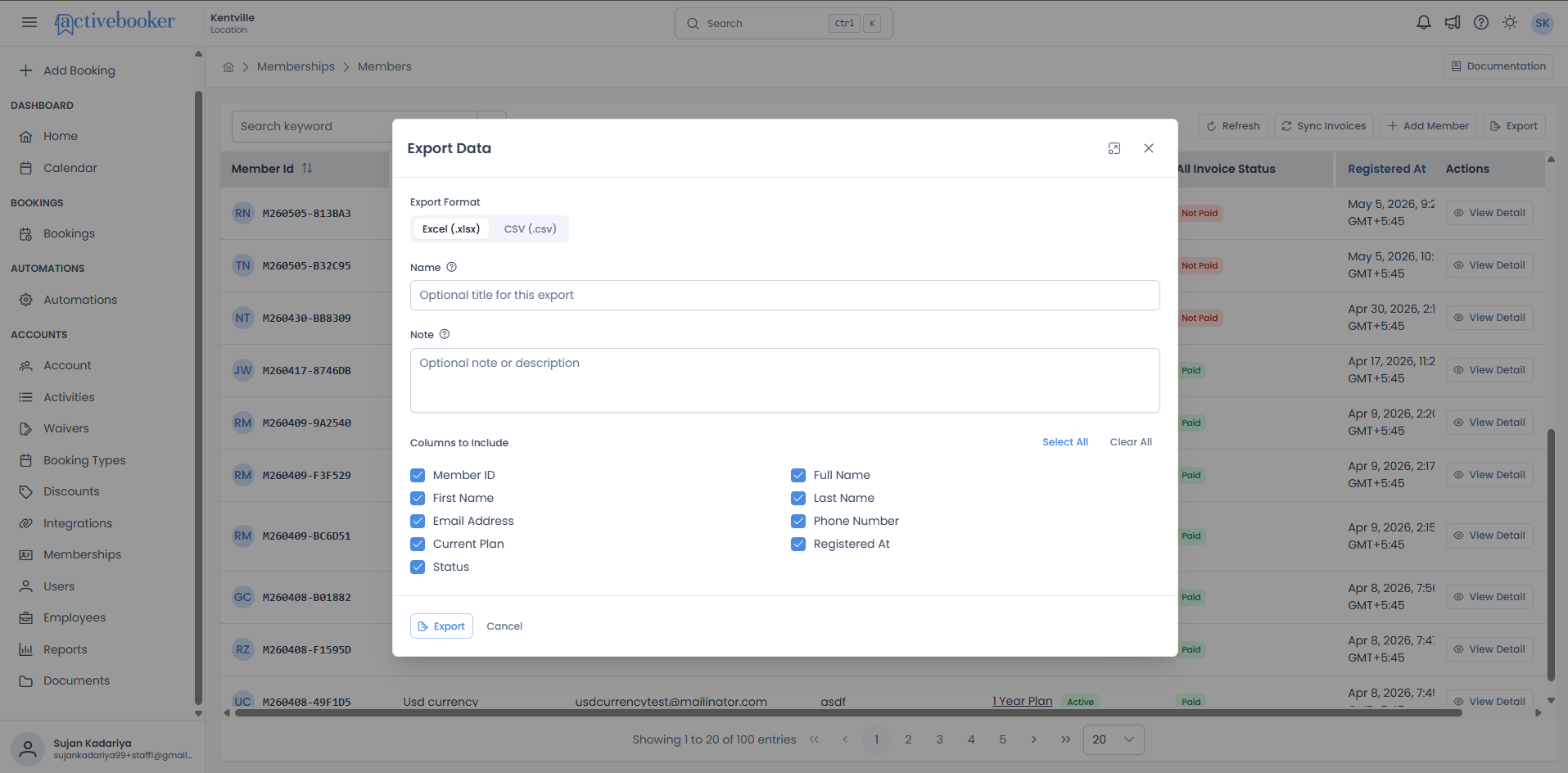
Available columns
When exporting, you can choose any combination of the following columns:
| Column | What it contains |
|---|---|
| Member ID | The unique member code (e.g., M260123-3F2879) |
| Full Name | Member's complete name |
| First Name | Member's first name |
| Last Name | Member's last name |
| Email Address | Member's email address |
| Phone Number | Member's phone number |
| Current Plan | The membership plan the member is currently on |
| Registered At | Date and time the member registered |
| Status | Member's current subscription status |
What happens after you export
Your export request is queued and processed in the background. Once complete, the file is available to download from the Documents page. You can check the status and download your file from there.
You must select at least one column before the export can be submitted. If no columns are selected, the Export button will not proceed.
Subscriptions
Each member has one active subscription at a time that connects them to a specific membership plan.
Subscription Status
Subscriptions can be in one of three states:
| Status | Meaning |
|---|---|
| Active | Currently valid subscription |
| Expired | Subscription period ended without renewal |
| Cancelled | Subscription was manually terminated |
Viewing Subscription Details
A member's subscription shows:
- Current plan name
- Start date and end date
- Status
- Payment information
Changing a Member's Plan
If a member wants to switch to a different plan:
- Access their member profile
- Look for the subscription or plan change option
- Select the new plan
- Choose the start date for the new plan
What happens when you change plans:
- The current subscription is marked as cancelled (with reason: "The plan is changed")
- A new subscription is created with the new plan
- The new plan's rules apply immediately
- If it's the same plan (renewal), it's treated as a renewal
Cancelling a Subscription
To cancel a member's subscription:
- Access their member profile
- Find the current subscription
- Select the cancel option
- Confirm the cancellation
What happens:
- The subscription status changes to "Cancelled"
- The cancellation timestamp is recorded
- The reason is noted as "The subscription was cancelled manually"
- The member remains in the system but without an active subscription
Subscription Renewals
When a subscription nears its end date:
- Members receive an expiration reminder (based on the plan's notification settings)
- Members can renew through their account, or administrators can renew for them
- Renewal creates a new subscription period on the same plan
Waivers
Many businesses require members to accept terms, liability waivers, or other agreements.
Waiver Acceptance
The system tracks whether each member has accepted the required waiver:
- Accepted — Member has agreed to the waiver terms
- Not Accepted — Member has not yet accepted
Members are typically prompted to accept waivers during registration or on their first login.
Checking Waiver Status
View a member's waiver status in their profile to confirm they've completed this requirement before allowing full access to your services.
Member Activity
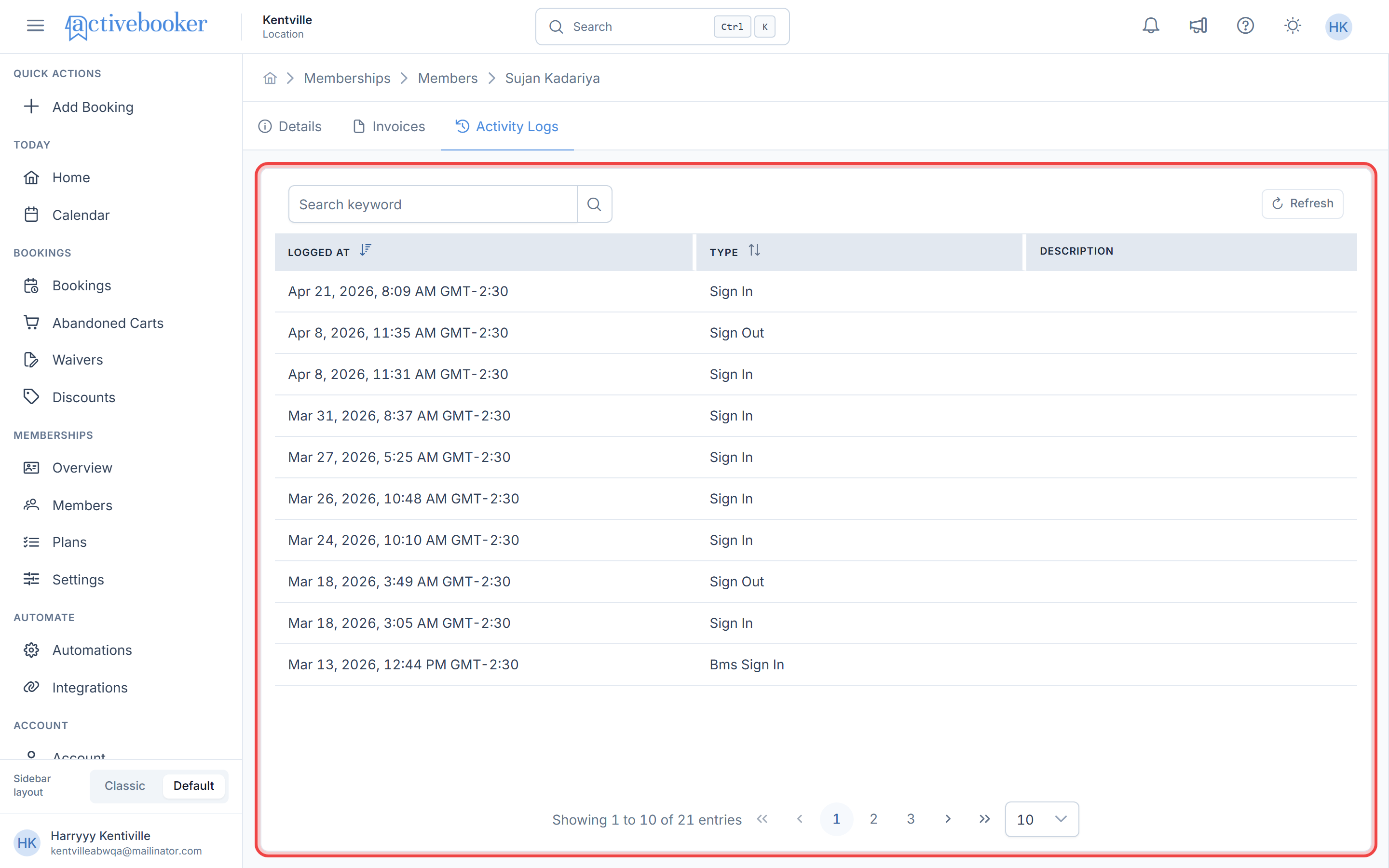
The system automatically logs important member activities for your reference:
| Activity Type | When It's Logged |
|---|---|
| Registration | Member creates their account |
| Sign In | Member logs into their account |
| Sign Out | Member logs out |
| Password Change | Member updates their password |
| Password Reset | Member resets a forgotten password |
| Subscription Cancel | Member or admin cancels subscription |
| Subscription Change | Member moves to a different plan |
| Subscription Renewal | Member renews their current plan |
| Activated | Account is activated |
| Deactivated | Account is deactivated |
| Imported | Member record was imported from another system |
Why Activity Logs Matter
Activity logs help you:
- Troubleshoot login issues ("When did they last sign in successfully?")
- Understand member engagement patterns
- Resolve disputes about account access
- Track subscription history
Payment Information
How Payments Work
ActiveBooker uses Stripe to securely manage payment information:
- Credit card details are stored directly with Stripe, not in your database
- Each member has a Stripe Customer ID linking their account to their payment method
- You never see full card numbers—only last 4 digits for reference
Invoice Status
Each member has an invoice payment status:
- Paid — All invoices are settled
- Incomplete — One or more invoices remain unpaid
Use this to quickly identify members who may need payment follow-up.
Common Questions
Can a member have multiple subscriptions at once? No. Each member can only have one active subscription at a time. To change plans, the current subscription is closed and a new one begins.
What happens to a member's data if they cancel? The member record is retained for historical and reporting purposes. The subscription is marked as cancelled, but their information remains accessible to administrators.
Can I import members from another system? Yes, member import functionality is available. Imported members are flagged in their activity log as "Existing Imported."
How do I handle a member who forgot their password? Members can use the "Forgot Password" feature to reset their own password via email. The reset is logged in their activity history.
Can I change a member's email address? Yes, administrators can change email addresses through the Edit Member form. However, be aware that this changes their login credentials. The member will need to use the new email to log in, and they should be informed of this change. The system prevents duplicate emails to maintain account integrity.
Why can't I use an email address that already exists? Each email address must be unique because it serves as the member's login credential. If you encounter a duplicate email error, either choose a different email or investigate if there's an existing account that needs to be consolidated or removed.
What happens when I deactivate a member? When you deactivate a member, they immediately lose access to the member portal and cannot receive membership benefits. Their historical data remains in the system for your records. This is different from cancelling their subscription—you may need to do both actions separately.
Can I reactivate a deactivated member? Yes, simply edit the member and uncheck the "Mark as Deactivated" option. They'll immediately regain access to the member portal.
Can I see when members are using my facilities? Yes, if your business uses check-in features, member sign-ins are logged and can be reviewed in the activity history.
What happens when a subscription expires? The subscription status changes to "Expired." The member can no longer make bookings under that plan's privileges until they renew or switch to a new plan.