Payment Integration
Connect your membership system with Stripe to securely process membership payments and manage recurring subscriptions. This integration enables automated billing, secure payment processing, and seamless financial transactions for your membership business.
Quick start
Set up your payment integration in three steps:
- Navigate to Memberships > Settings and Preferences > Payment Integration Section
- Review the Stripe Payment Integration section
- Click the Edit button to add or update your Stripe API keys
You must configure payment integration before accepting membership sign-ups. Without valid Stripe keys, customers cannot purchase memberships.
What you can do
Payment Integration helps you:
- Accept secure payments — Process credit and debit card payments from members worldwide
- Manage subscriptions automatically — Handle recurring billing without manual intervention
- Track payment history — View transaction records in Stripe's dashboard
- Handle refunds and disputes — Manage payment issues through Stripe's platform
- Ensure PCI compliance — Stripe handles secure payment processing and data protection
Understanding Stripe
Stripe is a secure payment processing platform trusted by businesses worldwide for handling online payments, subscriptions, and financial transactions. ActiveBooker uses Stripe as its exclusive payment processor for membership subscriptions.
Why Stripe?
- Industry-leading security — PCI-DSS compliant with built-in fraud detection
- Global reach — Accept payments in multiple currencies from customers worldwide
- Automated subscriptions — Recurring billing handled automatically
- Transparent pricing — Clear fee structure with no hidden costs
To use membership payments, you'll need a Stripe account. If you don't have one, visit stripe.com to create a free account before proceeding.
Accessing Payment Integration Settings
Navigate to Payment Integration
- Click Memberships in the sidebar
- Select Settings and Preferences
- The Settings and Preferences page opens
- Scroll down to the Stripe Payment Integration section
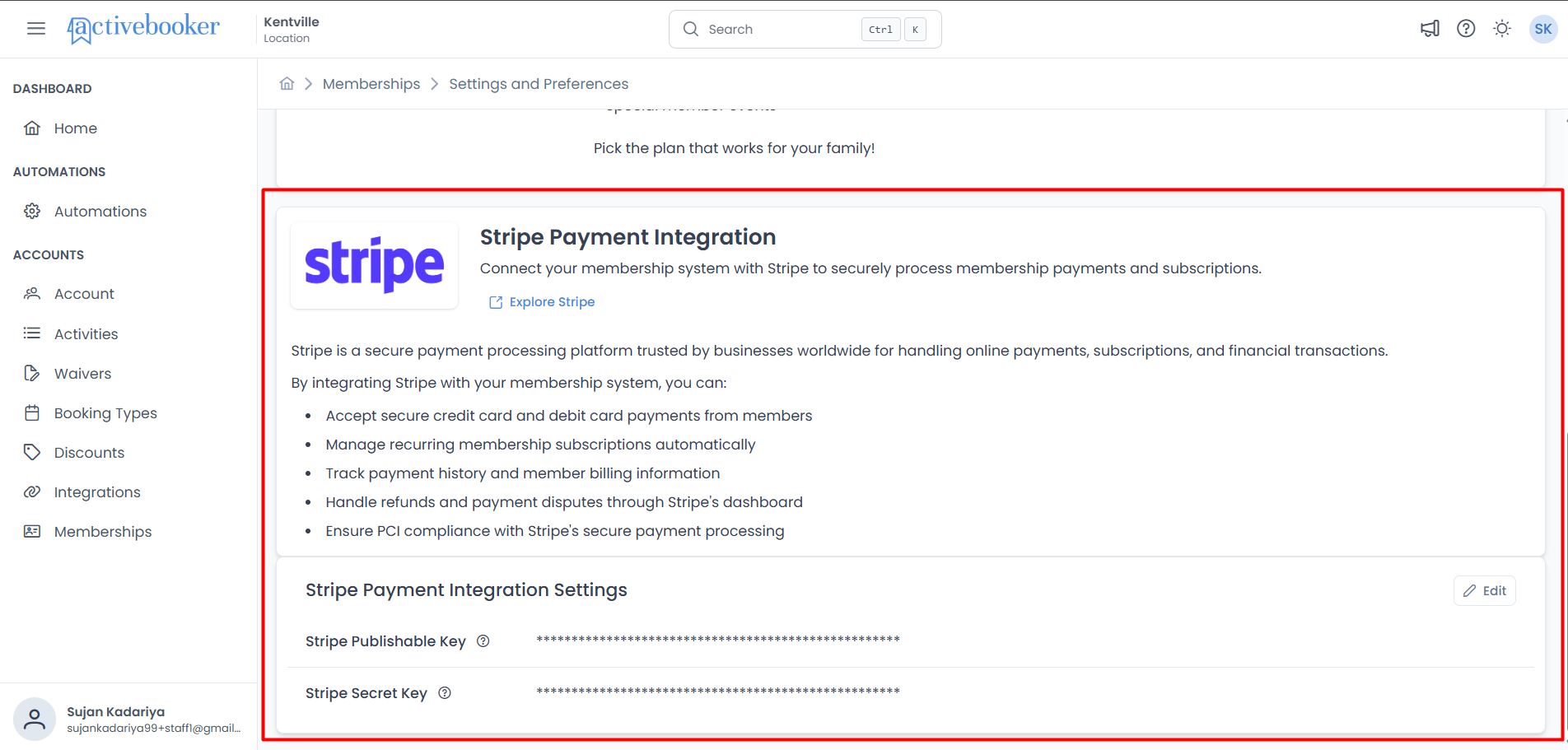
The page displays information about Stripe and your current integration settings.
Understanding the Interface
The Payment Integration section is divided into two parts:
Stripe Information Card
The upper section provides an overview of Stripe and its benefits:
Stripe Logo
Visual branding to identify the payment processor
Title: "Stripe Payment Integration"
Clear identification of the integration type
Description
Brief explanation of the integration's purpose and benefits
Explore Stripe Button
Click this button to open Stripe's website in a new tab. Use this to:
- Learn more about Stripe's features and pricing
- Review Stripe's documentation
- Access your Stripe dashboard after creating an account
Benefits List
The section highlights what you can accomplish by integrating Stripe:
- Accept secure credit card and debit card payments from members
- Manage recurring membership subscriptions automatically
- Track payment history and member billing information
- Handle refunds and payment disputes through Stripe's dashboard
- Ensure PCI compliance with Stripe's secure payment processing
Stripe Payment Integration Settings
The lower section displays your configured API keys and provides access to edit them:

Table Header: "Stripe Payment Integration Settings"
Fields displayed:
| Field | What It Shows |
|---|---|
| Stripe Publishable Key | Your public API key (displayed as masked characters like ***********) |
| Stripe Secret Key | Your private API key (displayed as masked characters like ***********) |
Edit Button
Located in the top-right corner of the settings table. Click to update your Stripe keys.
Your API keys are encrypted and stored securely. They display as masked characters (***********) to protect sensitive information from unauthorized viewing.
Getting Your Stripe API Keys
Before you can configure payment integration, you need to obtain your API keys from Stripe.
Step-by-Step Guide
-
Create a Stripe account (if you don't have one)
- Visit stripe.com
- Click "Sign up" and complete the registration
- Verify your email address
-
Access your Stripe Dashboard
- Log in to your Stripe account
- You'll see the main dashboard
-
Navigate to API Keys
- Click Developers in the top navigation
- Select API keys from the dropdown menu
- You'll see your API keys listed
-
Locate your keys
- Publishable key — Starts with
pk_live_orpk_test_ - Secret key — Starts with
sk_live_orsk_test_ - Click Reveal (live|test) key to view the full secret key
- Publishable key — Starts with
-
Copy your keys
- Copy the Publishable key (you can click the copy icon)
- Copy the Secret key (click Reveal test key first, then copy)
- Keep these keys secure and never share them publicly
Stripe provides two sets of keys:
- Test keys (
pk_test_andsk_test_) — Use for testing without processing real payments - Live keys (
pk_live_andsk_live_) — Use for actual customer payments
Make sure you use the appropriate keys for your environment. In production, always use live keys.
Editing Payment Integration Settings
Update your Stripe API keys to connect your membership system with your Stripe account.
How to Edit Settings
- Navigate to Memberships > Settings and Preferences > Payment Integration
- Scroll to the Stripe Payment Integration Settings section
- Click the Edit button in the top-right corner
- The "Edit Stripe Payment Integration Settings" modal opens
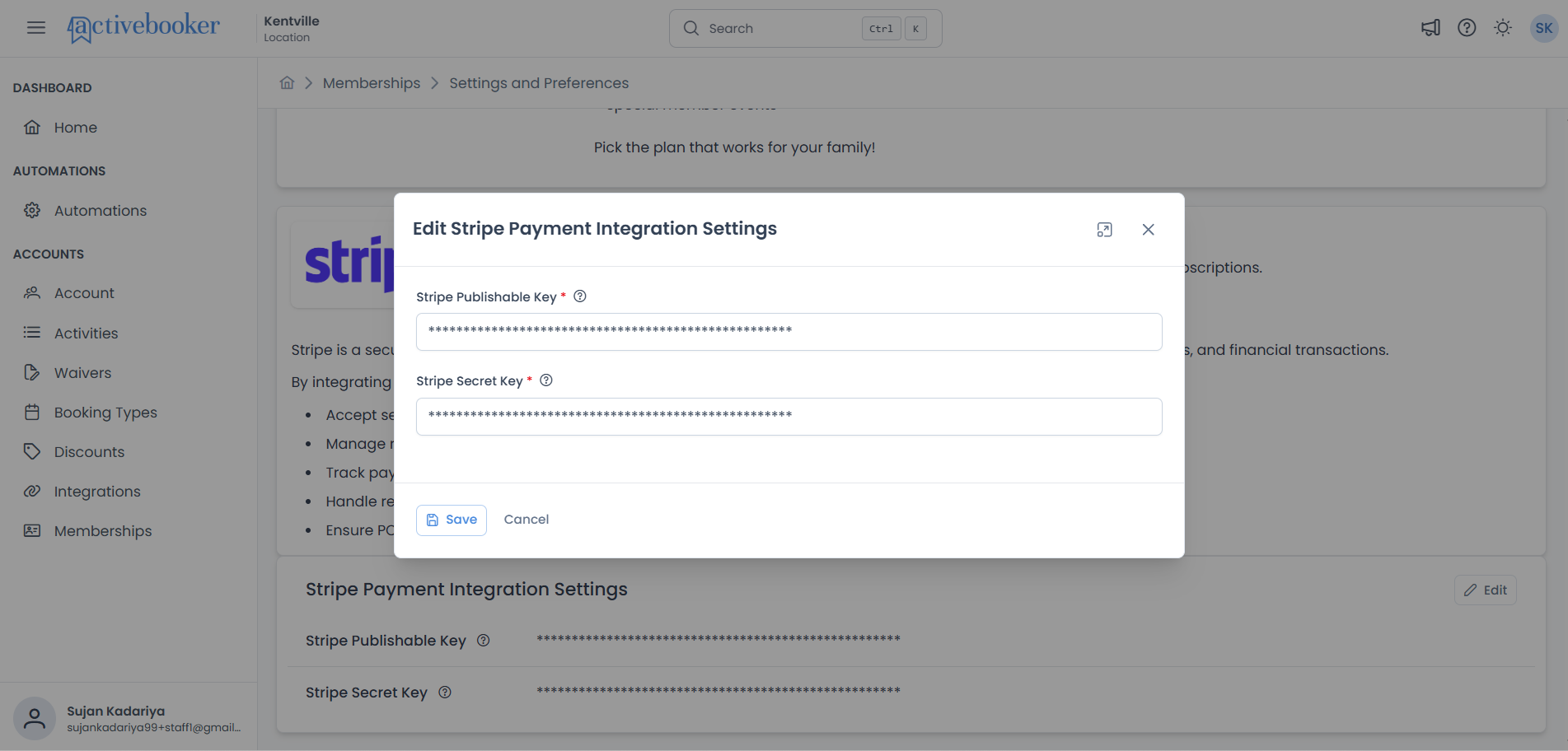
- Update the fields (see field details below)
- Click Save to apply your changes, or Cancel to discard them
Both Stripe Publishable Key and Stripe Secret Key are required. You cannot save without providing valid values for both fields.
Stripe Publishable Key Field
Your Stripe publishable key used for client-side payment processing.
- Format: Starts with
pk_live_(live) orpk_test_(test) - Security: Safe to share publicly; used in payment forms
- Purpose: Identifies your Stripe account when creating payment forms
What it does:
- Initializes Stripe.js on your member portal
- Creates secure payment forms for customers
- Sends payment methods to Stripe securely
- Enables checkout sessions for membership purchases
Where to get it: Access your Stripe Dashboard → Developers → API keys → Copy the Publishable key
Example format: pk_live_51AbCd...XyZ123
When editing, the field shows your currently saved key as masked characters (***********). This protects the key from unauthorized viewing while still allowing you to update it.
Stripe Secret Key Field
Your Stripe secret key used for server-side payment processing.
- Format: Starts with
sk_live_(live) orsk_test_(test) - Security: Must be kept confidential; never share publicly
- Purpose: Allows your server to process charges and manage subscriptions
What it does:
- Processes membership subscription charges
- Creates and manages customer records in Stripe
- Handles recurring billing automatically
- Manages refunds and subscription cancellations
- Accesses sensitive payment data securely
Where to get it: Access your Stripe Dashboard → Developers → API keys → Reveal and copy the Secret key
Example format: sk_live_51AbCd...XyZ789
Your secret key provides full access to your Stripe account and can process real charges. Never share it, commit it to version control, or expose it in client-side code. Treat it like a password.
Key Change Warning
When you modify either API key, a warning message appears below the field:
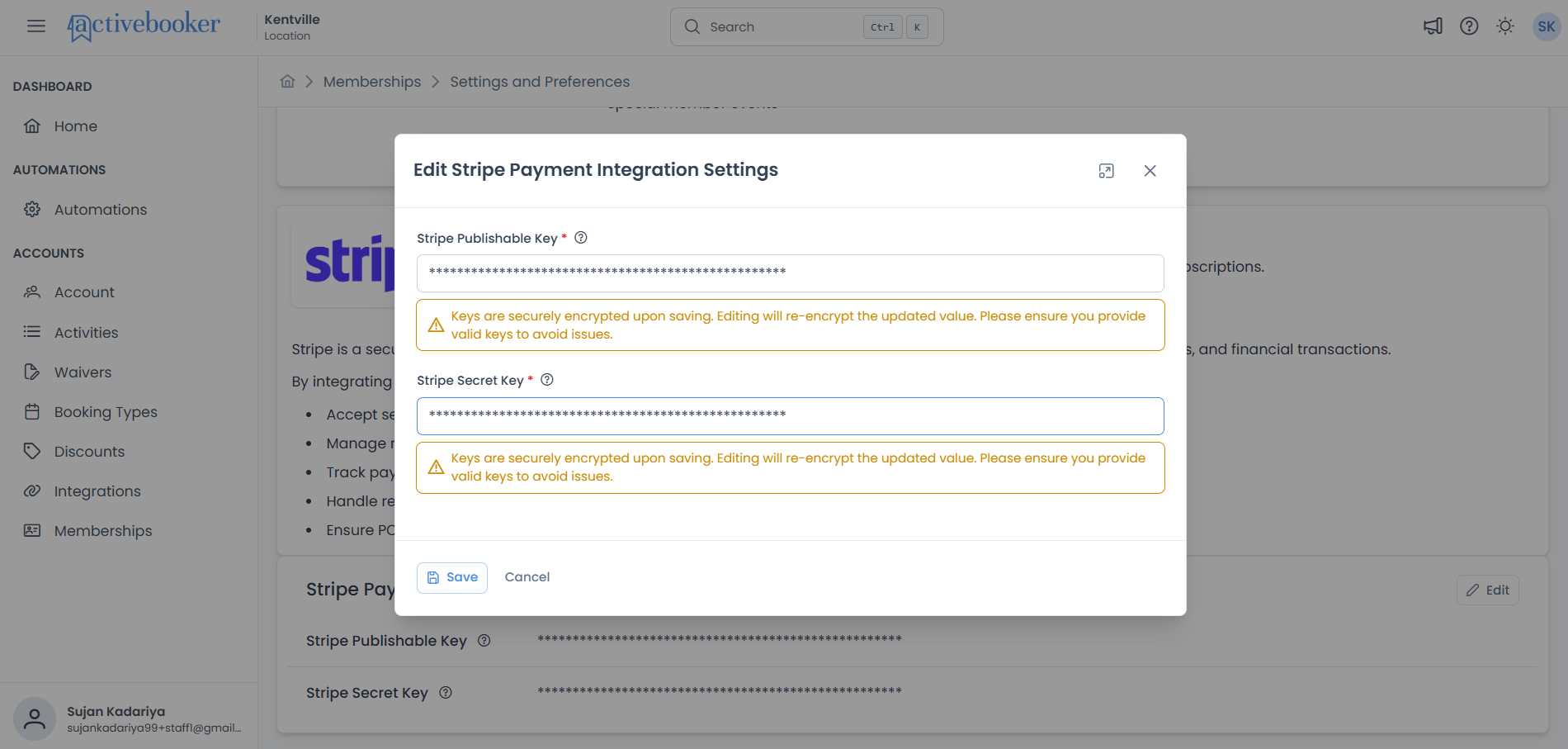
Keys are securely encrypted upon saving. Editing will re-encrypt the updated value. Please ensure you provide valid keys to avoid issues.
What this means:
- Your keys are encrypted before being stored in the database
- Changing a key triggers re-encryption of the new value
- Invalid keys will prevent membership payments from processing
- Always verify keys are correct before saving
After Saving Changes
When you successfully save your payment integration settings:
What happens next:
- Customers can purchase memberships on your member portal
- Stripe processes all payment transactions
- Recurring subscriptions are billed automatically
- Payment data syncs between ActiveBooker and Stripe
Payment integration changes take effect immediately. Ensure you're using the correct keys (test vs live) for your environment before saving.
Testing Your Integration
After configuring your Stripe keys, verify the integration works correctly.
Using Test Keys
- Configure test keys (
pk_test_andsk_test_) in ActiveBooker - Navigate to your member portal sign-up page
- Select a membership plan
- Complete the checkout process
- Use Stripe's test card numbers:
- Successful payment:
4242 4242 4242 4242 - Payment requires authentication:
4000 0027 6000 3184 - Card declined:
4000 0000 0000 0002
- Successful payment:
- Use any future expiration date and any 3-digit CVC
- Check your Stripe Dashboard → Payments to see the test transaction
Stripe provides many test card numbers for different scenarios. Visit Stripe's testing documentation for a complete list.
Switching to Live Keys
Once testing is complete and you're ready to accept real payments:
- Return to Settings and Preferences > Payment Integration
- Click Edit on the Stripe Payment Integration Settings
- Replace test keys with live keys:
- Replace
pk_test_...withpk_live_... - Replace
sk_test_...withsk_live_...
- Replace
- Click Save
- Your system now processes real payments
Before switching to live keys:
- Verify all membership plans are priced correctly
- Test the complete sign-up flow with test keys
- Ensure your Stripe account is fully activated
- Review your Stripe dashboard settings
- Confirm your bank account is connected for payouts
Security Best Practices
Protect your Stripe API keys and maintain secure payment processing.
Key Management
✅ Store keys securely — Never share your secret key or commit it to public repositories
✅ Use environment variables — Store keys in secure environment configurations
✅ Rotate keys periodically — Change keys if you suspect they've been compromised
✅ Use test keys for development — Keep live keys only in production environments
✅ Limit access — Only authorized team members should access API keys
Monitoring
✅ Review Stripe Dashboard regularly — Monitor for unusual transaction patterns
✅ Enable Stripe notifications — Get alerts for failed payments and disputes
✅ Check payment reports — Verify transactions match your records
✅ Monitor subscription renewals — Ensure recurring billing works correctly
Compliance
✅ Never store card details — Let Stripe handle all card information
✅ Use HTTPS — Ensure your member portal uses SSL encryption
✅ Follow PCI guidelines — Stripe handles most compliance, but review best practices
✅ Maintain accurate records — Keep transaction logs for financial reporting
Common Issues
Cannot Save Settings
Symptoms: Save button is disabled or shows validation errors
Solutions:
- Verify both keys are filled in (both are required)
- Check that keys are properly formatted (start with
pk_orsk_) - Remove any extra spaces before or after the keys
- Ensure you're pasting the complete key (not truncated)
- Verify you have a stable internet connection
Payments Not Processing
Symptoms: Customers see errors when trying to purchase memberships
Solutions:
- Verify you're using the correct environment keys (test vs live)
- Check that keys haven't expired or been revoked in Stripe
- Log in to Stripe Dashboard and check for any account issues
- Ensure your Stripe account is fully activated
- Test with Stripe's test card numbers to isolate the issue
- Check Stripe Dashboard → Logs for detailed error messages
Keys Won't Update
Symptoms: New keys don't save or revert to old values
Solutions:
- Ensure you clicked Save and didn't just close the modal
- Check for error messages that might indicate invalid keys
- Try copying keys again from Stripe (might have copied incorrectly)
- Clear your browser cache and try again
- Log out and log back in to ActiveBooker
- Contact support if the issue persists
Wrong Environment Keys Used
Symptoms: Test transactions appear in production or vice versa
Solutions:
- Check which keys are configured (test starts with
_test_, live with_live_) - Edit settings and replace with correct environment keys
- In Stripe Dashboard, verify which API keys you copied
- Remember: test keys for development, live keys for production
Keys Compromised
Symptoms: You suspect unauthorized access to your Stripe keys
Solutions:
- Immediately log in to Stripe Dashboard
- Navigate to Developers > API keys
- Click Roll key to generate new keys
- Update ActiveBooker with the new keys immediately
- Review recent Stripe transactions for unauthorized activity
- Enable two-factor authentication on your Stripe account
- Contact Stripe support if you see unauthorized charges
Frequently Asked Questions
Do I need a paid Stripe account?
No. Stripe is free to create and use. You only pay transaction fees when processing payments (typically 2.9% + 30¢ per successful charge).
Can I use a different payment processor?
Currently, ActiveBooker only supports Stripe for membership payments. Support for additional processors may be added in the future based on demand.
What if I don't have my keys?
You need a Stripe account and API keys to accept membership payments. Without them, customers cannot purchase memberships. Follow the "Getting Your Stripe API Keys" section above to obtain them.
Are my keys safe in ActiveBooker?
Yes. API keys are encrypted before being stored in the database. They're displayed as masked characters in the interface and only decrypted when processing payments server-side.
Can I use the same Stripe account for multiple locations?
Yes, but each location in ActiveBooker requires its own payment integration configuration. You can use the same Stripe account across locations, but consider using Stripe Connect for better payment separation.
What happens if I change my keys while members are subscribed?
Existing subscriptions continue without interruption as long as the new keys belong to the same Stripe account. Changing to a different Stripe account will break existing subscription connections.
How do I test subscription renewals?
With test keys configured, create a test subscription using test card numbers. In Stripe Dashboard (test mode), you can simulate time passing to trigger renewals or use Stripe's test clocks feature.
Where can I see payment transactions?
All payment transactions are recorded in your Stripe Dashboard. Log in to Stripe and navigate to Payments or Subscriptions to view transaction history, customer details, and payment status.
Getting Help
Stripe Documentation
For detailed information about Stripe features and APIs:
- Visit stripe.com/docs
- Browse Stripe API reference
- Explore Stripe testing guide
Stripe Support
For issues with your Stripe account or payment processing:
- Access Stripe Dashboard → Support
- Email support@stripe.com
- Visit stripe.com/support
ActiveBooker Support
For issues with payment integration configuration:
- Contact your ActiveBooker support team
- Provide details about the error or issue
- Include relevant error messages from both systems
Related Topics
- 📚 Settings and Preferences Overview — Configure all membership system settings
- 💰 Membership Plans — Set up membership offerings and pricing
- 👥 Members — Manage member accounts and subscriptions