Booking Preference
Customize how customers book activities and how your business communicates with them — from automated reminders to text message notifications and review requests.
Quick start
- Click Account in the sidebar
- Go to the Settings and Preferences tab
- Find the Booking Preference card and click Edit
- Make your changes and click Save
What you can do
Booking Preference lets you:
- Manage child bookings — Allow children to be included in bookings, with optional scheduling limits
- Control booking availability — Choose how far in advance customers can book activities
- Reduce no-shows — Send automated reminder emails before scheduled events
- Collect feedback — Ask customers for reviews after their activities
- Send booking text messages — Notify customers about their bookings and upcoming events via SMS
Understanding the settings
Child Bookings
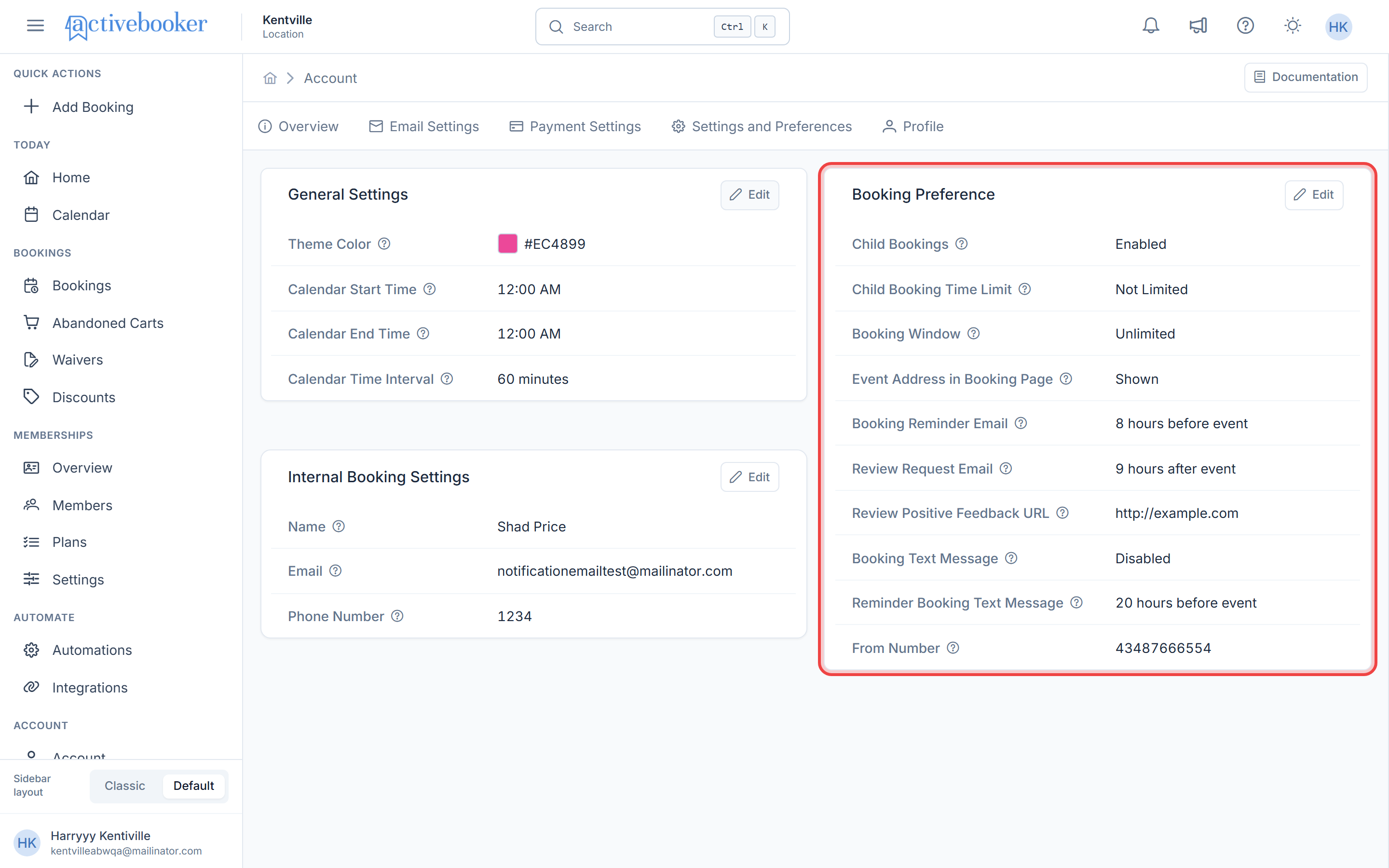
When enabled, customers can include children in their bookings.
Child Booking Time Limit
When child bookings are on, you can optionally set a cutoff time after which no more child bookings are accepted for a given day.
Booking Window
Controls how far in advance customers can schedule an activity. You can leave this unlimited, or set a specific number of days, weeks, or months.
Event Address in Booking Page
When turned on, a field appears in the booking form where customers can enter an event address.
Booking Reminder Email
Sends an automatic email to customers before their scheduled activity. You choose how many hours in advance the email goes out.
Review Request Email
Sends an automatic email to customers after their activity to ask for a review. You choose how many hours after the event the email is sent.
Review Positive Feedback URL
A link where happy customers can leave a public review — for example, your Google Reviews page. Customers are directed here when they respond positively to your review request.
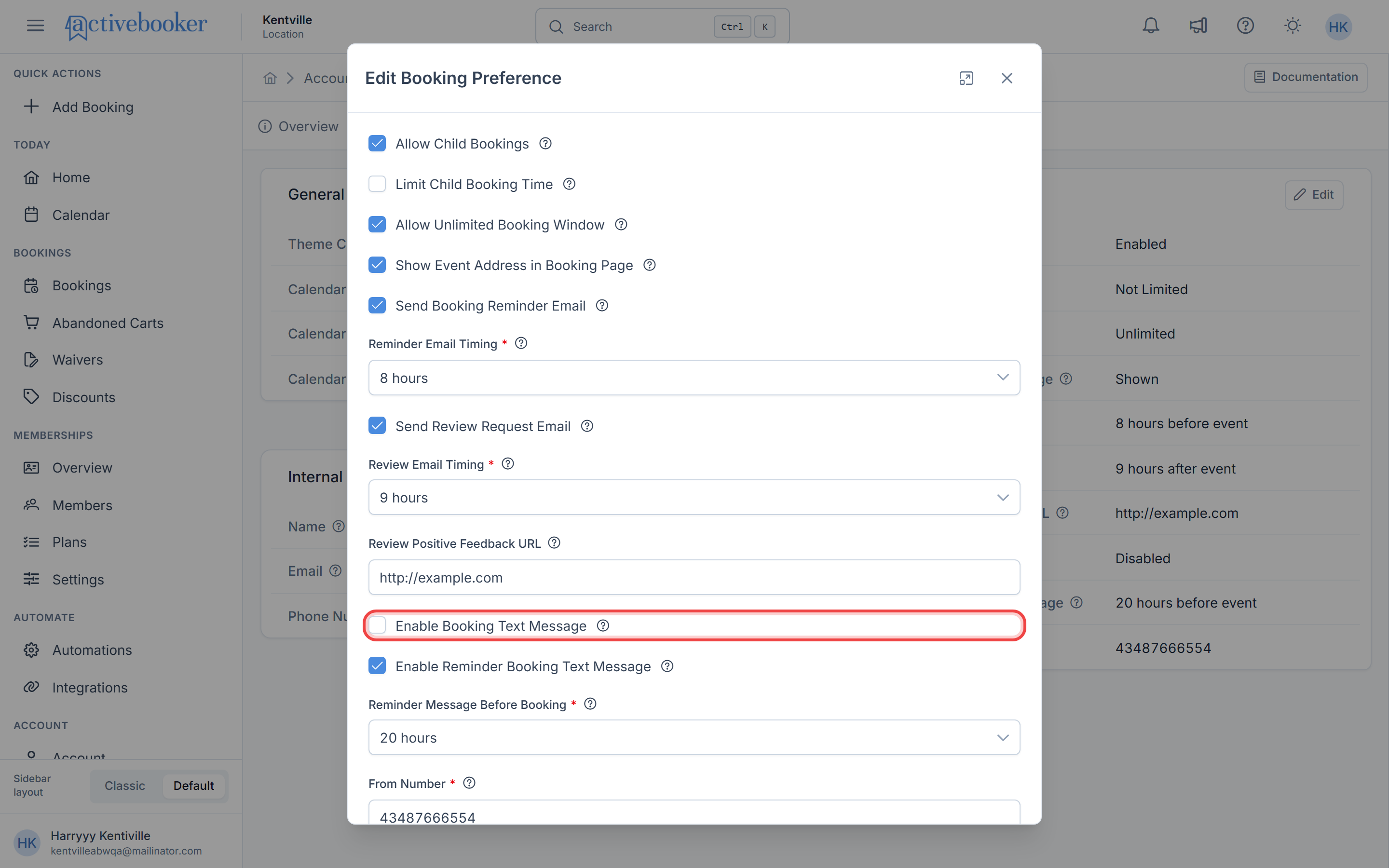
Enable Booking Text Message
Sends a confirmation text message to customers when a booking is made.
Enable Reminder Booking Text Message
Sends an automatic reminder text message to customers before their scheduled activity. You choose how many hours in advance the message goes out.
From Number
The phone number that appears as the sender when text messages are sent to customers.
Accessing Booking Preference
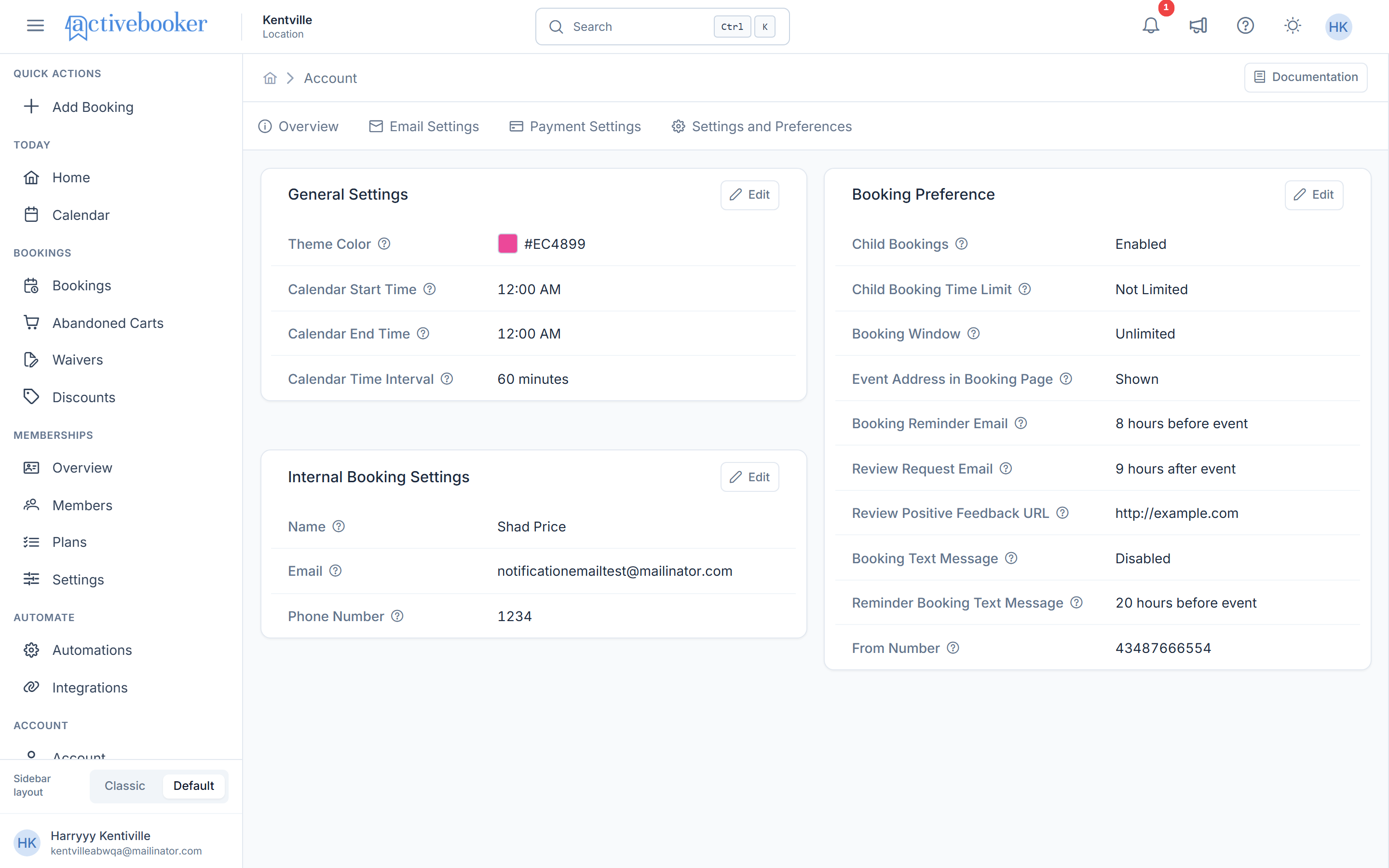
Navigate to Settings
- Click Account in the sidebar
- Select the Settings and Preferences tab
- Locate the Booking Preference card
View current preferences
The Booking Preference card shows a summary of your current settings.
Editing your preferences
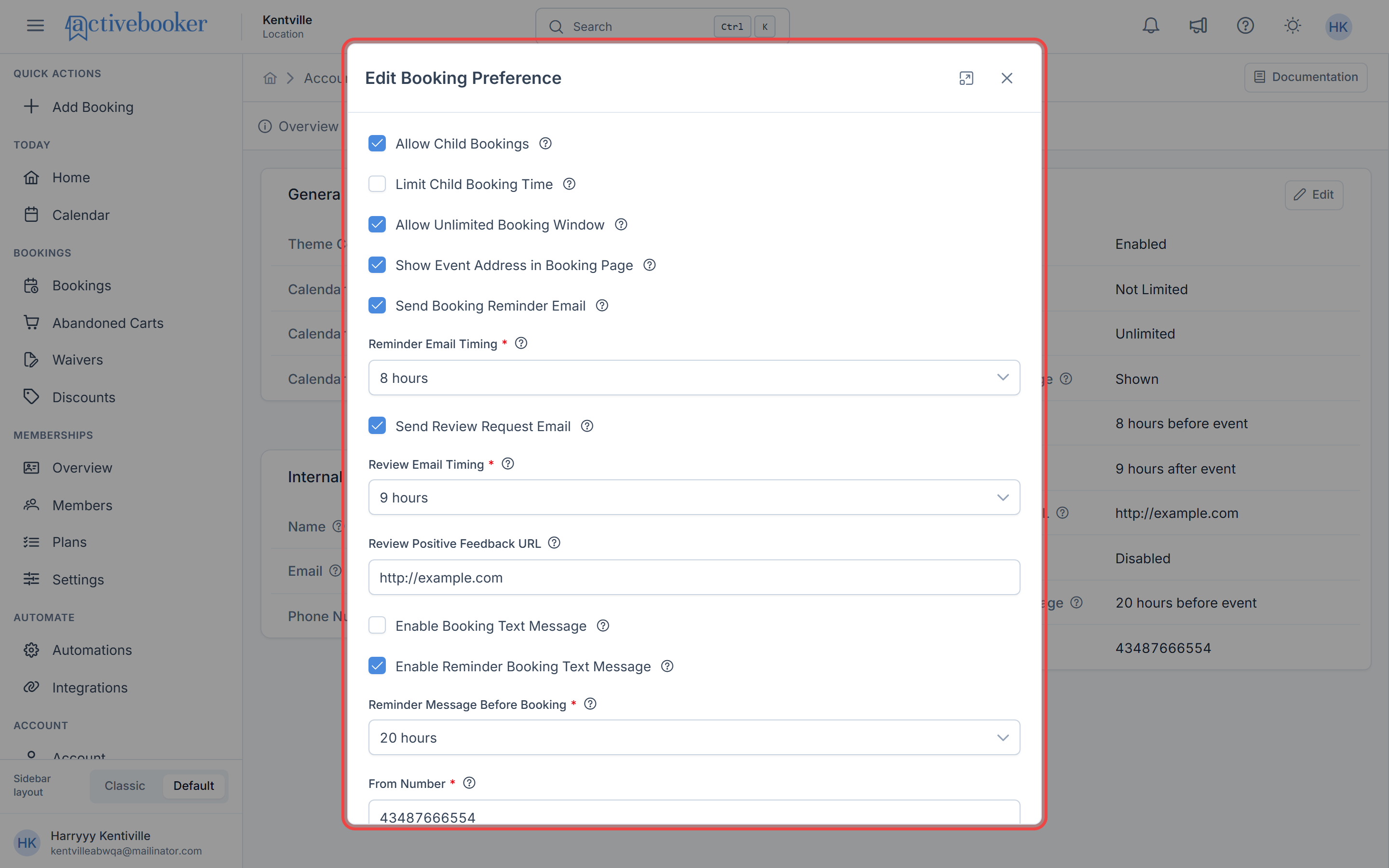
- Click the Edit button on the Booking Preference card
- The Edit Booking Preference panel opens
- Update the settings you want to change
- Click Save, or Cancel to leave things as they are
Child booking settings
Allow Child Bookings
Check this box to let customers add children to their bookings.
Limit Child Booking Time
When child bookings are enabled, check this box to set a daily cutoff time for child bookings.
Child Booking Maximum Time
Choose the latest time of day that child bookings can be accepted.
Booking window
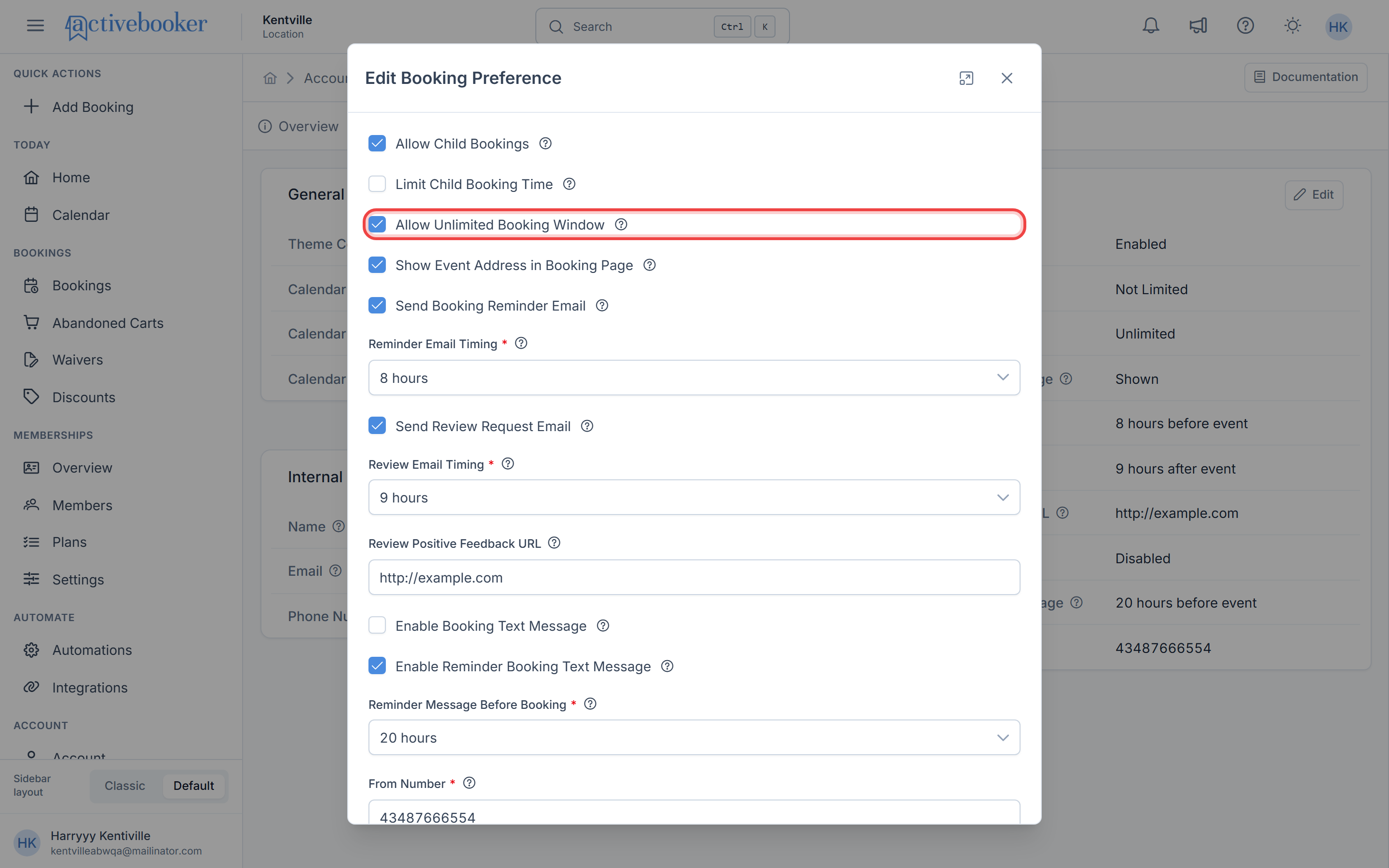
Allow Unlimited Booking Window
Check this box to let customers book as far in advance as they like. Leave it unchecked to set a limit.
Booking Window Size and Period
Enter a number and select a time unit (Days, Weeks, or Months) to set how far ahead customers can book.
A 30-day window works well for most businesses. If your schedule changes seasonally, consider a longer window of 60–90 days.
Event address
Show Event Address in Booking Page
Check this box to show an address field in your booking form.
Automated emails
Send Booking Reminder Email
Check this box to send customers an automatic reminder before their activity. Then choose how many hours in advance to send it.
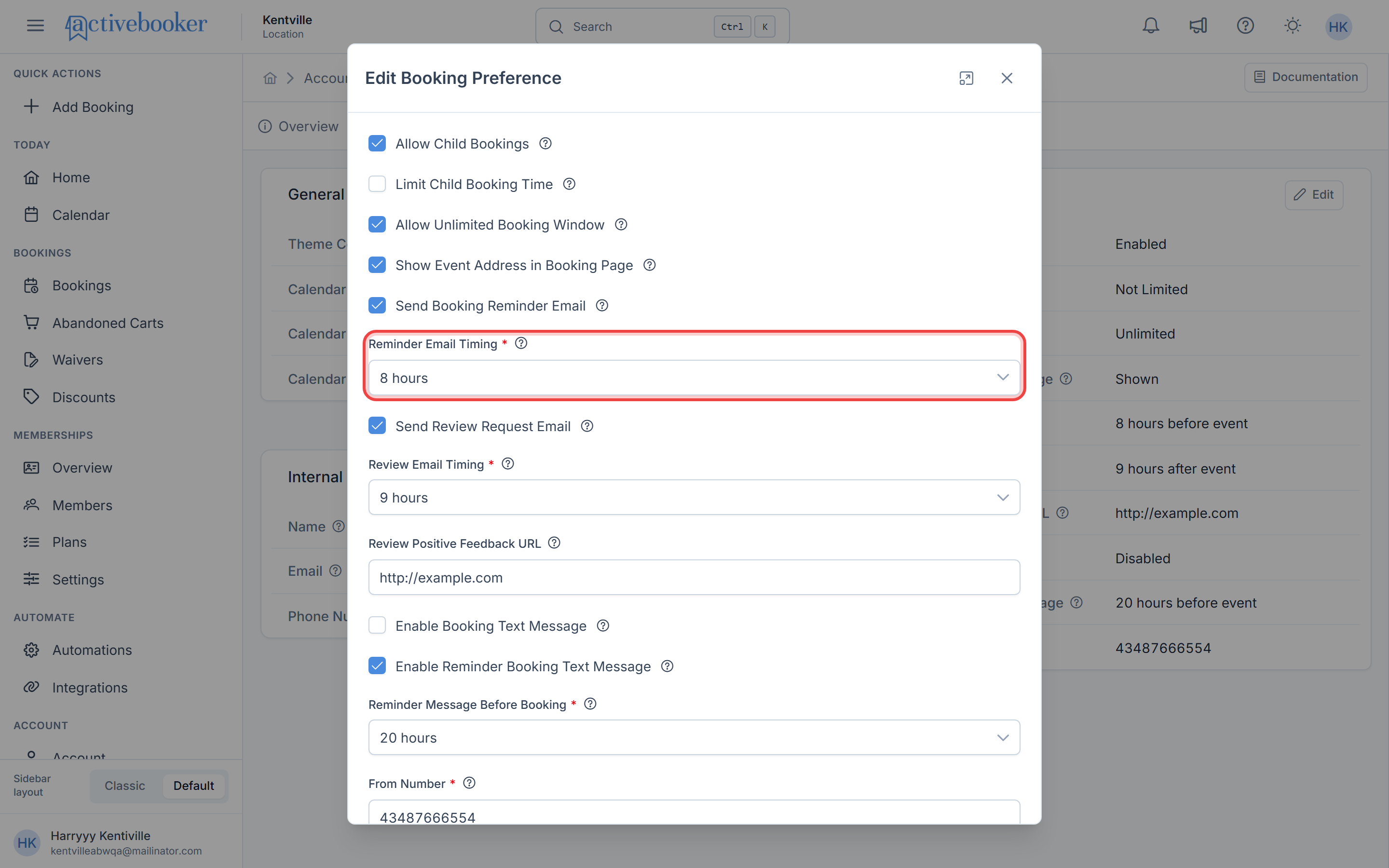
Send Review Request Email
Check this box to send customers an automatic follow-up after their activity asking for a review. Then choose how many hours after the event to send it.
Review Positive Feedback URL
Enter the link where you'd like customers to leave a review, such as your Google Reviews page.
Review request emails are survey emails sent to customers after their activities. The positive feedback URL can link to your Google Reviews page, feedback form, or any other review platform.
Text message notifications
Enable Booking Text Message
Check this box to send customers a confirmation text message when a booking is made.
Enable Reminder Booking Text Message
Check this box to send customers a reminder text message before their activity. Then choose how many hours in advance to send it.
From Number
Enter the phone number you want customers to see when they receive a text message from your business.
Best practices
✅ Enable reminder emails — Sending reminders 24–48 hours before activities helps reduce no-shows
✅ Set a reasonable booking window — A 7–30 day window balances customer convenience with your planning needs
✅ Request reviews soon after events — Customers are more likely to respond when the experience is still fresh
✅ Use your main review page — Link directly to Google Reviews or whichever platform matters most to your business
✅ Enable text message notifications — SMS reminders are an effective way to keep customers informed and reduce last-minute cancellations
❌ Don't send emails too soon — Reminders sent too far in advance (more than 7 days) may be forgotten
Test different reminder and review request timings to find what works best for your business. Most businesses find success with 24-hour reminders and 24-48 hour review requests.
Related resources
Learn about other settings that work with Booking Preference:
- General Settings - Configure theme colors and calendar display preferences
- Internal Booking Settings - Manage settings for internal team booking processes