General Settings
Configure your account's visual appearance and calendar preferences to match your business operations. These settings control how your booking interface looks and how your daily calendar displays time slots.
Quick start
Access and update your general settings in three steps:
- Navigate to Account > Settings and Preferences in the sidebar
- Locate the General Settings card on the page
- Click the Edit button to modify your preferences
What you can do
General Settings help you:
- Customize your brand appearance — Set a primary theme color that appears throughout your booking site and application interface
- Define your operating hours — Configure when your daily calendar view starts and ends to match your business hours
- Control calendar granularity — Choose from nine time slot interval options to match your booking schedule needs
Understanding the settings
Theme Color
The primary color used across your booking site and application interface. This creates a consistent brand experience for your customers and team members.
You can choose from a row of preset colors (such as Red, Orange, Yellow, Green, Teal, Blue, Purple, Pink, Gray, Black, and White) or enter a custom hex code in the text field below the presets. A color preview square shows your current selection.
Calendar Start Time
The time your daily calendar view begins each day. This should reflect when your business opens and starts accepting bookings.
Available options: Select from hourly time slots ranging from 12:00 AM through 11:00 PM
Calendar End Time
The time your daily calendar view ends each day. This should reflect when your business closes and stops accepting bookings. The end time is always later than the start time — only valid options are shown based on your selected start time.
If you move your start time to or past your current end time, the end time automatically updates to the next available option.
Available options: Select from hourly time slots after your chosen start time, up to 12:00 AM (midnight)
Calendar Time Interval (minutes)
The gap between consecutive time slots in your daily calendar view. Smaller intervals give you finer scheduling control and suit businesses with short or back-to-back appointments. Larger intervals keep the calendar simple and are better suited to longer, more spaced-out bookings.
Available options: Choose from 4, 5, 6, 10, 12, 15, 20, 30, or 60 minutes
Accessing General Settings
Navigate to Settings
- Click Account in the sidebar
- The Account overview page opens
- Select the Settings and Preferences tab
- You'll see the General Settings card on this page
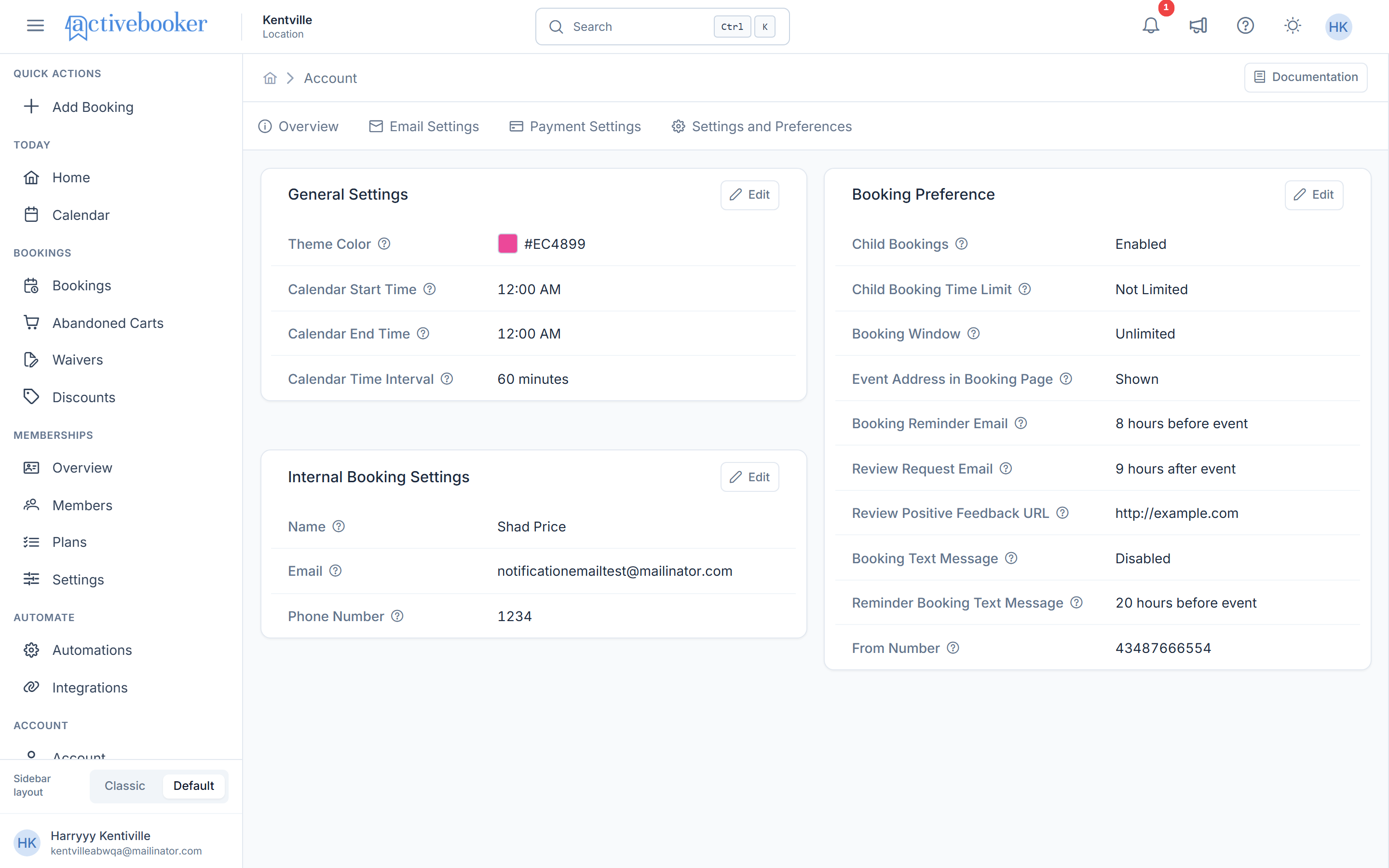
The Settings and Preferences page contains three sections:
- General Settings — Theme and calendar configuration
- Booking Preference — Customer booking options
- Internal Booking Settings — Internal team settings
View current settings
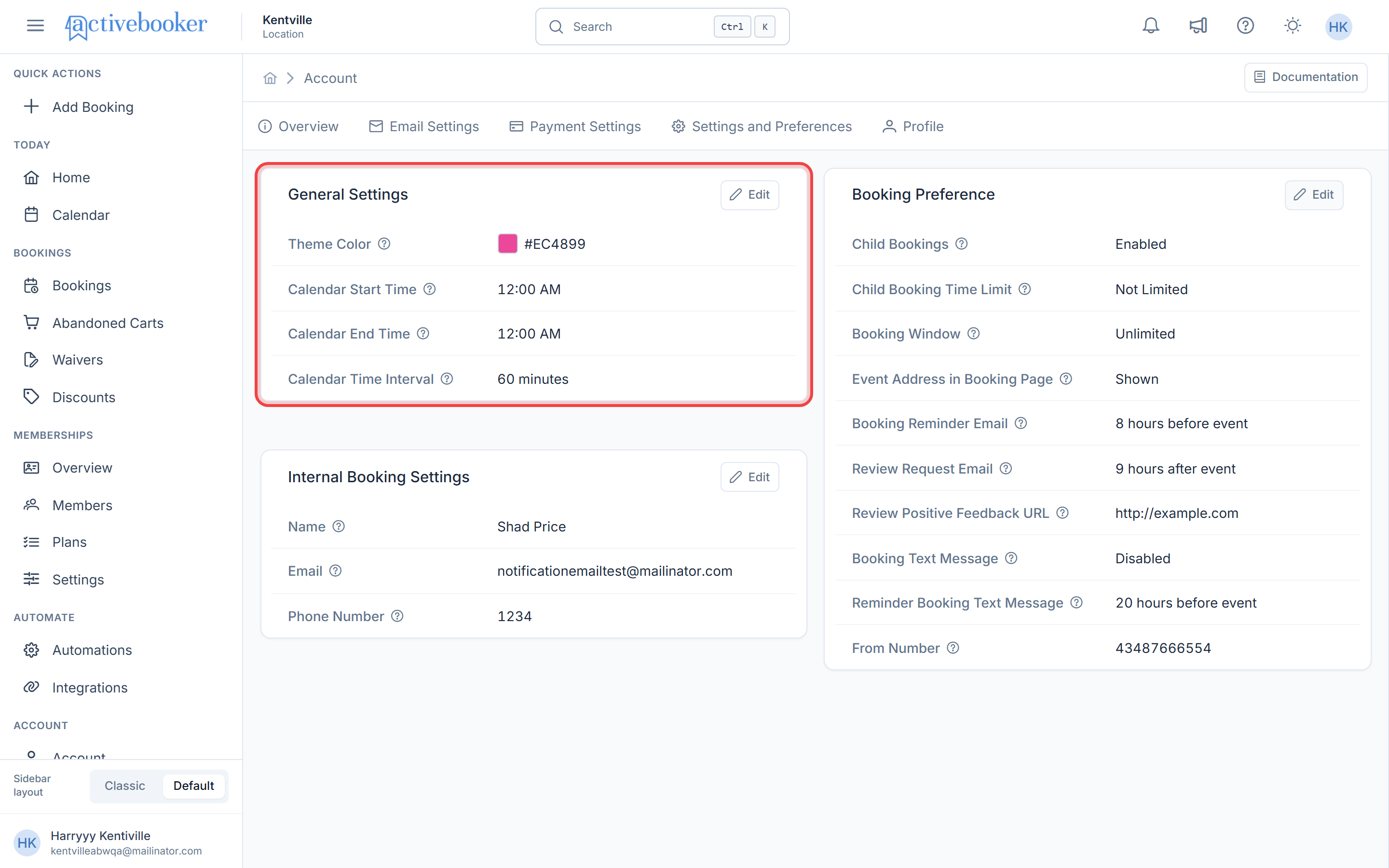
The General Settings card displays your current configuration:
Theme Color
Shows your selected color as both a hex code and a visual color preview box
Calendar Start Time
Displays the time your daily calendar begins
Calendar End Time
Displays the time your daily calendar ends
Calendar Time Interval (minutes)
Shows the gap between time slots in minutes
Editing your settings
Update General Settings
- Click the Edit button on the General Settings card
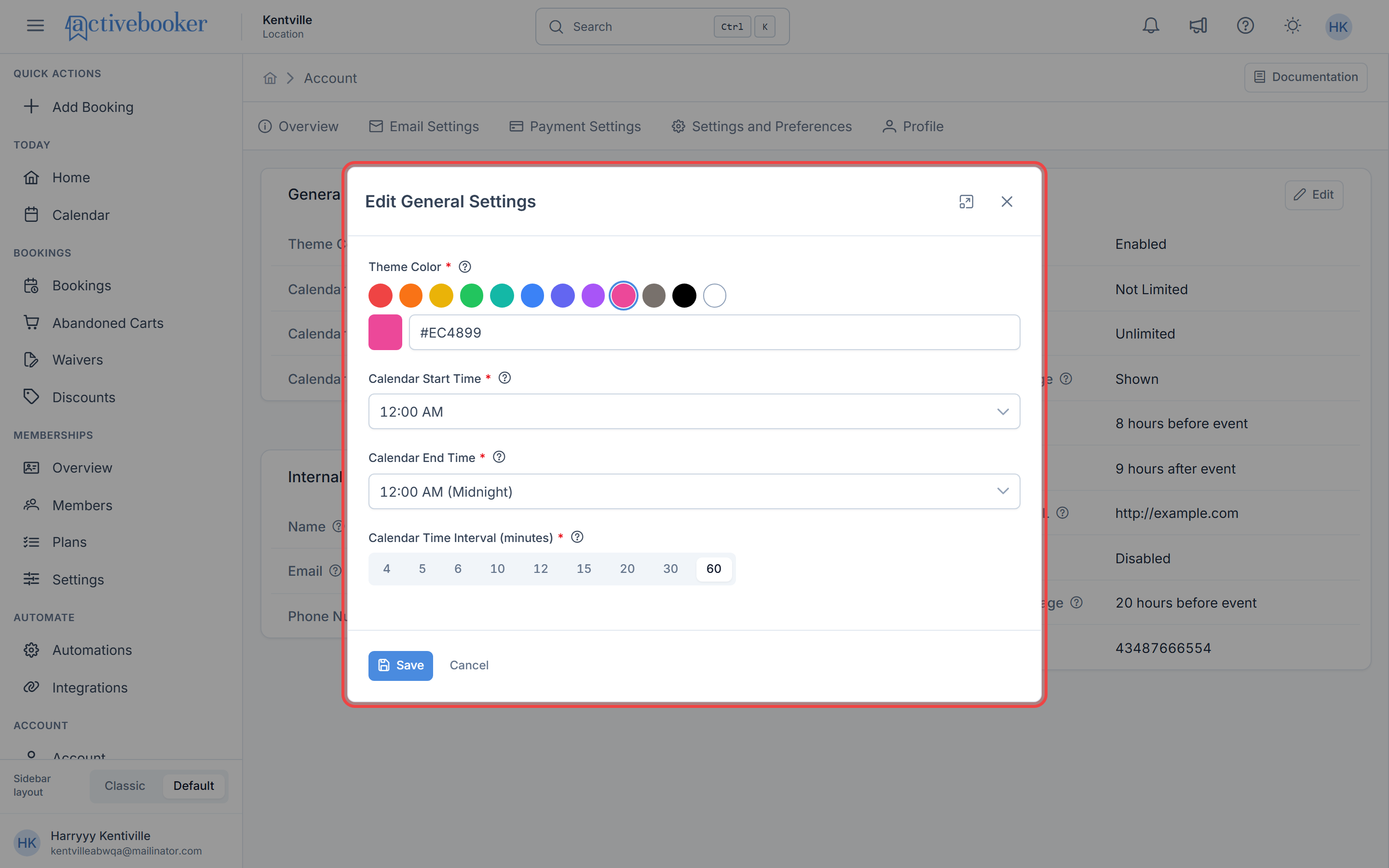
- The "Edit General Settings" modal appears
- Modify the settings you want to change:
- Theme Color: Click a preset color circle or enter a hex code in the text field
- Calendar Start Time: Select a time from the dropdown menu
- Calendar End Time: Select a time from the dropdown menu — only times after your chosen start time are available
- Calendar Time Interval (minutes): Click one of the nine interval buttons (4, 5, 6, 10, 12, 15, 20, 30, or 60)
- Click Save to apply your changes, or Cancel to discard them
Choose the right time interval
Consider these factors when selecting your Calendar Time Interval (minutes):
4 or 5-minute intervals — Best for businesses with very short appointments or high booking volume
6 or 10-minute intervals — Suited to back-to-back sessions and compact schedules
12 or 15-minute intervals — A balanced choice for most service-based businesses
20 or 30-minute intervals — Ideal for moderate-length appointments with clear gaps between slots
60-minute intervals — Best for hour-long sessions or simplified, easy-to-read scheduling
Best practices
✅ Match your brand colors — Choose a theme color that aligns with your company's brand identity for a cohesive customer experience
✅ Set realistic operating hours — Configure Calendar Start Time and Calendar End Time to reflect when you actually begin and stop accepting appointments
✅ Consider appointment length — Select a Calendar Time Interval (minutes) that divides evenly into your typical appointment durations
❌ Avoid frequent color changes — Changing your theme color too often can confuse customers familiar with your brand
Related Resources
Learn about other settings that work with General Settings:
- Booking Preference - Configure how customers interact with your booking system
- Internal Booking Settings - Manage settings for internal team booking processes
- Account Overview - View and manage your complete account configuration