Internal Booking Settings
Overview
When you create bookings within Activebooker, the system needs to know who to credit and how to reach you. By setting up your Internal Booking Settings, you ensure that all bookings you create internally are properly associated with your contact details. This makes tracking, reporting, and customer communication seamless and professional.
Step-by-Step Instructions
Follow these simple steps to add or update your name, email, and phone number for internal bookings:
Accessing Internal Booking Settings
-
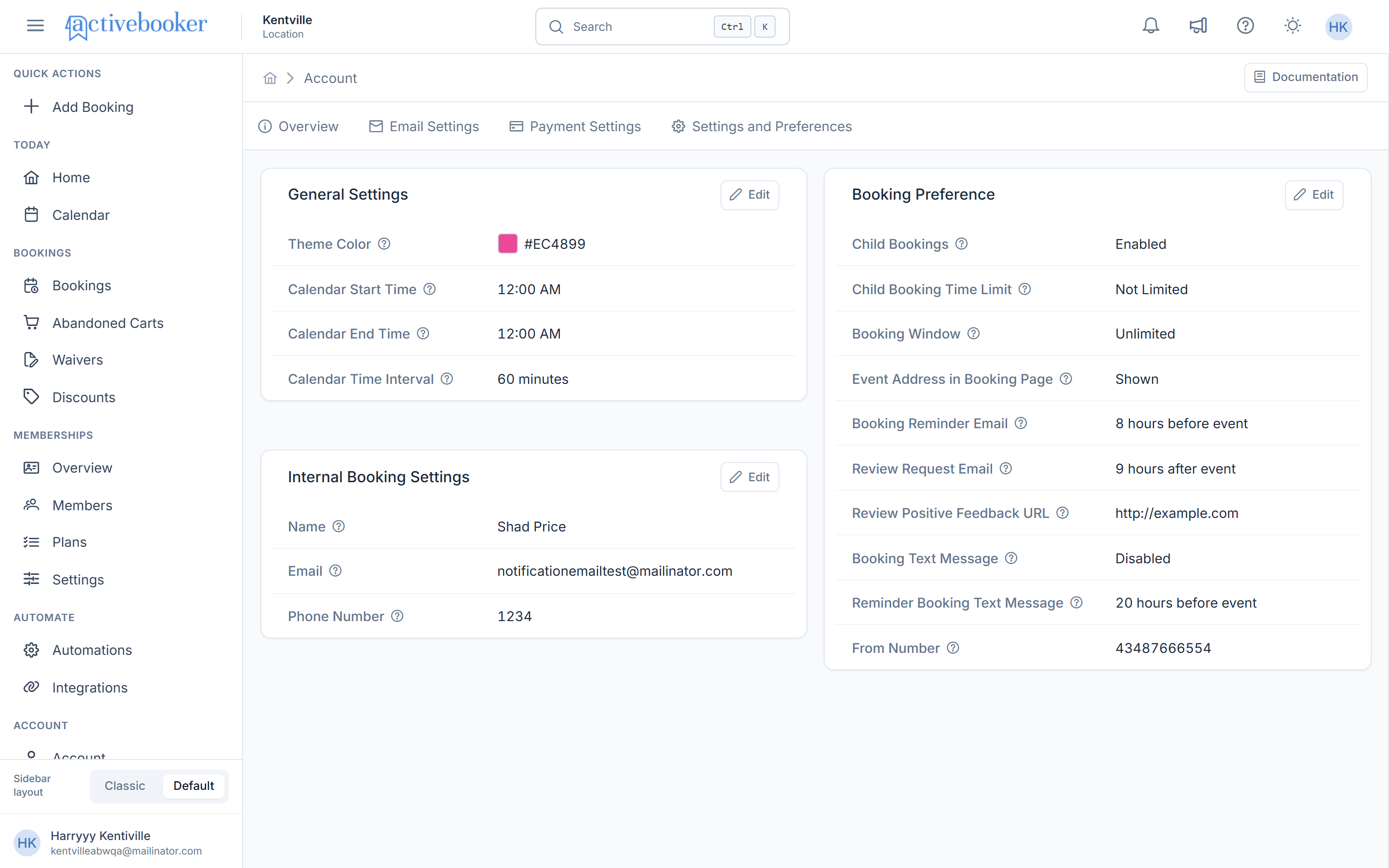
Navigate to your Account settings by clicking on Account in the left sidebar under the ACCOUNTS section.
-
Click on the Settings and Preferences tab at the top of the page.
-
Locate the Internal Booking Settings section on the page. You'll see your current contact information displayed here, including your Name, Email, and Phone Number.
Editing Your Information
-
Click the Edit button in the top-right corner of the Internal Booking Settings box.
-
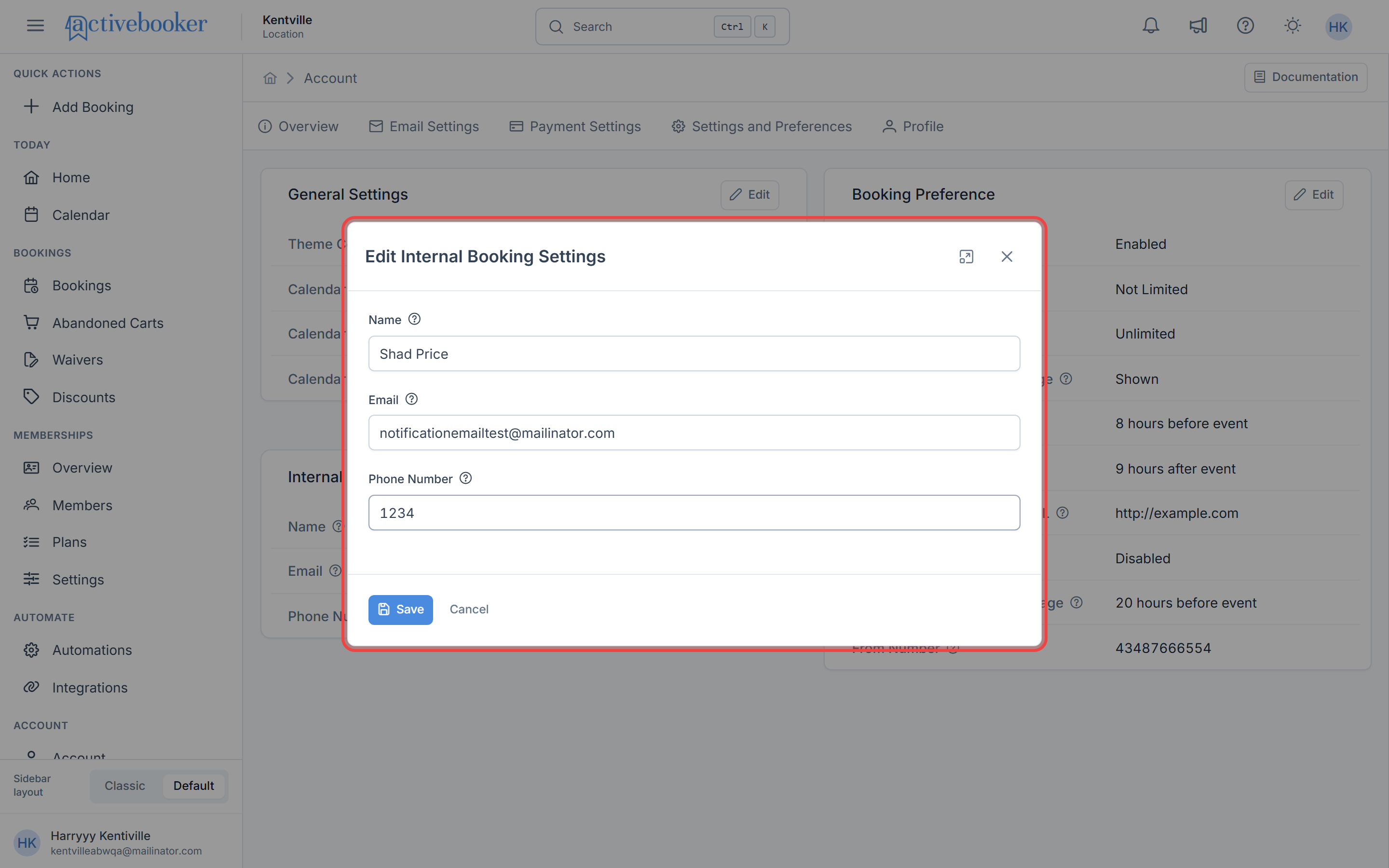
A modal window will appear titled "Edit Internal Booking Settings". Here you can update any of the following fields:
- Name – Enter your full name (maximum 100 characters)
- Email – Enter your email address (maximum 250 characters)
- Phone Number – Enter your contact phone number (maximum 20 characters)
- Make your changes in the appropriate fields. All fields are optional, so you can fill in only what's relevant to you.
Note: Each field has a character limit. If you try to enter more characters than allowed, additional characters will not be accepted.
Saving Your Changes
-
Click the Save button at the bottom-left of the modal to save your changes, or click Cancel if you decide not to make any updates.
-
Your settings are now updated! The information you entered will be used for all internal bookings moving forward.
Field Requirements & Limits
Understanding the character limits for each field helps you format your information correctly:
| Field | Character Limit | Optional? | Notes |
|---|---|---|---|
| Name | 100 characters | Yes | If you exceed this limit, extra characters won't be entered |
| 250 characters | Yes | Must be a valid email format (e.g., name@domain.com) | |
| Phone Number | 20 characters | Yes | Recommended format: +9779841378821 |
Tips & Best Practices
💡 Pro Tip: Keep your contact information up to date to ensure customers and your team can reach you easily. Even though all fields are optional, providing complete information improves communication and professionalism.
Keep It Current
Make it a habit to review and update your internal booking contact details whenever your email or phone number changes. This prevents missed communications and keeps your booking records accurate.
Use a Professional Email
If possible, use a business email address rather than a personal one. This helps maintain a professional image and ensures important booking notifications don't get lost in your personal inbox.
Consistent Formatting for Phone Numbers
Enter your phone number in a consistent format (e.g., +9779841378821) to ensure it displays correctly in booking confirmations and reports. The 20-character limit accommodates international formats with country codes.
Frequently Asked Questions
Can I leave the fields blank?
Yes! All three fields (Name, Email, and Phone Number) are optional. However, we recommend filling them out to ensure smooth booking operations and better communication with customers.
What happens if I don't set up my internal booking settings?
If you leave these fields empty, bookings you create internally may not have associated contact information, which could make it harder to track who created the booking or how to reach the responsible party.
Can I use a different email address than my account email?
Absolutely! While the email field follows your account email by default, you can change it to any valid email address you prefer to use for internal bookings—as long as it's within the 250-character limit.
Will changing these settings affect my existing bookings?
No, updating your Internal Booking Settings only affects new bookings created after the change. Your existing bookings will retain the contact information that was saved when they were originally created.
How do I know my changes were saved successfully?
After clicking Save, the modal will close and you'll be returned to the Settings and Preferences page. Your updated information will now be displayed in the Internal Booking Settings section.
Troubleshooting
Changes are not saving
- Ensure all entered information is in the correct format
- Check that each field is within its character limit (Name: 100, Email: 250, Phone: 20)
- Verify you have a stable internet connection
Email format error
- Ensure your email address follows the standard format: example@domain.com
- Remove any spaces before or after the email address
- Confirm the email is within the 250-character limit