Step 4: Review & Pay
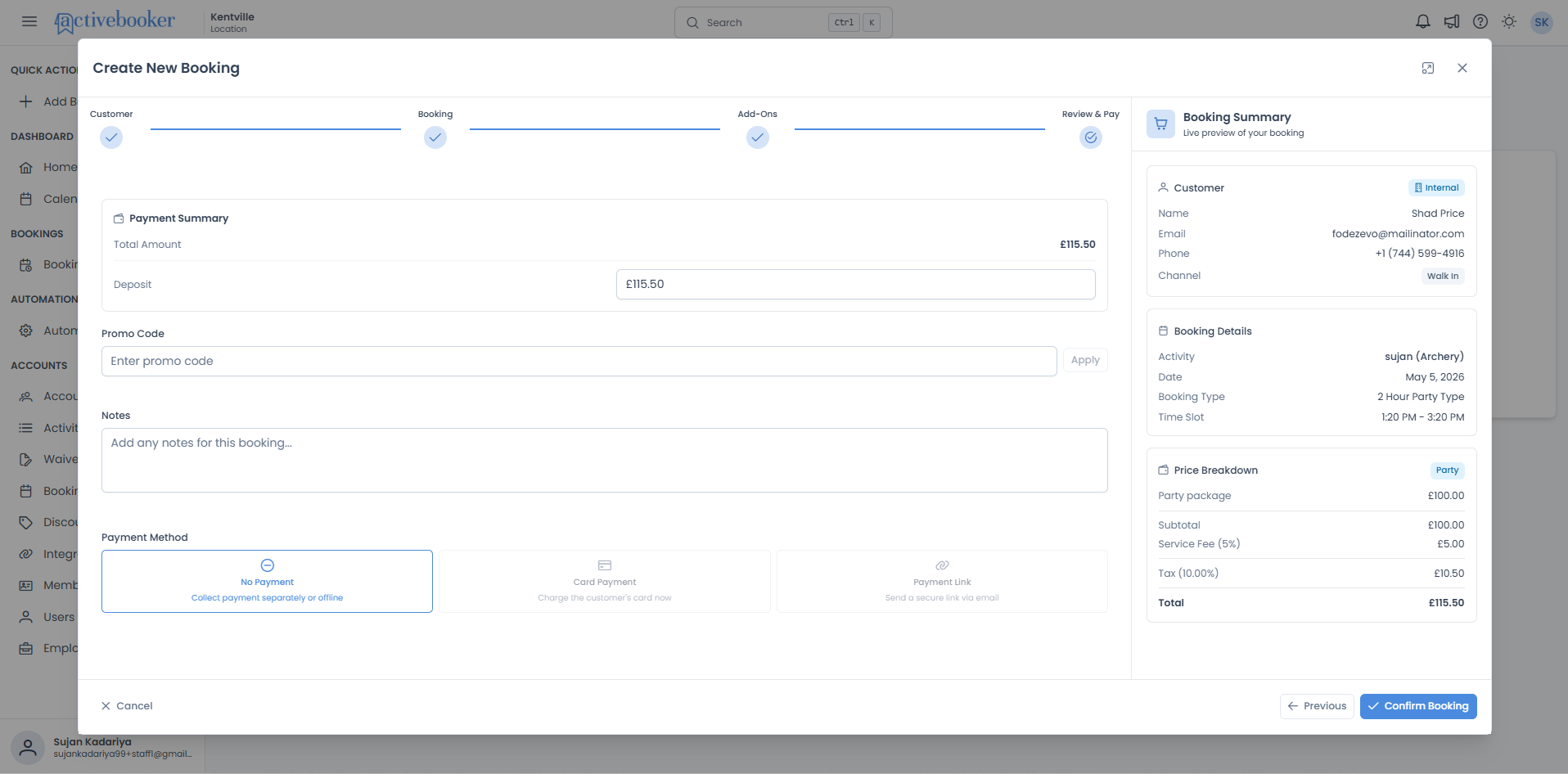
The Review & Pay step is the final step before confirming a booking. Here you review the full price breakdown, set the deposit, optionally apply a promo code, add any notes, choose a payment method, and confirm the reservation.
Quick start
Complete the Review & Pay step in just a few steps:
- Review the Payment Summary to confirm the total amount is correct
- Check or adjust the Deposit amount if needed
- Optionally enter a Promo Code and click Apply
- Optionally add any Notes for this booking
- Select a Payment Method
- Click Confirm Booking to finalise the reservation
How it works
Key concepts
Payment Summary
Shows the Total Amount for the booking and the Deposit field. The total is calculated from the price breakdown. The deposit is automatically set based on the deposit type configured for the activity, and can be edited.
Deposit
The amount collected from the customer at the time of booking. It is auto-populated based on the deposit type configured on the activity's pricing:
| Deposit type | How it is calculated |
|---|---|
| Flat Amount | A fixed amount regardless of the total (e.g., £10.00) |
| Percentage | A percentage of the total booking price (e.g., 10% of total) |
| Full Amount | The entire total — the customer pays in full at booking |
| One Person | Equal to the adult price (available for Hourly Person bookings only) |
Reviewing the Booking Summary panel
The Booking Summary panel on the right shows a complete live preview of the booking you are about to confirm.
Customer section
Shows who the booking is for:
- Name, email, phone number, and booking channel
- Internal badge — displayed when this is an internal booking
Booking Details section
Shows what is being booked:
- Activity name
- Booking date
- Booking type
- Time slot
Price Breakdown section
Shows how the total is calculated, with a badge indicating the pricing strategy (e.g., Party, Person, Unit):
| Line item | Description |
|---|---|
| Package / base line items | The base price — e.g., "Party package" for flat-rate types, or per-person/per-unit lines for other types |
| Subtotal | Sum of all base price items |
| Service Fee | Added on top of subtotal, shown with the percentage if applicable (e.g., Service Fee (5%)) |
| Tax | Applied to subtotal + service fee, shown with the rate (e.g., Tax (10.00%)) |
| Total | The final amount: subtotal + service fee + tax |
Setting the deposit
The Deposit field is automatically populated based on the deposit type configured for the activity. You can accept this value or type a different amount.
Editing the deposit
- Click into the Deposit field
- Clear the current value and type a new amount
- The field accepts values with up to two decimal places
Deposit rules:
✓ Any amount between 0 and the full total is valid
✓ A deposit equal to the full total is valid
✓ A deposit of 0 is valid
✗ The deposit cannot exceed the total booking price
✗ The deposit field cannot be left empty
Note: If you navigate back to a previous step and return to Review & Pay, your manually entered deposit value is preserved — it is not reset.
Applying a promo code
If the customer has a promotional discount code:
- Click into the Promo Code field
- Type the code exactly as provided
- Click Apply
- If the code is valid, the total in the Payment Summary updates to reflect the discount
If the code is not recognised or has expired, an error message will appear below the field.
Adding notes
Use the Notes field to record any extra information about this booking:
- Click into the Notes text area
- Type your notes — for example, special instructions, customer preferences, or internal reminders
- Notes are saved with the booking and visible on the Booking Details page
Notes are optional. You can leave this field blank.
Choosing a payment method
Select how the customer's payment is being handled:
No Payment — Collect payment separately or offline
Use this when payment will be collected in person, over the phone, or through another method outside the system. The booking is saved without processing any online transaction. This is the most common option for dashboard bookings.
Card Payment — Charge the customer's card now
Processes the payment directly against the customer's card at the time of confirmation.
Payment Link — Send a secure link via email
Sends the customer an email containing a secure link they can use to complete payment themselves.
When Payment Link is selected, an Email to Send Payment Link field appears below the payment methods. This field is required, and the payment link is sent to the email address entered here. The email address can be different from the customer email shown in the Booking Summary.
If the entered email is empty or invalid, the booking cannot be confirmed until a valid email is provided.
Click the option that matches the customer's situation. The selected option is highlighted with a blue border.
Confirming the booking
Once you are satisfied with all the details, click the Confirm Booking button at the bottom-right of the dialog.
Note: When you click Confirm Booking, the system validates the booking details, including the booking date against the location's advance booking window, same-day time slot availability against any advance booking time requirement, the guest count against any minimum people setting, and the availability of lanes for the selected date and time slot. If any of these checks fail, an error message is shown and the booking is not saved.
After the booking is saved, the dialog closes and the new booking appears in the Bookings list. You can also find it on the Booking Calendar — the reserved time slot appears as a highlighted block in the correct lane column(s) for the booked date. Clicking the booking from either the list or the calendar opens the Booking Details page, where all customer information, activity details, guests, and payment amounts are displayed.
What happens after confirmation
Once the booking is confirmed, ActiveBooker automatically sends notifications and triggers any configured integrations — no further action is needed:
- Customer email receipt — sent to the email address entered in the booking form
- Customer SMS — sent if the location has the Text Reminder feature enabled and a phone number was provided
- Admin email — a "New Booking Created" email sent to the location's configured Booking Emails (or Contact Emails as a fallback)
- Admin in-app notification — appears in the notification feed for the location owner and linked admin users
- Zapier webhook — if the location has the Zapier Integration feature enabled and at least one active
BookingCreatedsubscription configured, a POST request containing the booking details is dispatched to each active subscription's hook URL
For full details on each notification type, recipient logic, and configuration options, see Booking Notifications. For webhook payload fields, subscription setup, and delivery behaviour, see Zapier Webhook Events.
Common scenarios
Collecting payment later or in person
- Review the price breakdown in the Booking Summary panel
- Verify or adjust the deposit amount if needed
- Select No Payment
- Click Confirm Booking
The booking is saved with the deposit amount recorded for reference.
Applying a promo code before confirming
- Enter the code in the Promo Code field
- Click Apply and confirm the total updates correctly
- Select a payment method and click Confirm Booking
The total looks incorrect
- Click ← Previous to return to the Booking step
- Check the activity, booking type, guest count, and time slot
- Navigate forward again — the price recalculates automatically
Adjusting the deposit before confirming
- Click into the Deposit field and enter the amount the customer is paying now
- Ensure the amount does not exceed the total
- Select a payment method and click Confirm Booking
Troubleshooting
Issue: Confirm Booking button is not working or the booking fails
Why this happens: A required field may be incomplete, or the time slot has become unavailable since you started.
How to fix it:
- Check that the deposit field has a valid value
- Make sure a payment method is selected
- If the time slot is no longer available, go back to the Booking step and choose a different date or slot
Issue: A "Booking Failed" error appears after clicking Confirm Booking
Why this happens: The system could not find an available lane for the selected date and time slot. This can happen because all lanes for that activity are either already booked by paid bookings or blocked by a rule set by your account administrator.
How to fix it:
- Click ← Previous to return to the Booking step
- Try a different date or a different time slot where lanes are available
- If you believe lanes should be available, contact your account administrator to review any block rules or existing bookings for that date
Issue: A "Not enough lanes available to accommodate X people" error appears after clicking Confirm Booking
Why this happens: Some lanes are still free, but not enough to fit the number of guests you entered. For example, if only 2 lanes remain available and you entered 35 adults, the system cannot accommodate the full group.
How to fix it:
- Note the number shown in the error message — it tells you exactly how many people the system could not fit
- Click ← Previous to return to the Booking step
- Either reduce the number of guests to match what the remaining lanes can hold, or choose a different date or time slot with more availability
Issue: The deposit field shows an error
Why this happens: The value entered exceeds the total, or the field is empty.
How to fix it:
- Ensure the deposit is no greater than the total shown in the Payment Summary
- If the field is blank, enter a value — 0 is valid, but the field cannot be empty
Issue: The promo code is not being accepted
Why this happens: The code may be invalid, expired, or entered incorrectly.
How to fix it:
- Double-check the code for typos
- Confirm with your administrator that the code is active and applicable to this booking type
Issue: "Booking date exceeds the maximum allowed advance booking period" error appears
Why this happens: The date selected is further in the future than the location's booking window allows. How to fix it:
- Click ← Previous to return to the Booking step
- Select a date that falls within the allowed booking window
- If you need to book further ahead than the current window permits, go to Account → Edit Booking Preference and increase the Booking Window Size, or enable Allow Unlimited Booking Window
Issue: "This time slot is no longer available for booking due to the advance booking time restriction" error appears
Why this happens: The activity requires bookings to be made a minimum amount of time in advance, and the selected time slot is too soon from now. This check only applies when the booking date is today. How to fix it:
- Click ← Previous to return to the Booking step
- Select a later time slot that starts after the required advance period
- Alternatively, if the customer is happy to book for tomorrow or a future date, select that date, the advance booking time restriction does not apply to future dates
Issue: "You have to select at least [N] people for this activity" error appears
Why this happens: The activity has a minimum number of guests required. Adults and children both count toward this total, and the current headcount is below the minimum. How to fix it:
- Click ← Previous to return to the Booking step
- Increase the number of adults and/or children so the combined total meets or exceeds the minimum
- If you believe the minimum is incorrect, go to Activity → Booking Type → Edit Price Settings and update the Minimum People value
Issue: I need to change the booking details after reaching this step
How to fix it:
- Click ← Previous to step back through the wizard
- Correct the relevant field on the appropriate step
- Navigate forward again to return to Review & Pay
Frequently asked questions
Can I set the deposit to zero?
Yes. A deposit of 0 is valid. Clear the field and type 0.
What happens after I click Confirm Booking?
The booking is saved and the dialog closes. The new booking appears in your Bookings list. At the same time, ActiveBooker automatically sends notifications: a receipt email to the customer, an SMS if the Text Reminder feature is enabled, a "New Booking Created" email to the location's admin addresses, and an in-app notification to linked admin users. If the location has the Zapier Integration feature enabled and active BookingCreated subscriptions configured, a webhook POST is also dispatched to each active subscription's hook URL. See Booking Notifications and Zapier Webhook Events for details.
Is the deposit amount visible after the booking is created?
Yes. The deposit amount you entered is saved and displayed on the Booking Details page.
What if the time slot I selected is no longer available when I confirm?
The system checks availability at the moment of confirmation. If the slot has been taken, an error is shown. Go back to the Booking step and select a different date or time slot.
What does it mean if a "No Lane is available" error appears?
All lanes for the activity on the selected date and time slot are either already reserved by paid bookings or blocked by an administrator rule. Go back and choose a different date or time slot. Only confirmed, paid bookings occupy lanes — pending or unpaid bookings do not block availability.
Where can I find the booking after it is confirmed?
The booking appears in three places:
- Bookings list — visible immediately after the dialog closes
- Booking Calendar — the reserved time slot shows as a highlighted block on the booked date, in the correct lane column(s)
- Booking Details page — accessible by clicking the booking from either the list or the calendar; shows all customer, activity, guest, and payment information
When a booking spans multiple lanes, does the price show separately for each lane?
No. All payment information — including the total, tax, deposit, and any add-ons — appears only on the main booking record. Any additional lane records linked to the same booking show zero amounts. The total you see during booking always reflects the entire group, not individual lanes.
Can I go back from this step without losing my data?
Yes. Clicking ← Previous returns you to the Add-Ons step. Your selections, notes, promo code, and deposit value are all preserved.