Subscription Details
View everything about a member's current membership plan, including their subscription cycle, status, payment details, and plan features, all in one place on the member detail page.
Quick start
Check any member's subscription in a few clicks:
- Go to Memberships > Members
- Find the member and click View Detail
- Look at the Current Subscription section on the right side of the page
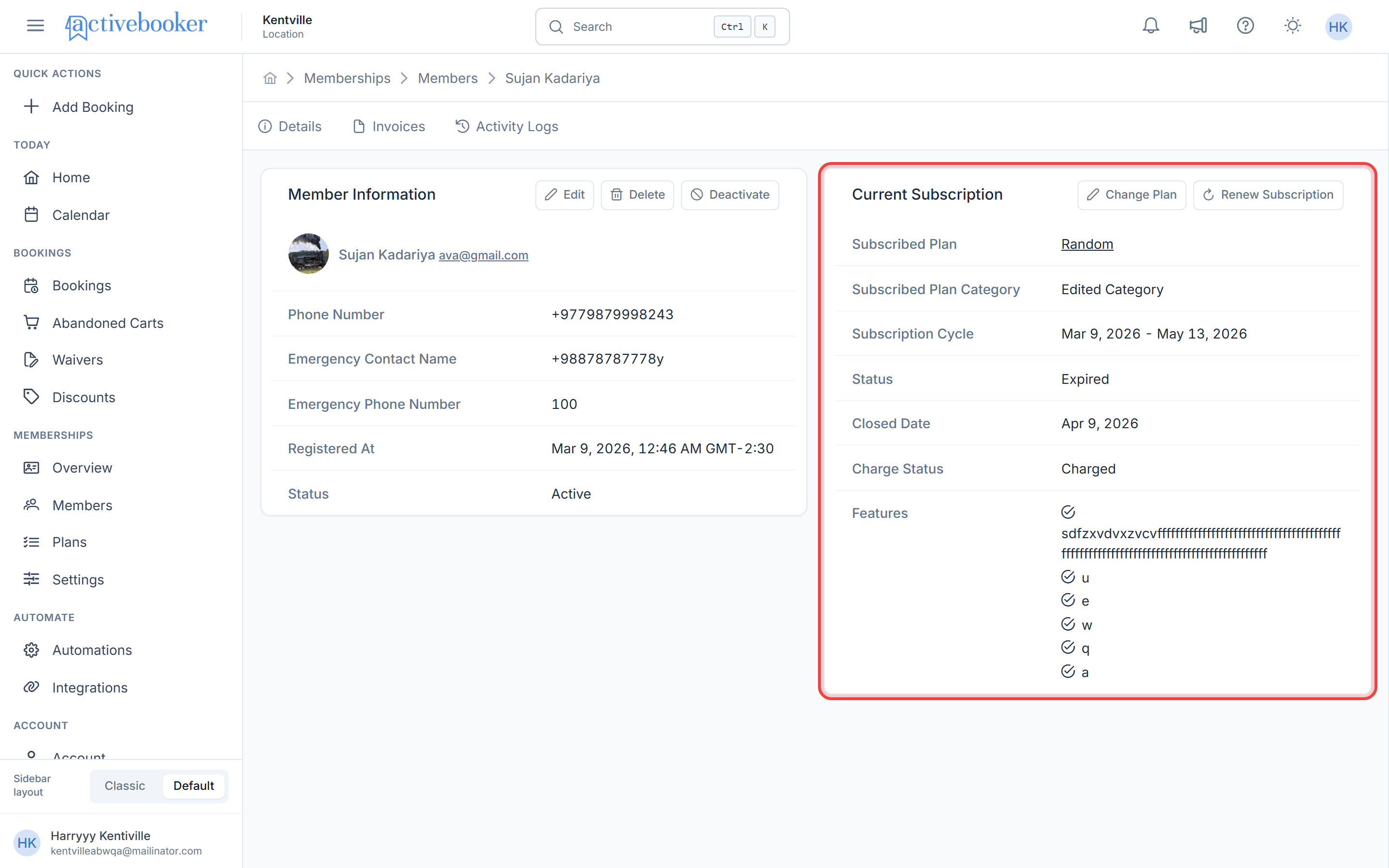
Note: The Details tab is selected by default when you open a member's profile.
What you can do
The Current Subscription section helps you:
- Check a member's plan — See which plan they're subscribed to and what category it belongs to
- View subscription dates — Know exactly when their subscription started and when it ends
- Monitor subscription status — Quickly see if a subscription is Active, Cancelled, or Expired
- Review payment status — Check whether the member was charged or registered without charge
- See plan features — View all the benefits included in the member's current plan
- Change their plan — Switch the member to a different membership plan when needed
- Cancel their subscription — End an active subscription immediately
- Renew their subscription — Restart a cancelled or expired subscription
- Expiration reminders — Members automatically receive an email reminder before their subscription ends, so they know when to renew
How it works
Overview
Every member with an active subscription has a Current Subscription section on their detail page. This section shows the most recent subscription only — if a member has been on multiple plans over time, you'll see their current plan here. Previous plans are tracked in the Activity Logs.
Key concepts
Subscription Cycle The time period the subscription covers, from start date to end date. For new members, the start date is their registration date. The end date is based on the plan's duration.
Subscription Status Every subscription has one of three statuses — Active, Cancelled, or Expired — so you always know the current state at a glance.
Charge Status Shows whether the member was charged for their subscription, or if they were registered with the "Do Not Charge" option (e.g., for cash payments).
Reminder Window The number of days before a subscription ends when an automatic reminder email is sent to the member. This is set up on the membership plan itself. For example, a plan with a 7-day reminder window will send an email when the member has 7 days or fewer left. If no reminder window is set on the plan, no reminder email is sent.
Recurring Billing While a subscription is active, the system automatically charges the member at the start of each new billing period. When one period ends, the next invoice is generated and the member is charged for the following period — no manual steps needed. Billing stops when the subscription expires or is cancelled.
How recurring billing works
Active subscriptions are billed automatically on a repeating schedule. Here is how it works:
- The member is charged when the subscription first starts or is renewed
- When the current billing period ends, the system automatically creates a new invoice and charges the member for the next period
- This repeats every billing cycle for as long as the subscription remains active
When billing stops
No new invoices are generated once:
- The subscription reaches its end date and expires
- The subscription is cancelled
If a payment does not go through
If a charge fails — for example, if the member's card is declined or has expired — the invoice is still created and recorded as unpaid. The subscription itself stays active; a failed payment does not automatically cancel or suspend the subscription. Check the member's Invoices tab to see if any invoices are unpaid and follow up with the member if needed.
Understanding the subscription details
Subscription information at a glance
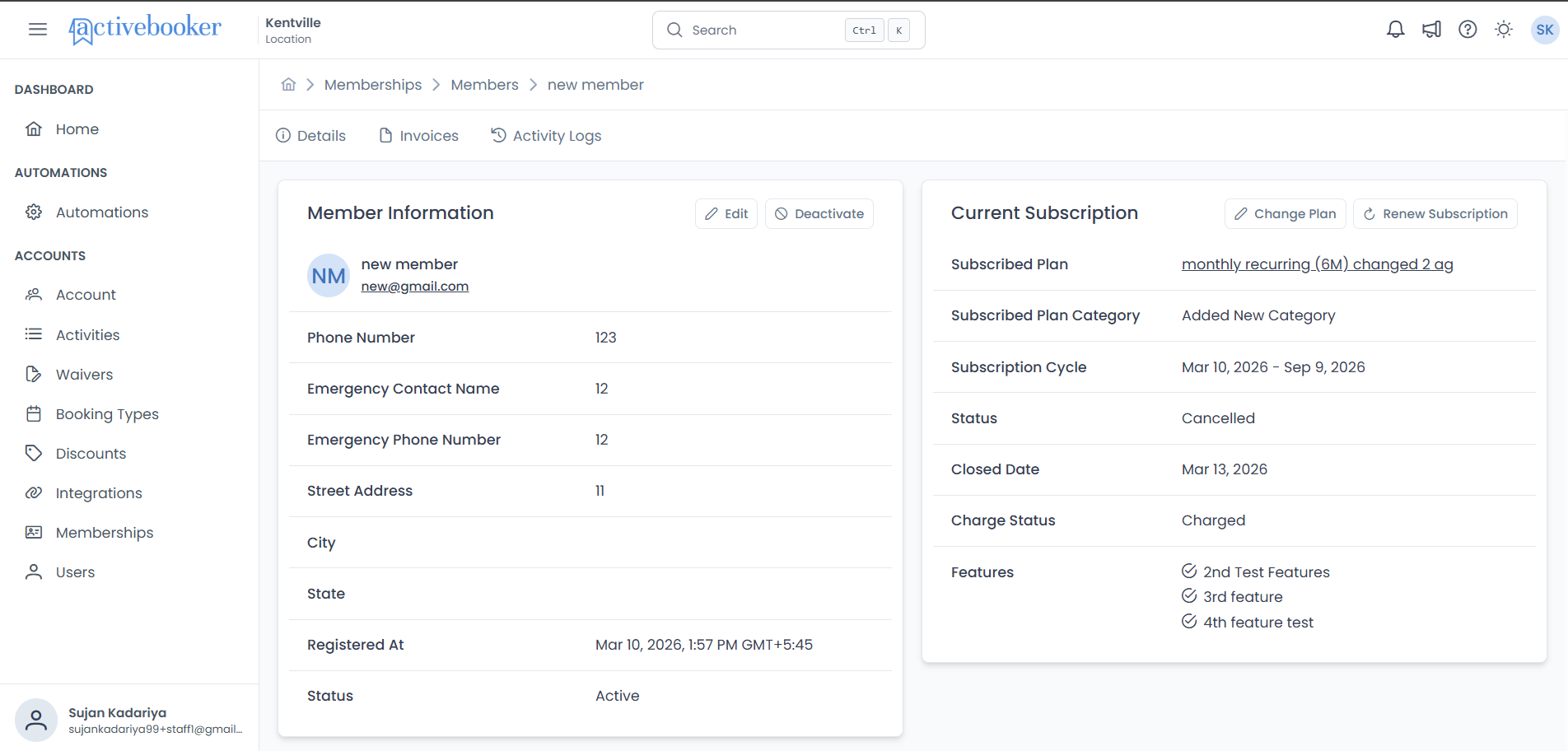
When you open a member's detail page, the Current Subscription section shows:
| Field | What it tells you |
|---|---|
| Subscribed Plan | The name of the member's current plan (click to view the full plan details) |
| Plan Category | The category the plan belongs to (e.g., "Basic", "Gold plan") |
| Subscription Cycle | The start and end dates (e.g., "Mar 10, 2026 – May 9, 2026") |
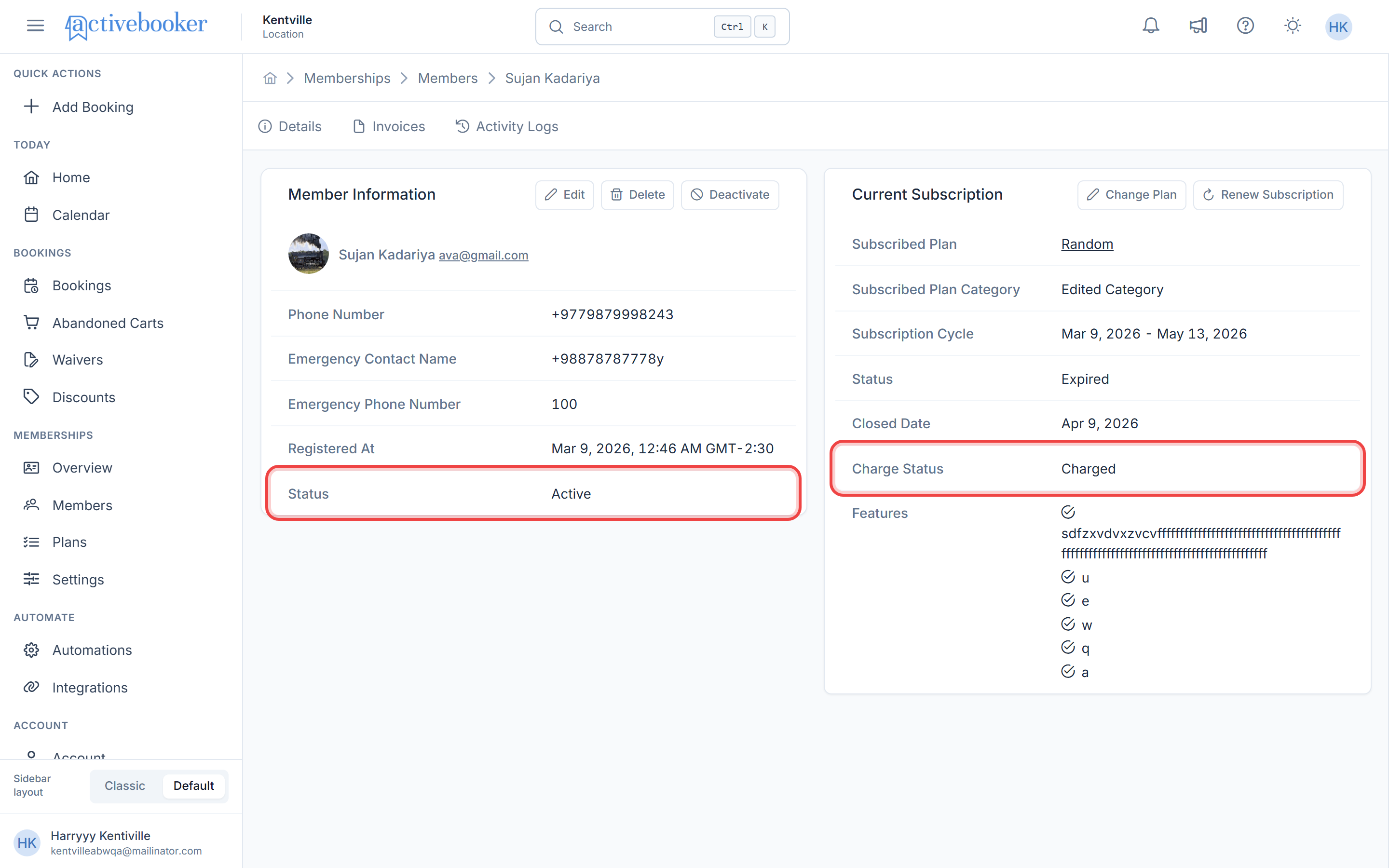
| Status | Whether the subscription is Active, Cancelled, or Expired |
| Charge Status | Charged or No Charge (with the reason, e.g., "paid in cash") |
| Closed Date | The date the subscription ended — only shown for Cancelled or Expired subscriptions |
| Features | A checklist (✓) of all benefits included in the plan |
View the full plan details
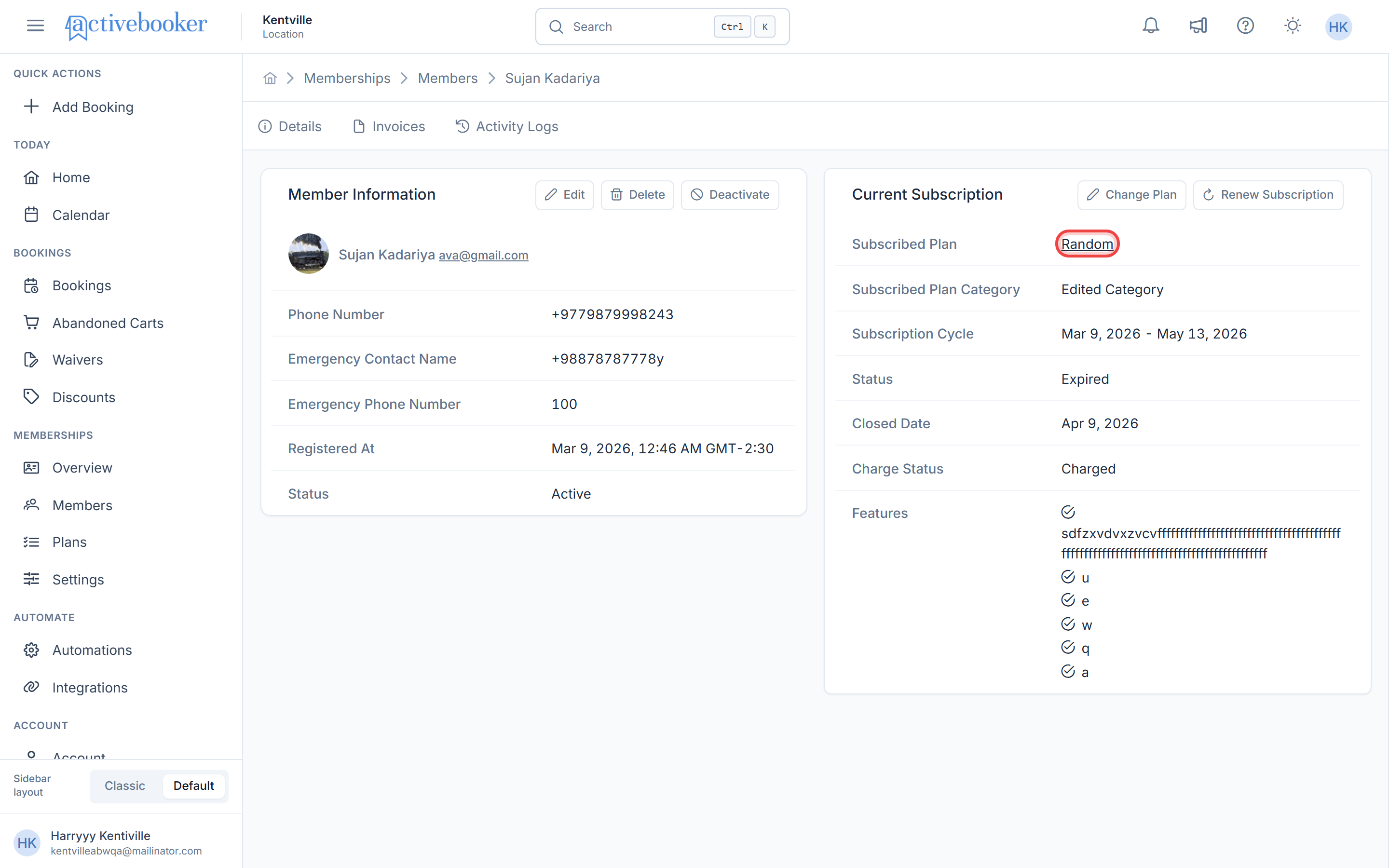
The plan name is a clickable link. Click it to go to the plan's detail page where you can see the full plan configuration, including pricing, duration, and features.
Subscription cycle examples
The subscription runs from the start date for the length of the plan:
- 2-month plan starting Mar 10, 2026 → Mar 10, 2026 – May 9, 2026
- 12-month plan starting Mar 9, 2026 → Mar 9, 2026 – Mar 8, 2027
- 1-month plan starting Jan 15, 2026 → Jan 15, 2026 – Feb 14, 2026
Subscription statuses
A subscription is always in one of these three states:
| Status | What it means |
|---|---|
| Active | The subscription is current and the member has full access to their plan benefits |
| Cancelled | The subscription was manually cancelled by a staff member or the member themselves |
| Expired | The subscription period ended and was not renewed |
Note on expiration timing: A subscription is not expired on its end date — it expires the following day. For example, if a subscription's end date is June 15, the subscription will still show as Active on June 15 and will change to Expired the next morning.
Managing subscriptions
You can manage a member's subscription directly from their detail page. Depending on where the subscription stands, you'll see different actions available in the upper-right corner of the Current Subscription section:
- Change Plan — Switch the member to a different plan. This is always available unless the member's account is deactivated.
- Cancel Subscription — End an active subscription right away. This only shows up when the subscription is currently active.
- Renew Subscription — Restart a subscription that was cancelled or has expired. This only shows up when the subscription is no longer active.
If a member's account is deactivated, you won't be able to change their plan or renew their subscription. You'll need to reactivate the member's account first before making any subscription changes.
Changing a member's plan
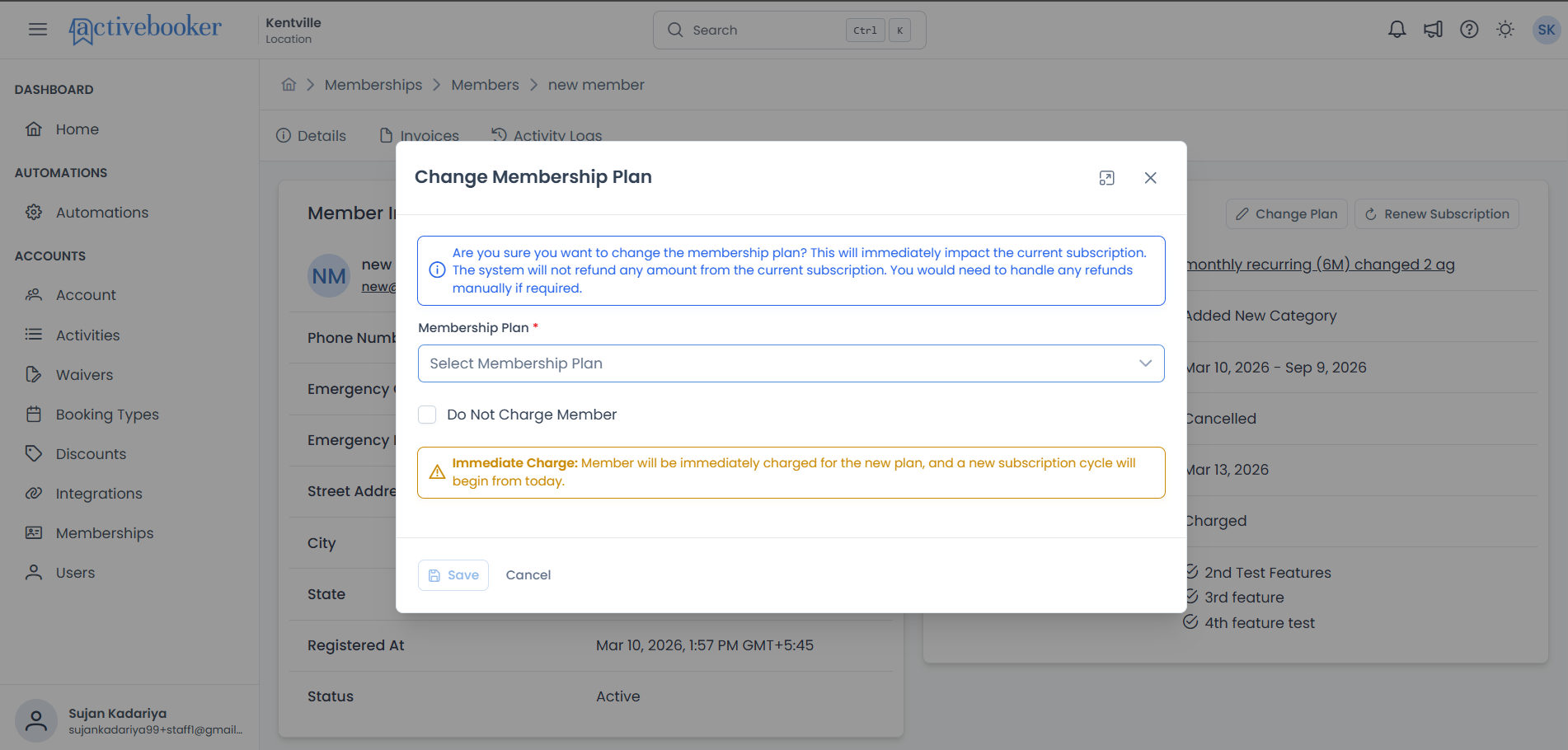
If a member wants to move to a different plan — whether it's an upgrade, a downgrade, or simply a better fit — you can switch their plan in just a few steps.
When you'd use this
- A member wants to upgrade or downgrade their plan
- A member's needs have changed and a different plan suits them better
- You need to fix a plan that was assigned by mistake
How to change the plan
- Open the member's detail page (Memberships > Members > View Detail)
- In the Current Subscription section, click Change Plan
- Pick a new plan from the Membership Plan list — you can type a plan name to search and find it quickly
- If the member should not be charged (for example, they already paid in cash or this is a correction), tick Do Not Charge Member and write a short note explaining why
- Review the notice that appears, then click Save
Once you save, the plan change happens immediately. The member's new subscription period starts from today. Any unused time on the old plan is not automatically refunded — you'll need to handle refunds separately if needed.
What happens next
If the member is being charged:
- The member is charged for the new plan right away
- A new subscription period starts from today
- The old subscription is closed with the note "The plan is changed"
If you chose not to charge the member:
- A $0 invoice is created for your records
- The subscription period still resets and starts from today
- No payment is collected from the member
What you'll fill in
Membership Plan Choose the plan you want to switch the member to. The list shows each plan's name and price, and the member's current plan won't appear (since they're already on it). You can type a plan name to filter the list and find what you need faster.
Do Not Charge Member Tick this if the member shouldn't be charged — for example, if they've already paid in cash at the front desk or if you're making a correction. When you tick this, you'll also need to write a short note explaining why (up to 500 characters).
Cancelling a subscription
If a member needs their subscription ended — whether they've asked to leave, their account is being closed, or the subscription was set up by mistake — you can cancel it immediately.
When you'd use this
- A member has asked to cancel their membership
- You're closing a member's account
- A subscription was created by mistake and needs to be removed
How to cancel
- Open the member's detail page (Memberships > Members > View Detail)
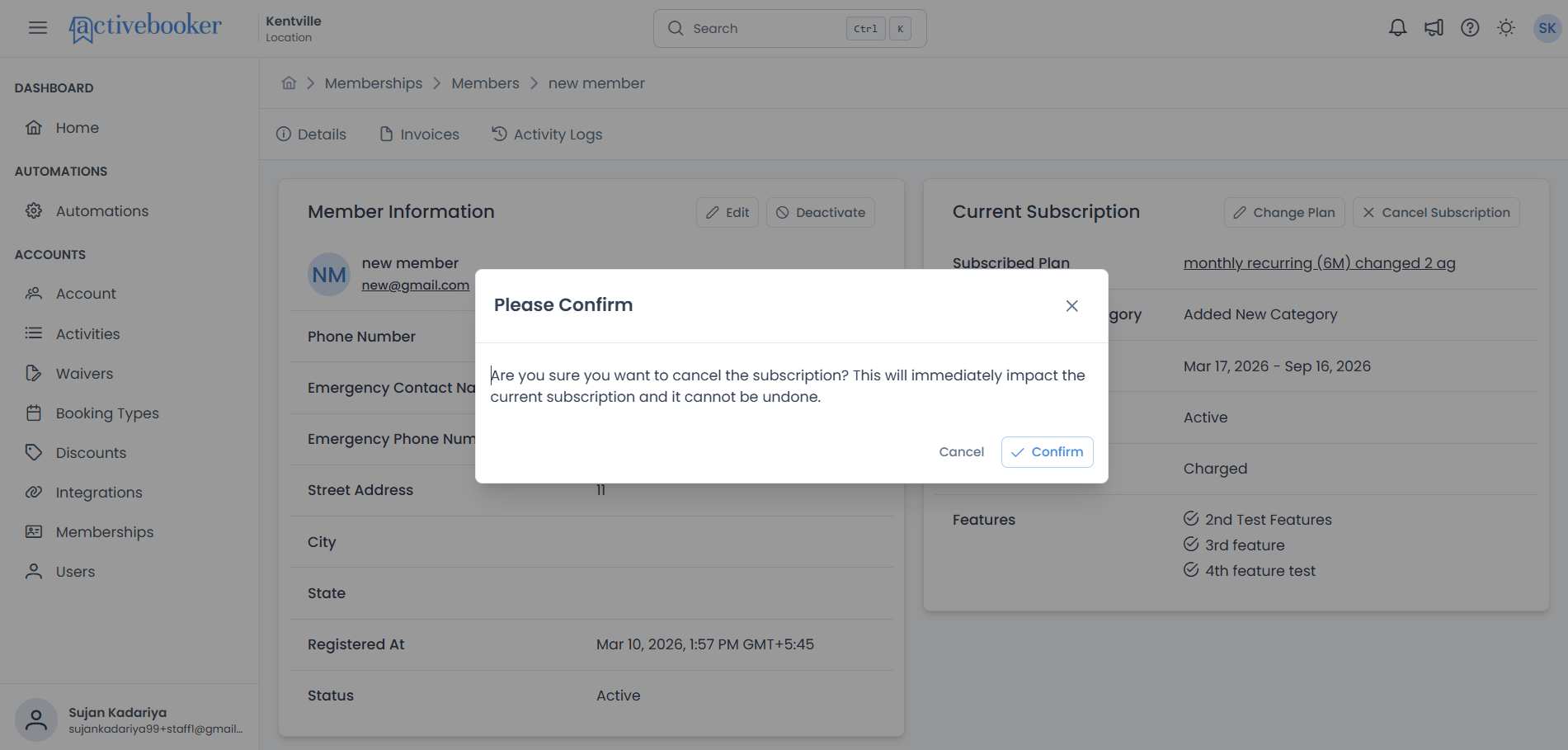
- In the Current Subscription section, click Cancel Subscription
- A confirmation message will appear — read it carefully
- Click Confirm to go ahead
Once you confirm, the subscription is cancelled immediately. The member will no longer have an active plan. If you need to bring it back later, you can use Renew Subscription, but the subscription period will start fresh from that date.
What happens next
- The subscription status changes to Cancelled
- The date it was closed is saved
- The member no longer has an active subscription
- This action is recorded in the member's Activity Logs
Cancelling a subscription only stops the membership plan and billing. It does not deactivate the member's account — they can still log in to the member portal. If you also want to remove their access, you'll need to deactivate their account separately. See Member Information for how to do that.
Renewing a subscription
When a member's subscription has been cancelled or has expired and they want to continue, you can restart it on the same plan.
When you'd use this
- A member's subscription has expired and they'd like to continue
- A cancelled subscription needs to be brought back
- You're processing a renewal on behalf of a member
How to renew
- Open the member's detail page (Memberships > Members > View Detail)
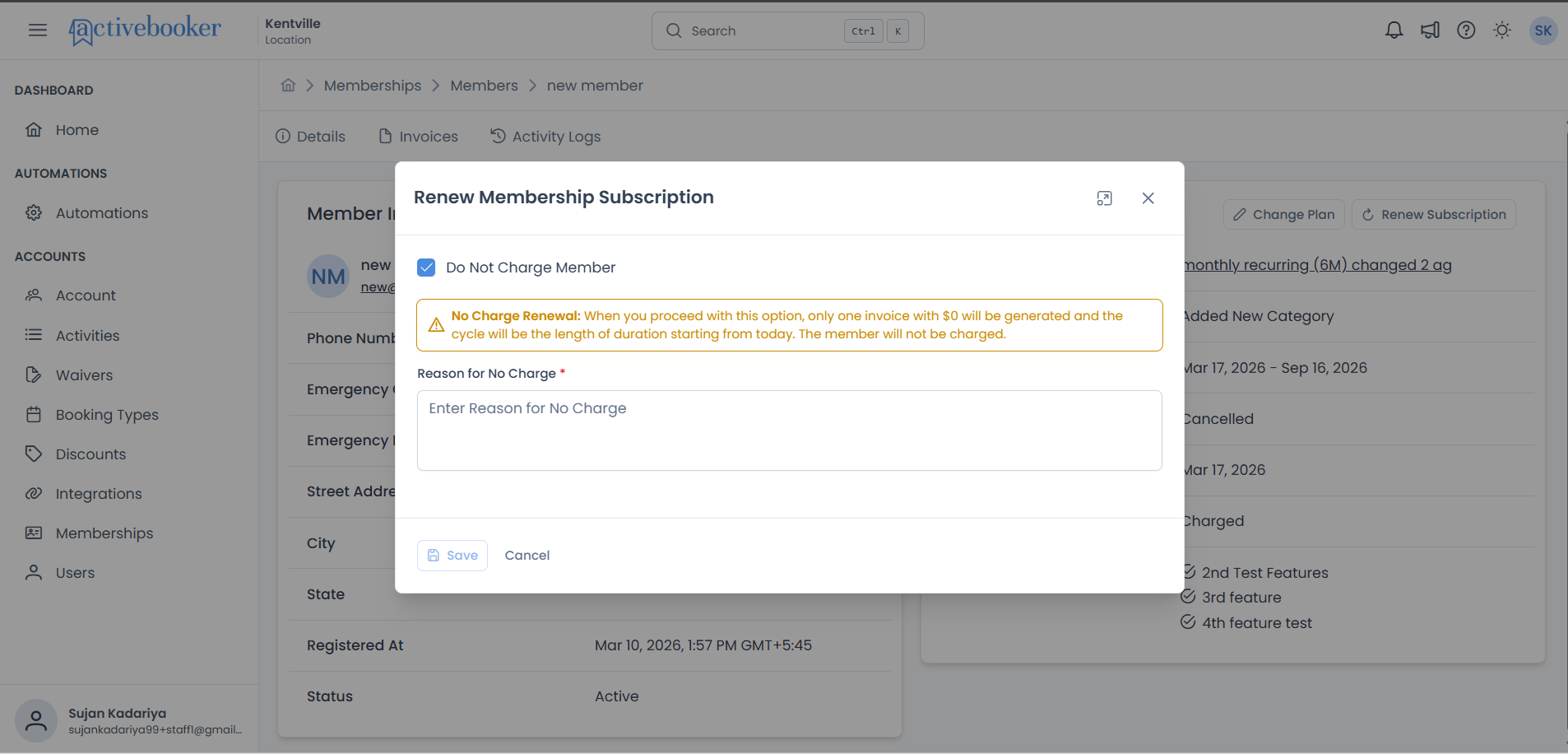
- In the Current Subscription section, click Renew Subscription — this button only shows up when the subscription is cancelled or expired
- Decide whether the member should be charged or not
- If the member should not be charged, tick Do Not Charge Member and write a short note explaining why
- Review the notice that appears, then click Save
What happens next
- A new subscription period begins from today on the same plan
- The previous subscription stays closed in the records
What you'll fill in
Do Not Charge Member Tick this if the member shouldn't be charged for the renewal — for example, if they've already paid in cash. When you tick this, you'll also need to write a short note explaining why (up to 500 characters).
What the member sees
When being charged: The member will be charged right away. A notice will confirm: "Member will be immediately charged for the renewal, and a new subscription cycle will begin from today."
When not being charged: A $0 invoice is generated for your records. A notice will confirm: "The member will not be charged. The subscription period will start from today for the full plan duration."
After renewing, you can double-check by going to the member's Activity Logs tab and looking for a Renew Subscription entry.
Subscription expiration reminders
Members can receive an automatic email reminder before their subscription ends. This gives them a heads-up so they have time to renew before losing access to their plan benefits.
How reminders work
Every morning the system checks all active subscriptions. If a member's subscription is ending soon, within the reminder window set on their plan, they receive an email letting them know.
For example, if a plan is set up with a 7-day reminder window and a member's subscription ends in 5 days, they'll receive the email that morning.
When a reminder email is sent
A member receives a reminder when all of the following are true:
- Their subscription is currently Active
- Their subscription end date is within the plan's reminder window (e.g., 7 days or fewer remaining)
- They have not already received a reminder for this subscription
Note: The reminder is also sent if a subscription has already passed its end date but is still showing as Active. The member will still get the email even if they are overdue.
When a reminder email is NOT sent
No reminder email goes out if:
- The subscription is Cancelled or Expired — only Active subscriptions receive reminders
- The subscription end date is still far away — beyond the reminder window
- The member has already received a reminder for this subscription — no duplicate is sent
- The plan doesn't have a reminder window configured — if no reminder days are set on the plan, no email goes out
- The member doesn't have a valid email address on their profile
After a renewal or plan change
When a member renews or switches to a different plan, their new subscription starts fresh. The reminder tracking resets, so if the new subscription enters the reminder window, the member will receive a reminder for it — even if they already got one on their previous plan.
Common scenarios
Scenario 1: Check when a member's subscription ends
- Go to Memberships > Members
- Click View Detail on the member
- Look at the Subscription Cycle field — the end date tells you when the subscription expires
Scenario 2: See if a member was charged
- Open the member's detail page
- Check the Charge Status field
- It will show Charged if payment was collected, or No Charge with the reason if it wasn't
Scenario 3: Change a member's plan
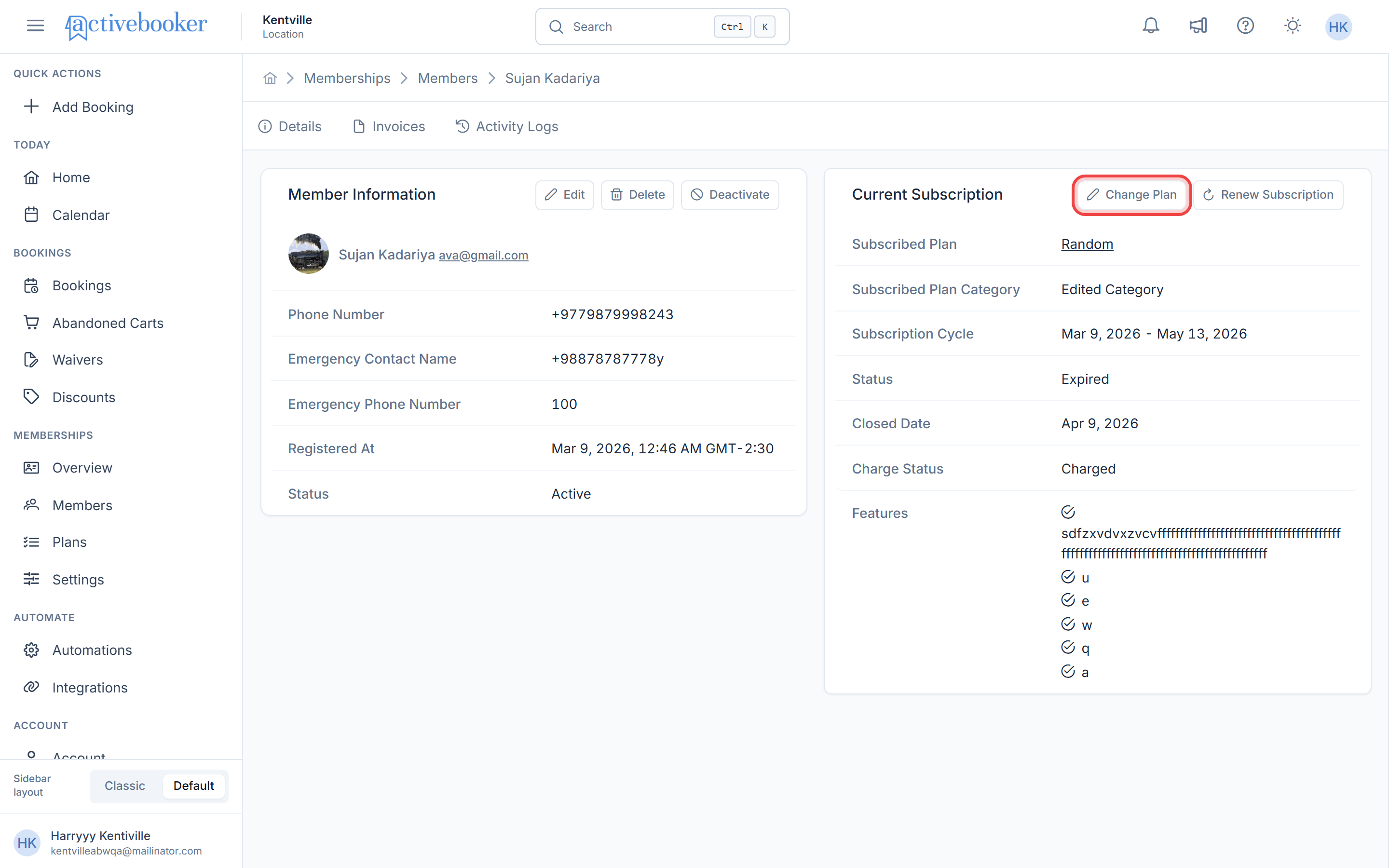
- Open the member's detail page
- In the Current Subscription section, click the Change Plan button (pencil icon)
- Select the new plan from the Membership Plan dropdown
- If not charging the member, check Do Not Charge Member and enter a reason
- Click Save
The subscription will switch immediately and the member will be charged (unless you selected No Charge).
Scenario 4: Cancel a member's subscription
- Open the member's detail page
- In the Current Subscription section, click Cancel Subscription
- Review the confirmation message
- Click Confirm to cancel immediately
The subscription status will change to Cancelled and the action will be logged.
Scenario 5: Renew an expired or cancelled subscription
- Open the member's detail page
- In the Current Subscription section, click Renew Subscription (This button shows only when status is Cancelled or Expired)
- Choose whether to charge the member
- If selecting No Charge, enter a reason
- Click Save
Scenario 6: A member asks why they received a reminder email
The member received an automatic expiration reminder because their subscription is ending soon and their plan is set up to send reminders.
- Open the member's detail page
- Check the Subscription Cycle field to confirm the end date
- Let the member know their subscription ends on that date and they can renew to keep their access
Scenario 7: A member didn't receive an expected reminder email
- Open the member's detail page and confirm their subscription status is Active
- Check the Subscription Cycle end date — it may still be outside the reminder window
- Confirm the member's profile has a valid email address on file
- Check that the plan they're on has a reminder window set up — if no reminder days are configured on the plan, no email will be sent
Best practices
✓ Check the subscription status before contacting a member about renewals — Make sure the subscription is actually expired or about to expire
✓ Click the plan name to verify plan details — This takes you directly to the full plan configuration
✓ Use the Activity Logs tab for subscription history — If you need to see previous plans, check the Activity Logs instead
✓ Always enter a clear reason when using No Charge — Good notes help your team understand why no charge was applied (e.g., "Paid in cash at front desk", "Complimentary renewal for long-term member")
✓ When closing a member's account, cancel the subscription first, then deactivate — These are separate steps. Cancelling the subscription stops billing; deactivating the account removes portal access
✗ Don't assume a "No Charge" member hasn't paid — They may have paid offline (e.g., cash). Check the reason next to the charge status
✗ Don't cancel and then change the plan — If you want to move an active member to a new plan, use Change Plan directly. You don't need to cancel first
✓ Make sure members have a valid email address — Expiration reminders are only sent to members with a valid email on their profile. If a member isn't receiving emails, check that their email is filled in and correct
Tip: If the Current Subscription section appears empty, the member may not have been assigned a plan yet.
Troubleshooting
Issue: Current Subscription section is empty
Why this happens: The member hasn't been assigned a membership plan yet. How to fix it: Register the member with a plan or assign one through the Change Plan option.
Issue: The subscription shows a previous plan instead of the new one
Why this happens: Only the most recent subscription is displayed. If the plan change hasn't been processed yet, the old plan may still appear. How to fix it:
- Refresh the page
- If the issue persists, check the Activity Logs to see if the plan change was recorded
Issue: Charge Status shows "No Charge" unexpectedly
Why this happens: The member was registered with the "Do Not Charge" option enabled. How to fix it: Check the reason displayed next to the charge status for context (e.g., "paid in cash"). If this was done in error, you may need to update the member's billing separately.
Issue: A member didn't receive their expiration reminder email
Why this happens: One or more of the following may apply:
- The member's subscription is Cancelled or Expired — only Active subscriptions receive reminders
- Their subscription end date is still beyond the reminder window — the email hasn't been triggered yet
- The member's profile has no email address, or the email address is invalid
- The plan they're on doesn't have a reminder window set up
How to fix it:
- Confirm the member's subscription status is Active
- Check the Subscription Cycle end date to see how many days are left
- Open the member's profile and verify there is a valid email address on file
- Ask your administrator to check whether the plan has a reminder window configured
Issue: A member received a reminder email after they already renewed
Why this happens: If a reminder was sent before the renewal happened, and then the member renewed, they may have received the email before the renewal was processed. How to fix it: No action needed — the reminder was sent for the previous subscription. Their new subscription will only receive a reminder when its own end date enters the reminder window.
Issue: A member has an unpaid invoice but their subscription is still active
Why this happens: When a recurring charge fails — for example, a card is declined or has expired — the invoice is created but recorded as unpaid. A failed payment does not automatically cancel or suspend the subscription. How to fix it:
- Go to the member's Invoices tab to identify the unpaid invoice
- Work with the member to resolve the payment (for example, ask them to update their card details)
- Once payment is successfully processed, the invoice status will update
Frequently asked questions
Can I see a member's previous subscriptions?
The Current Subscription section only shows the most recent plan. To see past subscriptions, go to the member's Activity Logs tab, where all plan changes are recorded.
What does the Features checklist show?
It shows all the benefits included in the member's current plan, as configured in the plan settings. Each feature appears with a ✓ checkmark.
Can I edit the subscription details directly?
No — the subscription details are read-only. To change the member's plan, use the Change Plan button. To cancel a subscription, use Cancel Subscription. To restart a lapsed subscription, use Renew Subscription.
Can I undo a subscription cancellation?
You cannot undo a cancellation, but you can use Renew Subscription to start a new subscription cycle on the same plan.
What happens when I change a plan? Is there a refund?
No. The system does not automatically refund unused time from the previous plan. The new plan is charged immediately and the new subscription cycle starts from today. You would need to handle any refunds manually.
What happens when a subscription expires?
The status changes to Expired. The member will need to renew their subscription to continue accessing plan benefits.
What happens if a recurring payment fails?
If the automatic charge does not go through — for example, a card is declined — the invoice is still created but recorded as unpaid. The subscription itself stays active. You can check the Invoices tab on the member's detail page to see if any invoices are outstanding. Work with the member to update their payment details so the charge can be retried.
Do members get a reminder email before their subscription expires?
Yes — if the membership plan is set up with a reminder window, the member will receive an email when their subscription is getting close to its end date. The email comes from your location's name and includes the member's name, plan name, and expiration date.
The reminder is only sent once per subscription. If the member renews or switches plan, the new subscription will receive its own reminder when the time comes.
Why didn't a member receive a reminder email?
A few reasons this can happen:
- The member's subscription may be Cancelled or Expired — reminders only go to Active subscriptions
- The subscription end date may still be far off — outside the reminder window
- The member may not have a valid email address on their profile
- The plan may not have a reminder window set up — this needs to be configured on the plan itself
Related resources
- Register Member — How new members are added and their subscriptions are created
- Member Information — View and edit a member's personal details
- Activity Logs — Track all member events including subscription changes