Activity Logs
Keep track of everything that happens with a member's account. The Activity Logs tab gives you a complete history of registrations, sign-ins, password changes, subscription updates, and more — so you always have a clear picture of member activity.
Quick start
View any member's activity history in a few clicks:
- Go to Memberships > Members
- Find the member and click View Detail
- Click the Activity Logs tab
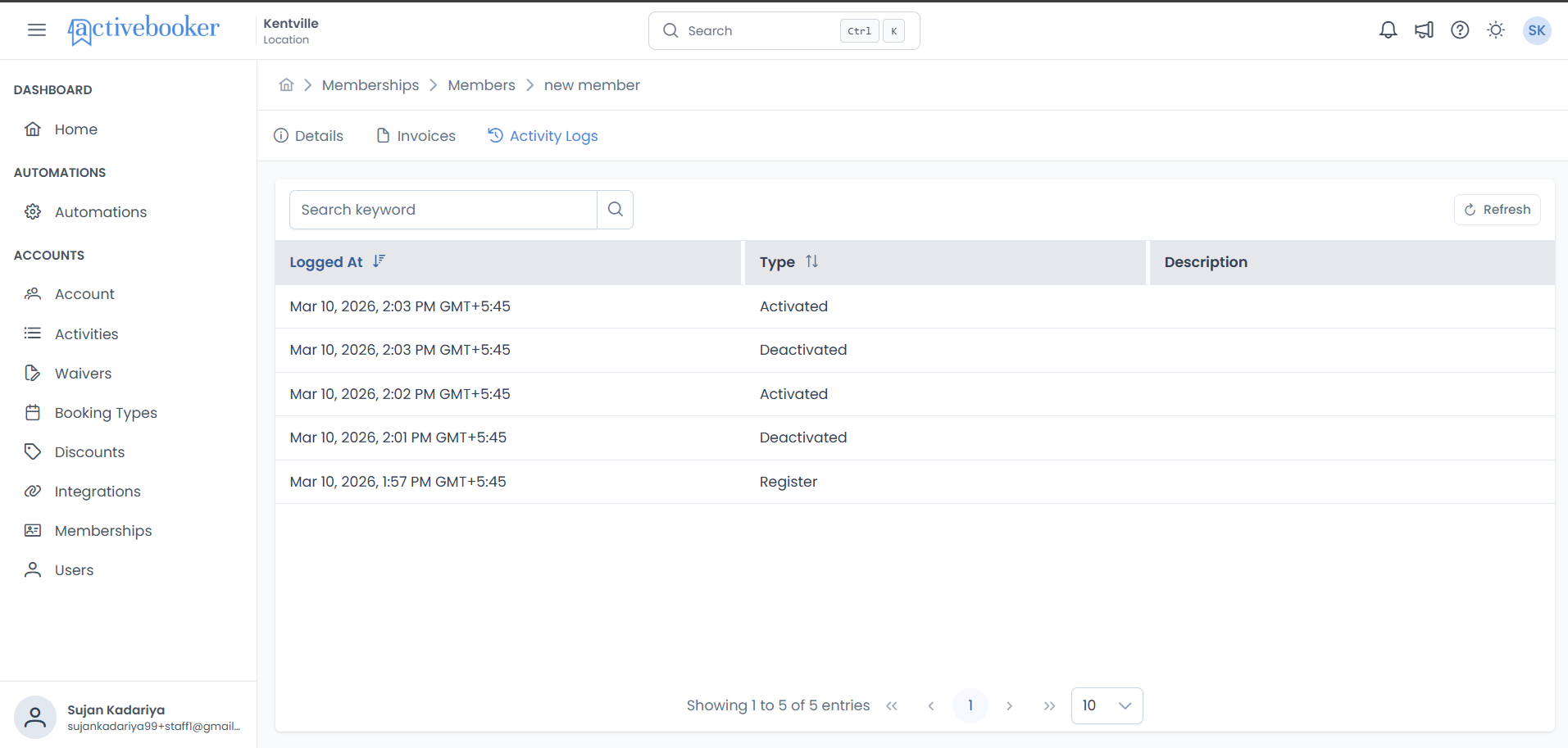
Note: Activity logs are read-only. The system records events automatically as they happen.
What you can do
Activity logs help you:
- Troubleshoot login issues — See when a member last signed in
- Track account changes — Check when passwords were changed or reset
- Review subscription history — View cancellations, renewals, and plan changes
- Verify registration — Confirm a new member was successfully registered
- Audit account status — See when accounts were activated or deactivated
- Understand member engagement — Review sign-in patterns and activity over time
How it works
Overview
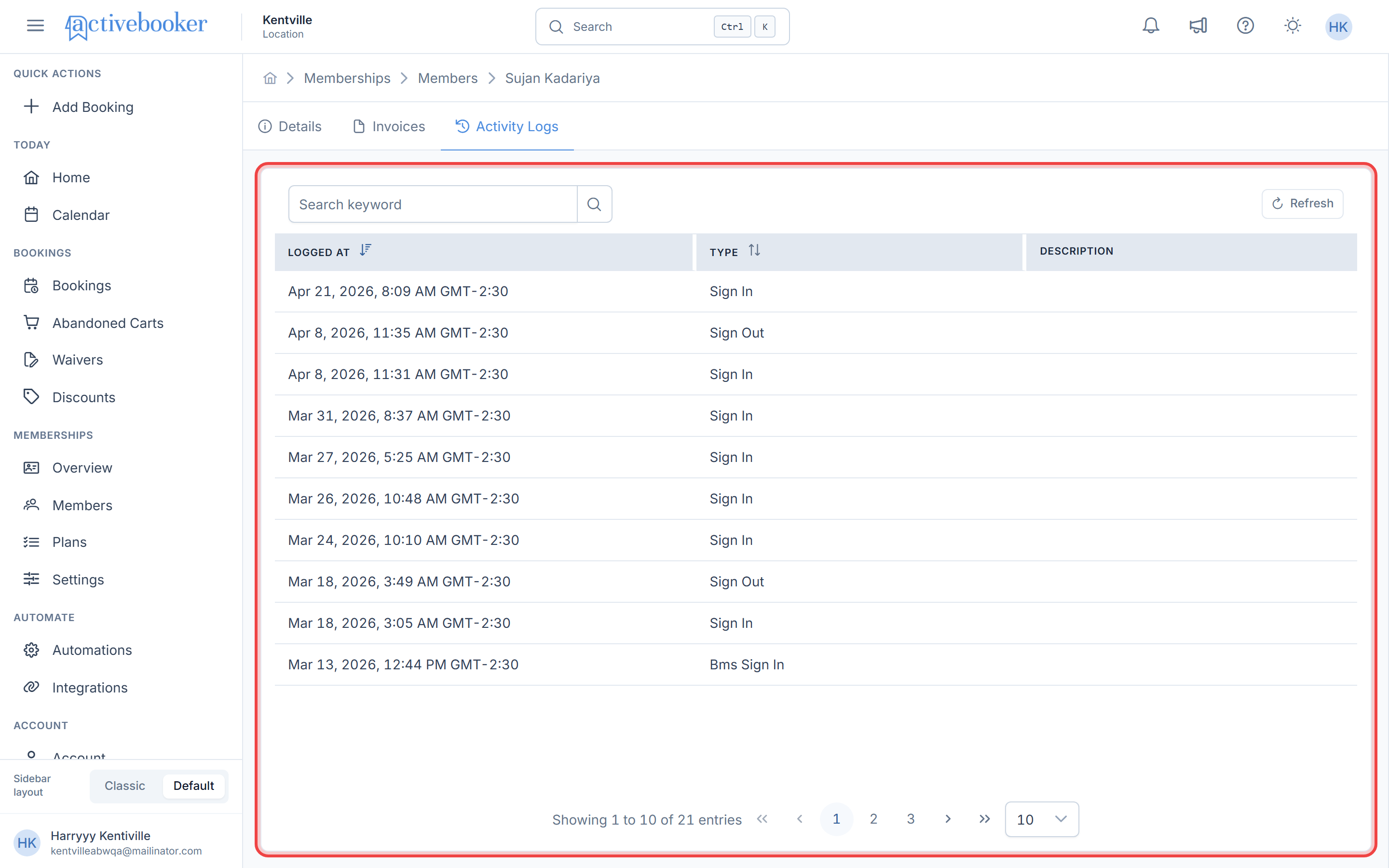
Every important action on a member's account — whether performed by the member, a staff member, or the system — is automatically recorded as a log entry. These entries are displayed in a table, sorted with the most recent activity at the top.
Key concepts
Activity Type Each log entry has a type that tells you what happened (e.g., "Register", "Sign In", "Cancel Subscription"). This makes it easy to scan for specific events.
Logged At The exact date, time, and timezone when the event occurred. This helps you pinpoint when something happened.
Description Some log entries include additional context or details about the event.
Understanding the activity log
What's tracked
The system records the following types of member activity:
| Activity | What it means |
|---|---|
| Register | The member's account was created |
| Sign In | The member logged into the member portal |
| BMS Sign In | A staff member signed in on behalf of the member |
| Sign Out | The member logged out of the member portal |
| Change Password | The member updated their password |
| Reset Password | The member reset a forgotten password |
| Cancel Subscription | The member's subscription was cancelled |
| Change Subscription | The member was moved to a different plan |
| Renew Subscription | The member renewed their current plan |
| Activated | The member's account was activated |
| Deactivated | The member's account was deactivated |
| Existing Imported | The member's record was imported from another source |
| Expired Complete | The member's subscription reached its end date without renewal |
What each column shows
| Column | What it tells you |
|---|---|
| Logged At | The date, time, and timezone of the event (e.g., "Mar 10, 2026, 9:50 PM GMT+5:45") |
| Type | The type of activity (e.g., Register, Sign In, Cancel Subscription) |
| Description | Additional details about the event, if available |
By default, the newest activity appears at the top.
Using this feature
Search for specific activity
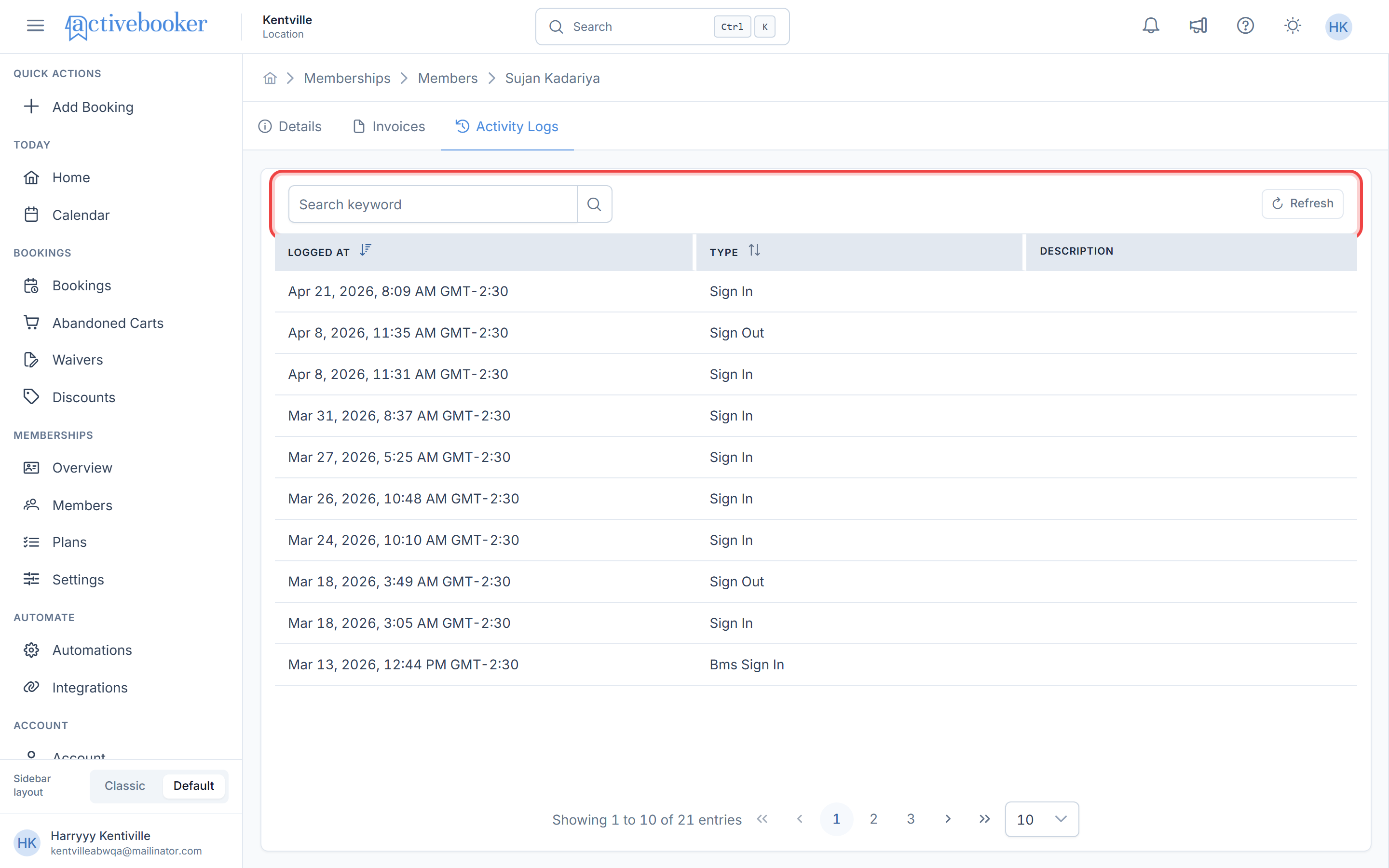
Use the Search keyword field above the table to find specific log entries. Type a keyword to filter the results.
Sort the logs
Click on a column header to change the sort order:
- Logged At — Sort by date (newest first or oldest first)
- Type — Sort alphabetically by activity type
Refresh the logs
Click the Refresh button (above the table, on the right) to reload the latest activity. This is useful after performing an action in another window and wanting to confirm it was logged.
Navigate through pages
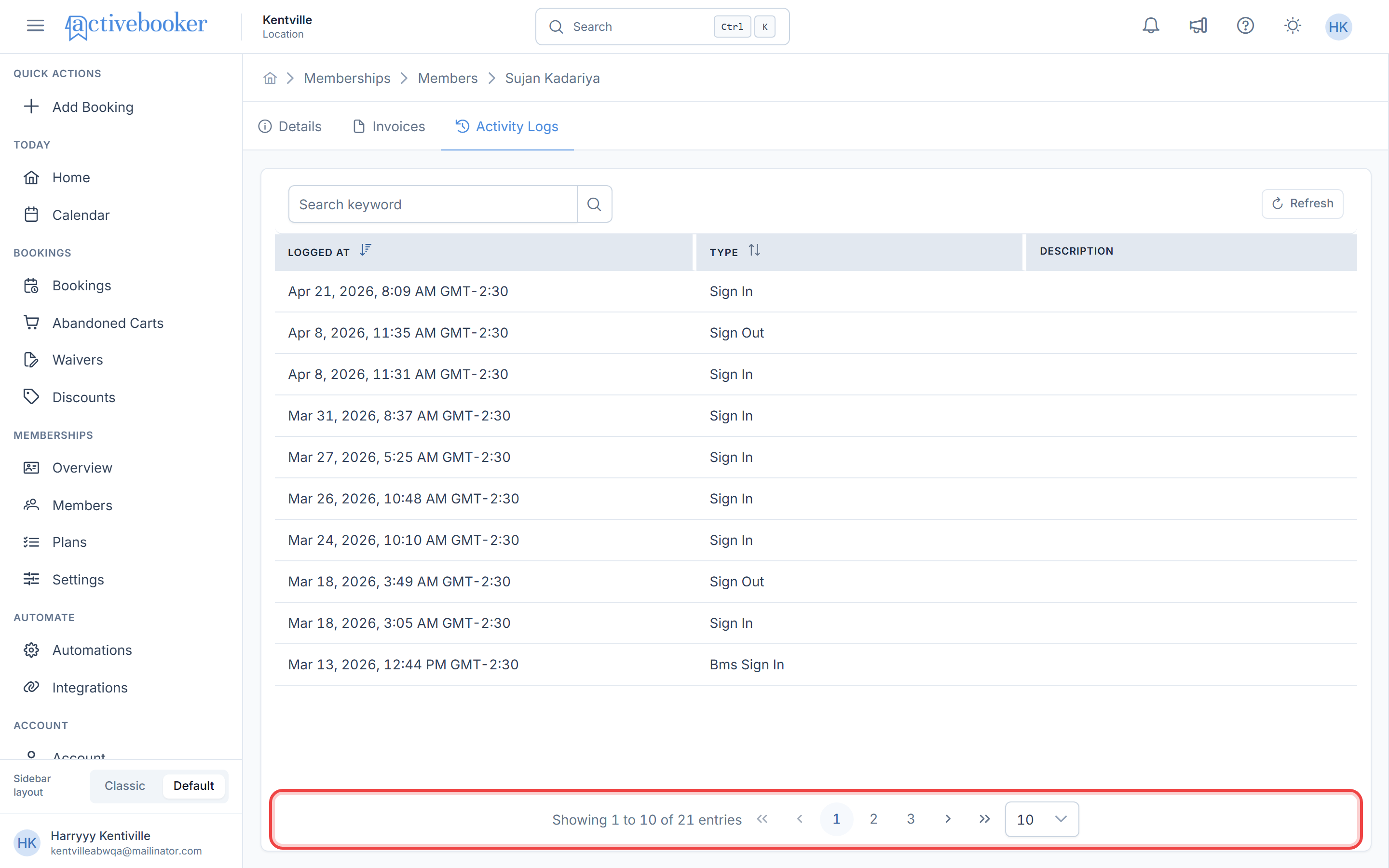
If a member has many log entries, use the page controls at the bottom of the table:
- Choose how many entries to show per page (10, 25, 50, or 100)
- Use the navigation arrows to move between pages
- The entry count at the bottom shows where you are (e.g., "Showing 1 to 10 of 45 entries")
Common scenarios
Scenario 1: Check when a member last signed in
- Open the member's detail page and go to Activity Logs
- Look for entries with the type Sign In
- The Logged At column shows the exact date and time of each sign-in
Scenario 2: Verify a subscription was cancelled
- Open the member's Activity Logs tab
- Look for an entry with the type Cancel Subscription
- Check the date and any additional details in the Description column
Scenario 3: Confirm a new member was registered
- Open the member's Activity Logs tab
- Look for the Register entry — it should be one of the first events logged
- Verify the date matches when you expected the registration to occur
Best practices
✓ Use filters to find what you need quickly — If you're looking for a specific type of event, filter by Type instead of scrolling through every entry
✓ Check the timezone — The Logged At column includes the timezone, which helps when coordinating across different locations
✓ Refresh after making changes — If you just performed an action (like cancelling a subscription), click Refresh to see it reflected in the logs
✗ Don't expect to edit or delete log entries — Activity logs are automatically recorded and cannot be changed. This ensures a reliable audit trail
Tip: To see a member's full subscription history (past plans, renewals, and cancellations), the Activity Logs tab is the best place to look.
Troubleshooting
Issue: A recent action isn't showing in the logs
Why this happens: The logs may not have refreshed yet. How to fix it:
- Click the Refresh button above the table
- Check that you don't have any filters active that might be hiding the entry
- If the action was performed very recently, wait a moment and refresh again
Issue: Can't find a specific log entry
Why this happens: The entry may be on another page or hidden by a filter. How to fix it:
- Clear any active filters
- Use the Search keyword field to search for the activity
- Increase the page size (e.g., to 50 or 100) to see more entries at once
- Sort by Logged At to find entries from a specific time period
Issue: The timezone looks incorrect
Why this happens: The timezone displayed is based on your location's configured timezone. How to fix it: Check your location's timezone settings. If it's incorrect, update it in your account settings.
Frequently asked questions
Can I export the activity logs?
Activity logs are currently available for viewing within the application only.
How far back do the logs go?
Activity logs are kept for the entire lifetime of the member's account, starting from when they were first registered.
Can members see their own activity logs?
No. Activity logs are only visible to staff members (Owners and Admins) through the dashboard. Members cannot access this information from the member portal.
What's the difference between "Sign In" and "BMS Sign In"?
Sign In means the member logged in to the member portal themselves. BMS Sign In means a staff member signed in on behalf of the member through the Business Management System.
Related resources
- Member Information — View and edit a member's personal details
- Subscription Details — Check a member's current plan and subscription status
- Register Member — How new members are added to the system