Member Invoices
View a complete billing history for any member directly from their detail page. The Invoices tab shows every invoice generated for a member's membership; including billed dates, plan names, billing cycles, and amounts; so you can quickly verify charges without leaving ActiveBooker.
Quick start
Check any member's invoice history in a few clicks:
- Go to Memberships > Members
- Find the member and click View Detail
- Click the Invoices tab
Note: Invoice data is read-only. Invoices are generated automatically by the system when membership charges occur.
What you can do
The Invoices tab helps you:
- Review billing history — See every invoice generated for a member in one place
- Verify charges — Confirm amounts, tax, and totals for any billing period
- Check billing cycles — See exactly which date range each invoice covers
- Spot no-charge records — Identify when a member was registered or renewed without being charged (cash payments, corrections, complimentary access)
- Bypass invoices — Mark specific invoices as bypassed so they are ignored when checking membership status during bookings
- Remove a bypass — Reactivate a previously bypassed invoice so it counts toward membership status again
- Check payment status — See whether a recurring charge went through successfully or if a payment is outstanding
- Answer member questions — Quickly look up what a member was billed, when, and for which plan
How it works
Overview
Every time a membership-related charge occurs, the system automatically creates an invoice record. All invoices for a member are displayed in a single table on the Invoices tab of their detail page.
When invoices are created
An invoice is generated each time one of these actions happens:
| Action | What's recorded |
|---|---|
| New registration | Invoice for the initial plan charge |
| Plan change | Invoice for the new plan amount |
| Subscription renewal | Invoice for the renewed plan charge |
| Recurring billing | An invoice is automatically generated at the start of each new billing period for active subscriptions, and the member is charged for the next cycle |
| No-charge action | A zero-amount invoice (e.g., $0.00, CA$0.00, or £0.00 depending on your active currency) when "Do Not Charge Member" was selected (e.g., cash payment at front desk, complimentary access, or a billing correction) |
Invoices are system-generated records. They cannot be edited, deleted, or manually created. This ensures a reliable billing trail for every member.
Key concepts
Billed Date
The date the invoice was generated. Displayed in date-only format (e.g., Mar 16, 2026) with no time component and no timezone conversion.
Billing Cycle
The period the invoice covers, shown as a start date and end date (e.g., Mar 16, 2026 - Apr 15, 2026). Both dates use date-only format with no time conversion.
Total Amount
The sum of the base amount plus tax amount. Displayed in bold for quick scanning. The currency symbol shown matches the currency set in your Payment Settings at the time the invoice was created.
Zero-Amount Invoice
An invoice where Amount, Tax Amount, and Total Amount are all zero (e.g., $0.00, CA$0.00, or £0.00). This appears when a member was registered, had their plan changed, or was renewed with the "Do Not Charge Member" option; for example, when the member paid in cash or was given complimentary access. It serves as an audit record showing the action happened, even though no payment was collected.
Unpaid Invoice
When the system charges a member for a recurring billing period, the charge can succeed or fail. If a payment does not go through — for example, if the card on file is declined or has expired — the invoice is recorded as unpaid. Unpaid invoices remain visible in the list. Click Refresh to see the most up-to-date payment status for all invoices. If an invoice is unpaid and the member needs to continue making bookings, you can use Bypass Invoice to temporarily allow bookings while the payment issue is being resolved.
Bypassed Invoice
An invoice that has been marked as bypassed. When an invoice is bypassed, it is ignored when the system checks a member's membership status during the booking process. A "Bypassed" badge appears next to the total amount for any bypassed invoice. You can bypass or remove the bypass at any time, the change takes effect immediately.
Invoice and Stripe currency consistency
Every membership invoice in ActiveBooker and the corresponding Stripe charge use the same currency. The currency is determined by the setting in Payment Settings at the time the charge occurs. For example, if your currency is set to CAD, both the invoice in ActiveBooker and the Stripe invoice will show amounts in CA$.
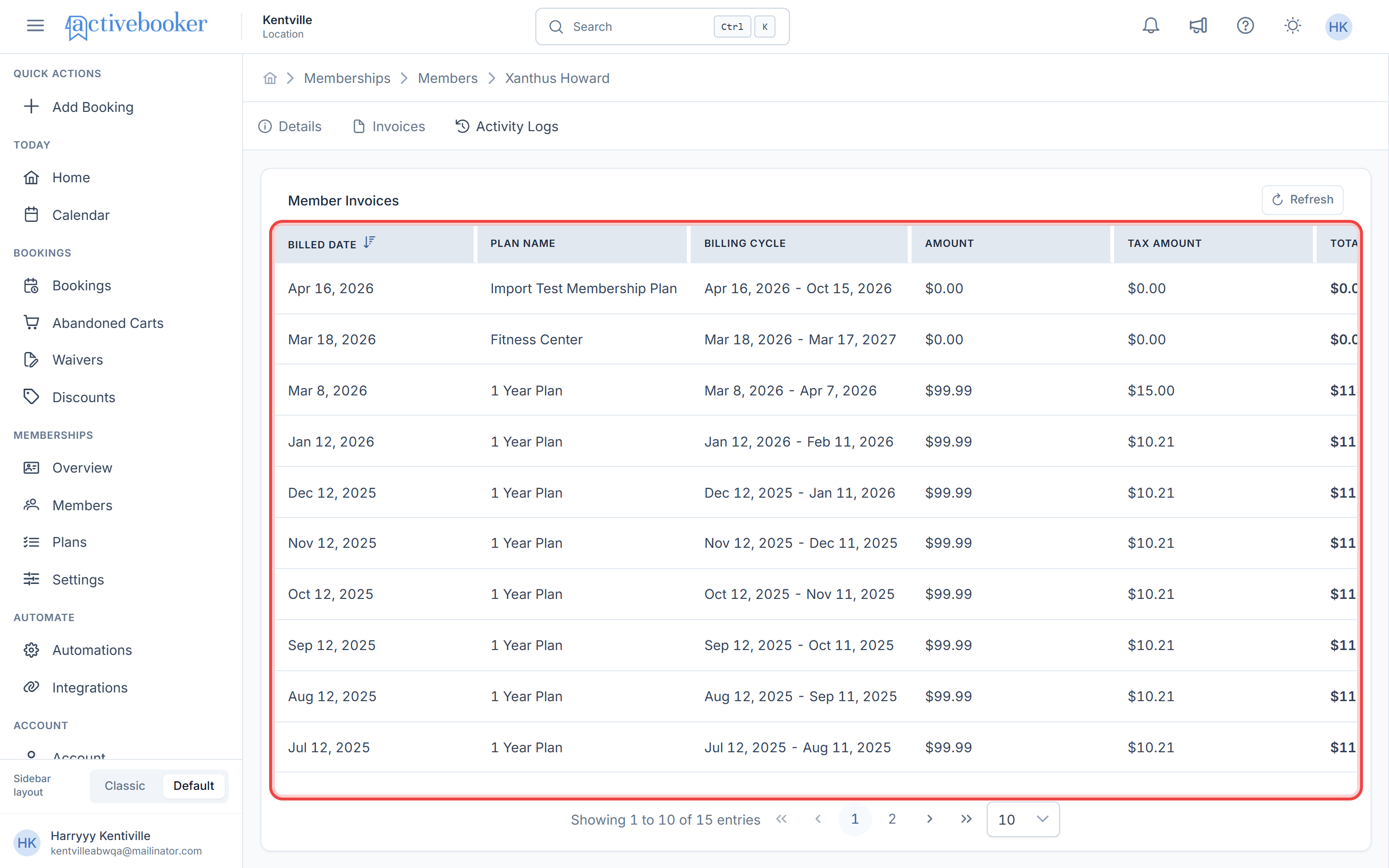
Understanding the invoices table
What each column shows
| Column | What it tells you |
|---|---|
| Billed Date | The date the invoice was created — date-only, no time or timezone conversion (e.g., Mar 16, 2026) |
| Plan Name | The membership plan associated with this invoice (e.g., Fitness Center Updated, Random) |
| Billing Cycle | The start and end dates of the billing period (e.g., Mar 16, 2026 - Apr 15, 2026) — date-only format |
| Amount | The base charge, formatted to two decimal places using your active currency symbol (e.g., $59.99, CA$59.99, £59.99, or $0.00) |
| Tax Amount | The tax applied, formatted to two decimal places using your active currency symbol (e.g., $8.99, CA$8.99, £8.99, or $0.00) |
| Total Amount | The total charge (Amount + Tax Amount), displayed in bold using your active currency symbol (e.g., $68.98, CA$68.98, £68.98). If the invoice is bypassed, a "Bypassed" badge appears beside the amount |
| Status | Whether the charge was collected — Paid (green) or Not Paid (red) |
| Last Synced | The date and time the invoice's payment status was last synced from Stripe, or "Never" if it hasn't synced yet |
| Actions | Contains action buttons for the invoice. Shows "Bypass Invoice" for active invoices or "Remove Bypass" for already-bypassed invoices |
Section header and controls
The invoices section includes:
- A "Member Invoices" header at the top-left
- A Refresh button (with a refresh icon) at the top-right to reload the latest data
Using this feature
Sort invoices by billed date
By default, invoices are sorted by Billed Date in descending order (newest first), so the most recent charge always appears at the top.
- Click the Billed Date column header to switch between newest-first and oldest-first
- The sort indicator on the column updates to show the current direction
- Only the Billed Date column is sortable
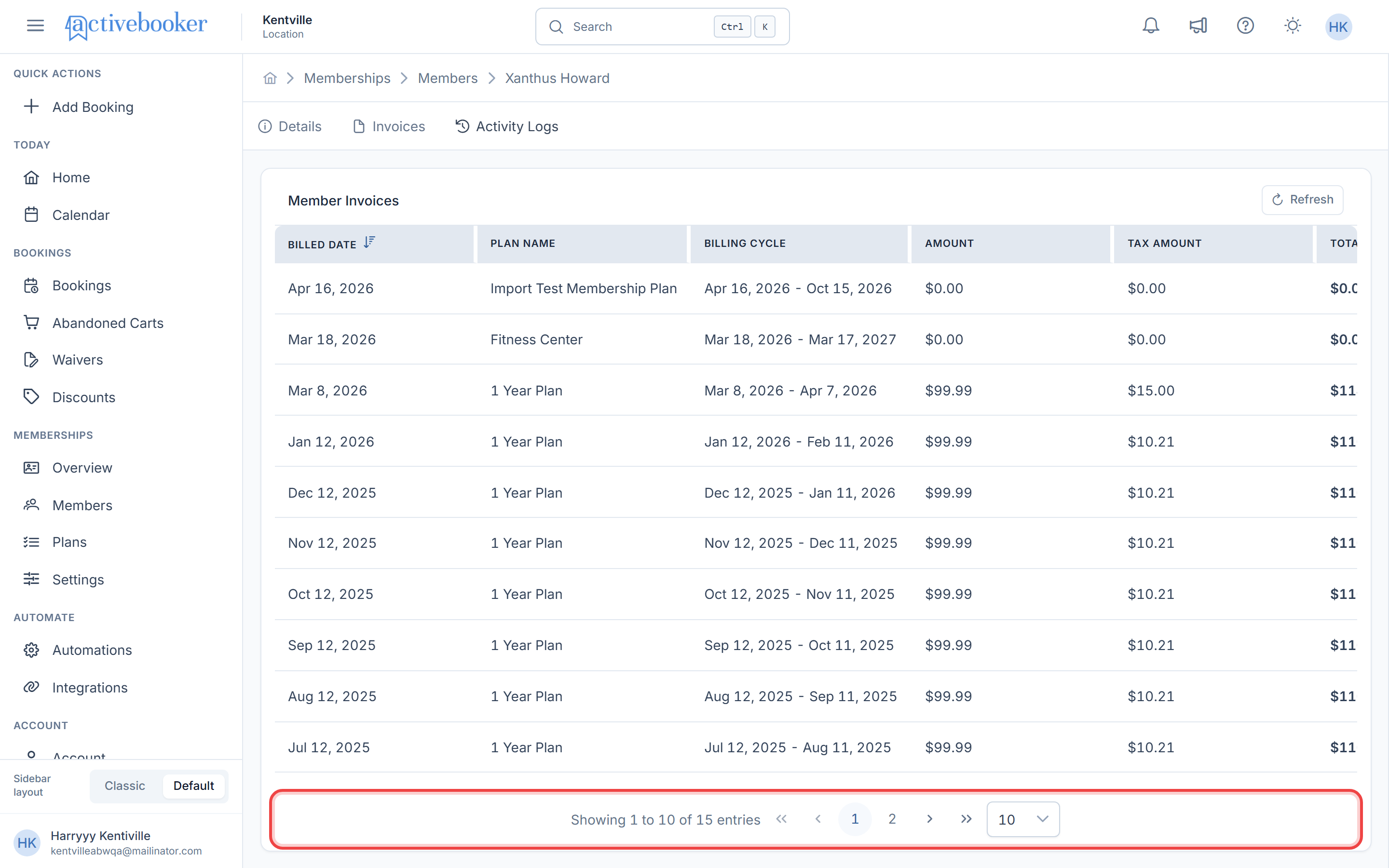
Browse through invoices
If a member has more than 10 invoices, use the page controls at the bottom of the table to navigate between pages. You can also change how many invoices appear per page using the page-size dropdown (defaults to 10).
Refresh invoice data
Click the Refresh button in the top-right corner to reload the latest data. This is useful after you've changed a member's plan, renewed their subscription, or processed any billing action in another window.
Bypass an invoice
Bypassing an invoice tells the system to skip it when checking whether a member's membership is in good standing during the booking process. This is useful when an invoice should not block a member from making bookings — for example, if the charge was handled outside the system or is under review.
- On the Invoices tab, find the invoice you want to bypass
- Click the "Bypass Invoice" button in the Actions column for that row
- A confirmation dialog appears asking you to confirm the action
- Click "Confirm" to proceed, or "Cancel" to go back without making changes
- On success, a green notification confirms the invoice has been bypassed
- The button in the Actions column changes to "Remove Bypass", and a "Bypassed" badge appears next to the total amount
Bypassing an invoice only affects the selected row. All other invoices in the table remain unchanged.
Remove a bypass from an invoice
If a bypassed invoice should be counted again toward the member's membership status, you can remove the bypass at any time.
- On the Invoices tab, find the bypassed invoice (it shows a "Bypassed" badge next to the total amount)
- Click the "Remove Bypass" button in the Actions column for that row
- A confirmation dialog appears asking you to confirm the removal
- Click "Confirm" to proceed, or "Cancel" to go back without making changes
- On success, a green notification confirms the bypass has been removed
- The button in the Actions column changes back to "Bypass Invoice", and the "Bypassed" badge is removed from the total amount
Common scenarios
Scenario 1: A member asks "What was I charged last month?"
- Open the member's detail page and go to Invoices
- The most recent invoice appears at the top (default sort is newest first)
- Check the Amount, Tax Amount, and Total Amount columns to confirm the charge
- Verify the Billing Cycle column to confirm the period the charge covers
- Share the Plan Name and Total Amount with the member
Scenario 2: You changed a member's plan and want to confirm the new invoice
- After changing the plan in the Subscription Details, navigate to the Invoices tab
- Click Refresh to load the latest records
- The new invoice should appear at the top with today's date as the Billed Date
- If the plan change was done with "Do Not Charge Member", expect a zero-amount invoice
Scenario 3: Identify invoices where the member was not charged
- Open the member's Invoices tab
- Look for rows where Amount, Tax Amount, and Total Amount all show a zero amount (e.g.,
$0.00,CA$0.00, or£0.00) - These represent registrations, plan changes, or renewals where "Do Not Charge Member" was selected (e.g., the member paid in cash at the front desk)
- To see the reason note, check the member's Activity Logs for the corresponding date
Scenario 4: Review a member's complete billing history
- Open the member's Invoices tab
- If the member has many invoices, increase the page size (e.g., 25 or 50) to see more at once
- Optionally, sort by Billed Date ascending to review charges from earliest to latest
- Compare the Plan Name column to track when the member switched between plans
Scenario 5: An invoice is blocking a member from booking, but the charge was handled outside the system
- Open the member's detail page and go to Invoices
- Find the invoice that is causing the issue
- Click "Bypass Invoice" in the Actions column and confirm
- The invoice is now bypassed and will no longer affect the member's booking eligibility
- If the situation is resolved later (e.g., the payment is recorded), click "Remove Bypass" to reactivate the invoice
Scenario 6: You accidentally bypassed the wrong invoice
- Find the invoice that was bypassed by mistake (look for the "Bypassed" badge next to the total amount)
- Click "Remove Bypass" in the Actions column and confirm
- The bypass is removed immediately and the invoice is active again
Scenario 7: A recurring invoice is unpaid after a billing attempt
- Open the member's detail page and go to Invoices
- Click Refresh to load the most up-to-date payment status
- If an invoice appears unpaid, the most recent charge did not go through
- Contact the member to update their payment details
- If the member needs to continue booking while the payment issue is being resolved, click "Bypass Invoice" on the affected invoice
- Once the payment is resolved, click Refresh to confirm the invoice is now paid
- If you had bypassed the invoice, click "Remove Bypass" so it counts normally again
Best practices
✓ Refresh after subscription changes — If you just changed a member's plan, renewed, or registered a new member, click Refresh to see the new invoice right away
✓ Check Total Amount = Amount + Tax Amount — If a member questions a charge, verify the math adds up for that row
✓ Use zero-amount invoices to trace no-charge actions — When you see a zero-amount invoice, check the Activity Logs for the same date to find the reason (e.g., "paid in cash", "complimentary renewal")
✓ Compare Plan Name with the current subscription — If the Plan Name on an invoice doesn't match what you expect, the member may have been on a different plan during that billing cycle. Check Subscription Details for their current plan
✓ Use bypass for exceptions, not routine adjustments — Bypass is intended for cases where a specific invoice should not affect a member's ability to book (e.g., a charge handled offline or under dispute). For routine billing adjustments, use the appropriate billing tools instead
✓ Remove the bypass once the issue is resolved — If you bypassed an invoice temporarily (e.g., while waiting for a payment to be confirmed), remember to remove the bypass afterward so the invoice is counted normally again
✗ Don't look here for refund information — Invoices show charges and no-charge records only. Refunds are handled outside of this tab
✗ Don't try to edit or delete invoices — All invoice records are system-generated and cannot be modified. This ensures an accurate audit trail
✓ Check for unpaid invoices when a member reports payment issues — If a recurring charge did not go through, the invoice will still be listed but recorded as unpaid. Use Refresh to see the current status
✓ Use Bypass Invoice for temporary payment issues — If a member has an unpaid invoice that is blocking their bookings, bypass the invoice while you work to resolve the payment. Remember to remove the bypass once payment is confirmed
Troubleshooting
Issue: Invoice amounts show $0.00
Why this happens: The member was registered or had their plan changed with the "Do Not Charge Member" option selected. This creates a zero-amount invoice for record-keeping purposes.
How to fix it: This is expected behavior. Check the member's Activity Logs to see if a "Do Not Charge" note was recorded during plan changes.
Issue: Invoice currency symbol doesn't match what I expect
Why this happens: Invoices display amounts using the currency symbol that was active in Payment Settings when the invoice was created. If the currency was changed after the invoice was generated, older invoices will still show the previous currency symbol.
How to fix it: This is expected behavior — historical invoices keep the currency they were billed in. Only new invoices will use the updated currency. To verify your current currency, go to Account > Payment Settings.
Issue: Invoices don't appear after a plan change
Why this happens: The invoice data was loaded before the plan change occurred.
How to fix it:
- Click the Refresh button in the top-right corner of the invoices section
- The newly generated invoice should now appear at the top of the list
Issue: Invoice count doesn't match the legacy system
Why this happens: Data migration differences or timing of the comparison.
How to fix it:
- Sort by Billed Date ascending in both systems
- Compare records one by one starting from the earliest
- Note any discrepancies and report them to your administrator
Issue: A member cannot book even though their membership is active
Why this happens: An unpaid or overdue invoice may be flagging the membership as not in good standing, which prevents booking.
How to fix it:
- Open the member's Invoices tab and review the invoice list
- Identify the invoice causing the issue
- If the charge was handled outside the system or is under review, click "Bypass Invoice" to allow the member to book
- Remember to remove the bypass once the issue is resolved
Issue: The "Bypassed" badge disappeared after I navigated away
Why this happens: This should not normally occur. The bypass state is saved and should persist across page loads.
How to fix it:
- Click the Refresh button to reload the invoice data
- If the badge still does not appear, try refreshing the entire page using your browser
- If the issue persists, contact your administrator
Issue: A recurring invoice appears unpaid
Why this happens: A recurring charge was attempted but the payment did not go through. This can happen if the member's card is declined, expired, or has insufficient funds. The invoice is still created as a record of the billing attempt, but it remains unpaid.
How to fix it:
- Click Refresh to confirm you are seeing the most current payment status
- If the invoice is still unpaid, contact the member to update their payment details
- If the member should not be blocked from booking while this is being resolved, use Bypass Invoice on that invoice
- Remember to click "Remove Bypass" once the payment issue has been resolved
Related resources
- Member Information — View and edit member profile details
- Subscription Details — Check current plan, status, and manage subscriptions
- Activity Logs — Track all account activity including subscription changes