General Rules
Configure general rules that control member subscription management. These settings determine what actions members can perform with their subscriptions, such as whether they can cancel on their own through the Member Portal.
Quick start
Access and manage general rules in just a few steps:
- Navigate to Memberships > Membership Plans in your dashboard sidebar
- Locate the plan you want to configure
- Click its View Detail button in the Actions column
- Switch to the Additional Rules tab
- Find the General Rules section and click Edit to modify settings
What you can do
The General Rules section helps you:
- Control subscription cancellation — Decide whether members can cancel their own subscriptions or if only administrators handle cancellations
- Manage member self-service — Configure what actions members can take from their Member Portal account
Understanding the interface
The General Rules section appears on the Additional Rules tab of each membership plan's detail page. This tab is accessible alongside the Details tab when viewing a plan.
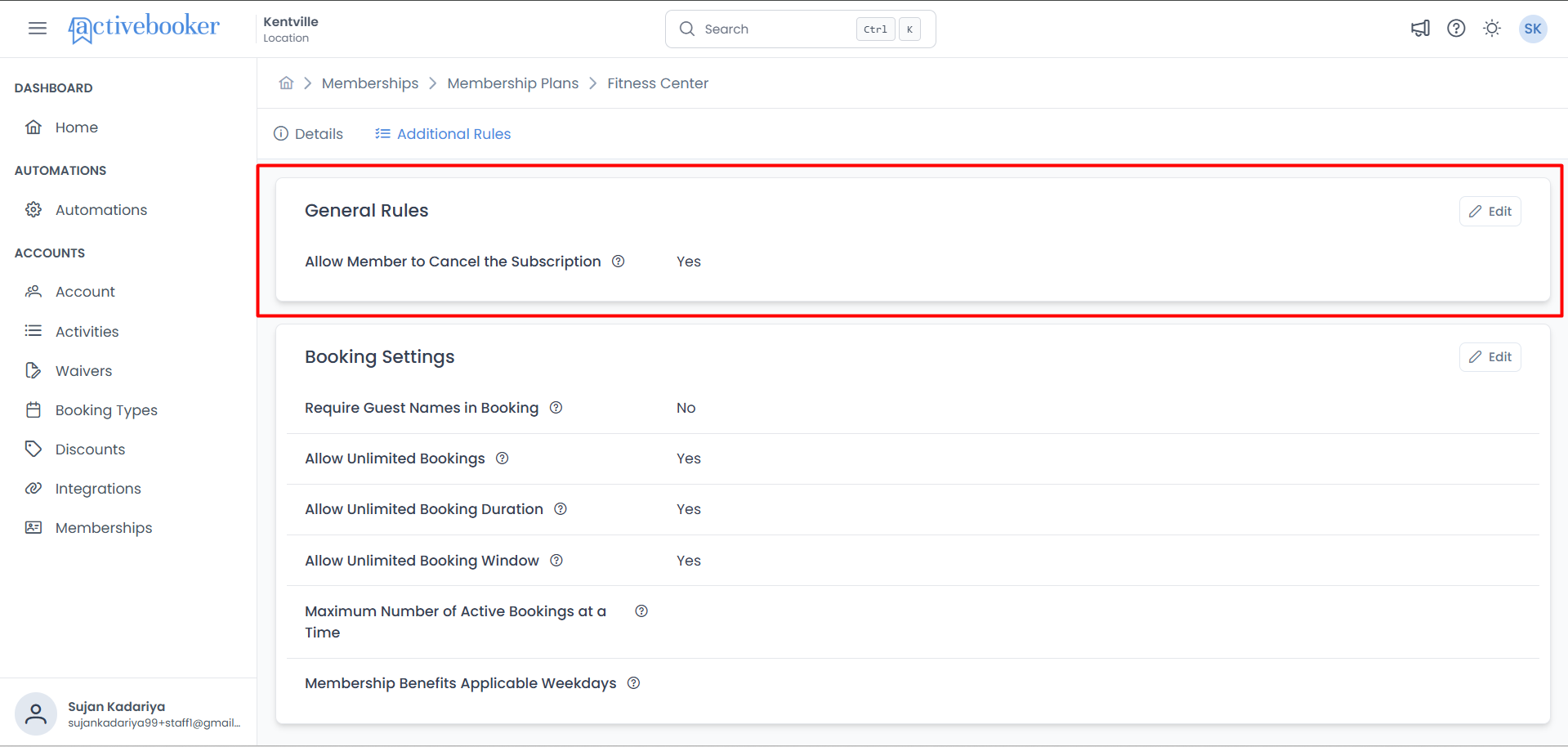
General Rules View
The section displays your current rule settings in a simple, readable format:
| Element | Description |
|---|---|
| Section Title | "General Rules" with an info icon (ⓘ) for a tooltip description |
| Allow Member to Cancel the Subscription | Shows Yes or No indicating the current setting |
| Edit Button | Located in the top-right corner to open the editing dialog |
Viewing general rules
To see the current general rules for a specific membership plan:
- Navigate to Memberships > Membership Plans
- Find the plan you want to view
- Click View Detail in the Actions column
- Click the Additional Rules tab
- The General Rules section displays the current configuration
Allow Member to Cancel the Subscription
This field shows whether members can cancel their own subscription from the Member Portal.
- Yes — Members can cancel their subscription on their own
- No — Only administrators can cancel subscriptions
Default: No
Editing general rules
Update your plan's general rules to change how members interact with their subscriptions.
How to edit general rules
- Navigate to the plan's Additional Rules tab (see Viewing general rules above)
- Click the Edit button in the top-right corner of the General Rules section
- The Edit General Rules dialog opens
- Update the settings as needed (see field details below)
- Click Save to apply your changes, or Cancel to discard them
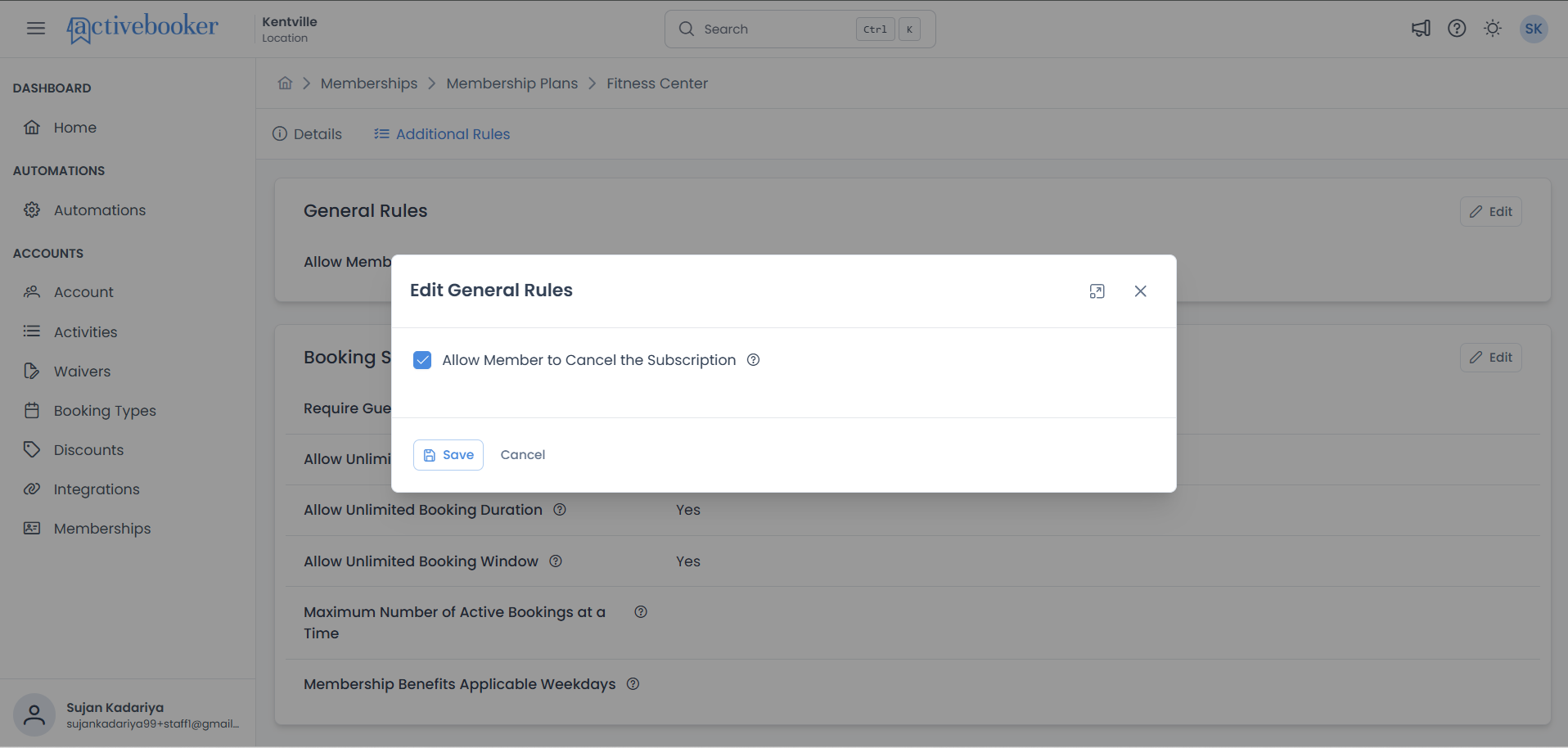
Allow Member to Cancel the Subscription
Controls whether members can cancel their subscription directly from their Member Portal account.
- Checked — Members can cancel their subscription on their own through the Member Portal
- Unchecked — Only administrators can cancel member subscriptions; members must contact support for cancellation
- Enable self-cancellation if you want to reduce support requests and give members full control over their accounts
- Disable self-cancellation if you prefer to handle cancellations personally, allowing you to offer alternatives or collect feedback before processing the cancellation
Changing this setting affects all members subscribed to this plan. If you disable self-cancellation after it was previously enabled, members who were used to managing their own subscriptions will need to contact your team instead.
When to enable (Checked)
Example 1: High-volume gym with limited staff
You run a large fitness center with hundreds of members and a small front-desk team. Enabling self-cancellation lets members manage their own subscriptions without overwhelming your staff with cancellation requests.
Example 2: Short-term or seasonal plans
You offer a 1-month trial or a 3-month summer pass. Since these are short commitments, allowing members to cancel on their own provides a hassle-free experience and builds trust.
Example 3: Online-first business model
Your members primarily interact through an online portal and expect full self-service. Enabling cancellation aligns with their expectations and reduces support tickets.
When to disable (Unchecked)
Example 1: Premium or high-value memberships
You offer an annual VIP membership at a significant price. Requiring members to contact your team for cancellation gives you an opportunity to understand their concerns, offer alternatives, or provide a retention discount.
Example 2: Contract-based memberships with commitments
Your membership plans include a minimum commitment period. Disabling self-cancellation prevents members from accidentally cancelling before their commitment ends and allows your team to walk them through the terms.
Example 3: Small studio with personal relationships
You run a boutique yoga studio where you know every member by name. Handling cancellations personally lets you check in with members, address any issues, and maintain those relationships.
Booking Settings
The Booking Settings section is also located on the Additional Rules tab, below the General Rules section. This section will allow you to configure booking-related rules for the membership plan.
Troubleshooting
Issue: Changes to general rules are not saving
Why this happens: The save may fail due to a network interruption or a session timeout.
How to fix it:
- Refresh the page and try editing again
- Make sure you are clicking the Save button inside the Edit General Rules dialog
- After saving, verify the change is reflected in the view mode (the field should update to Yes or No)
- If the issue persists, log out and log back in, then try again
Issue: Members say they cannot cancel even though the setting is enabled
Why this happens: The setting may not have been saved correctly, or the member may be looking in the wrong location.
How to fix it:
- Go to the plan's Additional Rules tab and confirm the setting shows Yes
- Ask the member to check their Member Portal account for the cancellation option
- Ensure the member is subscribed to the correct plan where self-cancellation is enabled
Frequently asked questions
Does changing this setting affect members who are already subscribed?
Yes. Changing the "Allow Member to Cancel the Subscription" setting applies immediately to all current and future members on this plan. If you enable it, existing members will see the cancellation option in their Member Portal right away. If you disable it, the option will be removed for all members on this plan.
What happens when a member cancels their own subscription?
When self-cancellation is enabled and a member cancels, their subscription follows your plan's standard cancellation process. The member will no longer have access once the cancellation takes effect. You will be notified of the cancellation through your dashboard.
Can I set different cancellation rules for different membership plans?
Yes. General rules are configured per plan. You can enable self-cancellation on one plan (e.g., a monthly basic plan) and disable it on another (e.g., an annual premium plan). Each plan operates independently.
If I disable self-cancellation, how do members request a cancellation?
Members will need to contact your team directly — by phone, email, or in person — to request a cancellation. Your team will then process the cancellation on their behalf through the admin dashboard.
Is the default setting for new plans "Allow" or "Don't Allow"?
The default is No (unchecked). When you create a new membership plan, members will not be able to cancel their subscriptions on their own until you explicitly enable this setting.
Related resources
Learn more about related membership plan settings:
- Membership Plans — Manage and organize your membership plans
- Plan Details — View and edit general information for a plan
- Billing & Pricing — Configure pricing and payment settings
- Features — Add and manage plan features and benefits