Membership Plan Features
Membership plan features are the key benefits and perks that you highlight to help customers understand what they receive when they subscribe to a specific plan. These features appear on your public membership portal and help customers make informed decisions about which plan best suits their needs.
What are plan features?
Features are a list of benefits, perks, or highlights that describe what members receive with a particular membership plan. Each feature is a short, clear statement that communicates value to potential customers.
Examples of features:
- "Unlimited access to all group fitness classes"
- "Priority booking for special events"
- "Access to all 3 locations"
- "Free parking included"
Features help customers quickly compare different membership plans and understand the unique value each plan offers.
Quick start
Access and manage plan features in just a few steps:
- Navigate to Memberships > Membership Plans in your dashboard sidebar
- Locate the plan you want to work with
- Click it's View Detail button in the Actions column
- Scroll down to the Membership Plan Features section on the Details tab
- Click Edit to add or modify features
What you can do
The Membership Plan Features section helps you:
- Display key benefits — Show customers what makes each plan valuable
- Add features — Create up to 20 features per plan to highlight benefits
- Edit features — Update existing features as your offerings change
- Remove features — Delete features that are no longer relevant
- Reorder features — Control the sequence in which benefits display to prioritize what matters most
Understanding the interface
The Membership Plan Features section appears on the Details tab of each membership plan's detail page, below the General Information and Billing & Pricing sections.
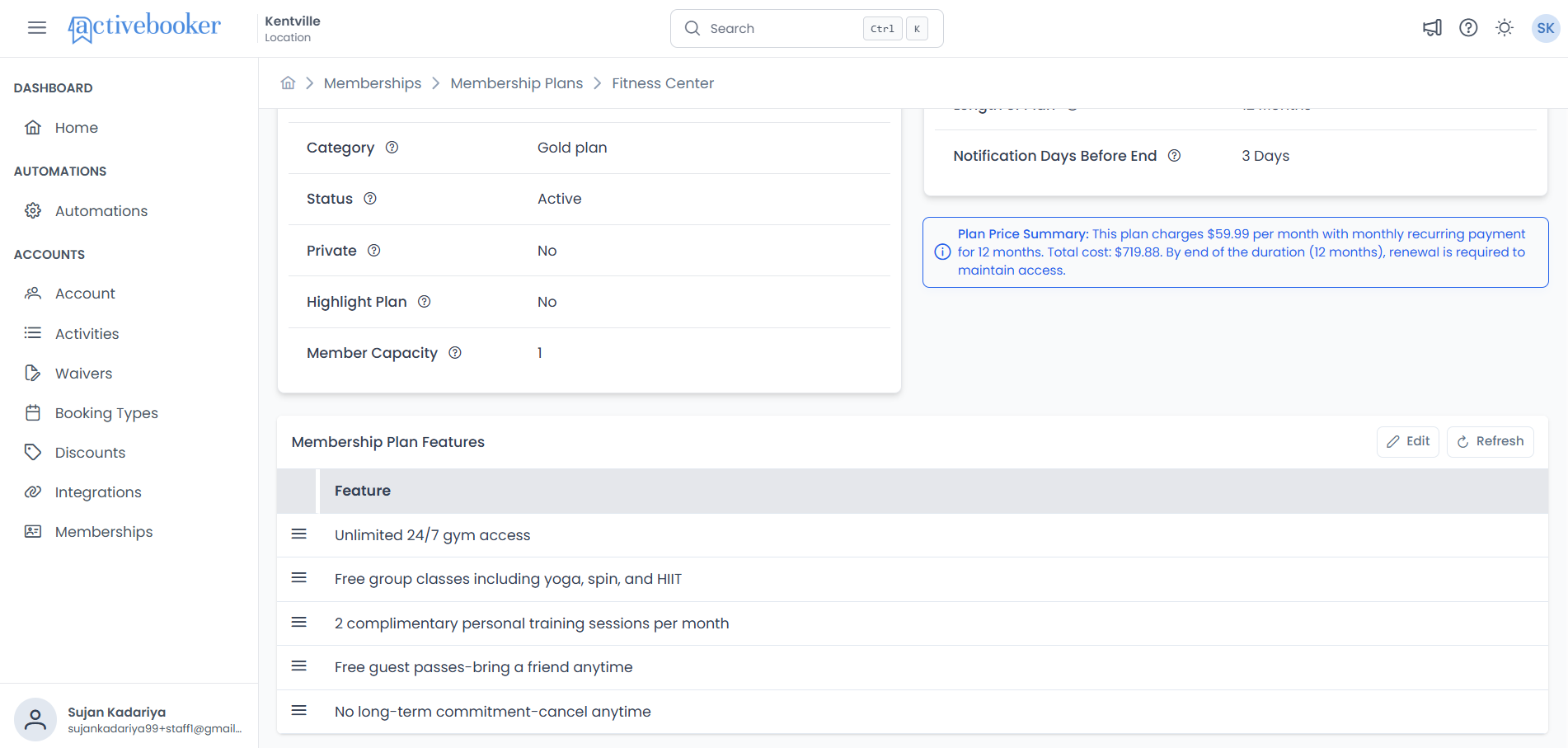
Features List View
The features display in a simple table with the following characteristics:
| Element | Description |
|---|---|
| Feature Column | Displays the feature text exactly as customers will see it |
| Drag Handle | Icon (≡) on the left of each row for reordering features |
| Edit Button | Located in the top-right corner to open the editing modal |
| Refresh Button | Located in the top-right corner to reload the feature list |
If you haven't added features to a plan, the section will appear empty. Click Edit to add your first feature.
Viewing features
To see what features you've configured for a specific membership plan:
- Navigate to Memberships > Membership Plans
- Locate the plan you want to view
- Click it's View Detail button in the Actions column
- Scroll down to the Membership Plan Features section
The section displays all features in the order you've arranged them. This is the same order customers see when viewing the plan on your public membership portal.
What customers see:
- Features display as a formatted list on your membership pages
- The order matters—features at the top get seen first
- Clear, specific features help customers make confident purchasing decisions
The features you list and how you order them significantly impact whether customers choose this plan. Lead with your strongest, most compelling benefits.
How to Add or Edit Membership Features
Features are the benefits and perks you offer with this membership plan (e.g., "24/7 gym access" or "Free personal training session"). They help members understand what they're getting.
Steps
- Open the editor
- Go to your plan's Details page
- Find the "Membership Plan Features" section
- Click the Edit button (top-right of this section)
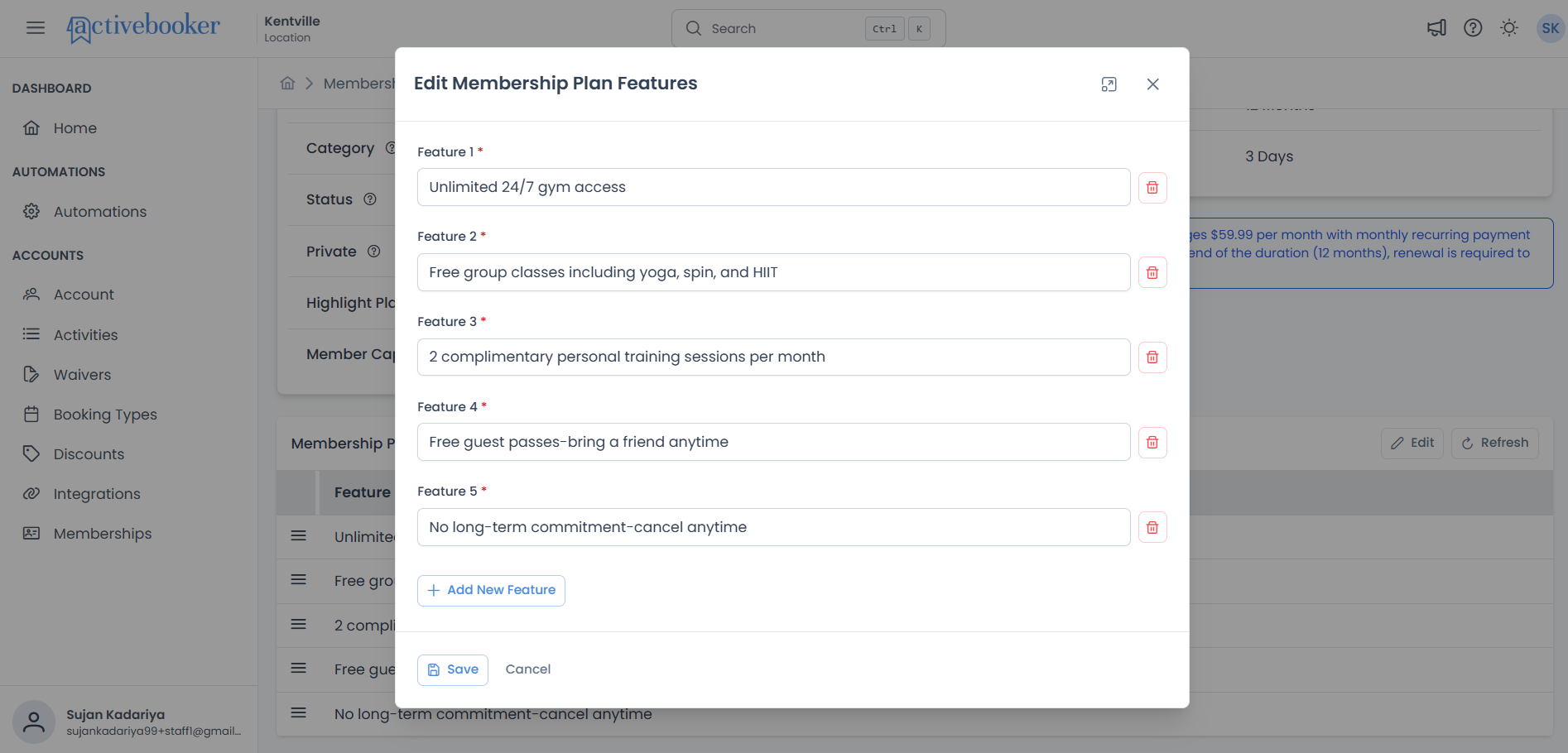
- A popup window appears
-
Make your changes
- To add a feature: Click "Add New Feature" at the bottom, then type your text
- To edit a feature: Click the text field and make your changes
- To delete a feature: Click the delete button (🗑️) next to the feature
-
Save your work
- Click Save to apply all changes
- Or click Cancel to discard everything
Your features will update immediately on the plan.
Good to Know
- Auto-numbering: Features are automatically labeled as Feature 1, Feature 2, etc.—no need to number them yourself
- Maximum: You can add up to 20 features per plan
- Bulk editing: Change multiple features at once—everything saves together when you click Save
- Best practice: Start with the most important benefits. You can always add more features later as you identify additional selling points or as your offerings expand.
Removing all features:
- You can delete all features if needed
- The system allows saving with zero features
- At least one empty input field displays initially when no features exist
Once you save, deleted features are permanently removed. Make sure you no longer want to highlight that benefit before deleting.
Feature numbering
Features are automatically numbered in the edit form:
- Feature 1 — First feature in the list
- Feature 2 — Second feature
- And so on...
The numbering:
- Updates automatically when you reorder features
- Helps you track position during editing
- Does NOT appear to customers (they just see the feature text)
Reordering features
The order in which features appear matters. Customers typically read from top to bottom, so your most compelling benefits should appear first.
How to reorder features
You can reorder features in two ways:
Method 1: Drag and drop in the features list (recommended)
- Navigate to the plan's Details page
- Scroll to the Membership Plan Features section
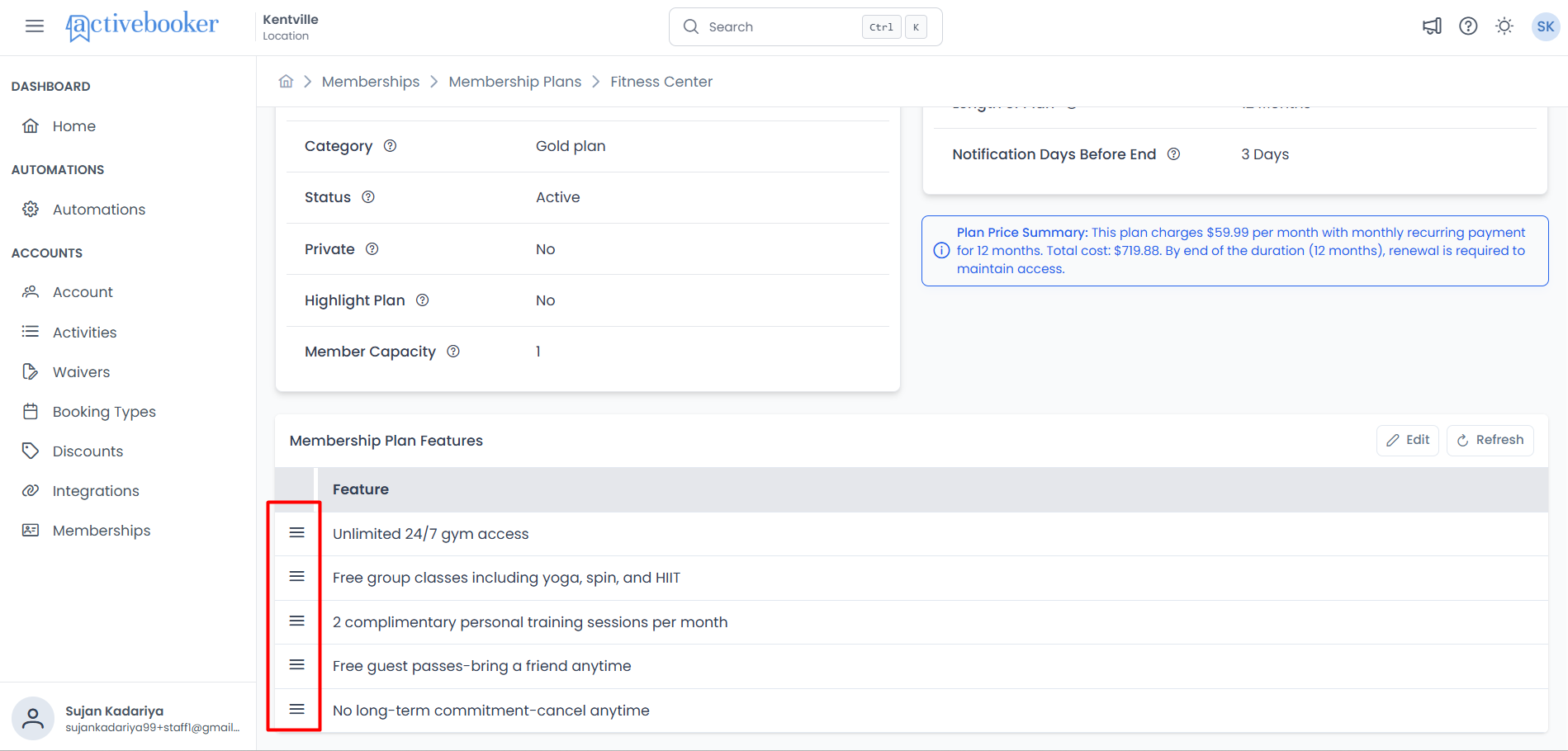
- Click and hold the drag handle (≡) icon on the left of any feature row
- Drag the feature to its new position
- Release to drop the feature in place
- The system saves the new order automatically
- A success message confirms the change
Method 2: Delete and re-add in the edit modal
- Open the Edit modal
- Delete features you want to reposition
- Re-add them in the desired order
- Click Save
Method 1 (drag and drop) is faster and more intuitive for reordering. The edit modal is better for changing feature text rather than sequence.
Reordering saves automatically
When you reorder features using drag and drop:
- Changes save instantly — No need to click a Save button
- Success message displays — Confirms the reorder completed
- Order updates everywhere — The new sequence immediately reflects on customer-facing pages
If reordering fails (due to connection issues, for example), use the Refresh button to reload the correct order from the server.
Best practices for feature order
Prioritize what matters most:
- Lead with access and quantity — "Unlimited access to all facilities"
- Highlight exclusive perks — "Priority booking for special events"
- Emphasize convenience — "Access to all 5 locations"
- Include bonus value — "Free guest passes twice per month"
- Mention restrictions last — "Valid Monday-Friday only" (if relevant)
Think from the customer's perspective:
- What would make me choose this plan over another?
- Which benefit is most valuable?
- What questions would a first-time customer have?
Writing effective features
Features are a primary selling tool. Well-written features clearly communicate value and help customers choose the right plan.
Writing tips
Be specific with numbers:
- ✅ "Access to all 5 locations across the city"
- ❌ "Access to multiple locations"
Lead with unlimited when applicable:
- ✅ "Unlimited group fitness classes"
- ❌ "Group fitness classes available"
Highlight exclusivity:
- ✅ "Priority booking during peak season"
- ❌ "Can book during peak season"
Mention guests if relevant:
- ✅ "Bring up to 2 guests per visit"
- ❌ "Guest privileges available"
Keep language simple:
- ✅ "Free parking included"
- ❌ "Complimentary vehicular accommodation provided"
Focus on benefits, not features:
- ✅ "Save time with express check-in" (benefit)
- ❌ "Has express check-in" (feature)
Examples by industry
Fitness Center Plans:
- "Unlimited 24/7 gym access"
- "Free group classes including yoga, spin, and HIIT"
- "2 complimentary personal training sessions per month"
- "Free guest passes—bring a friend anytime"
- "No long-term commitment—cancel anytime"
Recreation Center Plans:
- "Family plan covers up to 4 members"
- "Free entry to all public swim sessions"
- "20% discount on birthday party bookings"
- "Priority registration for summer camps"
- "Access to all 3 community center locations"
Coworking Space Plans:
- "24/7 access to all workspaces"
- "Unlimited printing and scanning"
- "Free coffee, tea, and snacks"
- "2 hours of free meeting room use per week"
- "High-speed fiber internet included"
Ask customers or staff members: "If you read this feature list, would you understand what you're getting?" Adjust based on their feedback.
Common questions
Q: How many features should I include per plan?
A: There's no perfect number, but 4-8 features typically work well. Too few and customers don't understand the value. Too many and important benefits get lost. Focus on quality over quantity.
Q: Can I use the same features across multiple plans?
A: Yes, you can reuse similar or identical features across plans. However, each plan should have at least some unique features that differentiate it from others.
Q: What happens if I delete all features?
A: You can save a plan with no features. The Membership Plan Features section will appear empty, and no feature list displays to customers. However, it's generally recommended to have at least a few features to help customers understand what they're purchasing.
Q: Can I preview how features look to customers?
A: While the documentation doesn't cover a preview feature, you can view your live membership portal to see how features display to customers in real-time.
Q: Do features display on invoices or receipts?
A: Features primarily display on your public membership pages to help with purchasing decisions. Check your invoice/receipt settings to see what information appears on those documents.
Troubleshooting
Problem: The "Add New Feature" button is disabled
Solution: You've reached the maximum of 20 features per plan. Delete an existing feature if you need to add a different one.
Problem: Features don't display in the order I set
Solution:
- Use the Refresh button to reload the list
- If reordering via the edit modal, ensure you saved your changes
- If drag-and-drop didn't save, try again or check your internet connection
Problem: Changes I made aren't visible to customers
Solution:
- Changes should appear immediately, but customers may need to refresh their browser
- Clear your browser cache if changes don't appear after a few minutes
- Verify the plan is Active and not Private (unless intended)
Problem: I deleted a feature by accident
Solution:
- If you haven't clicked Save yet, click Cancel to discard changes
- If you already saved, you'll need to manually re-add the feature by typing it again
Related documentation
- Membership Plans Overview — Learn about plan structure and configuration
- Plan Details — Complete guide to viewing and editing plan settings
- Membership Categories — Organize plans into categories