Block Rules
Block Rules let you prevent customers from booking your activity during specific dates, days, or time periods. Use them to handle maintenance schedules, holidays, seasonal closures, or when you need to reserve your activity units for private events or operational needs.
Quick Start
Create a block rule in four simple steps:
- Navigate to your activity detail page and click the Block Rules tab
- Click + Add Block Rule in the toolbar
- Configure your block by selecting dates or days, time periods, and which units to block
- Click Save to apply the block
Create block rules well in advance of holidays or maintenance periods so customers can plan around unavailable dates when making their bookings.
What You Can Do
Block Rules help you:
- Manage maintenance windows — Block specific days or times when equipment needs servicing
- Handle seasonal closures — Prevent bookings during off-season months or renovation periods
- Reserve for private events — Block certain units for tournaments, parties, or corporate events
- Coordinate staff schedules — Block days when you're short-staffed or closed for holidays
- Control partial availability — Keep some units open while blocking others for repairs or special use
How It Works
Understanding Blocking
When you create a block rule, customers won't be able to book the blocked dates, times, or activity units through your online booking system. The blocked periods simply won't appear as available options in the booking calendar.
Example Scenario:
Your bowling alley has 10 lanes. You create:
- A block rule for December 25 (Christmas) blocking all lanes all day
- Another rule blocking Mondays from 6 AM to 12 PM for maintenance on lanes 1-3 only
- A third rule blocking lanes 8-10 every weekend in January for a tournament
Customers will see lanes 1-3 unavailable on Monday mornings, lanes 8-10 unavailable on January weekends, and no availability at all on Christmas Day. All other lanes and times remain bookable.
Block Types
Fixed Date Blocks
Target a specific calendar date when you know you'll be unavailable.
- Select one exact date from the calendar
- Perfect for holidays, special events, or known closure days
- Example: Block December 31st for New Year's Eve
Recurring Day Blocks
Apply blocking patterns based on days of the week.
- Choose one or more days of the week
- Optionally limit to a specific date range
- Example: Block every Monday for weekly maintenance, or block Sundays only during winter months (November 1 - March 31)
Managing Block Rules
Accessing Block Rules
- Navigate to Activities and select your activity
- Click the Block Rules tab in the activity detail page
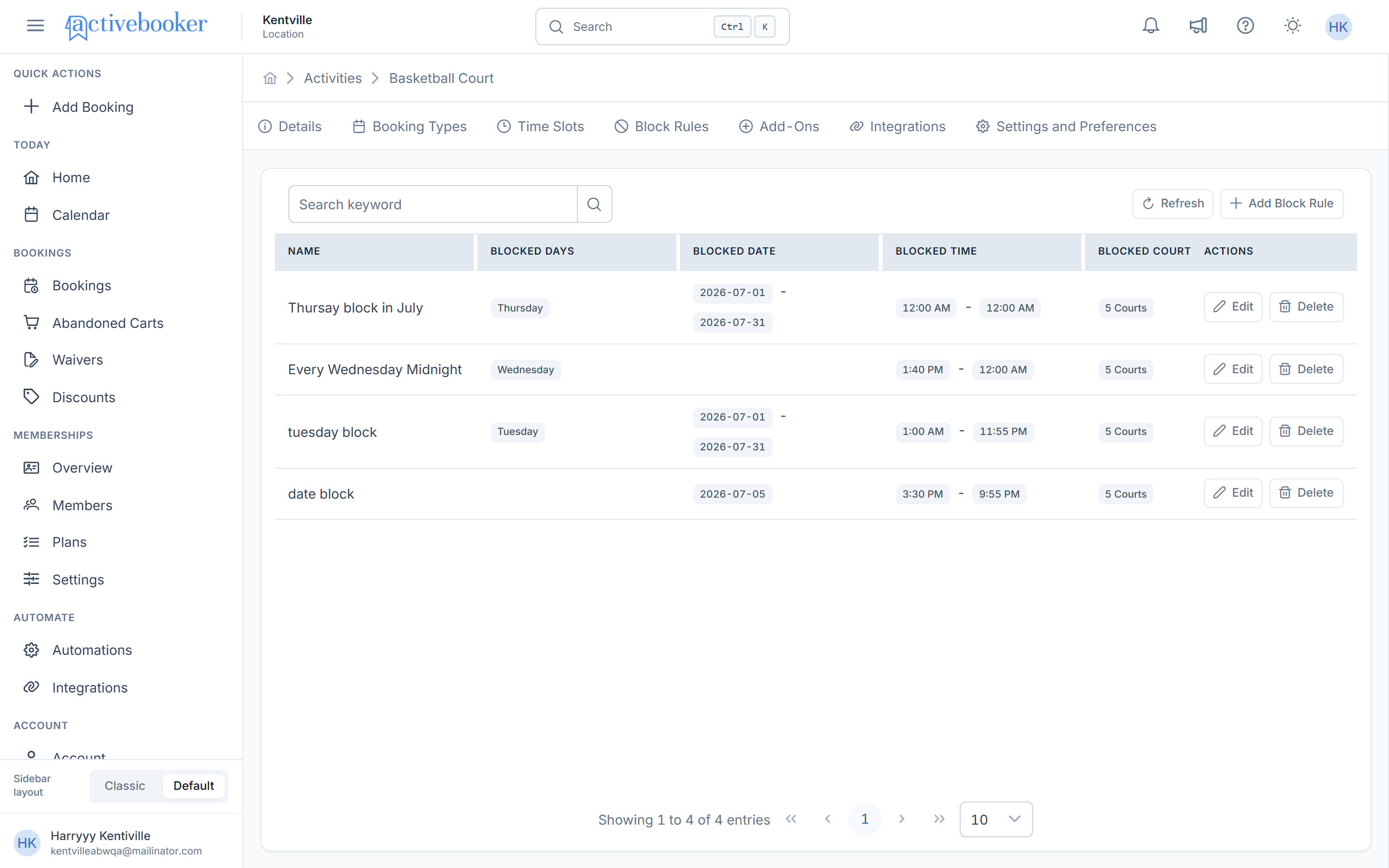
You'll see a table displaying all block rules for this activity.
Understanding the Rules Table
The Block Rules table displays your rules with the following information:
Name
A descriptive label you created to identify the block rule (e.g., "Holiday Closure", "Court Maintenance").
Blocked Days
For recurring day-based rules, shows which days are blocked as tags (Monday, Tuesday, etc.). Empty for fixed date rules.
Blocked Date
Shows the specific date or date range:
- For fixed date rules: displays the single blocked date
- For day-based rules with date range limits: shows start and end dates
Blocked Time
Indicates when during the day this block applies:
- "All Day" means the entire day is blocked
- Displays start and end times when limited (e.g., "9:00 AM - 5:00 PM")
Blocked Unit
Shows which and how many units are blocked (the column name matches your activity - "Blocked Courts", "Blocked Lanes", etc.):
- Number of units: "2 Courts" or "1 Lane"
- Specific range: "Court No. 3 - Court No. 5"
Created At
When the rule was created, helping you track and manage your blocks.
Actions
Quick access to Edit or Delete the rule.
Searching Rules
Use the search box at the top of the page to quickly find rules by name. This is helpful when you have many block rules and need to locate a specific one.
Creating a Block Rule
Step 1: Open the Add Form
Click + Add Block Rule in the toolbar at the top of the Block Rules page.
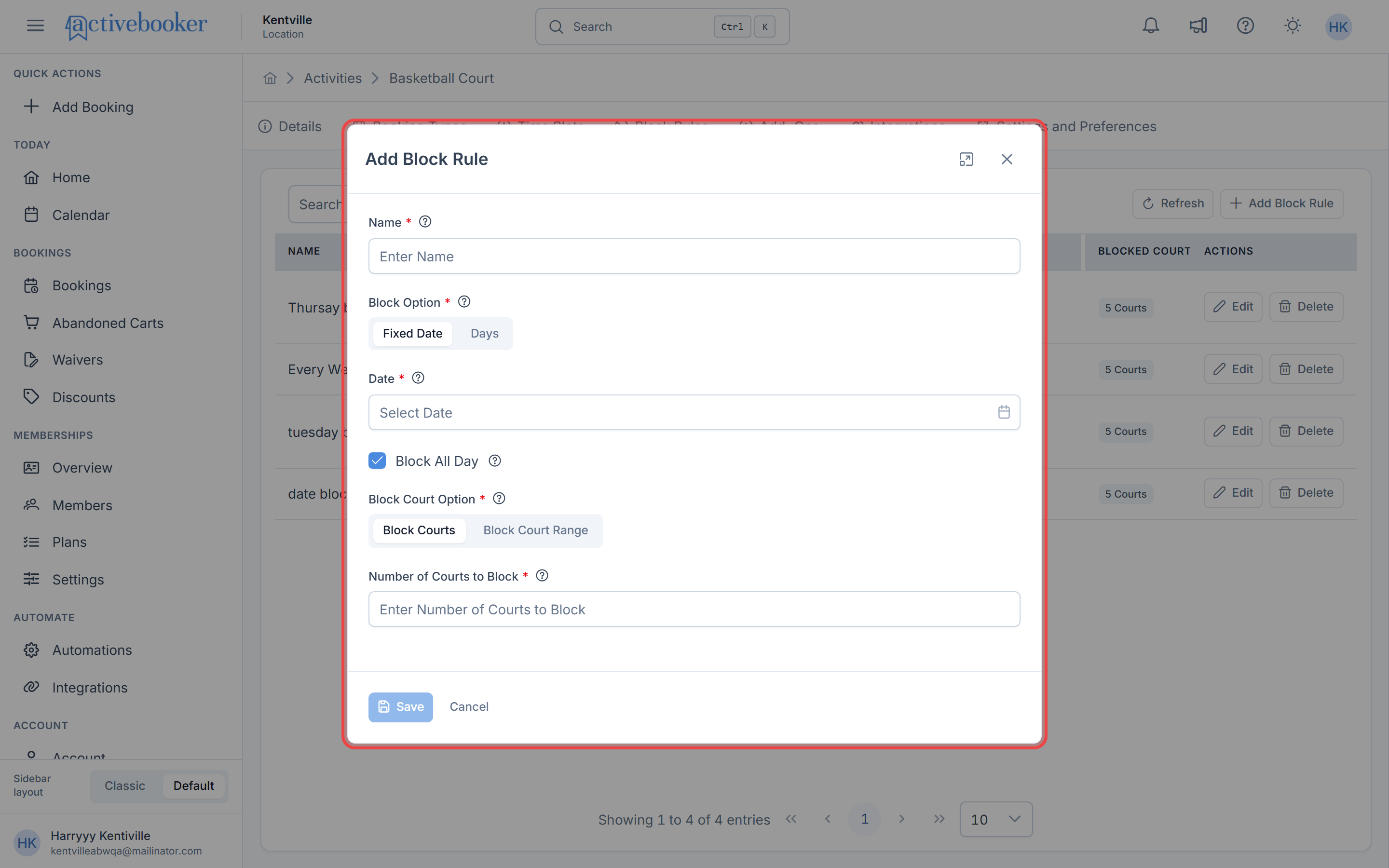
Step 2: Name Your Block
Name (Required)
Enter a descriptive name that helps you identify this block rule later. Maximum 100 characters.
- Examples: "Holiday Closure", "Court Maintenance", "Summer Block", "Tournament - Lanes 5-7"
Use clear, descriptive names that include the reason and scope. "Christmas Day Closure" is more helpful than just "December Block".
Step 3: Choose Your Block Type
Select how you want to define the blocked period using the Block Option selector:
Fixed Date — For one-time specific dates
Choose this when you want to block a single calendar date.
Days — For recurring weekly patterns
Choose this when you want to block the same day(s) every week.
Configuring Fixed Date Blocks
Fixed date blocks prevent bookings on a specific calendar date.
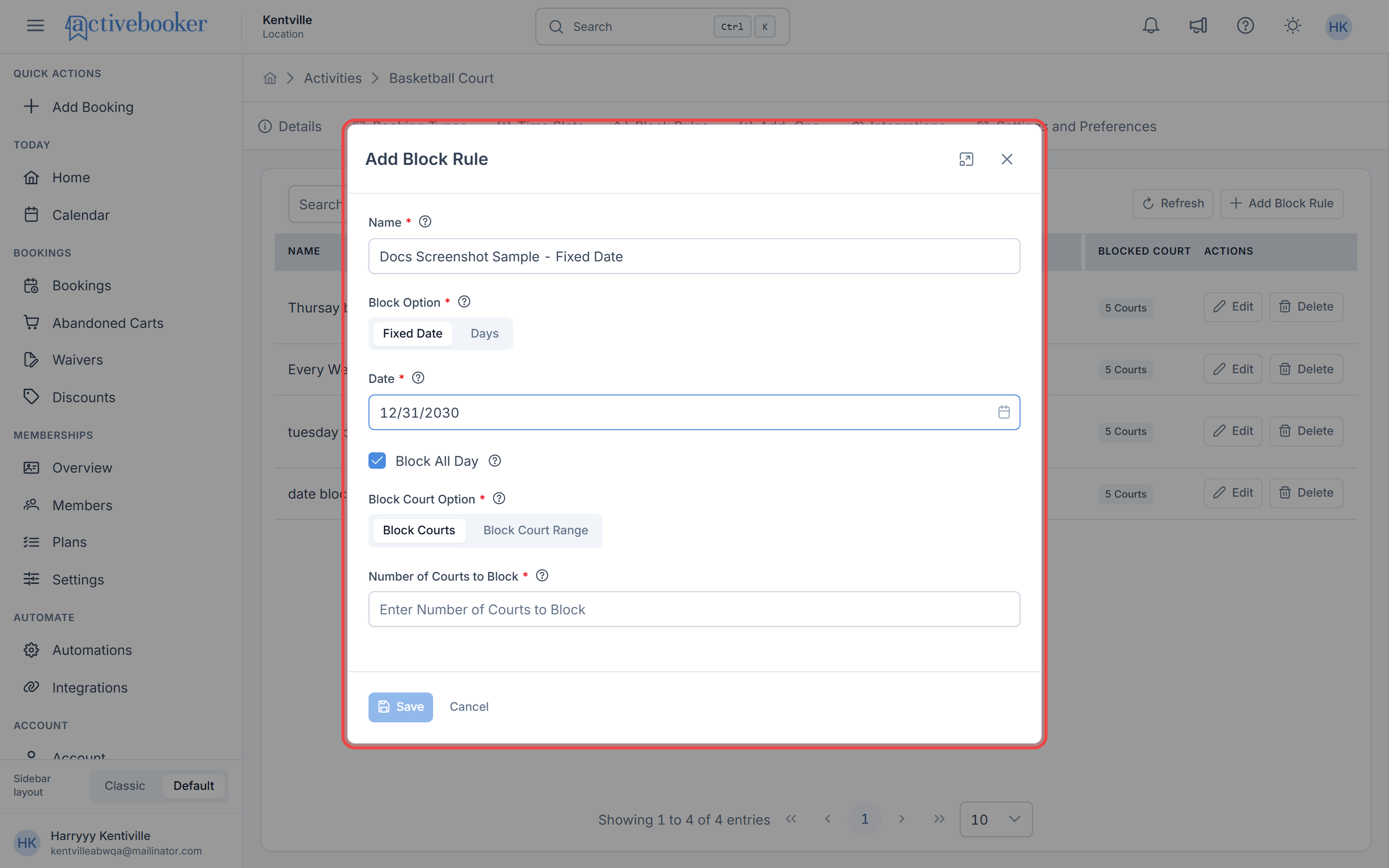
Selecting the Date
Date (Required)
Click the date picker and select the specific date to block.
- Choose any date from the calendar
- Select one date per rule (create multiple rules for multiple non-consecutive dates)
- The selected date appears in the field
When to use fixed date blocks:
- Holiday closures (Thanksgiving, Christmas, Independence Day)
- One-time maintenance or renovation days
- Specific event dates (annual tournament on July 15)
- Staff training days or company events
If you need to block several non-consecutive dates (like December 24, 25, and 31), create separate block rules for each date. This gives you flexibility to configure different times or units for each day if needed.
Configuring Recurring Day Blocks
Day-based blocks apply to specific days of the week, either indefinitely or within a date range.
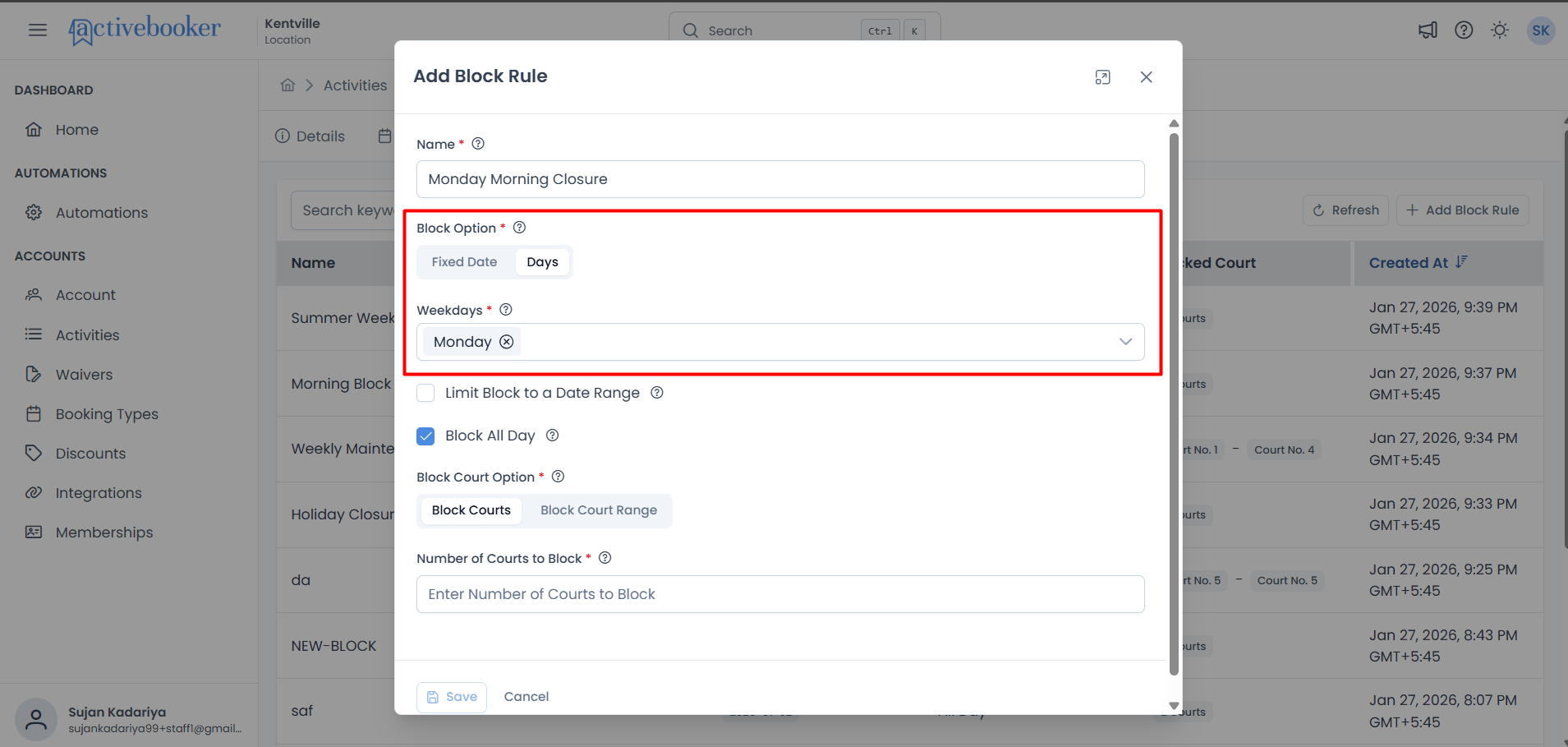
Selecting Days
Days to Block (Required)
Open the dropdown and select one or more days when blocking applies.
- Choose multiple days (e.g., Saturday, Sunday for weekend blocks)
- Select all seven days if needed (though a fixed date might be simpler for full closures)
- Selected days appear as tags in the field
When to use day-based blocks:
- Weekly maintenance schedules (every Monday morning)
- Regular staff days off (closed Sundays)
- Recurring reduced capacity (block some units on slow weekdays)
Limiting to a Date Range (Optional)
Day-based blocks normally apply indefinitely. To limit them to specific months or seasons:
- Check Limit Block to a Date Range
- Select your Start Date (when the block begins)
- Select your End Date (when the block ends)
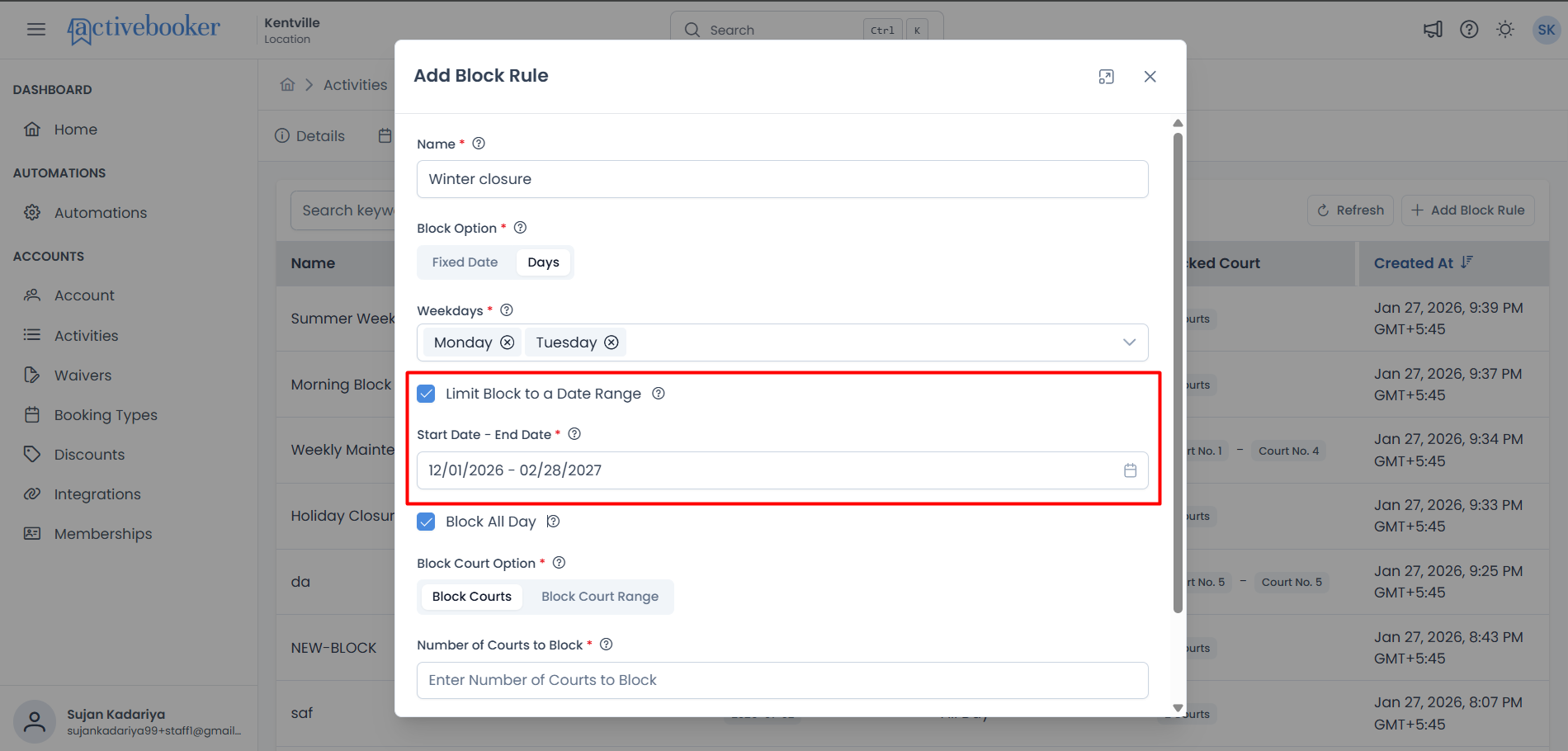
Example Scenarios:
- Winter closure: Block all Mondays and Tuesdays from December 1 - February 28
- Summer maintenance: Block Wednesdays from June 1 - August 31
- Seasonal schedule: Block weekends from November 1 - March 31
Use date-limited day blocks for seasonal schedule changes. For example, if you're closed Sundays only in winter, create a Sunday block limited to winter months rather than manually blocking each Sunday.
Setting Time Restrictions
By default, block rules apply all day. To block only specific hours:
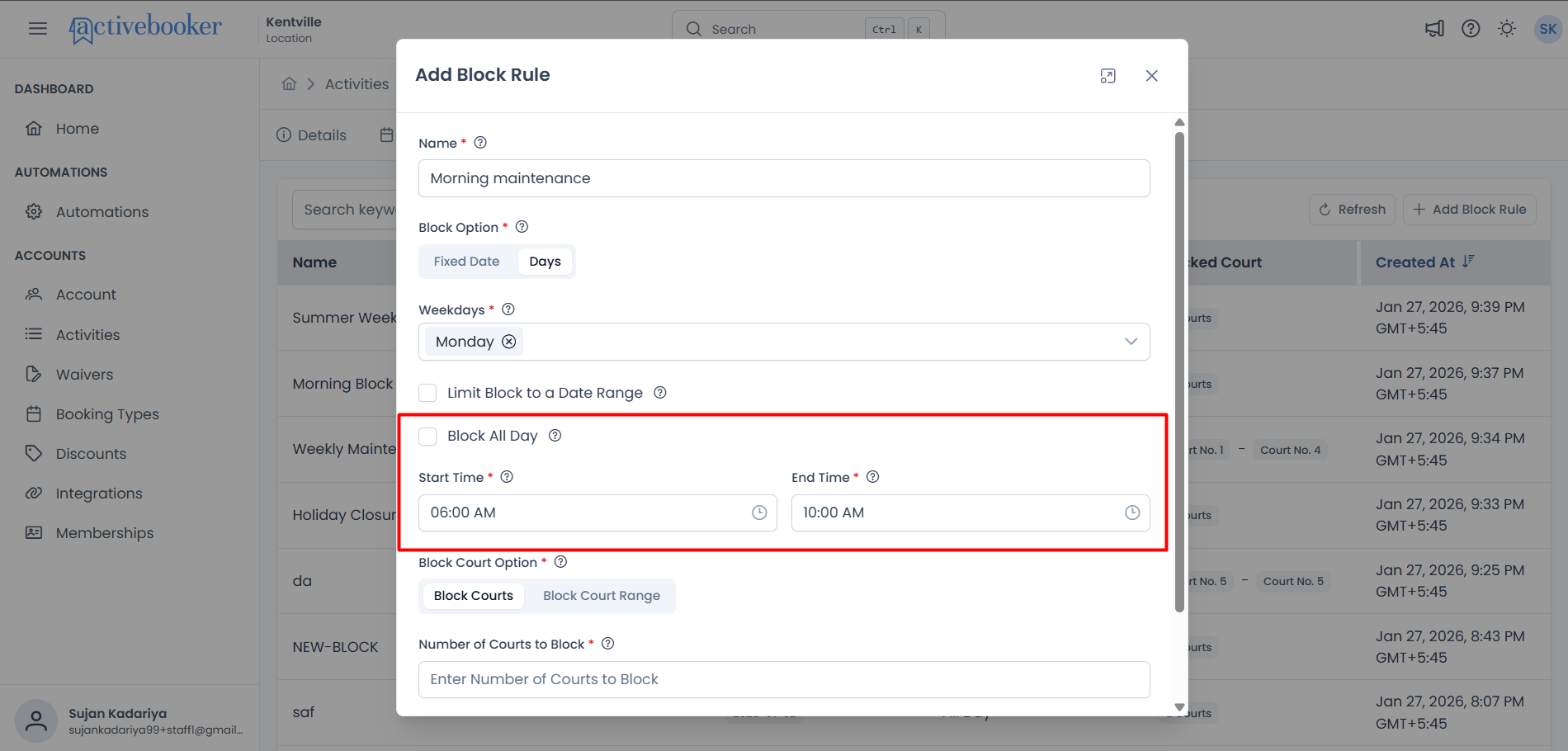
- Uncheck Block All Day
- Select your Start Time (when blocking begins)
- Select your End Time (when blocking ends)
Example Use Cases:
- Morning maintenance: Block 6:00 AM - 10:00 AM on Mondays
- Staff meeting: Block 12:00 PM - 1:00 PM on Fridays
- Early closure: Block 8:00 PM - 11:59 PM on Sundays
- Late opening: Block 12:00 AM - 9:00 AM on weekdays
Use "All Day" for full closures. Use time restrictions when you want to keep some hours available while blocking others.
Choosing What to Block
Every block rule must specify which activity units to block. You have two options:
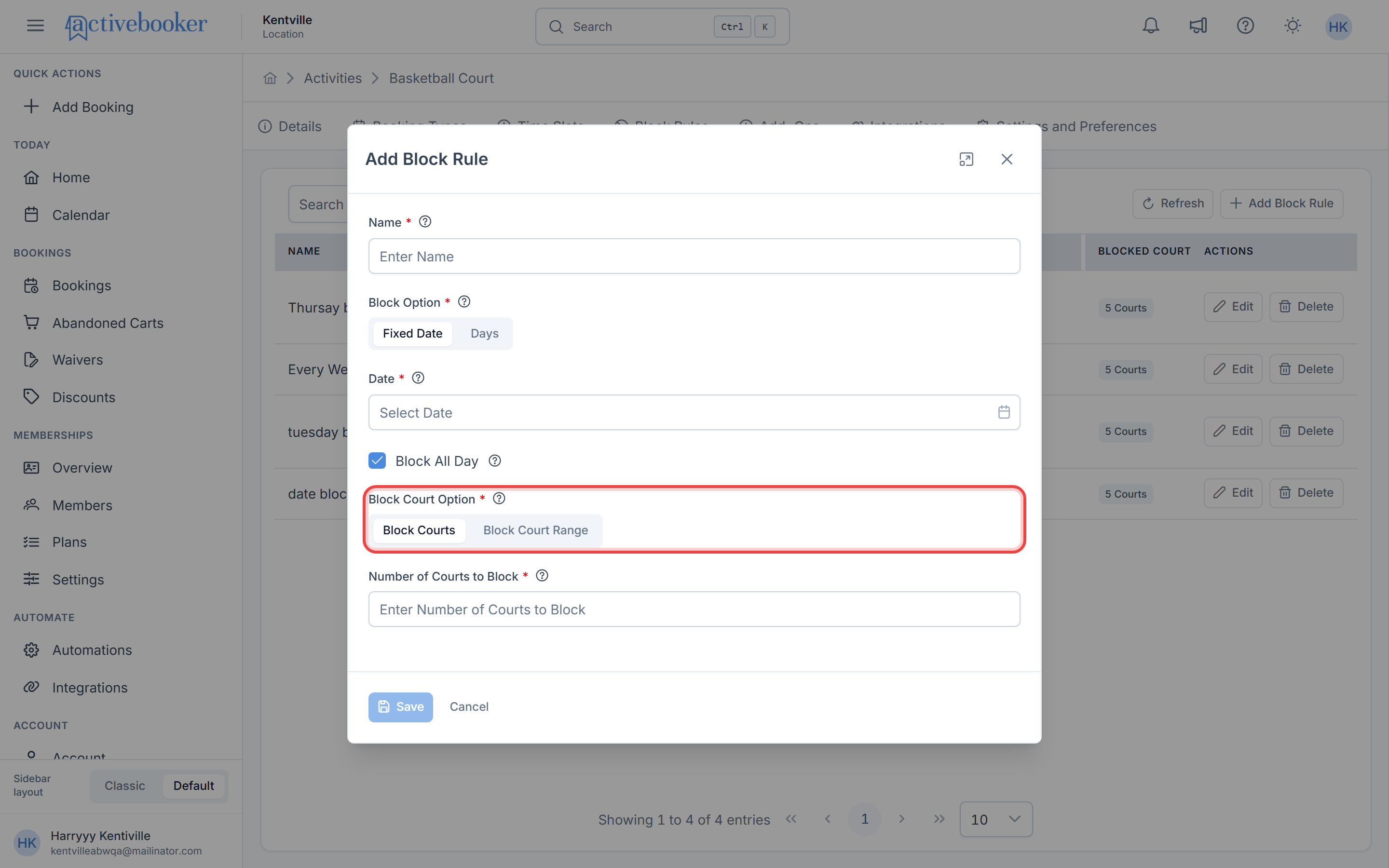
Block by Number
Select Block Activity Units (e.g., "Block Courts", "Block Lanes") to block a certain quantity without specifying which ones.
Number of Units to Block (Required)
Enter how many units to block. The system automatically selects which specific units.
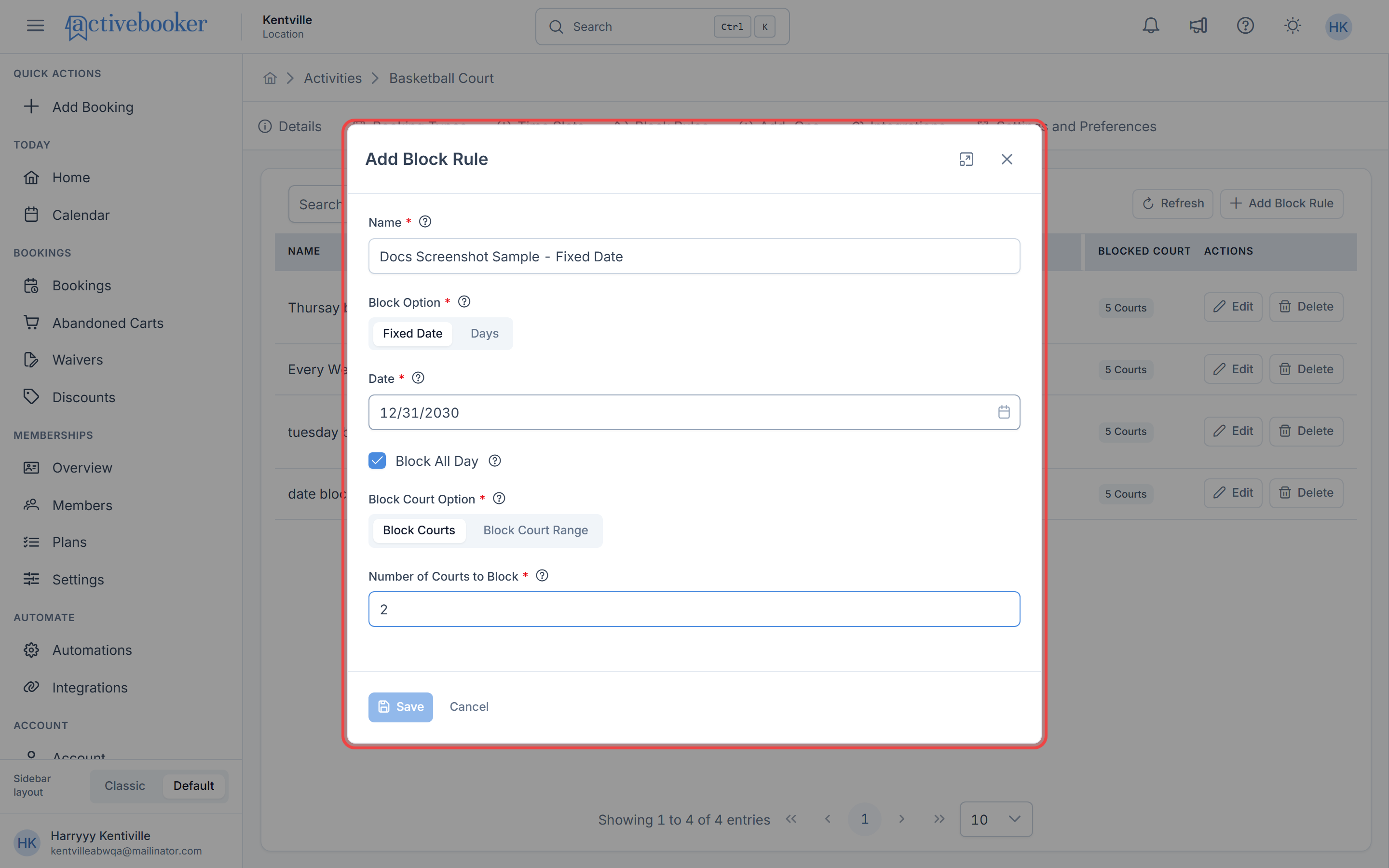
- Example: Enter "2" to block 2 courts - the system picks which 2
- Range: 1 to your total number of units
- Use this when you don't care which specific units are blocked
When to use:
- General maintenance affecting any units
- Reducing capacity during slow periods
- Staff shortages where you need to limit overall availability
When you block by number, the system intelligently allocates which units to block based on existing bookings. This maximizes remaining availability for customers.
Block by Range
Select Block Activity Unit Range (e.g., "Block Court Range", "Block Lane Range") to block specific consecutive units.
Start Unit Number (Required)
Enter the first unit number in the range to block.
End Unit Number (Required)
Enter the last unit number in the range to block.
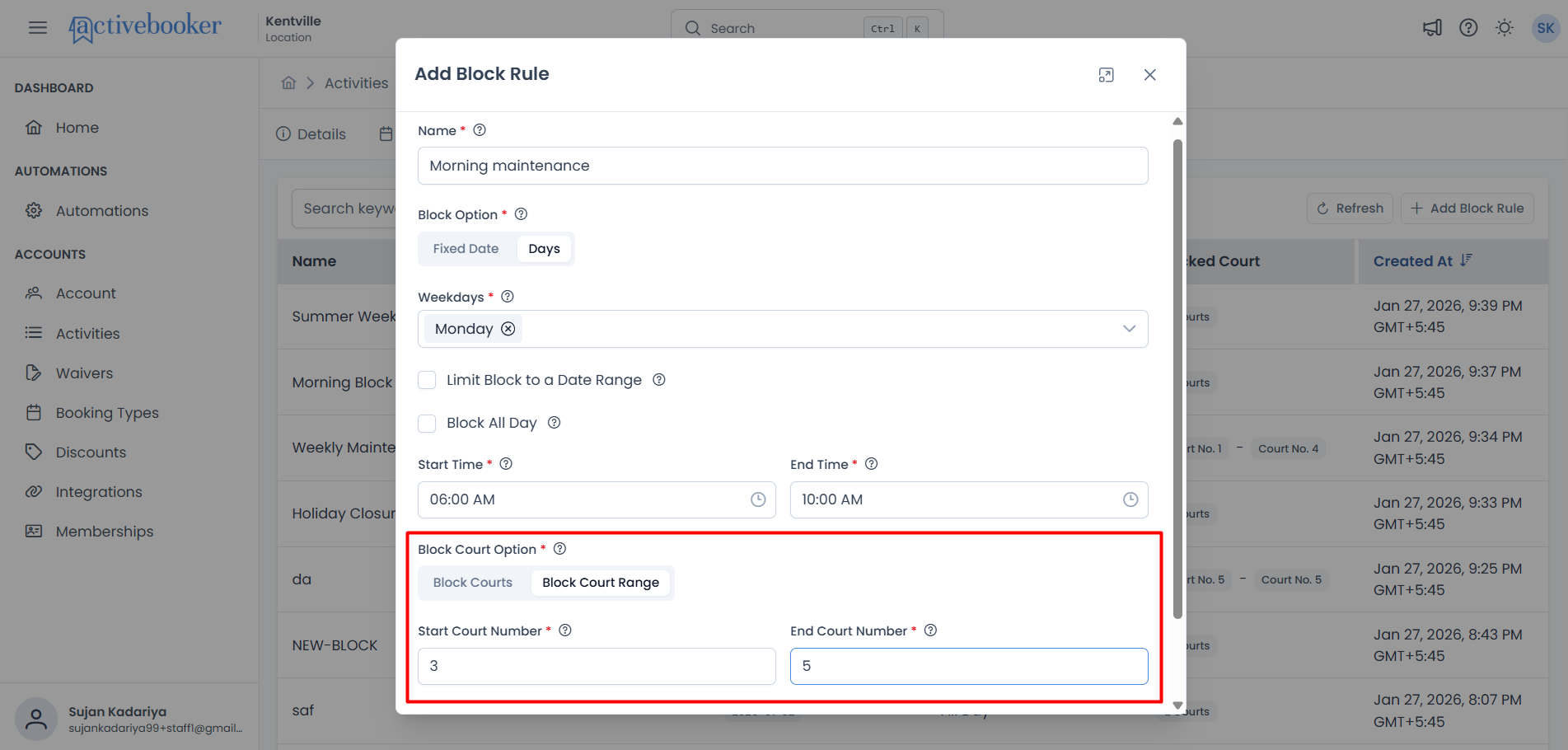
- Example: Start Court 3, End Court 5 blocks Courts 3, 4, and 5
- Start must be less than or equal to End
- Both numbers must be within your total unit count
When to use:
- Specific equipment needs maintenance (lanes 1-3 need resurfacing)
- Reserving particular units for events (courts 8-10 for tournament)
- Section-based closures (upper level lanes, back courts)
- Physical limitations (units near construction area)
Make sure you enter unit numbers that exist in your facility. If you have 10 courts, you can't block courts 11-12. The system validates this.
Editing Block Rules
To modify an existing block rule:
- Locate the rule in the Block Rules table
- Click the Edit button in the Actions column
- Make your changes (name, dates, times, units, etc.)
- Click Save
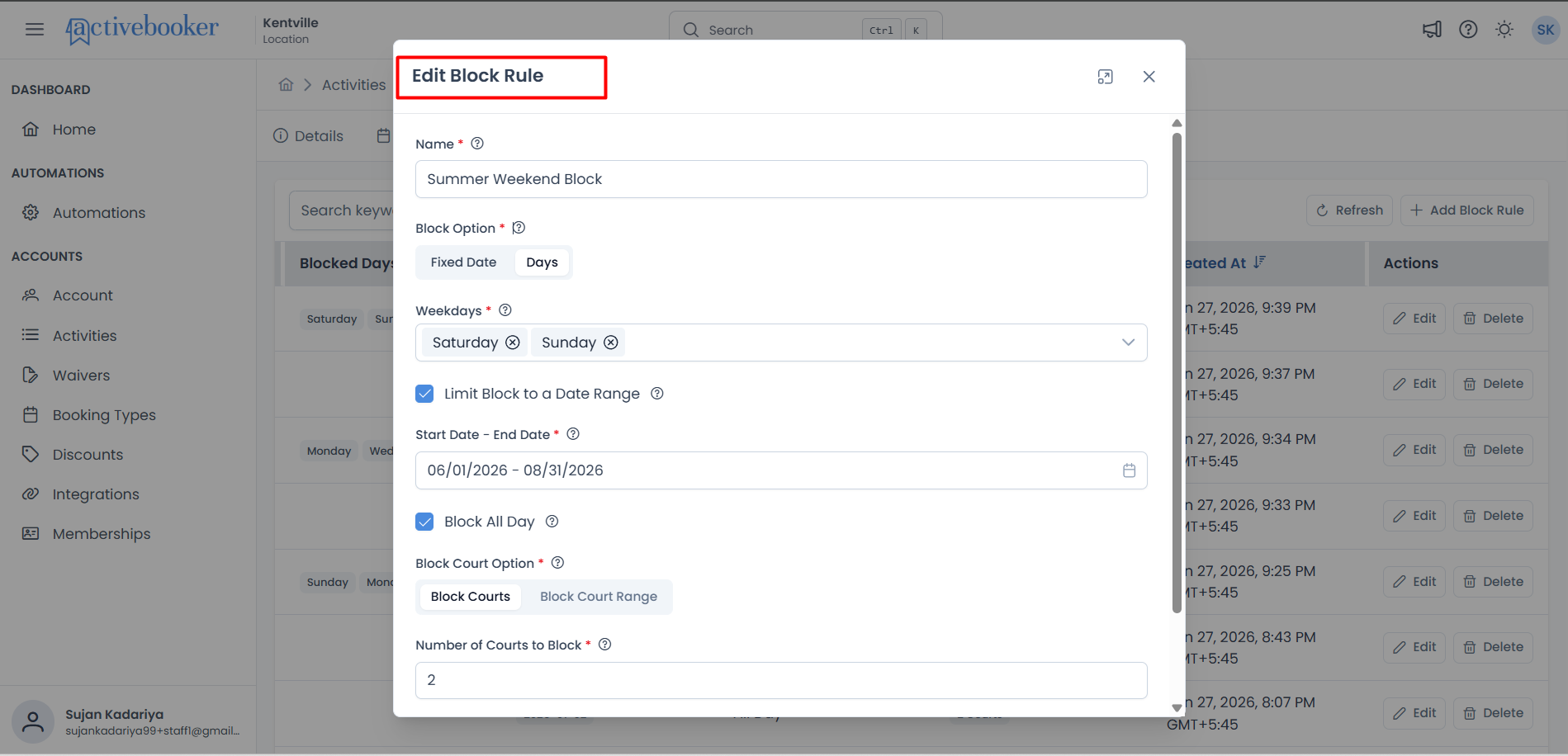
Changes take effect immediately. New booking attempts will reflect the updated block, but existing bookings are not affected.
Editing a block rule doesn't cancel existing bookings. If you need to block a date that already has bookings, you'll need to contact those customers separately.
Deleting Block Rules
To remove a block rule:
- Locate the rule in the table
- Click the Delete button in the Actions column
- Confirm the deletion in the prompt
Once deleted, the rule is permanently removed and customers can again book the previously blocked dates, times, or units.
Deleting a block rule immediately makes those dates/times/units available for customer bookings. Make sure you're ready before deleting.
Common Scenarios
Scenario 1: Holiday Closure - Entire Facility
You're closing your entire facility on Christmas Day.
- Click + Add Block Rule
- Enter name: "Christmas Day Closure"
- Select Fixed Date as Block Option
- Choose December 25 as the Date
- Keep Block All Day checked
- For Block Court Option, select Block Courts
- Enter the total number of your courts (e.g., 10) in "Number of Courts to Block"
- Click Save
Result: No availability shows for any court on December 25.
Scenario 2: Weekly Maintenance - Specific Units
You need to maintain lanes 1-3 every Monday morning from 6 AM to 12 PM.
- Click + Add Block Rule
- Enter name: "Monday Morning Maintenance - Lanes 1-3"
- Select Days as Block Option
- Choose Monday in Days to Block
- Leave "Limit Block to a Date Range" unchecked (applies every Monday)
- Uncheck Block All Day
- Set Start Time to 6:00 AM and End Time to 12:00 PM
- For Block Lane Option, select Block Lane Range
- Enter Start Lane Number: 1 and End Lane Number: 3
- Click Save
Result: Lanes 1-3 are unavailable every Monday from 6 AM to Noon. Lanes 4-10 remain bookable.
Scenario 3: Winter Weekend Closure - Seasonal
You close all courts on weekends during winter months (November through February).
- Click + Add Block Rule
- Enter name: "Winter Weekend Closure"
- Select Days as Block Option
- Choose Saturday and Sunday in Days to Block
- Check Limit Block to a Date Range
- Set Start Date to November 1 and End Date to February 28
- Keep Block All Day checked
- For Block Court Option, select Block Courts
- Enter your total number of courts
- Click Save
Result: No weekend availability from November 1 through February 28. Weekdays remain open, and weekends are available again starting March 1.
Scenario 4: Tournament - Reserve Specific Courts
You have a tournament on July 15 that needs courts 5-8 all day.
- Click + Add Block Rule
- Enter name: "Summer Tournament - Courts 5-8"
- Select Fixed Date as Block Option
- Choose July 15 as the Date
- Keep Block All Day checked
- For Block Court Option, select Block Court Range
- Enter Start Court Number: 5 and End Court Number: 8
- Click Save
Result: Courts 5-8 are unavailable on July 15. Courts 1-4 and 9-10 (if you have them) remain bookable.
Tips for Effective Blocking
Plan in Advance
Create block rules as soon as you know about closures or maintenance. This prevents customers from booking slots you'll need to cancel later.
Use Descriptive Names
Include the reason and scope in your rule names. "Holiday Closure - Thanksgiving" is clearer than just "November Block".
Be Specific with Ranges
When blocking specific units, use the range option instead of counting. "Courts 3-5" is more precise than "3 courts somewhere".
Review Regularly
Periodically review your block rules to delete outdated ones. Keeping old blocks active unnecessarily limits customer bookings.
Consider Partial Blocks
Don't block more than necessary. If only 2 courts need maintenance, block just those 2 rather than closing the entire facility.
Communicate with Customers
Consider notifying regular customers about upcoming blocks, especially for major closures or schedule changes. While they'll see unavailable dates in the booking system, proactive communication builds goodness.
Frequently Asked Questions
What happens to existing bookings when I create a block rule?
Existing bookings are not affected. Block rules only prevent new bookings. If you need to clear existing bookings, you'll need to cancel them separately.
Can I block multiple non-consecutive dates with one rule?
No. Each fixed date rule blocks one date. To block multiple non-consecutive dates (like December 24, 25, and 31), create separate rules for each date.
Can I block some units but not others?
Yes. Use the blocking options to specify exactly how many units or which unit range to block. The remaining units stay available for bookings.
What's the difference between blocking by number vs. by range?
Blocking by number lets the system choose which units to block (useful for general capacity reduction). Blocking by range lets you specify exact units (useful when specific equipment needs maintenance).
Can I create overlapping block rules?
Yes, but be careful. If multiple rules overlap, they compound. For example, blocking courts 1-3 and separately blocking courts 2-4 means courts 1-4 are all blocked.
How far in advance should I create block rules?
As early as possible. Customers can see availability weeks or months ahead, so create blocks as soon as you know about closures to prevent having to cancel bookings later.
Can I block only specific time slots rather than hour ranges?
Block rules work with start and end times, not individual time slots. To block specific slots, use time ranges that cover those slots.
What happens if I delete a block rule by mistake?
The dates/times/units immediately become available for booking again. You can recreate the rule, but you cannot undo a deletion.
Can I see which bookings conflict with a block rule I want to create?
Not directly from the block rules interface. Check your bookings calendar before creating blocks that might conflict with existing reservations.
Do block rules sync with my other systems?
Block rules control availability in your ActiveBooker system. Depending on your integrations, you may need to update other systems separately.
Can I temporarily disable a block rule without deleting it?
No. Block rules don't have an active/inactive toggle. If you want to temporarily remove a block, delete it and recreate it later, or adjust the date range to exclude the period you want available.
Why can't I see the blocked dates in my booking calendar?
That's exactly how it works! Blocked dates/times/units simply don't appear as available options. Customers can't select what's blocked.