Activities List
Overview
The Activities List page provides a centralized view for managing all activities within your ActiveBooker account. This interface allows you to view, search, edit, and manage activities for your location.
Accessing Activities
Navigate to Account > Activities in the left sidebar to access the Activities List page.
Page Components
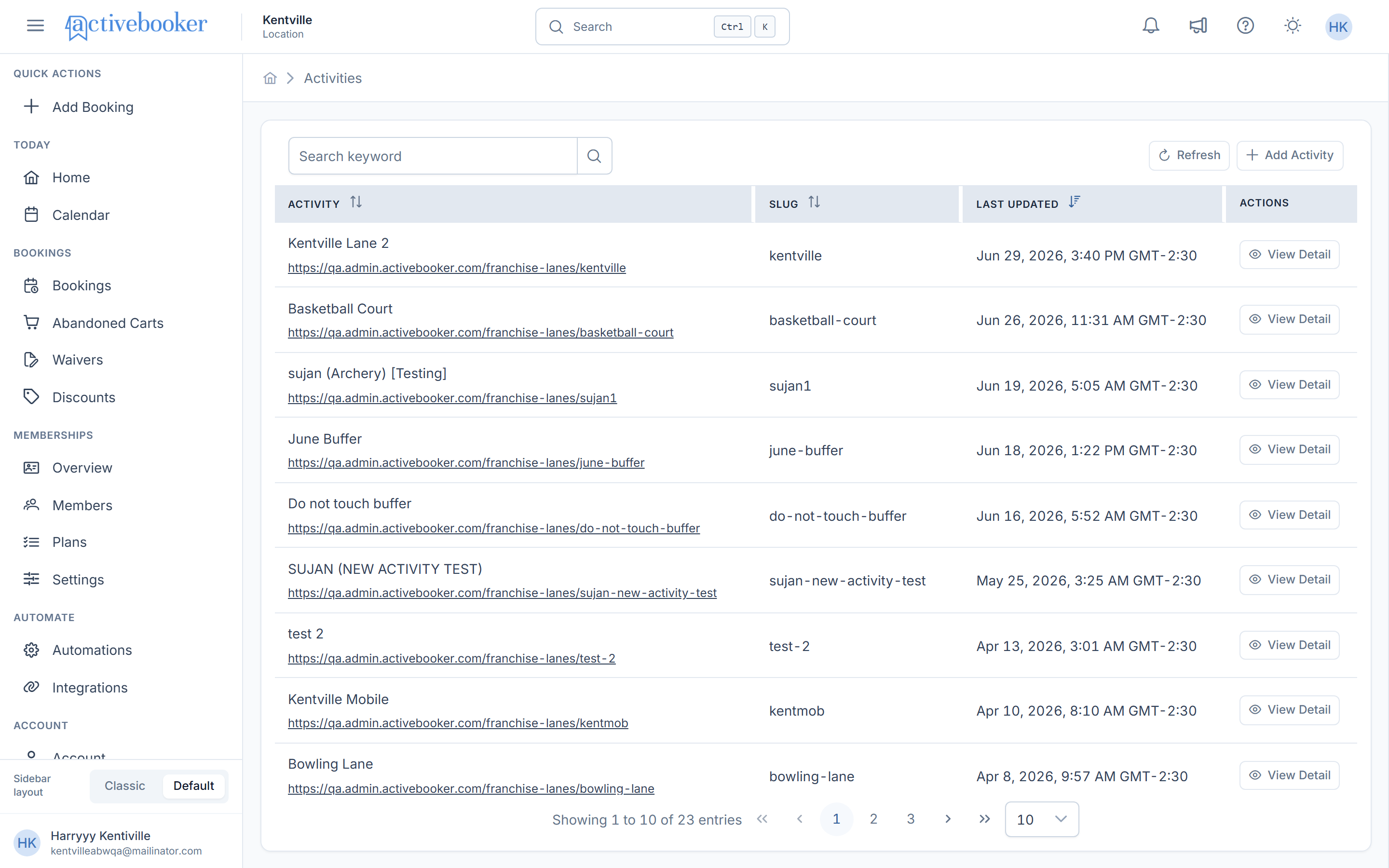
Search and Actions Bar
Located at the top of the page, this section includes:
- Search Field: Search activities by keyword using the search input field
- Refresh Button: Click to reload the activities list and fetch the latest data
- Add Activity Button: Create a new activity by clicking the "+ Add Activity" button
Activities Table
The main table displays all activities with the following columns:
Activity Column
- Shows the activity name
- Displays the full URL link to the franchise activities booking page
- Format:
https://example.com/franchise-lanes/{slug}
Slug Column
- Displays the unique identifier/slug for each activity
- Used in URLs
Last Updated Column
- Shows the timestamp of the most recent update
- Format: Date, Time (Timezone offset)
Actions Column
- View Detail: Opens the activity detail page
- Delete: Removes the activity (with confirmation)
Common Tasks
Searching for Activities
- Click on the search field labeled "Search keyword"
- Enter your search term
- Press Enter or click the search icon
- The table will filter to show matching results
Adding a New Activity
- Click the "+ Add Activity" button in the top-right corner
- Fill in the required activity information
- Save your changes
Viewing Activity Details
- Click the "View Detail" button next to the desired activity
- The activity detail page will open with complete information
Deleting an Activity
- Click the "Delete" button in the Actions column
- Confirm the deletion when prompted
- The activity will be permanently removed
Tips and Best Practices
- Unique Slugs: Ensure each activity has a unique slug to avoid URL conflicts
- Regular Updates: Keep activity information current by checking the "Last Updated" timestamps
- Search Efficiency: Use specific keywords to quickly locate activities in large lists
Troubleshooting
Activities Not Displaying
- Click the "Refresh" button to reload the list
- Check your internet connection
- Verify you have the correct permissions
Search Not Working
- Clear the search field and try again
- Ensure you're using valid search terms
- Check that activities exist matching your criteria
Cannot Edit or Delete
- Verify you have the necessary permissions for your role
- Contact your administrator if access issues persist
Related Documentation
- Manage activities — add and edit activities
- Activity details — the activity detail page explained
- Core concepts — how activities relate to booking types and time slots