Manage Activities
Create new activities or update existing ones to manage your bookable services. Activities represent the services you offer at your location, such as bowling lanes, golf bays, tennis courts, or any other bookable resources.
Quick start
Adding a new activity
- Navigate to Activities in your dashboard sidebar
- Click the Add Activity button in the top-right corner
- Fill in the required fields in the modal form
- Click Save to create your activity
Editing an existing activity
- Navigate to Activities in your dashboard sidebar
- Click View Detail on the activity you want to edit
- Click the Edit button in the General Information section
- Update the fields you want to change
- Click Save to apply your changes
What you can do
The Add/Edit Activity modal helps you:
- Create new activities — Set up bookable services with custom names and URLs
- Configure capacity — Define how many total units are available for booking
- Customize terminology — Match your business type with industry-specific labels
- Control availability — Activate or deactivate activities from your booking system
Understanding the form fields
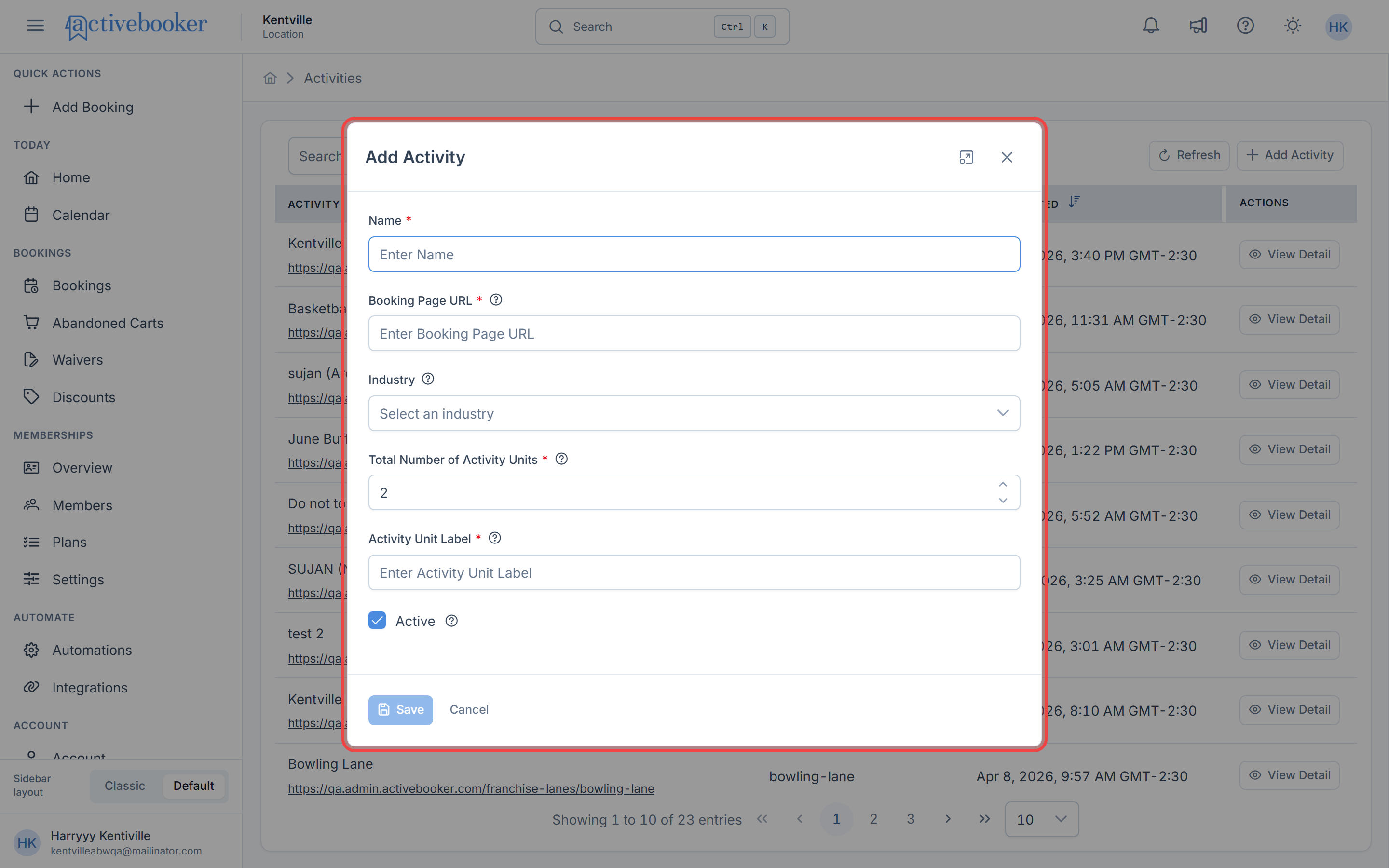
When you open the Add Activity or Edit Activity modal, you'll see a form with the following fields:
Name (Required)
The display name for your activity as it appears to customers and throughout your system.
- Character limit: 100 characters maximum
- Examples: "Bowling Lane Activity", "Tennis Court Booking", "Golf Bay Experience"
Use clear, descriptive names that help both your team and customers quickly identify the activity.
Booking Page URL (Required)
The unique web address path where customers can book this activity. This creates a custom URL like https://your-domain.com/franchise-lanes/your-custom-path
- Character limit: 100 characters maximum
- Format: Must be a valid URL slug (lowercase letters, numbers, and hyphens only)
- Uniqueness: Must be unique across entire system (all locations)
Hover over the info icon next to this field to see formatting guidelines and your complete booking URL preview.
Changing the Booking Page URL will impact your booking flow. If you have shared this URL with customers or saved it in marketing materials, they will not be able to access the old URL. Always communicate URL changes to your customers before making updates.
Industry (Optional)
Select the business type that best describes this activity. This customizes the user interface, terminology, and booking experience.
- Common options: Bowling, Golf, Tennis, Sports Courts, and more
- Default: None selected
- Impact: Affects how the booking interface appears to customers
If you're unsure which industry to select, you can leave this field empty and set it later. However, selecting an industry provides a more tailored experience for your customers.
Total Number of Activity Units (Required)
The number of bookable resources available for this activity at your location.
- Minimum: 1 unit
- Maximum: 500 units
- Examples: If you have 4 bowling lanes for this activity, enter "4"
This number represents your total capacity. For example, if you enter "2", customers can book up to 2 of these resources at the same time. If you operate a single bookable resource — one escape room, one simulator, one court — enter "1".
Activity Unit Label (Required)
The term used to describe each individual resource in the booking system.
- Character limit: 100 characters maximum
- Common examples: Lane, Bay, Court, Seat, Room, Table
- Usage: This label appears throughout the booking interface when customers select resources
Choose a label that matches your industry and feels natural to customers. For example, use "Lane" for bowling, "Bay" for golf, or "Court" for tennis.
Active Status
Controls whether this activity is currently available for customer bookings.
- Checked (Active): Activity is visible and bookable on your booking page
- Unchecked (Inactive): Activity is hidden from customers
Newly created activities are set to Active by default. You can deactivate them at any time if you need to temporarily stop accepting bookings.
Using the modal
Adding a new activity
- Click Activities in the left sidebar to open your activities list
- Click the Add Activity button at the top-right corner of the page
- The Add Activity modal opens
- Fill in all required fields (Name, Booking Page URL, Total Activity Units, Activity Unit Label)
- Optionally select an Industry and set the Active status
- Click Save to create your activity
After saving, you'll be automatically redirected to the activity's Details page where you can review your newly created activity and configure additional settings.
Hover over the info icon (ⓘ) next to any field label to see helpful guidance about what to enter and how it's used.
Editing an existing activity
- Navigate to the activity you want to edit from your Activities list
- Click View Detail in the row actions
- On the Details page, click the Edit button in the General Information section
- The Edit Activity Information modal opens with current values pre-filled
- Update any fields you want to change
- Click Save to apply your updates
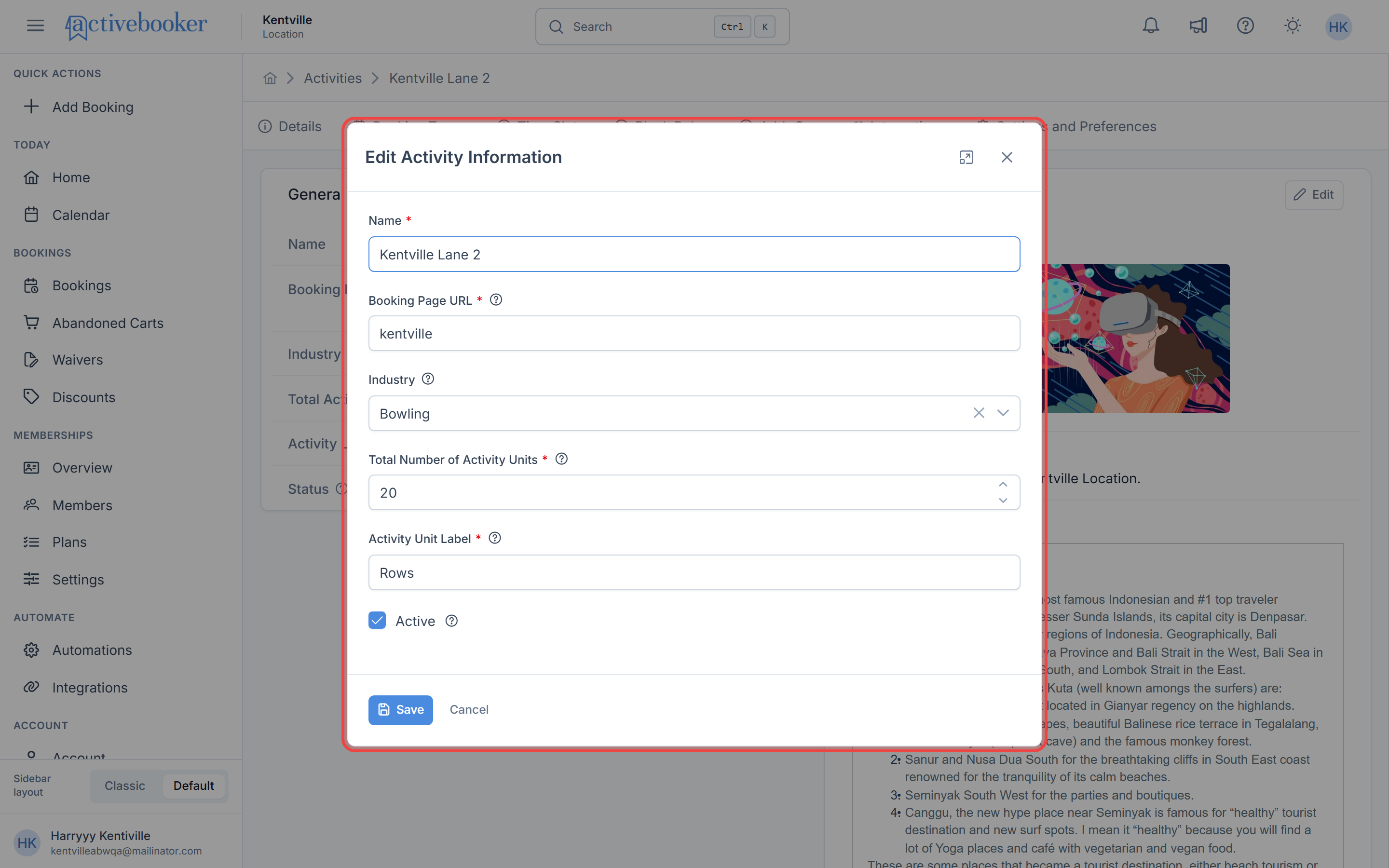
The Edit modal shows the same fields as the Add Activity modal, making it easy to update any setting at any time.
Common scenarios
Setting up your first activity
When launching a new location or service:
- Click Add Activity from the Activities page
- Enter a descriptive name like "Premium Bowling Lanes"
- Create a memorable booking URL like "premium-bowling"
- Select your industry type (e.g., "Bowling")
- Enter your total capacity (e.g., "6" if you have 6 lanes)
- Set your unit label to "Lane"
- Ensure Active is checked
- Click Save and review your activity on the Details page
Updating capacity after expansion
When you add more resources to your location:
- Open the activity you want to update
- Click Edit in the General Information section
- Update the Total Number of Activity Units field with your new capacity
- Click Save to make the additional units available for booking
Changing your booking URL
When you need to update your booking page address:
- Open the activity you want to modify
- Click Edit in the General Information section
- Notice the warning message about URL changes
- Update the Booking Page URL field carefully
- Before saving, make note of where you need to update this URL (website, social media, marketing materials)
- Click Save and communicate the new URL to your customers
Temporarily closing an activity
When you need to stop accepting bookings for maintenance or seasonal closure:
- Open the activity you want to deactivate
- Click Edit in the General Information section
- Uncheck the Active checkbox
- Click Save to hide the activity from your booking page
Customers will no longer see this activity until you reactivate it.
Best practices
✅ Use descriptive activity names — Clear names help both your team and customers understand what they're booking
✅ Keep booking URLs simple — Short, memorable URLs are easier to share and type
✅ Set realistic capacity numbers — Match your actual physical resources to avoid overbooking
✅ Choose accurate industry types — This provides customers with the most relevant booking experience
✅ Review before saving — Double-check all fields, especially the Booking Page URL, before creating or updating activities
❌ Avoid changing booking URLs frequently — Each change requires updating all external references and notifying customers
❌ Don't use special characters in URLs — Stick to lowercase letters, numbers, and hyphens only
❌ Don't set capacity higher than your physical resources — This can lead to booking conflicts and customer dissatisfaction
Before changing a Booking Page URL, create a checklist of everywhere it's published (website, social media, email signatures, printed materials) to ensure you update all references.
After creating an activity
Once your activity is successfully created, you'll be redirected to the Activity Details page where you can:
- Review all activity information
- Configure additional settings through other tabs
- Set up availability schedules
- Define booking types and pricing
- Manage activity-specific preferences
See Activity Details for more information about managing your activity after creation.
Related resources
Learn more about managing your activities:
- Activity Details — View and understand your activity information