Analytics Integration
Connect your analytics tools to track bookings, measure conversion rates, and gain insights into customer behavior on your activity booking pages.
Quick start
Set up analytics tracking in just a few steps:
- Navigate to Activities in your dashboard sidebar
- Click View Detail on the activity you want to track
- Click the Integrations tab
- Click Manage Analytics Integrations
- Enable your preferred analytics tools and enter their IDs
- Click Save to start tracking
What you can do
Analytics Integration helps you:
- Track Facebook ad conversions — Measure ROI on your Facebook advertising campaigns and optimize ad spend
- Monitor website traffic — Use Google Analytics to understand user engagement and booking conversion rates
- Manage multiple tracking scripts — Deploy and centralize all your tracking tools through Google Tag Manager
Understanding the interface
Analytics Integration overview
When you open the Integrations tab, you'll see three analytics cards displaying the current configuration status of each tool.
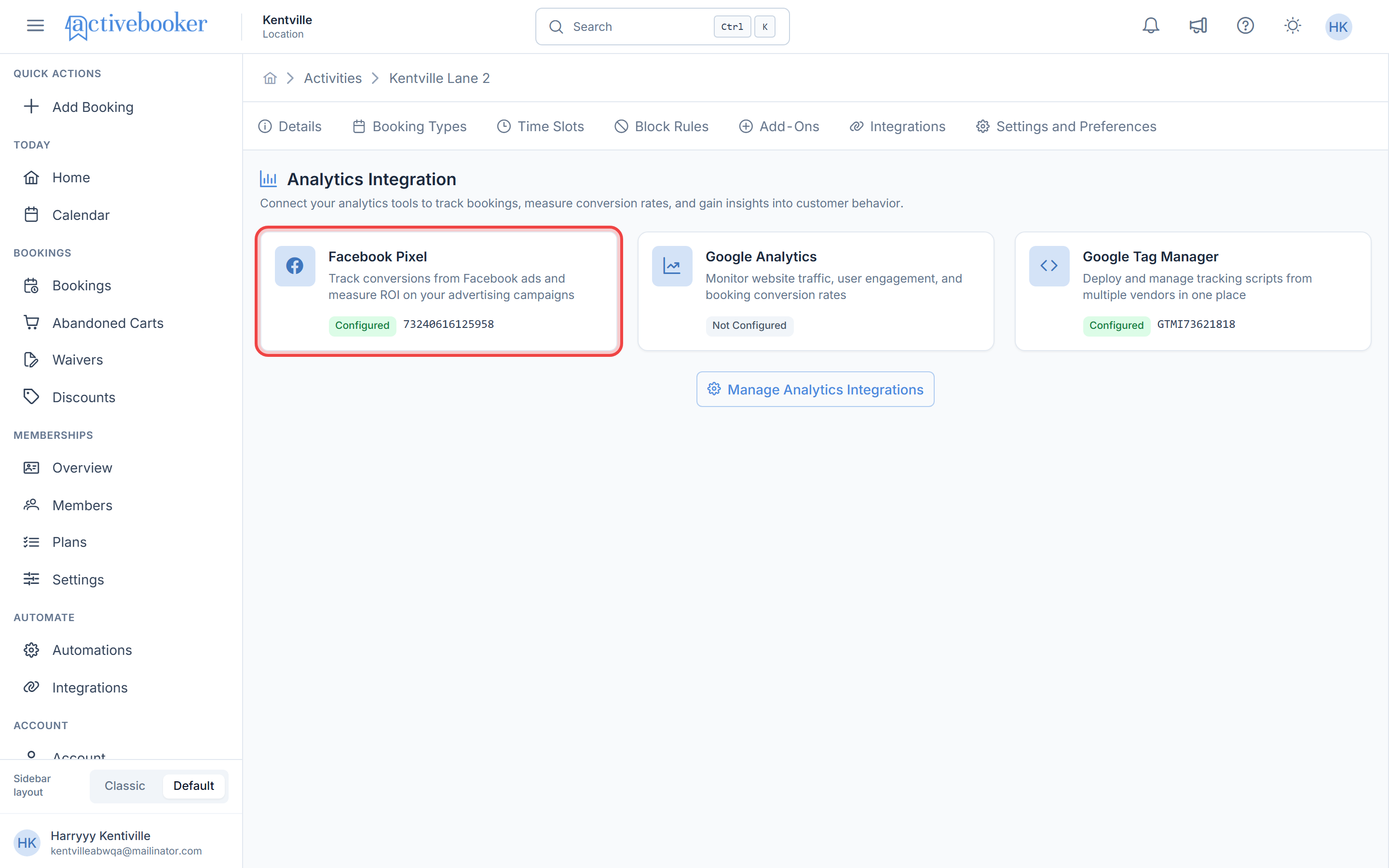
Each card shows:
Facebook Pixel
Track conversions from Facebook ads and measure ROI on your advertising campaigns.
Google Analytics
Monitor website traffic, user engagement, and booking conversion rates.
Google Tag Manager
Deploy and manage tracking scripts from multiple vendors in one place.
Configuration status indicators
Each analytics card displays its current status:
- Not Configured (gray badge) — This analytics tool hasn't been set up yet
- Configured (green badge) — The tool is active, and the ID is displayed next to the badge
You can configure one, two, or all three analytics tools depending on your tracking needs. They work independently and can be used together.
Using this feature
Accessing analytics integration
- Log in to your ActiveBooker dashboard
- Click Activities in the left sidebar
- Locate the activity you want to track
- Click View Detail in the row actions
- The Details page opens
- Click the Integrations tab at the top
- You'll see the Analytics Integration section with three analytics cards
Configuring analytics tools
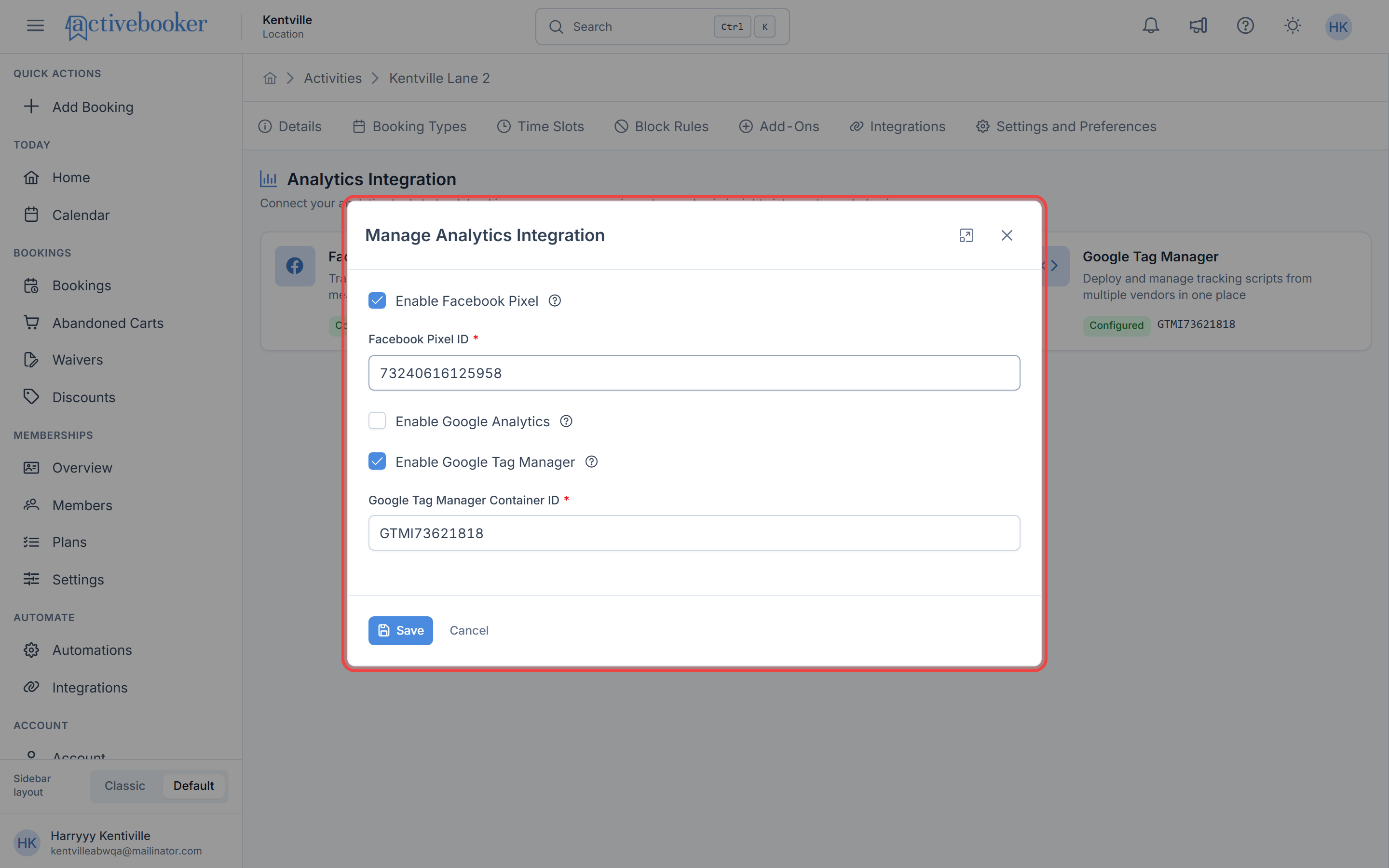
To set up your analytics integrations:
- Click on any analytics card or click the Manage Analytics Integrations button below the cards
- The Manage Analytics Integration modal opens
- Check the Enable checkbox for the analytics tool you want to configure
- The ID input field appears below the checkbox
- Enter your analytics ID in the field that appears
- Repeat for any additional analytics tools you want to enable
- Click Save to activate your integrations
- Facebook Pixel ID: Found in Facebook Events Manager under your pixel settings
- Google Analytics Measurement ID: Starts with "G-" and found in your Google Analytics Admin panel under Data Streams
- Google Tag Manager Container ID: Starts with "GTM-" and found in your GTM workspace settings
Disabling analytics tools
To remove an analytics integration:
- Click Manage Analytics Integrations
- Uncheck the Enable checkbox for the tool you want to disable
- Click Save to remove the integration
The card will now show "Not Configured" status.
Common scenarios
Setting up Facebook Pixel tracking
When you want to measure the effectiveness of your Facebook ad campaigns:
- Open the Integrations tab for your activity
- Click Manage Analytics Integrations
- Check Enable Facebook Pixel
- Enter your Facebook Pixel ID from Facebook Events Manager
- Click Save
Your booking page will now track conversions and send data to Facebook Ads Manager.
Adding Google Analytics to track conversions
When you need to understand your booking funnel and conversion rates:
- Navigate to the Integrations tab
- Click Manage Analytics Integrations
- Check Enable Google Analytics
- Enter your Google Analytics Measurement ID (starts with "G-")
- Click Save
You'll now see booking page visits, user behavior, and conversion data in your Google Analytics dashboard.
Implementing Google Tag Manager for centralized tracking
When you need to manage multiple tracking scripts in one place:
- Go to the Integrations tab for your activity
- Click Manage Analytics Integrations
- Check Enable Google Tag Manager
- Enter your GTM Container ID (starts with "GTM-")
- Click Save
All tags configured in your Google Tag Manager workspace will now be active on your booking page.
If you use Google Tag Manager, you can manage your Facebook Pixel and Google Analytics through GTM instead of entering them separately here. However, entering them directly ensures they work even if GTM has issues.
Setting up multiple analytics tools
When you want comprehensive tracking across different platforms:
- Open Manage Analytics Integrations
- Enable Facebook Pixel and enter your Pixel ID
- Enable Google Analytics and enter your Measurement ID
- Enable Google Tag Manager and enter your Container ID
- Click Save once to activate all three tools
All three integrations will work simultaneously to provide complete tracking coverage.
Best practices
✅ Test your integrations after setup — Visit your booking page and verify that events appear in your analytics platforms
✅ Use descriptive event names — If you're setting up custom events in GTM, use clear naming conventions to track specific booking actions
✅ Keep your IDs secure — Don't share your analytics IDs publicly, as they're linked to your accounts
✅ Enable multiple tools for redundancy — Using both direct integrations and GTM ensures tracking continues if one method fails
❌ Avoid entering incorrect IDs — Double-check your IDs before saving to prevent tracking data from going to the wrong account
❌ Don't disable analytics during campaigns — Removing integrations mid-campaign creates data gaps that affect reporting accuracy
Set up Google Tag Manager first, then configure other tracking tools through GTM. This gives you more flexibility to add, remove, or modify tracking without updating your ActiveBooker settings.
Troubleshooting
Issue: Analytics data not appearing in my dashboard
Why this happens: There may be a delay in data processing, or the ID might be incorrect.
How to fix it:
- Verify you entered the correct ID for your analytics tool
- Wait 24-48 hours for data to populate in your analytics dashboard
- Check that your analytics account is set up to receive data
- Visit your booking page to generate test traffic
- Use your analytics platform's real-time view to confirm tracking is working
Issue: Tracking not working after entering my ID
Why this happens: The ID might be incorrect, or there might be browser extensions blocking tracking scripts.
How to fix it:
- Double-check your ID in the source platform (Facebook, Google Analytics, or GTM)
- Ensure the ID format matches the expected pattern (e.g., "GTM-" for Tag Manager)
- Test in an incognito browser window to rule out ad blockers
- Check your browser console for any JavaScript errors
- Contact support if the issue persists
Issue: Changed my ID but old data still appears
Why this happens: Analytics platforms cache historical data based on previous configurations.
How to fix it:
- New data will flow to the new ID you entered
- Historical data remains with the old ID in your analytics platform
- This is expected behavior and ensures you don't lose past tracking data
- Allow 24-48 hours for new data to appear with the updated ID
Analytics tracking collects visitor data on your booking pages. Make sure you have appropriate privacy policies in place and inform customers about tracking in accordance with data protection laws.
Frequently asked questions
Do I need all three analytics tools?
No, you can use any combination of the three tools based on your needs. Many businesses use just one or two. Facebook Pixel is mainly valuable if you run Facebook ads, while Google Analytics and GTM are useful for general website tracking.
Will this affect my booking page loading speed?
Analytics scripts have minimal impact on page load times. However, using Google Tag Manager to load other tools is generally more efficient than loading multiple scripts directly.
Can I use the same analytics IDs across multiple activities?
Yes, you can enter the same Facebook Pixel, Google Analytics, or GTM IDs for multiple activities. This lets you track all your activities in a single analytics dashboard.
What happens to my data if I disable an integration?
Your historical data remains in your analytics platform, but new tracking stops immediately. You can re-enable the integration at any time to resume tracking.
How do I know if tracking is working correctly?
Visit your booking page after setting up integrations, then check your analytics platform's real-time view. You should see your visit appear within a few minutes.
Related resources
Learn more about managing your activities and integrations:
- Activity Details — View and manage your activity information
- Settings and Preferences — Configure Booking Settings and Booking Page UI Preference
- Add and Edit Activities — Create and update activities