Details
View and manage essential information for individual activities in your booking system. This page displays key settings that control how your activity appears to customers and how your booking resources are organized.
Quick start
Access activity details in just a few steps:
- Navigate to Activities in your dashboard sidebar
- Locate the activity you want to view
- Click View Detail in the row action menu
- Review the General Information and Content sections
What you can do
The Activity Details page helps you:
- View key activity information — See all essential settings and configurations at a glance
- Edit activity properties — Update name, industry type, capacity, and availability status
- Manage booking URLs — Access the unique web address customers use to book this activity
- Configure resource labels — Customize terminology to match your business type
Understanding the interface
General Information section
When you open an activity's details, you'll see the General Information panel displaying core settings that define how your activity operates.
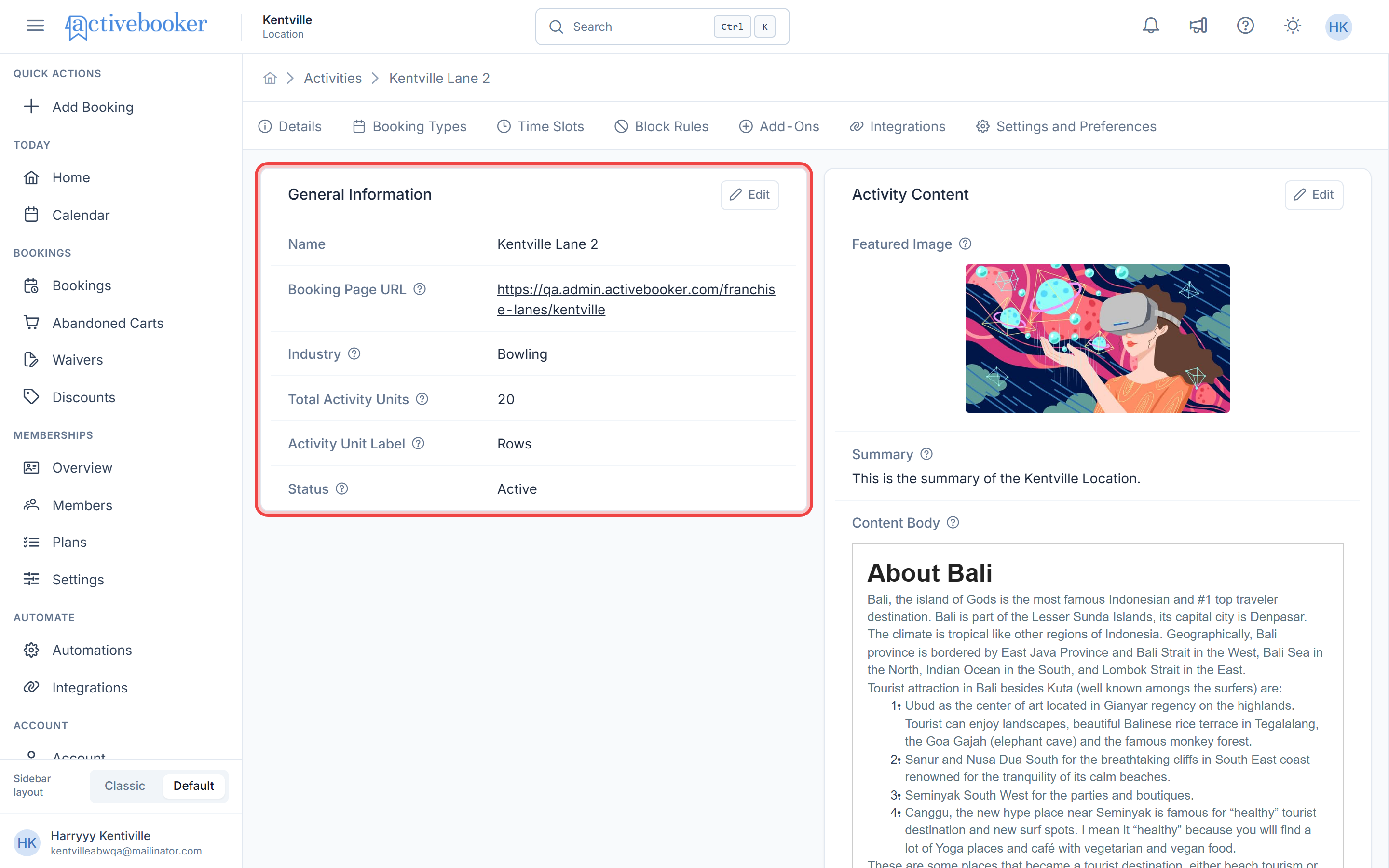
Name
The display name for this activity as it appears throughout your system and to customers.
Booking Page URL
The unique web address where customers can book this activity. This URL is automatically generated based on your activity settings and follows the format: https://your-domain.com/franchise-lanes/activity-name
Industry
The business type associated with this activity. This setting customizes the user interface, terminology, and booking experience to match your specific industry (such as Bowling, Golf, Tennis, or other recreational activities).
Total Activity Units
The number of bookable resources available for this activity at your location. For example, if you operate a bowling center with 2 lanes for this activity, you would enter "2". This represents your total capacity.
Activity Unit Label
The term used to describe each individual resource throughout the booking system. Common examples include Lane, Bay, Court, Seat, or Room. This label helps customers understand what they're booking.
Status
Controls whether this activity is currently available for booking. When set to "Active", customers can see and book this activity. When "Inactive", it's hidden from your booking system.
Edit button
Click the edit icon to modify any of these settings. See Editing Activity Details for complete instructions.
Activity Content
Activity Content allows you to manage additional marketing and informational materials for an activity.
Learn more here.
Using this feature
Accessing activity details
- Log in to your ActiveBooker dashboard
- Click Activities in the left sidebar
- Find the activity you want to view in the list
- Click the View Detail button in the row actions
- The Details tab opens automatically with General Information displayed
Reviewing activity information
The Details page provides a comprehensive overview of your activity configuration. Each field displays the current value and includes helpful tooltips (indicated by info icons) that explain what each setting controls.
To see additional details about any field, hover over the info icon next to the field label for a brief explanation.
Editing activity details
To modify any activity information:
- Click the Edit button in the top-right corner of the General Information section
- Make your desired changes to the available fields
- Click Save to apply your updates
For complete instructions on editing activities, see the Editing Activity Details guide.
Common scenarios
Checking your booking page URL
When you need to share your booking link with customers or add it to marketing materials:
- Navigate to the activity's Details page
- Locate the Booking Page URL field in General Information
- Click the URL to copy it to your clipboard
- Share this link on your website, social media, or marketing materials
Temporarily disabling an activity
When you need to stop accepting bookings for maintenance or seasonal closure:
- Open the activity's Details page
- Click the Edit button
- Change the Status field to "Inactive"
- Click Save to hide the activity from your booking system
Customers will no longer see this activity on your booking page until you set it back to "Active".
Updating capacity after expansion
When you add new resources to your location:
- Access the activity's Details page
- Click Edit in the General Information section
- Update the Total Activity Units field with your new capacity number
- Click Save to make the additional resources available for booking
Related resources
Learn more about managing your activities: