Booking Types
Overview
The Booking Types page provides a comprehensive interface for managing all booking types within your ActiveBooker account. Booking types define the different reservation options available to your customers, including their duration, availability, and custom settings.
Accessing Booking Types
Navigate to Activities > View Detail > Booking Types from the main sidebar to access the Booking Types List page.
Page Components
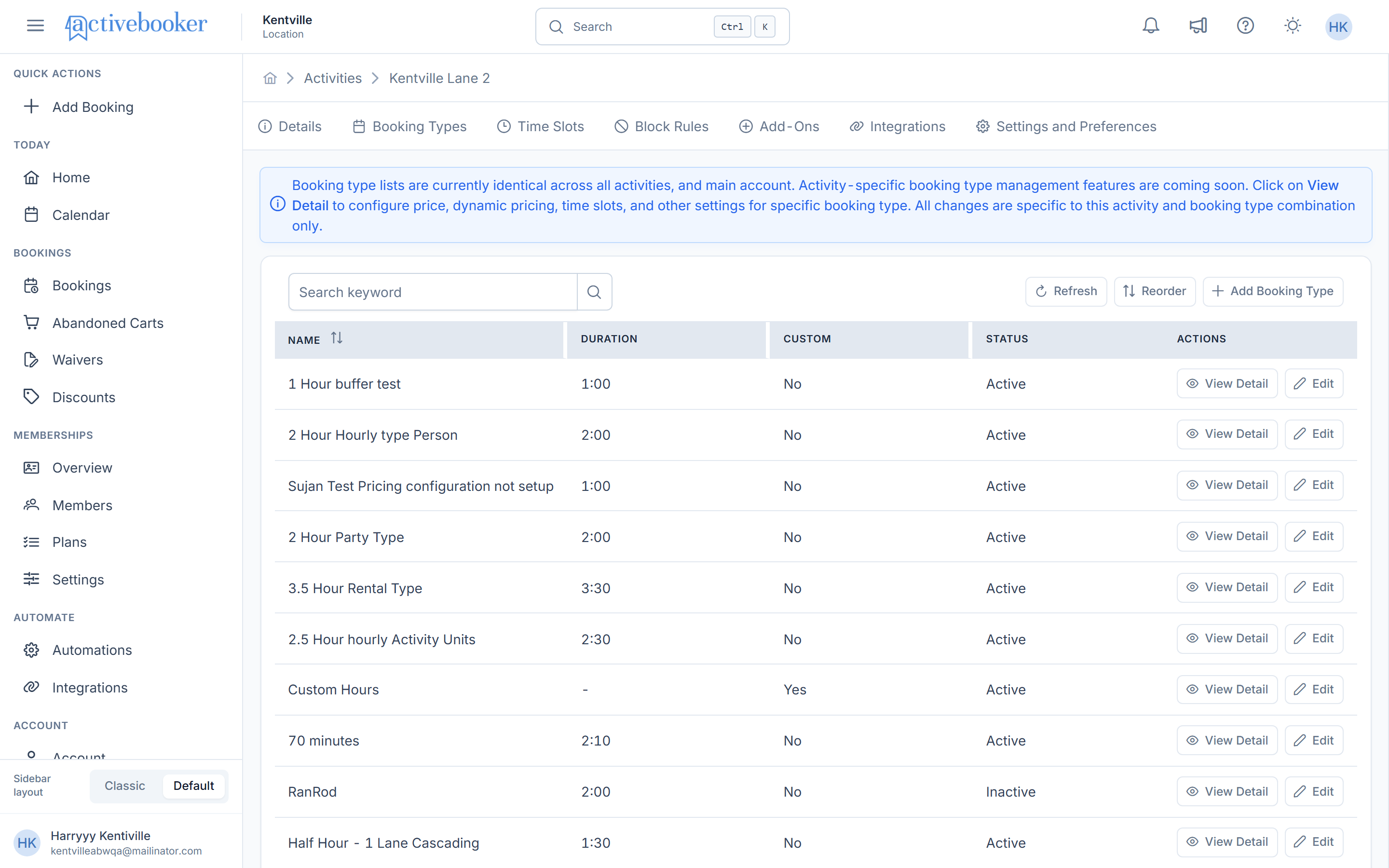
Information Banner
ℹ️ Note: Booking type lists are currently identical across all activities and main account. Activity-specific booking type management features are coming soon.
Located at the top of the page, a blue informational banner explains:
- Booking type lists are currently identical across all activities and main account
- Activity-specific booking type management features are coming soon
- Users can click
View Detailto configure price, dynamic pricing, time slots, and other settings for specific booking types - All changes are specific to the activity and booking type combination
Search and Actions Bar
Located below the information banner, this section includes:
| Element | Description |
|---|---|
| Search Field | Search booking types by keyword using the Search keyword input field |
| Refresh Button | Click to reload the booking types list and fetch the latest data |
| Add Booking Type Button | Create a new booking type by clicking the + Add Booking Type button |
Booking Types Table
The main table displays all booking types with the following columns:
Column Reference
| Column | Description | Sortable | Format |
|---|---|---|---|
| Name | Displays the booking type name | ✅ Yes | Text |
| Duration | Shows booking duration | ❌ No | H:MM |
| Custom | Indicates custom duration usage | ❌ No | Yes/No |
| Status | Shows operational status | ❌ No | Active/Inactive |
| Last Updated | Timestamp of last modification | ✅ Yes | Date, Time (TZ) |
| Actions | Available actions for the booking type | ❌ No | Buttons |
Name Column
- Displays the booking type name
- Sortable: Click header to sort ascending/descending
- Shows arrow indicator (↑/↓) for current sort direction
Duration Column
- Shows the booking duration in hours and minutes
- Format:
H:MM(e.g.,4:00for 4 hours,2:15for 2 hours 15 minutes) - Displays
−for custom duration booking types - Indicates the length of time allocated for each booking
Custom Column
- Indicates whether the booking type uses custom duration
- Values:
YesorNo - Custom duration allows setting the duration for each booking individually at the time of booking creation
Status Column
- Shows the current operational status of the booking type
- Values:
- Active: Booking type is enabled and available for use
- Inactive: Booking type is disabled and not available for bookings
Last Updated Column
- Displays the timestamp of the most recent modification
- Sortable: Click header to sort by date
- Format: Date, Time (Timezone offset)
- Example:
Jan 3, 2026, 3:30 AM GMT+5:45 - Shows arrow indicator (↑/↓) for current sort direction
Actions Column
Contains three action buttons for each booking type:
| Action | Icon | Description |
|---|---|---|
| View Detail | 👁️ Eye | Opens the booking type detail view with nested tabs for Price, Dynamic Prices, and Time Slots configuration |
| Edit | ✏️ Pencil | Opens the booking type editor modal to modify basic settings |
| Delete | 🗑️ Trash | Removes the booking type (with confirmation prompt) |
Common Tasks
Searching for Booking Types
- Click on the search field labeled
Search keyword - Enter your search term (booking type name or keyword)
- Press Enter or click the search icon
- The table will filter to display matching results
Adding a New Booking Type
- Click the
+ Add Booking Typebutton in the top-right corner - Fill in the required information:
- Booking type name
- Duration
- Custom Duration (if applicable)
- Type (Hourly, Party, Rental)
- Status (Active/Inactive)
- Visible to Guests
- Visible to Members
- Click Save to create your new booking type
- Configure additional settings (Price, Dynamic Prices, Time Slots) using the
View Detailaction
Viewing Booking Type Details
- Locate the booking type in the table
- Click the
View Detailbutton (👁️ eye icon) in the Actions column - The system will redirect you to the booking type detail view
- Navigate between the following tabs:
- Price: Configure standard pricing for the booking type
- Dynamic Prices: Set up variable pricing based on time, day, or season
- Time Slots: Define available time slots for this booking type
Editing a Booking Type
- Locate the booking type in the table
- Click the
Editbutton (✏️ pencil icon) in the Actions column - Modify the desired fields:
- Booking type name
- Duration
- Custom Duration (if applicable)
- Type (Hourly, Party, Rental)
- Status (Active/Inactive)
- Visible to Guests
- Visible to Members
- Click Save to apply your changes
Activating or Deactivating a Booking Type
- Click the
Editbutton for the desired booking type - Change the Status field to
ActiveorInactive - Click Save to apply the changes
- Result:
- Active booking types are available for customer bookings
- Inactive booking types are hidden from the booking interface
Deleting a Booking Type
- Click the
Deletebutton (🗑️ trash icon) in the Actions column - Review the confirmation prompt carefully
- Confirm the deletion
- The booking type will be permanently removed
⚠️ Warning: Deleting a booking type may affect existing bookings and historical data. Ensure this action is necessary before proceeding.
Sorting the Table
- Click on the column header for
NameorLast Updated - First click: Ascending order (↑ arrow appears)
- Second click: Descending order (↓ arrow appears)
- The table will reorder based on your selection
Understanding Duration Format
Duration values indicate the length of each booking session:
| Display | Meaning |
|---|---|
1:00 | 1 hour |
1:15 | 1 hour 15 minutes |
2:15 | 2 hours 15 minutes |
4:00 | 4 hours |
− | Custom duration (set individually per booking) |
💡 Tip: Durations can be customized based on your activity requirements and customer needs.
Tips and Best Practices
Naming Conventions
- ✅ Use clear, descriptive names that customers will understand
- ✅ Maintain consistent naming patterns across all booking types
- ❌ Avoid special characters that might cause technical issues
- 💡 Include key differentiators in the name (e.g., "Standard Lane - 1 Hour", "Premium Lane - 2 Hours")
Duration Planning
- ⏱️ Set durations based on actual service delivery time
- 🧹 Include buffer time for setup and cleanup if needed
- 👥 Consider customer experience when setting time limits
- 🔄 Use custom duration for flexible booking scenarios
Status Management
- 💾 Keep unused booking types inactive rather than deleting them
- 🔍 Regularly review active booking types to ensure they're still relevant
- 🌙 Deactivate booking types during off-seasons or maintenance periods
Troubleshooting
Booking Types Not Displaying
Symptoms: The booking types list appears empty or doesn't load
Solutions:
- Click the
Refreshbutton to reload the list - Verify your internet connection
- Confirm you have appropriate permissions
- Check browser console for error messages
Cannot Edit or Delete
Symptoms: Edit or Delete buttons are disabled or action fails
Solutions:
- Verify you have the necessary administrative permissions
- Check if the booking type is currently in use (may restrict deletion)
- Contact your system administrator for access issues
- Ensure the booking type belongs to the current activity context
Search Returns No Results
Symptoms: Search doesn't return expected booking types
Solutions:
- Clear the search field and try again
- Check for spelling errors in your search term
- Verify that booking types exist matching your criteria
- Try broader search terms
- Click
Refreshto ensure you have the latest data