Add-Ons
Add-Ons are additional products, services, or upgrades that customers can purchase alongside their activity bookings. This feature allows you to enhance your offerings and increase revenue by providing extras like equipment rentals, refreshment packages, VIP upgrades, or special add-on items.
Quick start
Adding a new add-on
- Navigate to Activities in your dashboard sidebar
- Click View Detail on the activity you want to add an add-on to
- Click the Add-Ons tab
- Click the Add Add-On button
- Fill in the add-on details
- Click Save to create your add-on
Editing an existing add-on
- Navigate to the activity's Add-Ons tab
- Locate the add-on you want to edit
- Click its Edit button in the Actions column
- Update the fields you want to change
- Click Save to apply your changes
What you can do
The Add-Ons page helps you:
- View all add-ons — Access your complete list of available add-ons
- Create new add-ons — Add products or services customers can purchase with their booking
- Set pricing — Define the unit price for each add-on
- Control quantities — Specify minimum and maximum purchase limits
- Manage availability — Activate or deactivate add-ons as needed
- Add visuals — Upload logos or images that represent each add-on
Accessing Add-Ons
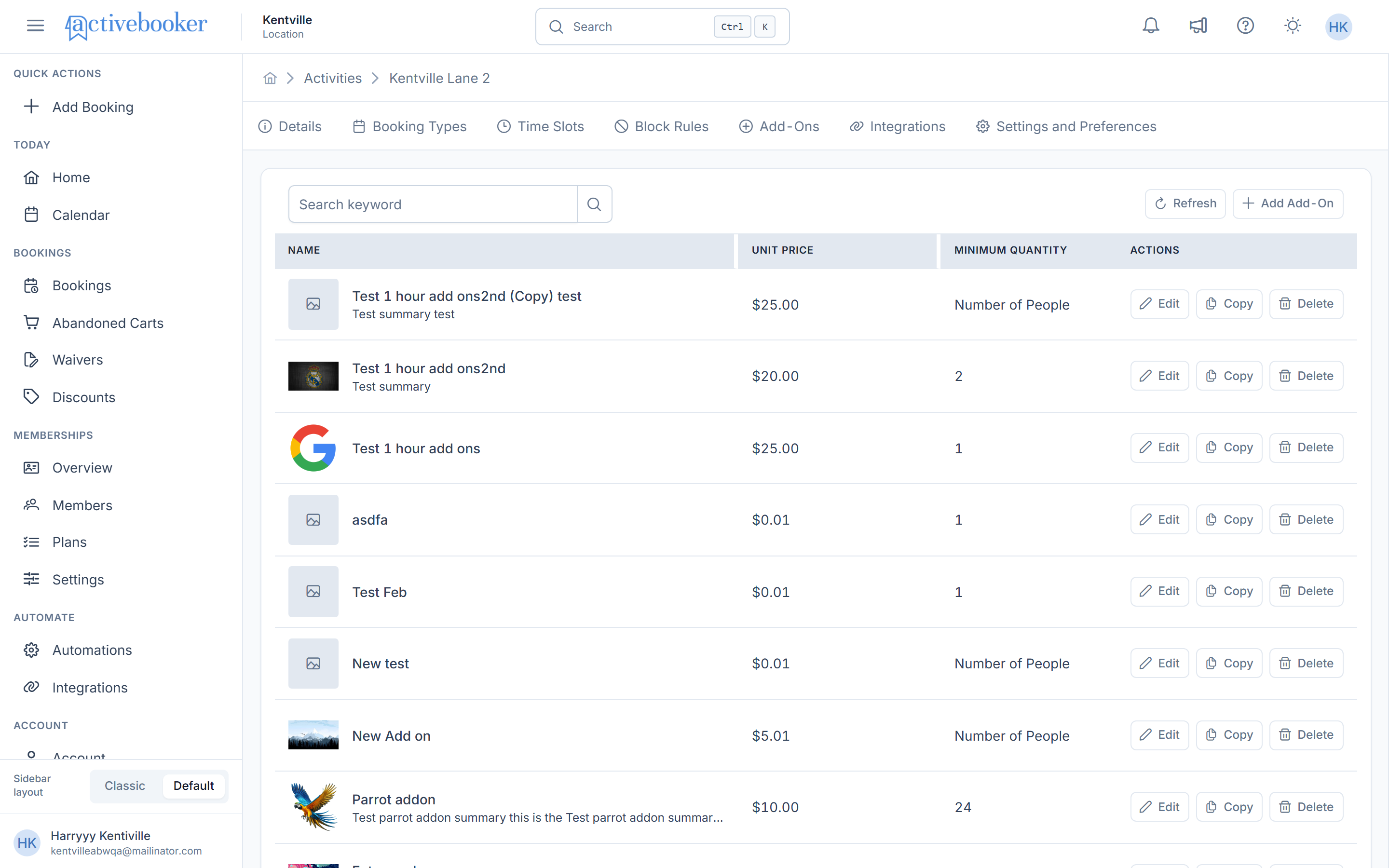
Navigate to Activities > View Detail > Add-Ons from the main sidebar to access the Add-Ons list page.
Page Components
Search and Actions Bar
Located at the top of the page, this section includes:
| Element | Description |
|---|---|
| Search Field | Search add-ons by name using the Search keyword input field |
| Refresh Button | Click to reload the add-ons list and fetch the latest data |
| Add Add-On Button | Create a new add-on by clicking the + Add Add-On button |
Add-Ons Table
The main table displays all add-ons for the selected activity with the following columns:
Column Reference
| Column | Description |
|---|---|
| Thumbnail | Displays the uploaded image or a placeholder icon for each add-on |
| Name | The add-on name with an optional summary description below it (Searchable) |
| Unit Price | The price charged per unit of the add-on, displayed in currency format |
| Minimum Quantity | The minimum number required for purchase (numeric value or "Number of People") |
| Maximum Quantity | The maximum purchase limit (numeric value, "Number of People", or "Unlimited") |
| Status | Indicates whether the add-on is currently Active or Inactive |
| Actions | Edit or Delete buttons to manage the add-on |
Thumbnail Column
- Displays a visual preview of the add-on
- Shows the uploaded thumbnail image or a placeholder icon if no image is added
- Helps customers quickly identify add-ons during booking
Name Column
- Displays the add-on name
- Displays an optional summary description below the name
- Searchable: Use the search field to find add-ons by name
The summary gives customers a quick preview of what the add-on includes. Hover to see the full description when booking.
Unit Price Column
- Shows the price charged per unit of the add-on
- Displayed in currency format (e.g.,
$0.01,$25.00,$99.99) - This is the cost customers pay for each unit they purchase
Minimum Quantity Column
- Indicates the minimum number of items customers must purchase
- Display values:
- Number of People: Minimum equals the number of participants in the booking
- Numeric value: Fixed minimum (e.g.,
1,5,10)
- Helps ensure customers meet purchase requirements
When set to "Number of People", the minimum quantity automatically adjusts based on how many people are in the booking. For example, if 5 people book, they must purchase at least 5 of this add-on.
Maximum Quantity Column
- Indicates the maximum number of items customers can purchase
- Display values:
- Unlimited: No upper purchase limit
- Number of People: Maximum equals the number of participants in the booking
- Numeric value: Fixed maximum (e.g.,
4,15,99)
- Helps you control inventory and manage capacity
Status Column
- Shows whether the add-on is currently available to customers
- Values:
- Active: Customers can see and purchase this add-on
- Inactive: Add-on is hidden from the booking page
- Toggle status by editing the add-on
Actions Column
Contains two action buttons for each add-on:
| Action | Description |
|---|---|
| Edit | Opens the add-on editor modal to modify settings |
| Delete | Permanently removes the add-on after confirmation |
Common Tasks
Searching for Add-Ons
- Click the search field at the top of the page
- Type the name of the add-on you're looking for
- The table automatically filters to show matching results
- Clear the search field to view all add-ons again
Search works by Add-on Name only. Use specific keywords for faster results.
Adding a New Add-On
- Click the
+ Add Add-Onbutton in the top-right corner - The Add Add-On modal opens
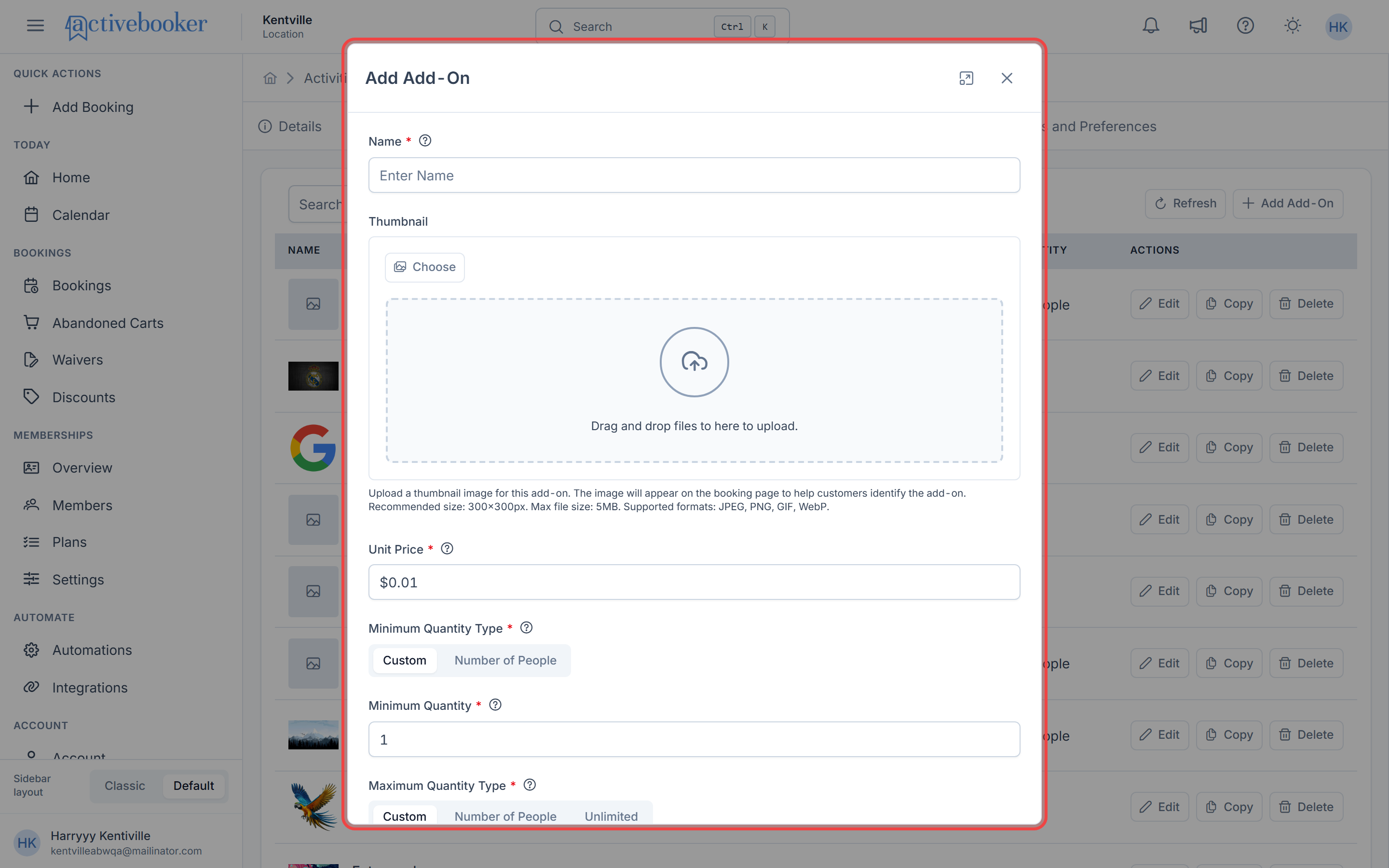
- Fill in the required information:
- Name: Enter a descriptive name for your add-on
- Thumbnail Image: Upload an image (optional)
- Unit Price: Set the price per item
- Minimum Quantity Type: Choose Custom or Number of People
- Minimum Quantity: Enter the minimum purchase requirement
- Maximum Quantity Type: Choose Custom, Number of People, or Unlimited
- Maximum Quantity: Enter the maximum purchase limit (if applicable)
- Summary: Add a brief description (optional)
- Booking Types: Select which booking types this add-on will be linked to (optional)
- Active: Check to make the add-on available immediately
- Click Save to create your add-on
- The new add-on appears in the table
- Use customer-friendly names like "Extra Player" or "Snack Pack"
- Upload eye-catching images to boost purchases
- Keep summaries short and benefit-focused
- Set quantity limits that match your capacity
Viewing Add-On Details
To see complete information about an add-on:
- Locate the add-on in the table
- Click its Edit button in the Actions column
- Review the configured values
- Click Cancel to close without making changes
Editing an Add-On
- Locate the add-on you want to edit
- Click its Edit button in the Actions column
- The Edit Add-On modal opens with current values pre-filled
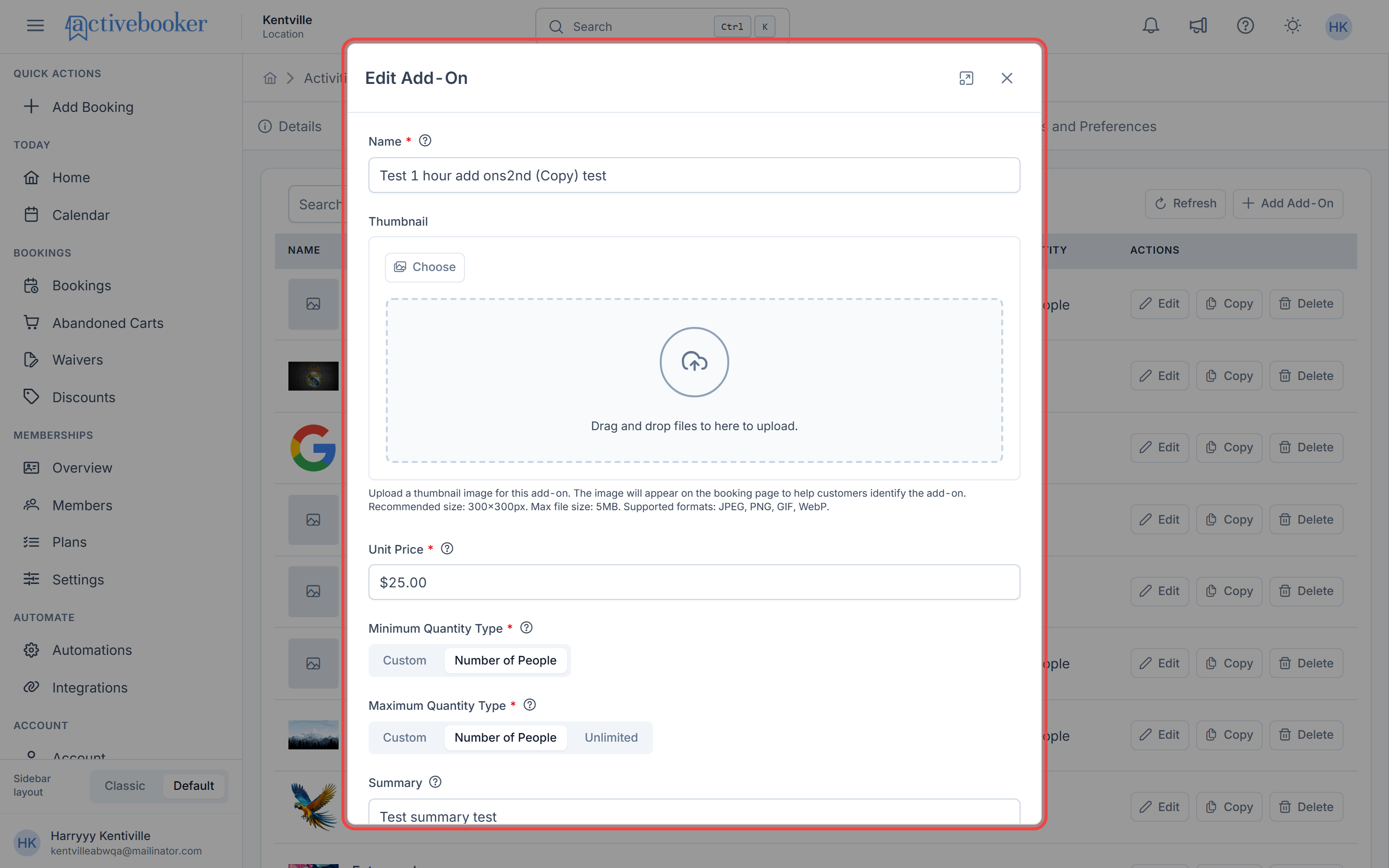
- Modify the desired fields:
- Update name, price, quantities, or description
- Change or remove the thumbnail image
- Adjust minimum and maximum quantity settings
- Update linked booking types
- Toggle the Active status on or off
- Click Save to apply your changes
- The updated add-on is reflected in the table
Changes to add-ons only affect future bookings. Existing bookings retain the add-on settings from when they were created.
Activating or Deactivating an Add-On
- Click the
Editbutton for the desired add-on - Check or uncheck the Active checkbox
- Checked: Customers can see and purchase this add-on
- Unchecked: Add-on is hidden from the booking page
- Click Save to apply the status change
Instead of deleting seasonal add-ons, just deactivate them. You can easily turn them back on when needed without setting everything up again.
Linking Booking Types to Add-Ons
You can link add-ons to specific booking types so they only appear for relevant bookings.
- Open the Add Add-On or Edit Add-On modal
- Locate the Booking Types dropdown field
- Click the dropdown to open the selection list
- All available booking types are displayed
- Use the search field to filter booking types by name
- Select one or more booking types by checking their checkboxes
- You can select all, multiple, or none based on your needs
- Selected booking types will appear as tags in the field
- Click Save to link the add-on to the selected booking types
The Booking Types field shows your selections visually:
- 1-4 selections: Each booking type displays as an individual tag (e.g., "Premium", "Standard", "Group")
- 5+ selections: Displays as a count summary (e.g., "5 items selected", "12 items selected")
- When editing: Previously linked booking types are automatically pre-selected, making it easy to modify your selection
Deleting an Add-On
- Click the Delete button in the Actions column
- Read the confirmation message that appears
- Click Confirm to permanently remove the add-on
- The add-on disappears from the table
Once deleted, an add-on cannot be recovered. If you might need it later, deactivate it instead. Note that deleting an add-on doesn't affect past bookings.
Quantity Configuration Examples
Understanding how to configure minimum and maximum quantities helps you create the right purchasing experience for your customers.
Example 1: Optional Extras (No Minimum)
Scenario: Customers can optionally add a photo package, up to 3 packages per booking.
Configuration:
- Minimum Quantity Type: Custom
- Minimum Quantity:
0 - Maximum Quantity Type: Custom
- Maximum Quantity:
3
Example 2: Per-Person Requirements
Scenario: Each person in the booking must have their own equipment rental.
Configuration:
- Minimum Quantity Type: Number of People
- Maximum Quantity Type: Number of People
Result: If 4 people book, they must purchase exactly 4 equipment rentals.
Example 3: Unlimited with Minimum
Scenario: Must purchase at least 1 refreshment package, but can add as many as desired.
Configuration:
- Minimum Quantity Type: Custom
- Minimum Quantity:
1 - Maximum Quantity Type: Unlimited
Example 4: Fixed Range
Scenario: Party packages require between 10 and 50 party favors.
Configuration:
- Minimum Quantity Type: Custom
- Minimum Quantity:
10 - Maximum Quantity Type: Custom
- Maximum Quantity:
50
Tips and Best Practices
Pricing Strategy
- 💰 Price add-ons competitively to encourage purchases
- 📊 Bundle related items at a discount to increase perceived value
- 🎯 Use psychological pricing (e.g., $9.99 vs $10.00) where appropriate
- 💵 Keep pricing simple and easy to understand
Thumbnail Images
- 📸 Use high-quality, professional images
- 🎨 Maintain consistent image styles across all add-ons
- 🖼️ Show the actual product or service when possible
- ✨ Use images that highlight key features or benefits
Naming and Descriptions
- ✅ Use clear, customer-friendly language
- ✅ Highlight benefits in summaries
- ✅ Include size, quantity, or scope details in names
- ❌ Avoid technical jargon or internal terminology
- 💡 Test names with actual customers for clarity
Managing Your Add-Ons
- 📋 Review performance regularly and adjust your offerings
- 🔄 Deactivate out-of-stock items rather than deleting them
- 📅 Plan seasonal add-ons in advance
- 📈 Track popular add-ons and consider expanding similar offerings
Troubleshooting
Add-Ons Not Displaying on Booking Page
Symptoms: Customers don't see your add-ons during booking
Solutions:
- Verify the add-on Status is set to Active
- Check that the parent activity is also Active
- Confirm you've saved your changes after creating or editing
- Clear your browser cache and reload the booking page
- Ensure the add-on belongs to the correct activity
Cannot Save Add-On
Symptoms: Save button is disabled or form shows validation errors
Solutions:
- Fill in all required fields (Name, Unit Price, Quantities)
- Verify Name is unique within the activity (no duplicates)
- Ensure Unit Price is greater than $0.00
- Check that Maximum Quantity is not less than Minimum Quantity
- Review any red error messages below form fields
Thumbnail Image Won't Upload
Symptoms: Image upload fails or doesn't display
Solutions:
- Use a supported format: JPEG, PNG, JPG, GIF, or SVG
- Keep file size under 5MB
- Try a different image file
- Ensure you have a stable internet connection
- Refresh the page and try again
Quantity Validation Errors
Symptoms: Error message appears when setting quantities
Common errors and solutions:
- "Minimum quantity cannot be greater than maximum quantity"
- Ensure your minimum is less than or equal to your maximum
- Double-check both fields if using custom values
- "Invalid minimum/maximum quantity value"
- Minimum must be 0 or greater
- Maximum must be 1 or greater (unless set to Unlimited)
- Don't enter negative numbers
Search Not Working
Symptoms: Search doesn't find expected add-ons
Solutions:
- Check spelling of your search term
- Try searching with partial words
- Clear the search and verify the add-on exists in the table
- Click Refresh to reload the latest data
- Ensure you're in the correct activity's Add-Ons tab
Related Topics
- 📚 Activities Details — View and manage activity settings
- 💰 Booking Types — Configure duration and pricing options
- 📅 Block Rules — Control when activities are available
- ⚙️ Settings and Preferences — Customize booking behavior
- 😊 Manage Activities — Create and edit activities