Dynamic Pricing Rules
Dynamic Pricing allows you to charge different prices for your booking types based on specific dates or days of the week. Use it to adjust rates during peak times, offer discounts during off-peak hours, or implement special event pricing, all while maintaining your base pricing structure.
Quick start
Set up dynamic pricing for a booking type in four simple steps:
- Navigate to your booking type detail page and click the Dynamic Price tab
- Click + Add Dynamic Price Rule in the toolbar
- Configure your pricing rule by selecting dates or days, setting prices, and choosing time ranges
- Click Save to activate the rule
Dynamic pricing only works with Person or Unit pricing types. If your booking type uses Cascading pricing, you'll need to change the pricing type first before managing dynamic pricing rules.
What you can do
Dynamic pricing helps you:
- Maximize revenue during peak times — Charge premium rates on weekends, holidays, or high-demand dates
- Fill capacity during slow periods — Offer discounted prices on weekdays or off-peak hours
- Implement seasonal pricing — Set different rates for summer vs. winter months
- Create special event pricing — Configure unique rates for specific dates like New Year's Eve or Valentine's Day
How it works
Understanding dynamic pricing rules
When customers book your activity, the system automatically applies the appropriate dynamic pricing rule based on their selected date and time. If multiple rules match, the system uses the most specific rule. If no dynamic pricing rule applies, your standard base price is used.
Example Scenario:
Your bowling lanes normally cost $35 per person. You create:
- A dynamic pricing rule charging $45 on Fridays and Saturdays
- Another rule charging $25 on Monday mornings (9 AM - 12 PM)
When customers book on Friday evening, they'll see $45. Monday morning bookings show $25. All other times remain at your base price of $35.
Rule types
Date-Based Rules
Target specific calendar dates when you know demand will be different.
- Select exact dates from the calendar
- Perfect for holidays, special events, or known busy periods
- Example: Charge $50 on December 31st and $40 on July 4th
Day-Based Rules
Apply pricing patterns based on days of the week.
- Choose one or more weekdays
- Optionally limit to a specific date range
- Example: Charge $45 every Friday and Saturday throughout the year, or only during summer months (June 1 - August 31)
Managing dynamic pricing rules
Accessing dynamic pricing
- Navigate to Activities > select your activity by clicking View Detail
- Click on Booking Types in the activity detail tabs
- Click View Detail for the booking type you want to configure
- Click the Dynamic Price tab
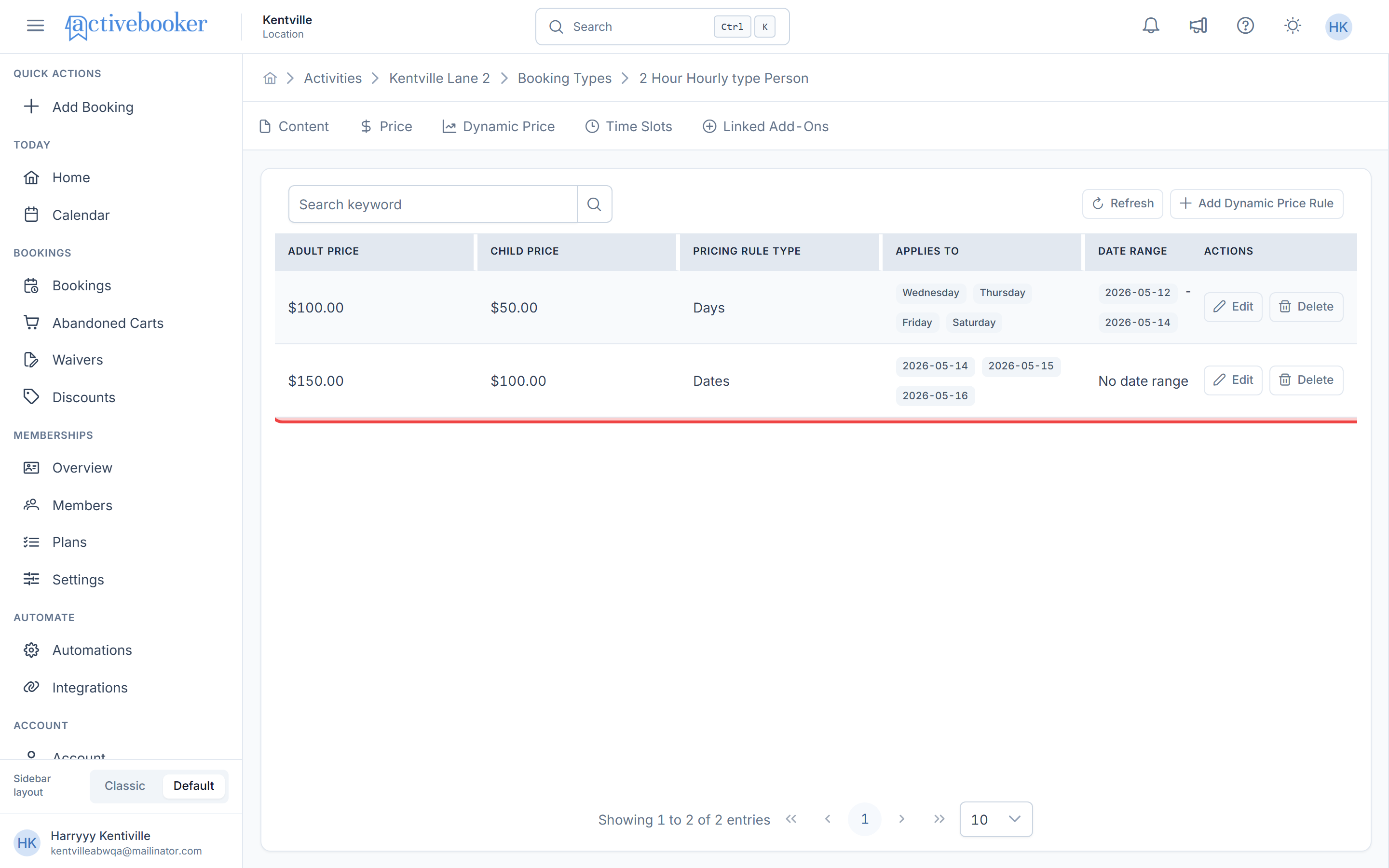
You'll see a table displaying all dynamic pricing rules for this booking type.
Understanding the rules table
The Dynamic Pricing table displays your rules with the following information:
Adult Price
The rate charged per adult when this rule applies.
Child Price / Unit Price
The rate charged per child for Person pricing, or the unit price for Unit pricing. Shows $0.00 if children participate for free under Person pricing.
Pricing Rule Type
Indicates whether the rule applies to specific "Dates" or recurring "Days" of the week.
Applies To
Shows the dates or days when this rule is active:
- For date-based rules: displays specific calendar dates
- For day-based rules: shows weekday names (Monday, Wednesday, etc.)
Date Range
For day-based rules, shows if the rule is limited to a specific period:
- "No date range" means the rule applies year-round
- Shows start and end dates when limited
Time
Indicates when during the day this pricing applies:
- "All Day" means the rule covers all booking times
- Displays start and end times when limited (e.g., "9:00 AM - 5:00 PM")
Status
Shows whether the rule is "Active" (currently in use) or "Inactive" (disabled).
Last Updated
When the rule was last modified, helping you track recent changes.
Actions
Quick access to Edit or Delete the rule.
Searching and filtering rules
Use the search box at the top of the page to quickly find rules by adult price, child price, or unit price. This is helpful when you have many pricing rules and need to locate specific ones.
Creating a dynamic pricing rule
Step 1: Open the add form
Click + Add Dynamic Price Rule in the toolbar at the top of the Dynamic Pricing page.
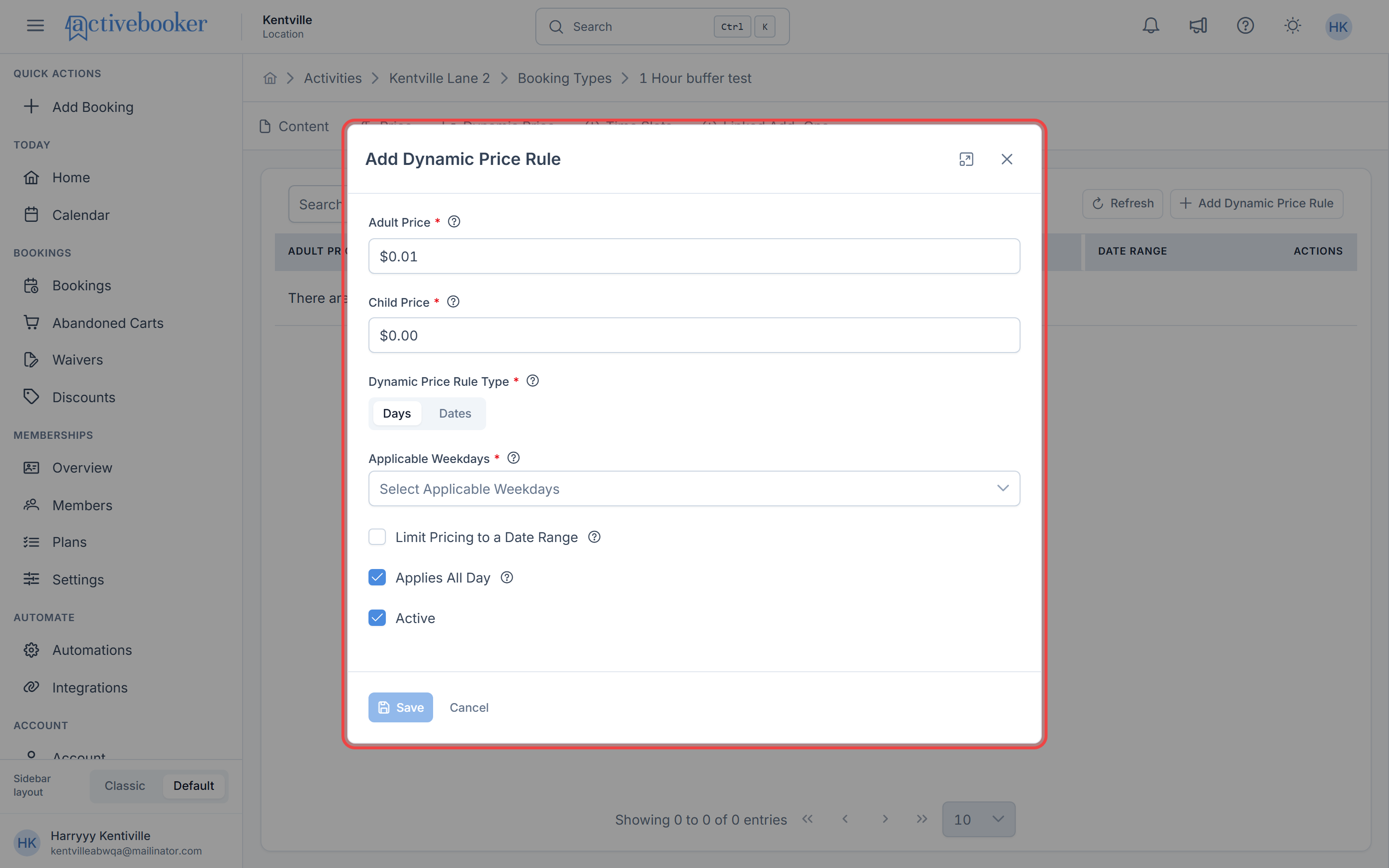
If your booking type uses cascading pricing, the Add button will be disabled. You must change to Person or Unit pricing in your Price Settings before creating dynamic pricing rules.
Step 2: Set your prices
Adult Price (Required)
Enter the amount to charge per adult when this rule applies. Must be at least $0.01.
- Example: $45.00 for premium weekend pricing
Child Price (Required for Person pricing)
Enter the amount to charge per child. Can be $0.00 if children participate free during this pricing period.
- Example: $20.00 for children, or $0.00 for free
Unit Price (Required for Unit pricing)
Enter the price for the whole unit. When Unit pricing is selected, this field appears instead of Child Price and stays in sync with Adult Price using the booking type's current capacity.
- Example: $2000.00 for a room or lane
When Unit pricing is selected, changing Adult Price, Unit Price, or the booking type's capacity updates the other value automatically. If the values cannot be represented exactly at the current capacity, the form shows a warning so you know one value will be rounded when saved.
Set your adult and child prices based on market demand. Higher prices during peak times help maximize revenue, while lower prices during slow periods can attract more bookings.
Step 3: Choose your rule type
Select how you want this pricing to apply using the Dynamic Price Type selector:
Days — For recurring weekly patterns
Choose this when you want the same pricing every week on specific days.
Dates — For one-time or irregular pricing
Choose this for holidays, special events, or specific calendar dates.
Configuring date-based rules
Date-based rules apply pricing to specific calendar dates that you select.
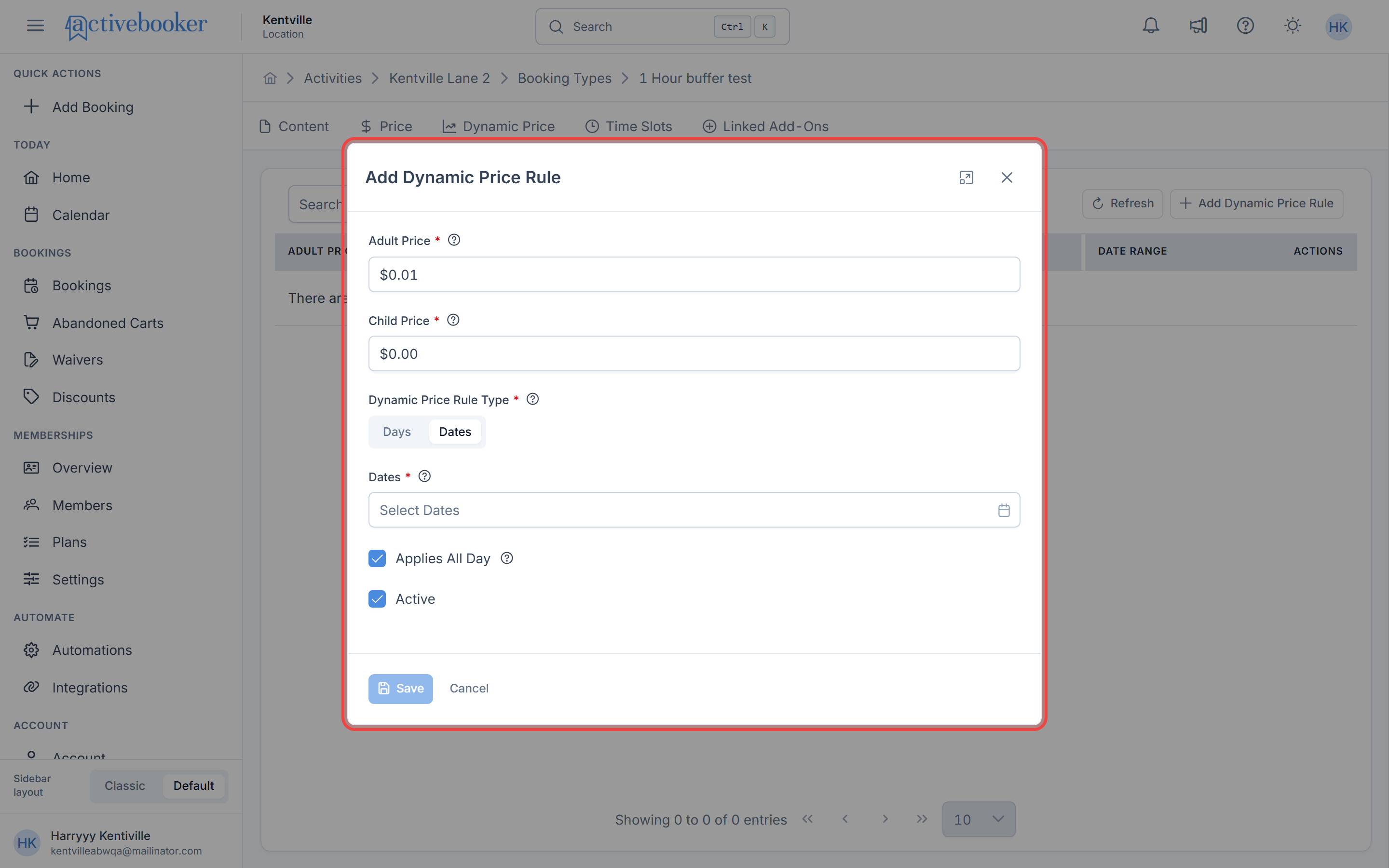
Selecting dates
Dates (Required)
Click the date picker and select one or more specific dates when this pricing should apply.
- Select multiple dates by clicking each one
- Choose non-consecutive dates (e.g., Dec 24, Dec 25, Dec 31, Jan 1)
When to use date-based rules:
- Holiday pricing (Thanksgiving, Christmas, New Year's)
- Special events (local festivals, tournaments, concerts)
- Known high-demand dates specific to your business
- One-time promotional pricing
Only select dates when you want special pricing. Your base price will apply to all other dates automatically.
Setting time restrictions (optional)
By default, date-based rules apply all day. To limit pricing to specific hours:
- Uncheck Applies All Day
- Select your Start Time (when this pricing begins)
- Select your End Time (when this pricing ends)
Example: Charge $60 for New Year's Eve evening sessions (6:00 PM - 11:59 PM) but keep regular pricing during the day.
Configuring day-based rules
Day-based rules apply pricing to specific days of the week, either year-round or within a date range.
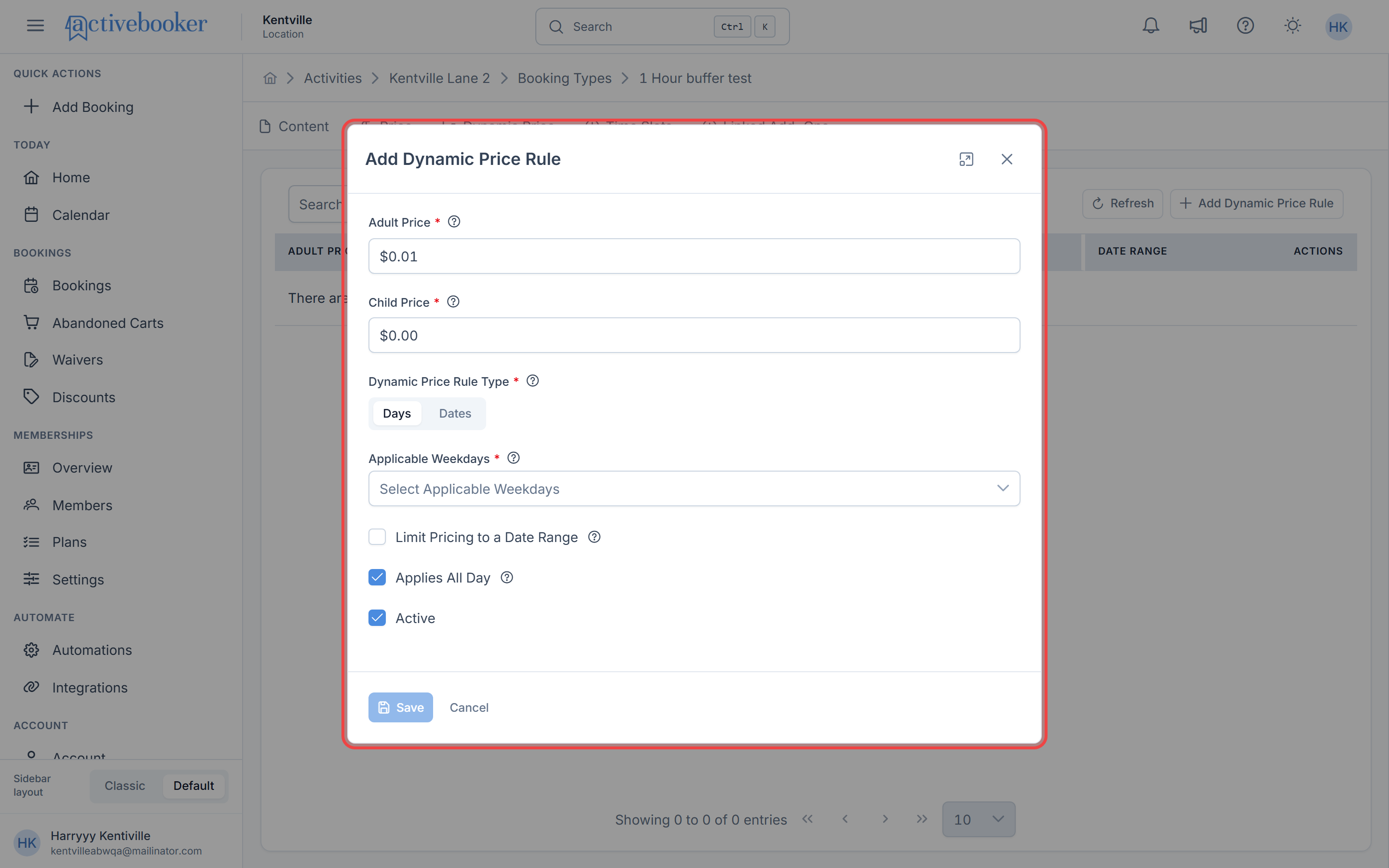
Selecting days
Applicable Weekdays (Required)
Open the dropdown and select one or more days when this pricing applies.
- Choose multiple days (e.g., Friday, Saturday, Sunday for weekend pricing)
- Select all seven days if needed (though using base pricing is usually simpler)
- Use the clear button to deselect all days and start over
When to use day-based rules:
- Weekend vs. weekday pricing
- Peak day pricing (Friday and Saturday premium rates)
- Off-peak discounts (Monday and Tuesday specials)
- Consistent weekly pricing patterns
Limiting to a date range (optional)
Day-based rules normally apply year-round. To limit them to specific months or seasons:
- Check Limit Pricing to a Date Range
- Select your Start Date (when the rule begins)
- Select your End Date (when the rule ends)
Example Scenarios:
- Summer weekend pricing: Charge $50 on Saturdays and Sundays from June 1 - August 31
- Winter discount: Offer $30 on weekdays from December 1 - February 28
- Holiday season premium: Charge $55 on Fridays from November 15 - January 15
Use date ranges to implement seasonal pricing without creating separate rules for every single date. One day-based rule with a date range is much easier to manage than dozens of individual date rules.
Setting time restrictions (optional)
Just like date-based rules, you can limit day-based pricing to specific times:
- Uncheck Applies All Day
- Select your Start Time and End Time
Example: Charge $25 for Monday through Friday mornings (9:00 AM - 12:00 PM) to attract early-bird bookings.
Activating and deactivating rules
Every rule has an Active checkbox that controls whether it's currently in use.
Checked (Active):
The rule is applied to customer bookings immediately. Customers will see this pricing when they book during the applicable dates/days and times.
Unchecked (Inactive):
The rule is saved but not applied. Customers won't see this pricing. Use this to:
- Prepare rules in advance and activate them later
- Temporarily disable a rule without deleting it
- Test pricing strategies by turning rules on and off
Create rules with the Active checkbox unchecked to prepare for future seasons or events. Activate them when you're ready to go live.
Editing dynamic pricing rules
To modify an existing rule:
- Locate the rule in the Dynamic Pricing table
- Click the Edit button in the Actions column
- Make your changes (prices, dates, times, etc.)
- Click Save
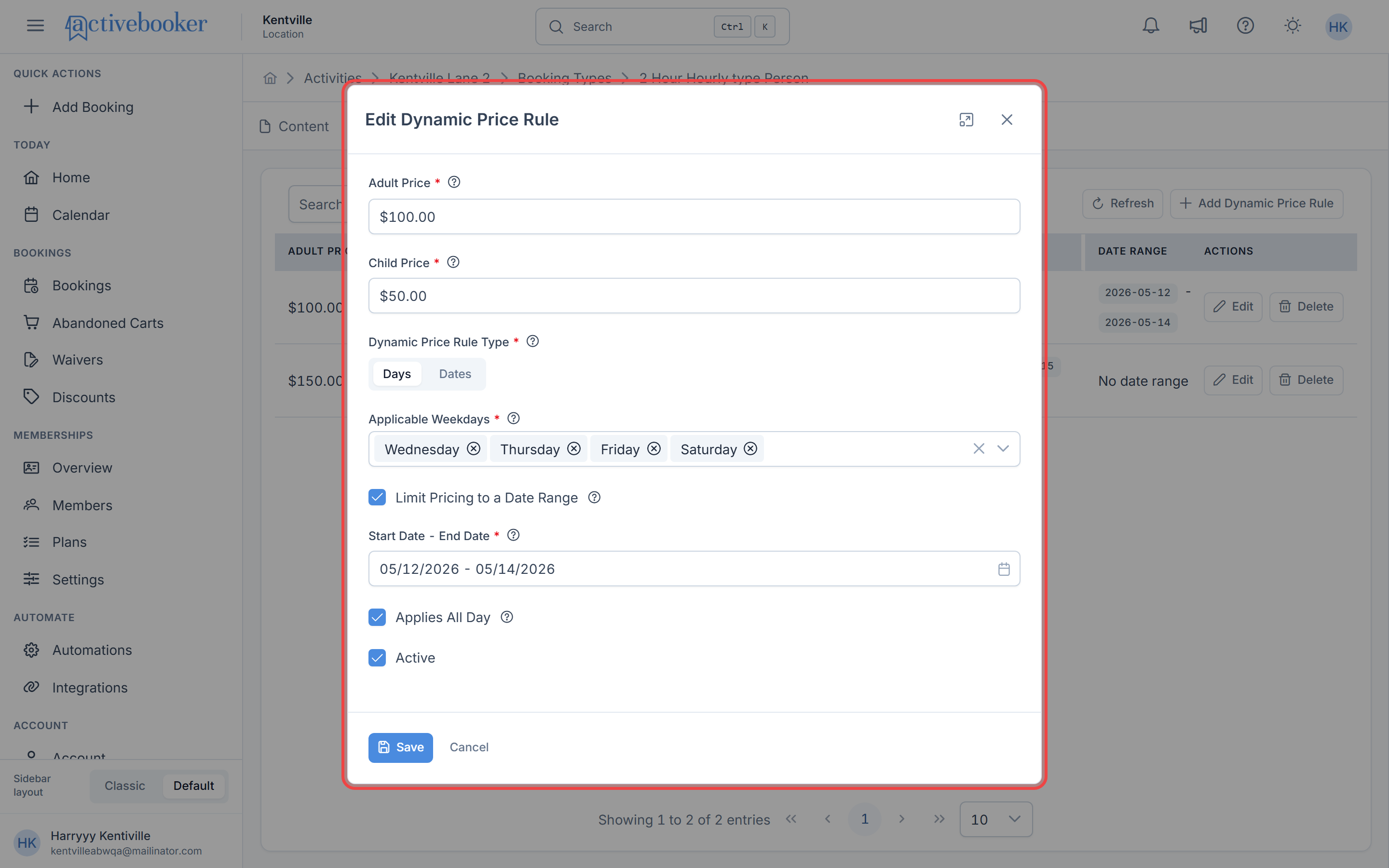
Changes take effect immediately for new bookings. Existing bookings keep their original prices.
Editing a dynamic pricing rule only affects future bookings. Customers who already booked will not see price changes.
Deleting dynamic pricing rules
To remove a rule:
- Locate the rule in the table
- Click the Delete button in the Actions column
- Confirm the deletion in the prompt
Once deleted, the rule is permanently removed and cannot be recovered. Future bookings will use your base price or other applicable dynamic pricing rules.
Dynamic pricing rules can be deleted at any time without affecting existing bookings. Only future bookings are impacted.
Common scenarios
Scenario 1: Weekend premium pricing
You want to charge more on Fridays and Saturdays year-round.
- Click + Add Dynamic Price Rule
- Set your weekend prices (e.g., Adult: $45, Child: $25)
- Select Days as the Dynamic Price Type
- Choose Friday and Saturday in Applicable Weekdays
- Leave "Limit Pricing to a Date Range" unchecked for year-round application
- Keep Applies All Day checked
- Ensure Active is checked
- Click Save
Result: Every Friday and Saturday, customers see your premium pricing.
Scenario 2: Holiday pricing for specific dates
You want special pricing for Thanksgiving and Christmas.
- Click + Add Dynamic Price Rule
- Set your holiday prices (e.g., Adult: $60, Child: $30)
- Select Dates as the Dynamic Price Type
- Click the date picker and select November 28 and December 25
- Keep Applies All Day checked
- Ensure Active is checked
- Click Save
Result: On November 28 and December 25, customers see your special holiday pricing.
Scenario 3: Summer weekday morning discount
You want to offer discounted pricing on weekday mornings during summer months to fill capacity.
- Click + Add Dynamic Price Rule
- Set your discount prices (e.g., Adult: $20, Child: $10)
- Select Days as the Dynamic Price Type
- Choose Monday, Tuesday, Wednesday, Thursday, and Friday
- Check Limit Pricing to a Date Range
- Select June 1 as Start Date and August 31 as End Date
- Uncheck Applies All Day
- Set Start Time to 9:00 AM and End Time to 12:00 PM
- Ensure Active is checked
- Click Save
Result: From June through August, weekday morning bookings (9 AM - Noon) show your discounted rates.
Scenario 4: Preparing future seasonal pricing
You want to create winter holiday pricing now but activate it later.
- Click + Add Dynamic Price Rule
- Set your winter prices (e.g., Adult: $55, Child: $35)
- Select Days and choose Saturday and Sunday
- Check Limit Pricing to a Date Range
- Select December 15 as Start Date and January 5 as End Date
- Keep Applies All Day checked
- Uncheck Active (this keeps the rule disabled for now)
- Click Save
Result: The rule is saved but not active. When you're ready, edit the rule and check Active to enable it.
Understanding pricing type restrictions
Dynamic pricing rules cannot be created or edited when your booking type uses Cascading pricing type. This is because cascading pricing already adjusts rates based on group size, which would conflict with date/day-based pricing.
If you see this warning message at the top of the Dynamic Pricing page:
"Dynamic pricing rules cannot be managed for booking types with cascading pricing type enabled. To manage dynamic pricing rules, please change the price type in the price settings to 'Person' or 'Unit'."
You'll need to:
- Go to the Price tab for your booking type
- Click Edit in the Price Settings section
- Change your Pricing Type to either Person or your activity's Unit label (Lane, Court, etc.)
- Save your changes
- Return to the Dynamic Price tab to create rules
This ensures pricing logic remains clear and predictable for both you and your customers.
Frequently asked questions
Can I have multiple dynamic pricing rules active at the same time?
Yes. You can have multiple active rules. If a booking matches multiple rules, ActiveBooker applies the most specific one. However, for clarity, try to design rules that don't overlap.
What happens to existing bookings if I change or delete a rule?
Existing bookings keep their original prices. Changes only affect new bookings made after you modify or delete the rule.
Can I set dynamic pricing for specific time slots?
Yes. Uncheck "Applies All Day" and set your start and end times to apply pricing only during specific hours.
Why can't I add dynamic pricing rules?
If the "+ Add Dynamic Price Rule" button is disabled, your booking type is using cascading pricing. Change to Person or Unit pricing in your Price Settings first.
Can I create a rule that applies to every day of the week?
Technically yes, but if you want the same price every day, it's better to update your base price in Price Settings instead of using dynamic pricing.
How do I know if my dynamic pricing is working?
Check your booking confirmations and reports. Bookings made during dynamic pricing periods will show the dynamic price instead of your base price.
Can I create discounts using dynamic pricing?
Yes. Set your adult and child prices lower than your base price to offer discounted rates during specific times.
What's the difference between setting a date range and selecting specific dates?
Use date ranges with day-based rules for seasonal patterns (like summer weekends). Use specific dates for one-time events or holidays that don't follow a weekly pattern.