Edit Booking Type
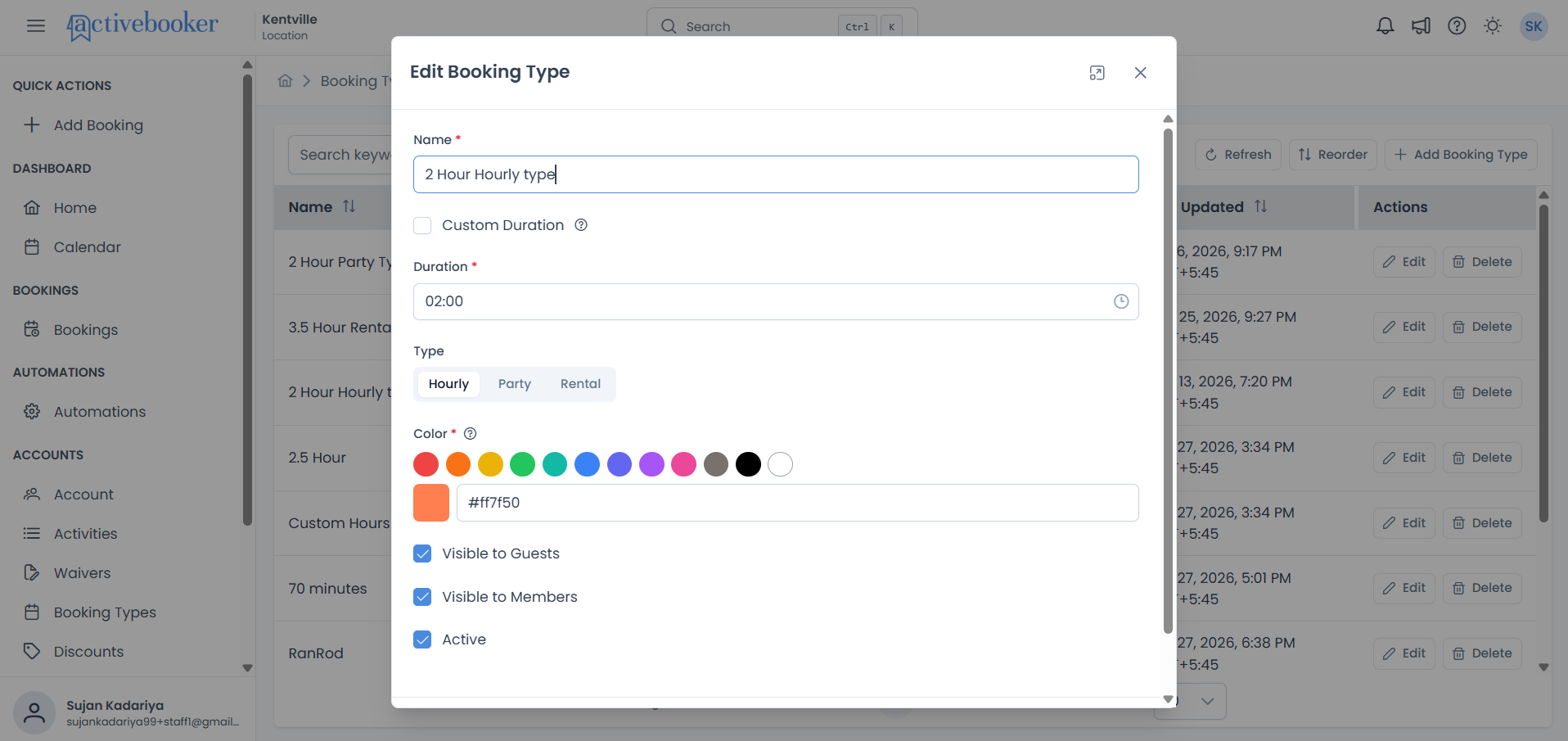
Change an existing booking type's name, duration, type, color, or visibility. The dialog and fields are the same as Add Booking Type, pre-filled with the current values.
Quick start
- Click Booking Types in the left sidebar, under the ACCOUNT section
- Find the booking type in the table and click Edit
- Change what you need and click Save
What you can do
Editing a booking type lets you:
- Rename it without affecting bookings already made
- Change duration or type — as long as no activity has time slots built on it yet (see below)
- Toggle visibility — show or hide it from guests or members
- Activate or deactivate it — pause a booking type without deleting it
What changes and what doesn't
- Changes take effect immediately after you save
- Past bookings keep the settings they were made with
- Future bookings use the new settings
- The Last Updated column on the Booking Types list reflects your save time
Duration is locked once time slots exist
You can't change Duration or toggle Custom Duration if any activity already has time slots built on this booking type. This is checked when you click Save, not as you type.
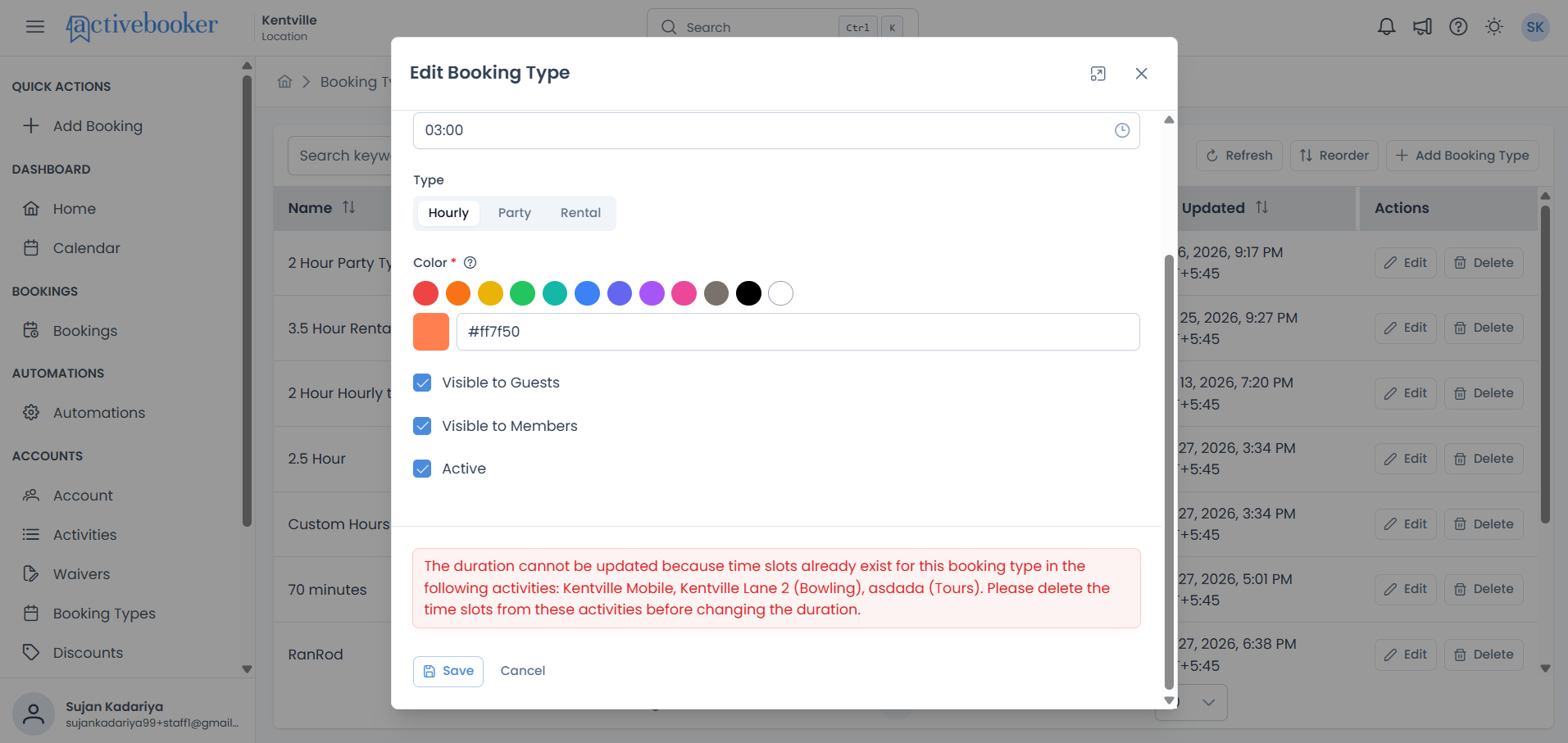
The dialog names every activity that's blocking the change, for example:
The duration cannot be updated because time slots already exist for this booking type in the following activities: Kentville Mobile, Kentville Lane 2 (Bowling), asdada (Tours). Please delete the time slots from these activities before changing the duration.
This applies to all types — Hourly, Party, and Rental.
Fields you can still change freely, even with time slots in place: Name, Color, Visible to Guests, Visible to Members, Active.
How to change the duration anyway
- Open each activity named in the error and go to its Time Slots tab
- Select this booking type from the Select Booking Type dropdown
- Delete the listed time slots (individually or with Bulk Delete) until the list reads "There are no entries to display."
- Repeat for every activity named in the error
- Return to Booking Types and edit the duration again
Best practices
✅ Deactivate instead of deleting — Use Active to retire a booking type without losing its history
✅ Rename freely — Renaming doesn't affect past bookings or require touching time slots
❌ Don't plan on changing duration after time slots exist — Get the duration right at creation, or budget time to clear time slots across every activity using it first
Troubleshooting
Save fails with a duration error
See Duration is locked once time slots exist above — clear the listed activities' time slots first.
Edit button isn't doing anything
Refresh the page — a stale list can sometimes hold a reference to a booking type that's changed since you loaded it.
Related resources
- Booking Types List — Find the booking type you want to edit
- Add Booking Type — Full documentation of every field
- Time slots — Manage the time slots that can block a duration change