Booking Types List
See every booking type in your account in one table, search or reorder them, and jump into adding or editing one.
Quick start
- Click Booking Types in the left sidebar, under the ACCOUNT section
- Browse your booking types in the table that appears
- Use Search keyword to find a specific one
- Click Edit on any row to change its name, duration, or visibility
What you can do
The Booking Types list helps you:
- See every booking type at a glance — Name, duration, custom-duration flag, status, and last-updated date for each one
- Find a booking type quickly — Search by name
- Control the sidebar/menu order — Reorder booking types so they appear in your preferred order wherever they're listed
- Create and edit — Add a new booking type or open the editor for an existing one
Accessing the booking types list
- Log in to your dashboard
- In the left sidebar, find the ACCOUNT section
- Click Booking Types
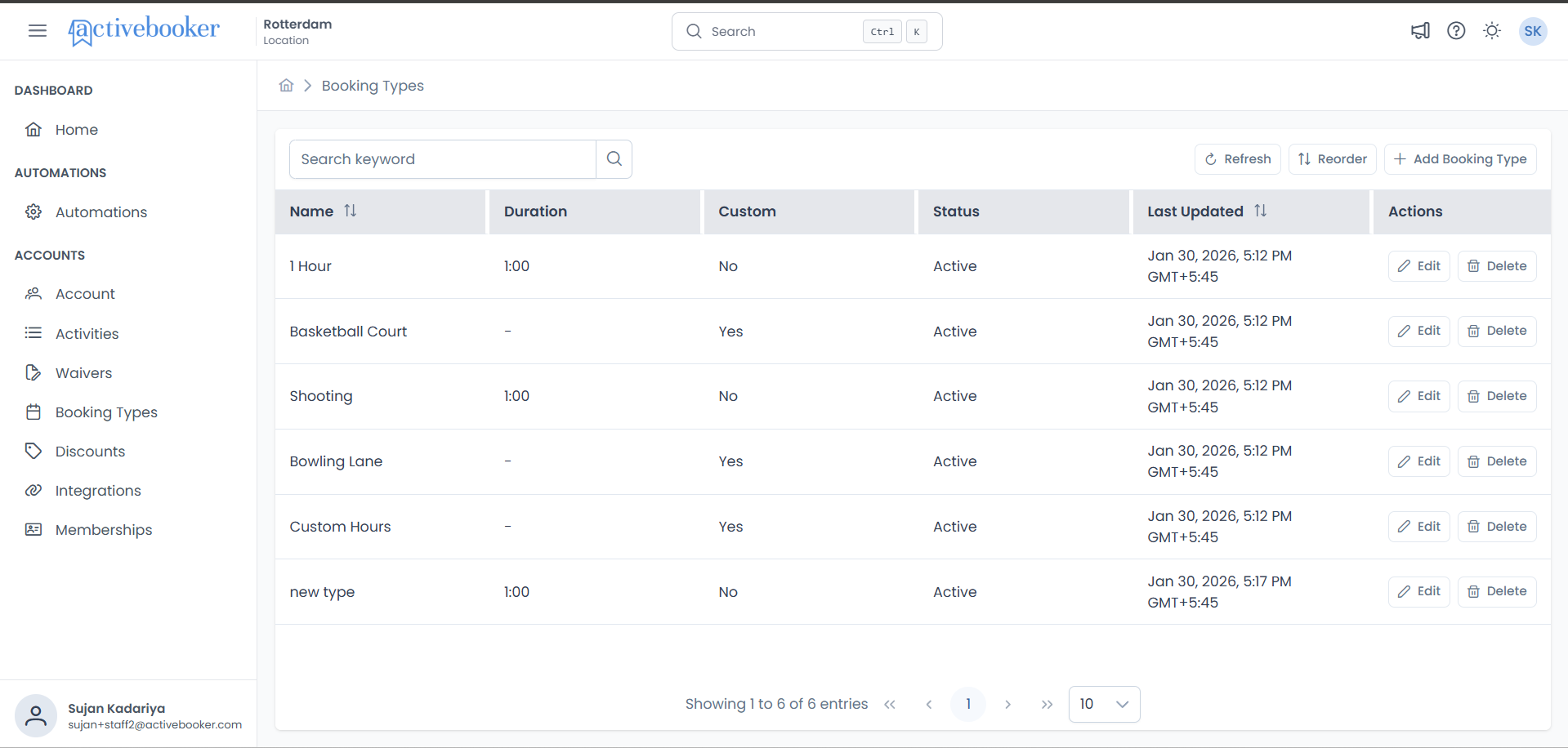
Booking types are account-wide — the same list of booking types shows here and inside every activity's Booking Types tab. What differs per activity is the price, content, and other settings you configure after clicking View Detail on a booking type from inside an activity. See Booking types overview for how the two levels fit together.
Understanding the list
Search and actions bar
At the top of the page:
Search keyword
Filters the table by booking type name as you type.
Refresh
Reloads the list with the latest data.
Reorder
Opens a modal to change the display order of your booking types.
Add Booking Type
Opens the Add Booking Type dialog.
Table columns
Name
The booking type's name. Sortable.
Duration
The fixed length of the booking type, shown as H:MM (e.g., "1:00" for 1 hour, "2:15" for 2 hours 15 minutes). Shows a dash (-) for booking types with a custom duration.
Custom
Yes if the booking type uses custom duration (set individually per booking at the time of booking), No if it uses the fixed duration shown in the Duration column.
Status
Active — available for new bookings. Inactive — hidden from booking.
Last Updated
When the booking type was last saved, with your local timezone offset. Sortable.
Actions
An Edit button that opens the Edit Booking Type dialog.
Searching for a booking type
- Click the Search keyword field
- Type part of the booking type's name
- Press Enter or click the search icon
Clear the field and press Enter again to see the full list.
Reordering booking types
The order you set here is the default order booking types appear in throughout the system.
- Click Reorder
- Drag booking types by the handle (☰) into the order you want, top to bottom
- Click Save to apply, or Cancel/close (X) to discard
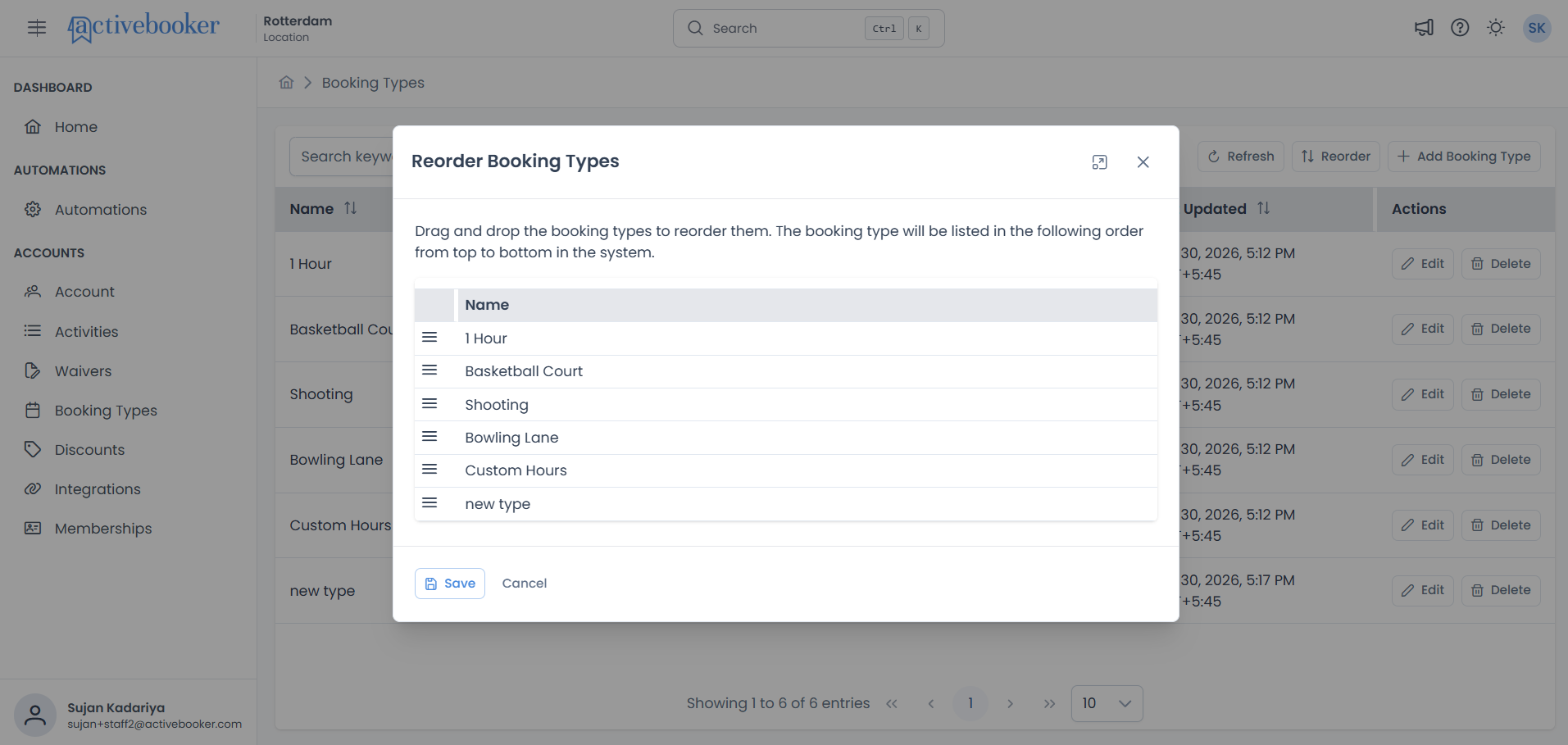
- Newly added booking types appear at the end of the list until you reorder them
- If you've never reordered, booking types display in creation order (oldest first)
- Deleting a booking type doesn't change the order of the ones that remain
- Manual column sorting (Name, Last Updated) still works independently of the saved order
Sorting the table
Click Name or Last Updated in the header to sort by that column; click again to reverse direction. The active sort column shows an arrow indicating direction.
Best practices
✅ Use clear, consistent names — Customers see these names on the booking page, so make them descriptive ("2-Hour Party Package" rather than "Party")
✅ Reorder to match how you sell — Put your most-booked or most-promoted booking types near the top
✅ Deactivate instead of renaming — If a booking type is retired, set it to Inactive in the editor rather than repurposing its name for something else
Troubleshooting
A booking type isn't showing up
Why this happens: The list may be showing stale data, or your search field still has a term in it.
How to fix it:
- Clear the Search keyword field
- Click Refresh
- Check the correct page of results if you have more than 10 booking types
Duration shows a dash
This is expected for booking types with Custom Duration enabled — their length is chosen per booking rather than fixed, so there's no single duration to display in the column.
Related resources
- Add a booking type — Create a new booking type from this list
- Edit a booking type — Change an existing booking type's settings
- Booking types overview — How account-wide booking types relate to per-activity configuration
- Pricing configuration — Set prices once you're inside an activity