Booking Type Content
Manage the visual and written content that represents your booking types to customers. Update featured images, summaries, and detailed descriptions to keep your booking type listings accurate and engaging.
Quick start
Update your booking type content in three simple steps:
- Navigate to Activities from the sidebar, select the activity, then go to Booking Types
- Click View Detail on the booking type you want to edit and open the Content tab
- Click Edit to modify the featured image, summary, or content body, then click Save
What you can do
Booking Type Content Management helps you:
- Showcase your booking types visually — Upload featured images that appear in listings and detail pages
- Write compelling summaries — Create brief descriptions that appear in booking type preview cards
- Create detailed content — Use a rich text editor to build comprehensive booking type descriptions with formatted text, links, and media
Understanding the interface
Content tab overview
When you open a booking type's Content tab, you'll see two main sections:
Booking Type Content
Displays the visual and descriptive content for your booking type, including the featured image, summary text, and detailed content body.
Booking Type Prompt
A separate section for configuring a custom message shown to customers during the booking process. See Booking Type Prompt for details.
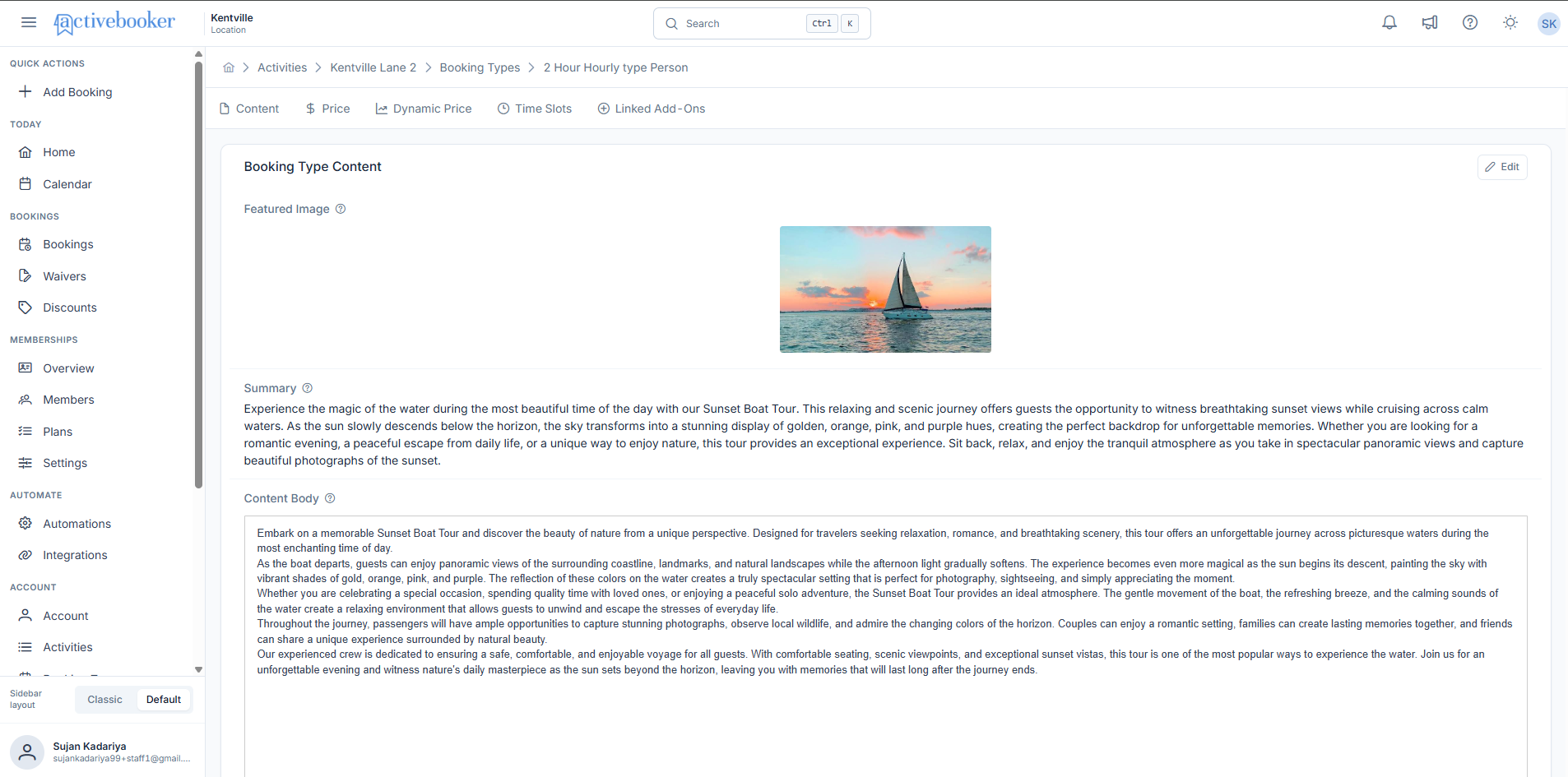
Booking Type Content section
The Booking Type Content section displays three key fields:
Featured Image
The main image representing your booking type. This image appears on the booking type detail page and in listing views where customers browse available options.
Summary
A brief description limited to 1,000 characters. This text appears in booking type listings, preview cards, and search results to give customers a quick overview.
Content Body
The main detailed description of your booking type. This content appears on the booking type detail page and supports rich text formatting including headings, lists, links, and more.
Editing booking type content
Access the edit modal
- From the Activities page, click View Detail on any activity
- Navigate to the Booking Types tab and click View Detail on the booking type
- Open the Content tab
- Locate the Booking Type Content section
- Click the Edit button in the top-right corner of the section
The Edit Booking Type Content modal will open, displaying all editable fields.
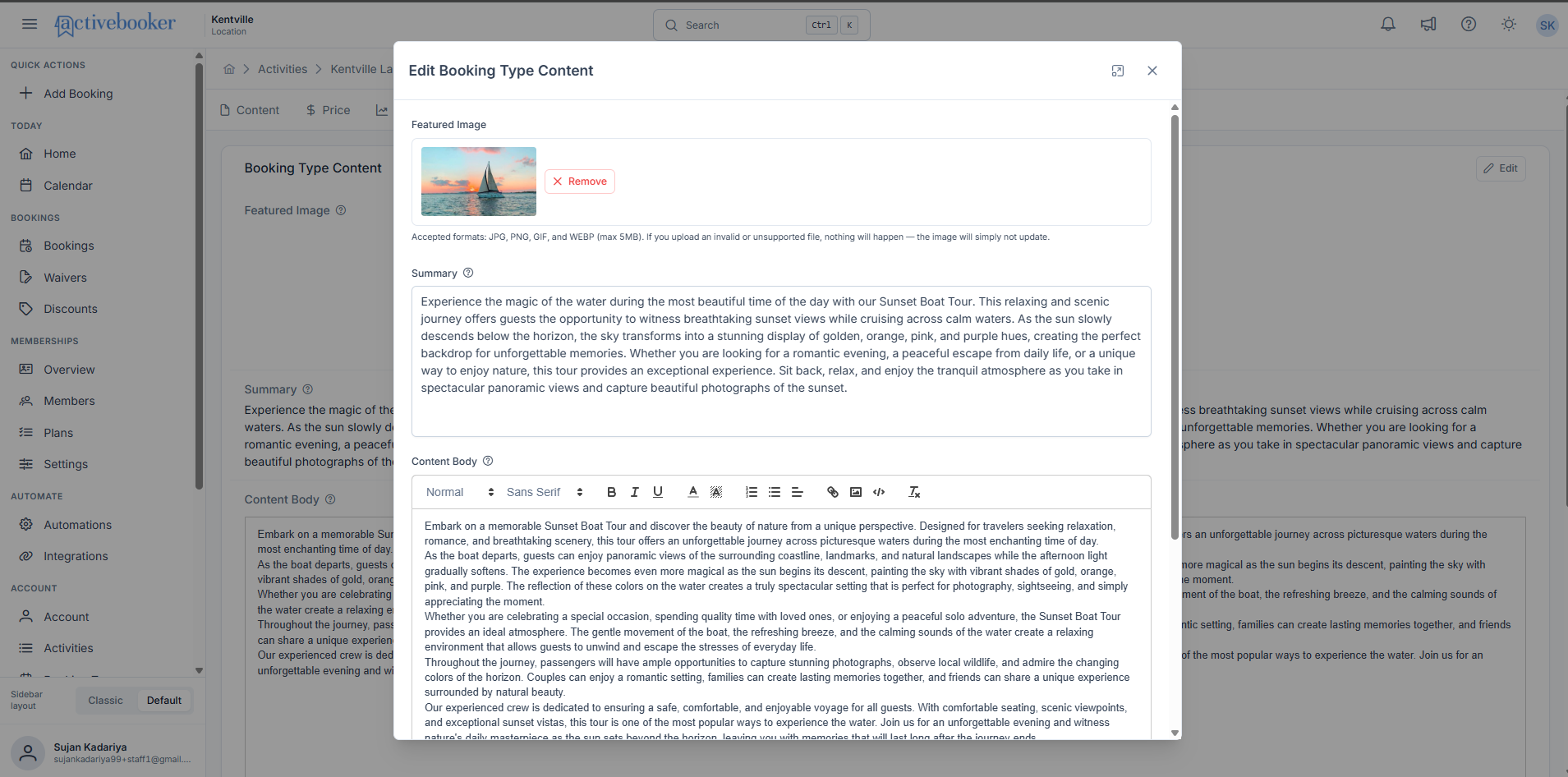
Update the featured image
The featured image field is optional. You have several options depending on your current setup:
If an image already exists:
- Click the Remove button to delete the current image
- You can save without uploading a replacement (the booking type will have no featured image)
- Or upload a new image to replace the existing one
If no image exists:
- Click the upload area to select an image file
- Or save without uploading an image
Accepted formats include JPG, PNG, GIF, and WEBP with a maximum file size of 5MB. If you upload an invalid or unsupported file, the image won't update.
Write your summary
The summary field is optional and limited to 1,000 characters:
- Click into the Summary text area
- Write a concise description highlighting the key features or benefits of your booking type
- Keep it brief and engaging — this text appears in listing views where space is limited
For tour-based booking types like a Sunset Boat Tour, focus on the experience customers can expect — the scenery, atmosphere, and what makes it unique. Think of this as your "elevator pitch" for the tour.
Create your content body
The content body field is optional and uses a WYSIWYG (What You See Is What You Get) editor:
- Click into the Content Body editor
- Use the formatting toolbar to style your text
- Write comprehensive details about your booking type, including what's included, what to expect, requirements, and any other relevant information
The editor displays content as it will appear to customers, making it easy to preview your formatting as you work.
Save your changes
- Review all your updates in the modal
- Click Save at the bottom of the modal to apply your changes
- Your updates will be reflected immediately on the booking type's detail page
If you close the modal without clicking Save, your changes will be lost.
Best practices
✅ Use high-quality images — Choose clear, well-lit photos that accurately represent your tour or experience
✅ Keep summaries concise — Focus on the most compelling details that help customers decide quickly
✅ Organize content logically — Use headings and lists in the content body to make information easy to scan
✅ Preview on mobile — Remember that customers may view your booking type on smaller screens
❌ Avoid generic stock photos — Use authentic images that show what customers will actually experience
❌ Don't duplicate information — The summary should complement the content body, not repeat it word-for-word
Update your booking type content periodically to keep information fresh and accurate, especially if your offerings change seasonally or you add new features to a tour.
Related resources
Learn more about managing your booking types:
- Booking Type Prompt — Configure custom messages shown to customers during booking
- Pricing — Manage pricing for your booking types
- Booking Types Overview — Learn about booking types and how they work