Add Booking Type
Overview
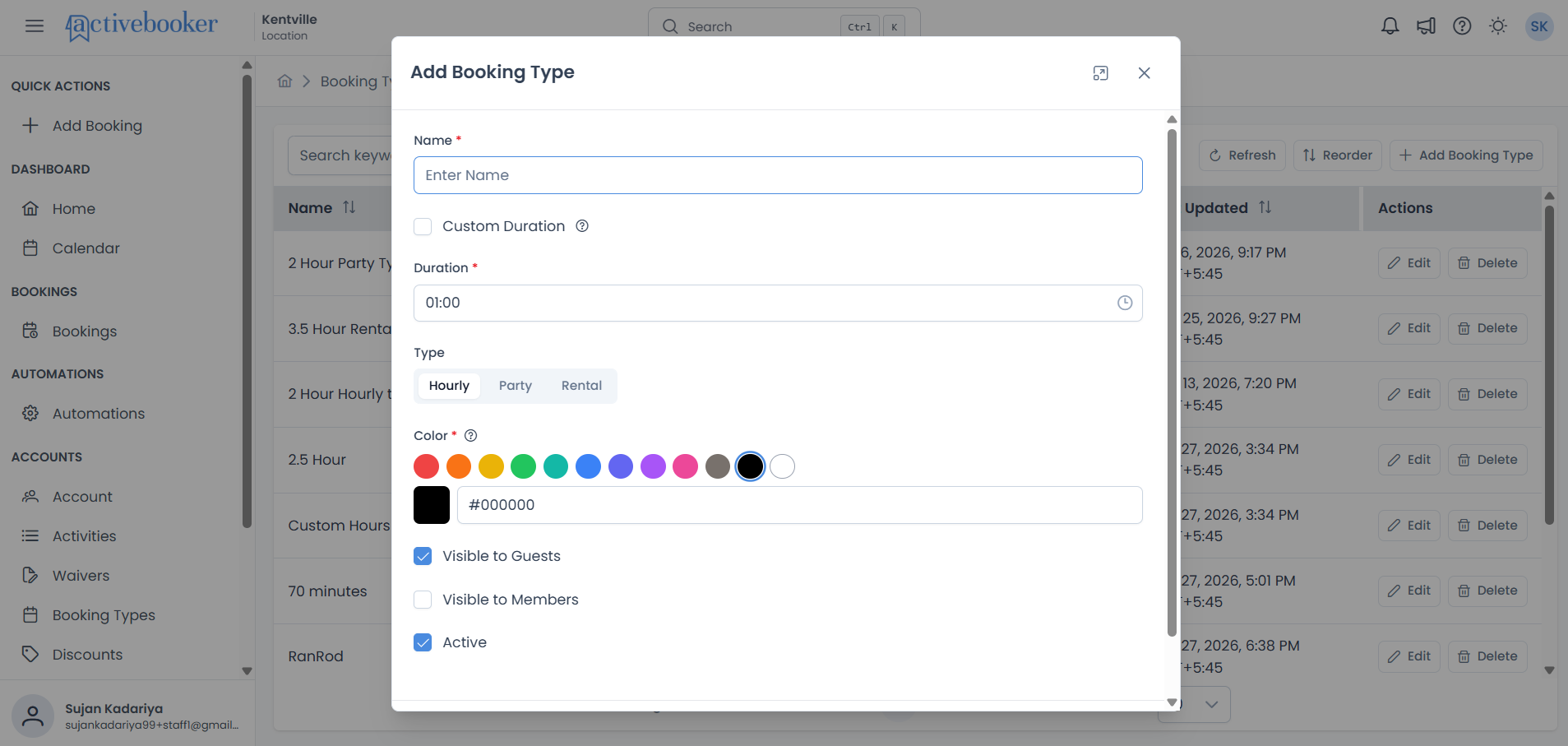
The Add Booking Type dialog allows you to create new booking types for your activities. Booking types define how customers can reserve time slots, including the duration, visual identification, and who can see and book them.
Accessing the Add Booking Type Dialog
- Navigate to Activities > View Detail >Booking Types from the main sidebar
- Click the "+ Add Booking Type" button in the top-right corner
- The "Add Booking Type" dialog will open

Form Fields
Name (Required)
Purpose: The display name for your booking type that appears throughout the system and to customers.
Guidelines:
- Enter a clear, descriptive name
- This name will be visible to customers on the booking website
- Examples: "Standard Hour", "Birthday Party", "Equipment Rental", "Member Session"
- Required field - you cannot save without entering a name
Validation:
- Cannot be empty
Custom Duration
Purpose: Allows flexible booking durations that can be set individually for each booking at the time of creation, rather than using a fixed duration.
When to Use:
- Private events where time length varies
- Custom party packages
- Flexible rental periods
- Any booking where duration isn't standardized
How It Works:
- Unchecked (Default): All bookings use the fixed duration you specify below
- Checked: Each booking can have its own custom duration set when created
Note: When Custom Duration is enabled, the Duration and Type fields are hidden since they're not needed.
Tooltip Information: "If the booking duration is not fixed, enable this option. You can set the duration for each booking individually at the time of booking creation."
Duration (Required when Custom Duration is unchecked)
Purpose: Sets the standard length of time for each booking of this type.
Format: Hours:Minutes (HH:MM)
- Examples: "01:00" (1 hour), "01:30" (1 hour 30 minutes), "02:00" (2 hours)
How It Works:
- If you set duration to 1:30, time slots of 1 hour 30 minutes will be created
- All bookings of this type will be this length
- The system uses this to calculate available time slots throughout the day
Default Value: 01:00 (1 hour)
Validation:
- Must be a valid time format
- Cannot be empty when Custom Duration is unchecked
- Hours and minutes must be valid values
Type (Required when Custom Duration is unchecked)
Purpose: Defines how activity resources (like bowling lanes) are allocated for this booking type.
Options:
Hourly (Default)
- Standard time-based bookings
- Number of resources (e.g., lanes) is calculated automatically based on:
- Number of people in the booking
- Capacity per resource unit
- Example: If lane capacity is 3 people and a booking is for 5 people, the system automatically assigns 2 lanes
Party
- Fixed-resource bookings typically used for events
- You specify exactly how many activity units (lanes, courts, etc.) are reserved
- Number of people is not asked
- Example: A birthday party booking always reserves 4 bowling lanes regardless of attendance
Rental
- Similar to Party type - fixed resource allocation
- You specify the number of activity units to reserve
- Commonly used for equipment or space rentals
- Example: Renting 2 badminton courts for a corporate event
Activity Units (Shown only for Party or Rental types)
Purpose: Specifies how many resource units (lanes, courts, rooms, etc.) are reserved for each booking.
When Visible: Only appears when Type is set to "Party" or "Rental"
Guidelines:
- Enter the number of activity units to reserve
- Must be greater than zero
- Example: For a party booking at a bowling alley, you might enter "4" to reserve 4 lanes
Default Value: 0 (zero)
Validation:
- Must be greater than zero when Party or Rental is selected
- Must be a positive integer
Color (Required)
Purpose: Assigns a visual color identifier to this booking type for easy recognition in calendar views.
How It Works:
- Choose from a row of preset color circles (such as Red, Orange, Yellow, Green, Teal, Blue, Purple, Pink, Gray, Black, and White)
- Or enter a custom hex code in the text field below the presets (e.g., #FF0000 for red)
- A color preview square shows your current selection
- This color appears in the daily calendar view to help you quickly identify different booking types
Why It's Useful:
- Quickly distinguish between booking types at a glance
- Create visual organization in busy schedules
- Each color represents a specific booking type in the calendar
Default Value: Black (#000000)
Tooltip Information: "Color helps you visually identify different booking types in the calendar. Each color represents a specific booking type in the daily calendar view."
Validation:
- Cannot be empty
- Must be a valid color selection
Visible to Guests
Purpose: Controls whether non-member customers can see and book this booking type on the public booking website.
Options:
- Checked (Default): The booking type appears to all website visitors and they can make bookings
- Unchecked: The booking type is hidden from public view - only visible to staff/members
Use Cases for Unchecked:
- Member-only booking types
- Staff-only reservation types
- Internal testing or setup bookings
- Special event types not available to the general public
Visible to Members
Purpose: Controls whether members can see and book this booking type.
Availability: Only displayed when the membership feature is enabled for your location
Options:
- Checked: Members can see and book this type
- Unchecked: Hidden from members
Note: If you don't see this option, membership features are not enabled for your location.
Active
Purpose: Controls whether this booking type is currently available for use.
Options:
- Checked (Default): Booking type is active and available for new bookings
- Unchecked: Booking type is inactive and cannot be used for new bookings
Use Cases:
- Temporarily disable seasonal booking types
- Test new booking types before making them public
- Retire old booking types without deleting them
Default Value: Checked (Active)
Dialog Actions
Save Button
- Saves the new booking type with all configured settings
- Returns you to the Booking Types list
- The new booking type will appear in the list immediately
Before Saving, Ensure:
- All required fields are filled
- Color is selected
- Settings match your intended use
Cancel Button
- Closes the dialog without saving
- All entered information is discarded
- Returns you to the Booking Types list
Close (X) Button
- Located in the top-right corner
- Functions the same as Cancel
- Discards all changes
Field Dependencies and Behavior
Custom Duration Checkbox Impact
When Checked:
- Duration field becomes hidden
- Type selection becomes hidden
- Activity Units field becomes hidden
- The booking duration will be set individually when creating each booking
When Unchecked:
- Duration field becomes visible and required
- Type selection becomes visible and required
- Activity Units field may appear (if Party or Rental is selected)
Type Selection Impact
When "Hourly" is Selected:
- Activity Units field is hidden
- System automatically calculates resources based on capacity and attendance
When "Party" or "Rental" is Selected:
- Activity Units field becomes visible
- You must specify how many units to reserve
- Number is fixed regardless of attendance
Default Values
When you first open the Add Booking Type dialog, these defaults are pre-filled:
- Custom Duration: Unchecked
- Duration: 01:00 (1 hour)
- Type: Hourly
- Activity Units: 0 (hidden by default)
- Color: Black (#000000)
- Visible to Guests: Checked
- Active: Checked
Tips and Best Practices
Naming
- Use clear, customer-friendly names
- Be specific (e.g., "2-Hour Party Package" vs. "Party")
- Consider what customers will see on the booking site
Duration Planning
- Match durations to actual service delivery
- Include time for setup/cleanup if needed
- Consider customer experience - not too short, not too long
Color Coding
- Use distinct colors for easy visual identification
- Create a color scheme (e.g., blue for standard, pink for parties, green for members)
- Avoid similar colors that are hard to distinguish
Visibility Settings
- Start with "Visible to Guests" unchecked for testing
- Enable visibility once you've confirmed everything works
- Use guest visibility strategically for promotional periods
Type Selection
- Choose "Hourly" for standard, walk-in bookings
- Choose "Party" for fixed-resource events
- Choose "Rental" for equipment or space reservations
After Saving
What Happens Next
- The dialog closes automatically
- You return to the Booking Types list
- Your new booking type appears in the table
Editing Later
- You can edit any booking type by clicking the "Edit" button in the Actions column
- All the same fields will be available
- Changes are saved immediately
Troubleshooting
Cannot Save Booking Type
- Check that all required fields are filled (Name, Color)
- Verify Duration is valid if Custom Duration is unchecked
- Ensure Activity Units is greater than zero if Party/Rental is selected
Color Not Displaying
- Try selecting a different color
- Ensure you clicked "Save" after selecting the color
- Refresh the page if needed
Custom Duration Not Working as Expected
- Ensure the checkbox is checked when saving
- Verify that Duration and Type fields are hidden when enabled
- Contact support if issues persist