Waiver Content
Introduction
The Waiver Content page allows you to configure and preview the legal waiver text displayed during the booking process. You can set whether the waiver appears before or after the form fields, edit the waiver content, and preview how it will be presented to customers before they complete their booking.
Quick Start
Edit the Waiver Content in just a few steps:
- Navigate to Waivers in your dashboard sidebar
- Click the Waiver Content tab
- Click the Edit button located in the top right corner of the page
- Select the waiver content Placement: choose Top to display content before the form fields, or Bottom to display content after the form fields
- Edit the content as desired using the Text Editor Toolbar
- Click the Save button to save your changes
What You Can Do
The Edit Waiver Content Modal helps you to:
- Define waiver placement – Choose whether the waiver appears at the top (before form fields) or bottom (after form fields) of the booking form
- Compose waiver text – Write or edit the legal content, terms, and conditions customers must acknowledge using the Text Editor Toolbar
- Format content professionally – Apply text styles, fonts, colors, lists, alignment, and insert links, images, or code blocks to enhance readability
- Save or discard changes – Save your edits to update the waiver content, or cancel to discard changes without affecting the existing waiver
Understanding the Interface
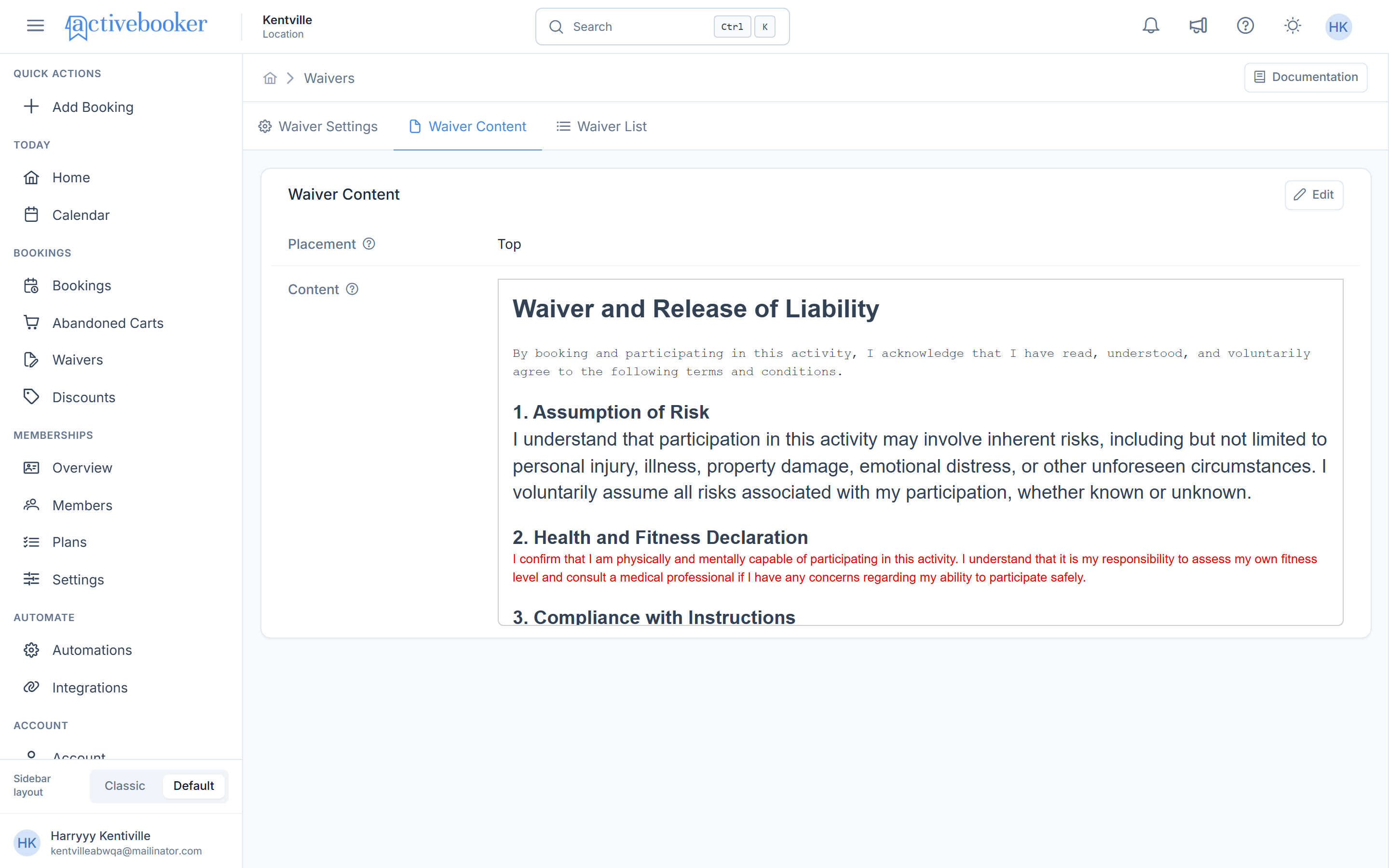
The Waiver Content page is organized into two main sections:
1. Placement Field
Placement controls where the waiver content appears in the waiver form. There are two options:
- Top – Waiver content appears before the form fields
- Bottom – Waiver content appears after the form fields
2. Content Field
The Content Field displays the waiver text that will be shown to customers on the waiver form. It provides a preview of how the waiver will appear to customers when they complete their booking.
Edit Waiver Content Modal
The Edit Waiver Content modal appears when a user clicks the Edit button located in the top right corner of the Waiver Content page. This modal allows users to edit both the placement of the waiver content and the content itself using the Text Editor Toolbar.
Placement Field
The Placement setting determines the position of your waiver content within the booking form workflow:
- Top Placement – Waiver content appears at the beginning of the form, requiring customers to read legal terms, liability releases, and risk warnings before entering any booking information. This approach prioritizes legal acknowledgment and informed consent.
- Bottom Placement – Waiver content appears at the end of the form, allowing customers to complete all booking details first before reviewing and accepting the terms. This approach streamlines the initial booking experience.
Best Practice: Select "Top" for high-risk activities where legal acknowledgment should occur before any data collection. Choose "Bottom" for lower-risk services where you want to minimize friction in the booking process.
Content
This is the field where users can edit waiver content using the Text Editor Toolbar. The toolbar provides essential formatting options for creating professional waiver content. Users can select text styles using the Format Style dropdown (Normal, Heading, Subheading) and change fonts via the Font Family dropdown (Sans Serif, Serif, Monospace). Basic formatting is available through Bold, Italic, and Underline buttons, while Text Color and Background Color buttons add visual emphasis to important information.
For content organization, users can create Bulleted Lists or Numbered Lists and adjust Text Alignment (left, center, right). The toolbar also supports inserting Links to external resources, Images for visual elements, and Code Blocks for custom HTML. If formatting needs to be removed, the Clear Formatting button resets selected text to plain format while preserving the content. These tools ensure users can create clear, well-formatted, and professional waiver documents efficiently.
Save Button
The Save button saves all changes made in the Edit Waiver Content modal. After saving, a success message appears displaying "Waiver Content was updated successfully," and the changes are immediately reflected on the Waiver Content page.
Cancel Button
The Cancel button discards all changes made in the Edit Waiver Content modal and closes the modal without saving. No modifications will be reflected on the Waiver Content page.
Where customers read this content
On the customer waiver form, your waiver text appears on the Sign step, in a scrollable panel directly above the agreement checkbox. It is also reproduced under Declaration on the receipt the customer sees after submitting, and in the signed waiver PDF your team opens with View Waiver.
If you leave the content empty, that panel is omitted and the Sign step shows only the agreement checkbox and the signature pad.
Related resources
- The customer waiver experience — See where this content appears in the form customers complete
- Waiver Settings — Enable waivers and choose which fields customers must fill in
- Waiver List — View and export every signed waiver