Send a waiver to a customer
Get a waiver signed for a specific booking. You can hand a tablet to a customer at your front desk, or send them a link to sign before they arrive. Either way, the signed waiver is attached to that exact booking instead of floating on its own.
Quick start
- Go to Bookings in the left sidebar and open the customer's booking with View Detail
- Scroll down to the Signed Waivers card near the bottom of the page
- Click the small dropdown arrow next to the Refresh button
- Pick Sign Waiver Embedded to sign right here, or Sign Waiver to open the form in a new tab
- Once the customer submits it, their waiver shows up as a new row in Signed Waivers
These buttons open your public waiver form. If Enable Waiver is turned off in Waiver Settings, the form won't load. See Waiver Settings.
What you can do
Sending a waiver from a booking helps you:
- Keep the waiver with the right booking — Waivers signed this way show up automatically in that booking's Signed Waivers list
- Sign in person — Open the form right inside the dashboard and hand your device to the customer
- Sign from anywhere — Copy the link and text or email it to a customer who hasn't arrived yet
- See who's covered at a glance — Check the Signed Waivers list before the activity starts
Why this is different from the public Waiver link
Both options lead to the same three-step waiver form — the difference is what happens to the record afterward.
| Waiver link on your booking site | Sign Waiver from a booking | |
|---|---|---|
| Who starts it | The customer, at any time | Your staff, from a specific booking |
| Attached to a booking | No | Yes |
| Shows in Signed Waivers on the booking | No | Yes |
| Shows in Waivers > Waiver List | Yes | Yes |
If you need proof that everyone on a specific booking is covered, always use Sign Waiver from the booking itself. See The customer waiver experience for exactly what the customer fills in either way.
Using this feature
Open the waiver actions
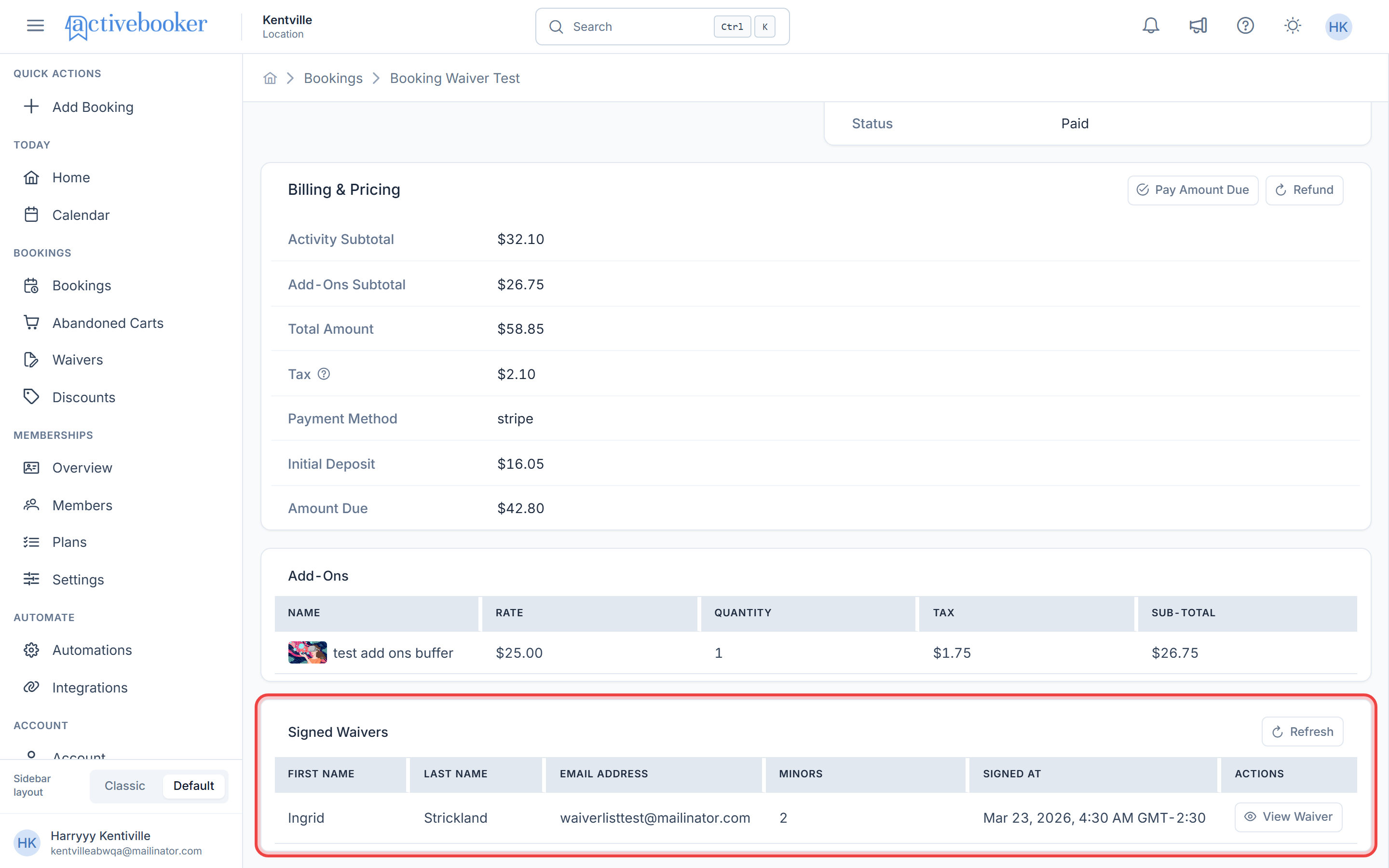
- Open the booking with View Detail from the Bookings list
- Scroll down to the Signed Waivers card
- Click the small dropdown arrow next to Refresh
Sign Waiver Embedded — sign on this screen
Pick Sign Waiver Embedded when your customer is standing right there with you.
The form opens in a large window over the dashboard, with no menus or navigation bar — just the form itself. Hand over your device and let the customer complete the three steps.
Close the window once they're done, and the Signed Waivers list updates on its own, so you can confirm it worked straight away.
Sign Waiver — open in a new tab
Pick Sign Waiver when you'd rather the customer sign on their own phone or computer.
The form opens in a new browser tab, already connected to this booking. Copy that tab's address and send it to the customer by email or text — the link stays valid until they use it.
Once they tell you they're done, go back to the booking and click Refresh in the Signed Waivers card to see their waiver appear.
You'll also see Sign Waiver Legacy and Sign Waiver Legacy Embedded in the dropdown. These open ActiveBooker's older waiver page — stick with the two options above unless support asks you to use them.
Confirm the waiver arrived
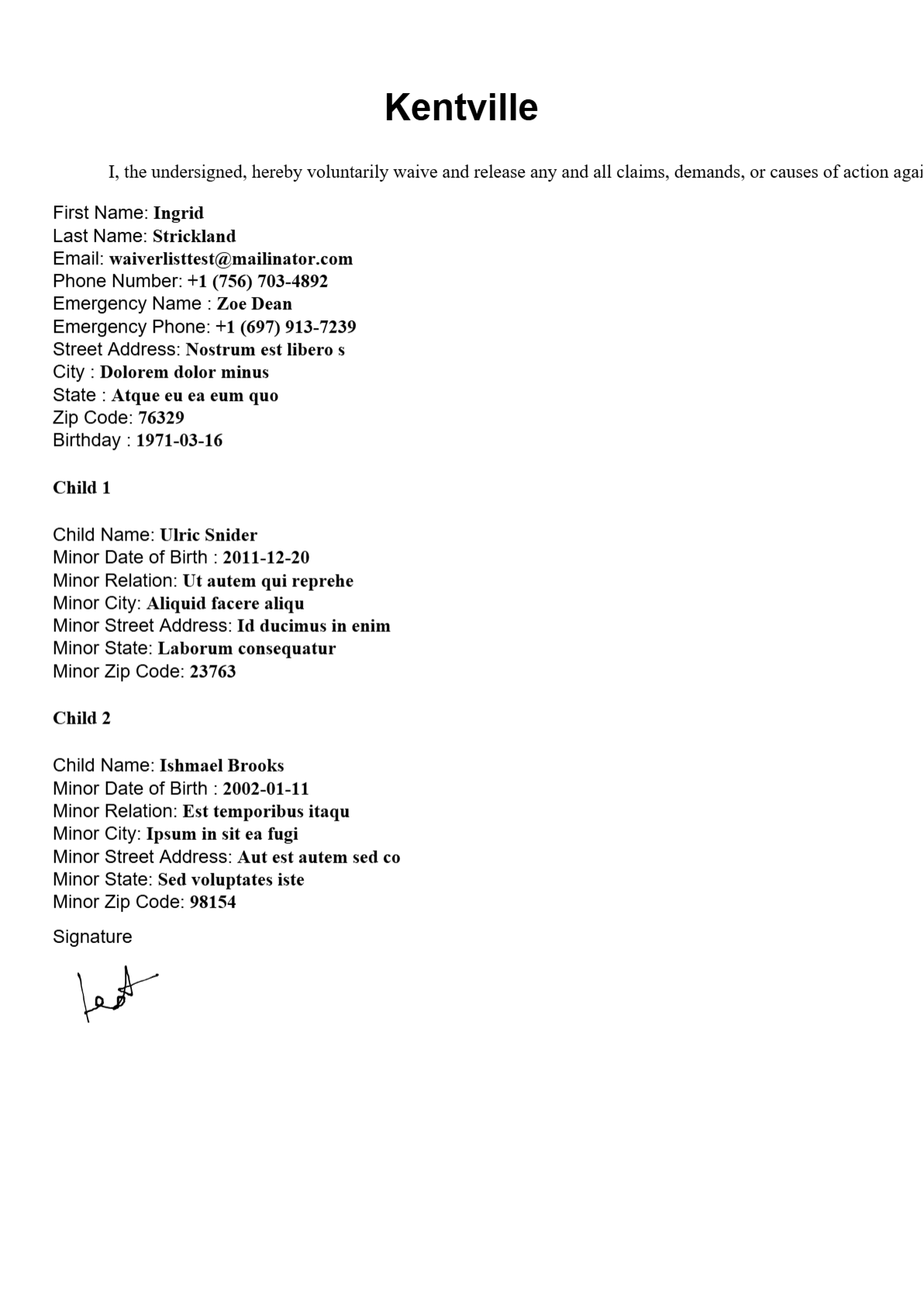
Once the customer submits the form, a new row appears in Signed Waivers with their name, email, how many minors are covered, and when they signed. Click View Waiver on that row to open the signed PDF.
Want the full picture of what each column means? See Booking Details.
Common scenarios
Scenario 1: A walk-in customer needs to sign before their session
- Open the customer's booking with View Detail
- Scroll to Signed Waivers and click the dropdown arrow
- Choose Sign Waiver Embedded
- Hand your tablet or laptop to the customer
- Close the window once they finish, and check the new row appears
Scenario 2: Chasing a waiver ahead of tomorrow's booking
- Open the booking and check that Signed Waivers is empty
- Click the dropdown arrow and choose Sign Waiver
- Copy the address from the new tab
- Send it to the customer by email or text
- Click Refresh the next day to confirm they've signed
Scenario 3: A group where only some participants have signed
- Open the booking and compare the rows in Signed Waivers against the number of participants
- For anyone missing, click Sign Waiver Embedded and let them sign
- Repeat for each remaining participant — a booking can hold as many signed waivers as it needs
Best practices
✅ Use Embedded at the front desk — It keeps you on the booking page, and the list updates itself the moment you close the window
✅ Send the link a day ahead — Customers who sign early breeze through check-in
✅ Glance at the list before the activity starts — The Minors column tells you how many children each waiver covers
❌ Don't send booked customers to the public Waiver link — Waivers signed there aren't attached to the booking, so Signed Waivers stays empty
❌ Don't close the embedded window mid-signature — Nothing is saved until the customer taps Submit Waiver
Troubleshooting
Issue: "Waiver link is not available for this booking."
Why this happens: This activity doesn't have a booking page link set up yet, so there's no link to open.
How to fix it:
- Go to Activities and open the activity used for this booking
- Confirm it has a booking link set up
- Come back to the booking and try again
Issue: The embedded window shows an error instead of the form
Why this happens: Waivers are turned off for this location, so the public form won't load.
How to fix it: Go to Waivers > Waiver Settings, turn on Enable Waiver, save, then reopen the window.
Issue: The customer signed but the list is still empty
Why this happens: The list only updates when you ask it to — it won't refresh by itself.
How to fix it: Click Refresh in the Signed Waivers card. Still empty? The customer may have used the public Waiver link instead of yours — check Waivers > Waiver List to see if it's there, then have them sign again using the booking's link.
Issue: View Waiver says the file wasn't found
Why this happens: The signed PDF is created in the background right after signing, so it may not be ready yet.
How to fix it: Wait a moment, click Refresh, and try again.
Frequently asked questions
Can several people sign a waiver for the same booking?
Yes — repeat the steps for each person. Every submission adds its own row to Signed Waivers.
Does the link expire?
No. It stays valid for as long as you need, and always stays tied to the booking it was created from.
Can I resend a waiver to someone who already signed?
Yes, though it creates a second record rather than replacing the first — submitted waivers can't be edited or deleted.
Do customers need to log in to use the link?
No. The waiver form is public, so no account is needed.
Related resources
- The customer waiver experience — What the customer sees and fills in
- Waiver Settings — Enable waivers and choose the fields customers complete
- Booking Details — The Signed Waivers table and PDF in full
- Waiver List — Every signed waiver across your location