The customer waiver experience
See exactly what your customers experience when they sign a waiver: a simple three-step form, an optional section for minors, a signature pad, and a confirmation receipt they can save as a PDF. Knowing this flow helps you set up your waiver correctly and support any customer who gets stuck.
Quick start
Open your own waiver form the way a customer sees it:
- Go to Activities in the left sidebar and copy your activity's booking link
- Open the link in a new browser tab — this is your public booking site
- Click Waiver in the top navigation bar
- Walk through the You, Minors, and Sign steps
The waiver form is public. Customers do not need an ActiveBooker account, a password, or an existing booking to sign one.
What you can do
Understanding the customer waiver experience helps you:
- Configure with confidence — Know precisely how each setting in Waiver Settings changes what the customer sees
- Support customers — Answer "why can't I continue?" and "where is my copy?" without guessing
- Verify your setup — Test your own waiver form before sending it to real customers
- Explain the record — Tell customers exactly what is saved and what they receive afterwards
How it works
The three steps
The customer waiver form is a single page with up to three steps, shown as a numbered strip under the activity name. Completed steps show a checkmark; steps the customer has not yet unlocked are greyed out and cannot be clicked.
| Step | Label | When it appears |
|---|---|---|
| 1 | You | Always |
| 2 | Minors | Only when Enable Minor Waiver is on |
| 3 | Sign | Always (numbered 2 when the Minors step is hidden) |
Customers can click back to any step they have already completed. They cannot skip ahead — a step only unlocks once every step before it is valid.
Where the form lives
The waiver form has its own page on your public booking site. Customers get there by clicking the Waiver link — they never need to know or type any web address themselves.
After a successful submission, the customer is taken to a confirmation page with a unique reference number, something like WVR260729-A1B2C3. They can bookmark or save this page to find their signed waiver again later.
How customers reach it
The Waiver link in the navigation bar
When waivers are enabled, your public booking site shows two links at the top: Book Now and Waiver. This is the self-serve route — customers can sign at any time, before or after they book.
A link from your staff
Your team can open the waiver form for a specific booking straight from the Booking Detail page. See Send a waiver to a customer.
If Enable Waiver is unchecked in Waiver Settings, the Waiver link is removed from the navigation bar, and anyone opening the waiver address directly is redirected back to the booking page.
Using this feature
Step 1 — You
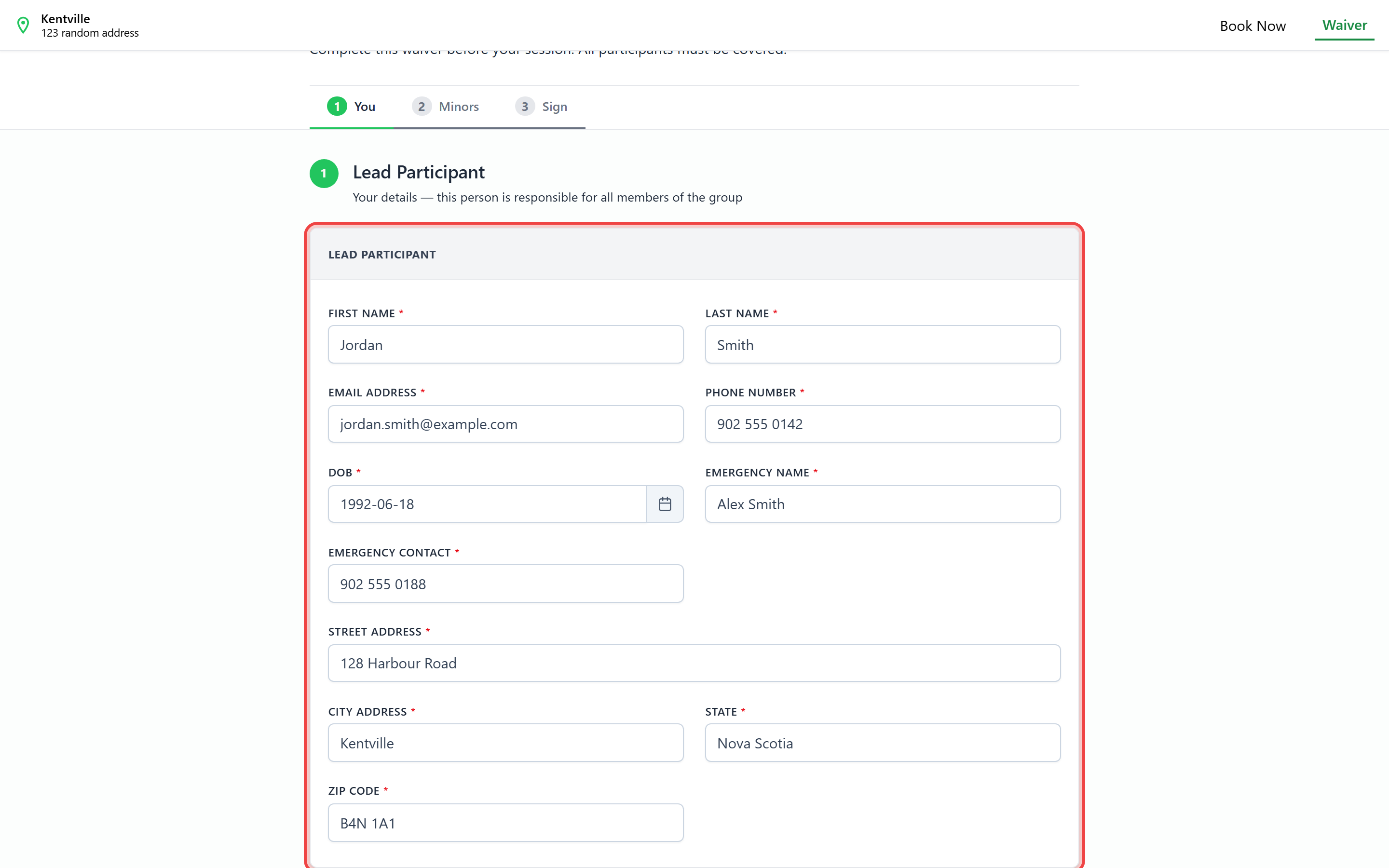
The first step collects details for the Lead Participant — described on the form as "Your details — this person is responsible for all members of the group".
Which fields appear here is entirely controlled by the Waiver Form Fields section of your Waiver Settings, and each field uses the label you set there.
There is no optional field on the customer waiver form. Any field you enable in Waiver Form Fields becomes mandatory for the customer. If a field is not essential, disable it rather than leaving it enabled and hoping customers fill it in.
Customers see the message "<Field label> is required." under any field they leave blank when they click Continue.
Date fields such as Date of Birth cannot be set to a future date.
Step 2 — Minors
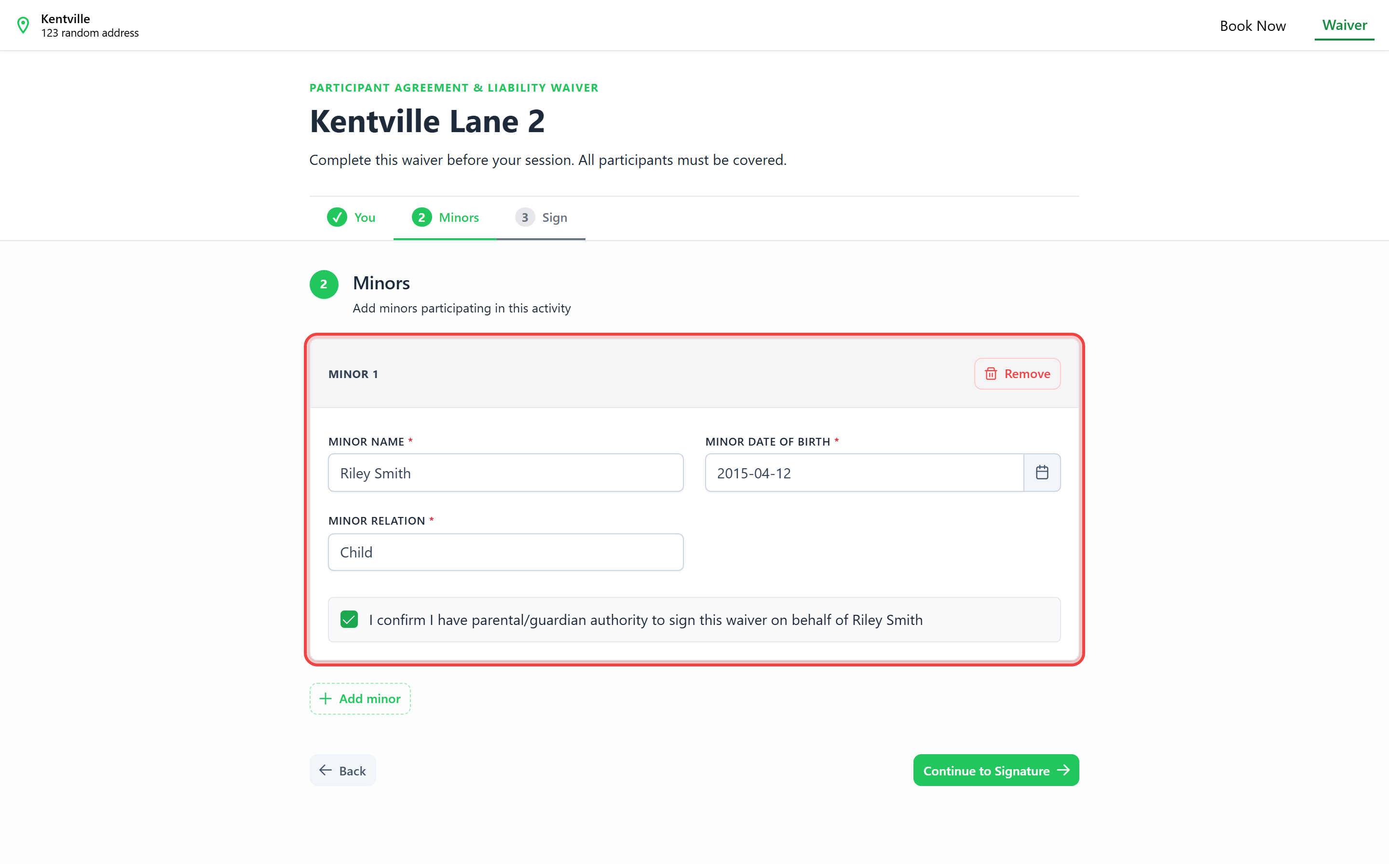
This step appears only when Enable Minor Waiver is on. It lets the lead participant add each child taking part.
- Click Add minor to add a card. Each card is titled Minor 1, Minor 2, and so on.
- Each card shows the fields you enabled under Waiver Minor Fields, and all of them are required.
- Click Remove on a card to delete that minor.
- If no minors are added, the step shows "No minors? That's fine — skip to the next section." and the customer can continue.
Guardian consent
When Enable Signing On Behalf Of Minors is on, each minor card also shows a confirmation checkbox reading "I confirm I have parental/guardian authority to sign this waiver on behalf of <minor's name>". The customer cannot continue until it is ticked for every minor; otherwise they see "Please confirm guardian consent before continuing."
Click Continue to Signature to move on, or Back to return to the You step.
Step 3 — Sign
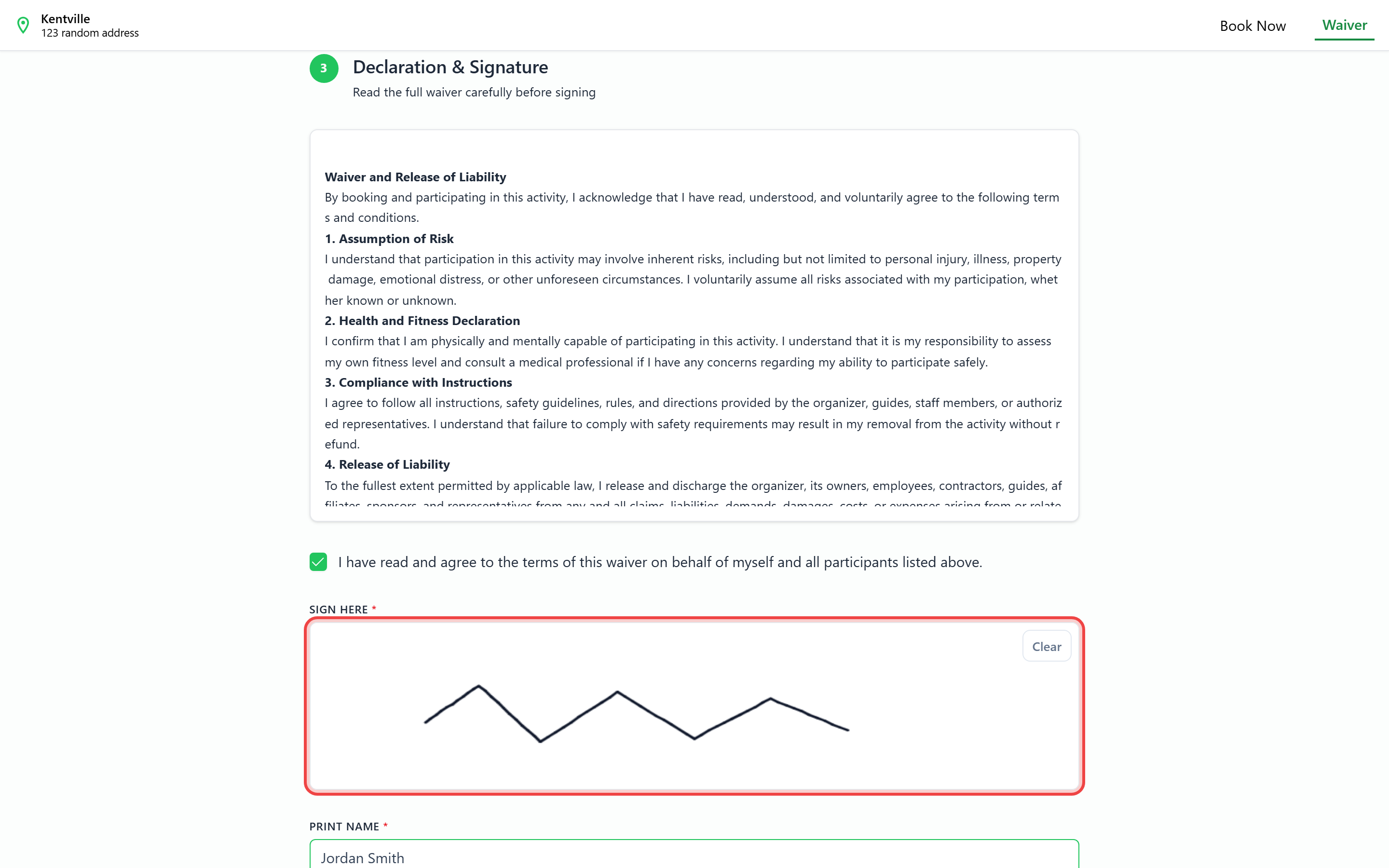
The final step is titled Declaration & Signature, with the instruction "Read the full waiver carefully before signing". It contains four parts:
Your waiver text
The content you wrote in Waiver Content, shown in a scrollable panel. If you have not written any waiver text, this panel is omitted entirely.
The agreement checkbox
A single checkbox reading "I have read and agree to the terms of this waiver on behalf of myself and all participants listed above." This wording is fixed and cannot be customised.
The signature pad
A drawing area labelled with your Signature Label setting (Your Signature by default). It shows the prompt "Draw your signature here" until the customer draws, and works with both a mouse and a touchscreen. A Clear button in the top-right corner wipes the pad so they can try again.
Print Name
A required text box for the customer's full name as printed.
The Submit Waiver button stays disabled until the checkbox is ticked, a signature has been drawn, and Print Name is filled in.
The receipt
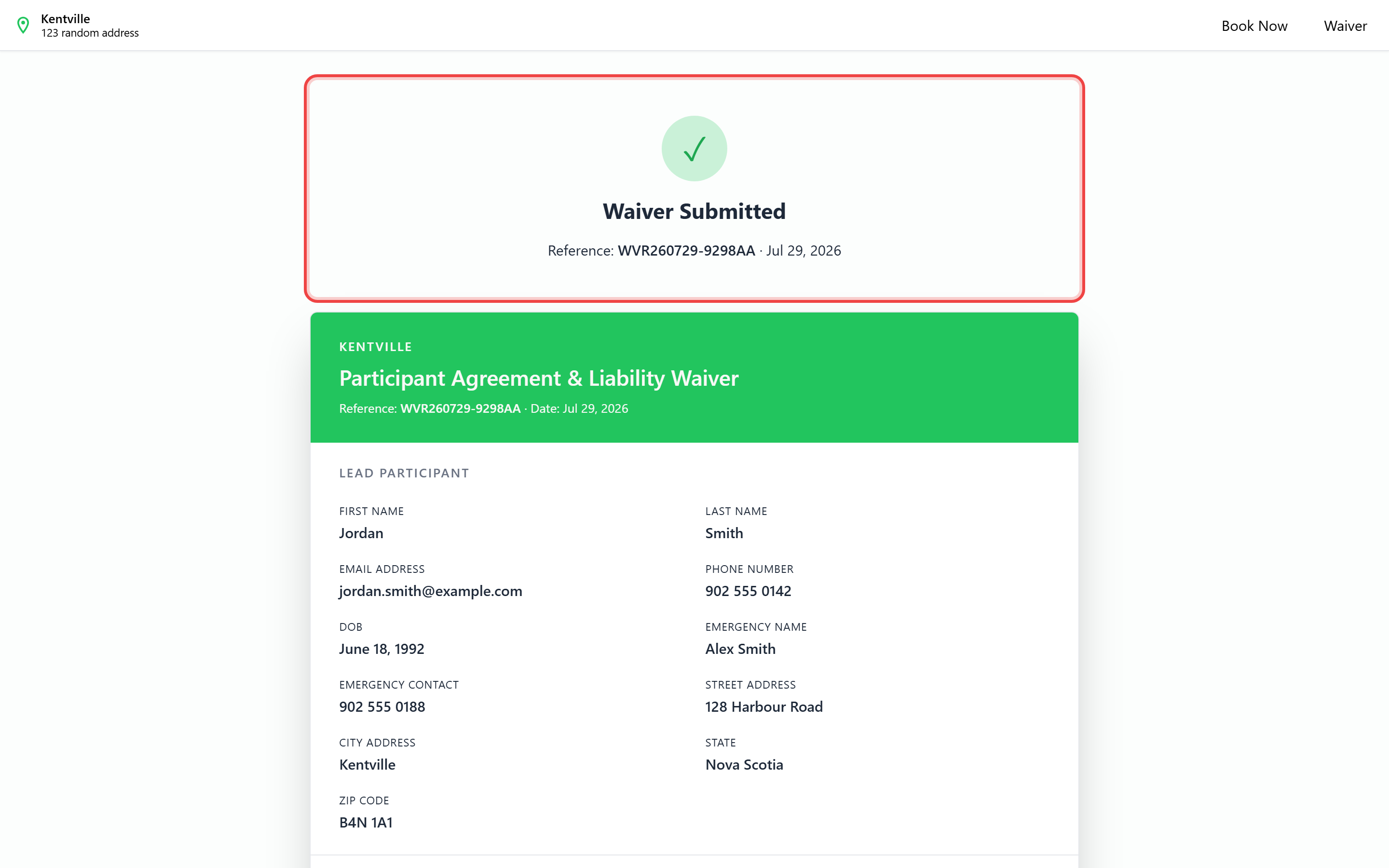
After a successful submission the customer lands on a confirmation page showing a green checkmark, Waiver Submitted, and their reference number with the submission date.
Below that is the full record they just signed:
| Section | What it shows |
|---|---|
| Banner | Your location name, "Participant Agreement & Liability Waiver", the reference, and the date |
| Lead Participant | Every enabled field with the value the customer entered |
| Minors | One block per minor, with a heading showing the total (for example, "Minors (2)") |
| Declaration | Your waiver text, if you set any |
| Signature | Print Name, the date, and an image of the signature |
A Print / Save as PDF button at the bottom opens the browser's print dialog. The page is styled for printing — the navigation bar and the button itself are hidden on the printed copy.
The receipt address contains the reference number, so a customer who bookmarks or saves the link can reopen their signed waiver later.
How your settings change what the customer sees
Here's how each setting in Waiver Settings changes what your customer actually sees:
- Enable Waiver — Turned off, the Waiver link disappears completely and customers can't reach the form at all.
- Waiver Form Fields (on/off) — Whatever fields you turn on appear on the You step. Every field you enable is required — there's no optional field.
- Waiver Form Fields (labels) — The exact label text your customer reads, also used on the receipt and PDF.
- Signature Label — The heading above the signature pad. Defaults to Your Signature.
- Enable Minor Waiver — Turns the whole Minors step on or off.
- Waiver Minor Fields — Controls which fields appear on each minor's card. All of them are required.
- Enable Signing On Behalf Of Minors — Adds a guardian consent checkbox to each minor's card.
- Waiver Content — The waiver text you write appears on the Sign step, the receipt, and the PDF.
- Waiver Emails — The staff email addresses notified whenever a waiver comes in.
- Enable Customer Waiver Email Notification — Turn this on to also email the customer their own confirmation.
Enable Signing On Behalf Of Minors only adds the consent checkbox to minor cards — and minor cards exist only when Enable Minor Waiver is on. If you turn on minor signing without minor waivers, the customer form is unchanged.
Fields you disable are removed from the form, the receipt, and the PDF. Turning a field back on later does not recover the data for waivers already signed.
What happens after a customer submits
Submitting a waiver triggers several things at once:
- The waiver is saved and appears immediately in Waivers > Waiver List.
- A PDF is generated in the background. This takes a few moments — the PDF is what staff open with View Waiver.
- Your team is notified. Everyone with dashboard access to the location gets an in-app notification, "New Waiver Submitted — <name> has submitted a waiver." If you have addresses in Waiver Emails, they also receive an email with the subject Waiver Form.
- The customer is emailed — only if Enable Customer Waiver Email Notification is on and the Email field is enabled on your form. Without an email address there is nowhere to send the confirmation.
- The waiver is attached to a booking if the customer opened the form from a staff-sent link. It then appears in that booking's Signed Waivers section. A waiver signed from the Waiver navigation link is not attached to any booking.
Common scenarios
Scenario 1: Testing your waiver form before going live
You have just configured your waiver and want to check it end to end:
- Open your public booking site and click Waiver
- Confirm the fields, labels, and waiver text match what you configured
- Complete all three steps with test details and submit
- Check that the waiver appears in Waivers > Waiver List
- Confirm your team received the notification, and the customer confirmation email if you enabled it
Scenario 2: A customer says the form will not let them continue
The Continue and Submit Waiver buttons are blocked by validation:
- Ask the customer to scroll up and look for red "is required" messages
- Remind them that every visible field must be completed — none are optional
- On the Minors step, check the guardian-consent box is ticked for every minor
- On the Sign step, check all three of: the agreement checkbox, a drawn signature, and Print Name
Scenario 3: A customer wants another copy of their waiver
- Ask for their name or email and find them in Waivers > Waiver List
- Click View Waiver to open the signed document
- If the waiver is attached to a booking, you can also open it from the booking's Signed Waivers section
Best practices
✅ Enable only the fields you genuinely need — Every enabled field is mandatory, and long forms are abandoned forms
✅ Test on a phone — The signature pad is built for touch, and most customers sign on a mobile device
✅ Write your waiver text before going live — With no content set, the Sign step shows only a checkbox and a signature pad, which looks unfinished
✅ Keep the Email field enabled — Without it, customer confirmation emails cannot be sent, and you have no way to identify signers by email
❌ Don't disable fields after you go live expecting old data back — Disabled fields vanish from the receipt and PDF of every waiver, including ones already signed
❌ Don't rely on the Waiver link alone for booked customers — Waivers signed from the navigation bar are not attached to any booking; use the staff link when you need the waiver on a specific booking
Troubleshooting
Issue: The Waiver link is missing from the booking site
Why this happens: The link only renders when waivers are enabled for the location.
How to fix it:
- Go to Waivers > Waiver Settings
- Click Edit in General Waiver Settings and tick Enable Waiver
- Save, then reload the public booking site
Issue: The customer says "Waiver is not enabled for this location"
Why this happens: Waivers were switched off after the customer opened the page, or they are using an old link for a location where waivers are disabled.
How to fix it: Confirm Enable Waiver is on, then ask the customer to reload the page.
Issue: The Minors step never appears
Why this happens: The step is driven by Enable Minor Waiver, not by Enable Signing On Behalf Of Minors.
How to fix it: In General Waiver Settings, tick Enable Minor Waiver. This also enables and locks Enable Signing On Behalf Of Minors.
Issue: The customer never received their confirmation email
Why this happens: Either Enable Customer Waiver Email Notification is off, or the Email field is disabled on your form so no address was collected.
How to fix it:
- Check Enable Customer Waiver Email Notification in General Waiver Settings
- Check Email is enabled in Waiver Form Fields
- Ask the customer to check their spam folder
Issue: View Waiver says the waiver file is not found
Why this happens: The PDF is produced in the background just after submission and was not ready yet.
How to fix it: Wait a few moments and click Refresh, then try View Waiver again.
Frequently asked questions
Do customers need an account to sign a waiver?
No. The waiver form is completely public — no sign-in, no booking required.
Can one person sign for a whole group?
Yes. The lead participant is described on the form as "responsible for all members of the group", and the agreement text covers "myself and all participants listed above". Minors are added individually on the Minors step.
Can a customer edit a waiver after submitting it?
No. Submitted waivers are a permanent record and cannot be edited or deleted. If details were entered wrongly, ask the customer to submit a new waiver.
Does the customer get a PDF automatically?
Not as an attachment. They get a receipt page with a Print / Save as PDF button. A PDF is also generated on your side and is what your team opens with View Waiver.
Can I change the wording of the agreement checkbox?
No. The checkbox text is fixed. Your customisable text is the Waiver Content, which appears directly above it.
Does the waiver form work on mobile?
Yes. The form is responsive and the signature pad supports touch input.
Related resources
Learn more about setting up and managing waivers:
- Waiver Settings — Turn waivers on and choose which fields customers must complete
- Waiver Content — Write the legal text customers read before signing
- Send a waiver to a customer — Get a specific booking's waiver signed
- Waiver List — Find and export every waiver customers have signed
- Booking Details — Review the waivers attached to a booking