Waiver Settings
Configure liability waivers that customers must sign before booking, customize waiver form fields, and manage separate waiver requirements for minors to protect your business and ensure legal compliance.
Quick start
Set up waivers for your location in just a few steps:
- Navigate to Waivers in your dashboard sidebar
- Click the Waiver Settings tab
- Click Edit in the General Waiver Settings section
- Check Enable Waiver to activate waiver functionality
- Configure notification emails and customize form fields as needed
- Click Save to activate your waiver requirements
You must enable the waiver feature before you can configure waiver form fields or minor waiver settings.
What you can do
Waiver Settings help you:
- Require liability protection — Ensure all customers sign waivers before participating in activities that carry inherent risks
- Customize waiver forms — Control which information fields appear on your waiver forms and customize their labels
- Manage minor waivers — Configure separate waiver requirements for children, allowing parents or guardians to sign on their behalf
- Receive notifications — Get email alerts whenever customers complete waiver submissions
Understanding waivers
What are waivers?
Waivers are legal documents that customers sign to acknowledge and accept risks associated with your activities. For example, an archery facility might require customers to sign a waiver stating that they understand the risks involved and accept personal responsibility for any injuries that may occur during their session.
Waivers protect your business by documenting that customers were informed of potential risks before participating in your activities.
When to use waivers
Enable waivers if your activities involve:
- Physical activities with injury risks (sports, fitness, adventure activities)
- Equipment that requires safety training or carries risk
- Activities where participants might hold your business liable for accidents
- Situations where legal documentation of informed consent is important
Understanding the interface
The Waiver Settings page is organized into three main sections that control different aspects of your waiver system.
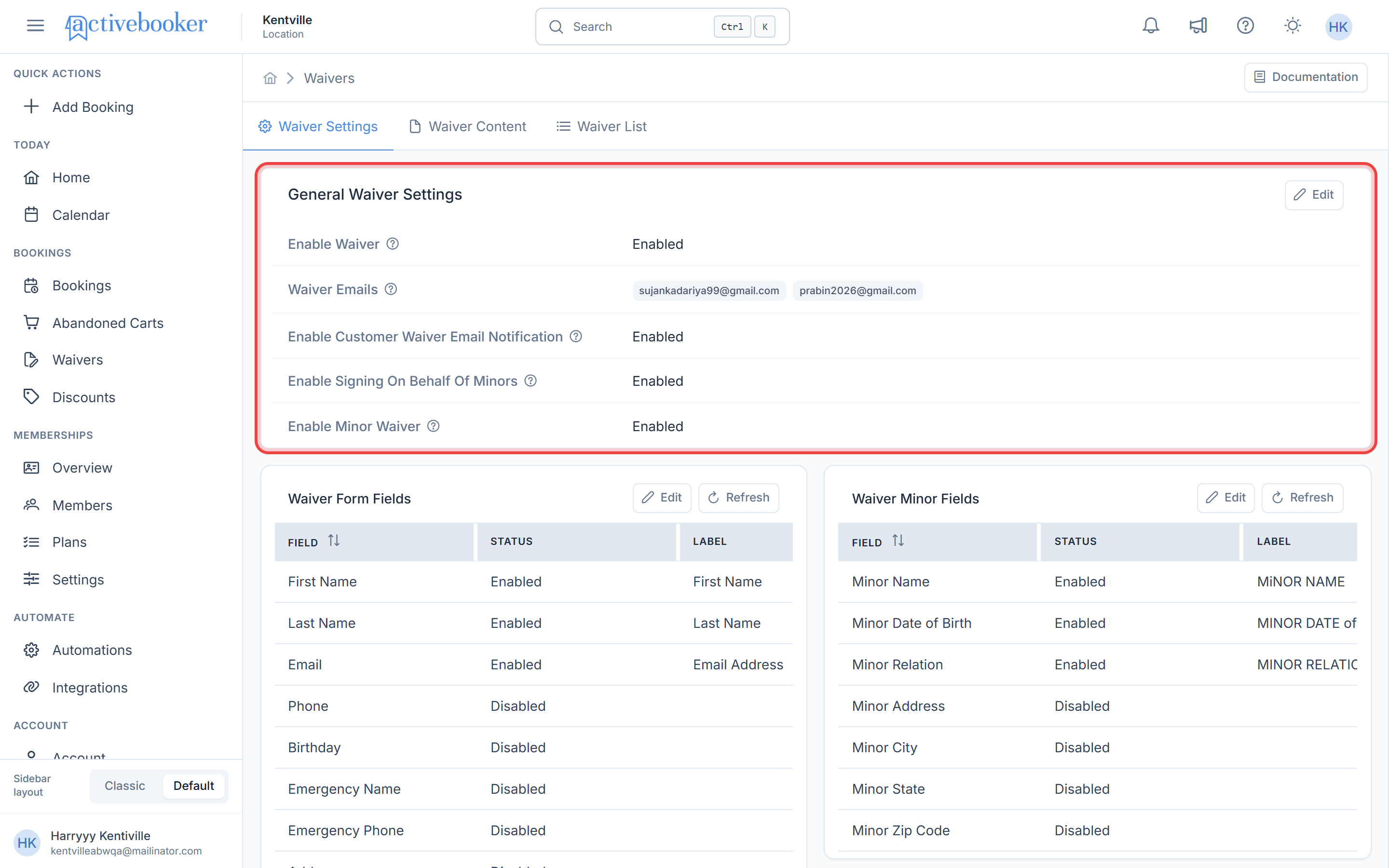
General Waiver Settings section
This section controls the overall waiver functionality and notification settings for your location.
Enable Waiver
Shows whether the waiver feature is currently active or disabled. When enabled, customers must complete waivers before their bookings.
Waiver Emails
Displays the email addresses that receive notifications whenever someone submits a waiver. These addresses are managed centrally and sync with Account > Email Settings > Waiver Emails.
Enable Customer Waiver Email Notification
Shows whether customers receive email confirmations after completing their waivers.
Enable Signing On Behalf Of Minors
Indicates whether parents or guardians can sign waivers for their children or other minors.
Enable Minor Waiver
Shows whether separate minor waiver forms are required for children participating in activities.
Waiver Form Fields section
This section displays a grid showing which fields appear on your standard waiver form, their current status (Enabled or Disabled), and their custom labels.
The grid includes three columns:
- Field: The name of the form field (First Name, Last Name, Email, etc.)
- Status: Whether the field is currently Enabled or Disabled
- Label: The custom text label that customers see on the form
Available fields include First Name, Last Name, Email, Phone, Birthday, Emergency Contact Name, Emergency Contact Phone, Street Address, City, State, Zip Code, and Signature.
Waiver Minor Fields section
Similar to the standard waiver form fields, this section shows which fields appear on minor waiver forms, with the same three-column grid structure.
Available minor fields include Minor Name, Minor Date of Birth, Minor Relation, Minor Address, Minor City, Minor State, and Minor Zip Code.
The Waiver Minor Fields section is only accessible when you enable both "Enable Signing On Behalf Of Minors" and "Enable Minor Waiver" in the General Waiver Settings.
Configuring General Waiver Settings
Opening the settings modal
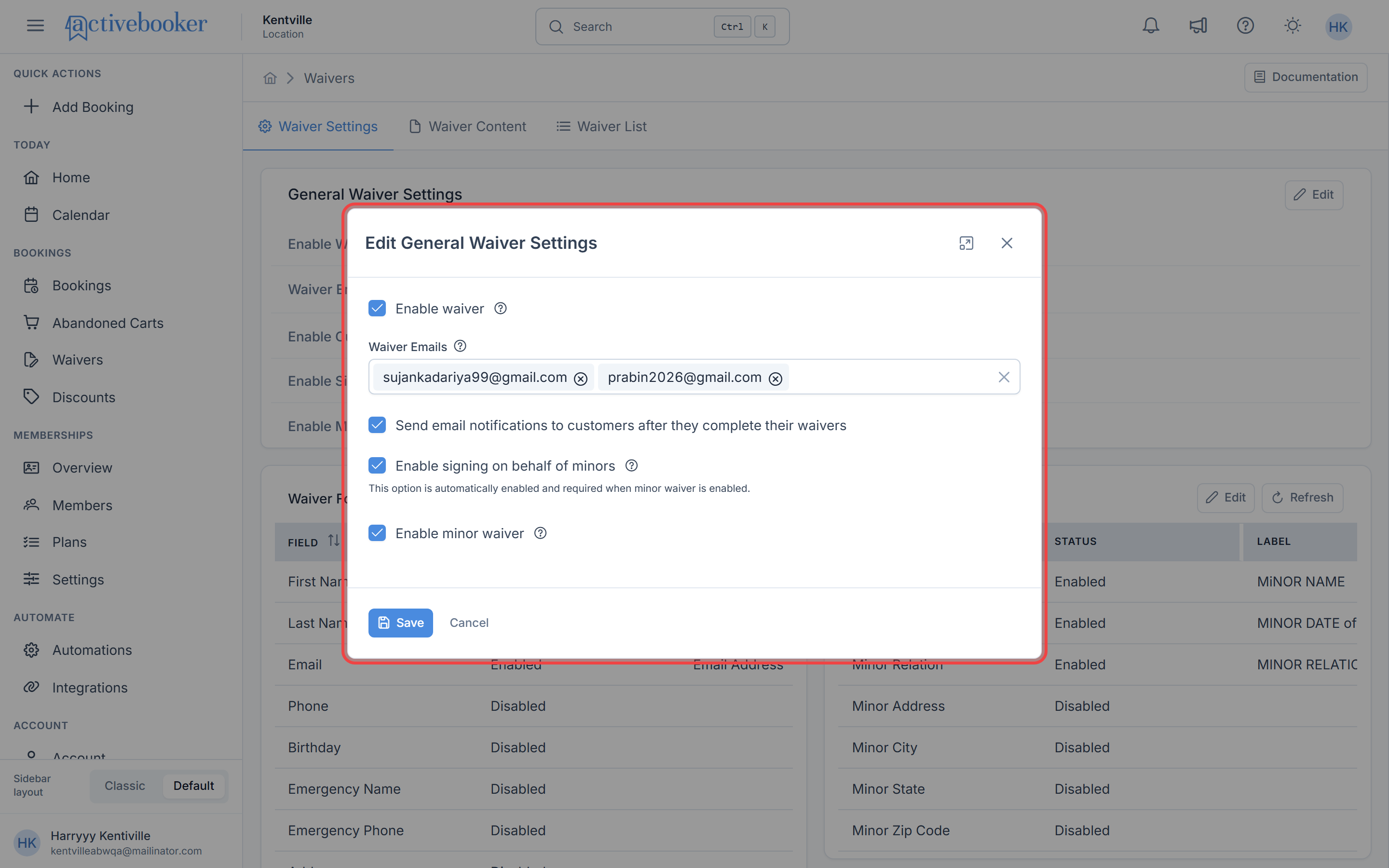
To modify your waiver configuration:
- Navigate to the Waiver Settings tab
- Click the Edit button in the General Waiver Settings section
- The Edit General Waiver Settings modal opens
Enable Waiver
What it controls: Activates or deactivates the entire waiver system for your location.
Configuration: Check the box to enable waivers, uncheck to disable them.
Behavior:
- When enabled: Customers must complete waivers before their bookings, and all waiver settings become accessible
- When disabled: Waiver requirements are removed from the booking process, all other waiver checkboxes are automatically unchecked, and waiver form field editing is disabled
When you disable the waiver feature, all other waiver settings are automatically deactivated. Waiver emails will persist but will not be used until you re-enable waivers.
Waiver Emails
What it controls: The email addresses that receive notifications whenever a customer completes a waiver.
Configuration: Enter one or more email addresses. Multiple addresses can be added as tags.
Behavior: All listed email addresses receive waiver submission notifications. These settings sync with Account > Email Settings > Waiver Emails, so changes in either location update both.
Enable Customer Waiver Email Notification
What it controls: Whether customers receive an email confirmation after completing their waiver.
Configuration: Check the box to send customer notifications, uncheck to disable them.
Behavior:
- When enabled: Customers automatically receive an email after submitting their waiver
- When disabled: No confirmation emails are sent to customers (your waiver email addresses still receive notifications)
Enable Signing On Behalf Of Minors
What it controls: Allows parents or guardians to sign waivers for children or other minors in their party.
Configuration: Check the box to allow guardian signatures for minors.
Behavior:
- When enabled: Parents/guardians can complete waiver forms for minors during the booking process
- When "Enable Minor Waiver" is checked: This option becomes automatically checked and read-only (you cannot uncheck it while minor waivers are enabled)
When you enable "Enable Minor Waiver," this setting is automatically enabled and becomes read-only. A hint message appears explaining that signing on behalf of minors is required when minor waivers are active.
Enable Minor Waiver
What it controls: Requires separate waiver forms specifically for minors participating in activities.
Configuration: Check the box to require minor waivers.
Behavior:
- When enabled: Customers must complete additional waiver forms for any minors in their booking, and minor waiver form fields become editable
- When disabled: No separate minor waivers are required, and the Waiver Minor Fields section shows a warning and is not editable
Enabling this setting automatically enables and locks "Enable Signing On Behalf Of Minors" since guardians must be able to sign for minors when minor waivers are required.
Configuring Waiver Form Fields
Accessing form field configuration
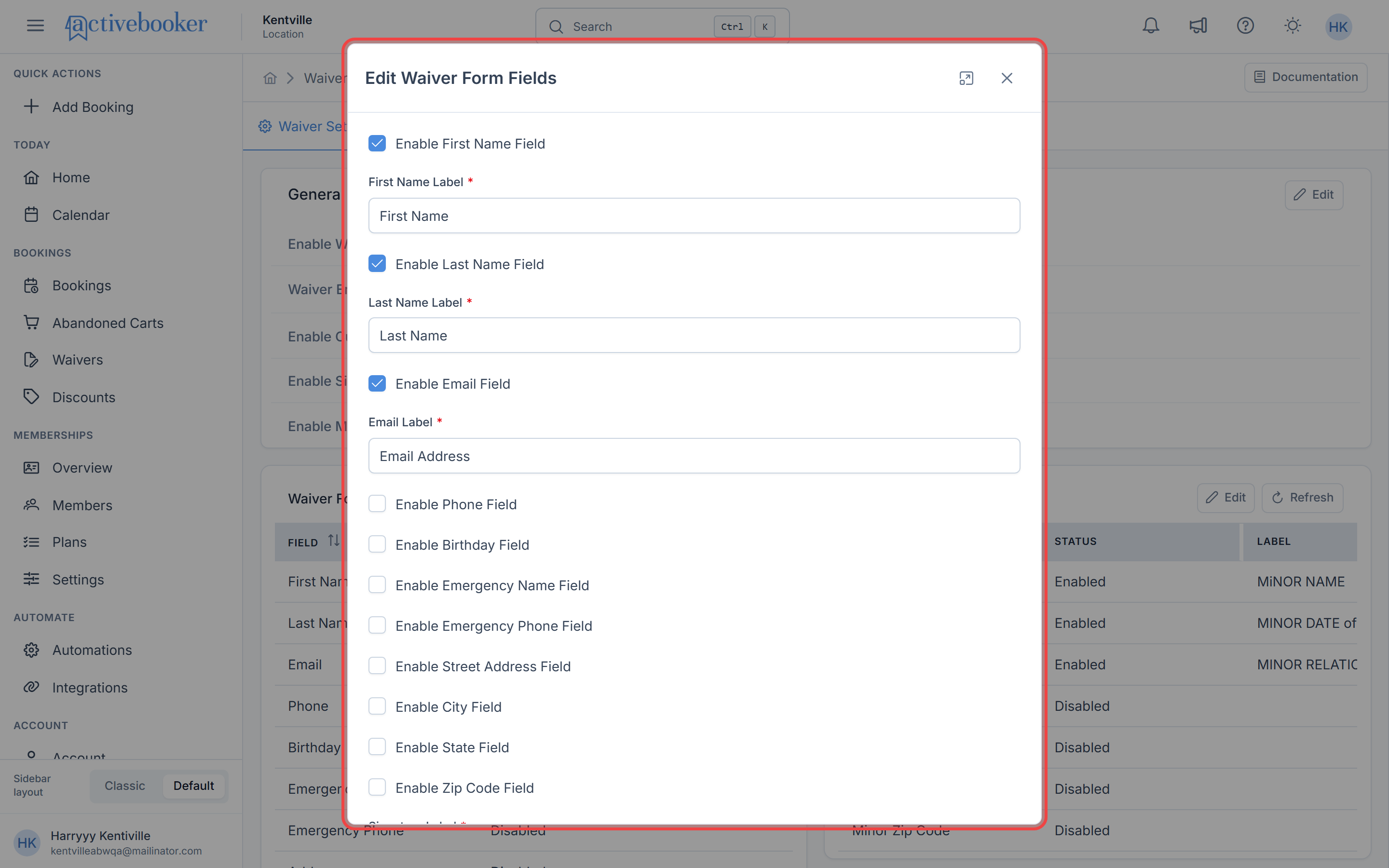
To customize which fields appear on your waiver forms:
- Ensure waivers are enabled in General Waiver Settings
- Locate the Waiver Form Fields section
- Click the Edit button to open the field configuration modal
- Enable/disable fields and customize their labels as needed
- Click Save to apply your changes
If waivers are disabled, both the Edit and Refresh buttons in the Waiver Form Fields section are inactive. Enable waivers first in the General Waiver Settings to access form field configuration.
Available waiver form fields
You can enable or disable the following fields on your standard waiver form:
First Name
The customer's first name. When enabled, you can customize the label text.
Last Name
The customer's last name. When enabled, you can customize the label text.
Email
The customer's email address for waiver records and notifications.
Phone
The customer's contact phone number.
Birthday
The customer's date of birth for age verification purposes.
Emergency Contact Name
The name of someone to contact in case of an emergency during the activity.
Emergency Contact Phone
The phone number for the emergency contact person.
Street Address
The customer's street address.
City
The customer's city of residence.
State
The customer's state or province.
Zip Code
The customer's postal or zip code.
Signature
The customer's digital signature acknowledging the waiver terms. This field is always enabled and cannot be disabled.
Use clear, simple labels that your customers will understand. For example, "Your Birthday" might be friendlier than "Date of Birth" depending on your audience.
Configuring Waiver Minor Fields
Accessing minor field configuration
To customize which fields appear on minor waiver forms:
- Ensure "Enable Minor Waiver" is checked in General Waiver Settings
- Locate the Waiver Minor Fields section
- Click the Edit button to open the field configuration modal
- Enable/disable fields and customize their labels as needed
- Click Save to apply your changes
A warning message appears above the Waiver Minor Fields grid when minor waivers are disabled. Both the Edit and Refresh buttons are inactive until you enable minor waivers in General Waiver Settings.
Available minor waiver fields
You can enable or disable the following fields on your minor waiver form:
Minor Name
The child's full name. When enabled, you can customize the label text.
Minor Date of Birth
The child's date of birth for age verification.
Minor Relation
The relationship between the signing guardian and the minor (parent, legal guardian, etc.).
Minor Address
The child's street address.
Minor City
The child's city of residence.
Minor State
The child's state or province.
Minor Zip Code
The child's postal or zip code.
Related resources
Learn more about managing waivers and customer information:
- Waiver Content — Customize the legal text and terms customers see in waivers
- The customer waiver experience — See how each setting on this page changes the form your customers fill in
- Send a waiver to a customer — Get a waiver signed for a specific booking
- Waiver List — View and manage submitted waiver records
- Signed waivers on bookings — Review signed waivers attached to a booking